
Upgrades/Downgrades From Members Perspective
Link: https://support.brilliantdirectories.com/support/solutions/articles/5000673912
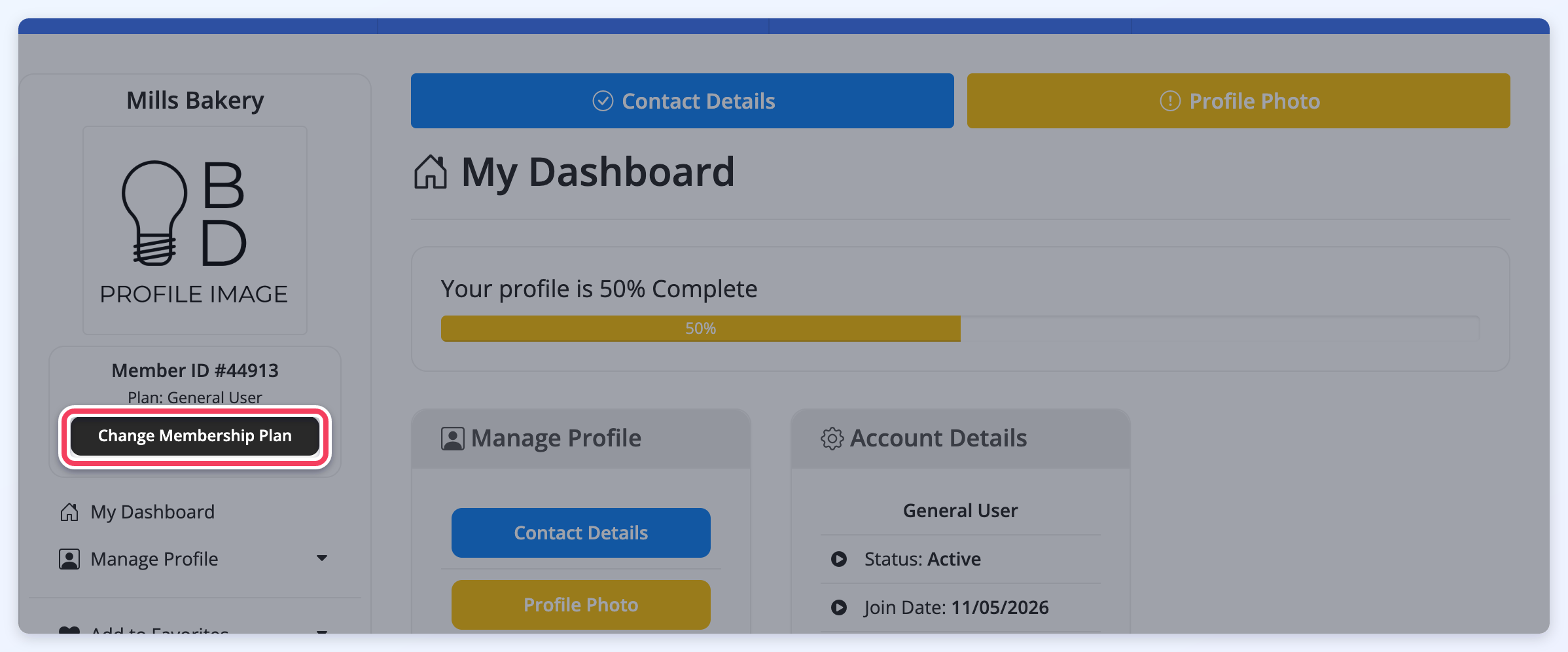
Members can change their own membership plan from the Member Dashboard, either to upgrade to a higher plan or to downgrade from a paid plan to a free one. The Change Membership Plan button only appears when the member's current plan has upgrade or downgrade options set up (see Setup Upgrade Options in Membership Levels). The steps below show what the member sees.
1. Click Change Membership Plan in the Member Dashboard:
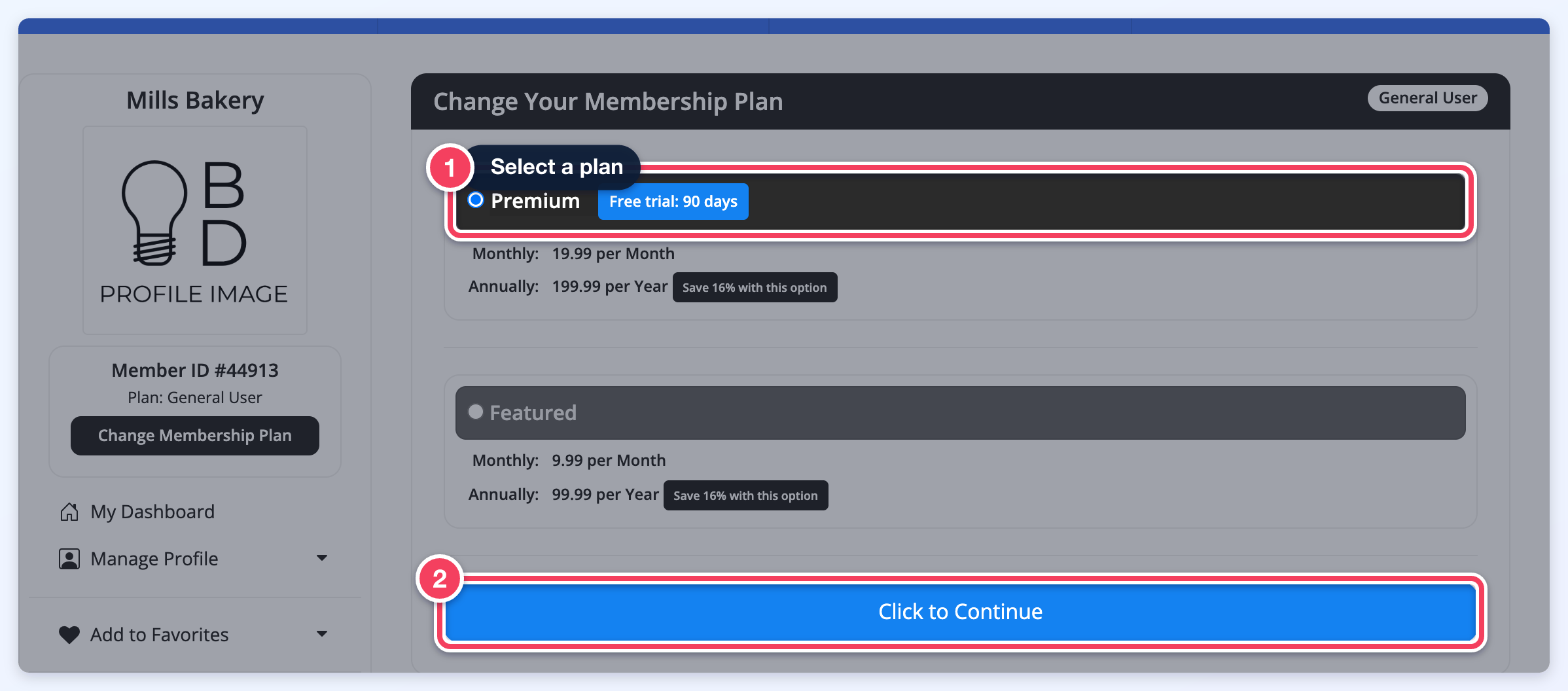
2. Select the new membership plan (1) and click Click to Continue (2). A plan that includes a free trial for plan changes shows a Free trial badge with the number of days:
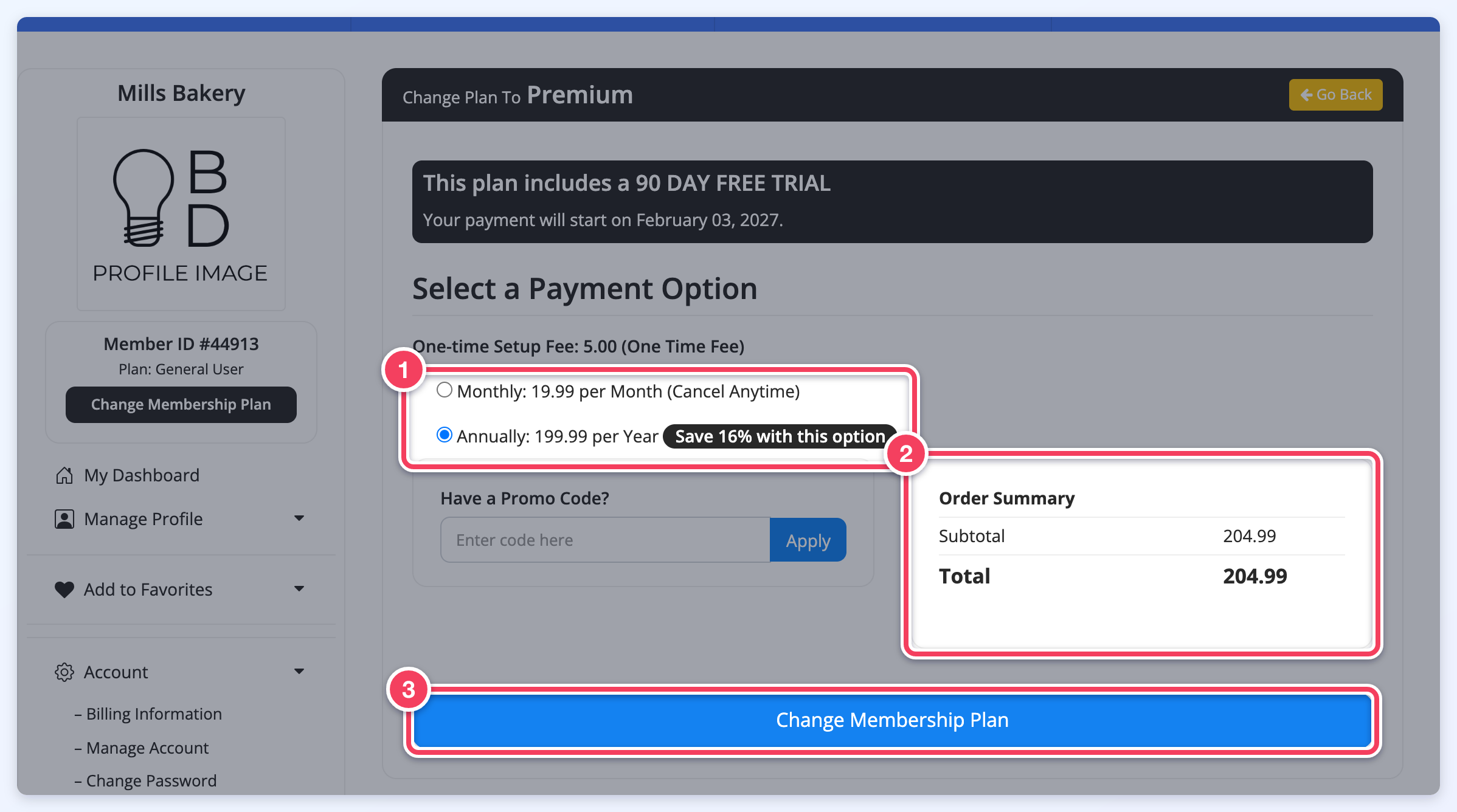
3. Select a payment option (1). The Order Summary (2) shows the price of the new plan, and members can enter a promo code before continuing. Click Change Membership Plan (3). When the plan includes a free trial for plan changes, the page also states the trial length and the date payment starts:
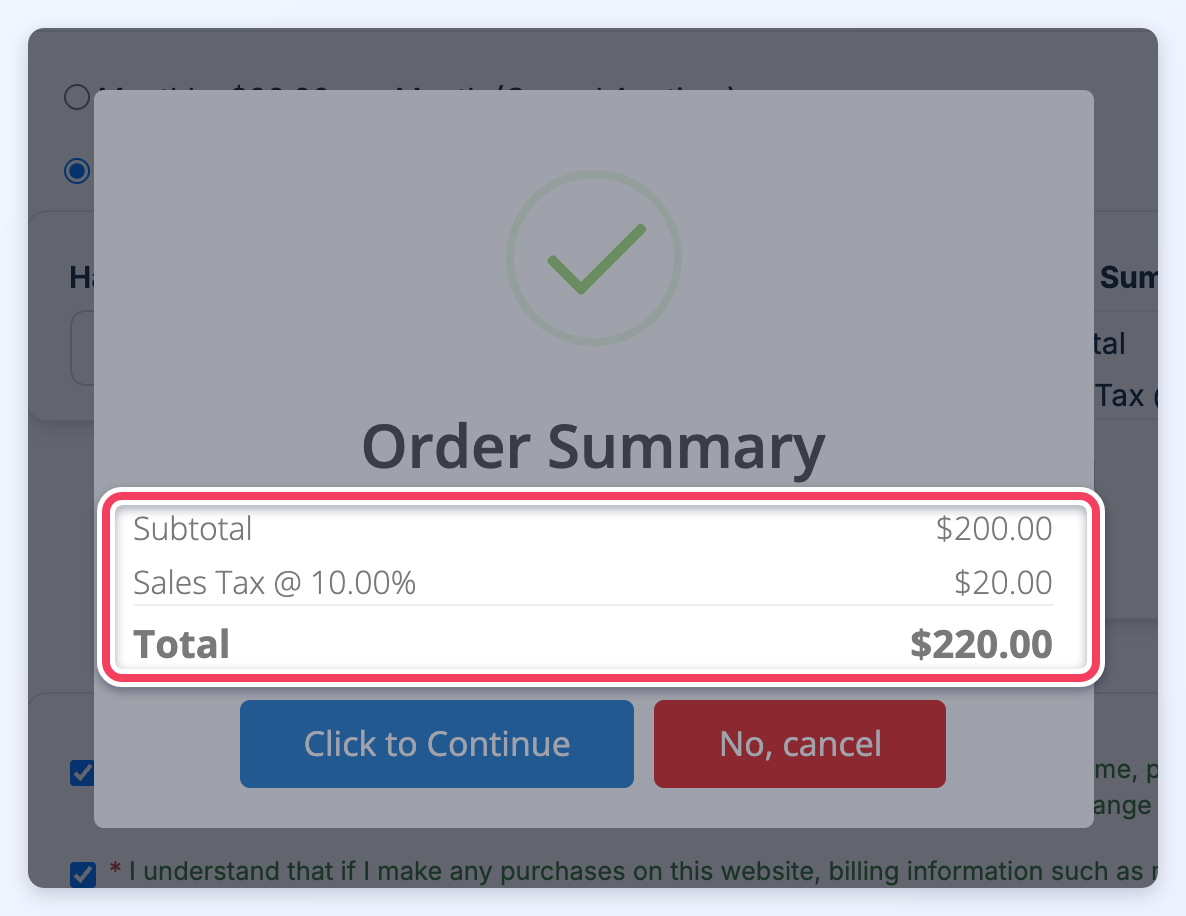
4. An Order Summary pop-up confirms the payment amount. The member clicks Click to Continue to change the plan, or No, cancel to keep the current plan. How the amount is calculated depends on whether prorated plan changes are turned on for the site.
When prorated plan changes are off (the default): the system does not prorate the upgrade. It charges the full price of the new membership plan (in the example below, the $19.99 price of the Premium plan) and starts a new subscription. The unused portion of the old membership is not refunded or credited. However, an admin of the site can issue a partial refund from the payment gateway account (Stripe, 2Checkout, Authorize.net, PayPal Payments Pro, etc), if necessary.
When prorated plan changes are on: the unused value of the member's current plan is added to the member's account as credit and applied to the new invoice, so the member pays only the difference. This requires all three of the following:
- The Member Credits System add-on is active.
- MEMBER CREDITS: Enable Credit System is set to ON.
- MEMBER CREDITS: Enable Prorated Plan Changes is set to ON.
Both settings are in Settings » Advanced Settings, under Sign Ups & Billing » Billing.
The unused value is the amount paid for the current plan, divided by the number of days in its billing cycle, multiplied by the number of days left before its next due date. If the member enters a coupon, the coupon is applied to the new plan's price first, and the credit is applied to what remains. Any credit left over stays on the member's account and is used toward future payments. No credit is given while the member is past due on the current plan. The calculation and its related settings are explained in detail in Prorated Discounts and Credits for Membership Plan Changes.
Example: A member purchased a monthly Basic Membership for $1 on 03/15/2021. 15 days later (03/30/2021), the member upgrades to the Premium Membership, which is $19.99. The system starts a new Premium subscription on 03/30/2021 and cancels the old Basic subscription.
- With prorated plan changes off, the member is charged the full $19.99.
- With prorated plan changes on, the Basic plan has 16 days left in its 30-day billing cycle, so $0.53 of credit ($1 ÷ 30 days × 16 days) is added to the member's account and applied to the new invoice, and the member is charged $19.46.
For an upgrade to a plan without a free trial, the pop-up lists the Subtotal, any tax that applies to the member, and the Total that is charged when the member clicks Click to Continue:
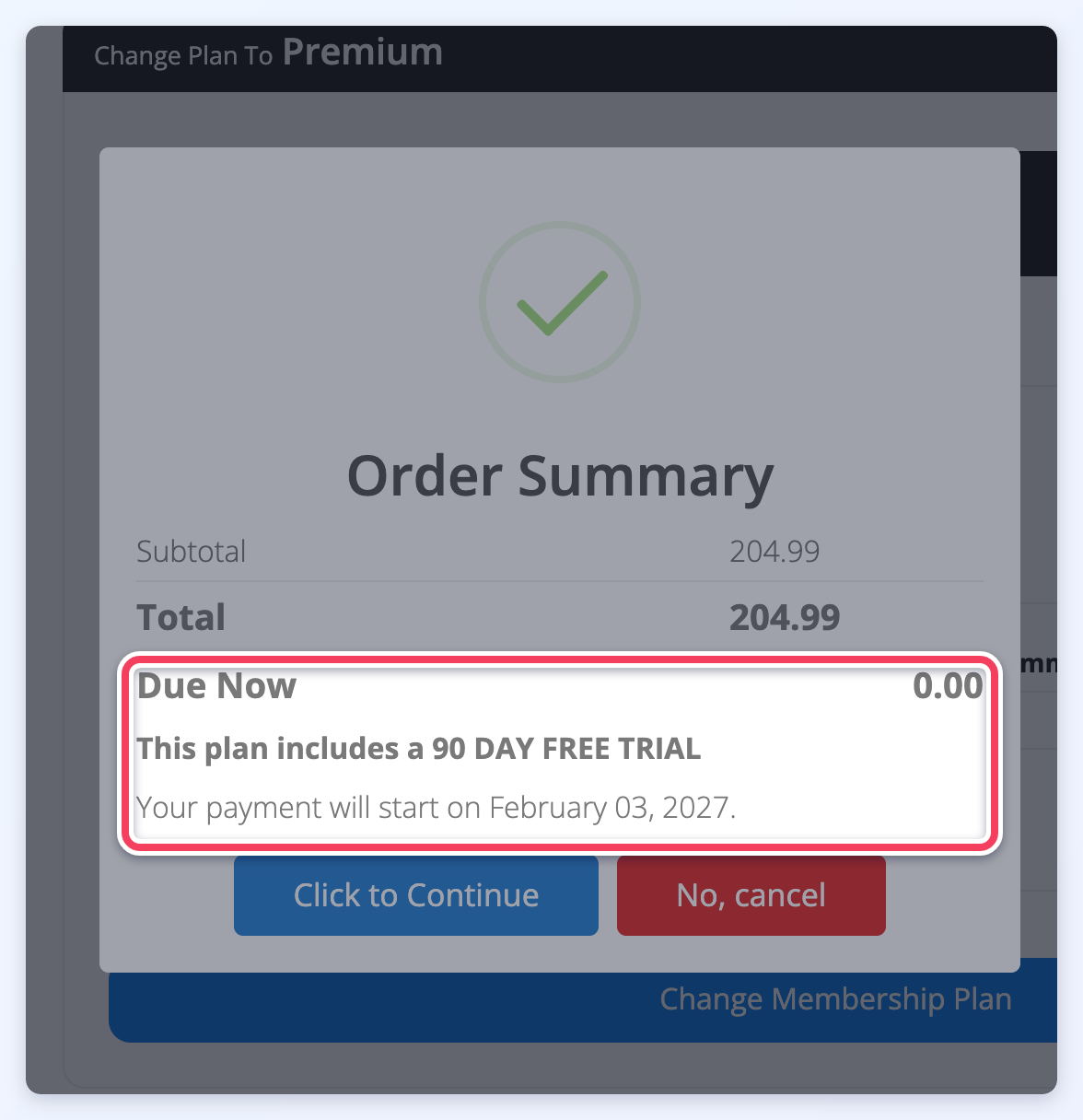
When the new plan includes a free trial for plan changes: if the Free Trial Period add-on is active and the new plan has Enable Free Trial Period (Plan Changes) turned on with a Number of Free Trial Days (Plan Changes) above 0 (see Finance » Membership Plans - Sign Ups & Upgrades), the pop-up still lists the Subtotal and Total of the new plan (including its one-time setup fee, if it has one), and below them it also shows:
- Due Now 0.00, because nothing is charged when the member changes plans.
- The length of the trial, for example "This plan includes a 90 DAY FREE TRIAL".
- The date the first payment is due, for example "Your payment will start on February 03, 2027."
When the member clicks Click to Continue, the member moves to the new plan right away and the new invoice is dated and due at the end of the trial. Upgrades to a plan without a free trial show only the order totals, as in the first pop-up above. The words in the pop-up come from the site's text labels, so a site that has changed those labels shows its own wording.
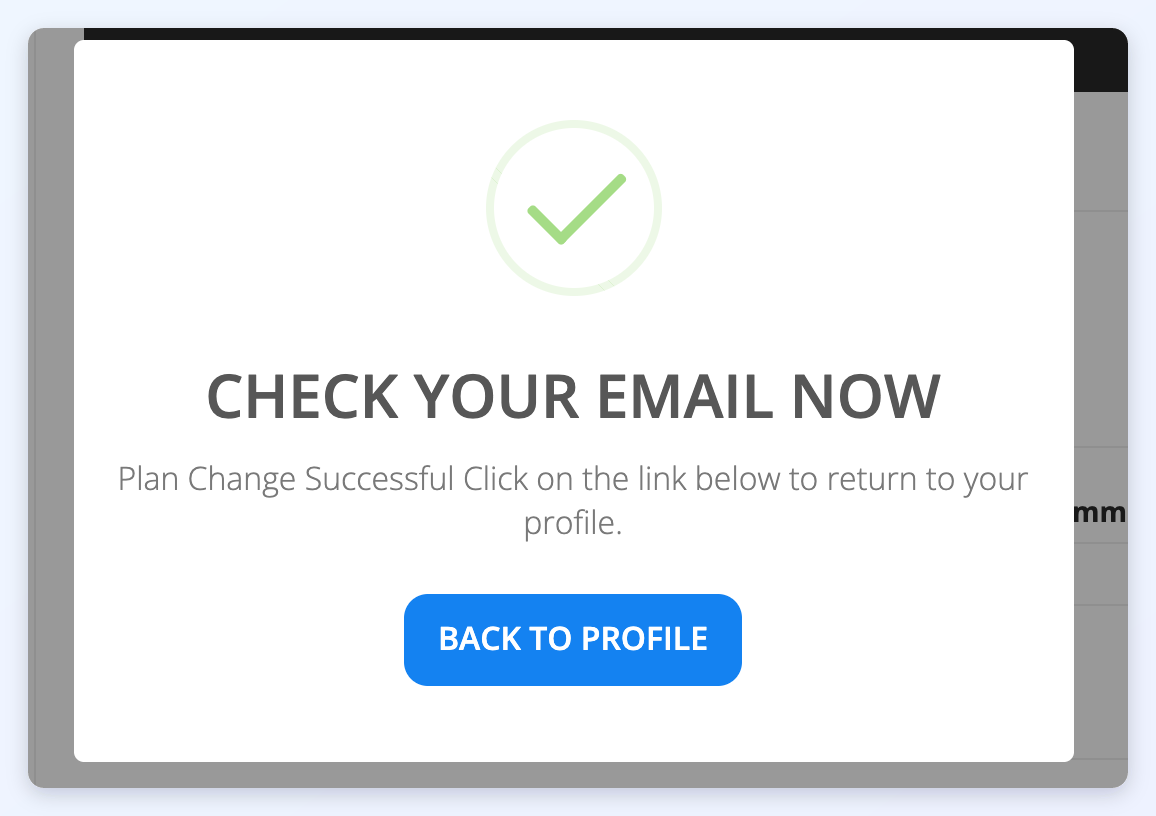
5. A success message appears when the plan change is processed:
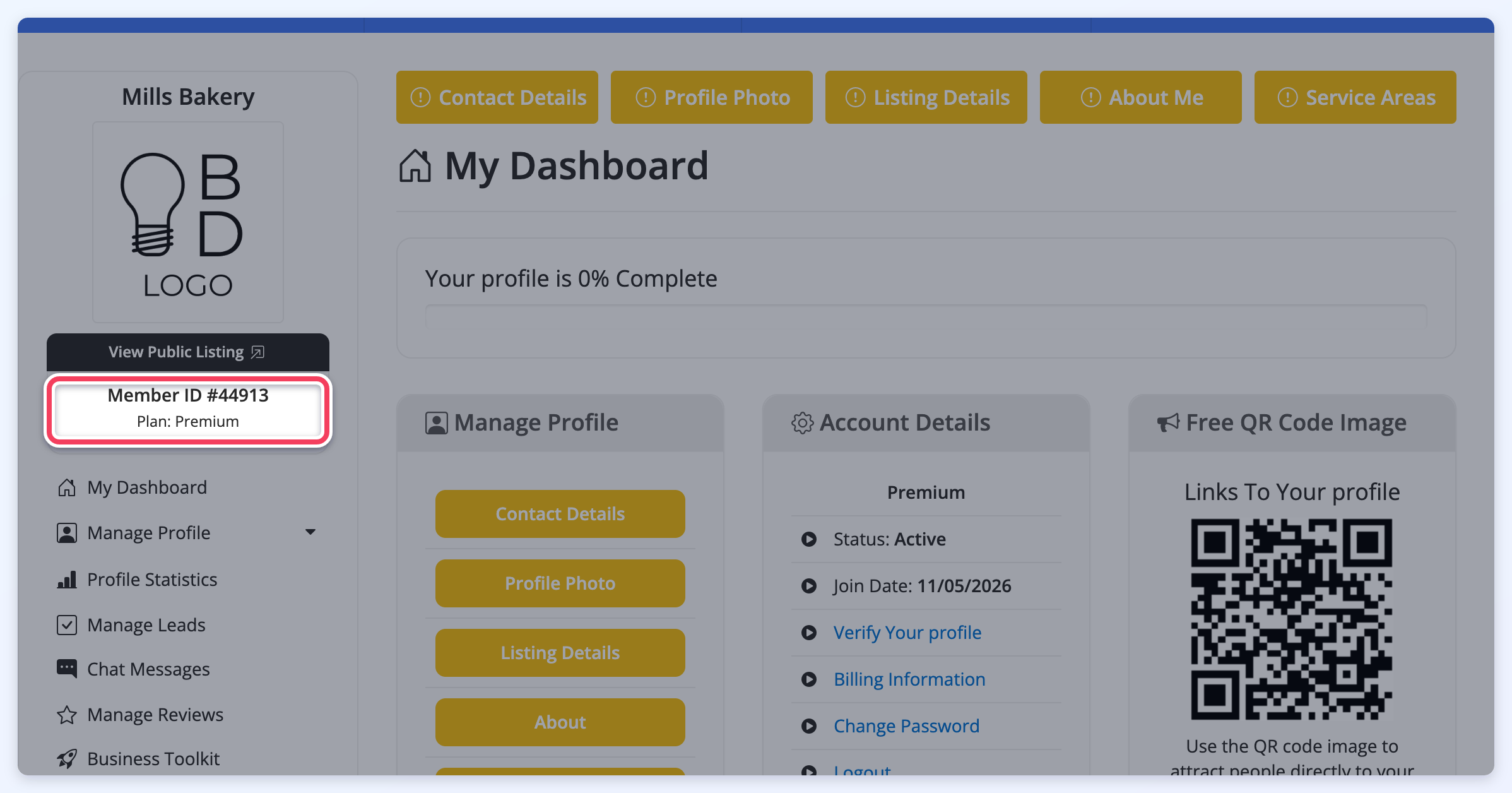
6. The member's dashboard shows the new plan. If the new membership plan does not have upgrade or downgrade options available, the Change Membership Plan button no longer appears:
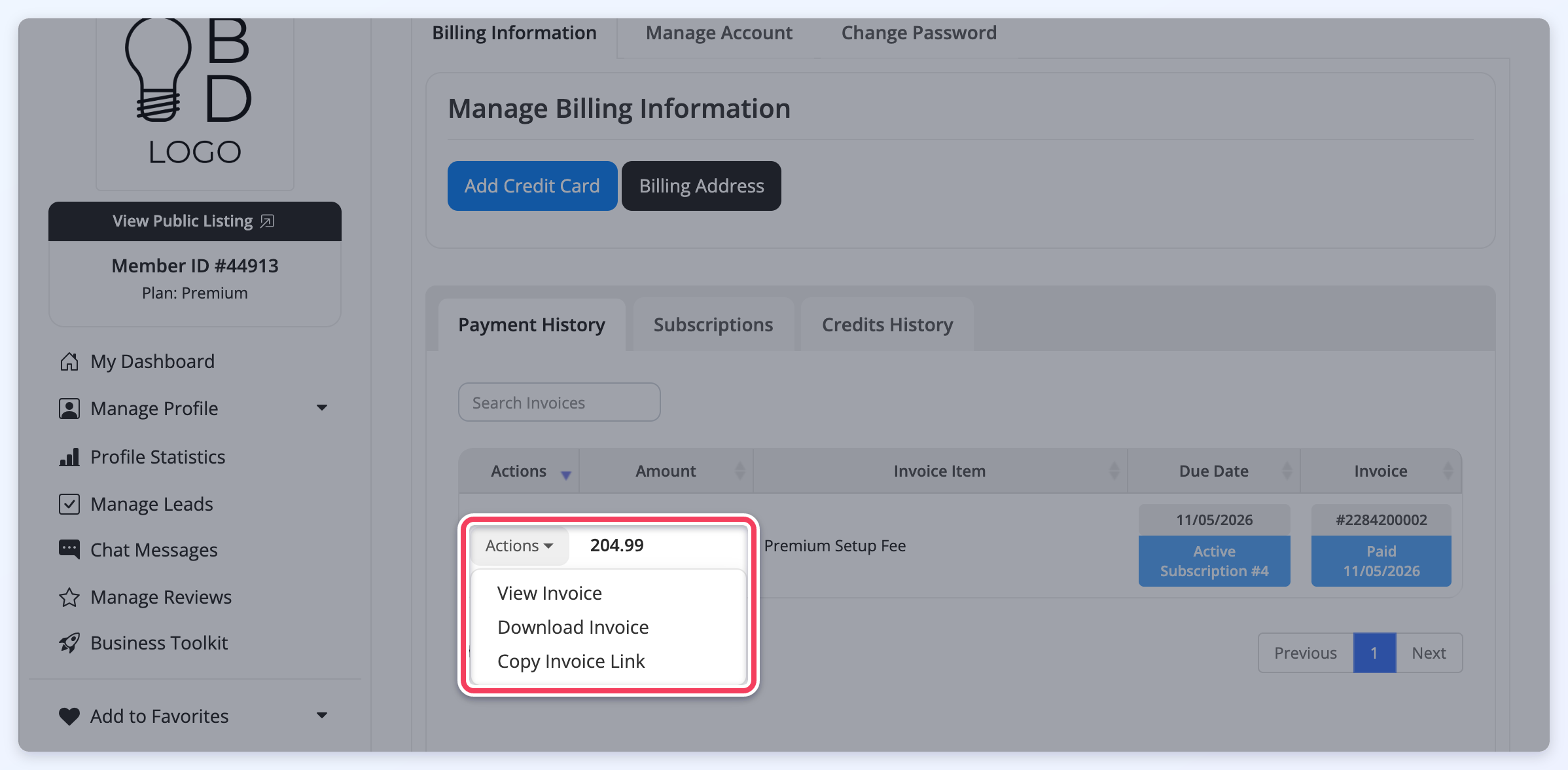
7. Members can see their invoices on the Billing Information page of the Member Dashboard, under Payment History, when the Enable Member Account Billing History setting is ON (in Settings » Advanced Settings, on the Members tab). If the Downloadable PDF Invoices add-on is active, the Actions menu on each invoice lets members view or download it:
From the Owner's Perspective
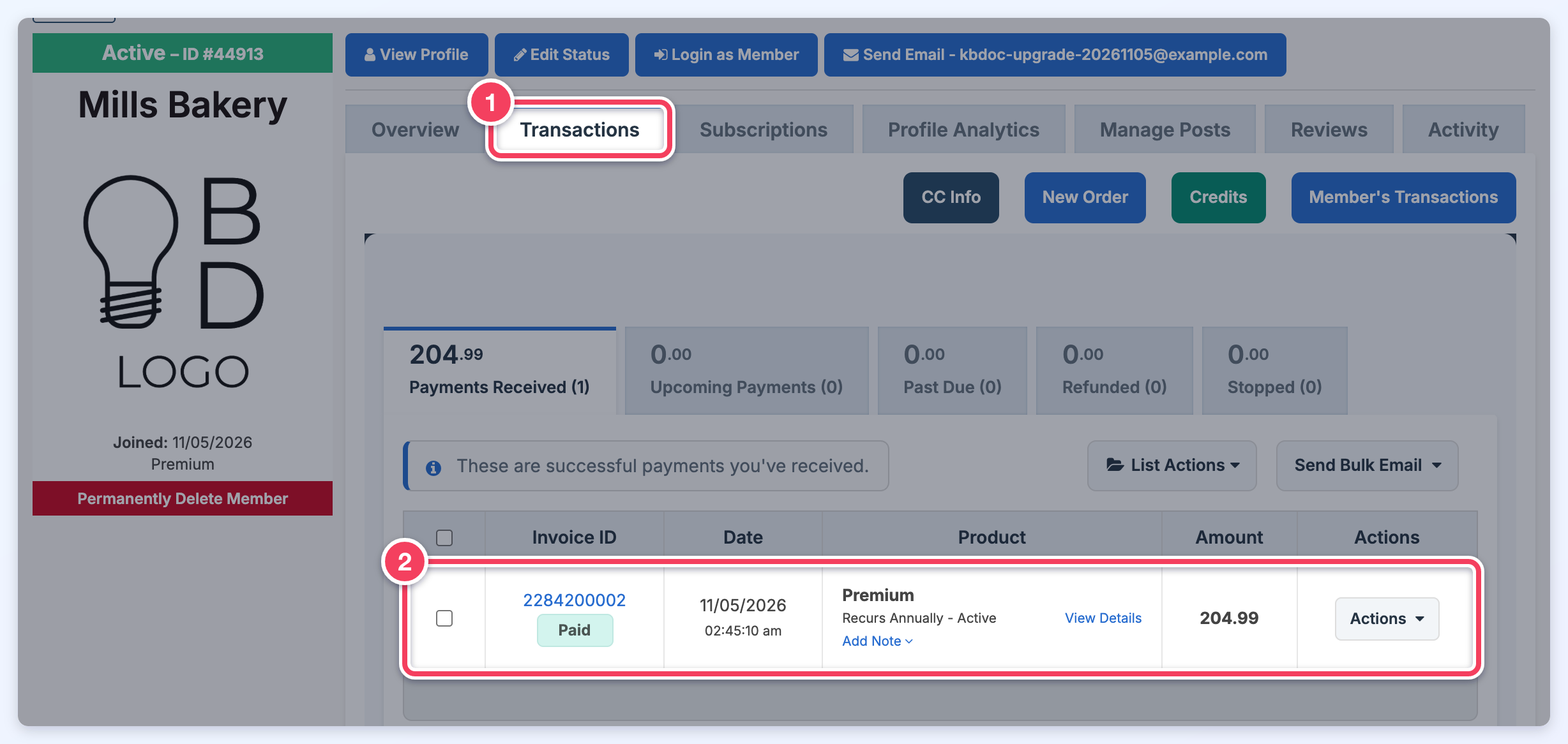
The transaction appears in the member's transaction history. To find it, search for the member in My Members, open the member's record and click the Transactions tab (1). The new invoice is listed under Payments Received once it is paid (2):
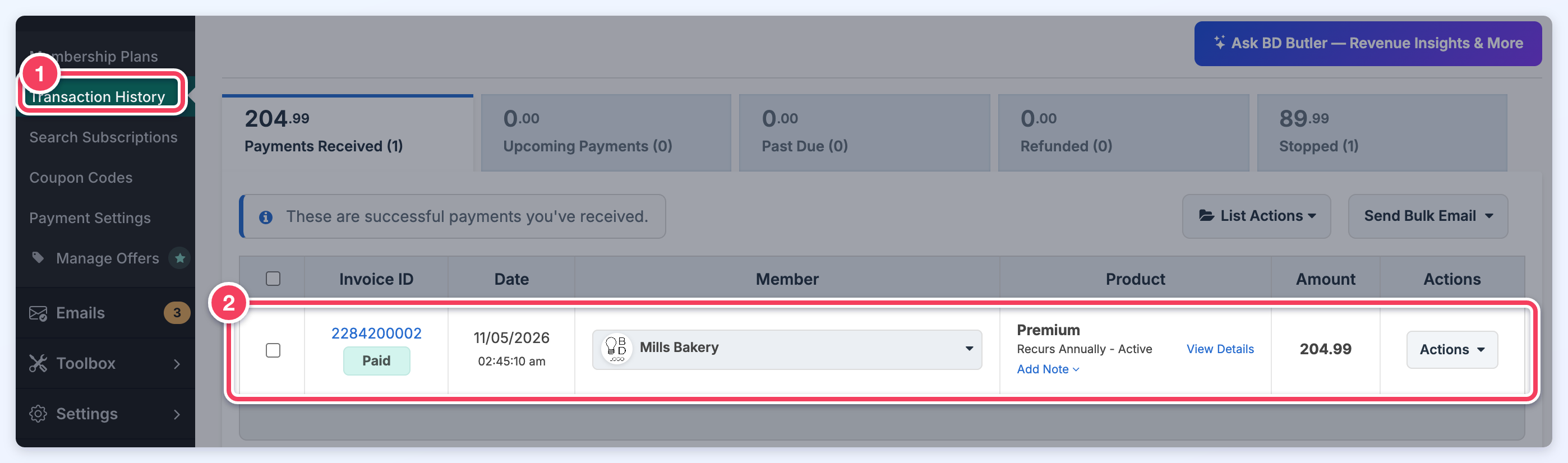
The payment also appears in Finance » Transaction History (1), with the member's name in the list (2):
An upgrade that starts with a free trial creates its invoice for the end of the trial, so it is listed under Upcoming Payments until it is paid.
To learn how to set up upgrade options in every Membership Plan, read Setup Upgrade Options in Membership Levels.
