Interactions » Member Reviews
Link: https://support.brilliantdirectories.com/support/solutions/articles/12000046951
Member Reviews in the Admin
The Member Reviews page is where administrators manage every review submitted on the website. Reviews can be searched and filtered, approved or declined, edited, reassigned to another member, exported and deleted. The page also opens the review settings and lets an administrator add a review by hand.
To open it, go to Interactions » Member Reviews.
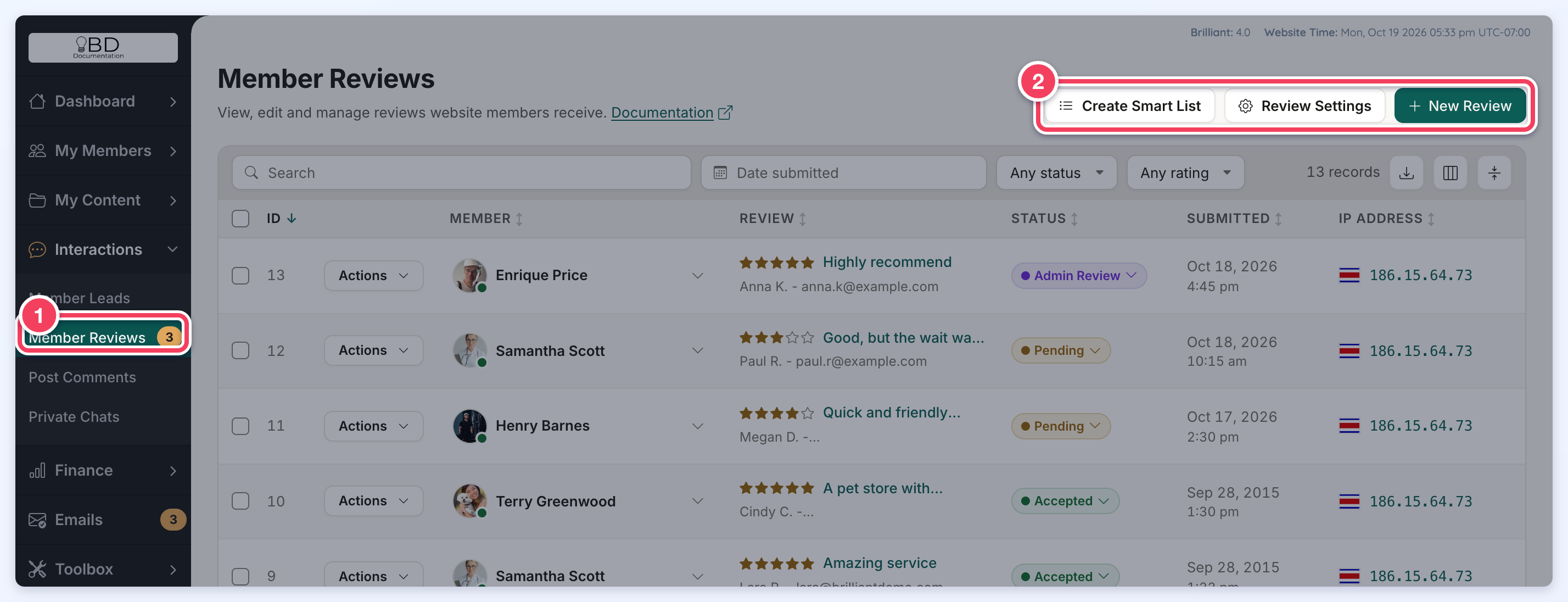
- Member Reviews: the number next to the menu item counts the reviews waiting for a decision, meaning reviews that are Pending or in Admin Review. The same number shows next to Interactions.
- The buttons at the top of the page:
- Create Smart List saves the current search and filters as a smart list. See Smart List & Export Functionality for Member Reviews.
- Review Settings opens the review settings, explained in the Member Review Settings section below.
- New Review adds a review by hand, explained in Adding a Review.
Review Filters
The bar above the list holds the search box, the filters and the table tools.

- Search: one box searches review titles, review text, reviewer names and emails, member names and emails, company names, IP addresses and dates. A number finds the review or member with that ID, and #123 finds only review 123 or the reviews of member 123.
- Date submitted: pick a date range to show the reviews submitted between those dates.
- Review Status (shows Any status until a status is picked): pick one or more of Accepted, Admin Review, Declined and Pending, or pick Unassigned on its own (explained below).
- Overall rating (shows Any rating until a rating is picked): pick one or more star ratings, from 1 star to 5 stars.
- Export CSV: downloads every review that matches the current search and filters. This button shows only when the Export Member Data add-on is active on the website.
- Show or hide columns: choose which columns the list shows.
- Compact rows: shows more reviews on the screen at once.
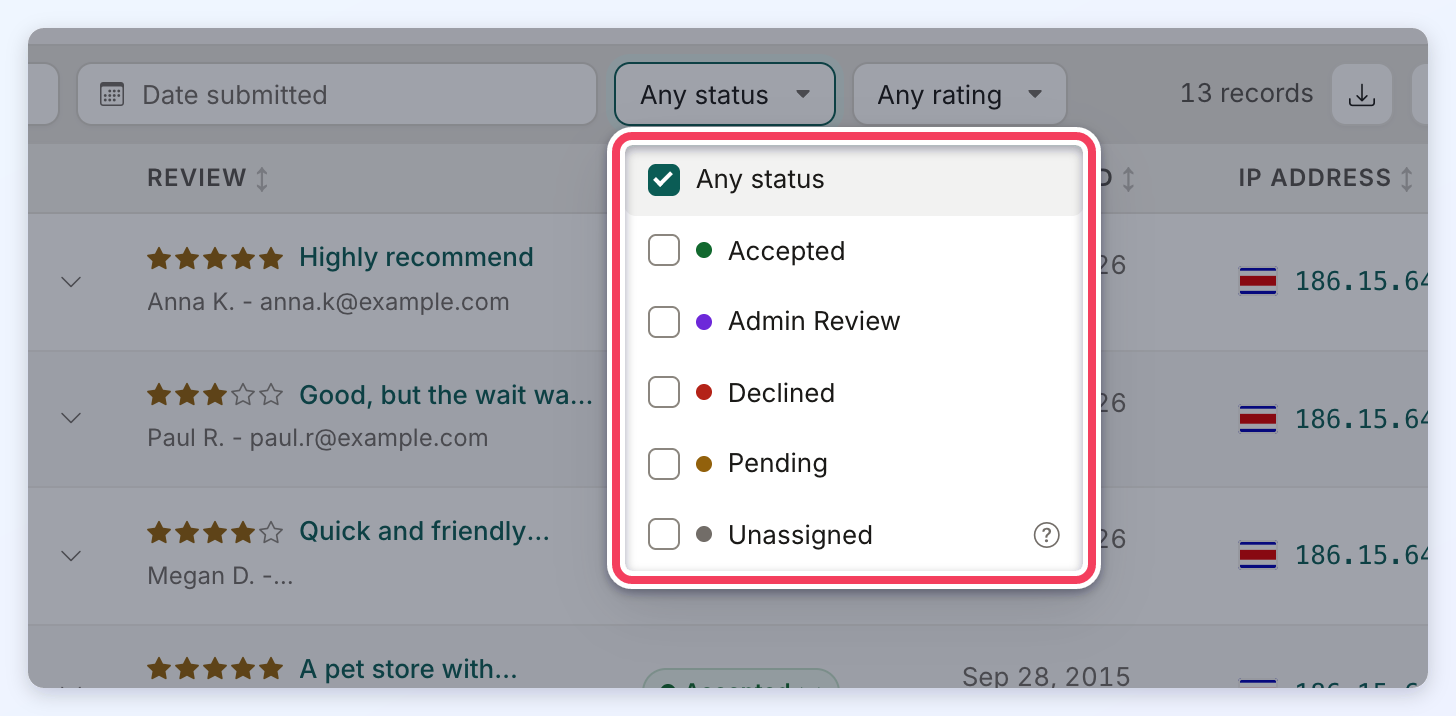
The filters combine: EG picking Pending and 5 stars shows only 5-star reviews that are pending. The number of matching records shows at the right end of the bar.
Unassigned Reviews
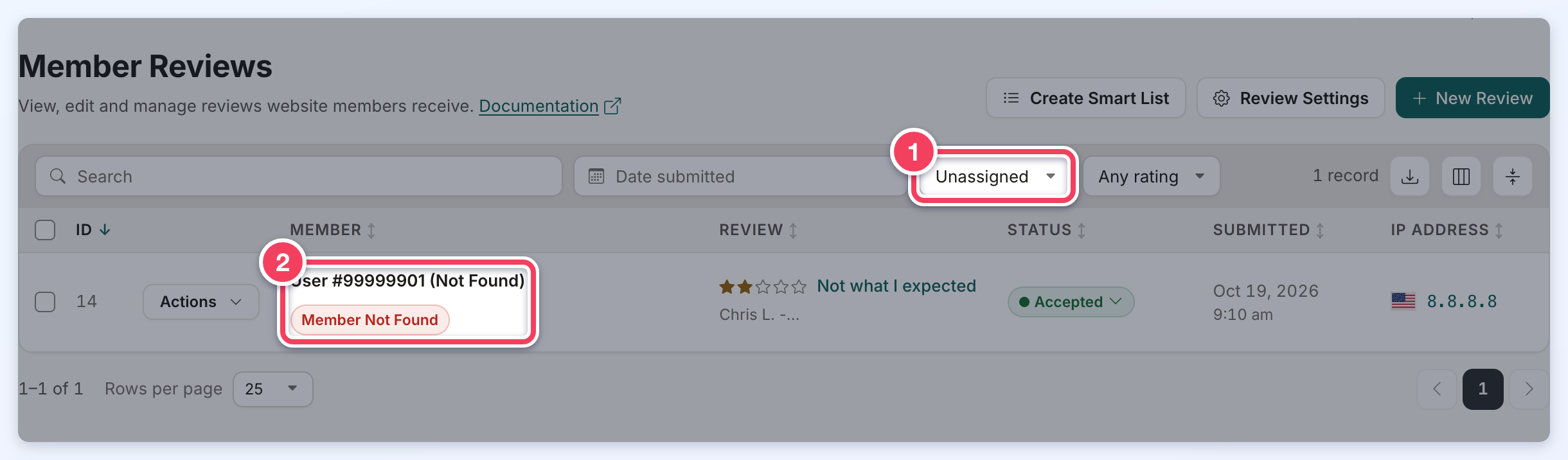
Unassigned shows reviews that are not connected to any member on the website, EG reviews of a member who was deleted. Visitors never see these reviews. Each one can be assigned to a member or deleted. In the list, the Member column of an unassigned review reads Member Not Found, and the bulk action for these reviews is named Assign to Member.
The Reviews List
Each row of the list shows one review.

- ID: the review ID.
- Actions: the review's own menu, explained below.
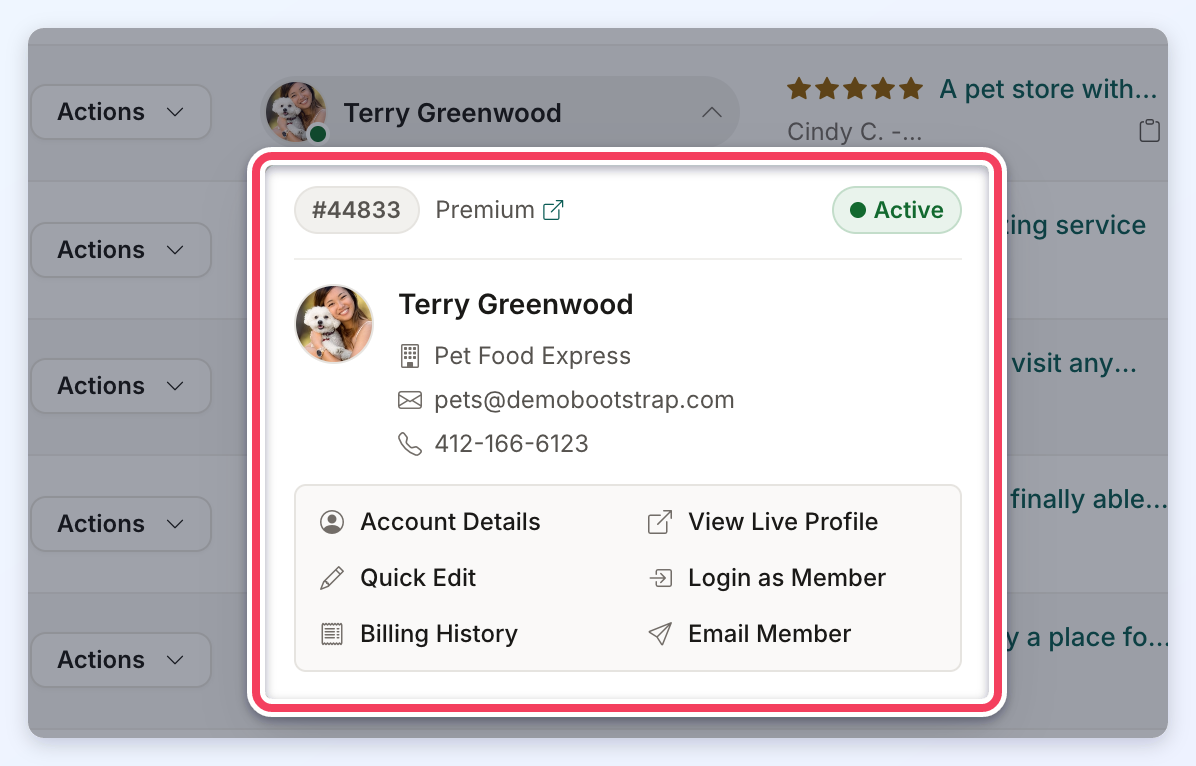
- Member: the member who received the review. The dot on the photo shows the member's account status. Clicking the member opens a card with the member ID, membership plan, contact details and links to Account Details, Quick Edit, Billing History, View Live Profile, Login as Member and Email Member.
- Review: the overall star rating, the review title, and the reviewer's name and email. Holding the pointer over the title shows the review text.
- Status: the review status. Click it to change the status, as explained in Changing a Review's Status.
- Submitted: the date and time the review was submitted.
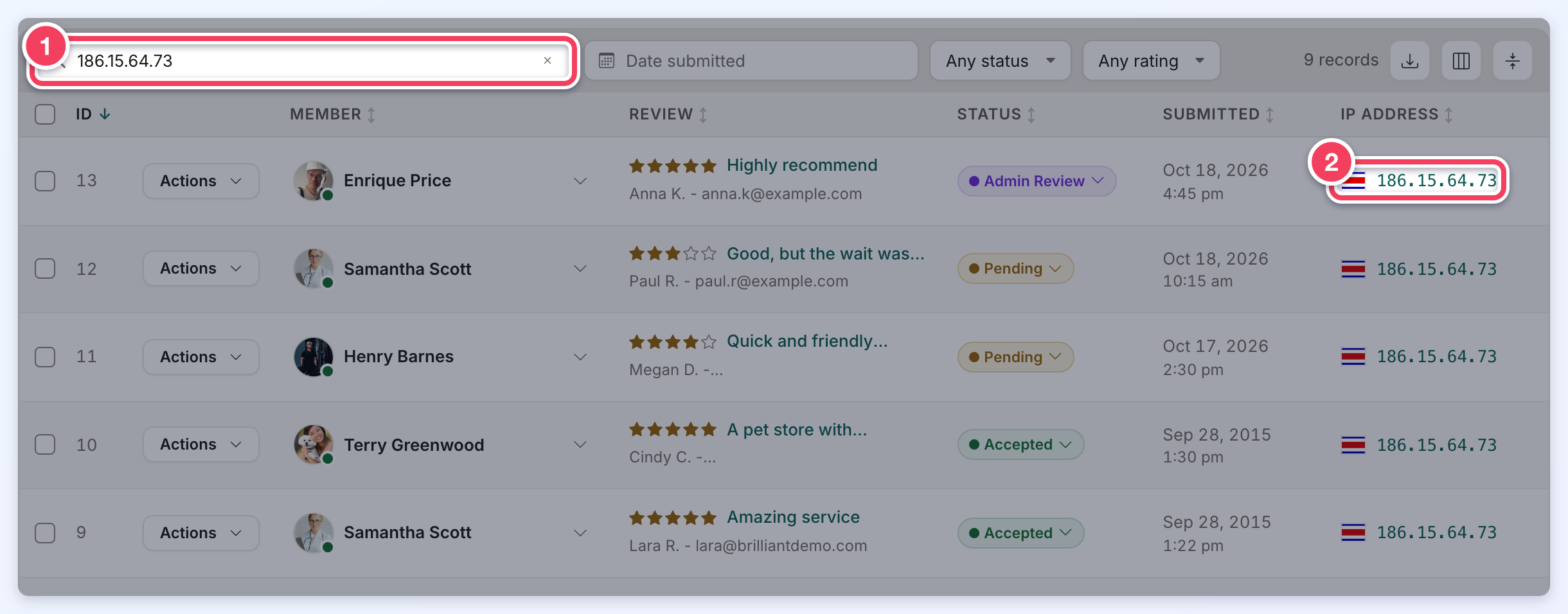
- IP Address: the reviewer's IP address with the flag of its country. Click the address to list every review sent from that IP address, or use the copy button next to it.
When a review is not shown on the website even though it is accepted, a crossed-out eye icon appears next to its status. This happens when the member's account is not active, or when the member's membership plan does not include reviews. Holding the pointer over the icon explains the reason.
The Actions Menu
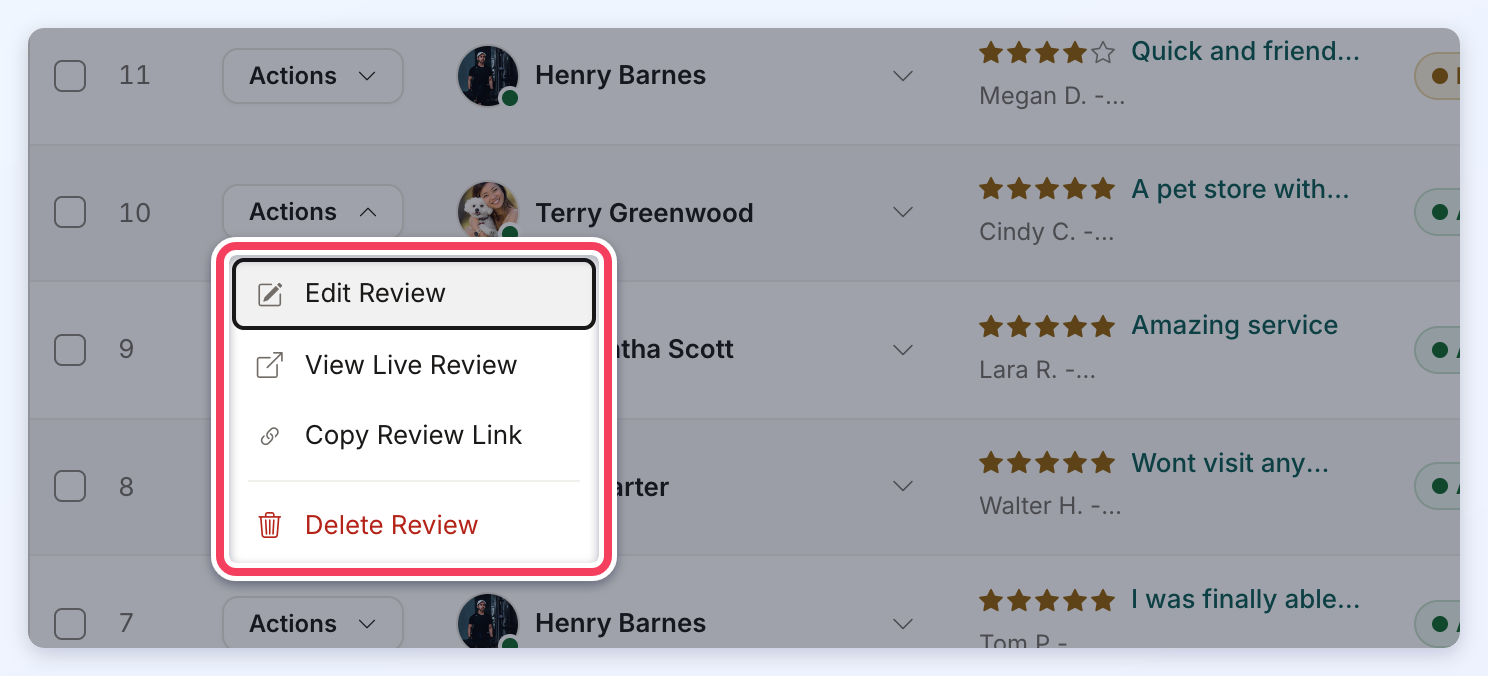
- Edit Review: opens the review details, explained in Review Details.
- View Live Review and Copy Review Link: open the review on the website or copy its link. These two show only for reviews that are live on the website.
- Delete Review: deletes the review after a confirmation. A deleted review cannot be restored.
Finding Reviews From the Same IP Address
Clicking an IP address in the list fills the search box with that address and lists every review sent from it. This helps spot several reviews written by the same person.
Changing a Review's Status
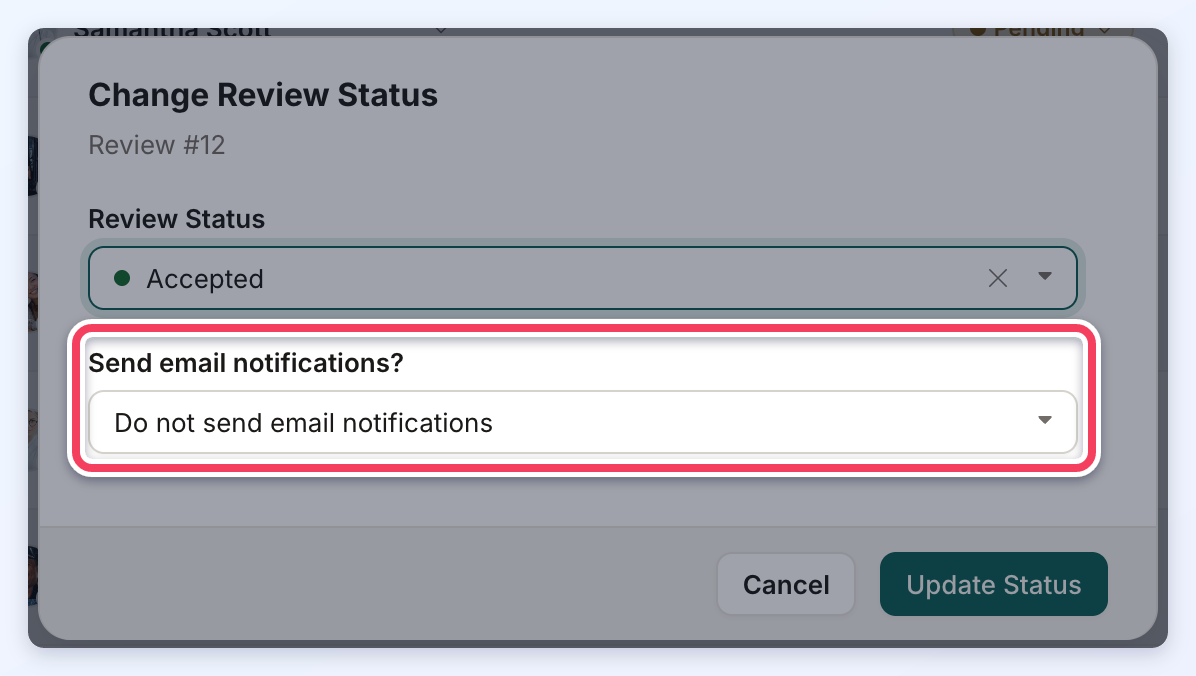
Click the status of a review and choose the new status. The Change Review Status window opens with the new status selected. When the new status is Accepted, the window also asks Send email notifications? with these choices:
- Do not send email notifications
- Email member about this update
- Email reviewer about this update
- Email member and reviewer about this update
Click Update Status to save the change.
The review statuses are:
- Pending: the review waits for the member who received it to accept or delete it.
- Admin Review: the review waits for an administrator to approve it.
- Accepted: the review is published on the website.
- Declined: the review is not published.
When a membership plan requires admin approval and does not let members accept or delete reviews, Pending is not offered for that plan's reviews. How new reviews get their first status is explained in Setting Up How Member Reviews Are Approved On The Website.
Review Status Database Values
For developers: the review status is saved in the review_status column of the users_reviews table with these values.
- Pending = 0
- Accepted = 2
- Declined = 3
- Admin Review = 4
Bulk Actions
Tick the box at the start of one or more rows, or the box in the header row to select every review on the page. A bar appears above the list showing how many reviews are selected. Choose an action in Select Action and click Apply.
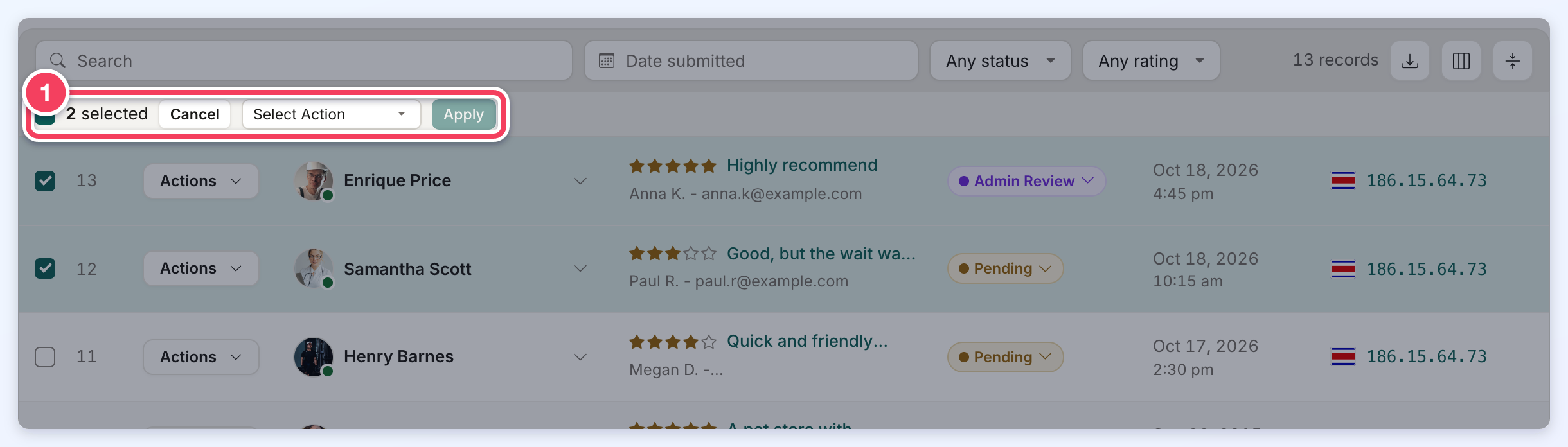
- Change Status: sets one status for every selected review, with the same email choices as a single review.
- Reassign Member: moves the selected reviews to another member. When the list shows unassigned reviews, this action is named Assign to Member.
- Delete: deletes the selected reviews after a confirmation. This cannot be undone.
Review Details
Click a review's title (or Edit Review in its Actions menu) to open the review in a panel on the right.
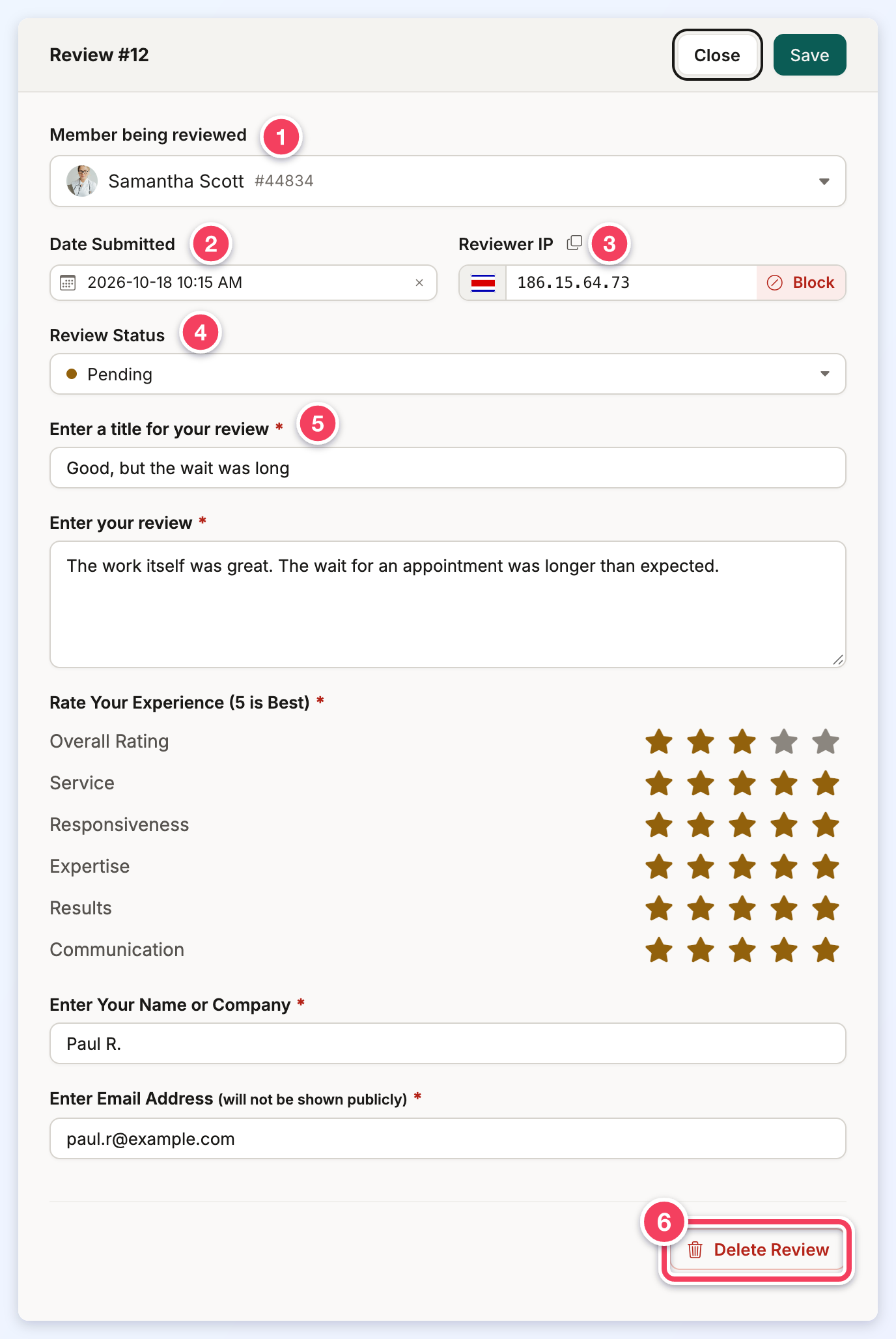
- Member being reviewed: the member who received the review. Pick another member to move the review.
- Date Submitted: the date and time of the review, which can be changed.
- Reviewer IP: the reviewer's IP address with its country flag and a copy button. Block opens the IP Blocker with the address filled in, so the address can be blocked from the website.
- Review Status: the status. When it is changed to Accepted, a Send email notifications? choice appears below it.
- The review form: the title, review text, star ratings, and the reviewer's name and email. When images were uploaded with the review, they show as thumbnails that can be opened or removed.
- Delete Review: deletes the review after a confirmation.
Click Save to keep the changes, or Close to leave without saving. For a review that is live on the website, a View Live Review button also appears next to Delete Review.
Adding a Review
Click New Review at the top of the page and search for the member who should receive the review in Member being reviewed.
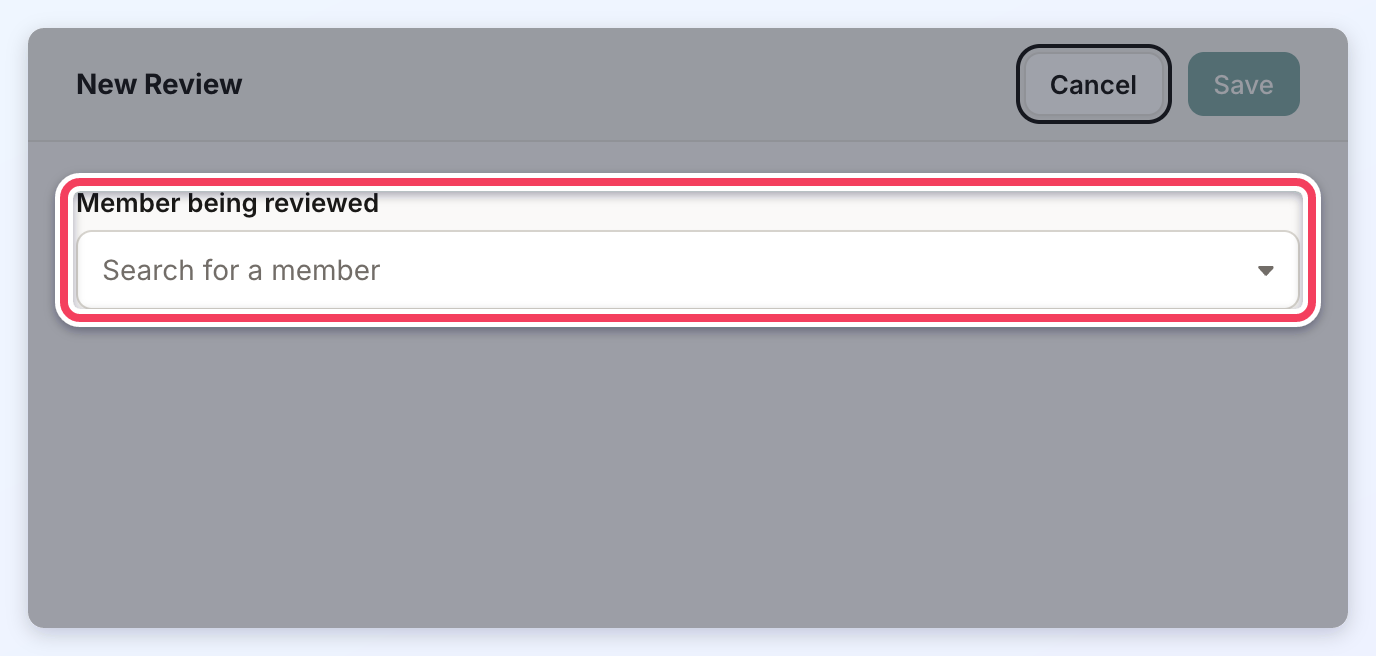
After a member is chosen, the panel shows Date Submitted, Review Status (Accepted by default) and the review form. Fill in the review and click Save.
Member Review Settings
The Review Settings button opens the settings of the Review post type in a window. The same settings are under My Content » Edit Post Settings. They cover:
- General review settings
- Profile page display
- Search results design
- Notification preferences
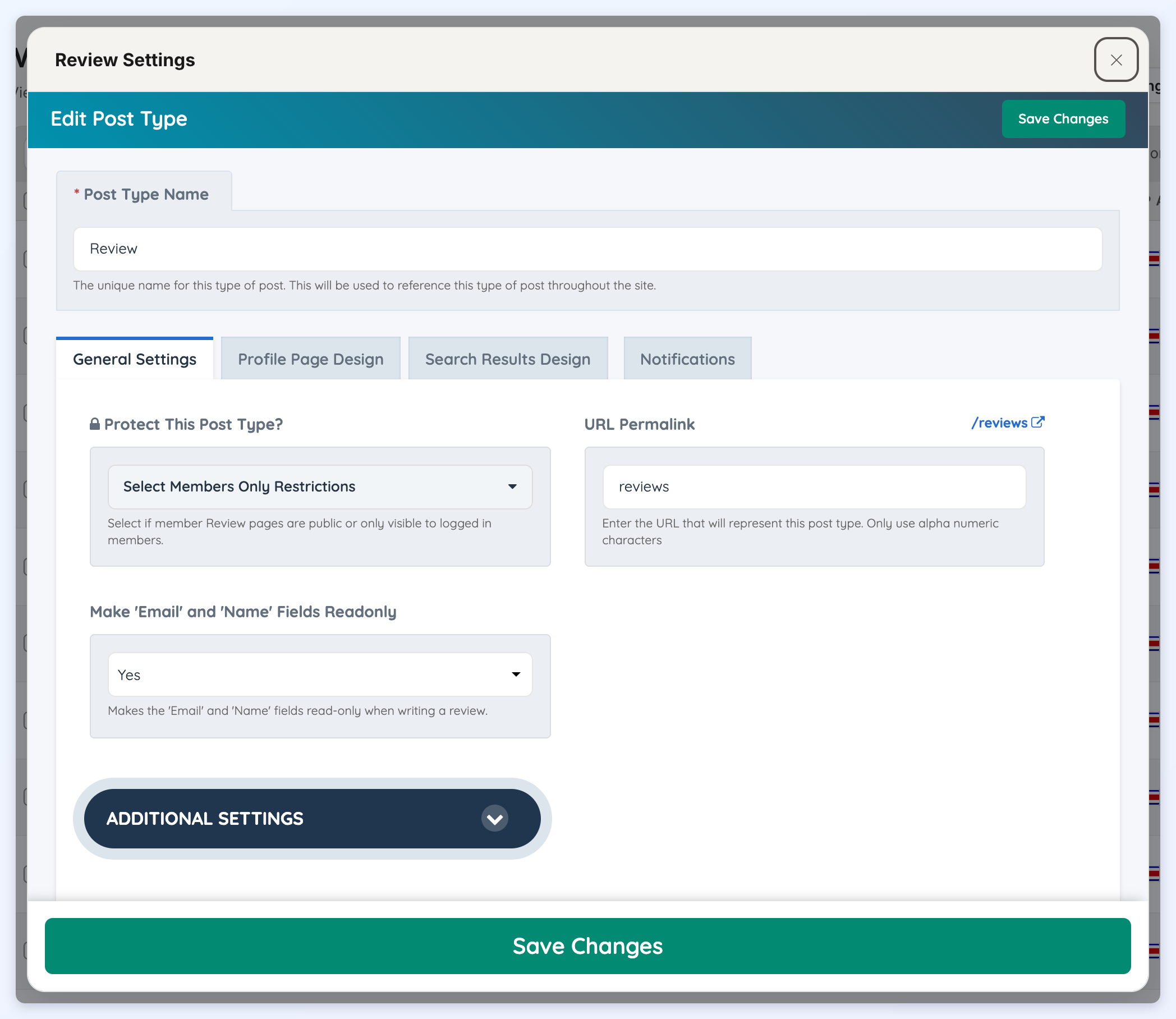
An in-depth overview of this module is in Edit Post Settings.
General Settings
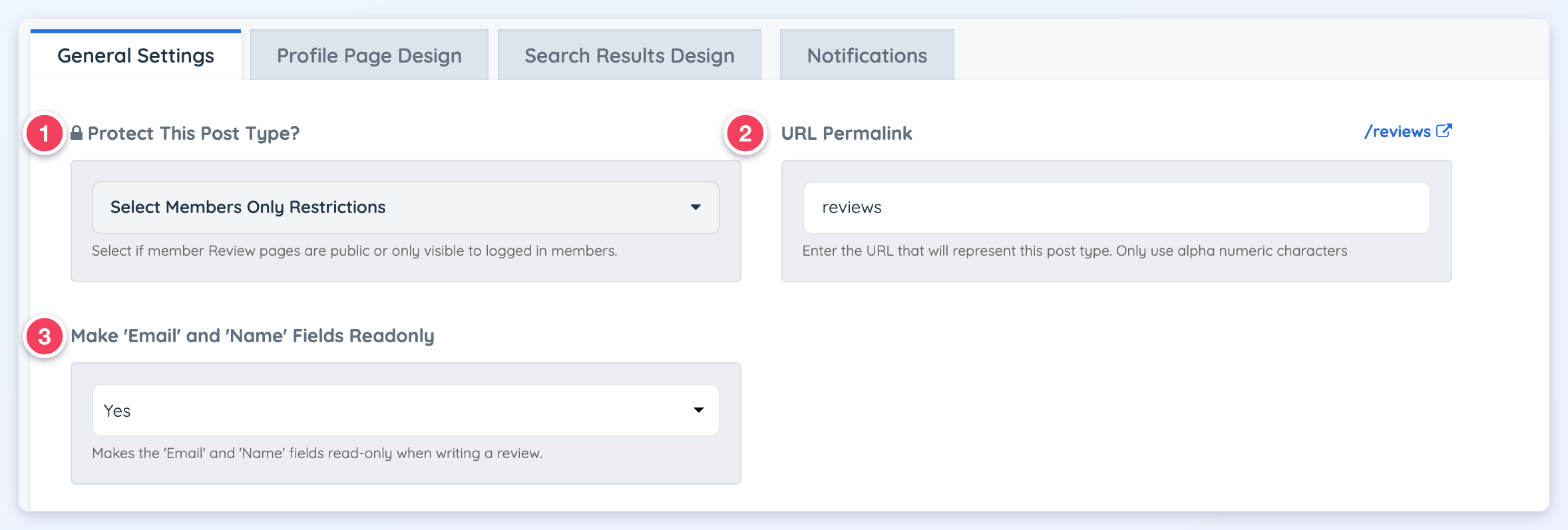
1. Protect This Post Type?
This option is available only when the Members-Only Content add-on is active on the website. It makes review pages visible only to logged-in members.
2. URL Permalink
The URL of the reviews search results page (/reviews by default). Only use letters and numbers.
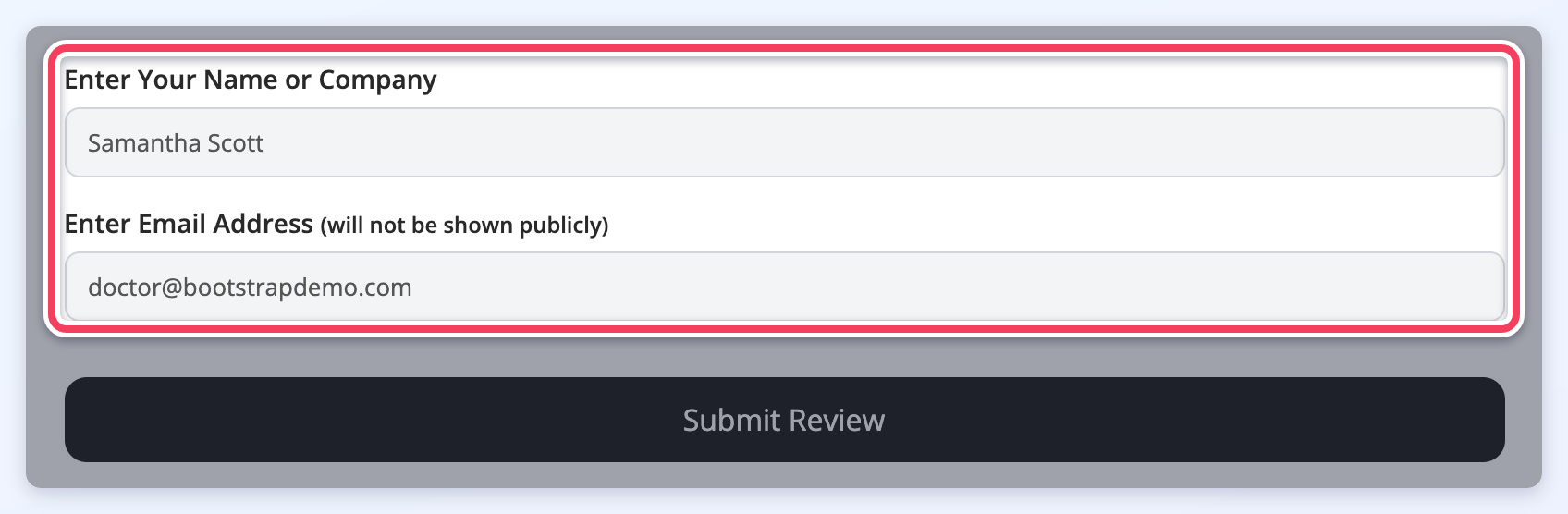
3. Make 'Email' and 'Name' Fields Readonly
When a logged-in member writes a review, the name and email fields are filled in automatically. With this setting on Yes (the default), those fields cannot be changed. Set it to No to let members edit them.
Additional Settings
Click Additional Settings to show more options.
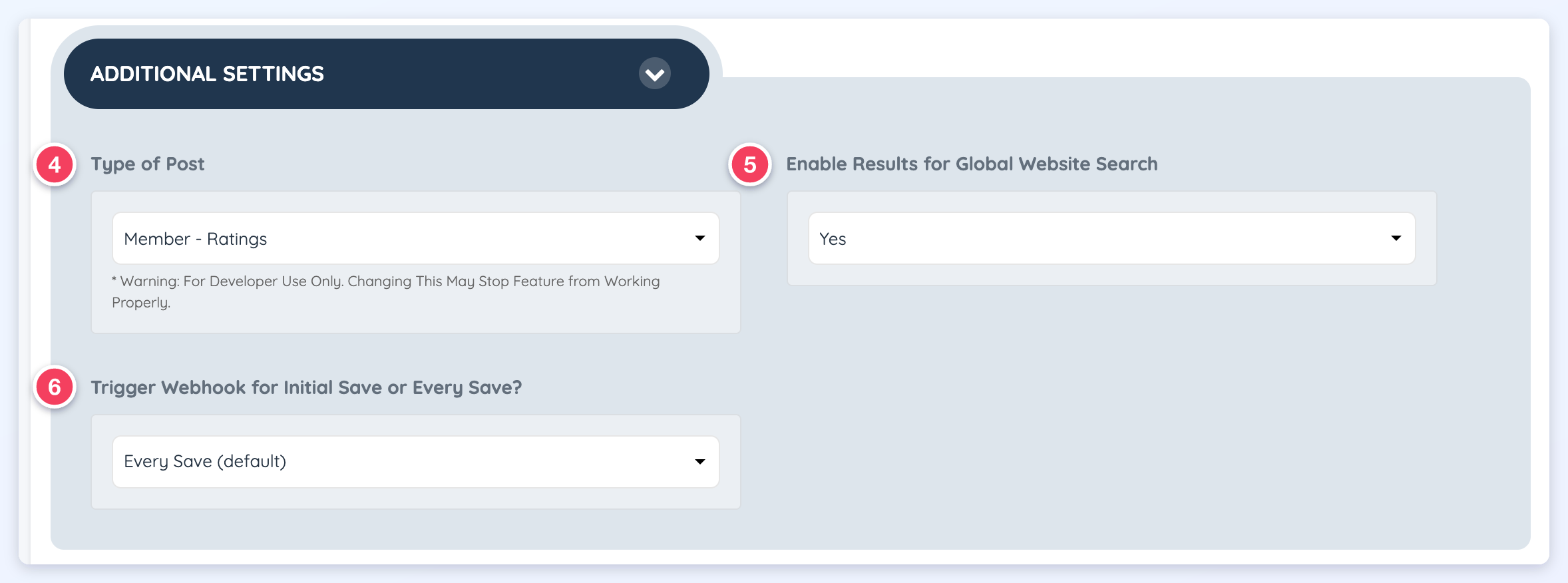
4. Type of Post
The type of this post type (Member - Ratings). This is for developer use only: changing it may stop reviews from working.
5. Enable Results for Global Website Search
Includes reviews in the Global Website Search. The add-on is required.
6. Trigger Webhook for Initial Save or Every Save?
Sets whether a webhook runs only the first time a review is saved or every time it is saved.
Profile Page Design
These settings control how reviews display in the Reviews tab of the member's public profile.
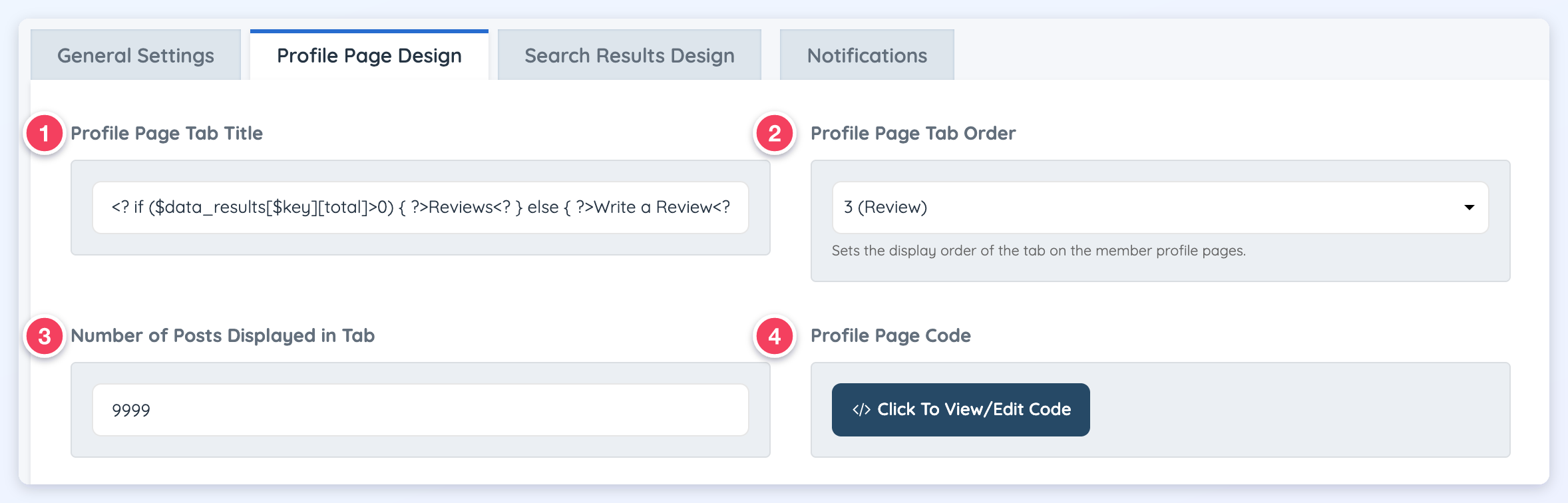
1. Profile Page Tab Title
The title of the reviews tab on the profile.
2. Profile Page Tab Order
The position of the reviews tab among the profile tabs. Each position shows the name of the post type using it, and positions with no post type are free to choose.
3. Number of Posts Displayed in Tab
How many reviews show in the member's profile.
4. Profile Page Code
The header, loop and footer code of the profile tab. Only change it with web development knowledge. It can be switched back to the default after a change. See How to Customize the Default Post Types Code.
Search Results Design
These settings control the reviews search results page.
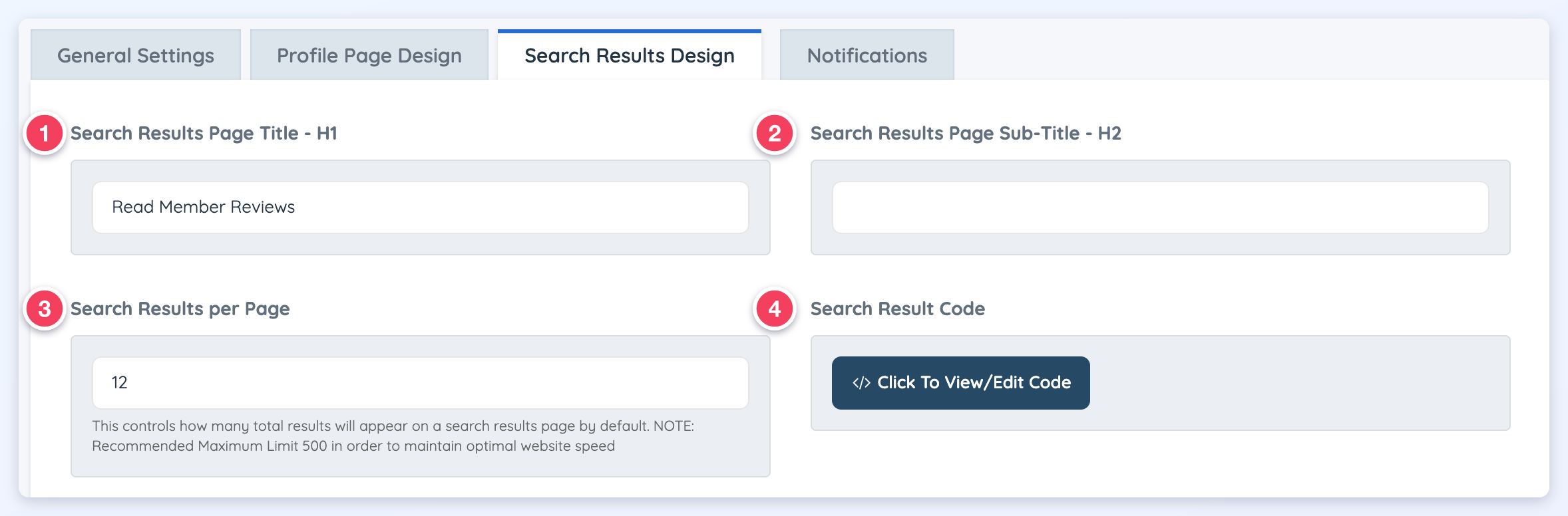
1. Search Results Page Title - H1
The main title of the page.
2. Search Results Page Sub-Title - H2
An optional subtitle.
3. Search Results per Page
How many results show on one search results page by default.
4. Search Result Code
The header, loop and footer code of the search results design.
Search Results Additional Settings
Click Additional Settings on the Search Results Design tab to show more options.
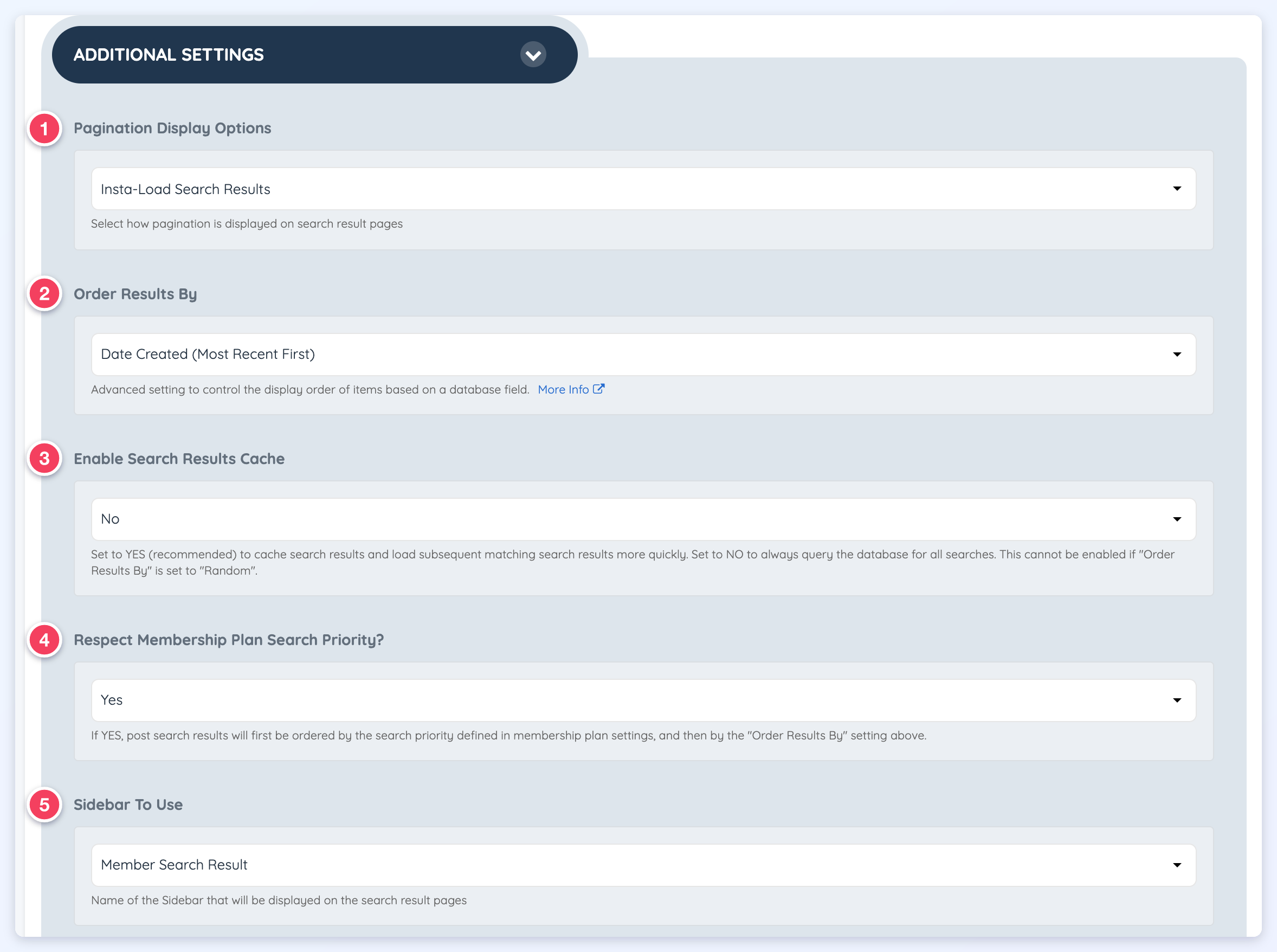
1. Pagination Display Options
How pagination shows on search results pages: standard, hidden, or Insta-Load pagination with the add-on.
2. Order Results By
The display order of the results, based on a database field. See How To Change Search Results Sorting Options.
3. Enable Search Results Cache
Set to Yes (recommended) to cache search results so later matching searches load faster. Set to No to always query the database. The cache cannot be on when Order Results By is set to Random.
4. Respect Membership Plan Search Priority?
When Yes, results are ordered first by the search priority of each membership plan, then by Order Results By. The priority is set in the Search Visibility tab of each plan.
5. Sidebar To Use
The sidebar shown on the search results pages.
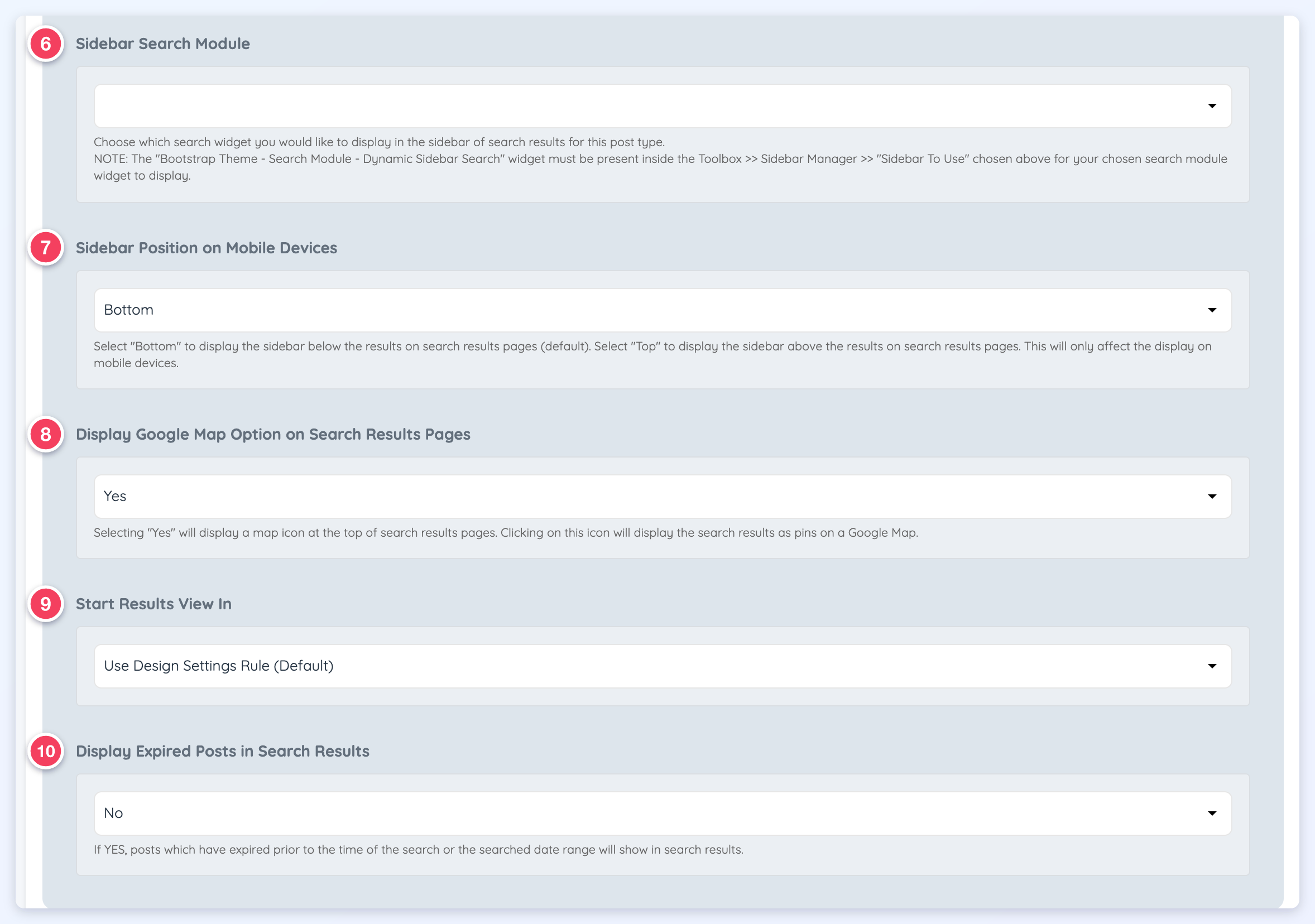
6. Sidebar Search Module
The search widget shown in the sidebar of the search results. It works only when the sidebar chosen in Sidebar To Use contains the Bootstrap Theme - Search Module - Dynamic Sidebar Search widget in the Sidebar Manager.
7. Sidebar Position on Mobile Devices
Shows the sidebar below (Bottom, the default) or above (Top) the results on phones and tablets.
8. Display Google Map Option on Search Results Pages
Yes shows a map icon at the top of search results pages. Clicking the icon shows the results as pins on a Google Map.
9. Start Results View In
Starts the results in list view, map view, or grid view (with the Grid View Search Results add-on). Use Design Settings Rule (Default) follows the website's design settings.
10. Display Expired Posts in Search Results
When Yes, posts that expired before the time of the search, or before the searched date range, still show in the results.
Notifications
The Notifications tab is what sets the review settings apart from other post types. It turns these email notifications on or off.
Admin Notifications
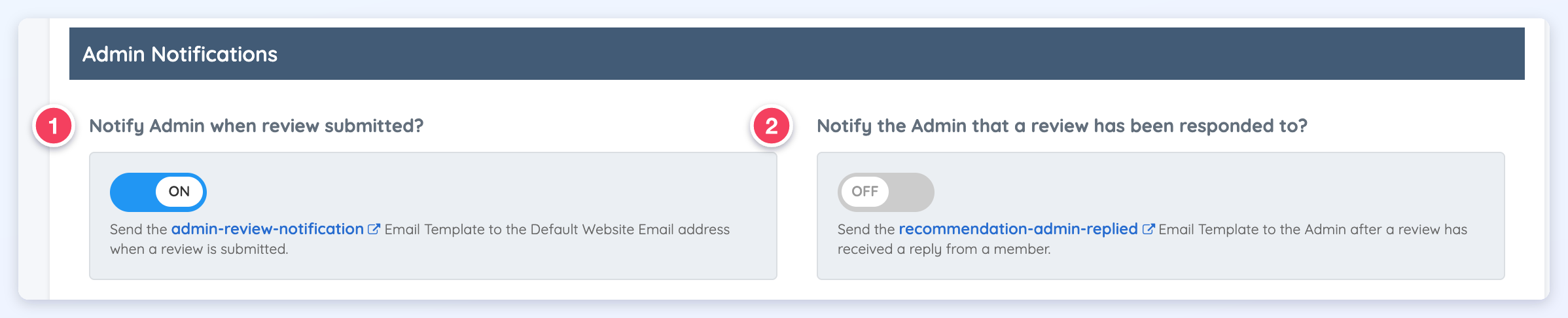
- Notify Admin when review submitted? sends the admin-review-notification email template to the Default Website Email address when a review is submitted.
- Notify the Admin that a review has been responded to? sends the recommendation-admin-replied email template to the admin after a member replies to a review.
Member Notifications
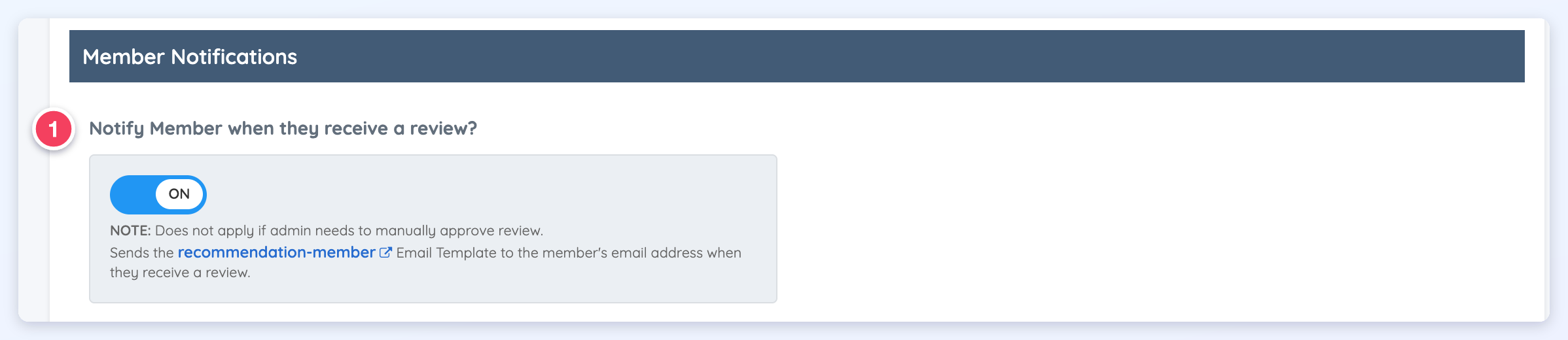
- Notify Member when they receive a review? sends the recommendation-member email template to the member's email address when the member receives a review. This does not apply when the admin must approve reviews manually.
Submitter Notifications
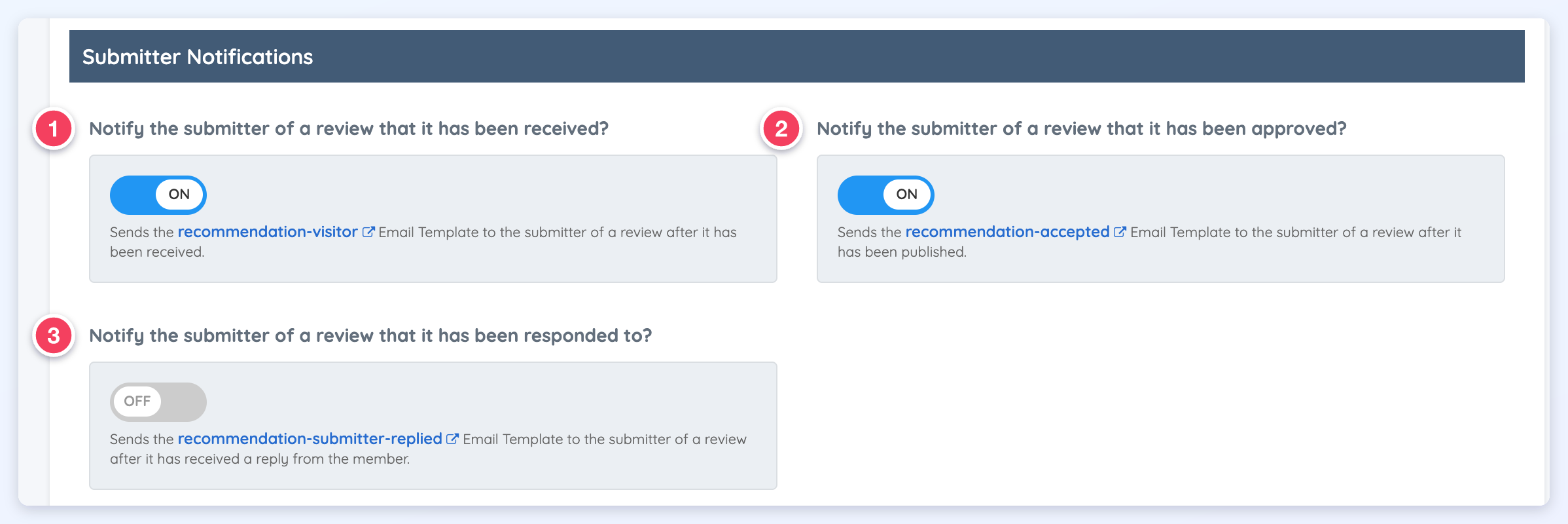
- Notify the submitter of a review that it has been received? sends the recommendation-visitor email template to the person who wrote the review once it is received.
- Notify the submitter of a review that it has been approved? sends the recommendation-accepted email template to the person who wrote the review once it is published.
- Notify the submitter of a review that it has been responded to? sends the recommendation-submitter-replied email template to the person who wrote the review after the member replies.
Member Reviews on the Profiles
Visitors leave reviews on member profiles with the Write a Review button. Accepted reviews display on the member's profile and on the reviews search results page.
Leaving a Review
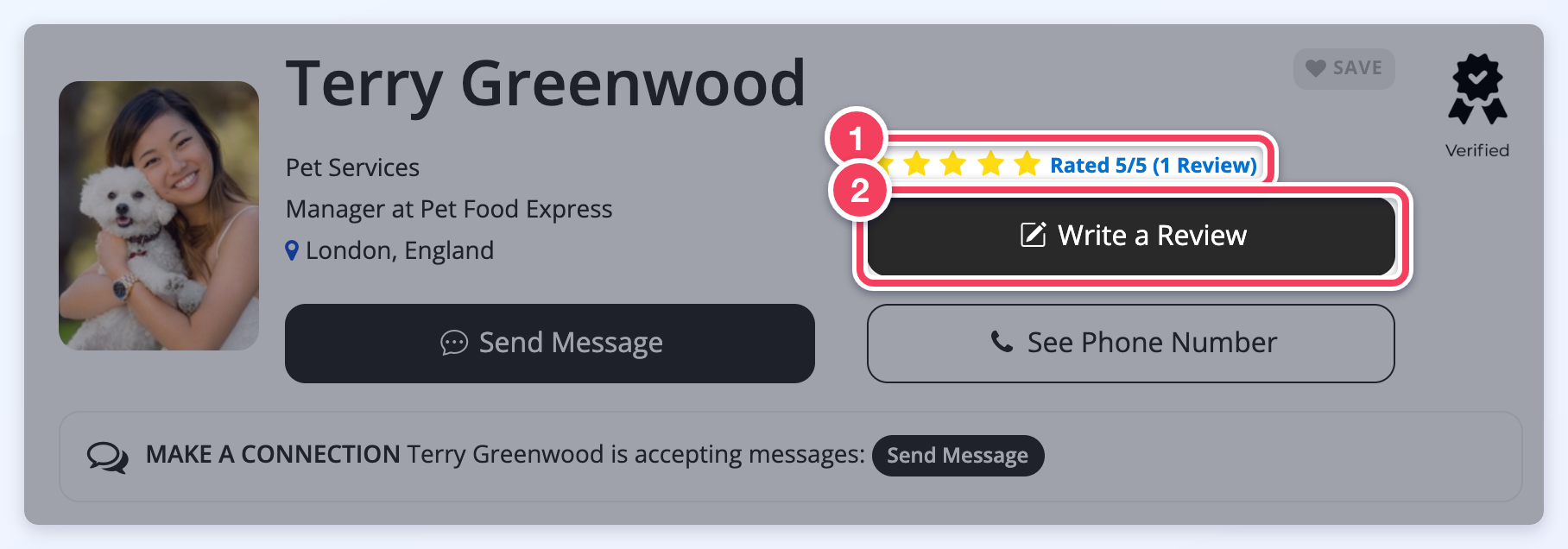
To leave a review, open the member's profile and click Write a Review (2). The member's star rating shows above the button (1).
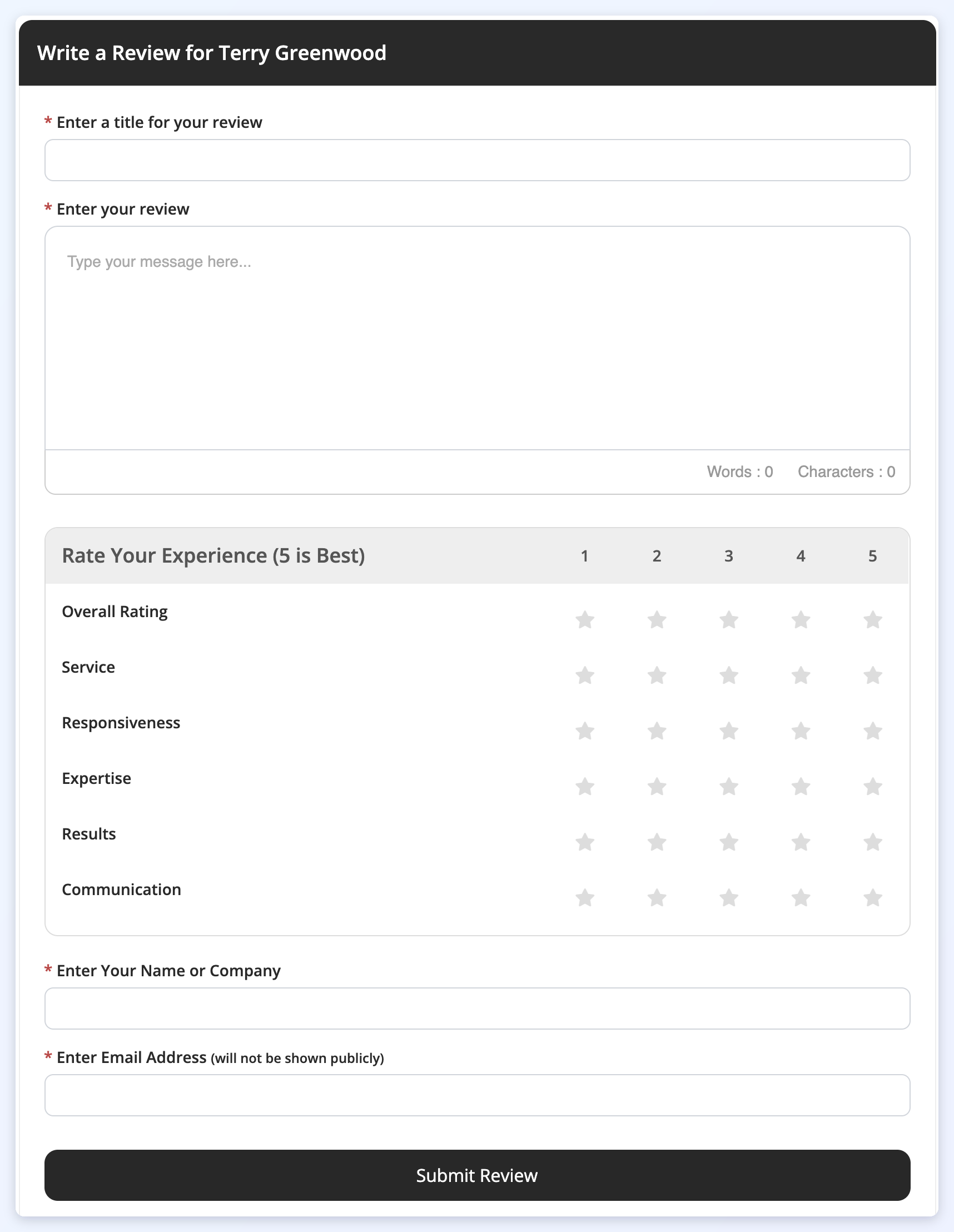
This opens the review form:
Update Reviews URL
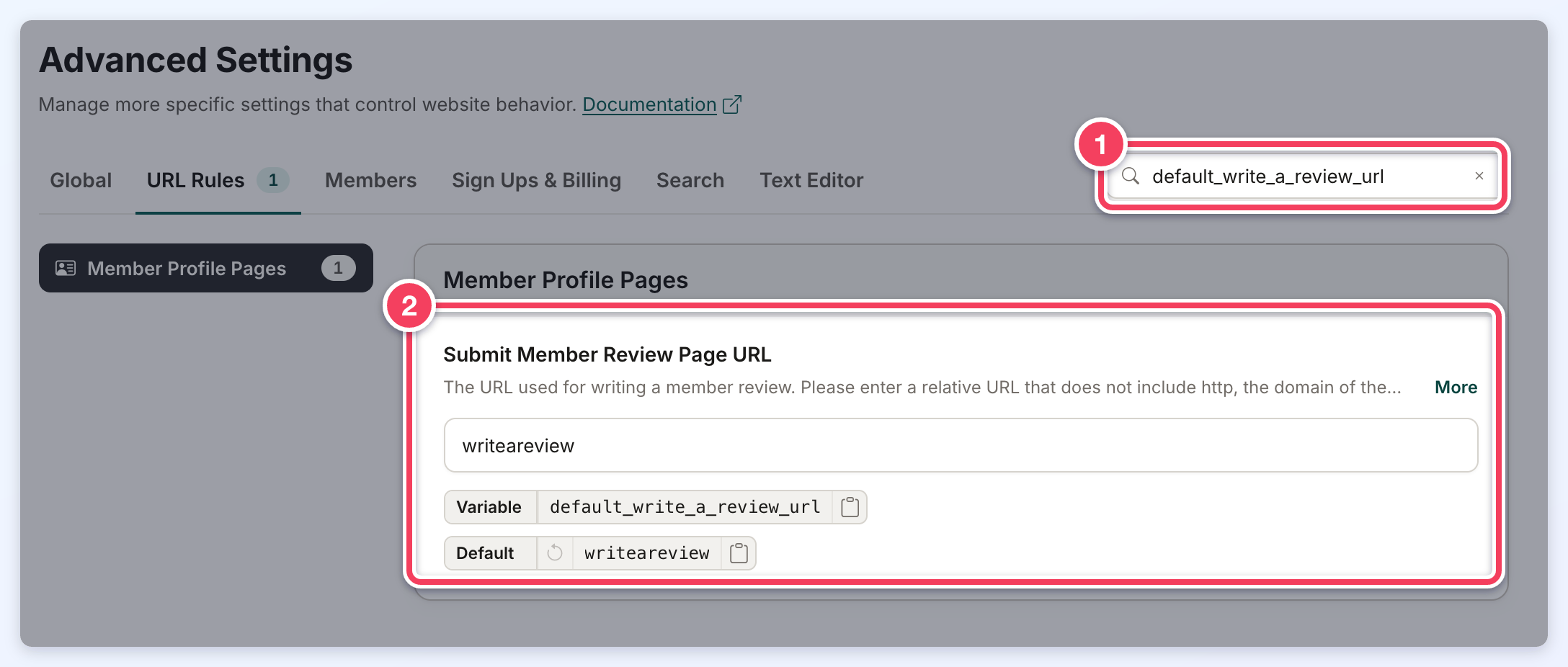
By default, the review form opens at the member's profile URL followed by /writeareview. To change this, go to Settings » Advanced Settings, search for default_write_a_review_url (1) and enter a new slug in Submit Member Review Page URL (2). Use a relative URL only, without http or the domain name.
Uploading Images to a Review
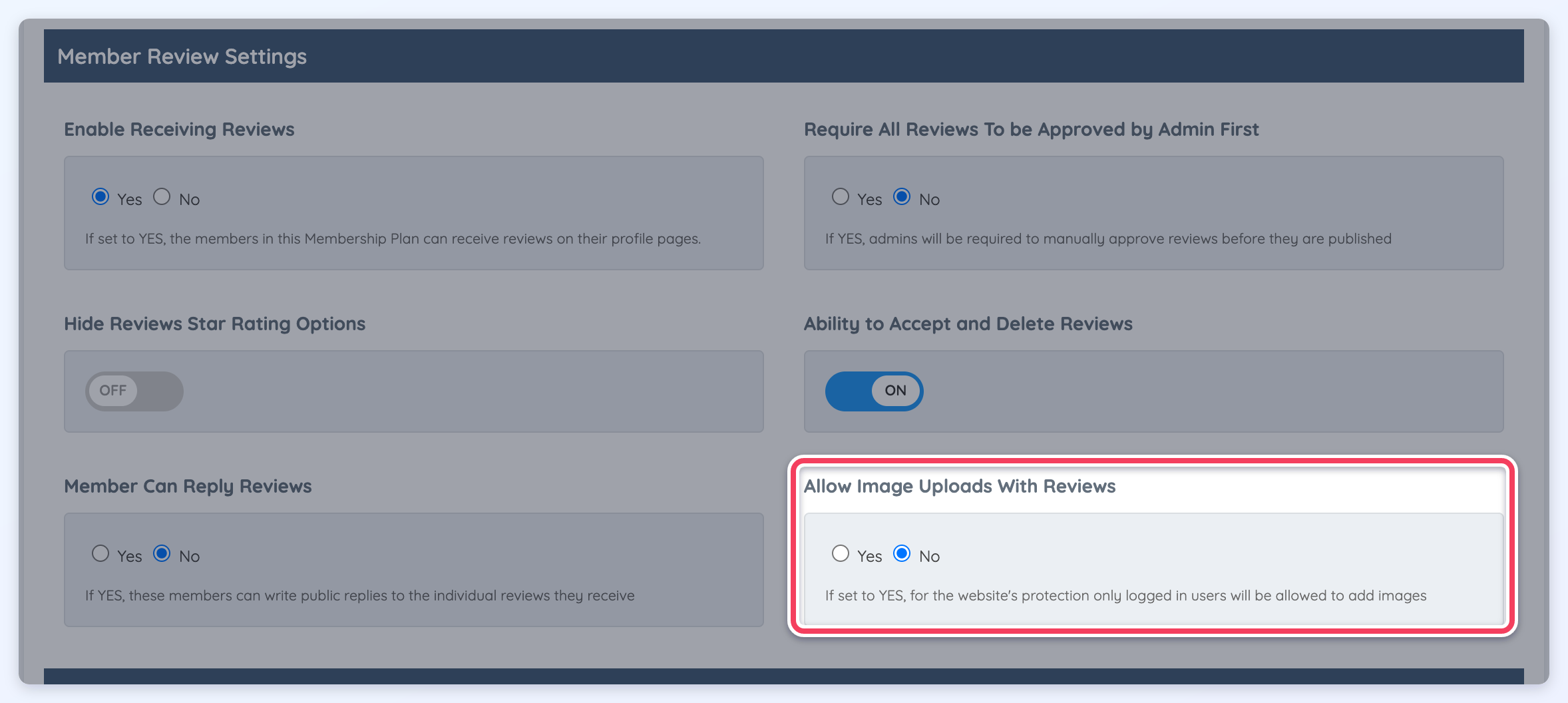
When Allow Image Uploads With Reviews is set to Yes on the membership plan's Profile Page tab (Membership Plan » Profile Page), reviewers of that plan's members can add images. For the website's protection, only logged-in users can add images. More about this feature: Image Upload With Reviews.
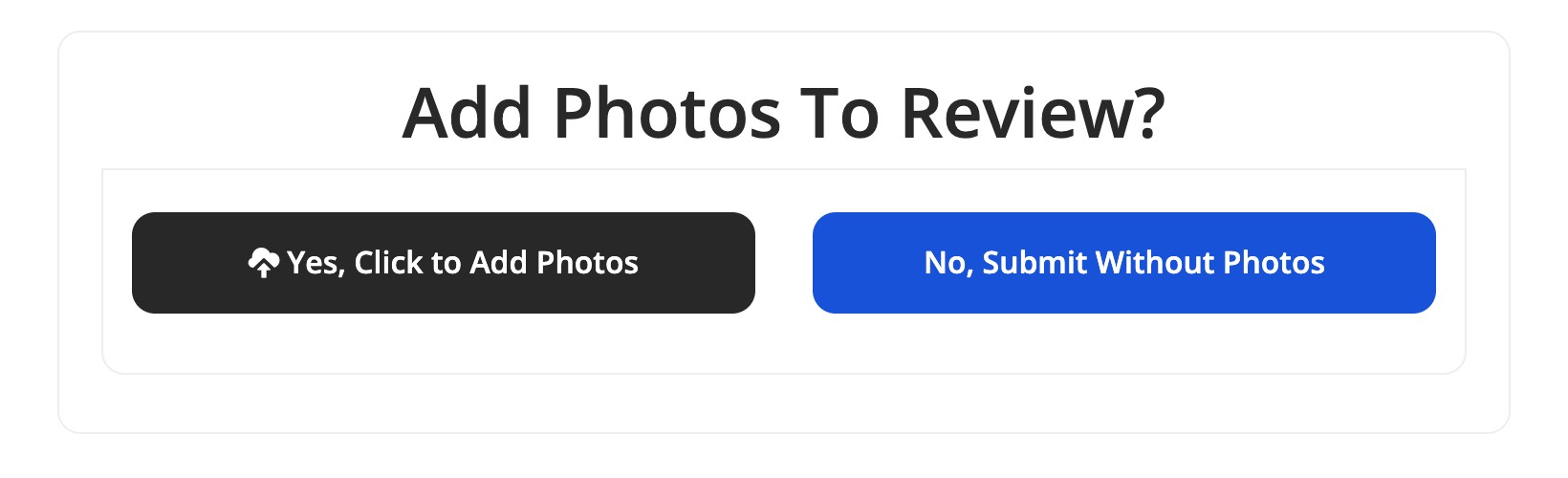
When image uploads are on, the review form's button reads Continue to Next Step. After clicking it, the reviewer reaches a second screen that offers to add photos to the review:
How Reviews Display on the Member's Profile
Accepted reviews show in the Reviews tab of the profile, and the overall star rating shows above the Write a Review button. Review totals are shown with one decimal place.
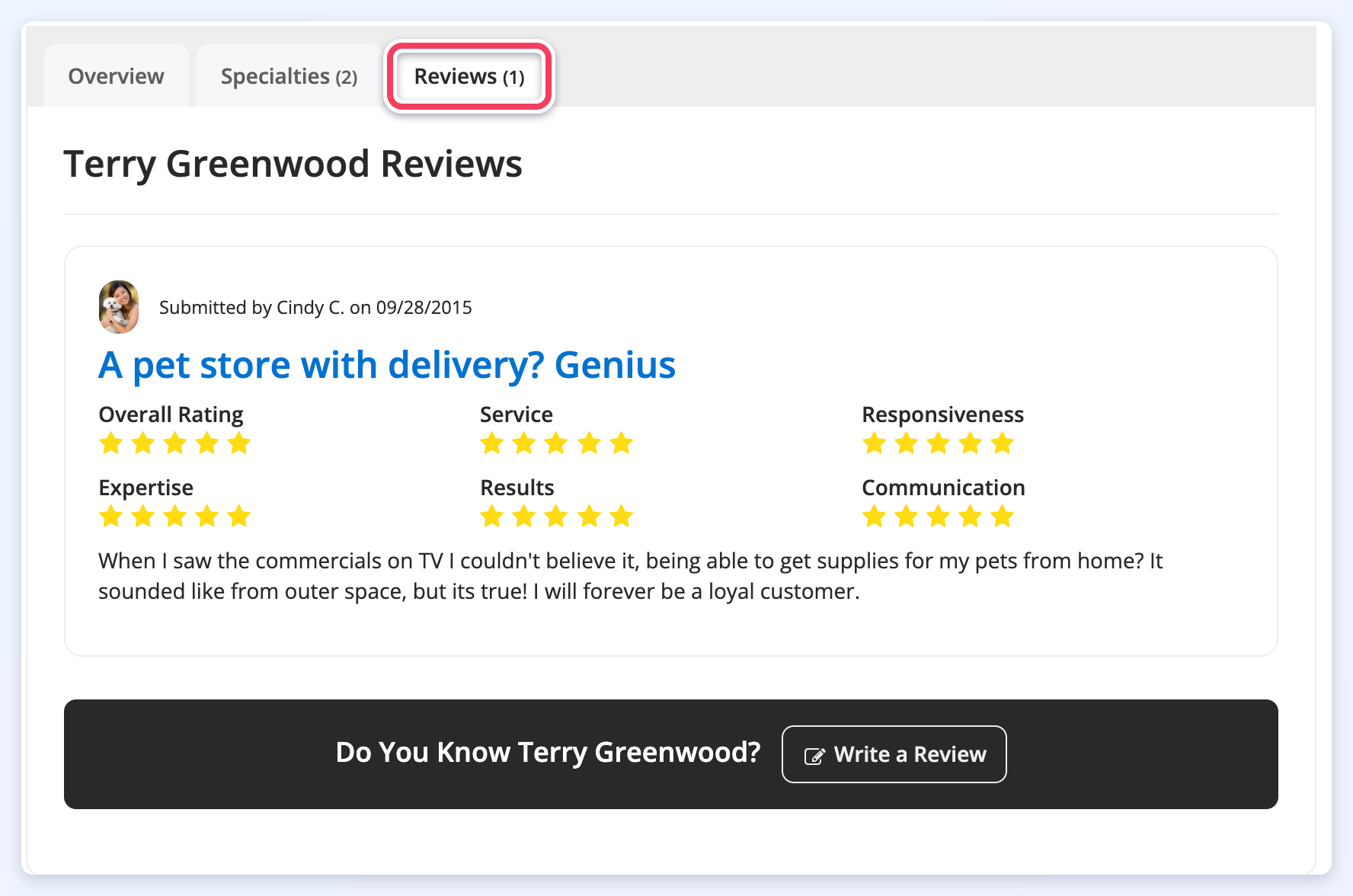
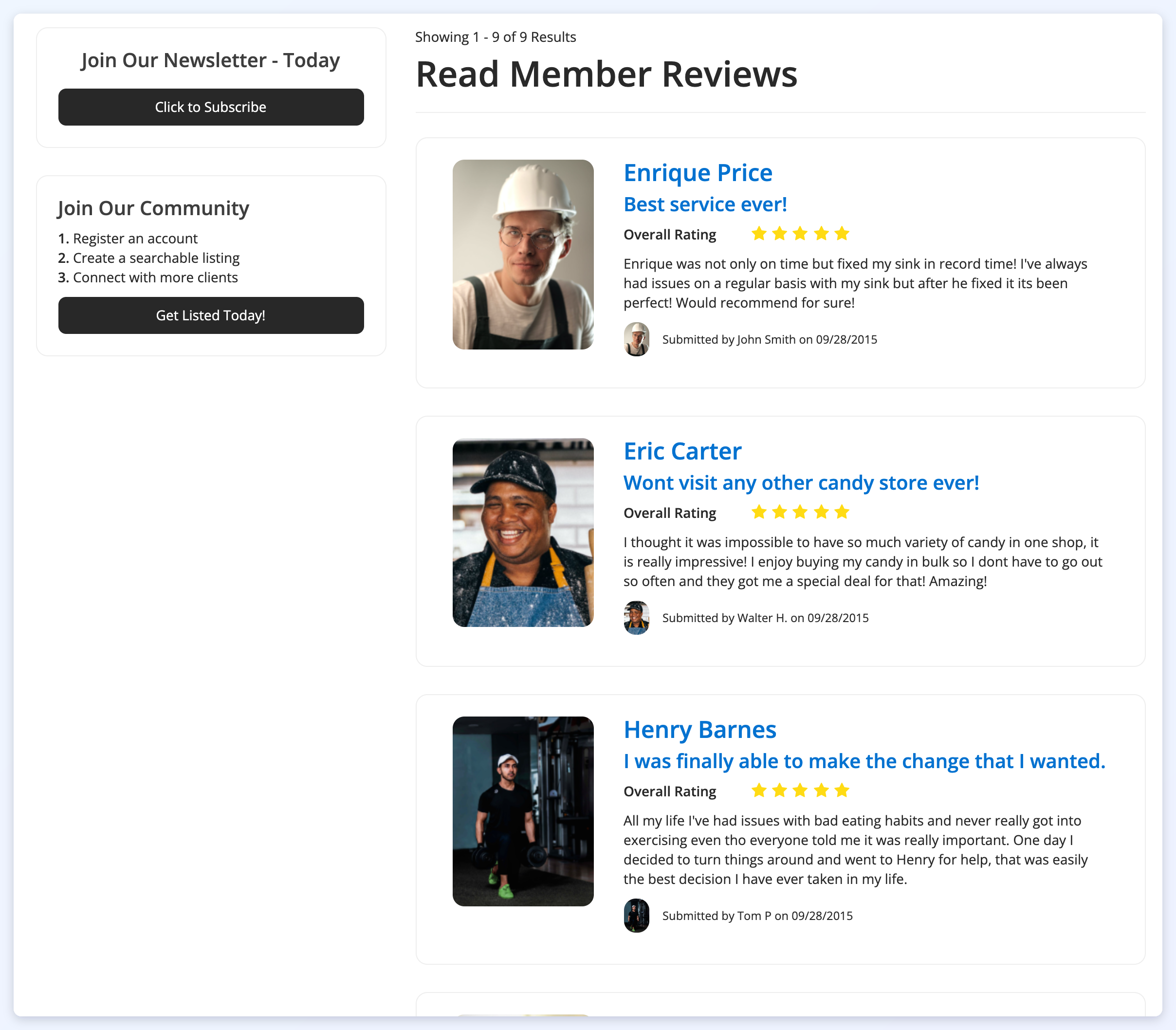
Reviews also have their own search results page, /reviews, where visitors can read every review published on the website:
Click to View Reviews for a Specific Member
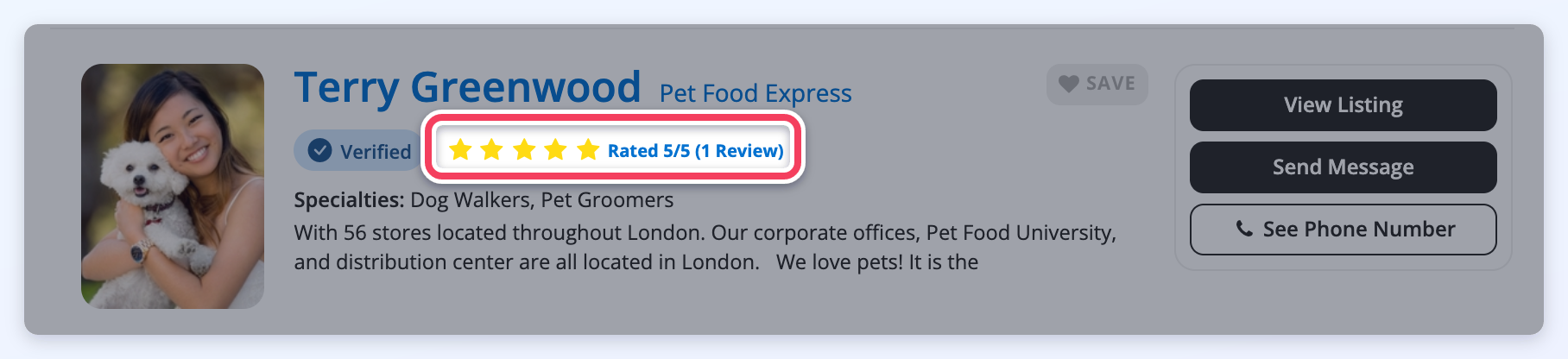
Visitors can click a member's overall rating to see all of that member's reviews. The rating link appears in member search results and on the profile, above the Write a Review button.
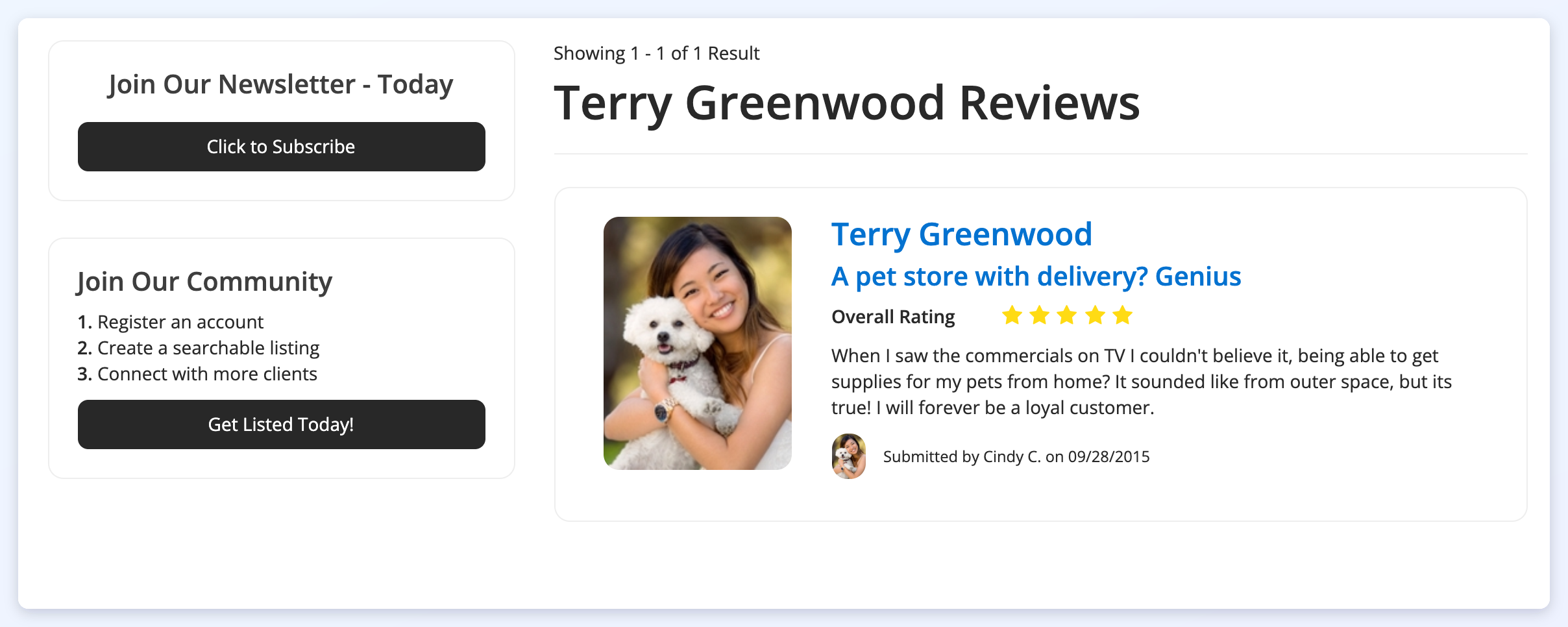
It opens a page with every review of that member:
Date Format of the Reviews
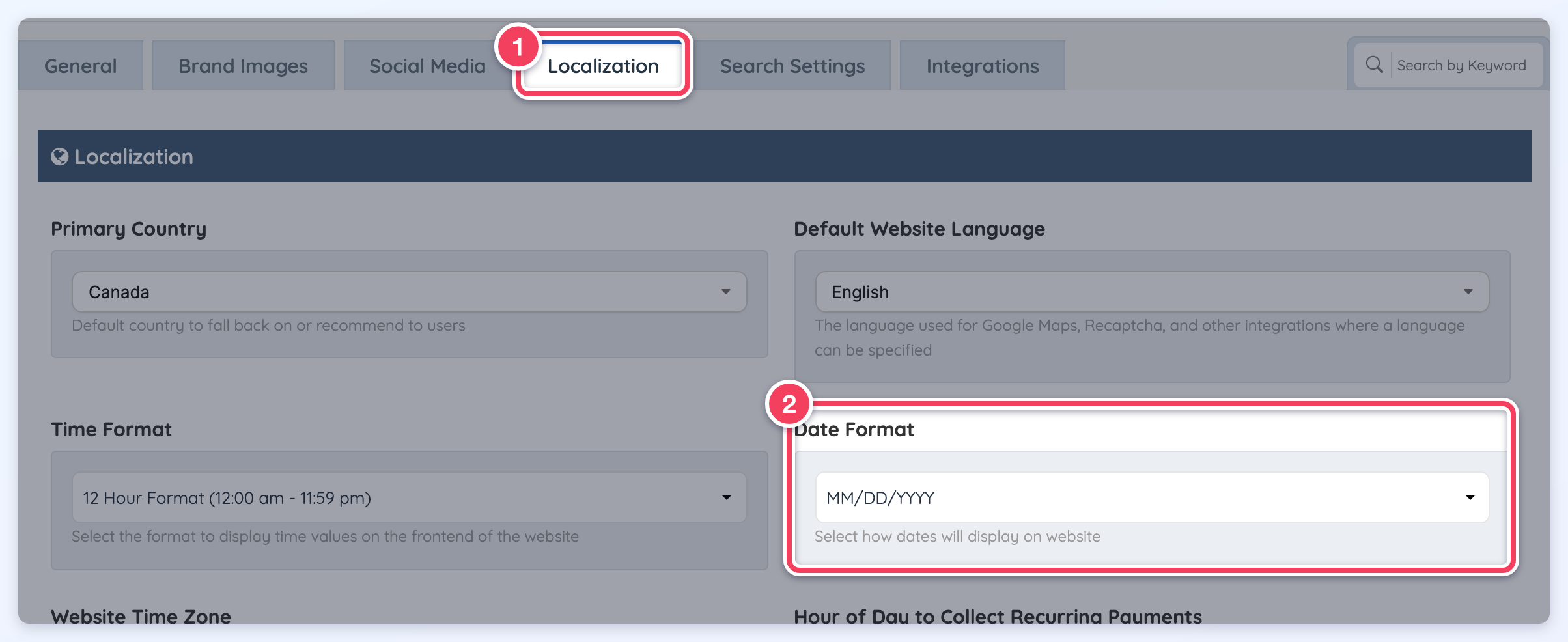
The dates on the reviews search results page follow the Date Format selected under Settings » General Settings » Localization.