Leads » Front & Back End Overview
Link: https://support.brilliantdirectories.com/support/solutions/articles/12000067995
By default, all sites provide two ways for the website visitors and members to submit a lead - The Get Matched page/form and the Profile Contact form. In this article, we will go over where to find these pages and forms.
** Additional Documentation: Turn Your Membership Website Into A Lead-Generating Machine **
1. Get Matched Page & Form
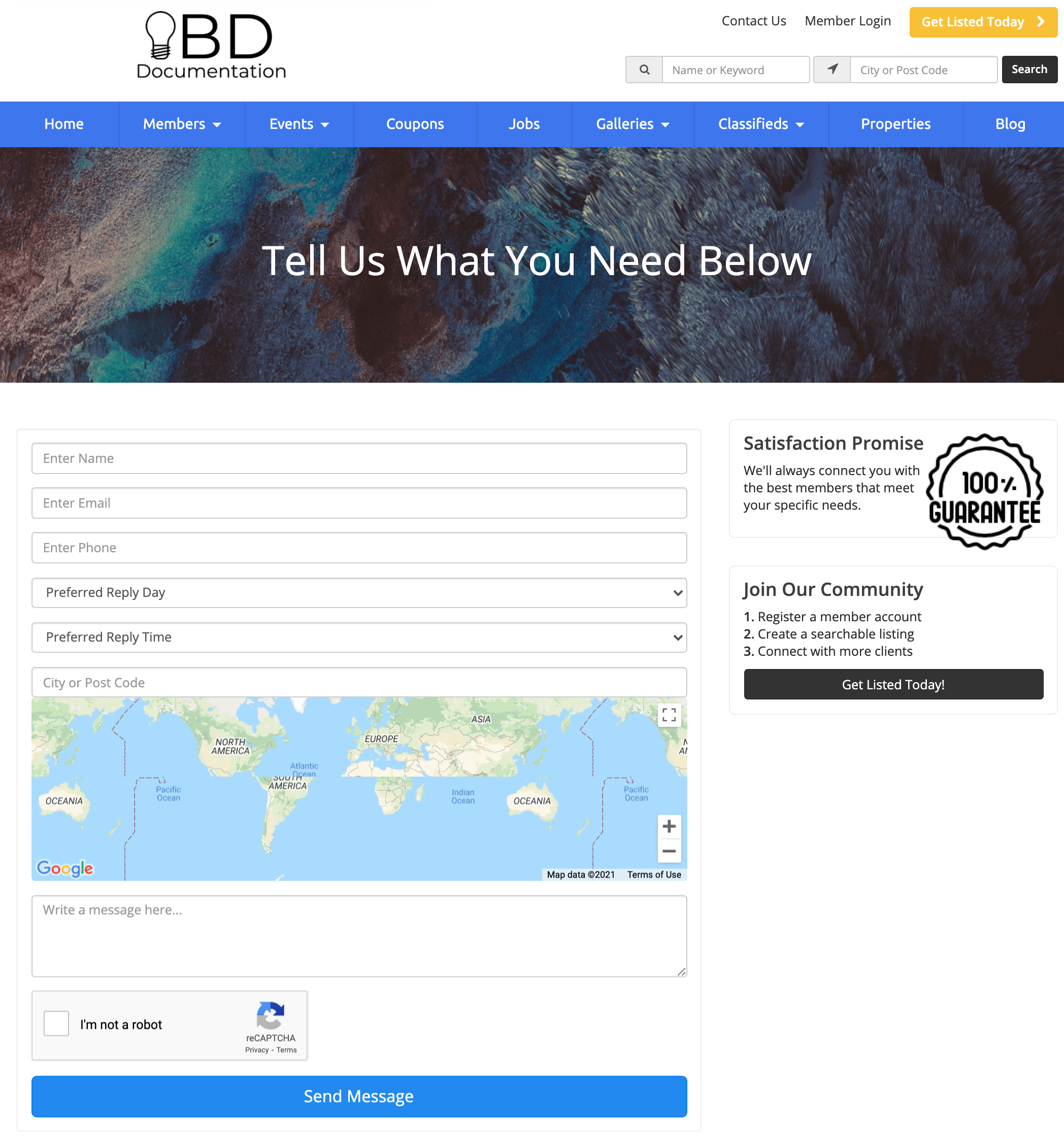
The “Get Matched” form is used to receive general inquiries directly on the site and match them to members that meet the criteria set by the website visitor. To put it simply, the website visitors are looking to be contacted by members on the website who can assist them.
This is a growing use of online directories. Rather than spending hours browsing the Internet to find businesses that can help, users can now fill out a single form and have those businesses come to them!
If someone is looking for a carpenter in Detroit, that inquiry is sent to all of the members that are located in Detroit that have checked off “carpenter” as one of their specialties.
Additional Information:
» How To Match Leads To Members - The Get Matched Form
» Member Leads » Lead Settings » General Settings » Form Settings ** this will apply to the Member Profile Form as well **
2. Member Profile Forms
The primary source of leads comes from users trying to contact the members directly on their profile pages. Brilliant Directories makes it possible for the site admin to send the content of that lead to as many members as possible.
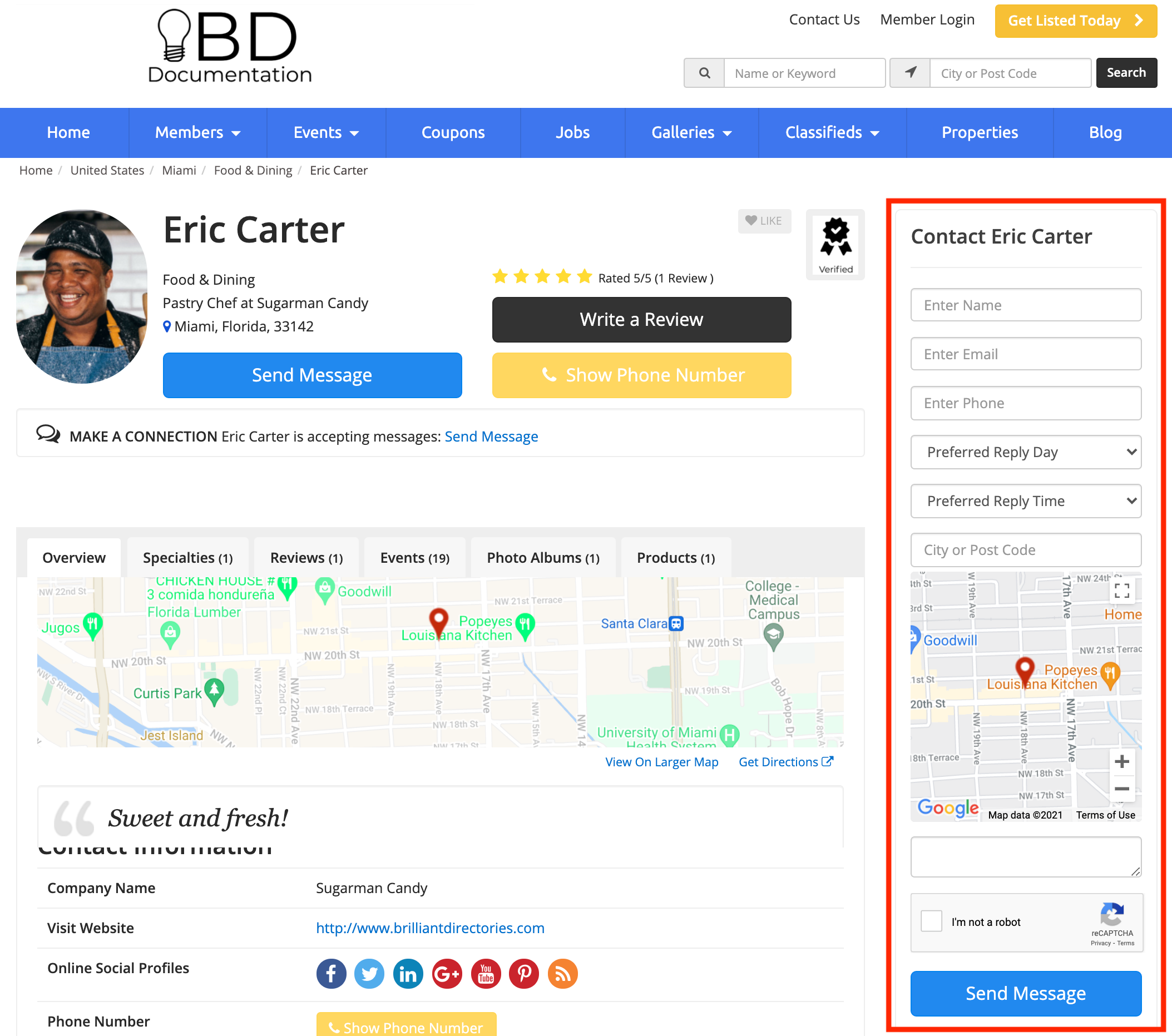
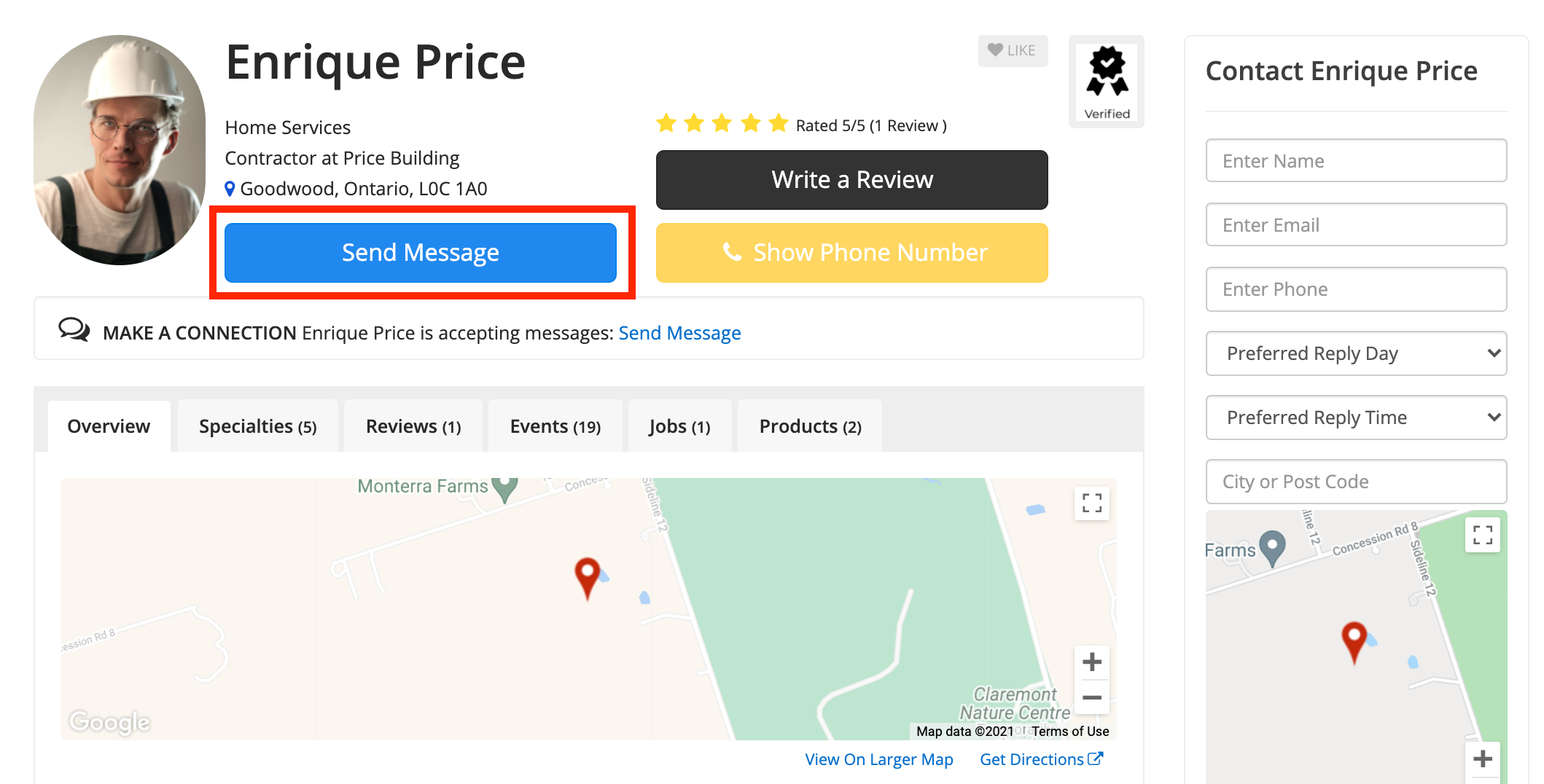
Within the Profile, there are two forms that can be filled out. The first one is the Sidebar Contact Form:
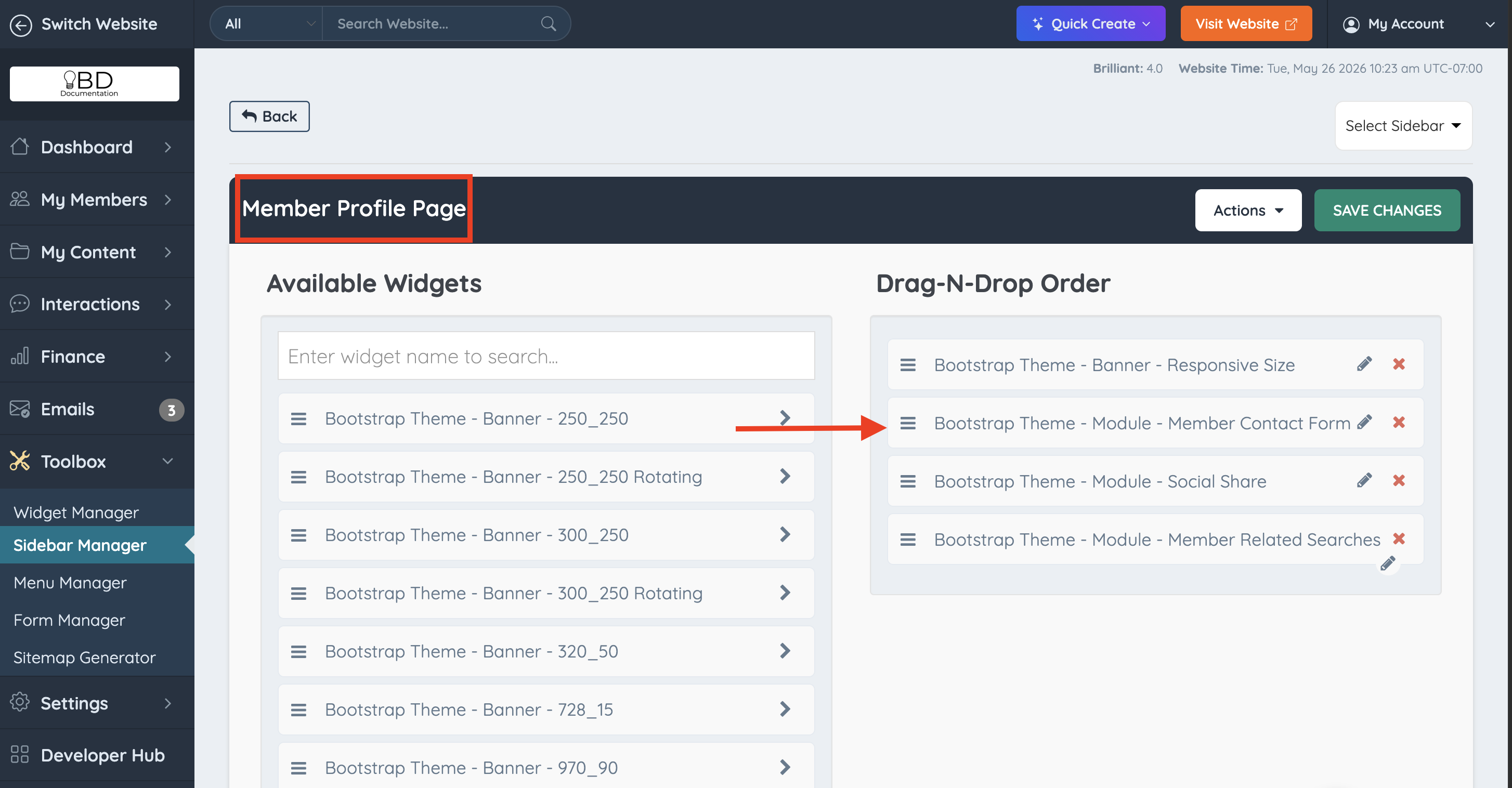
This form can be removed or added to a site inside the Sidebar Manager:
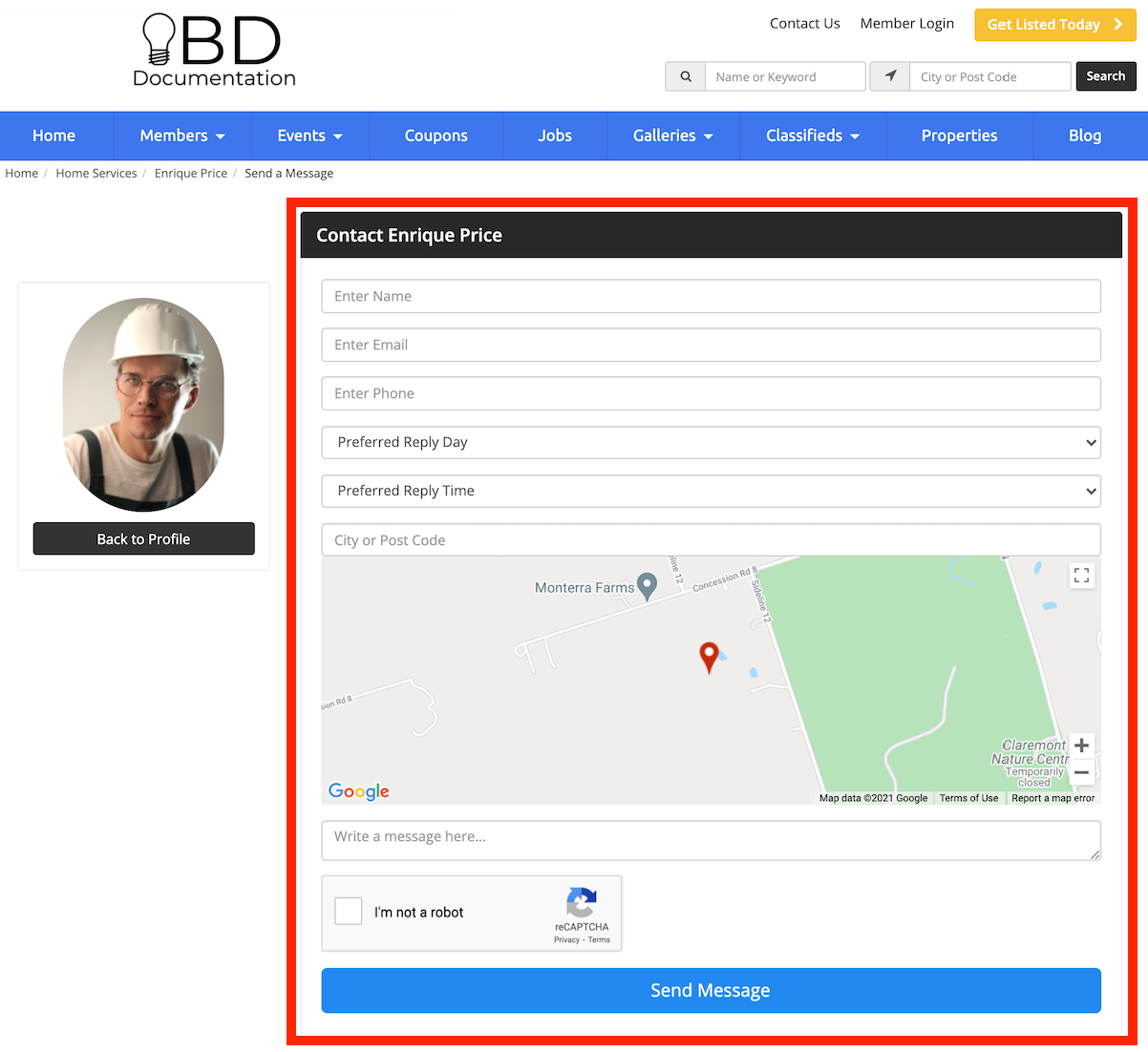
The other way to send a direct lead to a member is through the Send Message button:
Additional Information:
» How To Match A Lead - The Member Contact Form
» How To Remove The Leads/Send Message Links From The Website
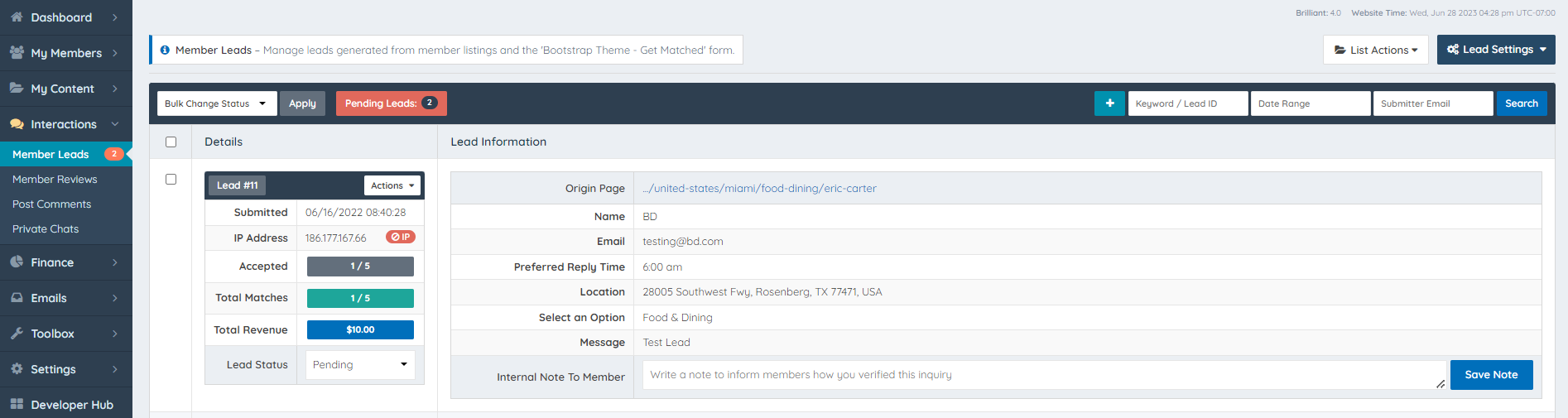
Leads Folder in the Admin Dashboard:
Additional Information:
» Basic Lead Package Documentation Folder
» Auto-matching (Advanced) Leads Add-On Documentation Folder
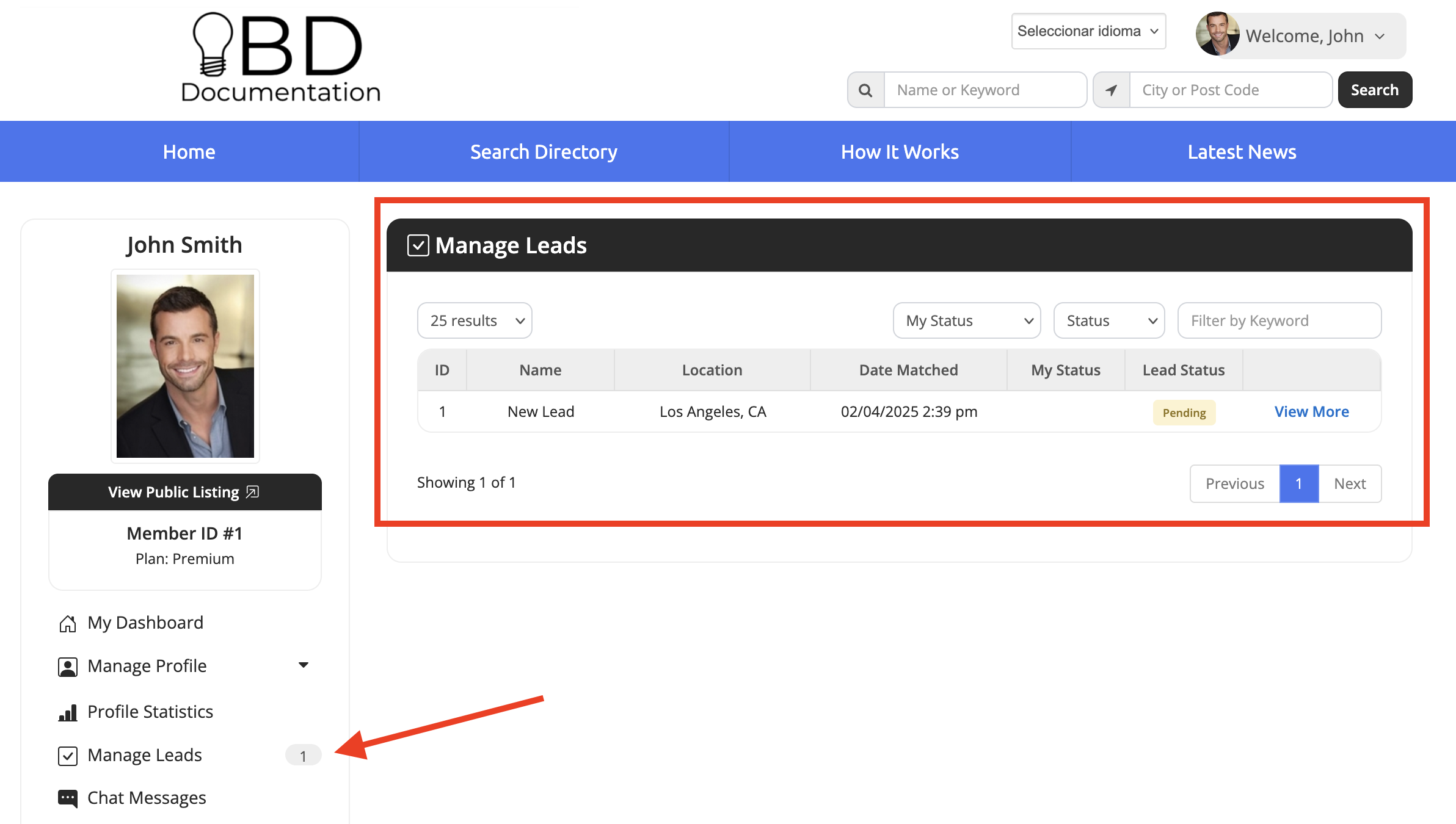
Where Does a Website Member Check Their Leads?
Members of the website can check their leads under the "Manage Leads" section in the sidebar:
Additional Information:
» Purchasing Leads as a Member
Advanced Functionality:
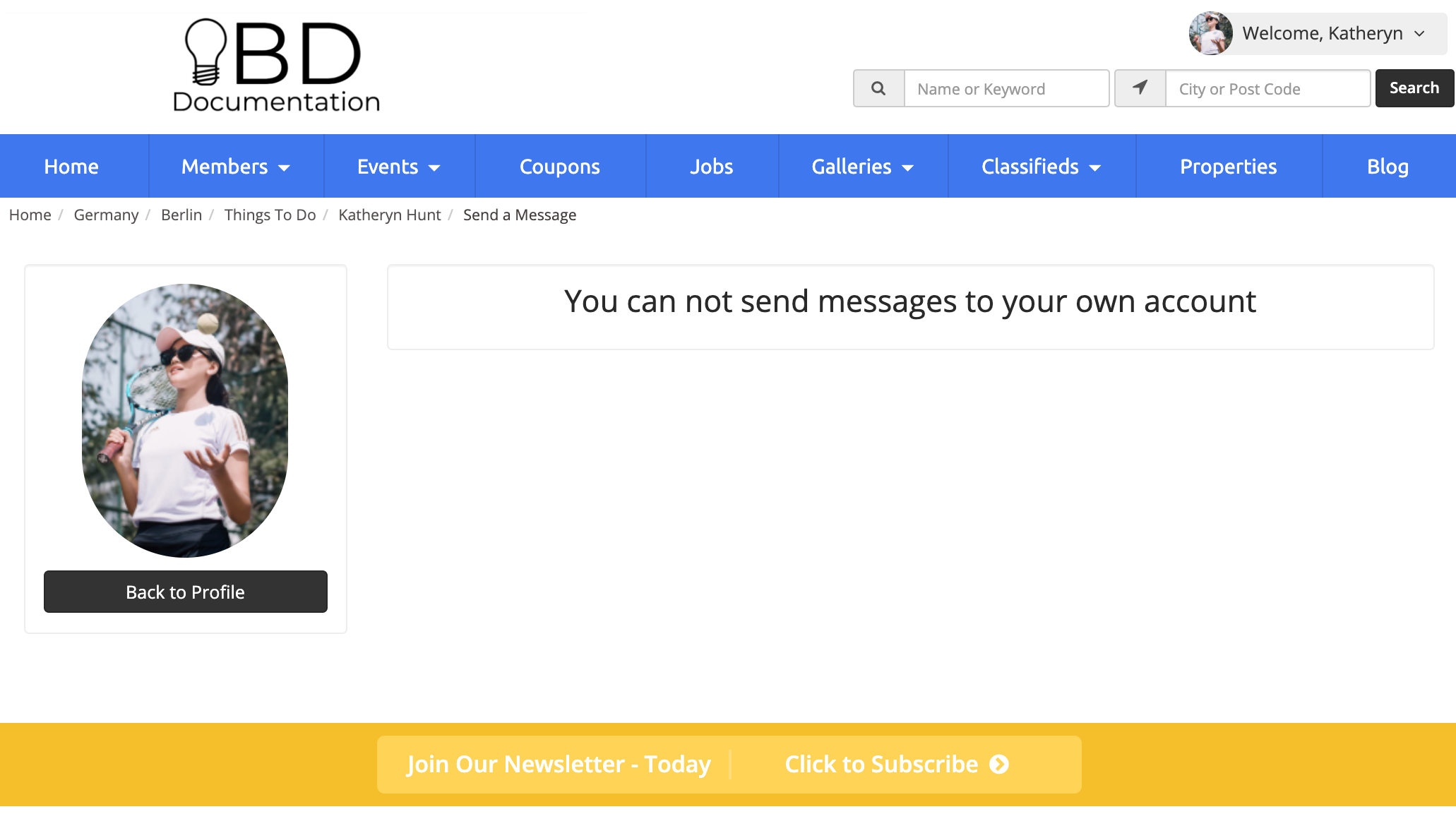
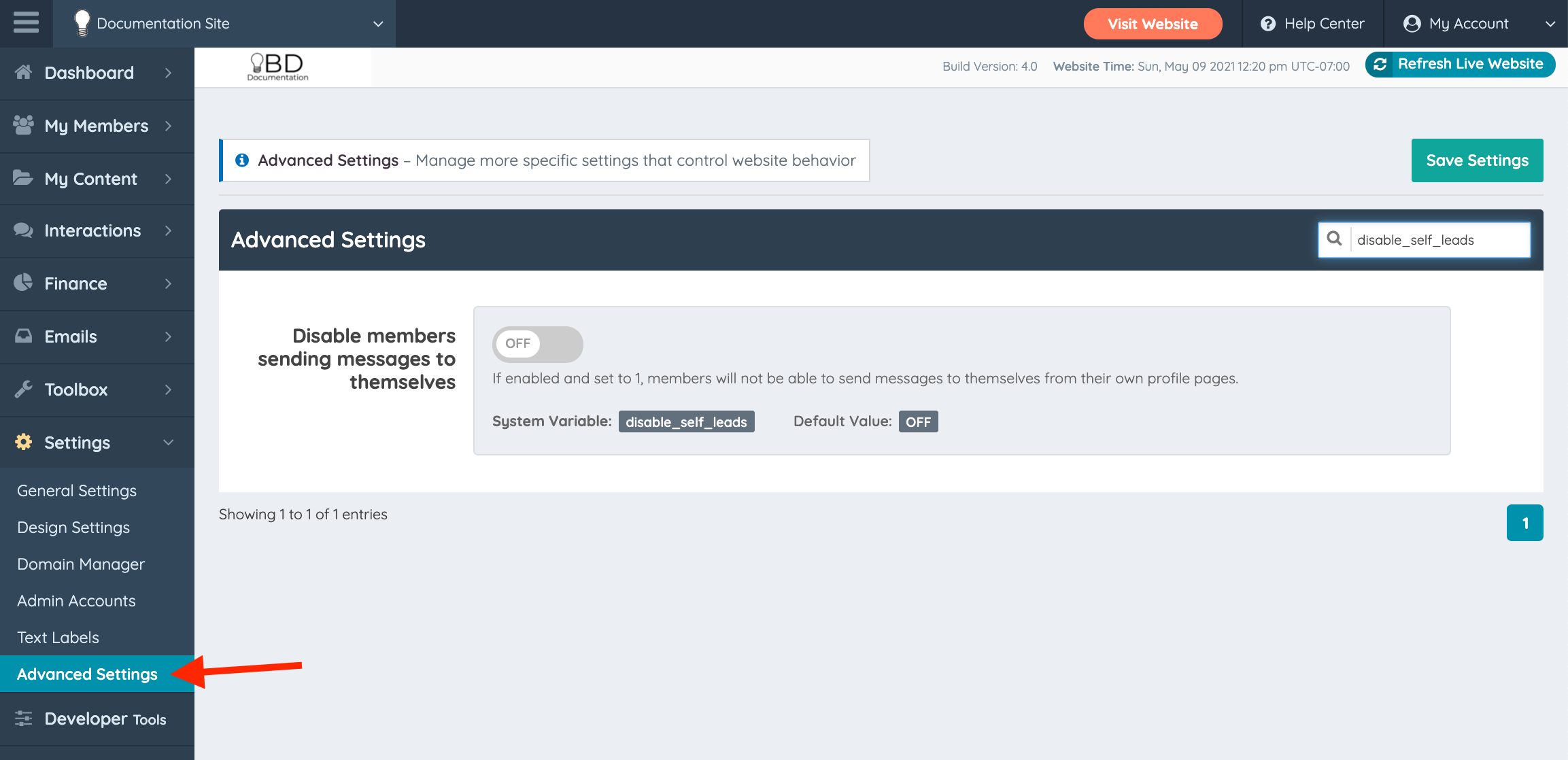
If this Advanced Setting is enabled and set to ON, members cannot send messages to themselves from their profile pages.
>> disable_self_leads
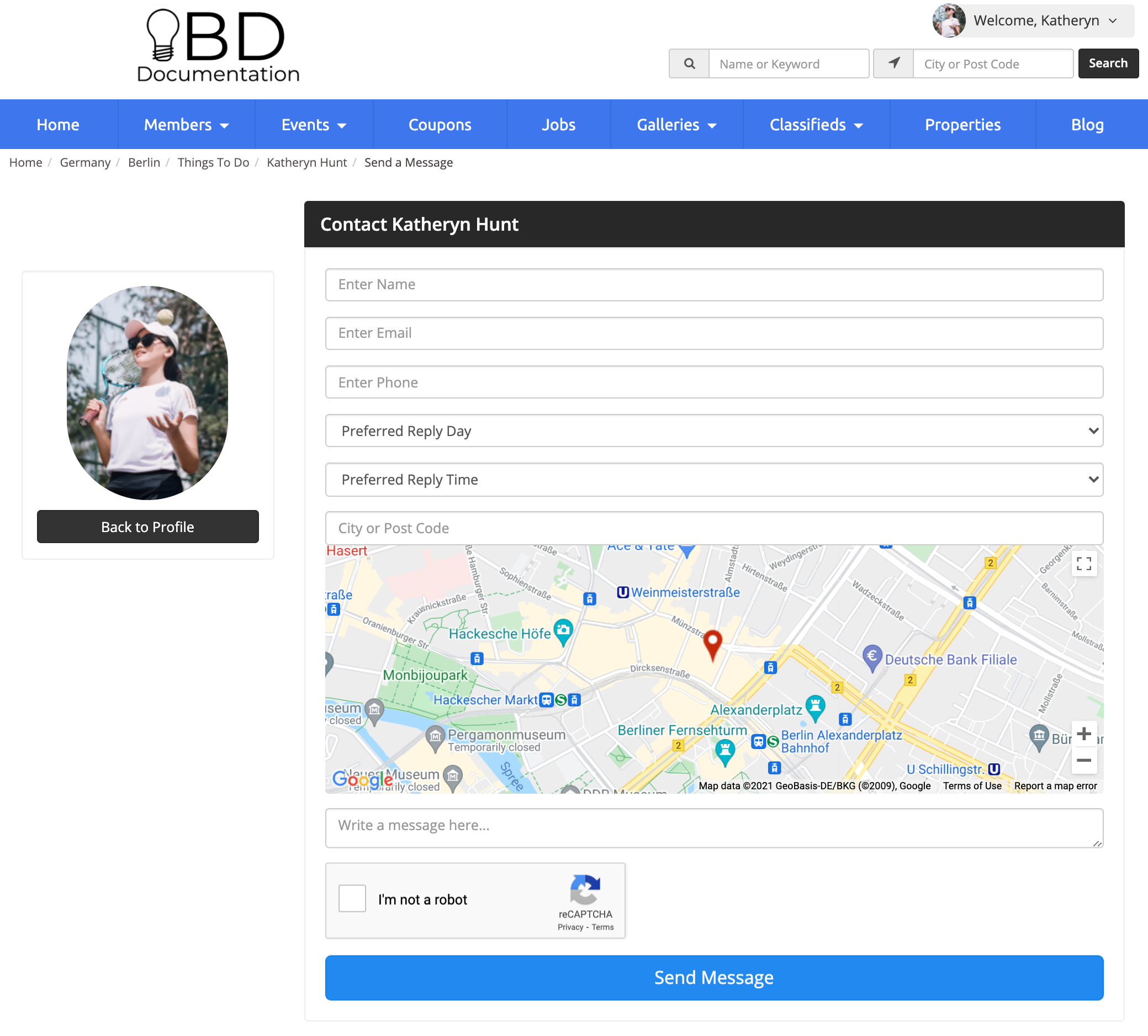
When the setting is disabled, the leads form appears:
When enabled, the following message appears: