Common Breadcrumb Variables to be used on the Website
Link: https://support.brilliantdirectories.com/support/solutions/articles/12000078817
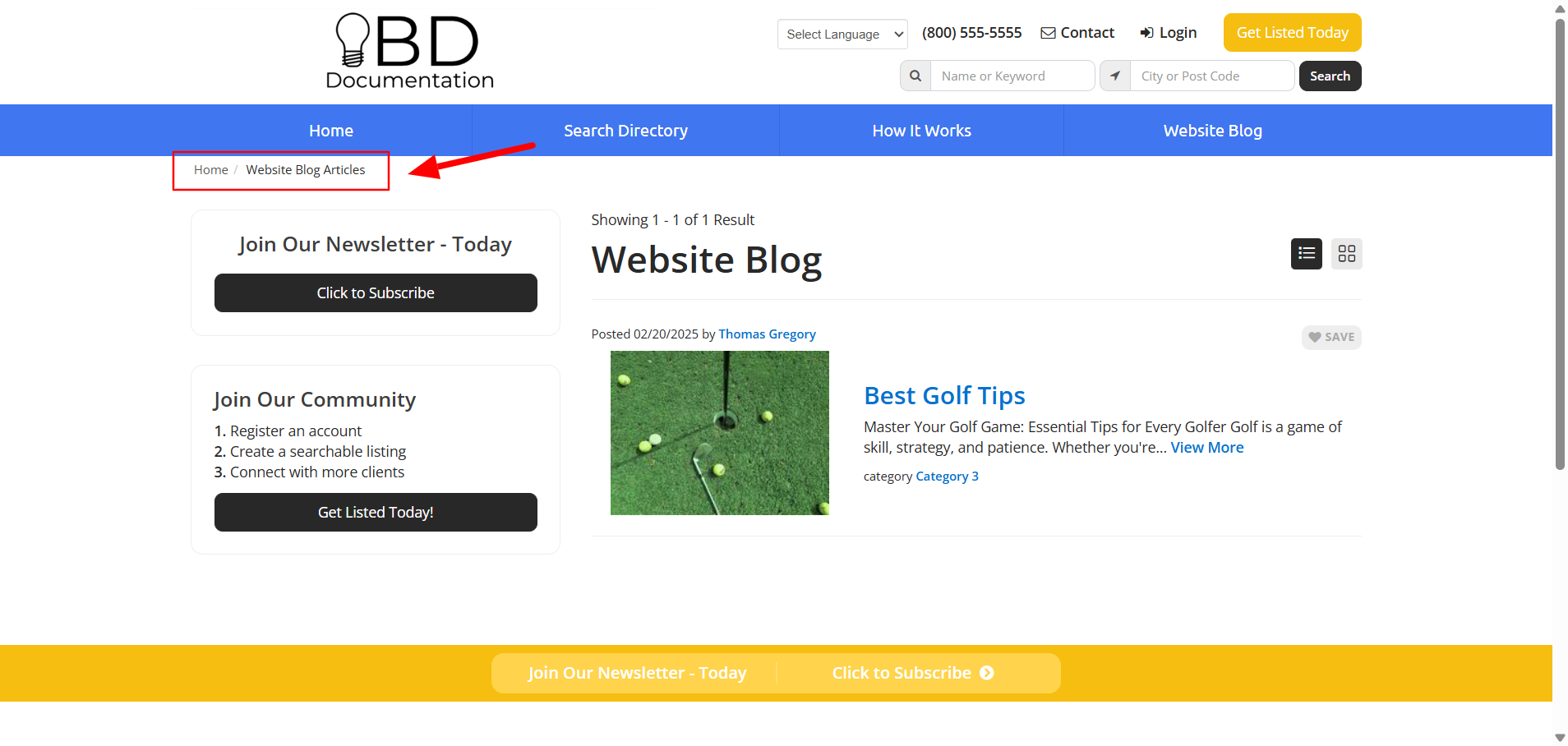
A breadcrumb is a navigational aid used on websites to show the user's location. On Brilliant Directories, these are automatically generated on different sections of the software and can be edited if desired.
These are the most common variables and areas where breadcrumbs can be edited:
1. Static Web Pages
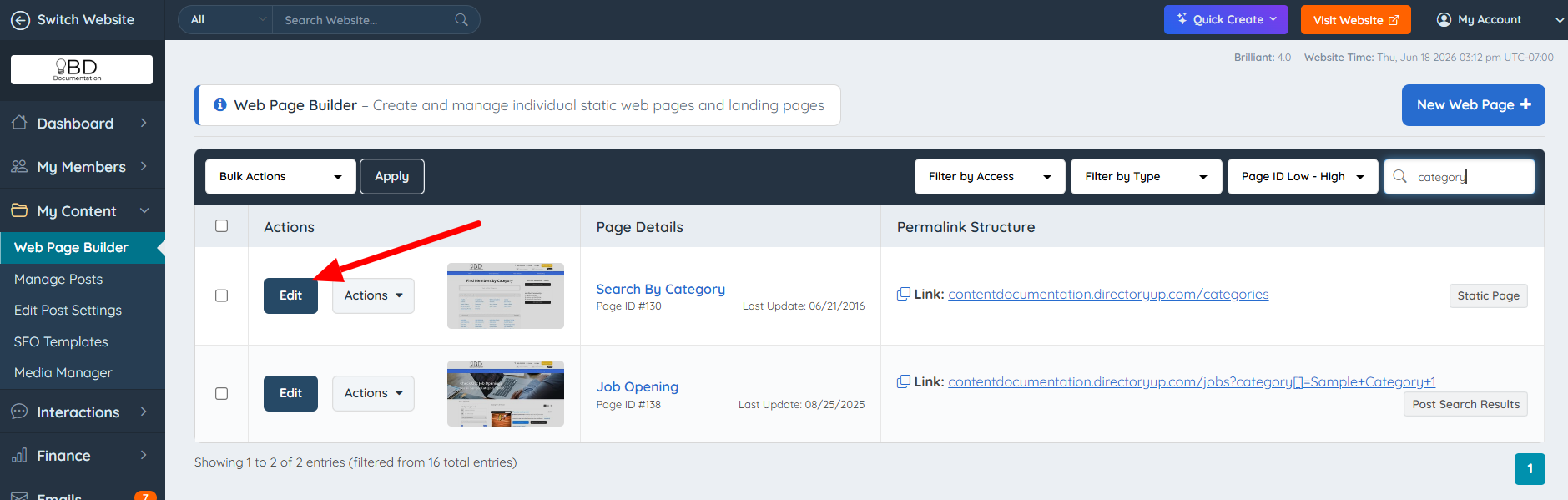
Navigate to My Content >> Web Page Builder >> Search for the desired web page to add/edit the breadcrumbs and click on Edit:
Once on the page, move to the Page Options tab and add/edit the breadcrumbs:
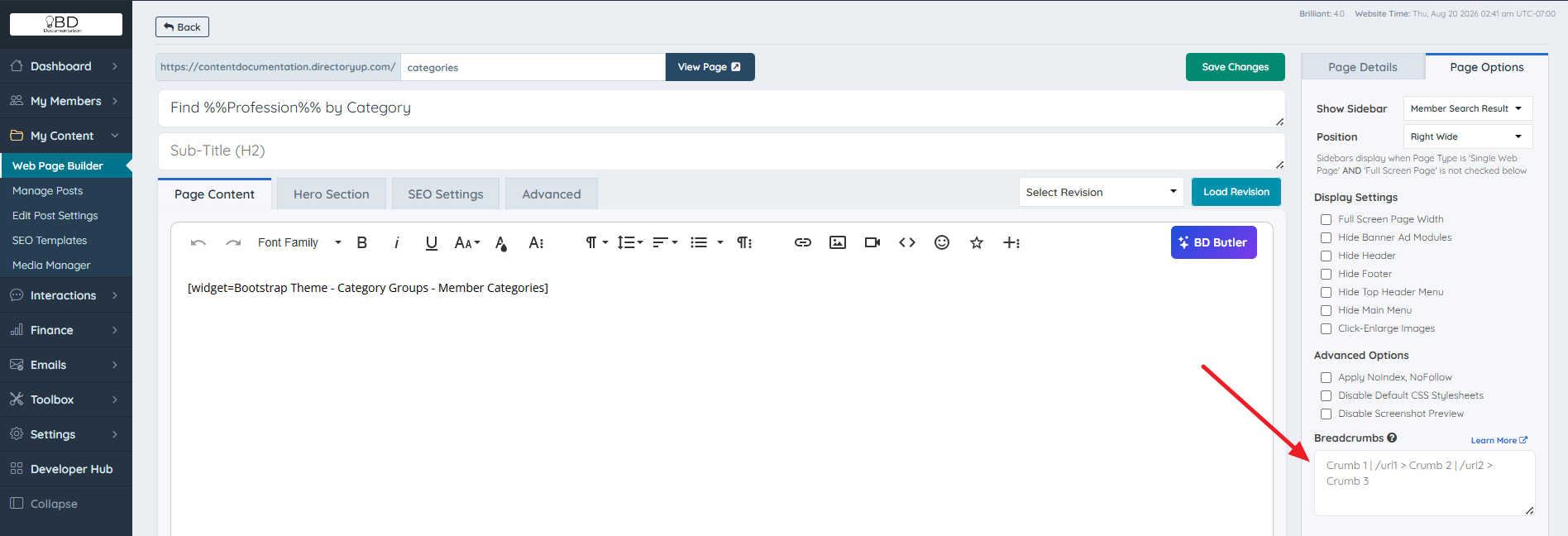
Blog | /blog > Partner | https://example.com > My Page> — Separates each breadcrumb level.| — Assigns a URL to the breadcrumb immediately before it. Both relative URLs (such as /blog) and absolute URLs (such as https://example.com) are supported.- The text before the
|is the breadcrumb label that will be displayed. - The URL after the
|is the destination for that breadcrumb. - Each
>creates the next level in the breadcrumb trail. - The final breadcrumb can be plain text without a URL if it represents the current page.
Blog | /blog > Partner | https://example.com > My Page- Blog links to
/blog - Partner links to
https://example.com - My Page is the current page and is not linked.
Do not forget to save the changes.
Here is a list of some of the common variables that can be used to edit the web page breadcrumbs for static pages on the site:
1. %website_name%
2. %%Profession%
3. %website_url%
4. %industry%
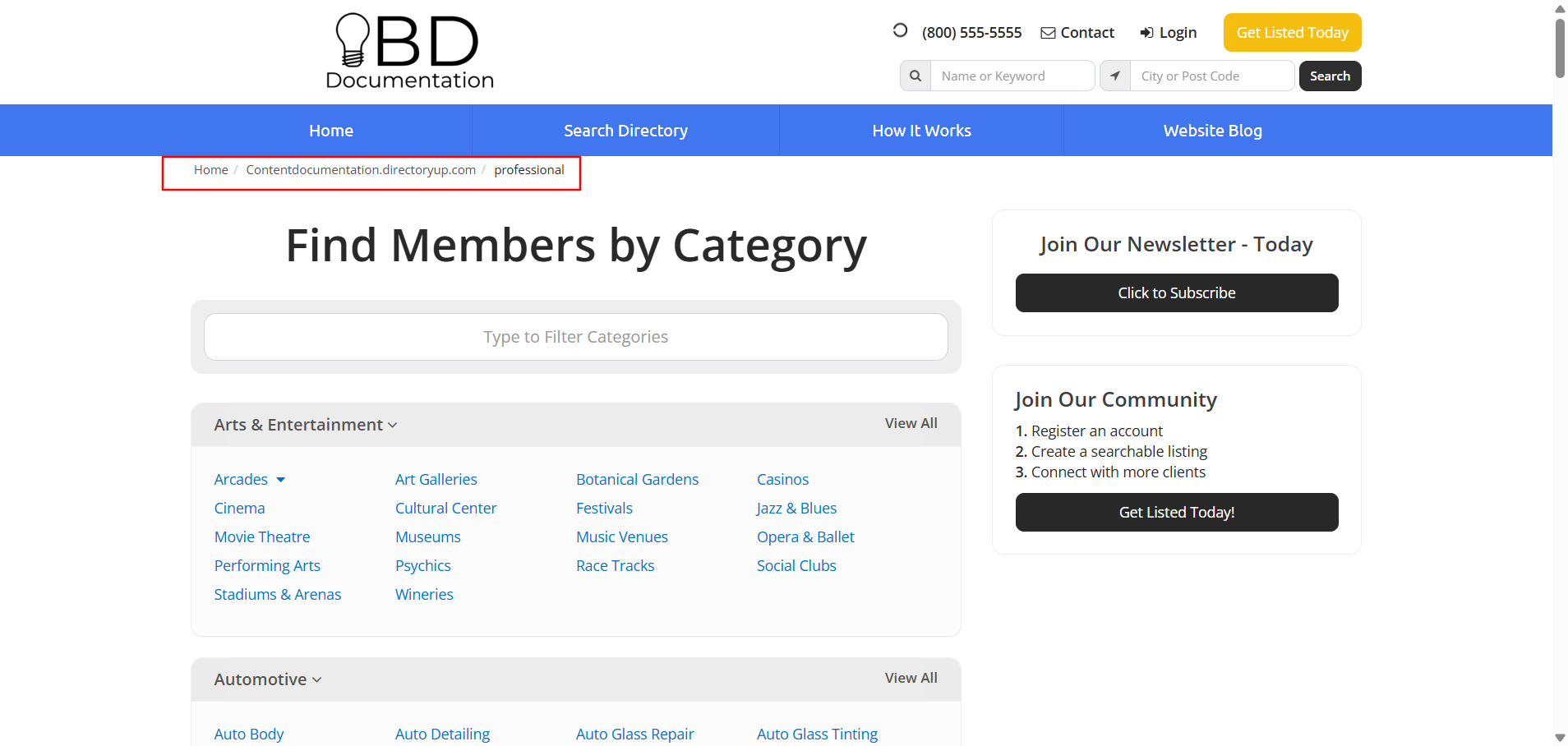
Example:
Category Page
2. Member SEO Templates
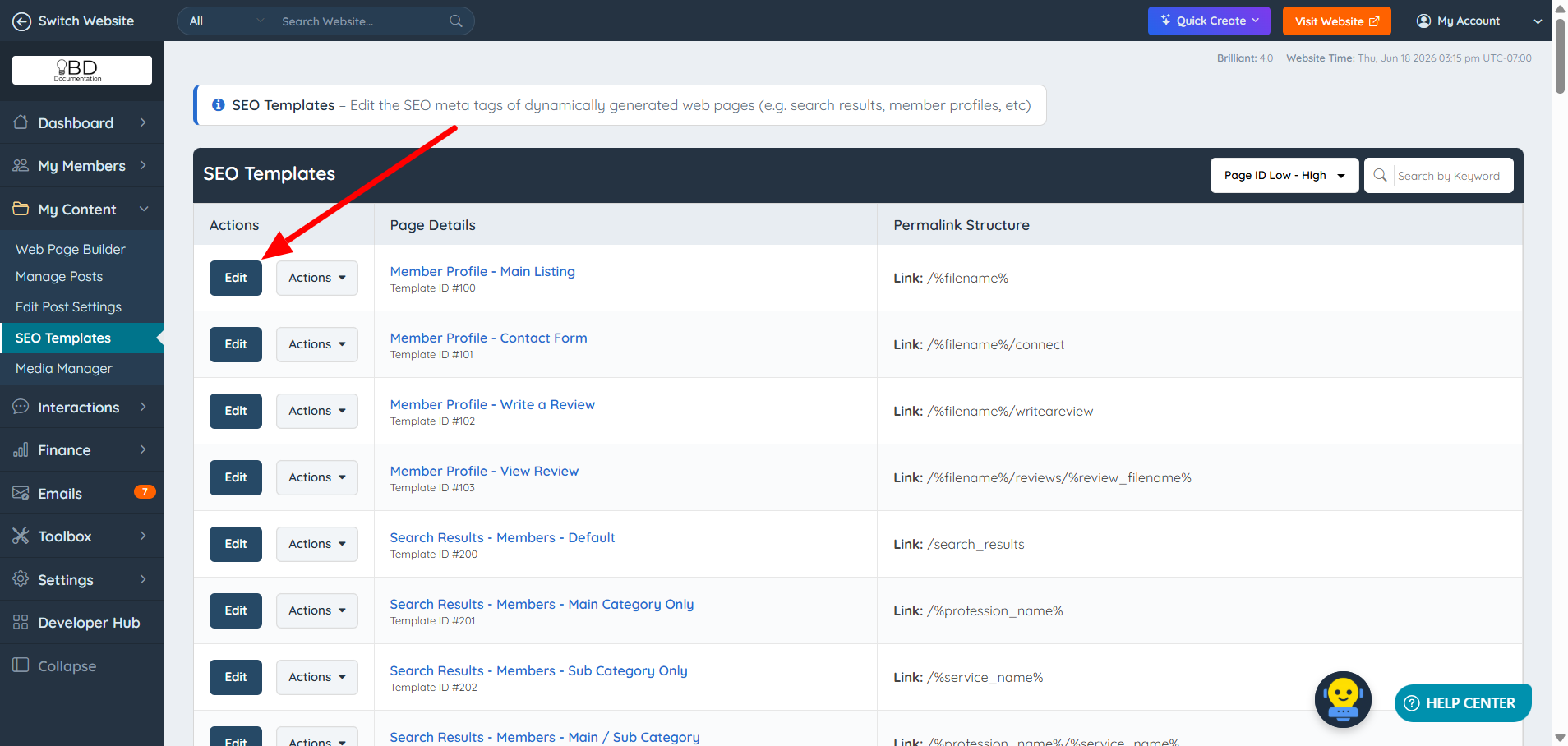
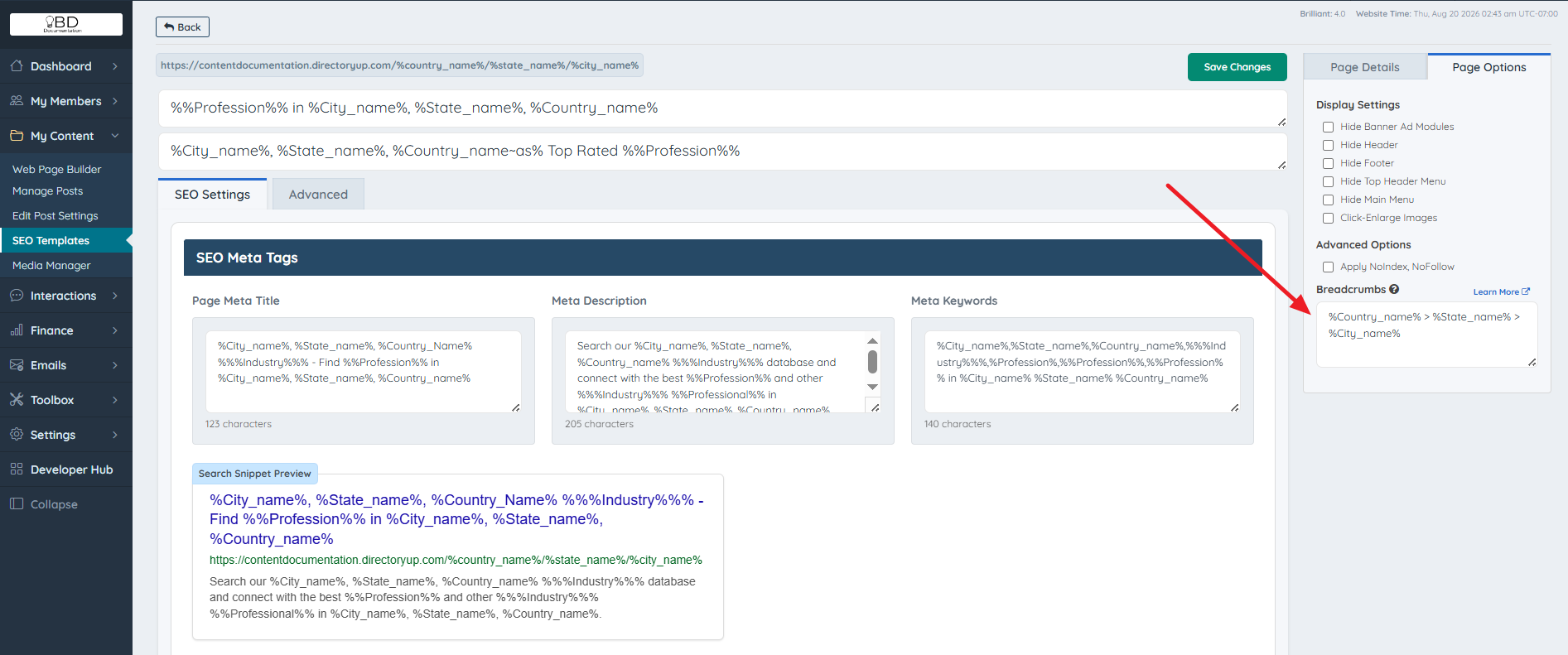
To edit the breadcrumbs of member SEO templates, navigate to My Content >> SEO Templates >> Choose a SEO template and click on Edit:
Move to the Page Options tab and edit them accordingly:
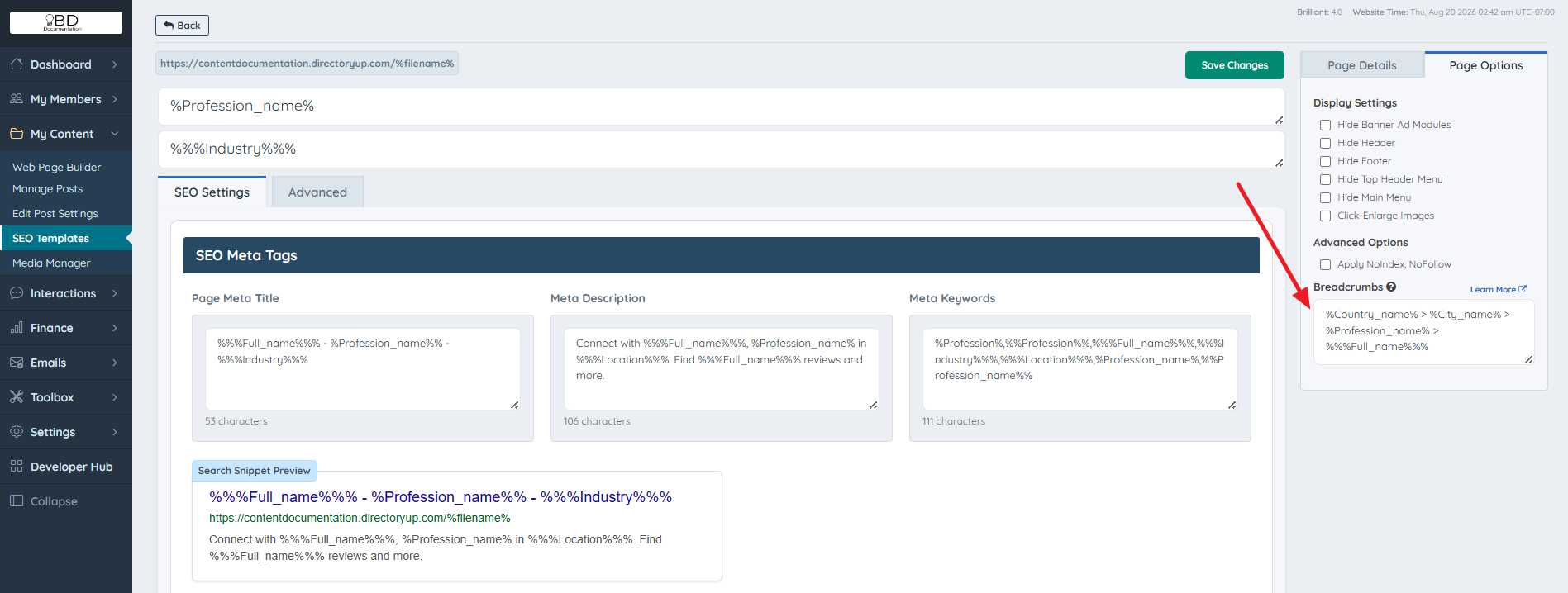
These are dynamic pages. Once the details have been edited in one SEO template, the changes will be reflected on multiple search results pages as well. A good example would be editing the SEO of a top-level category; this would affect the search result pages of all top-level categories as well.
- Profile Page SEO templates from ID #100 to ID #103: These are the pages that show member profiles.
- Member search results #200's IDs: Pages that will show based on a search by either category or location.
Here is a list of some of the common variables that can be used to edit the member SEO breadcrumbs of the dynamic pages of the site:
1. %country_name% – The name of the country that relates to this page
2. %city% OR %city_name% – The name of the city that relates to this page
3. %profession% – The name of the top-level category that relates to this page
4. %full_name% – The full name of the member that relates to this page
5. %service_name% – The name of the sub-level category that relates to this page
6. %company% – The name of the member's company that relates to this page
7. %location% – The city and state associated with the listing
8. %industry% – The industry variable entered on the Settings >> General Settings >> Industry tab
Examples:
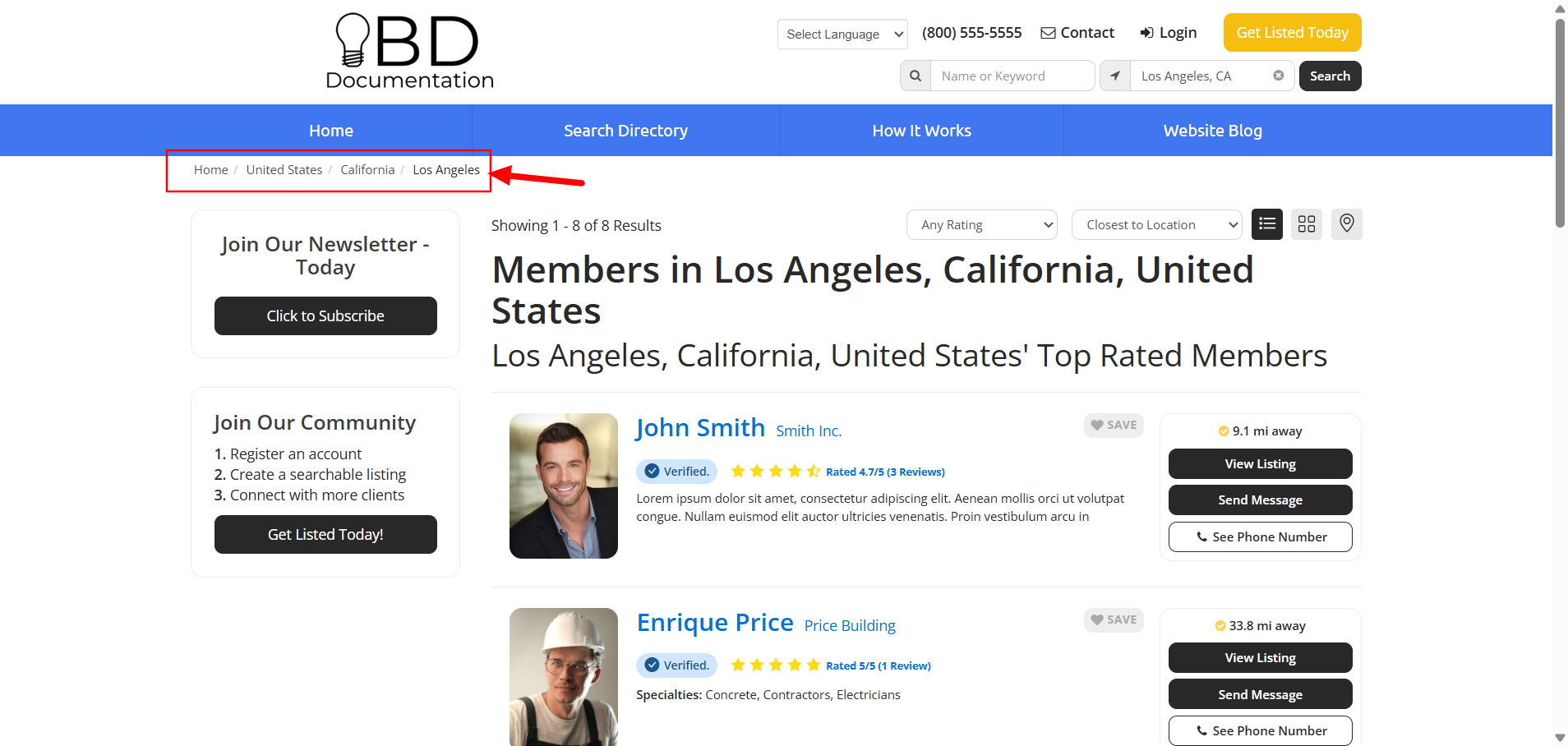
SEO Template ID #100:
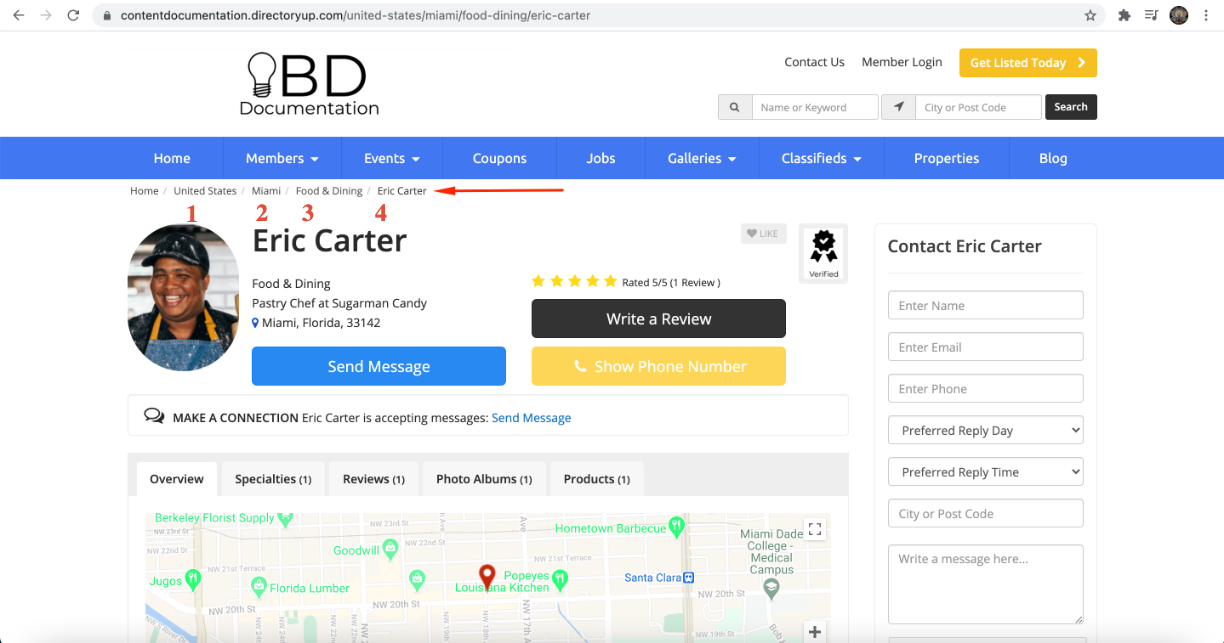
SEO Template #216:
3. Post Types SEO Templates
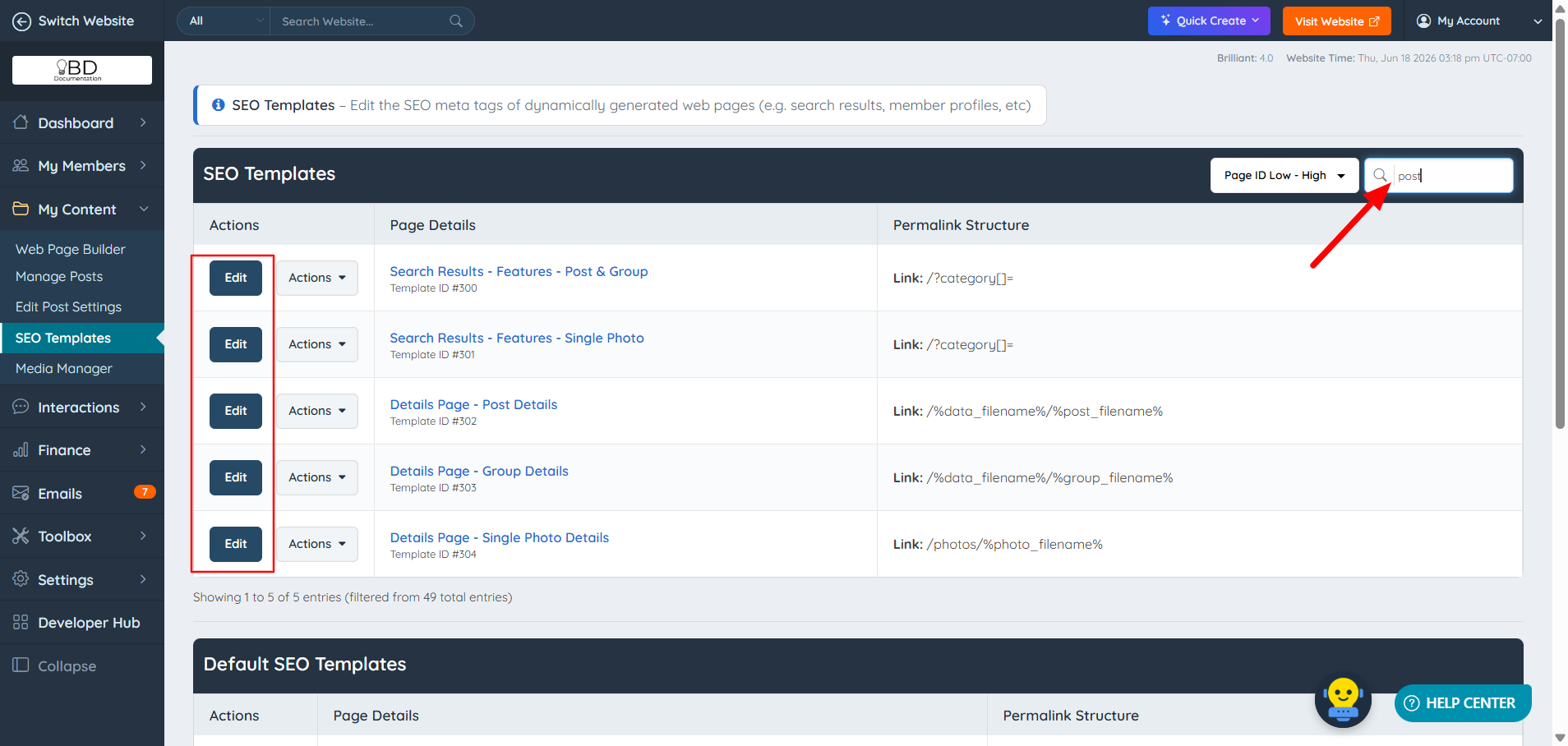
Navigate to My Content >> SEO Templates >> Choose one of the post SEO templates and click on Edit:
The changes will be reflected on either post search results pages or post detail pages.
- Post Search Results SEO Templates #300 and #301: Pages that will show based on a search by post type.
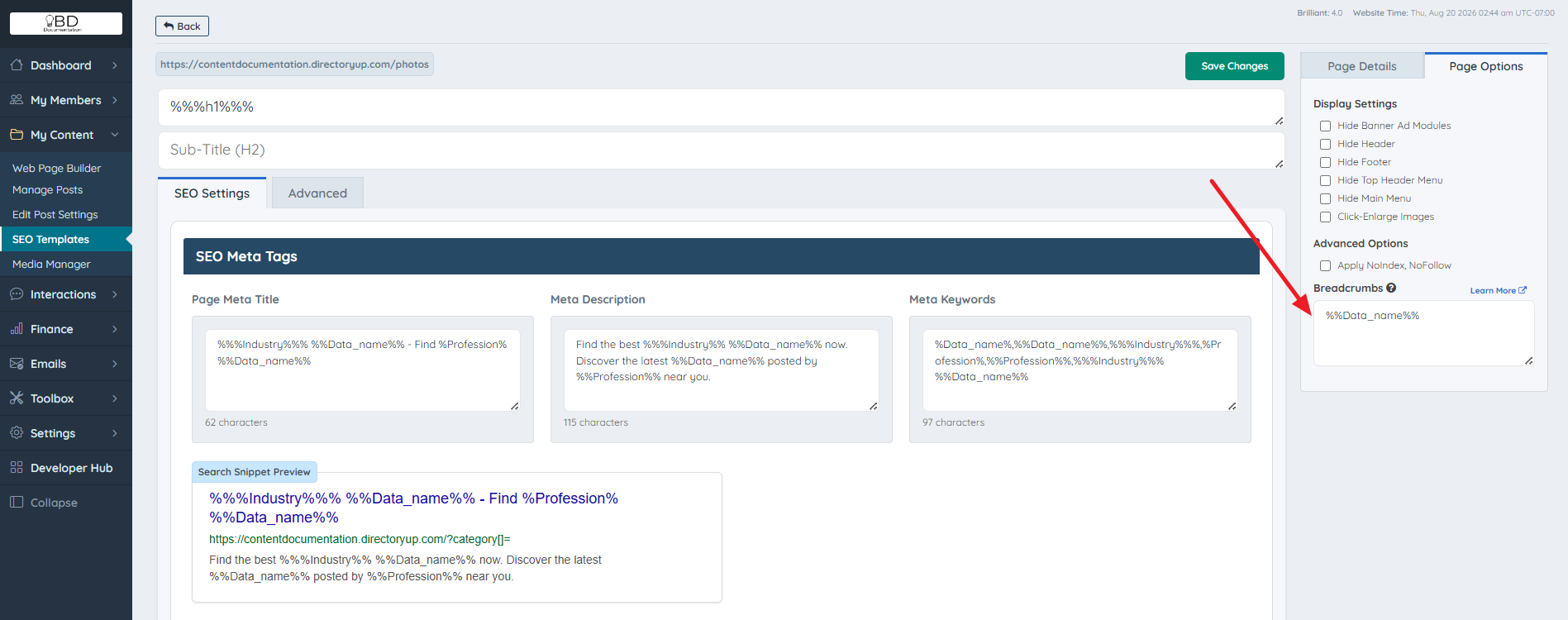
For the post search results SEO breadcrumbs, it is recommended to only use the %%Data_name%% variable: