
Manually Approve New Member Signups
Link: https://support.brilliantdirectories.com/support/solutions/articles/12000010781
The platform allows configuring member approval settings for each membership plan.
To enable this functionality for each membership plan, follow the instructions below:
1. Go to Finance » Membership Plans.
2. Find the membership plan and click "Edit"

Manually approving 'General User' or 'Free' membership plans is highly recommended.
In the 'Signups & Upgrades' tab , there is a setting called "After Sign Up, Set Account Status As". Select the option called "On Hold, Requires Admin Approval"
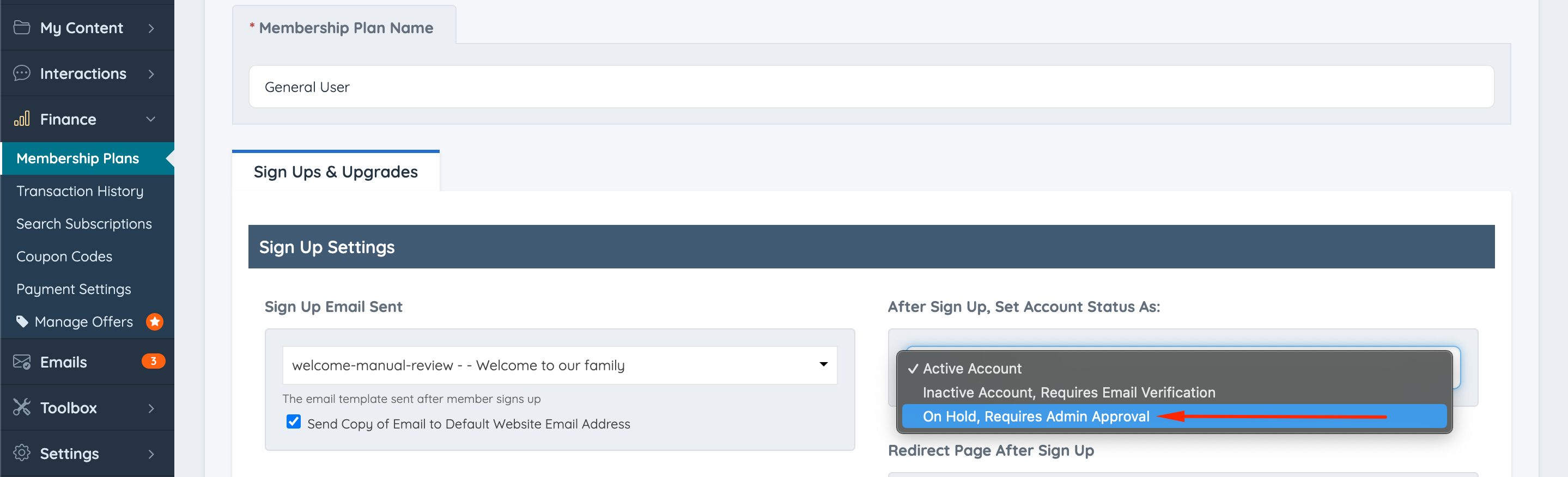
When this option is chosen, if members sign up, their accounts will remain On Hold and will not be visible until the admin manually approves them.
The last step of the setup will be to choose the 'Sign Up Email Sent', select the one called "Welcome-manual-review".

Editing email templates is not recommended. If an email template must be edited, follow the steps below:

Manually Approving Members
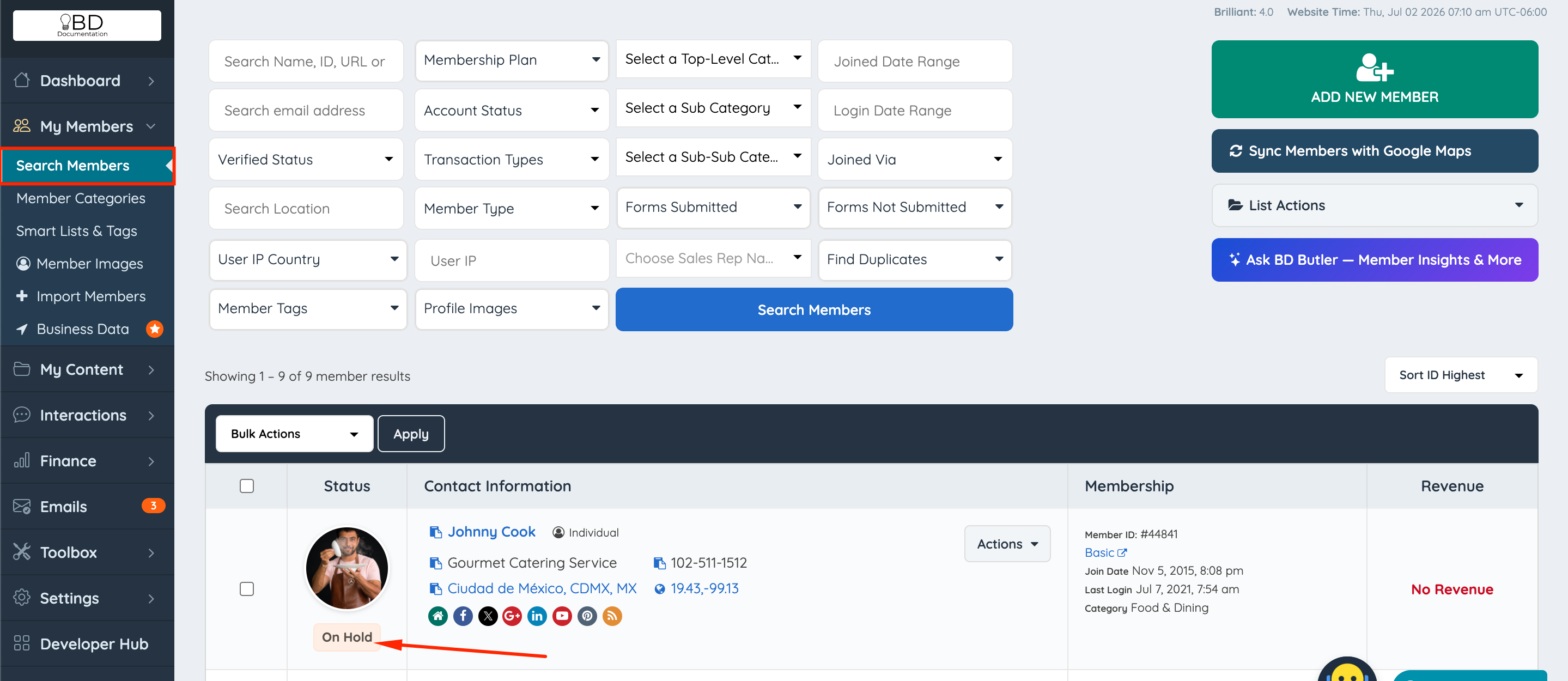
1. To approve members, go to Members » Search Members.
2. The status of the member will be "On Hold".
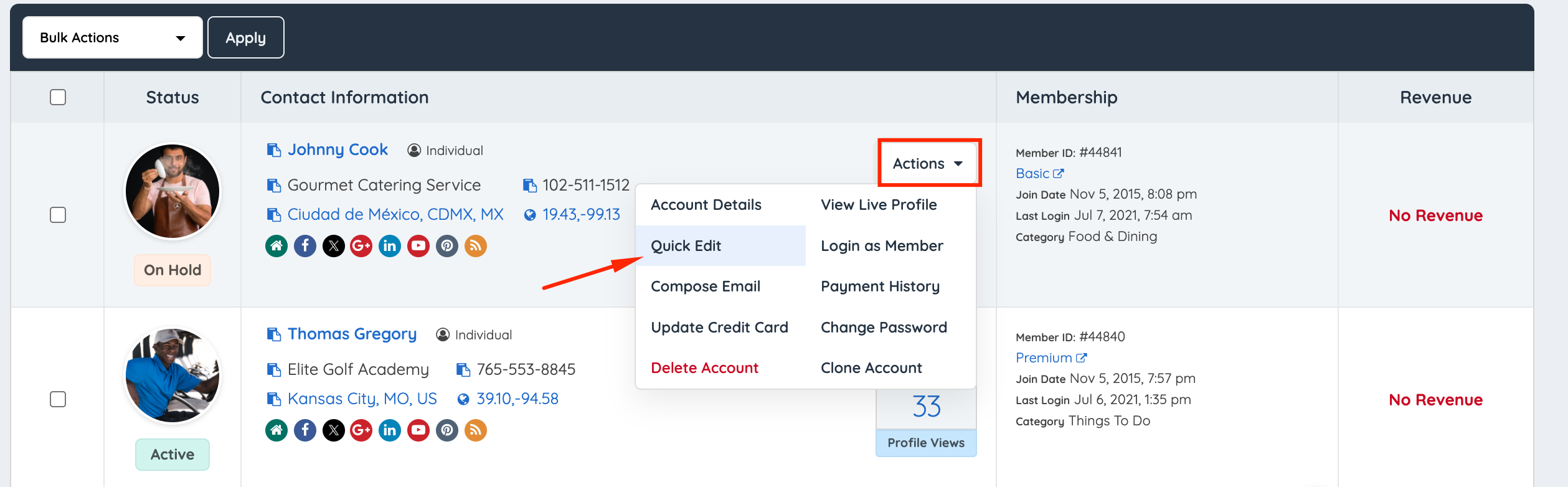
3. Click Actions » Quick Edit.
4. Change the "Account Status" to "Active Account", and save the changes.
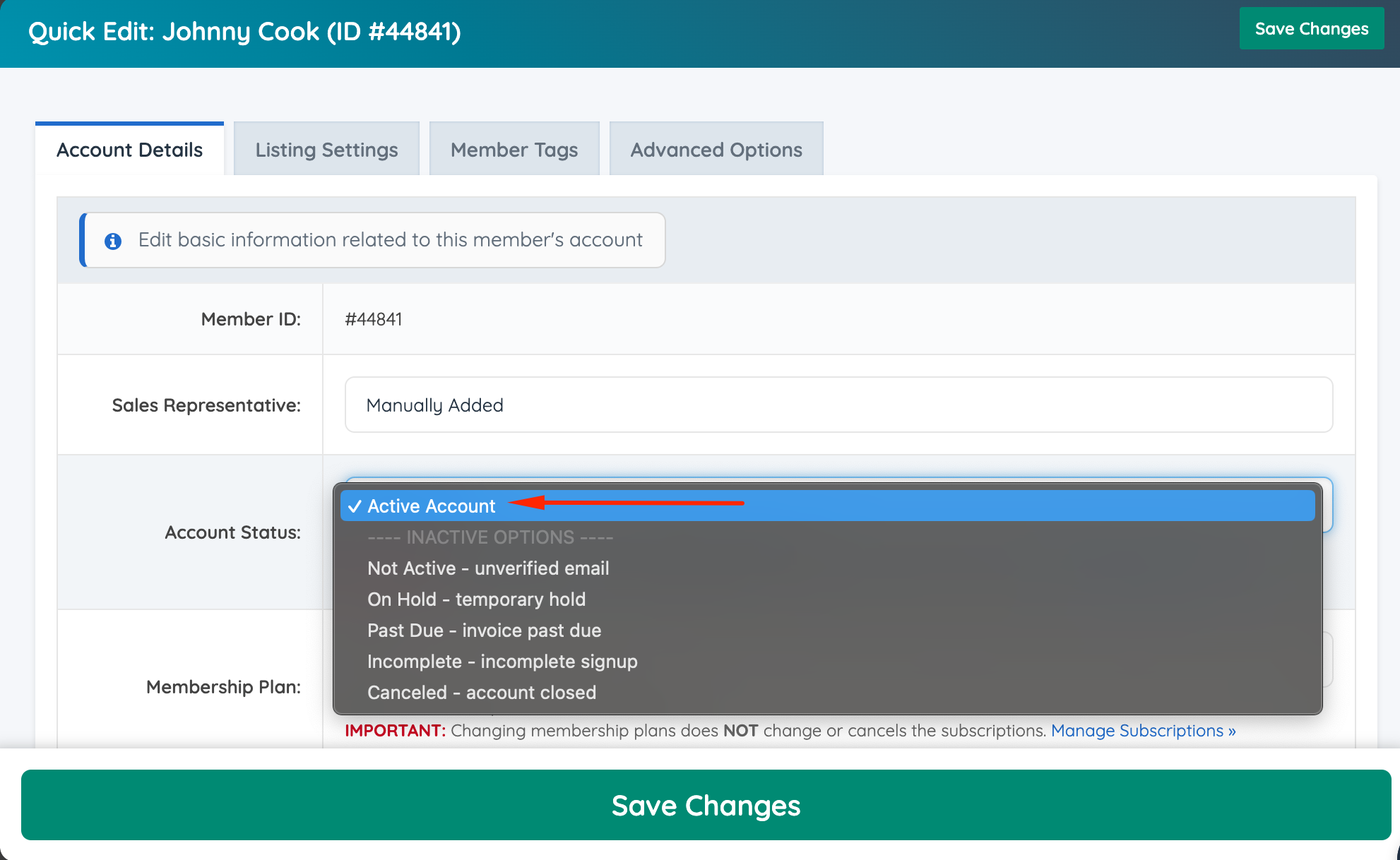
When the status is 'On Hold' and it is changed to 'Active', the system prompts the administrator to send an email notification.
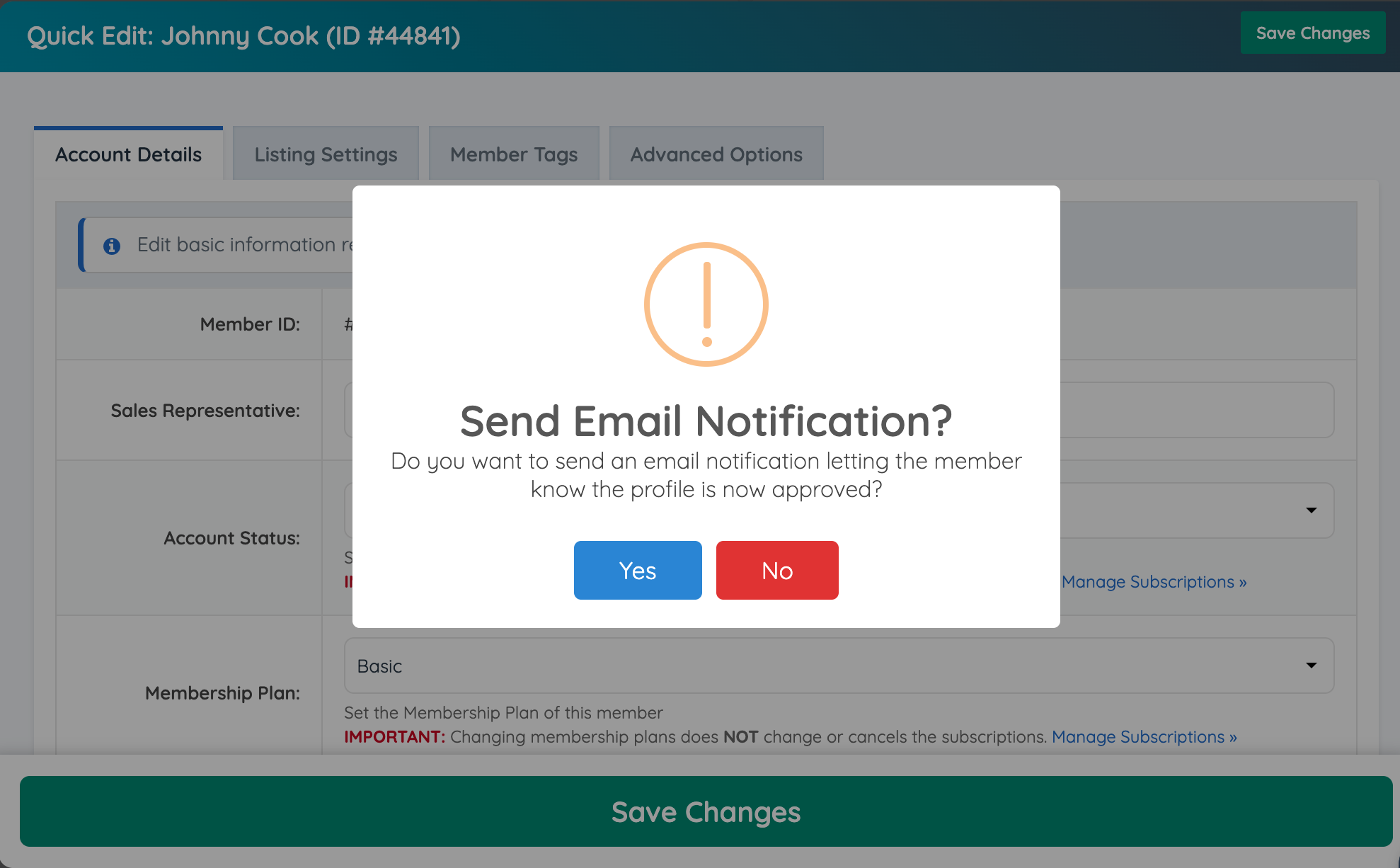
NOTE: The email template sent above is called: user-approved-by-admin.
It can be found under Emails » Email Templates.
The member's status will now be 'Active. As soon as the status changes, the member will be visible on the front end of the website.
