
Setting Up PayPal Express/Standard (Free) As The Payment Gateway
Link: https://support.brilliantdirectories.com/support/solutions/articles/12000015920
For the best results, it is recommended to use the Stripe payment gateway.
Before setting up a payment gateway, review this article to learn about the differences between Stripe and PayPal Express/Standard.
Enter the Gateway Credentials
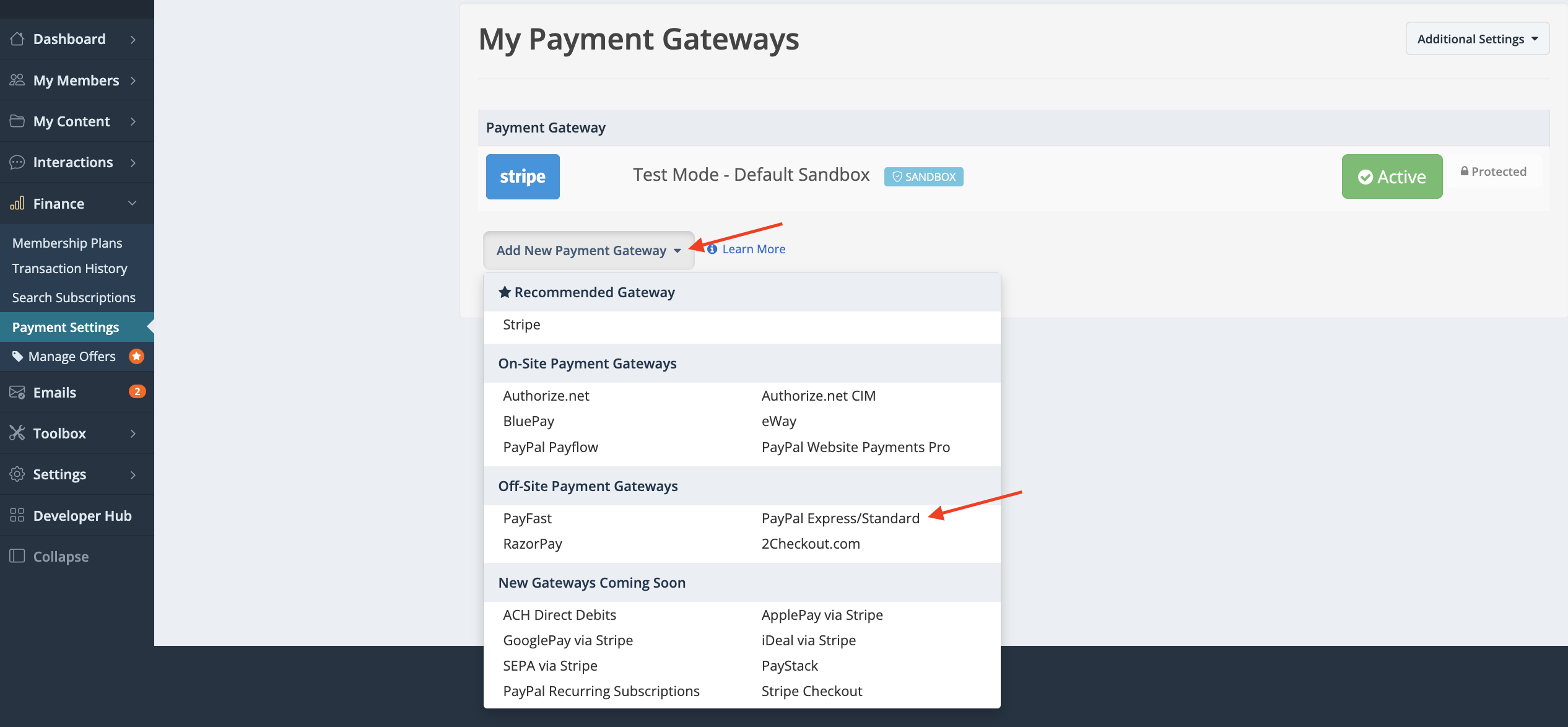
However, if PayPal Standard (Free) is preferred, complete the steps below after entering the payment gateway credentials by going to Finance >> Payment Settings >> Select PayPal Express/Standard:
Then add the credentials:
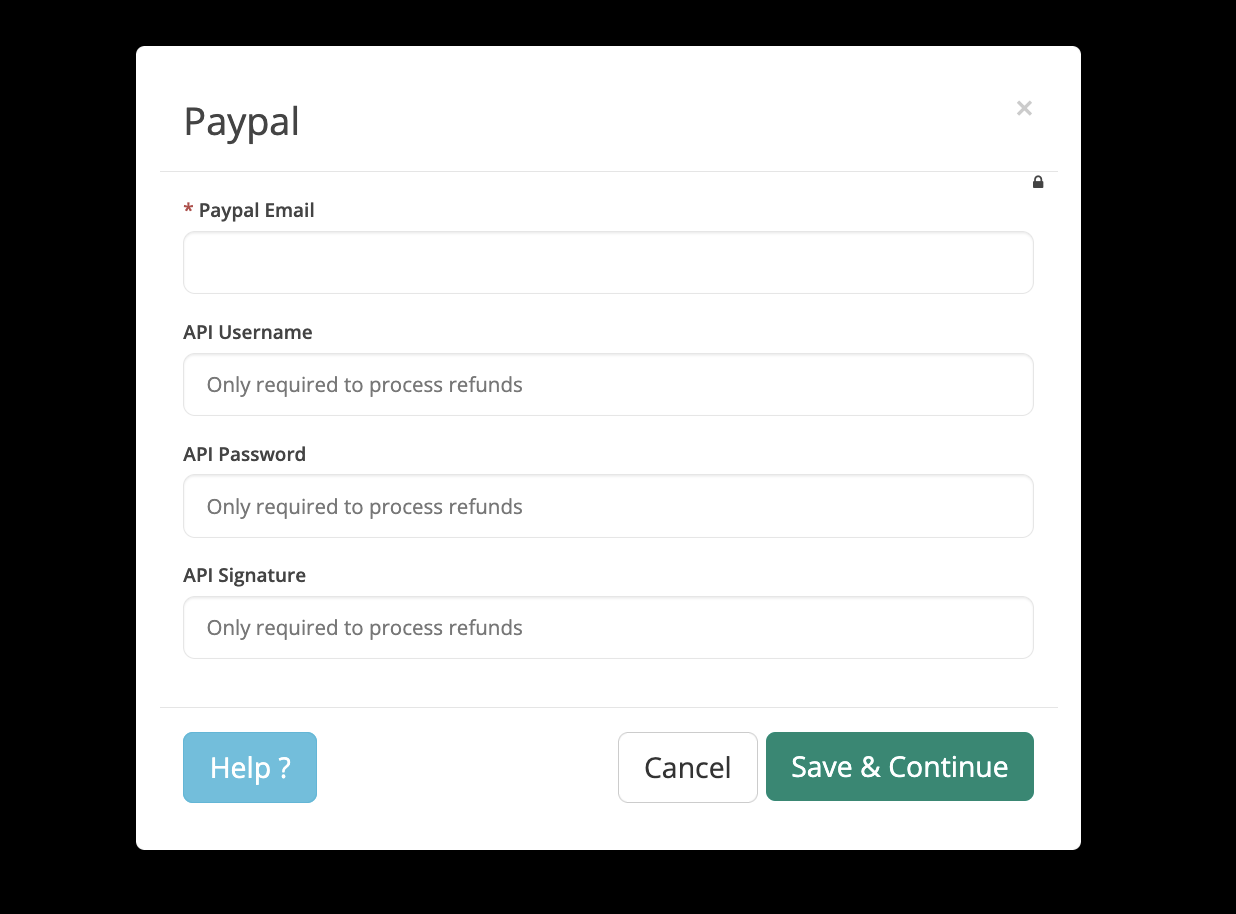
For assistance in locating the PayPal API Username, API Password, and API Signature, refer to the official PayPal documentation.
IMPORTANT: This guide applies only to PayPal Standard (Free).
If the PayPal account is a paid Business account that uses PayPal Payflow, refer to the PayPal Payflow setup guide instead.
Instant Payment Notification (IPN) URL
After PayPal Standard has been activated as the website's payment gateway, the IPN URL can be found on the Payment Gateways page in the Admin.
If the IPN URL cannot be located, it can be created using the following format by replacing www.domain.com with the website's domain: https://www.domain.com/checkout/notifications/paypalipn
For example, if the website domain is www.marys-website.com, the IPN URL would be:
http://www.marys-website.com/checkout/notifications/paypalipn
Configure the Instant Payment Notification (IPN) Settings
NOTE: PayPal provides several account layouts, so the screenshots and navigation shown below may differ depending on the account. If the available options do not match the screenshots, contact PayPal Support for assistance enabling IPN notifications using the IPN URL described above.
The screenshots below were captured using a U.S. PayPal Standard (Free) account during the fourth quarter of 2016.
- Sign in to the PayPal account and open Seller Preferences from the left navigation menu.

Alternatively, access the Seller Preferences page directly:
https://www.paypal.com/us/cgi-bin/webscr?cmd=_profile-display-handler&tab_id=SELLER_PREFERENCES - Select Update next to Instant Payment Notifications.

- Select Choose IPN Settings.

- Complete the following steps:
- Enter the IPN URL into the Notification URL field.
- Select Receive IPN messages.
- Click Save.

