
Bulk Delete Or Move All Members From A Specific Membership Plan
Link: https://support.brilliantdirectories.com/support/solutions/articles/12000021382
This article explains how to delete all members from a membership plan or move them to another membership plan. This is a great feature, especially when importing members.
It is best practice to import new members into a dedicated, empty membership plan. This ensures that if any issues arise during the import process, the batch can be safely bulk-deleted without affecting existing users. Once the data is verified, these members can easily be transferred to their active membership plans.
Deleting Members
To delete all members from a specific membership plan, please follow these instructions:
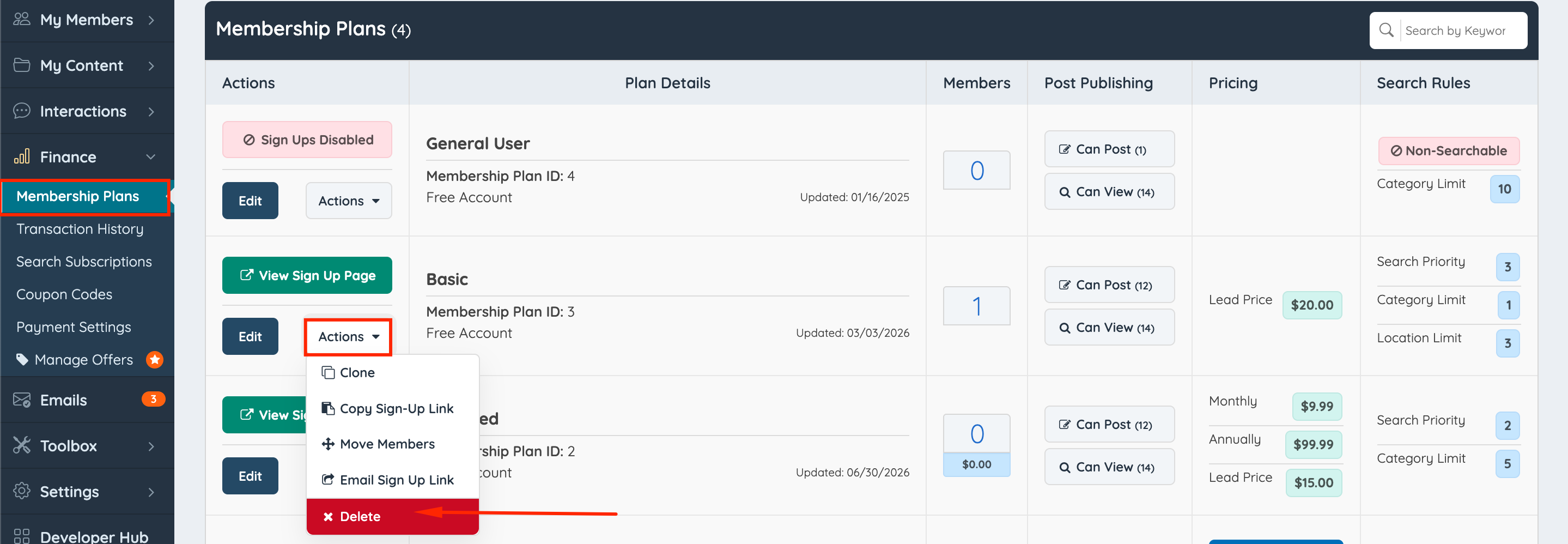
- Go to Finance » Membership Plans.
- Click "Actions" and select "Delete":
- Select one of the following options:
- Only delete members from this membership plan.
- Delete membership plan and all its members.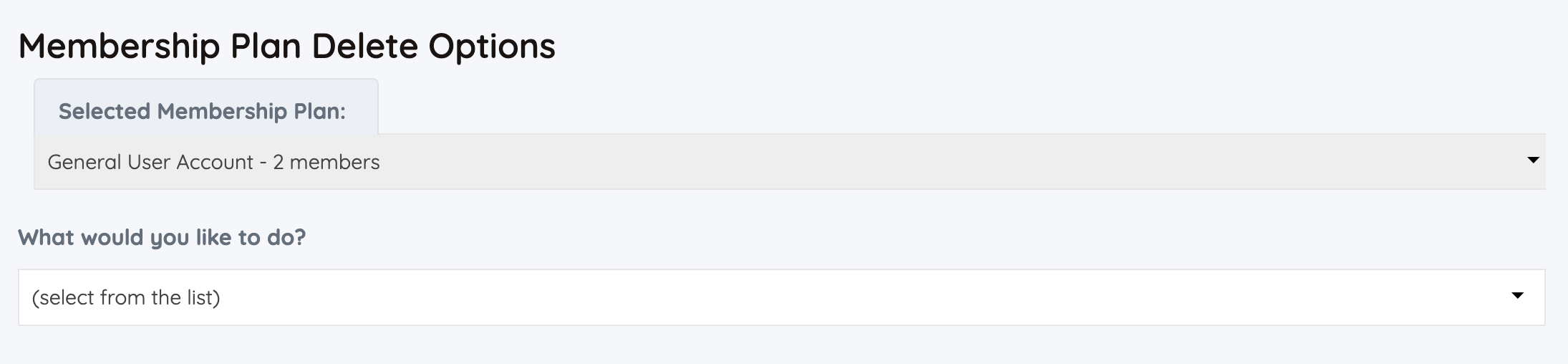
- Click "Yes, Continue".

- All members in that membership plan will be deleted.
Moving Members
To move members from one membership plan to another, please follow these instructions:
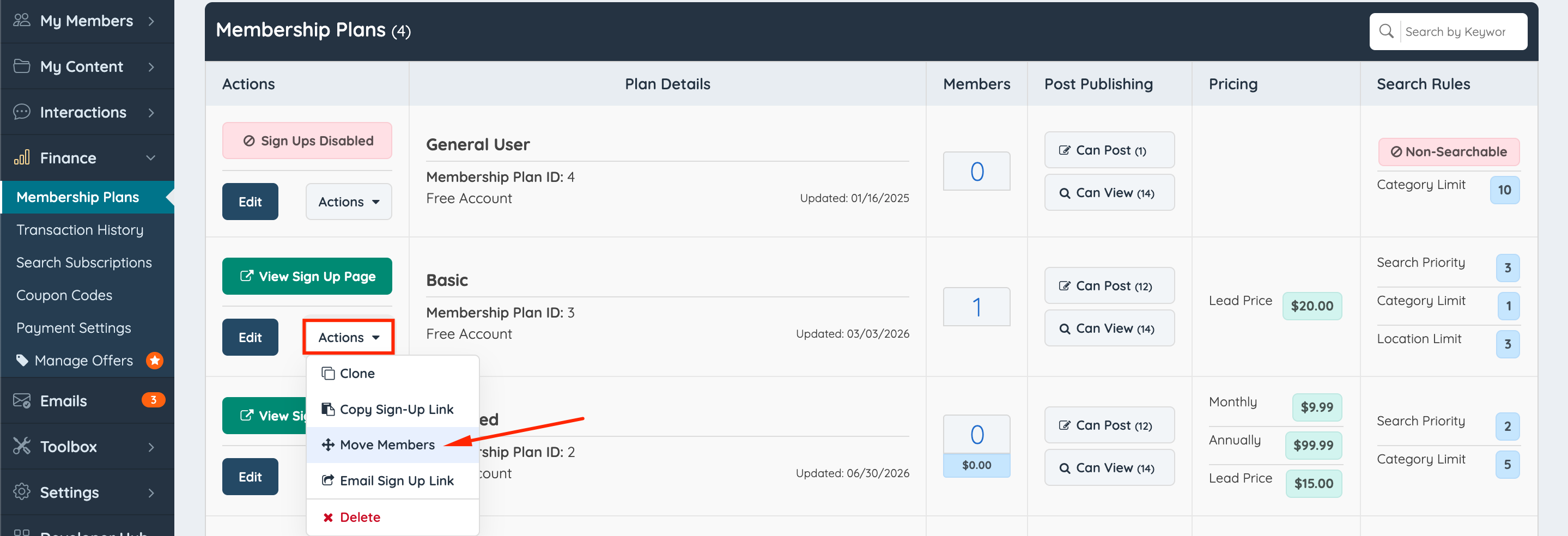
- Go to Finance » Membership Plans.
- Click o "Actions" and select "Move Members":
- Select the membership plan to which the members will be moved and click "Continue":

- Click "Yes, Continue":

This action moves all members to the new membership plan. However, it is important to note that the system does not automatically create new subscriptions as part of this process.
To assign different subscriptions under the new plan, the existing subscriptions must be canceled before new subscriptions are created manually.
The steps for creating new subscriptions are outlined in this guide.
