
Toolbox » Menu Manager
Link: https://support.brilliantdirectories.com/support/solutions/articles/12000034716
Where Can I Access This Tool?
Inside Toolbox » Menu Manager:

What are the Default Menu Options?
By default, the Menu Manager comes with 5 different menu options.
Header Main Menu
Accessible via /home and most of the website.

Side-by-Side Pricing Menu - add-on
Can be added to the /join page.

Footer Menu
Is accessible on any page by the default

Header Mini Nav
Is accessible via /home

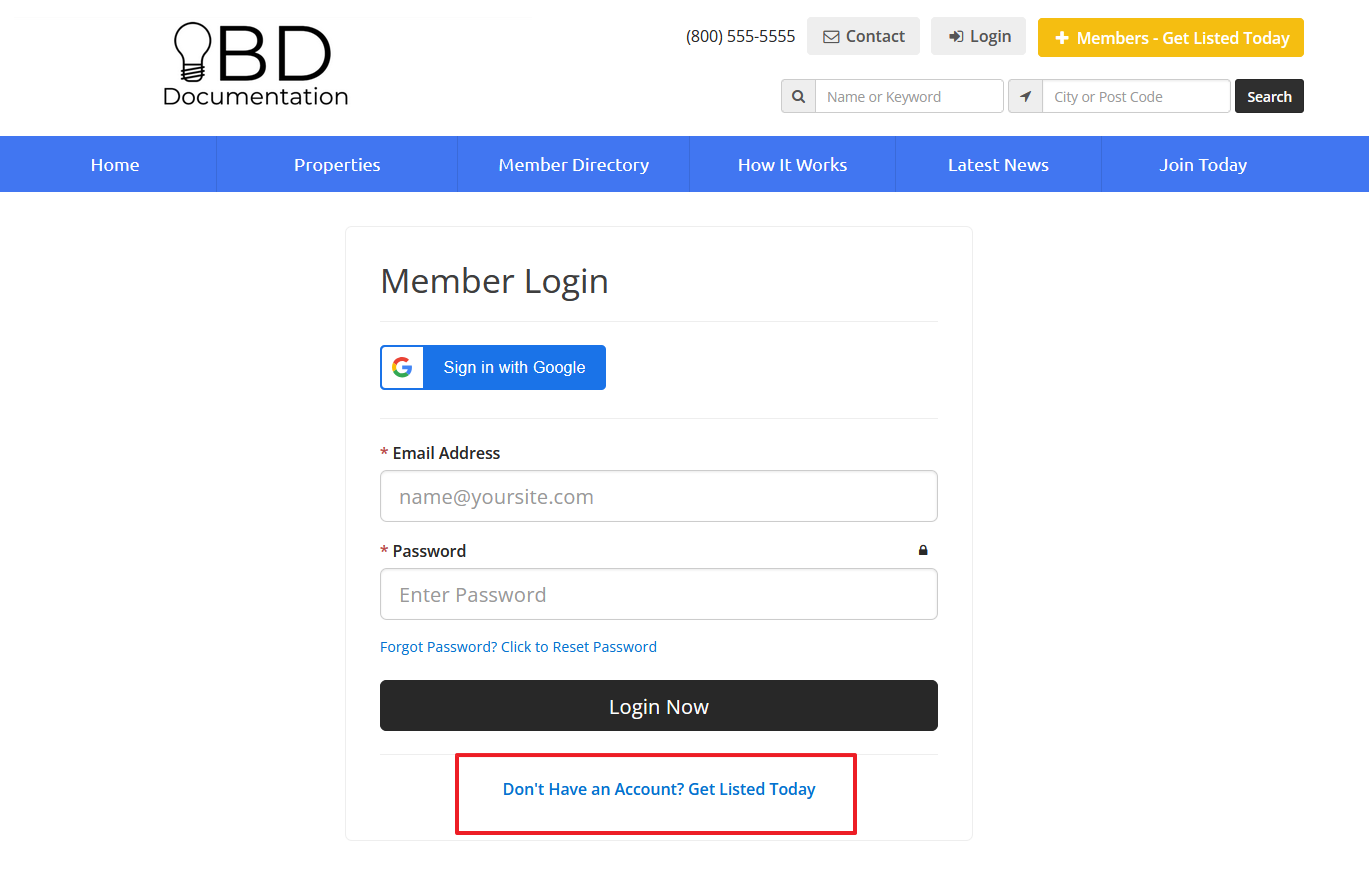
Login Page Links
Is accessible via /login
How Can I Edit These Menus?
Click Customize under Actions to edit a menu.

In this instance, let's make changes to the "Main Menu".

Add an additional link by clicking on the "New Link+" button:

Once the text and URL are added, click Save Changes. Once saved, the edited menu will start appearing above the Default Menus, indicating it is a Custom Menu.

When clicked on "Edit" on Custom Menus:

There is a button option called "Edit Menu Settings":

Once clicked, a module will display where the Nickname and System Name can be assigned for the menu:

Additionally, Custom Menus will have a few options under Actions:

- Clicking Disable will disable the custom menu and its default version will be used on the website. This is very helpful for troubleshooting purposes:

- Clicking Clone will clone this custom menu and will assign a custom Menu Name and Shortcode:

- Clicking Copy Shortcode will copy the shortcode of this custom menu, with this copied shortcode, it is easy to call the menu on the preferred location like in a webpage or a widget (How To Call A Menu On A Webpage).
Ex) [menu=main_menu_clone_33]
- Click Delete to remove this custom menu.
How to Create Dropdown Menus
Drag a menu item beneath another to create a child element.

After saving:

Click to hide:

The drop-down menu shows up on the front end:

More Editing Options For Menu Links
All menu links come with a "Settings" button that allows for further changes:

- Link / Text Link CSS Class - In this section, add preferred CSS Class to the <a> element. This is an ideal place to use pre-maid Bootstrap classes if needed.
- <li> CSS Class - In this section, add preferred CSS Class to the <li> element. This is an ideal place to use pre-maid Bootstrap classes if needed.
- Link / Text Inline Style Attribute - In this section, add preferred style elements to the <a> element.
- <li> Inline Style Attribute - In this section, add preferred style elements to the <li> element.
- Add no-follow - This setting will indicate if search engines should follow this link or not.
- Open in a new window - This setting will indicate if the link should open in a new tab or not.
- Hide Item - This setting will hide the menu item in the front end but will still be available in the menu manager.
Additional Information:
>> How To Edit The Options For Menu Links
