
Export Member Data
Link: https://support.brilliantdirectories.com/support/solutions/articles/12000039479
Overview
The data for the website’s members is conveniently stored and accessible within the website admin panel. Sometimes it’s necessary to export this data to be used for other purposes.
The Export Member Data add-on can quickly export specific member data (email addresses, phone numbers and more) into a .csv file that can downloaded and used with other applications.
How To Get This Add-On
- Websites with the VIP Add-Ons Club automatically have this add-on available: Join The VIP Add-Ons Club
- Purchase Individually: Export Member Data Add-On
Using the Add-On
This tool helps export members with ease. With this tool, one will be able to filter certain members and export the member's information. To use this simply follow these steps:
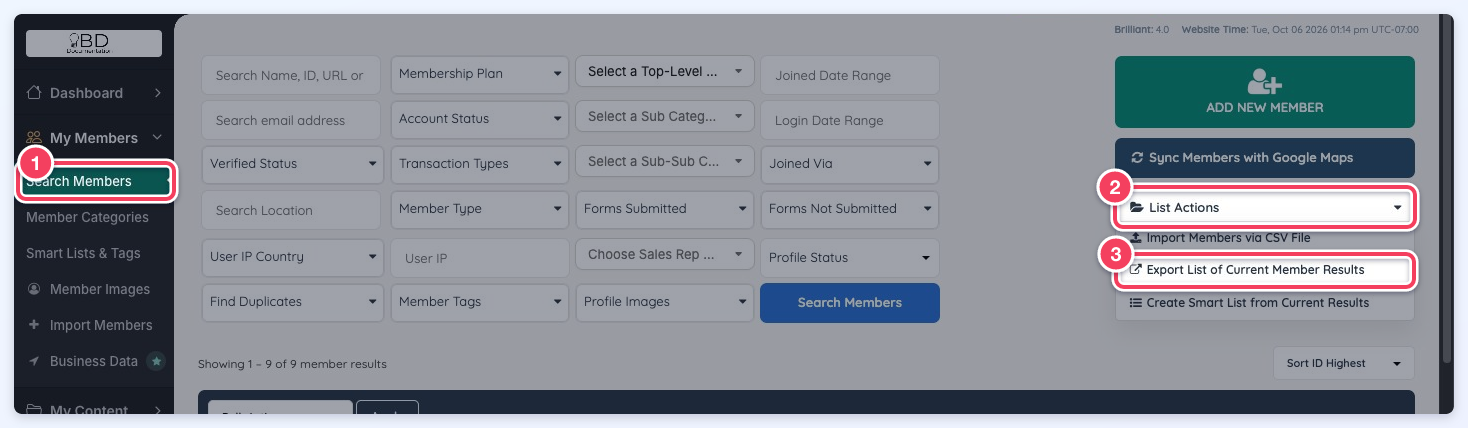
In the admin dashboard go to My Members » Search Members. Filter the members if needed, hover over List Actions and click Export List of Current Member Results to export the search results:
Select the fields to export or simply tick Select All Fields, then click Continue with Export:
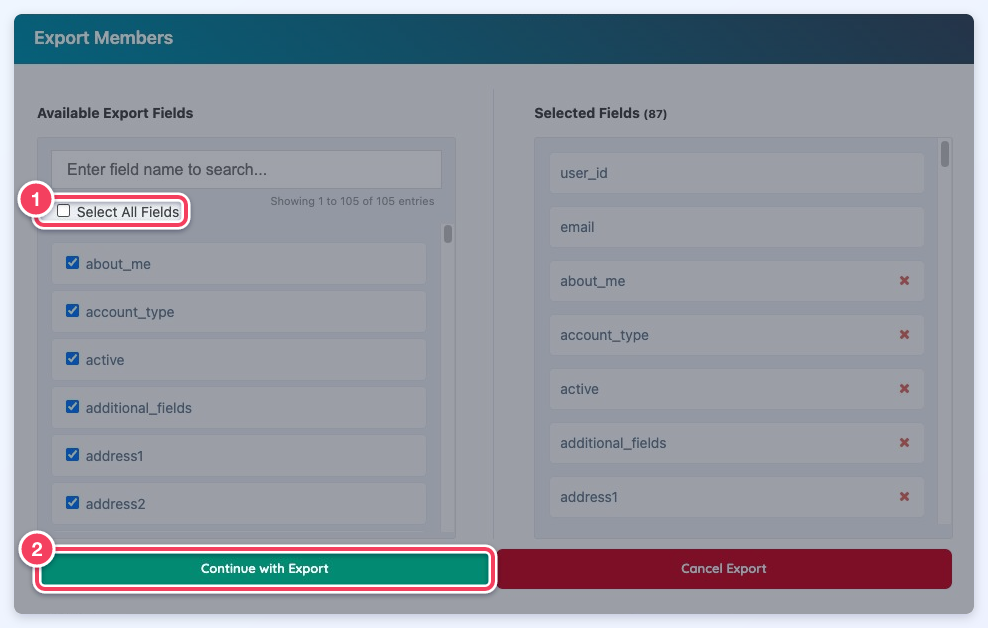
The whole flow, from List Actions to Continue with Export:
On the next export, the previously selected fields will be remembered for future exports. These fields will be displayed in Selected Fields, with the number of selected fields beside the heading: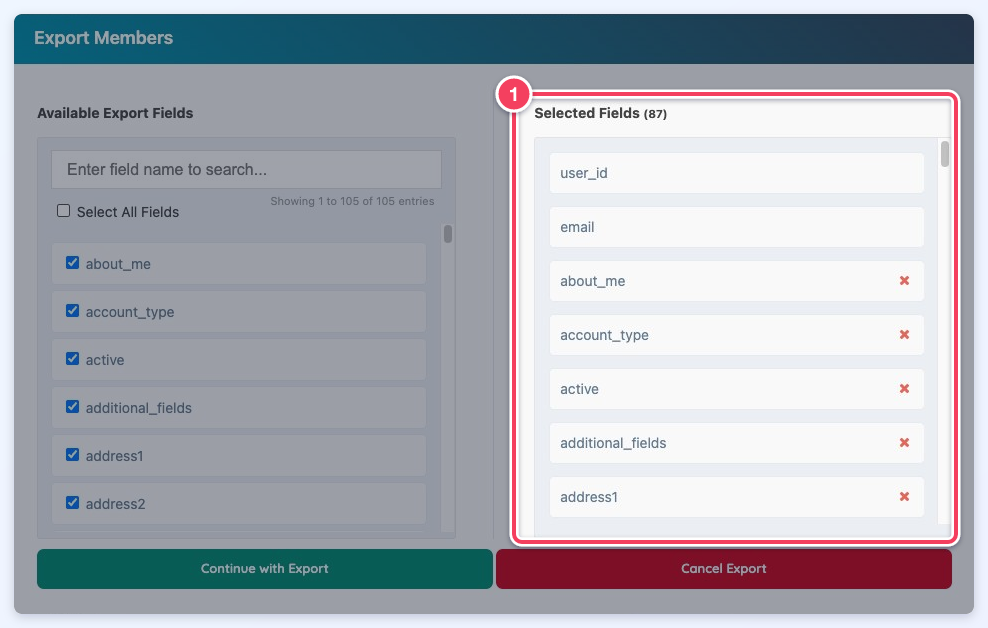
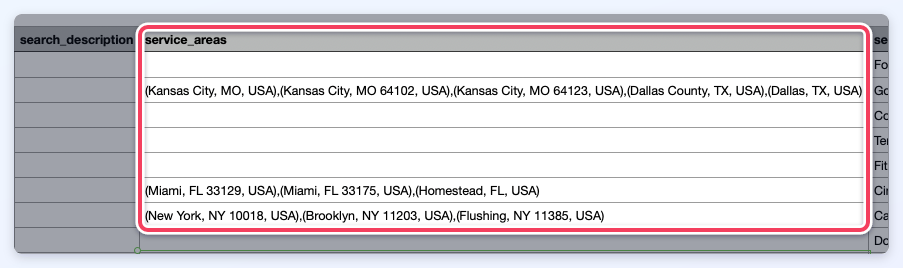
Important Note: If the Multi-Location Listing Add-On is active on the site, a field will become available for the admin to select and include them in the export file:
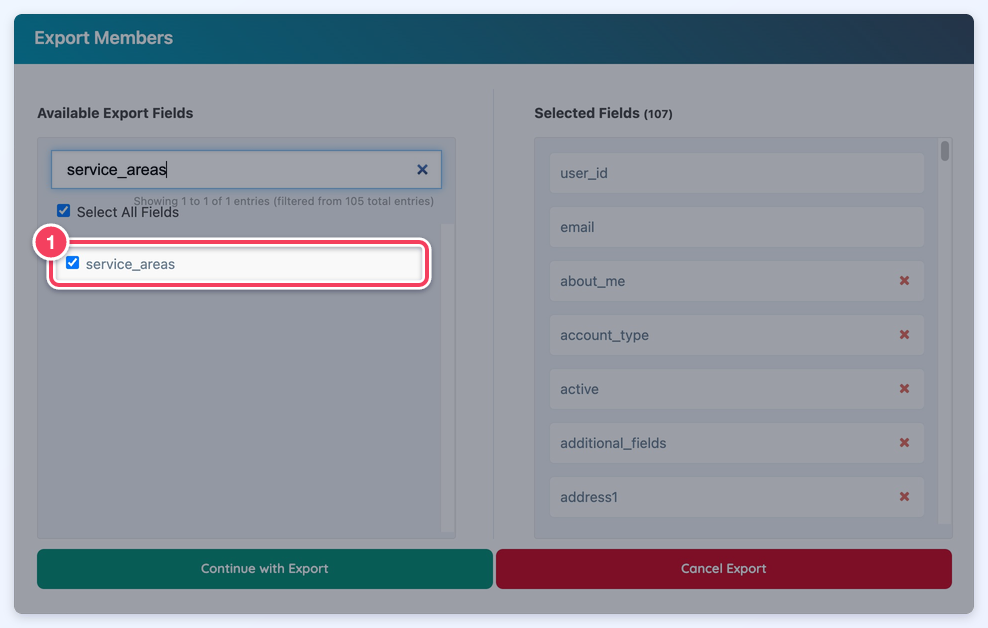
All service areas will be included in parenthesis and will be comma separated:
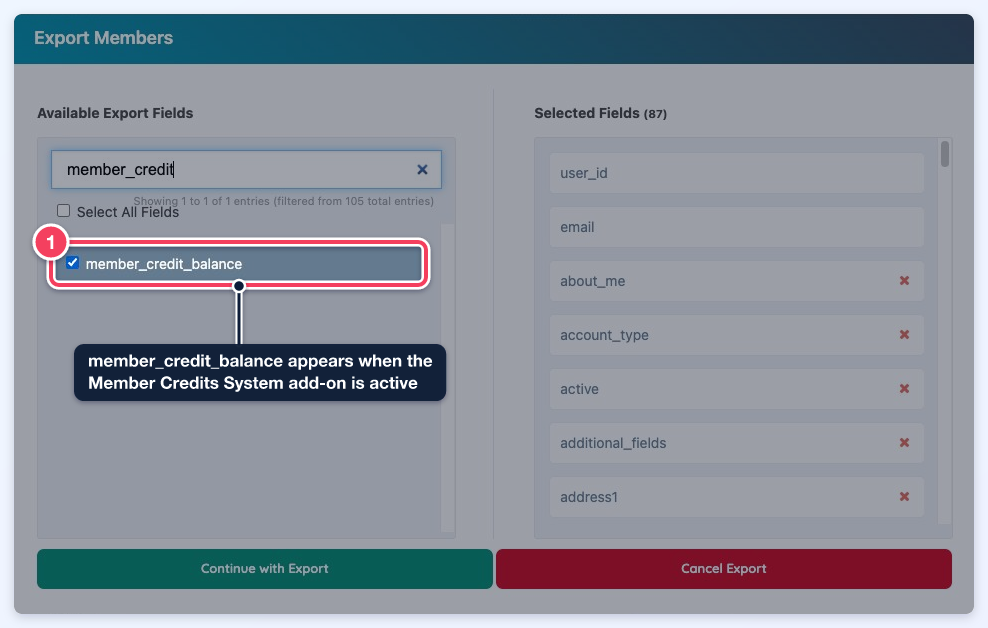
Important Note: If the Member Credits System Add-On is active and the enable_credit_system setting is on, a member_credit_balance field becomes available. It exports each member's current credit balance, and members without a billing record export 0:
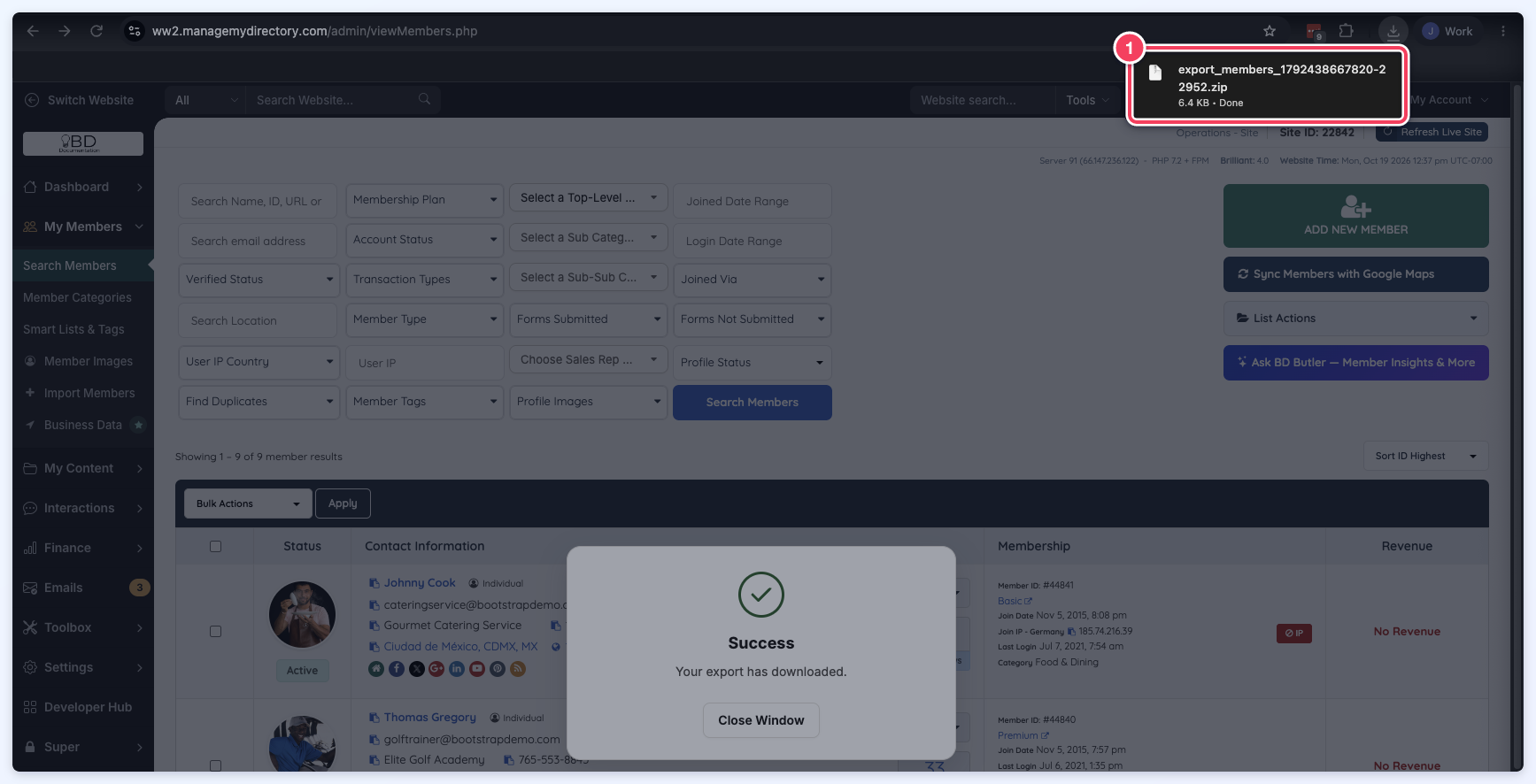
The download should start right away as a zip file:
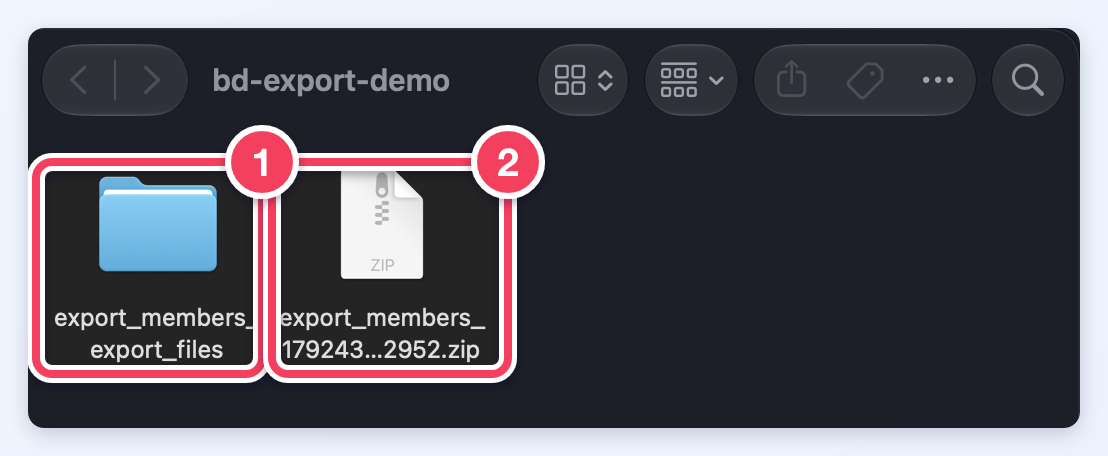
Opening Zip Files
- To unzip a single file or folder, open the zipped folder, then drag the file or folder from the zipped folder to a new location.
- To unzip all the contents of the zipped folder, press and hold (or right-click) the folder, select Extract All, and then follow the instructions.
Exporting Form Inquiries
This add-on will also allow to export inquiries received from forms.
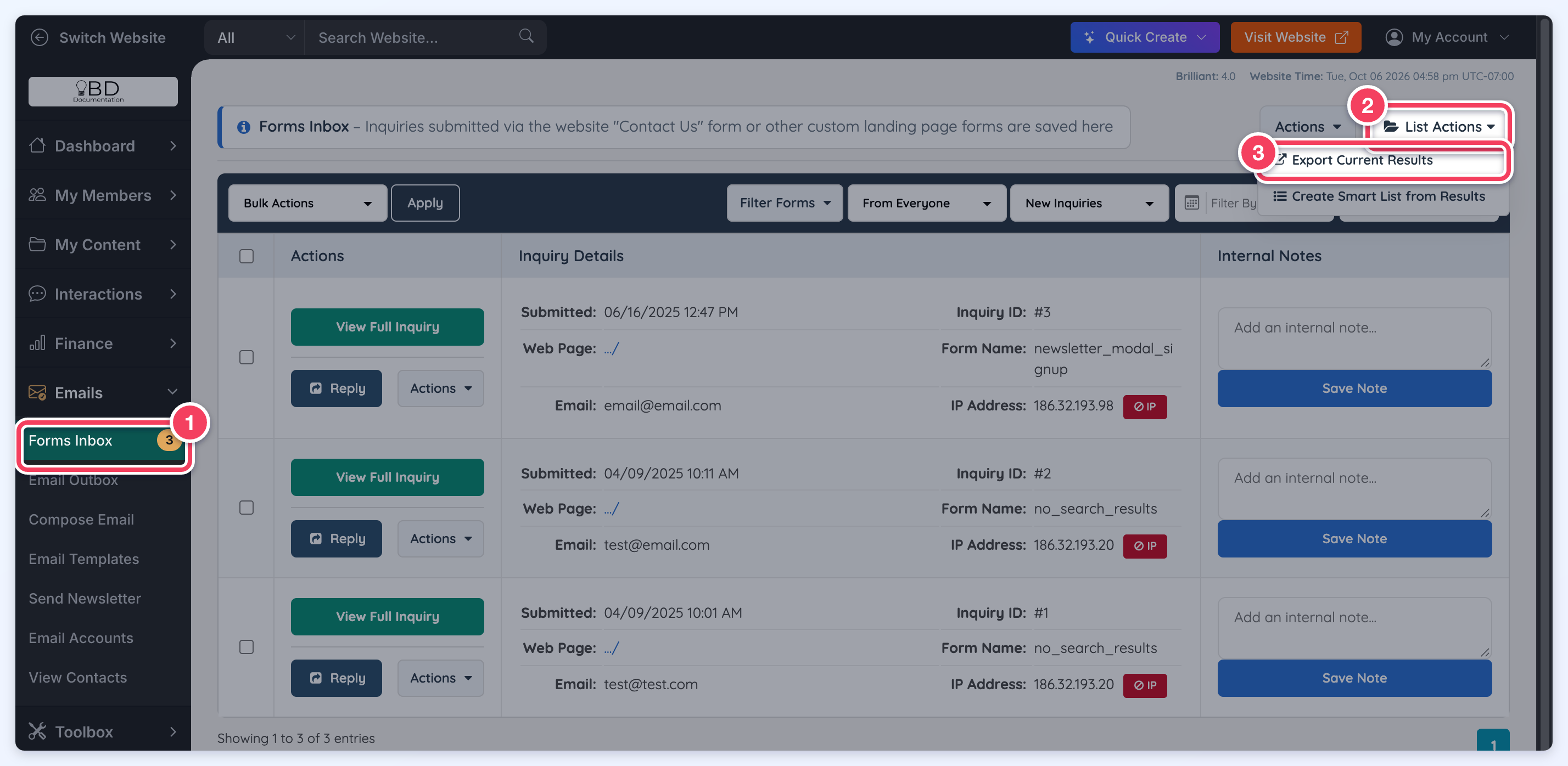
To export the inquiries, go to Emails » Forms Inbox, hover over List Actions and click Export Current Results:
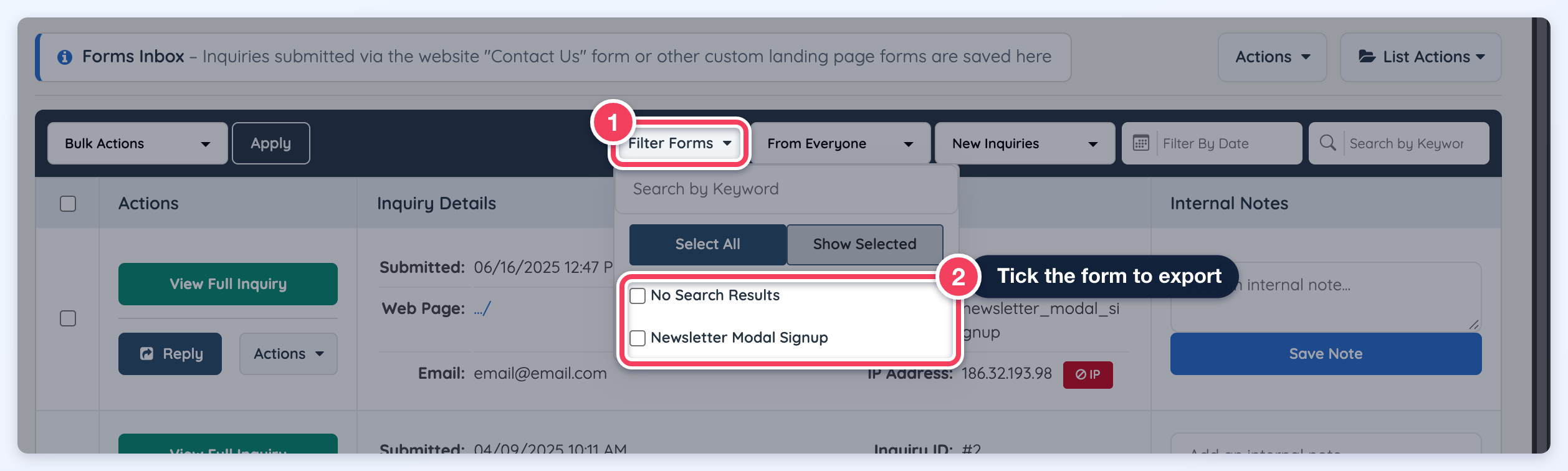
The export follows the filters applied to the inbox, and at least one form must be ticked under Filter Forms first; otherwise an Export Error asks for a filter form option.
For example, to export only the inquiries received from one form, open Filter Forms, tick that form, then click List Actions » Export Current Results:
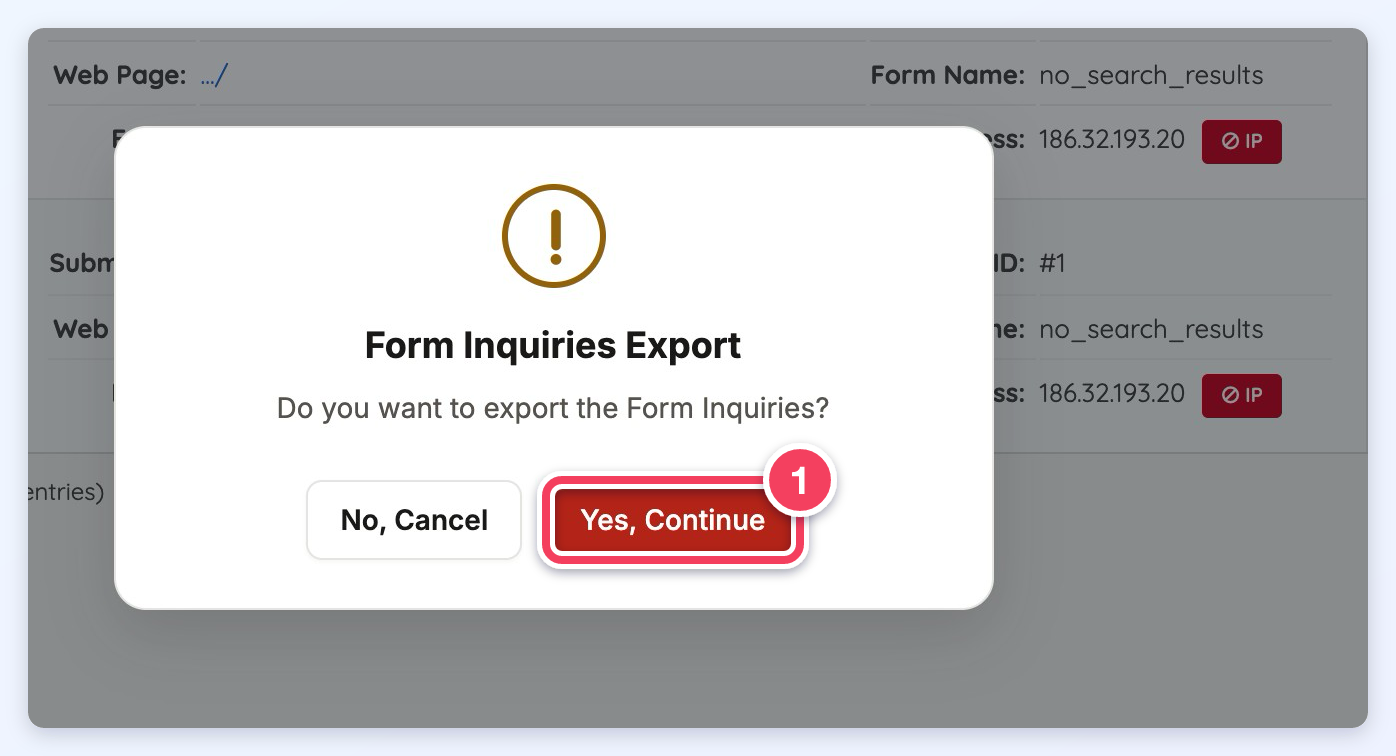
A verification step will pop up; click Yes, Continue to create the file:
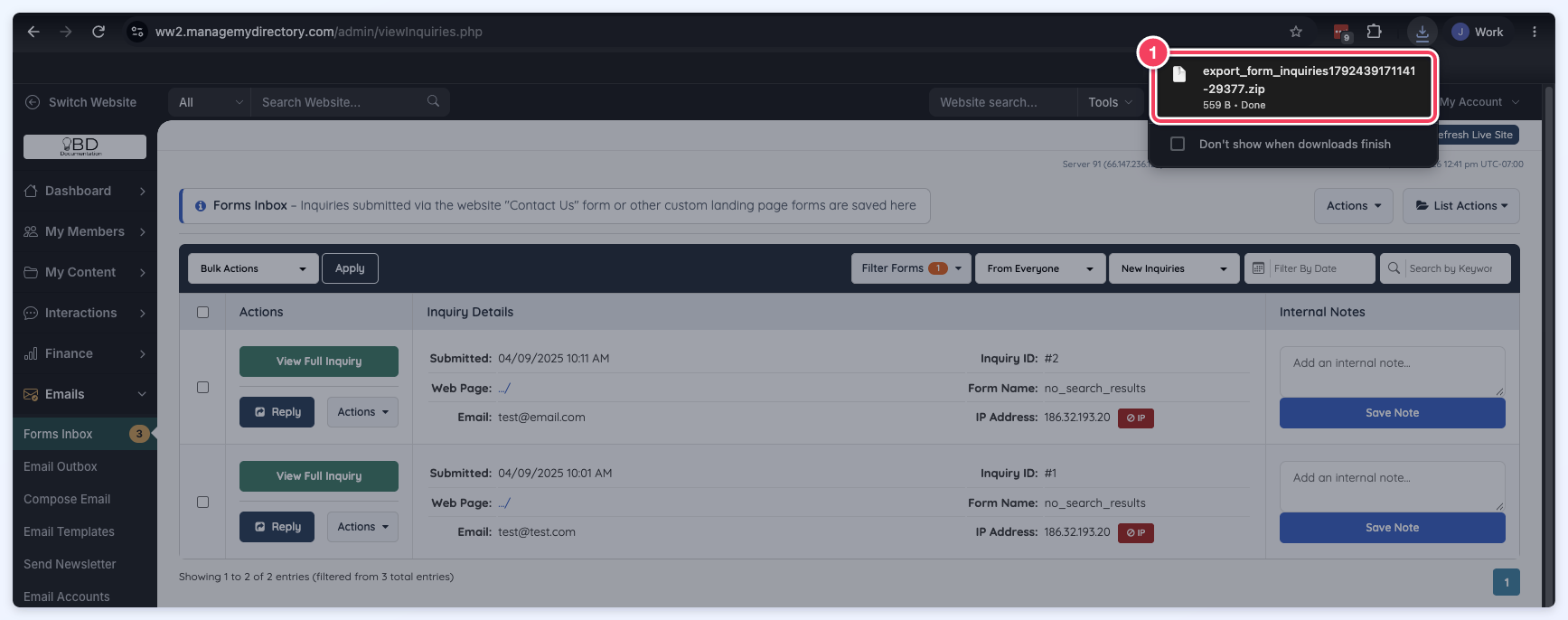
A zip file will be available to open the file downloaded:
Exporting Member Posts
With this Add-On it is also possible to export member posts.
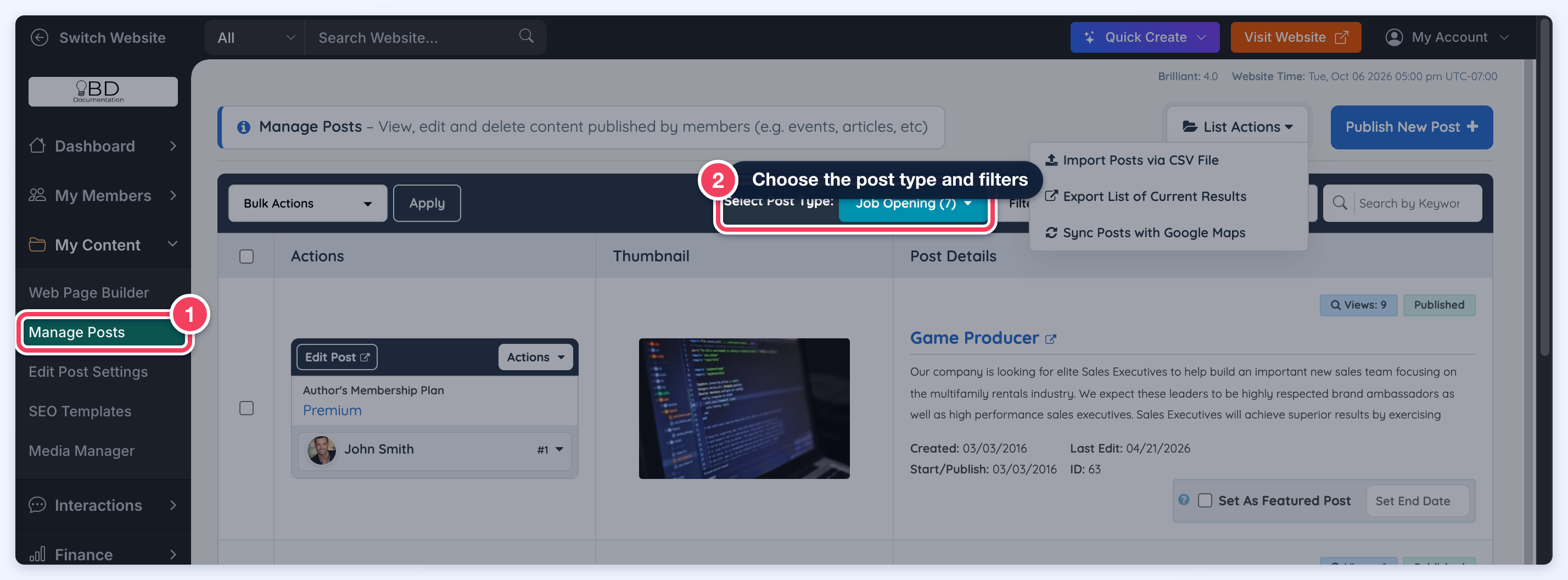
1. Go to My Content » Manage Posts, choose the post type under Select Post Type and use the available filters to search for the posts:
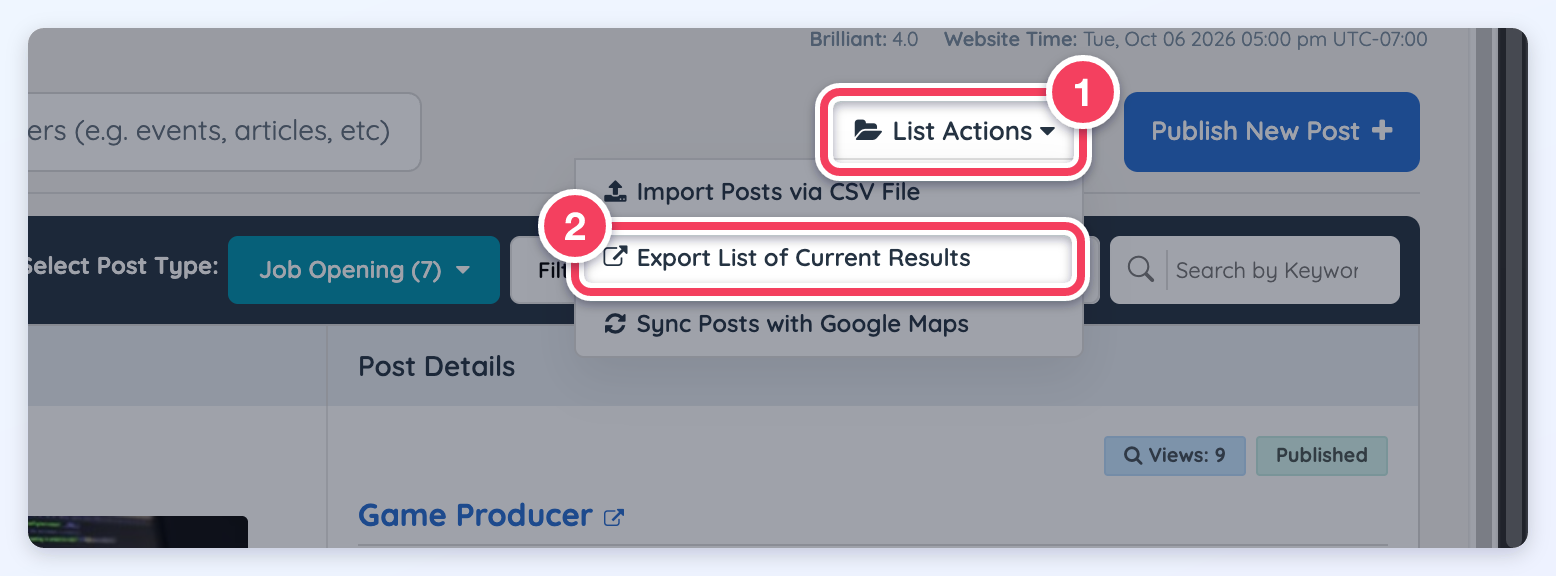
2. Hover over the List Actions button and click on Export List of Current Results:
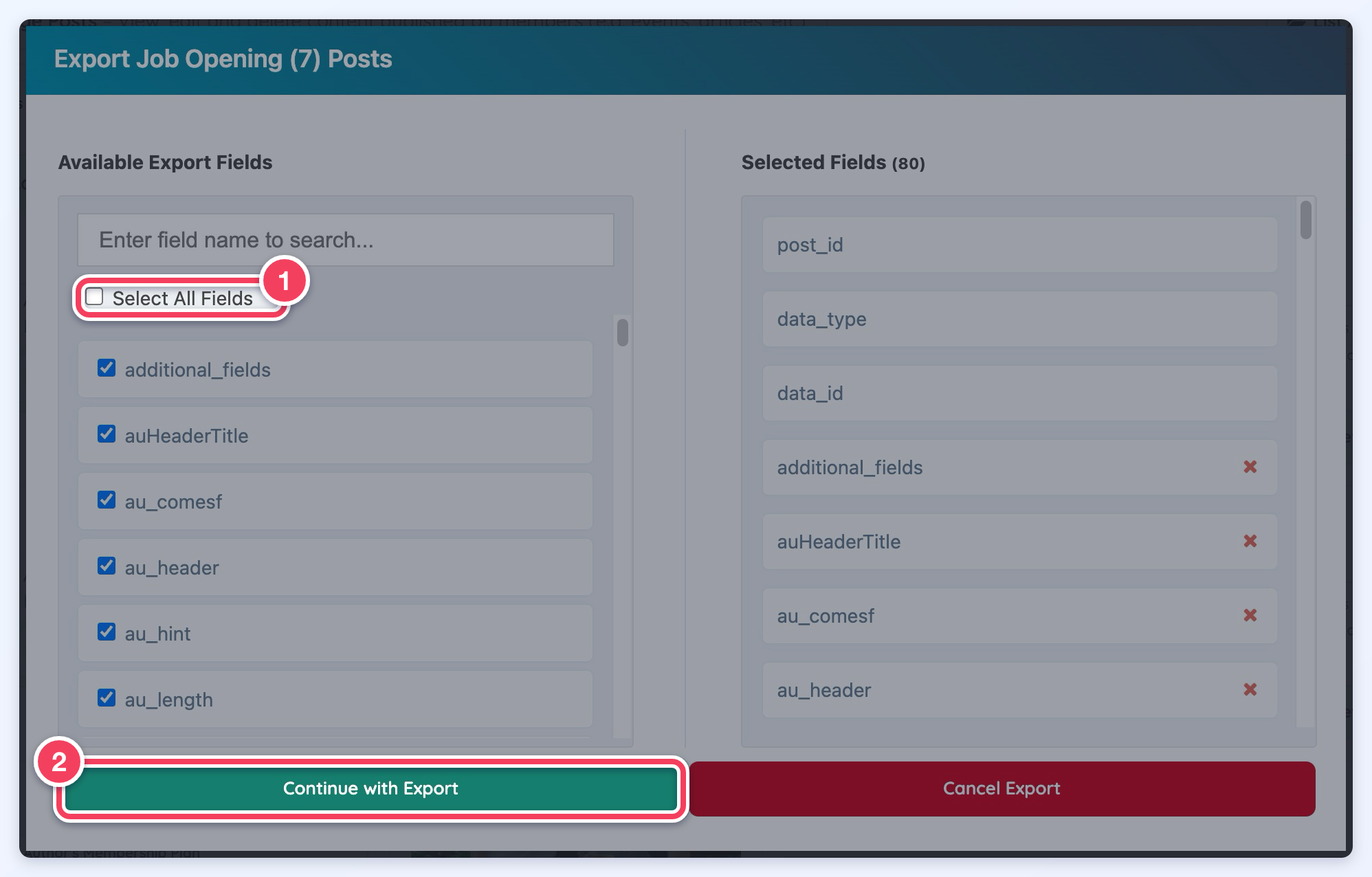
3. Select the fields to export or simply Select All Fields and click on Continue with Export:
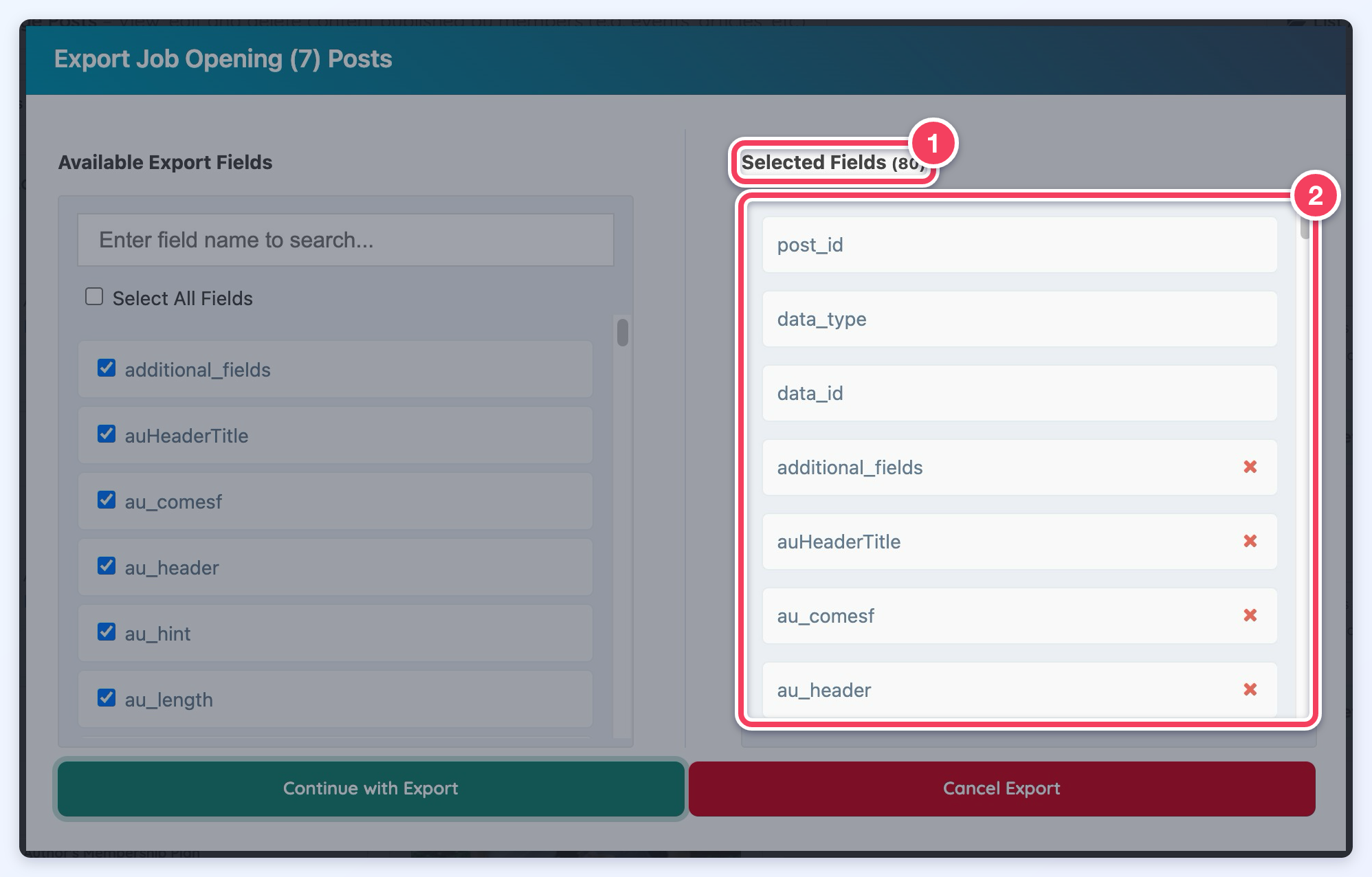
On the next export, the previously selected fields will be remembered for future exports. These fields will be displayed in Selected Fields, with the number of selected fields beside the heading:
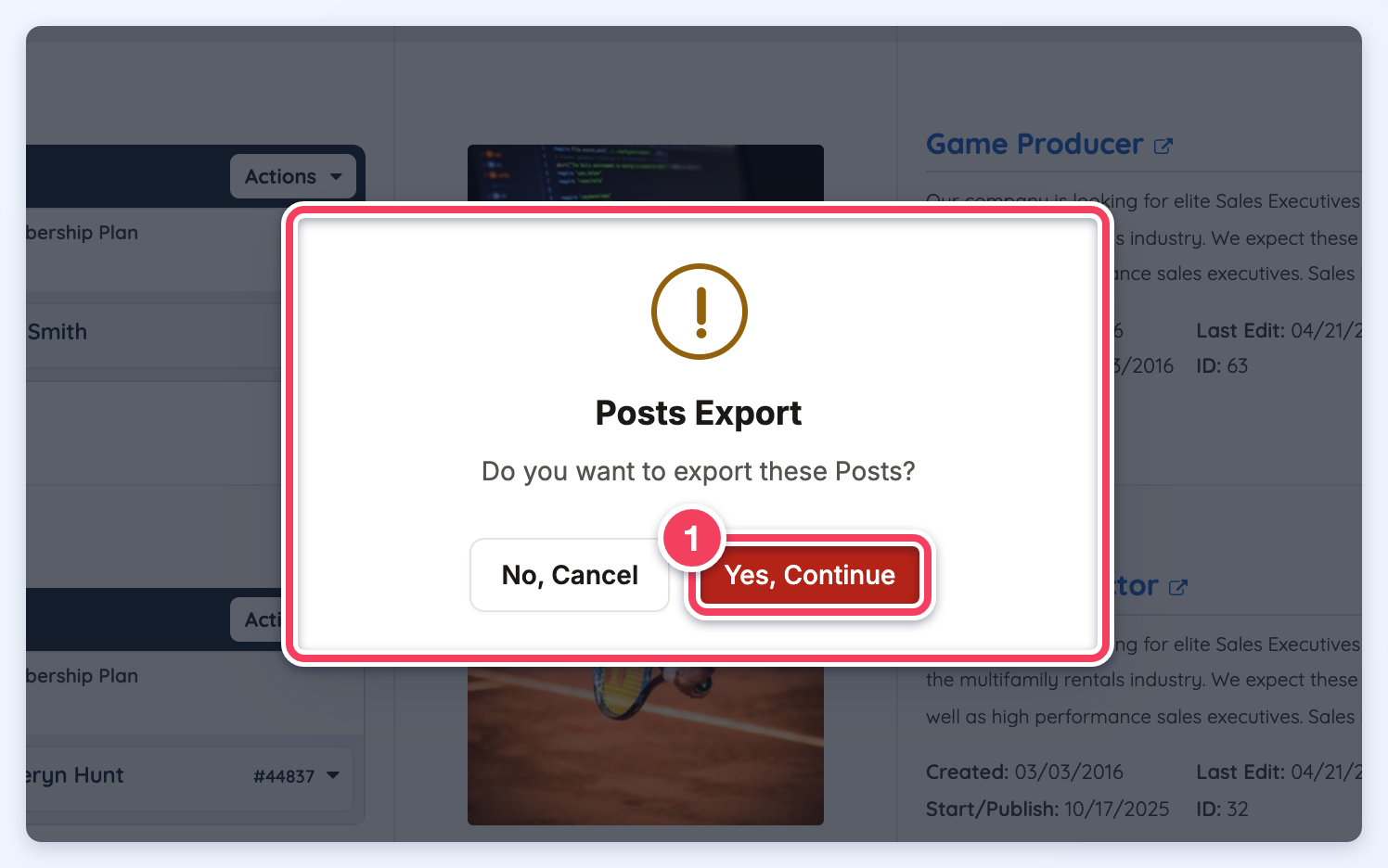
4. A new pop up will show asking for confirmation, click on Yes, Continue (1) for the download to begin:
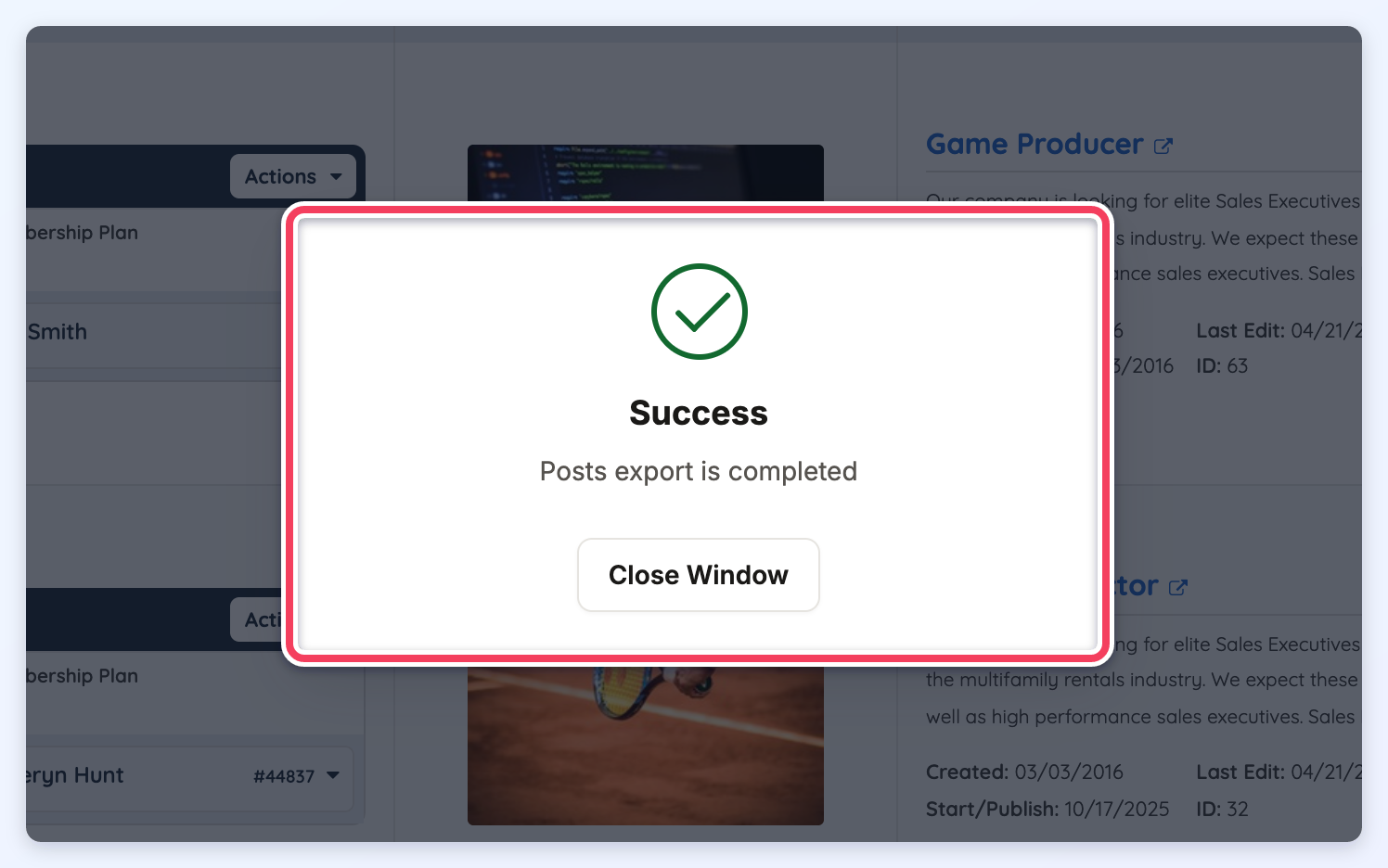
5. A Success pop-up confirms that the posts export is completed:
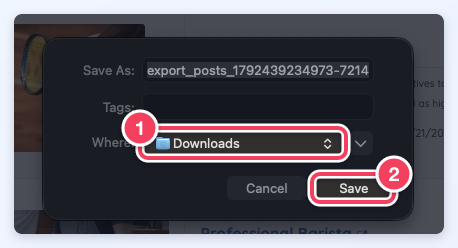
6. Choose the location to save the file:
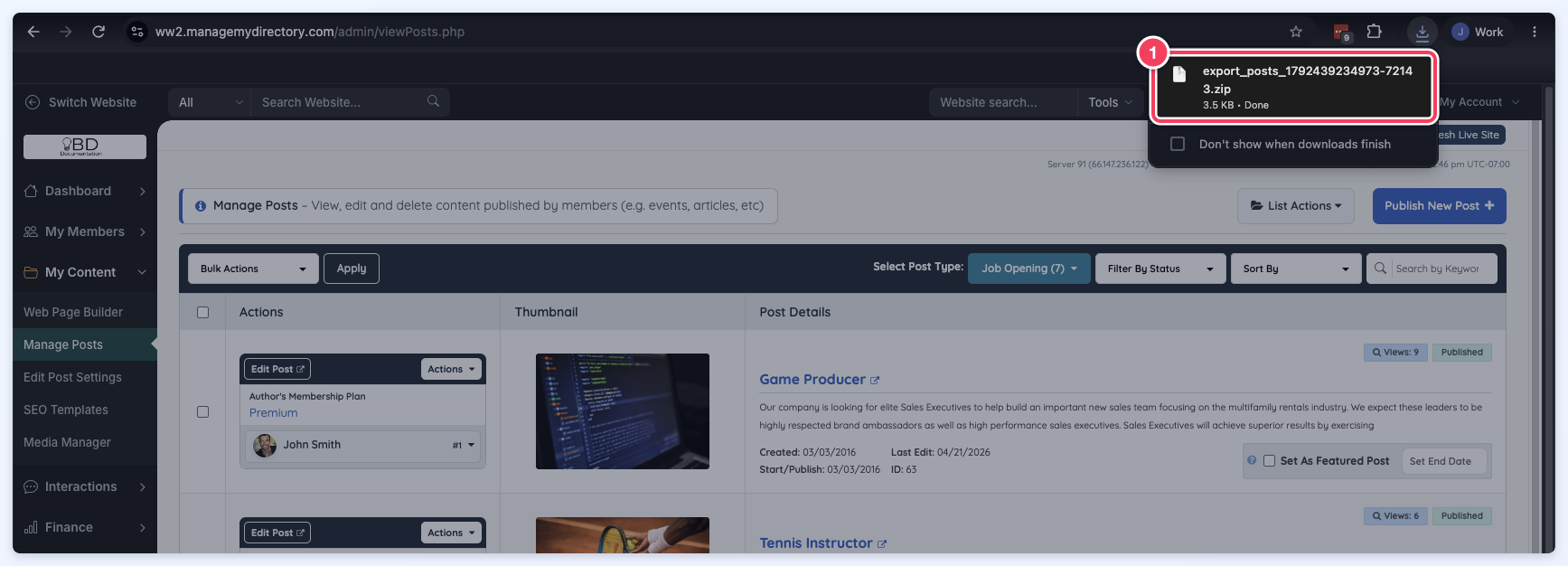
7. Open the downloaded file:
Export Smart Lists
The Export option in Smart Lists allows the list to be downloaded as a CSV file. Member smart list exports match the format used in the standard Search Members export, while exports from inquiries, such as Newsletter Subscribers, include data specific to those submissions.
- My Members » Smart Lists
- Smart List & Export Functionality for Leads
- Smart List & Export Functionality for Member Reviews
