
How to Delete Images & Files from the Media Manager
Link: https://support.brilliantdirectories.com/support/solutions/articles/12000047891
Images, files and folders that the website no longer uses can be deleted from the Media Manager. Once deleted, a file is removed from the site and no longer uses storage.
An image still used by areas such as Brand Images, Homepage Settings, Banner Ads or Web Pages appears as broken once it is deleted, because the file path in the code no longer resolves.
Deleting One Image or File
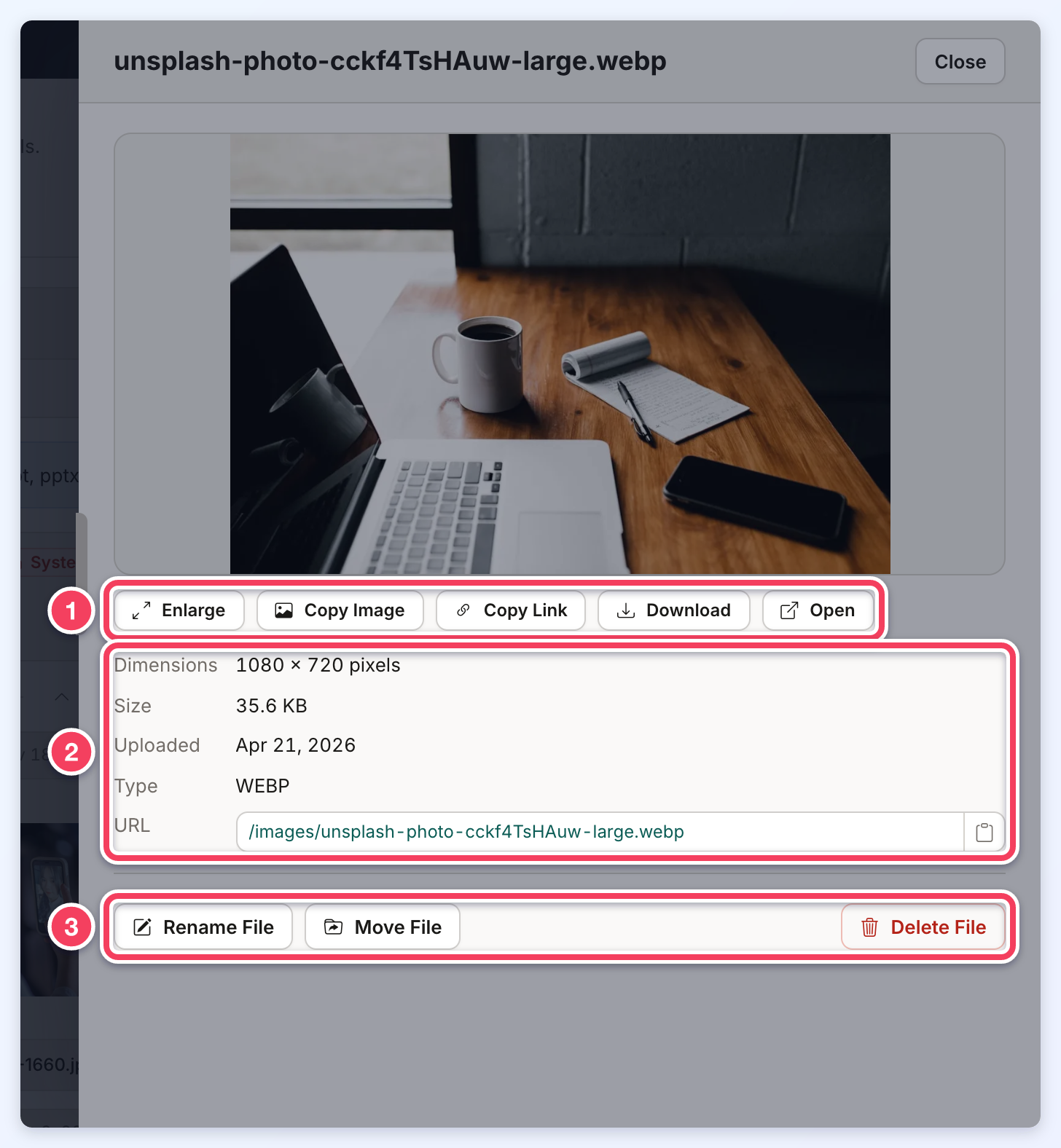
- Open My Content » Media Manager and find the file (open its folder, or type its name in Search all folders).
- Click the file to open its details panel, then click Delete File.
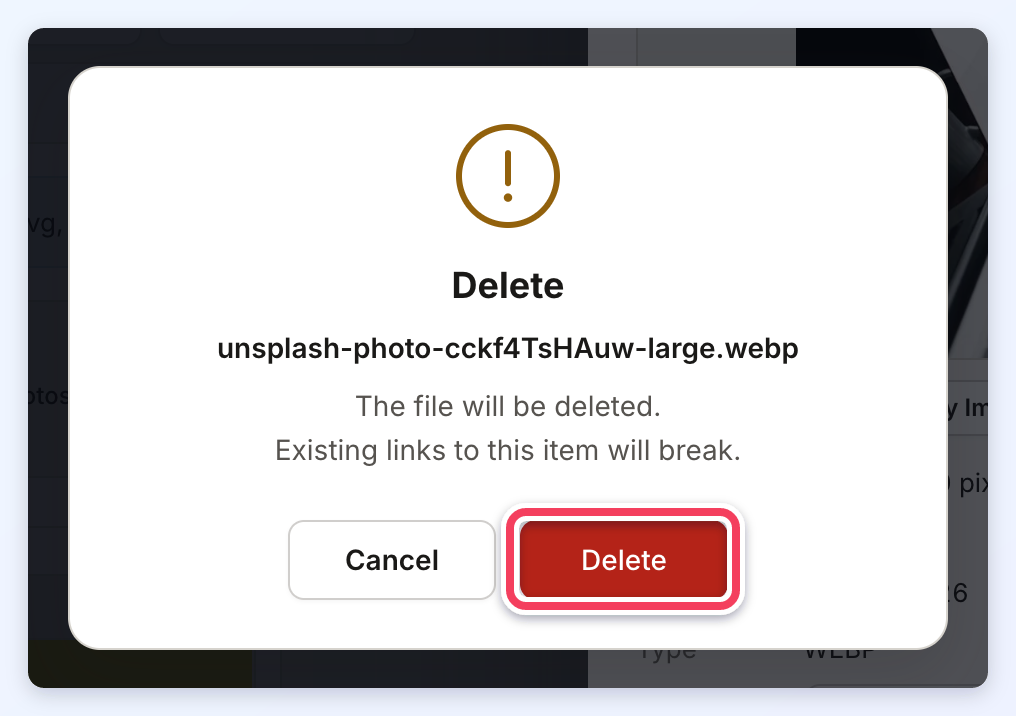
- Click Delete to confirm.
Deleting Several Files at Once
- Tick the box on each file to delete. Select All ticks every file in the folder.
- Choose Delete from Select Action and click Continue.
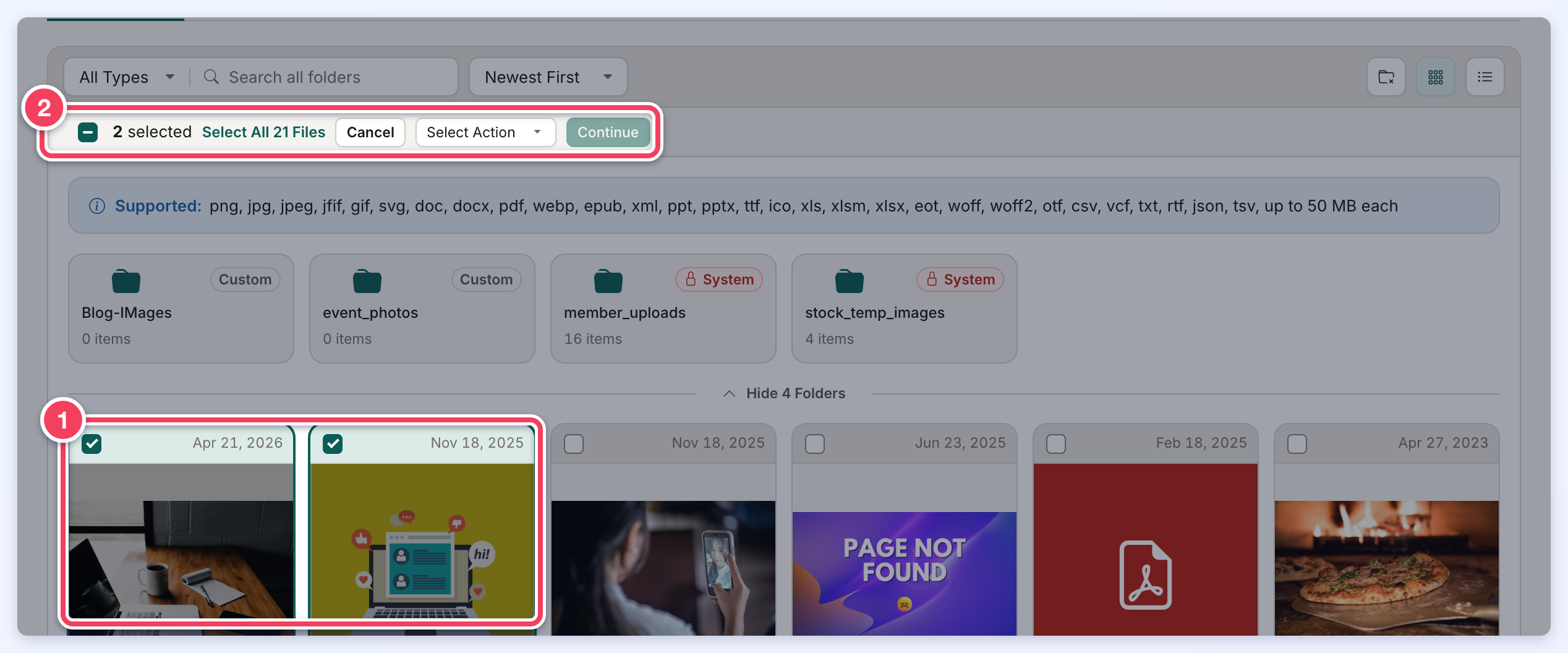
- When two or more items are deleted, the confirmation asks for the number of items to be typed. Type it and click Delete.
Up to 500 items can be deleted at a time. To empty a whole folder, delete the folder instead.
Deleting a Folder
Deleting a folder also deletes every file and folder inside it.
- Open the folder.
- Click Delete Folder.
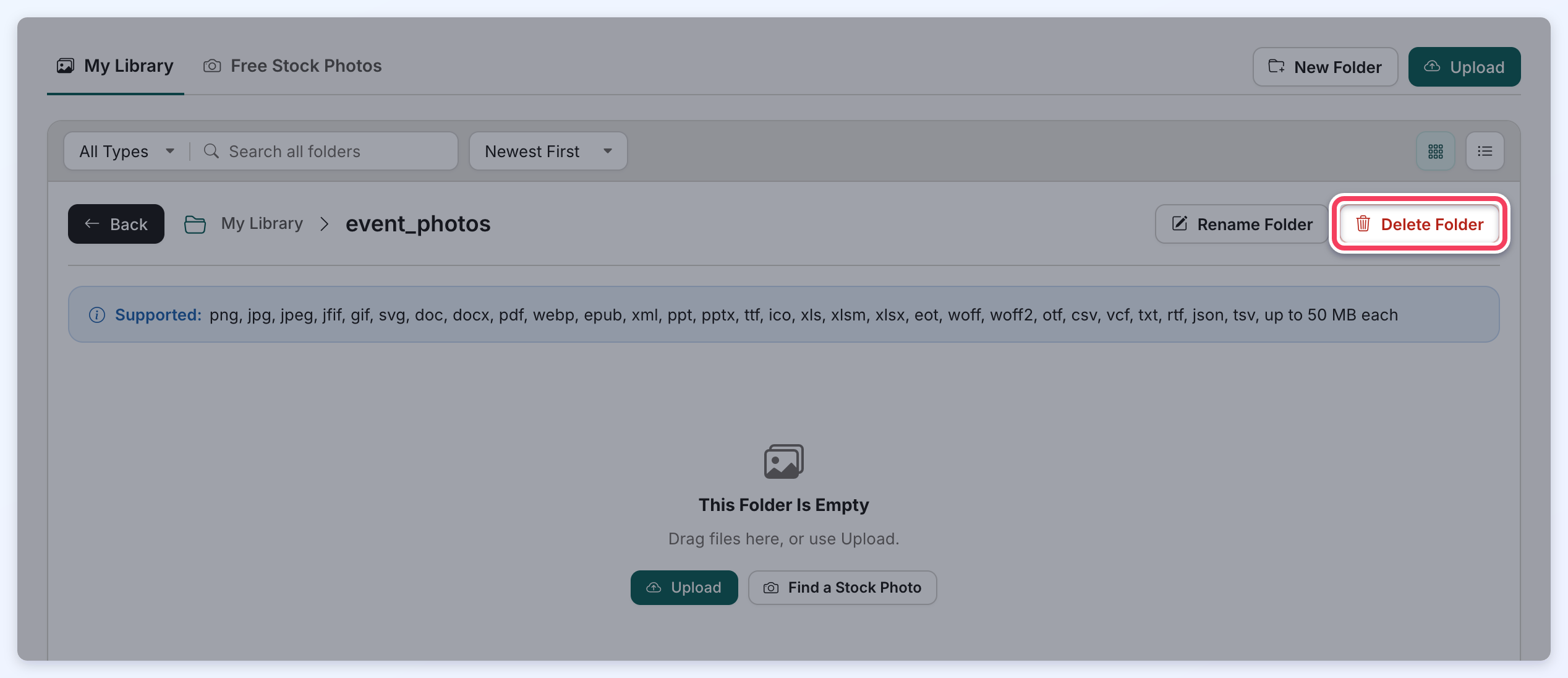
- Click Delete Folder to confirm. When the folder is not empty, the confirmation says that every file and folder inside it is deleted.
Several folders can also be ticked and deleted together with Select Action » Delete; the confirmation then counts the folders and everything inside them.
System Folders
The member_uploads and stock_temp_images folders, marked System, cannot be deleted because the website uses them by name. The files inside them can be deleted as usual.
