Settings » Advanced Settings
Link: https://support.brilliantdirectories.com/support/solutions/articles/12000047895
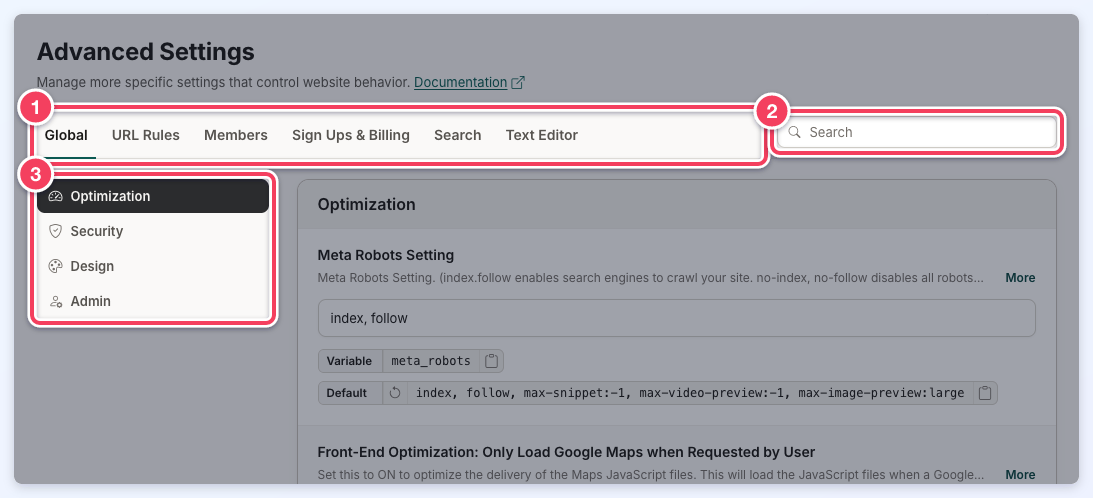
Settings » Advanced Settings holds the more specific settings that control website behavior. The settings are grouped into six tabs across the top of the page:
Each tab is divided into sections. The section list on the left (3) jumps to a section within the open tab, and the Search box (2) at the right of the tabs (1) searches every tab at once:
Finding a Setting
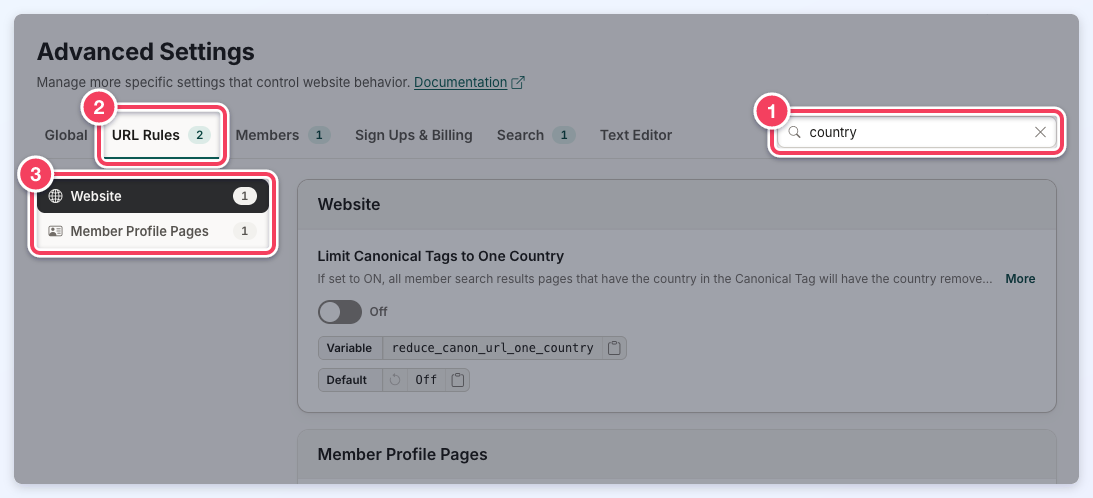
Type in the Search box (1) to find a setting. Search matches the text shown for each setting: its name, its help text, its system variable and its default value, plus the value currently entered in its field. Each tab with a match shows how many settings matched (2), the first tab with a match opens automatically, and the section list (3) shows only the sections that contain a match. Click the X in the search box, or press Escape, to clear the search. When nothing matches, the page shows No Matches Found with a Clear Search button.
Reading a Setting
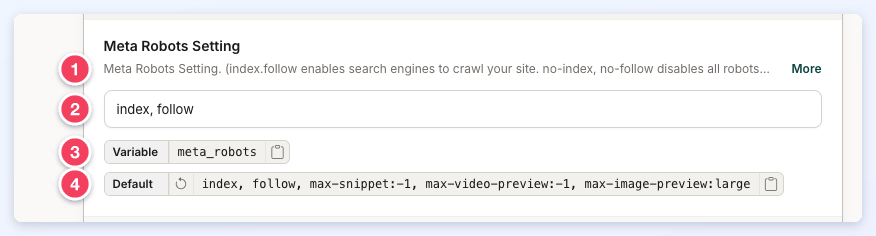
Every setting shows its name, then:
- One line of help text. Click More to read the full description (and Less to collapse it again). Some settings also include a Learn More link to related documentation.
- The setting itself: a switch, a text field, a dropdown, a list of checkboxes, or an order builder (see How to Activate the Settings below).
- Variable: the setting's system variable, with a button that copies it. Hover over the variable to see the full name when it is too long to display.
- Default: the setting's default value, with a button that copies it. The circular-arrow Restore Default Value button at the start of the chip is available only when the current value differs from the default; it fills the default into the field as an unsaved change, which Save applies and Discard or Ctrl+Z undoes. Settings without a default show only the Variable chip.
1. Global
This section outlines key configuration settings and optimizations available for enhancing the website's performance, security, design, and administrative experience. These settings are categorized into four primary sections:
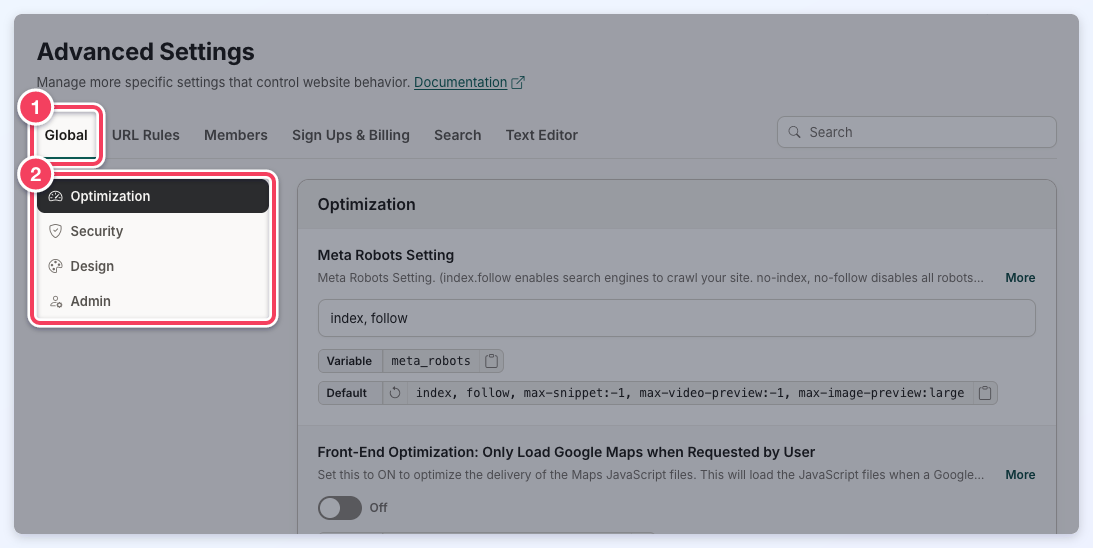
Optimization
This section outlines key website optimization and index settings aimed at improving site performance, user experience, and search engine visibility.
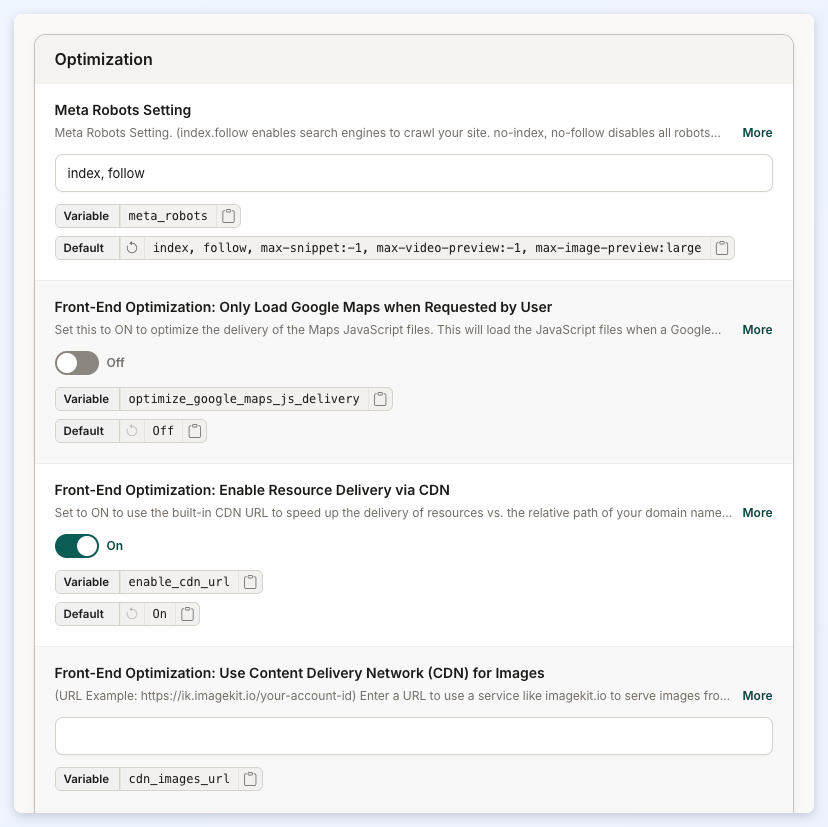
Meta Robots Setting
Meta Robots Setting. (index.follow enables search engines to crawl your site. no-index, no-follow disables all robots from crawling your website.
Front-End Optimization: Only Load Google Maps when Requested by User
It improves website performance by optimizing the delivery of Google Maps JavaScript files. When enabled, the system only loads the required JavaScript files when a Google Maps feature or location autocomplete functionality is requested on a page.
This helps reduce unnecessary resource loading and can improve page load times, especially on pages where Google Maps functionality is not required.
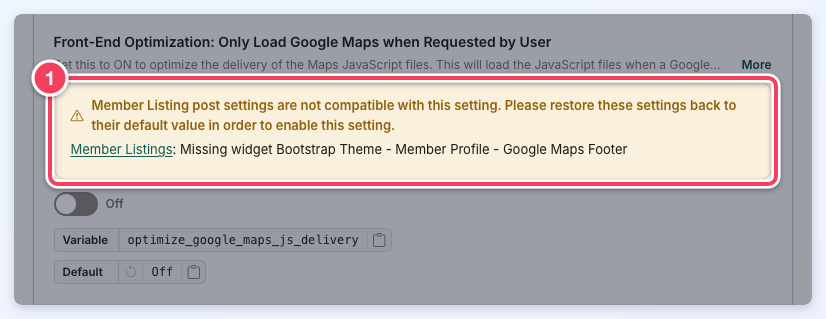
If a customized widget or a member listing post setting is not compatible with this setting, turning the switch on shows a Setting Not Compatible message and the switch stays off. A warning under the setting names each widget or post setting causing the conflict, with a link to it, so it can be updated or restored to its default:
Front-End Optimization: Enable Resource Delivery via CDN
Use the built-in CDN URL to speed up the delivery of resources vs. the relative path of your domain name.
Front-End Optimization: Use Content Delivery Network (CDN) for Images
Section to enter a URL to use a service like imagekit.io to serve images from an image CDN with automatic optimization and real-time transformation.
Ampify Account Id
Ampify is used to create an Accelerated Mobile Page (AMP) compliant version of your website. AMP-compliant websites are lightweight and designed to give mobile visitors a fast, smooth, and engaging experience.
Front-End Optimization: Load Latest JavaScript Files on Frontend of Website
When enabled (recommended), the frontend of the site will use updated versions of jQuery, jQuery UI, and Bootstrap JavaScript libraries.
Front-End Optimization: Mobile Preloader
If enabled, the first web page visited from a mobile device will display a brief loading message, which helps improve page speed metrics.
Front-End Optimization: Lazyload iFrame Embeds
If ON, embedded iFrames will be lazy loaded, and the full iframe will be loaded when visitors scroll to it — improving PageSpeed scores. For embedded YouTube videos, only their thumbnail will load at first, and the full video only when visitors click to play.
Front-End Optimization: Lazyload iFrame Embeds - Supported Domains
When Lazyload iframe Embeds is enabled, this comma separated list of source domains will be targeted as iFrames to lazyload.
Front-End Optimization: Convert User-Uploaded Images to WebP Format
Automatically converts all user-uploaded images to WebP for better performance.
Security
This section highlights important security settings designed to protect the website and its users.
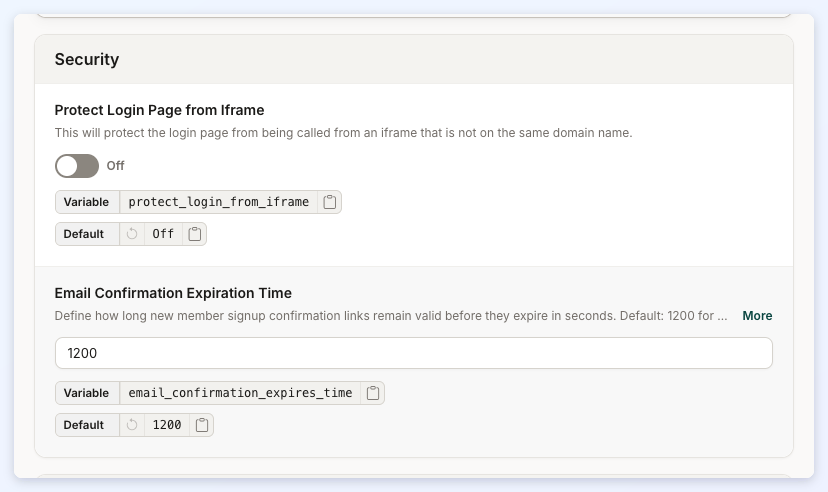
Protect Login Page from Iframe
This will protect the login page from being called from an iframe that is not on the same domain name.
Email Confirmation Expiration Time
Define how long new member signup confirmation links remain valid before they expire in seconds.
Design
This section covers various configuration and localization settings for the website’s front-end experience.
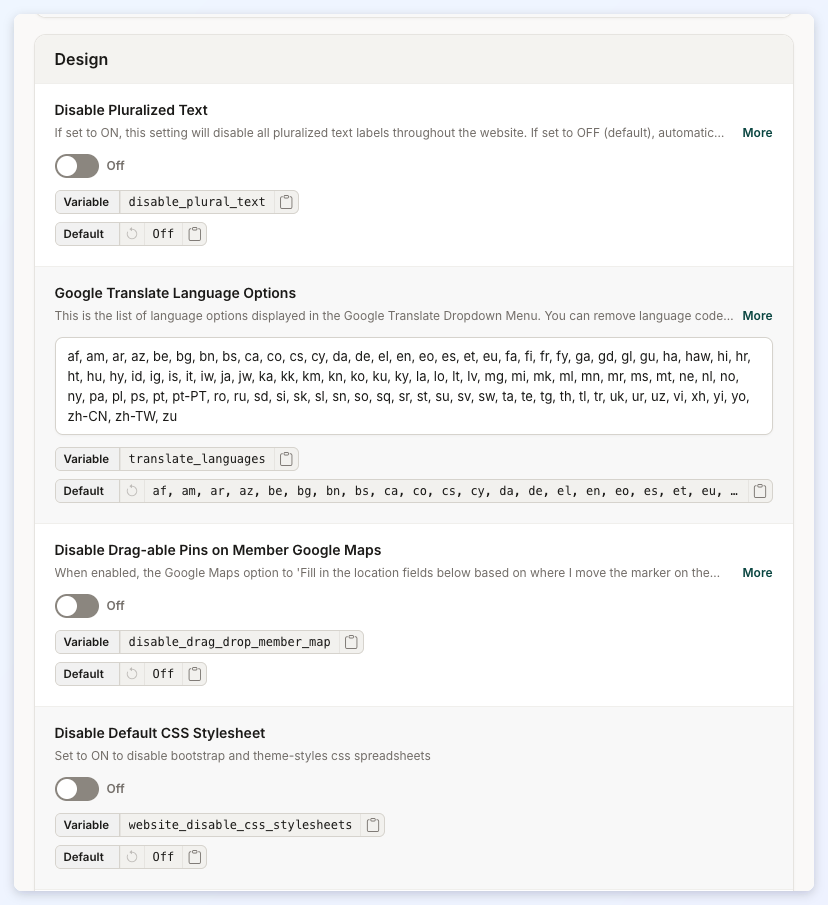
Disable Pluralized Text
This setting will disable all pluralized text labels throughout the website. If set to OFF (default), automatic pluralization of text labels surrounded by %% will be enabled.
Google Translate Language Options
This is the list of language options displayed in the Google Translate Dropdown Menu.
Disable Drag-able Pins on Member Google Maps
The Google Maps option to 'Fill in the location fields below based on where I move the marker on the map above' when members are entering the location for their profile will be hidden.
Disable Default CSS Stylesheet
When set ON, it will disable Bootstrap and theme-styles CSS spreadsheets.
Text Direction
Will modify text if the language of the website should be read from the right side of the page to the left.
Default Center Map Location
Section to add the latitude and longitude separated by a comma.
Admin
This section controls the visibility of the built-in chatbot within the admin panel.
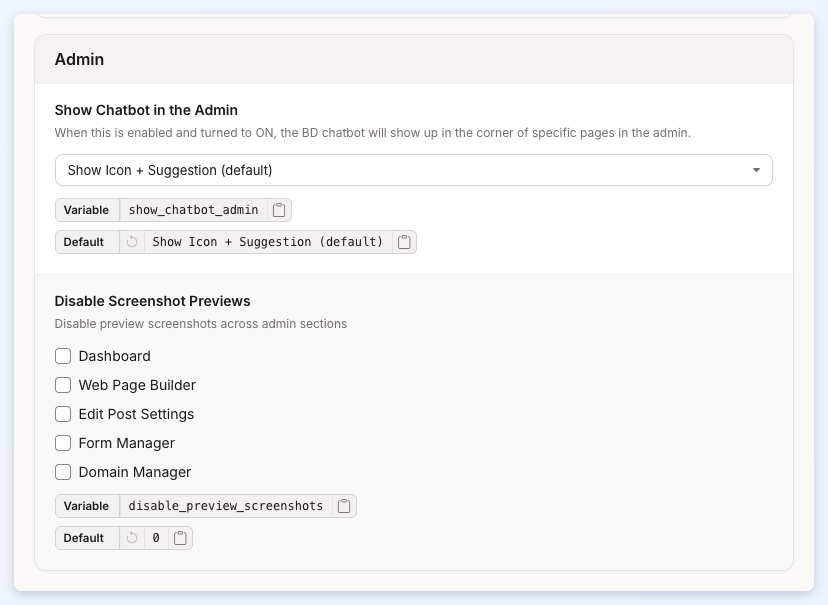
Show Chatbot in the Admin
When this is enabled, the BD chatbot will show up in the corner of specific pages in the admin.
Disable Screenshot Previews
Disable preview screenshots across admin sections. Select from: Dashboard, Web Page Builder, Edit Post Settings, Form Manager and Domain Manager.
2. URL Rules
This section outlines essential website configuration settings that govern how the site's URLs, member profile pages, dashboard, and publishing features are structured and managed. These settings are organized into the following categories:
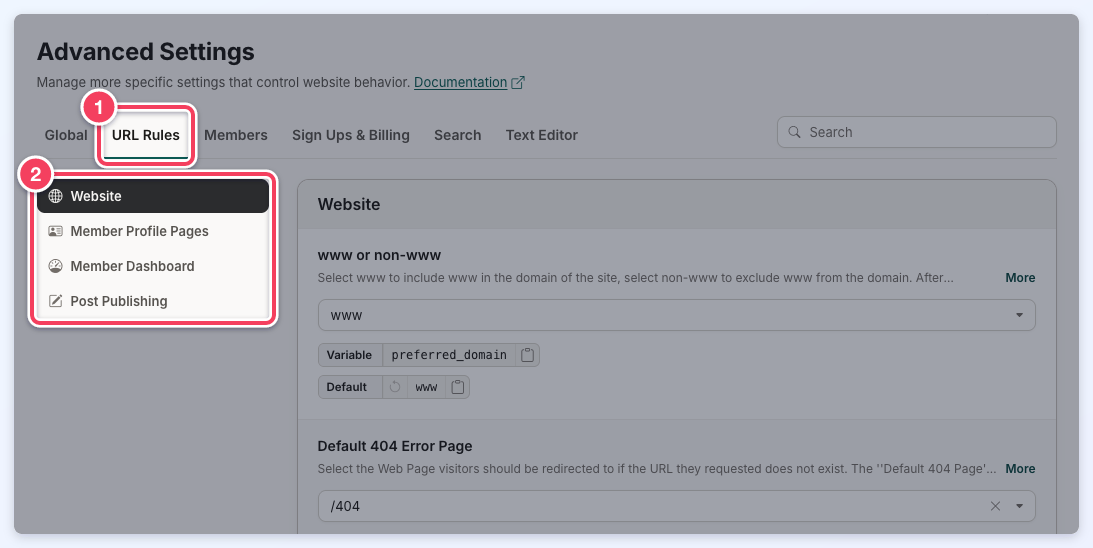
Website
This section includes settings that control URL structure, canonical tags, page redirects, and iframe permissions for the website.
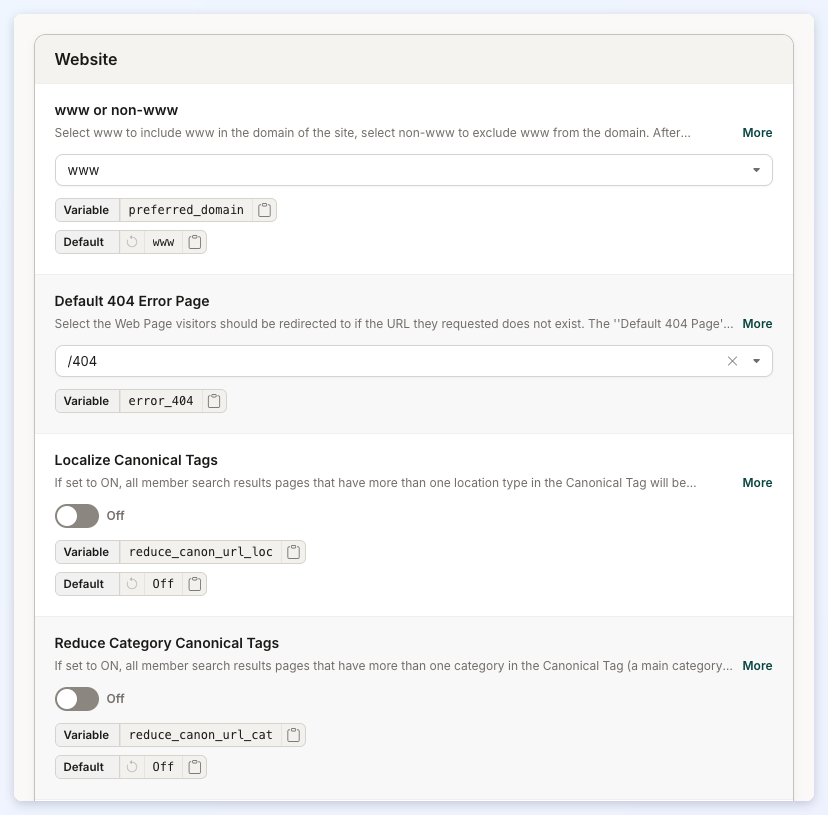
www or non-www
Select www to include www in the domain of the site, select non-www to exclude www from the domain. After changing this setting, please refresh the htaccess file to implement the change.
Default 404 Error Page
Option to select the Web Page visitors should be redirected to if the URL they requested does not exist.
Localize Canonical Tags
All member search results pages that have more than one location type in the Canonical Tag will be reduced to the most localized version possible. The member search page types this setting shortens (any page type with two or more location levels, such as State / City) are also left out of the website's XML sitemap.
Reduce Category Canonical Tags
All member search results pages that have more than one category in the Canonical Tag (a main category and a sub-level category, for example) will be reduced to only contain the most specific category. The member search page types this setting shortens (a main category and a sub-level category together) are also left out of the website's XML sitemap.
Limit Canonical Tags to One Country
Member search results pages whose Canonical Tag has the country together with a category will have the country removed. For example, /united-states/doctor is reduced to /doctor, while a location-only page such as /united-states/california keeps the country. The member search page types this setting shortens (the country plus a category) are also left out of the website's XML sitemap.
Redirect to Dashboard on Checkout Pages (Logged In)
Redirect members that are logged in and visit checkout pages to the user dashboard.
Categories Page URL
URL for the Categories Page. By default this is set to '/categories' to match the Web Page for Categories.
Default Member Signup Page URL
Member signup pages use the format /checkout/membership-plan-id by default. Edit the first portion of this URL (checkout) using this setting.
Default Form File Upload URL
Files uploaded through "File Upload"; Form Fields are saved in the folder /uploads/curriculum-vitae/ by default.
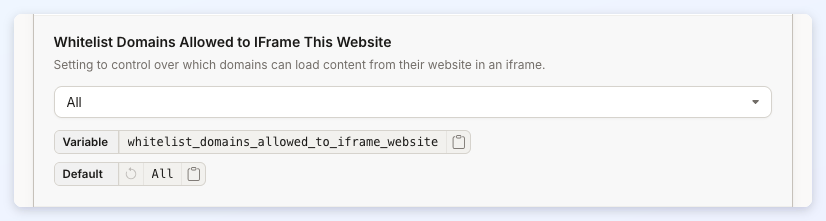
Whitelist Domains Allowed to IFrame This Website
A Setting to control over which domains can load content from their website in an iframe.
Noindex Review & Connect Pages
When enabled, member review and contact pages will use a noindex, follow robots meta tag to prevent these pages from being indexed by search engines.
Noindex, Follow Paginated Search Results
When enabled, paginated search results pages, starting with page 2, will use a noindex, follow robots meta tag to prevent these pages from being indexed by search engines.
Alternative Header Logo URL
Set an alternate URL for the header logo. By default, the logo links to your website’s homepage.
Enter a full URL (e.g., https://example.com) to replace this behavior and have the logo link to a different page or external website. Leave blank to keep the default.
Member Profile Pages
This section focuses on configuring the structure and format of member profile page URLs.
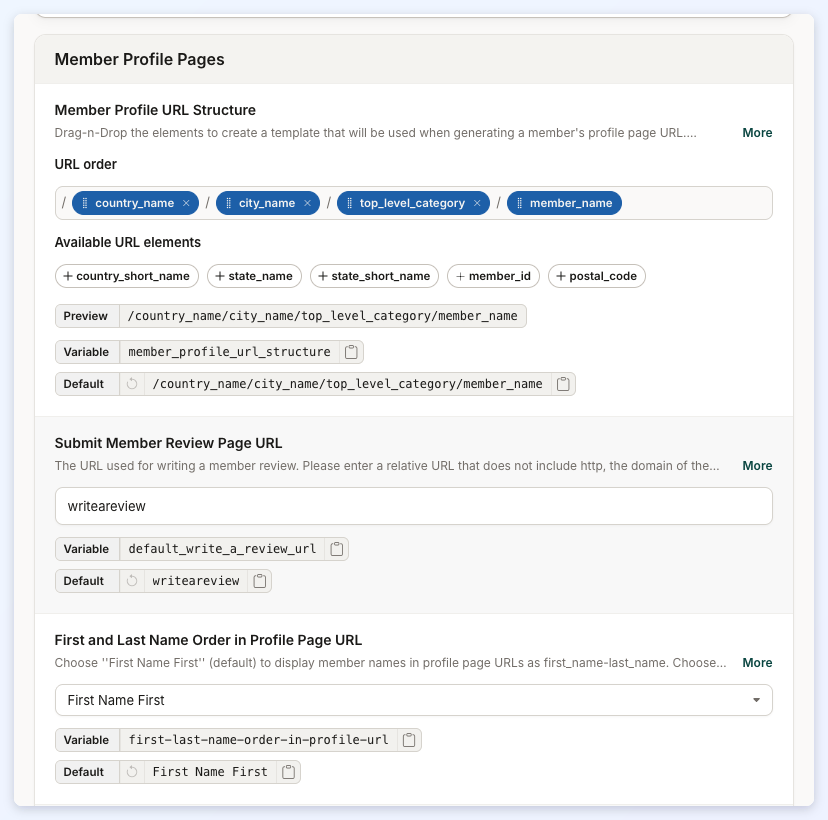
Member Profile URL Structure
Elements to create a template that will be used when generating a member's profile page URL. Member_Name is required; however, you can include or exclude all other elements.
Submit Member Review Page URL
The URL used for writing a member review.
First and Last Name Order in Profile Page URL
Choose "First Name First" (default) to display member names in profile page URLs as first_name-last_name. Choose "Last Name First" to display member names in profile page URLs as last_name-first_name.
Profile Analytics: Record Any Custom Click Name
Used with the Member Profile Analytics add-on. It controls which tracked custom links (links with a data-click-type name) have their clicks counted. When ON (default), a click on any tracked custom link is counted, including links added through site-wide header or footer code or a custom widget. When OFF, a click is counted only when a link with the same data-click-type name is saved on that member's own listing, for example in Listing Custom FOOTER Code. Setting up tracked links is covered in "Member Profile Analytics".
Member Dashboard
This section defines the URL structures used across various areas of the Member Dashboard and member-related features.
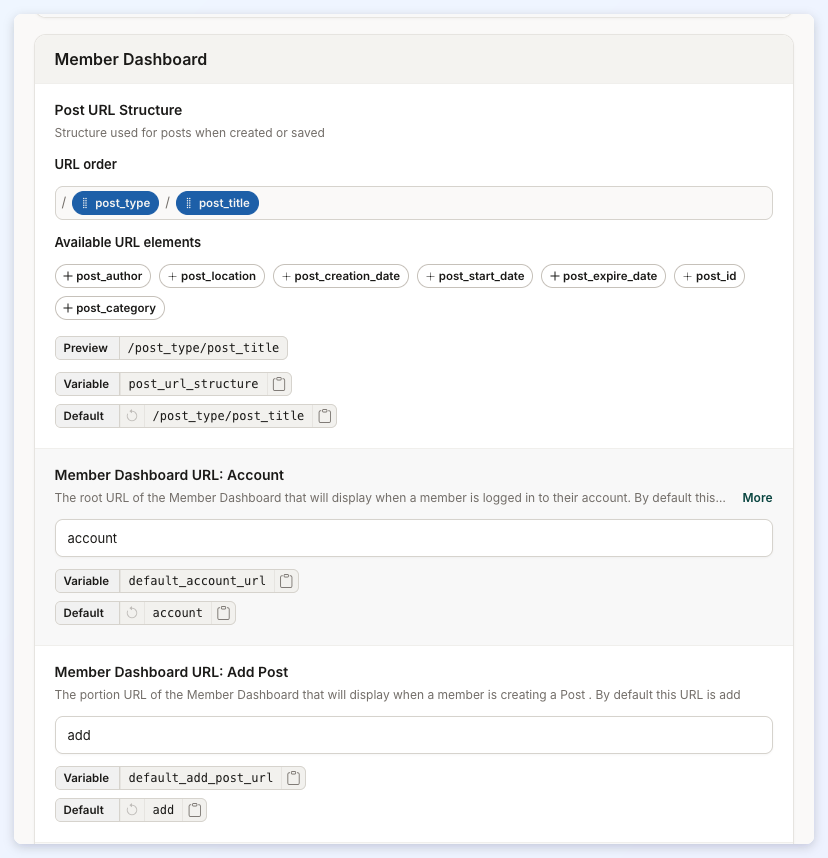
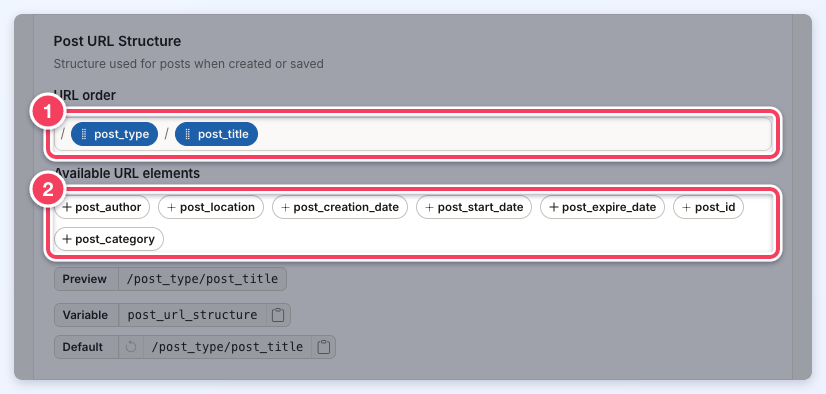
Post URL Structure
Structure used for posts when created or saved.
Member Dashboard URL: Account
The root URL of the Member Dashboard that will display when a member is logged in to their account.
Member Dashboard URL: Add Post
The portion URL of the Member Dashboard that will display when a member is creating a Post.
Member Contact Page URL
This is added to member profile page URLs to create the full URL where a Lead or Private Message can be submitted directly to a member.
Member Dashboard URL: Clone Post
The portion URL of the Member Dashboard that will display when a member is cloning a Post.
Member Dashboard URL: Add Multi-Photo Post
The portion URL of the Member Dashboard that will display when a member is creating a Multi-Photo Post Type.
Member Dashboard URL: Photo Display Order
The portion URL of the Member Dashboard that will display when a member is arranging the photos of a Multi-Photo Post.
Member Dashboard URL: Add Photos to Multi-Photo Post Types
The portion URL of the Member Dashboard that will display when a member is adding photos to a Multi-Photo Post Type for first time.
Member Dashboard URL: About Form
A portion of the URL used when a member fills out the "About" form in the Member Dashboard.
Member Dashboard URL: Contact Details Form
A portion of the URL used when a member fills out the "Contact Details" form in the Member Dashboard.
Member Dashboard URL: Home
The portion URL of the Member Dashboard that will display when a member is on their Member Dashboard Home Page.
Member Dashboard URL: Password
The portion of the Member Dashboard URL used for the Update Password page.
Member Dashboard URL: Billing
The portion of the Member Dashboard URL used when a member views their account billing information.
Member Dashboard URL: Changelisting
The portion of the Member Dashboard URL used for the Manage Account page.
Business Toolkit URL
Business Toolkit URL in the Member Dashboard.
Sub Accounts / Additional Locations Account Area URL Slug
URL slug for the Sub Accounts / Additional Locations account area page. Leave blank or set to "additional_locations" to preserve the default.
Post Publishing
This section outlines the URL structure settings related to member interactions, dashboard navigation, and key user actions on the website.
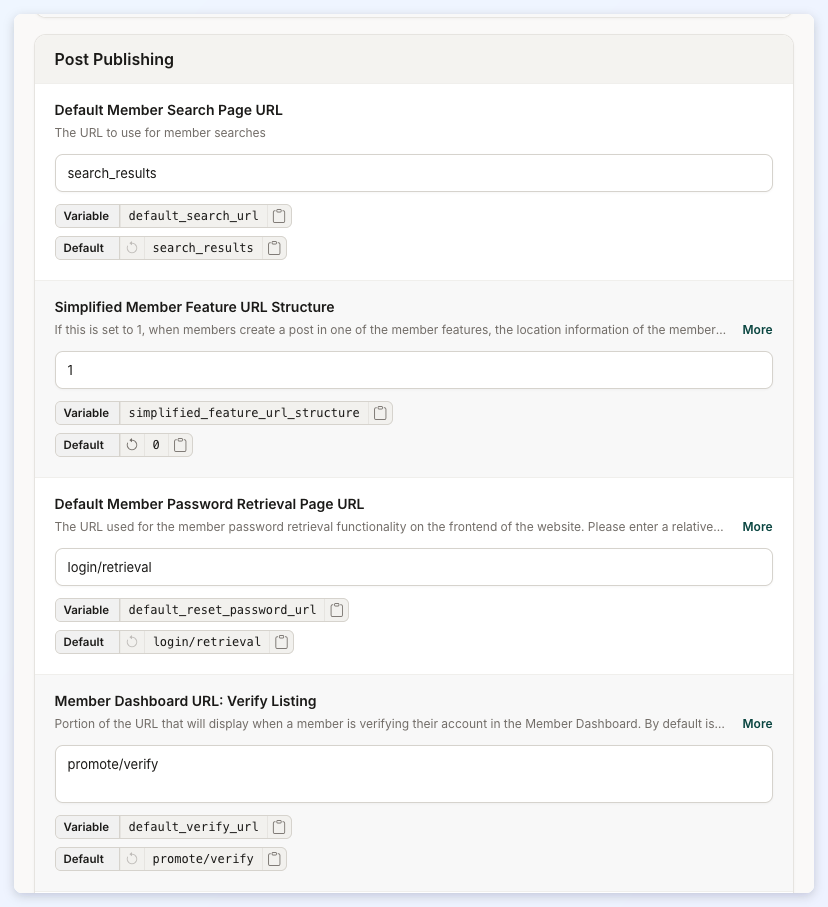
Default Member Search Page URL
The URL to use for member searches.
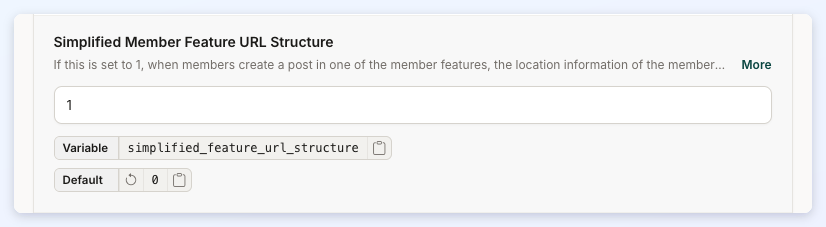
Simplified Member Feature URL Structure
If this is set to 1, when members create a post in one of the member features, the location information of the member will not be included in the URL structure of the post. If set to 0, the site will attempt to add the location information of the member to the URL structure of the post.
Default Member Password Retrieval Page URL
The URL used for the member password retrieval functionality on the frontend of the website.
Member Dashboard URL: Verify Listing
Portion of the URL that will display when a member is verifying their account in the Member Dashboard.
Member Dashboard URL: Leads Page
The portion of the URL of the Member Dashboard that will display when a member is viewing their Leads page in their Account.
Member Review Details Page URL
The portion of the URL of the Member Review that will display when visiting the member reviews details page.
Default Edit Post Page URL
The portion URL of the Member Dashboard that will display when a member is editing a Post.
Member Dashboard URL: Delete Post
The portion URL of the Member Dashboard that will display when a member is deleting a Post.
Member Dashboard URL: Edit Multi-Photo Post Type
The portion URL of the Member Dashboard that will display when a member is editing a Multi-Photo Post Type.
Member Dashboard URL: Upload Photos To Multi-Photo Post Types
The portion URL of the Member Dashboard that will display when a member is uploading photos to a Multi-Photo Post Types.
Member Dashboard URL: Delete Multi-Photo Post Type
The portion URL of the Member Dashboard that will display when a member is deleting a Mutli-Photo Post Type.
Member Dashboard URL: Save Post
The portion URL of the Member Dashboard that will display when a member is saving a Post.
Member Dashboard URL: View Post
The portion URL of the Member Dashboard that will display when a member is viewing their Post.
Member Dashboard URL: Edit Photos Data for Multi-Photo Post Type
The portion URL of the Member Dashboard that will display when a member is editing the photos data in a Multi-Photo Post Type.
Newsletter Unsubscribe Page URL
The URL used for the newsletter unsubscribe page.
Member Dashboard URL: Listing Details Form
A portion of the URL used when a member fills out the ''Listing Details'' form in the Member Dashboard.
Member Dashboard URL: Profile Photo
A portion of the URL used when a member uploads their Profile Photo, Logo, and/or Cover Photo in the Member Dashboard.
Member Dashboard URL: Service Areas
A portion of the URL used when a member selects Service Areas in the Member Dashboard.
Website Homepage URL
The URL used for the homepage of the website.
Member Dashboard URL: Upgrade
The portion of the Member Dashboard URL used when a member upgrades their account.
3. Members
This section details various display, permission, security, and notification settings that help customize how member profiles function, how users interact with the platform, and how data is handled. These settings include:
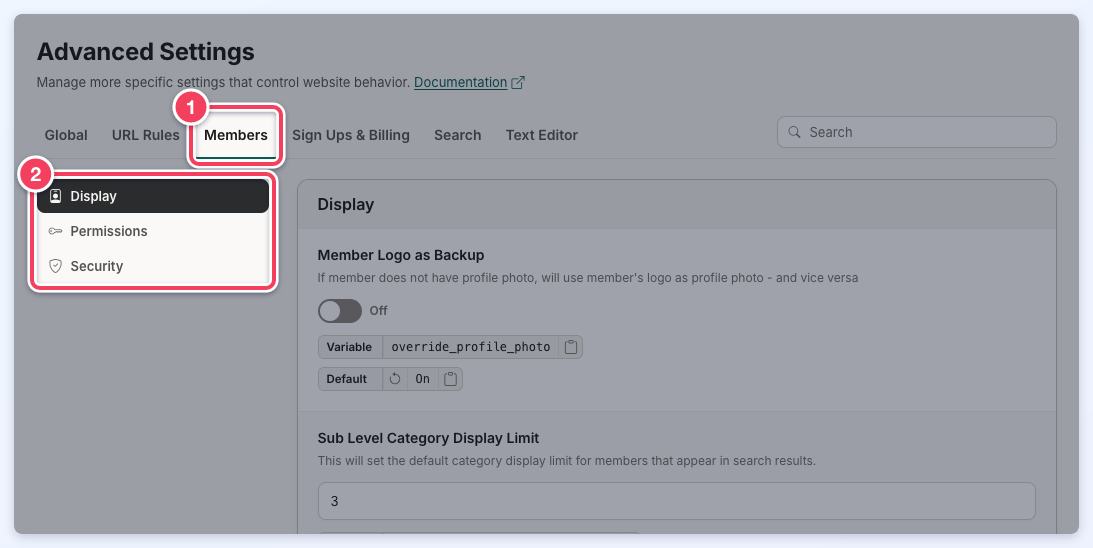
Display
This section includes settings that control the display and behavior of member profile images and category visibility.
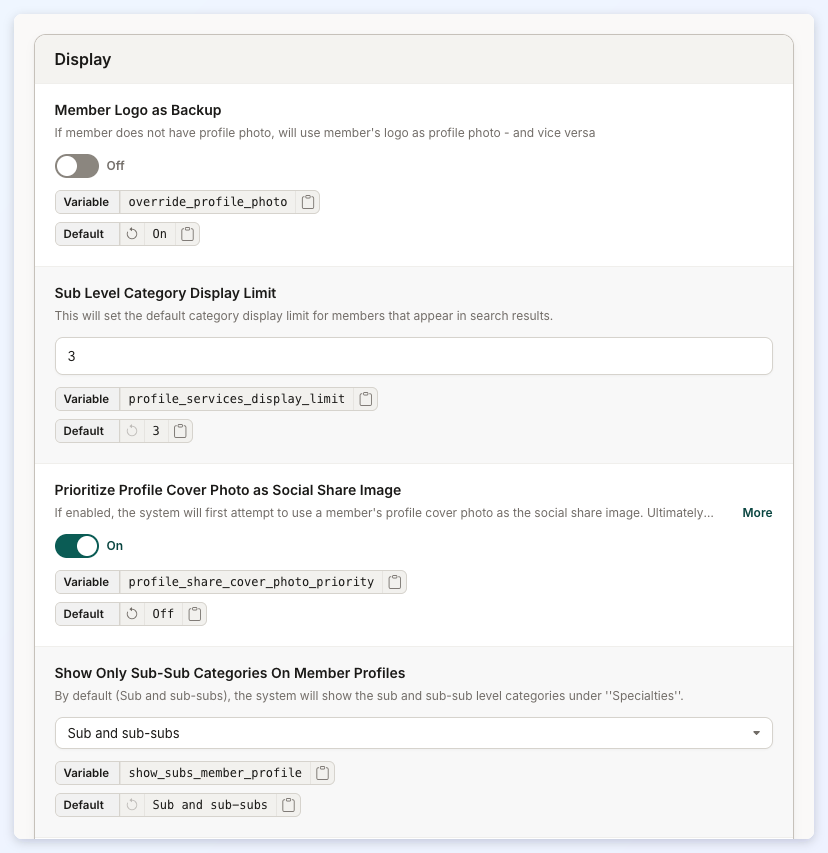
Member Logo as Backup
If the member does not have a profile photo, will use the member's logo as profile photo - and vice versa.
Sub Level Category Display Limit
Sets the default number of categories displayed for members in search results.
Prioritize Profile Cover Photo as Social Share Image
The system will first attempt to use a member's profile cover photo as the social share image.
Show Only Sub-Sub Categories On Member Profiles
The system will show the sub and sub-sub level categories under ''Specialties''.
Hide Top-Level Category on Member Profile Page
The Top Level Category that displays in the header of member profile pages will be hidden.
Skip Image Size Warning for Profile Photos and Logos
Set to ON (default) to not warn members when they upload a profile photo or logo that will have to be stretched in order to work when shared on social media websites. Set to OFF to warn members when uploading a small image that will have to be stretched.
Permissions
This section covers various member management and listing features designed to enhance control, security, and user interaction.
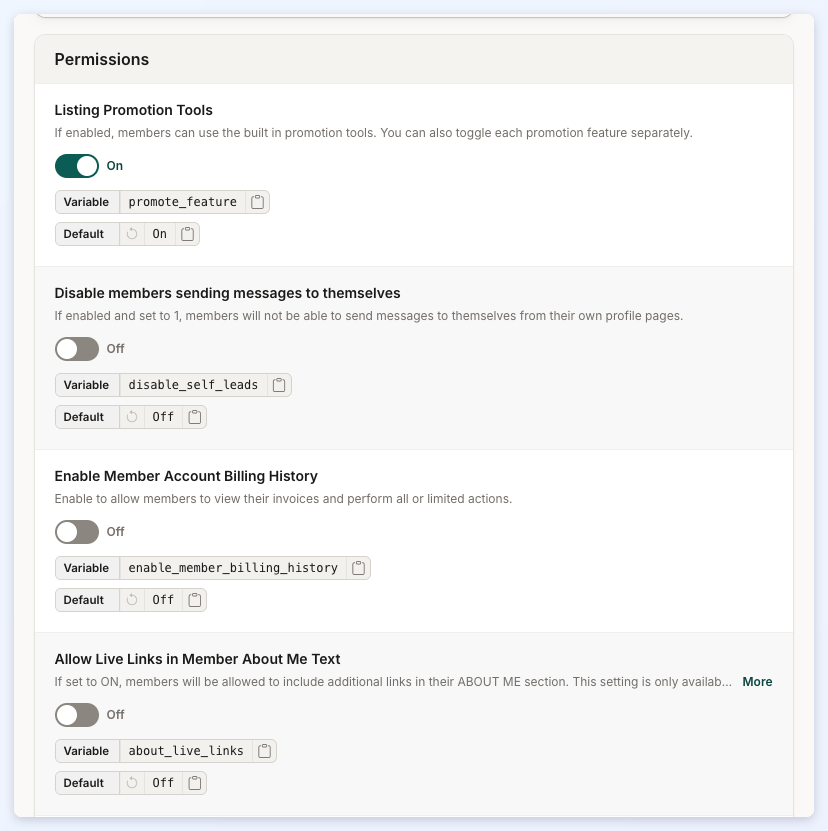
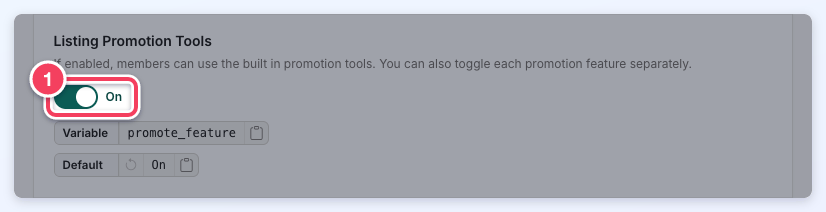
Listing Promotion Tools
If enabled, members can use the built in promotion tools.
Disable members sending messages to themselves
If enabled and set to 1, members will not be able to send messages to themselves from their own profile pages.
Enable Member Account Billing History
Enable to allow members to view their invoices and perform all or limited actions.
Allow Live Links in Member About Me Text
Members will be allowed to include additional links in their ABOUT ME section. This setting is only available for the Bootstrap Version of the software using the default "Bootstrap Theme - Member Profile - Overview Tab" widget.
Allow Live Links in the Quote Section of Profile Pages
Members will be allowed to post live links in the Quote section of their profile pages. This setting is only available for the Bootstrap Version of the software using the default 'Bootstrap Theme - Member Profile - Overview Tab' widget.
Strip HTML tags from Listing Details Form
If the setting is "ON", it will remove any HTML tag for the input fields in the Listing Details Form.
Prevent Reviews For Own Profile
Prevent members from submitting reviews to their own profile page.
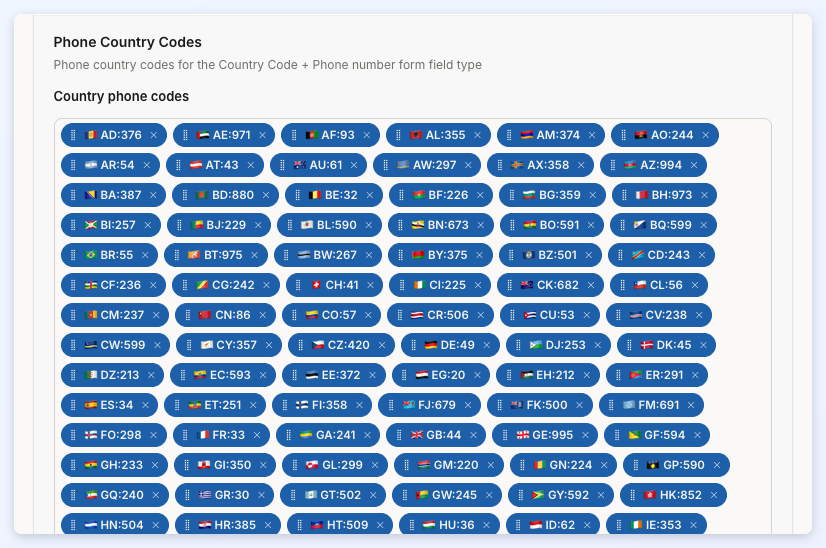
Phone Country Codes
Phone country codes for the Country Code + Phone number form field type.
Match Sub Account Status to Parent Account
The status of Sub Accounts (Active, On Hold, Past Due, etc) will automatically update to match that of their parent account.
Security
This section addresses key security and privacy settings related to member consent, login behavior, and session management.
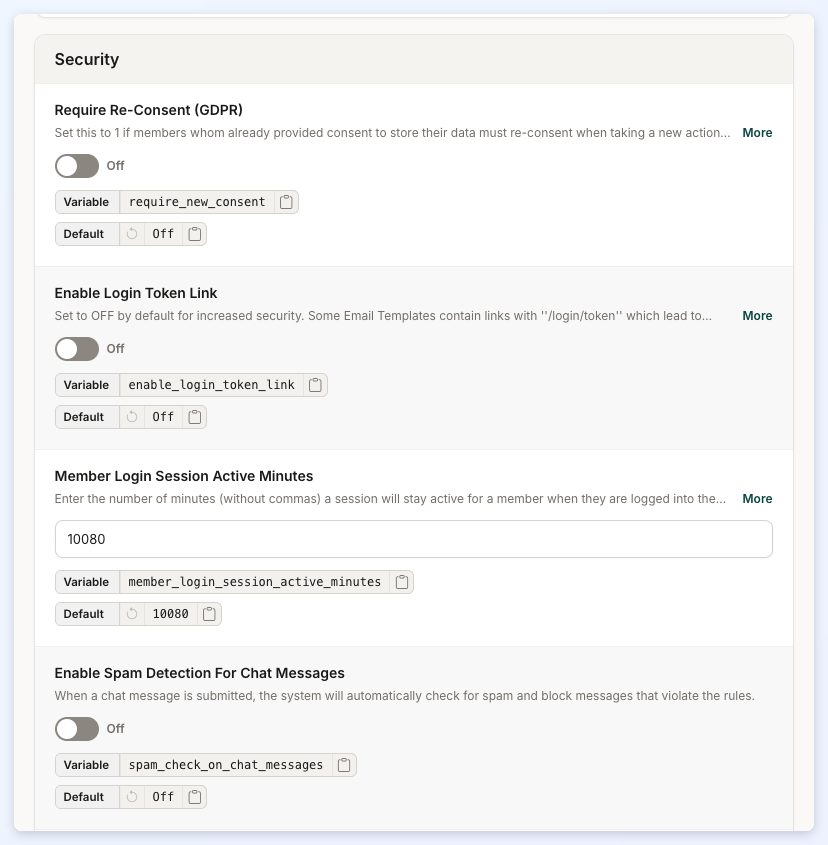
Require Re-Consent (GDPR)
Set this to 1 if members who have already provided consent to store their data must re-consent when taking a new action (upgrading or updating credit card info). Set to 0 (default) if members who have already provided consent should not be shown the consent checkboxes again.
Enable Login Token Link
When set to OFF, these links will require members to log in to their account before they can view the linked page. When set to ON, members will be automatically logged in to their account when clicking on these links.
Member Login Session Active Minutes
Enter the number of minutes (without commas) a session will stay active for a member when they are logged into the website.
Enable Spam Detection For Chat Messages
When a chat message is submitted, the system will automatically check for spam and block messages that violate the rules.
Include Login Token in Member Webhook Payloads
When enabled, this setting includes the member login token in outgoing webhook payloads for member-related events, including new member registrations, member additions, updates, deletions, and member self-service form submissions. This setting is disabled by default for security purposes. The account password hash and cookies are never included in webhook payloads, even when this setting is enabled.
4. Sign Ups and Billing
This section covers settings related to Member Sign-Up and Login, Account Status, Billing, and Notifications, offering tools to customize and streamline user account management and payment processes. These settings include:
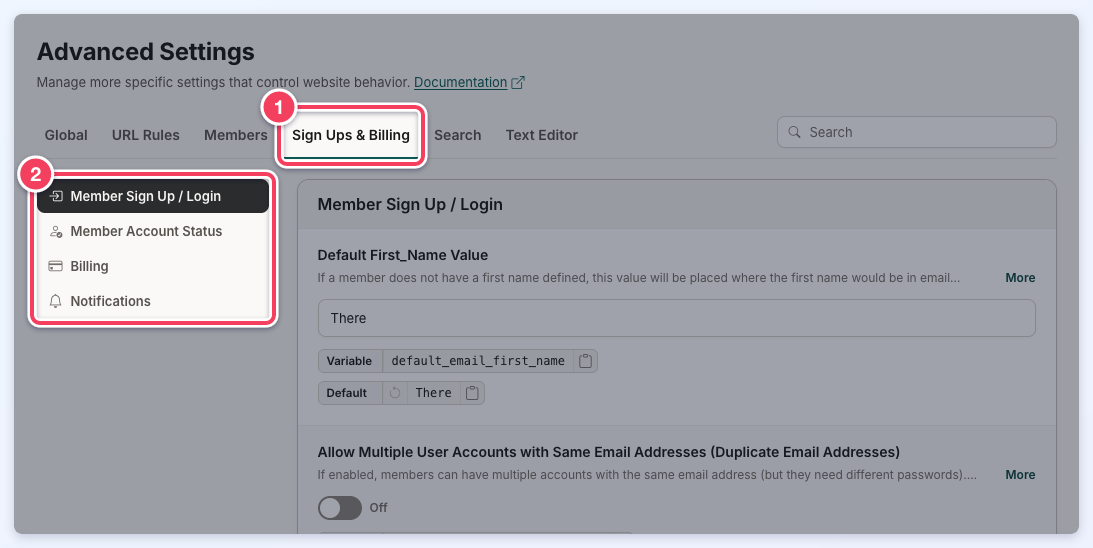
Member Sign Up / Login
This section outlines various member account and registration settings that enhance user experience and site functionality.
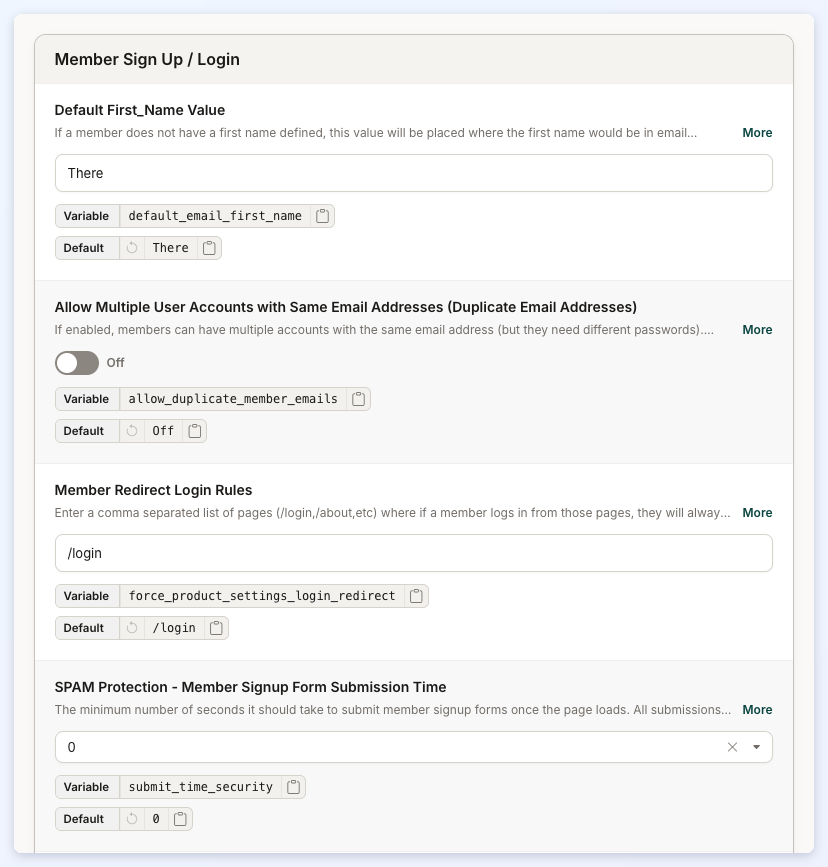
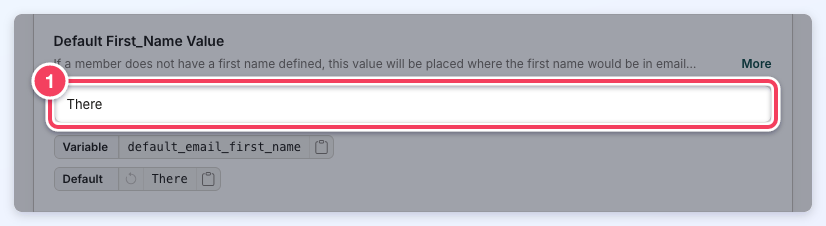
Default First_Name Value
If a member does not have a first name defined, this value will be placed where the first name would be in email templates.
Allow Multiple User Accounts with Same Email Addresses (Duplicate Email Addresses)
Members can have multiple accounts with the same email address (but they need different passwords).
Member Redirect Login Rules
Enter a comma separated list of pages (/login,/about,etc) where if a member logs in from those pages, they will always be redirected to the page defined in their membership level setting.
SPAM Protection - Member Signup Form Submission Time
The minimum number of seconds it should take to submit member signup forms once the page loads.
Reload Same Web Page After Express Member Registration
The user will remain on the same page after they sign up as a member via the Express Member Registration form instead of being redirected to the Member Dashboard.
Reload Same Web Page After Express Member Registration - Exception List
A comma-separated list of pages that will continue to redirect users to the Member Dashboard after they have signed up via the Express Member Registration form, even if the ''Reload Same Web Page After Express Member Registration'' Advanced Setting is enabled.
Use Card-Based Layout on Member Upgrade Page
When enabled, the member account Upgrade page (/account/upgrade) displays available membership plans as a modern card-based layout instead of the classic stacked list.
Member Account Status
This section manages member account statuses related to cancellations and payments.
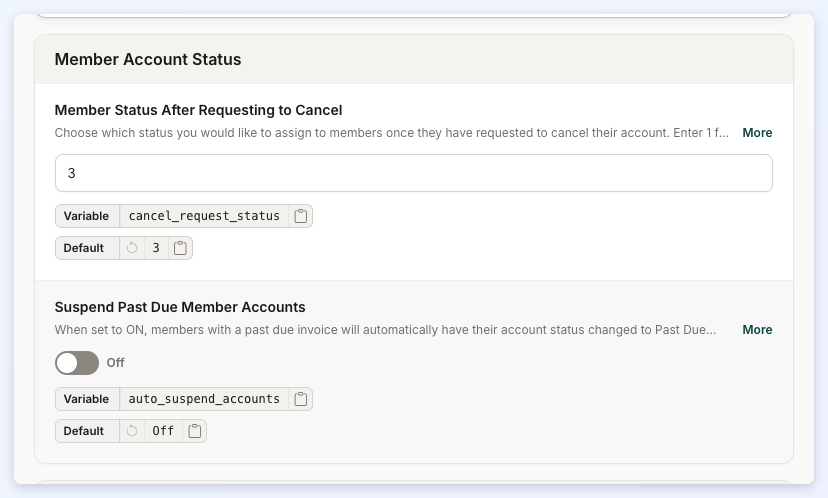
Member Status After Requesting to Cancel
Choose which status you would like to assign to members once they have requested to cancel their account.
Suspend Past Due Member Accounts
When set to ON, members with a past due invoice will automatically have their account status changed to Past Due during the site's daily billing process, even if they do not log in. If a member logs in or appears in the Search Members page in the Admin before the daily process runs, their status will be updated to Past Due at that time instead.
Billing
This section covers advanced billing and member management features, including sales representative tracking, AVS address validation for payments, and invoice payment instructions.
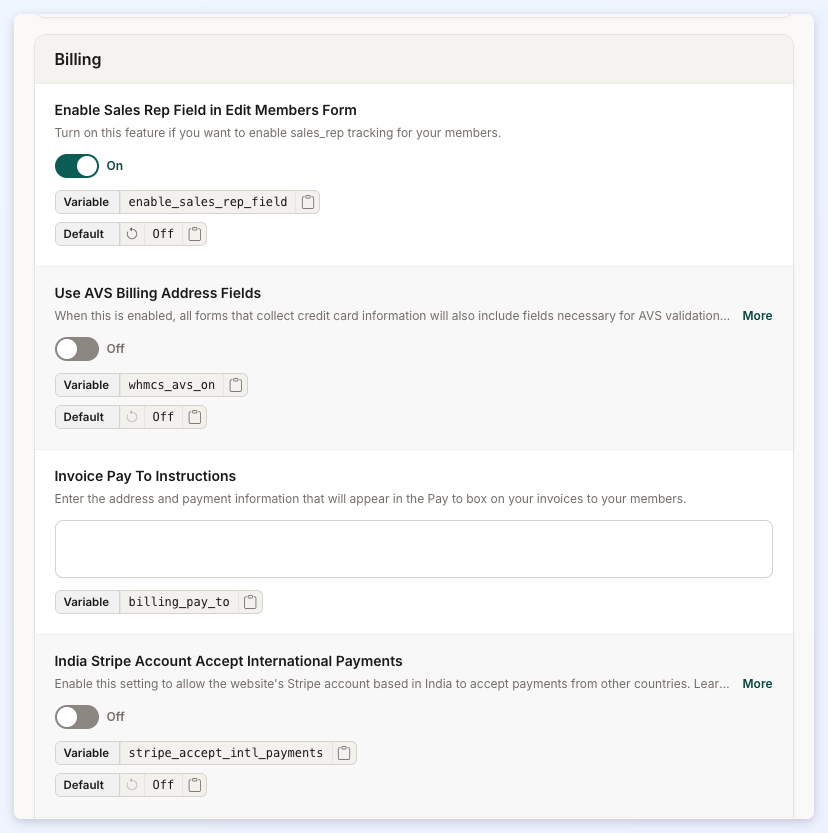
Enable Sales Rep Field in Edit Members Form
Turn on this feature if you want to enable sales_rep tracking for your members.
Use AVS Billing Address Fields
When this is enabled, all forms that collect credit card information will also include fields necessary for AVS validation by your payment gateway. When you disable this, make sure all AVS settings in your active payment gateway are off.
Invoice Pay To Instructions
Enter the address and payment information that will appear in the Pay to box on your invoices to your members.
India Stripe Account Accept International Payments
Enable this setting to allow the website's Stripe account based in India to accept payments from other countries.
Save Billing Address As Member Address
Set to Yes to save the Billing Address entered during signup as the member's profile address as well. Set to No (default) to only save the Billing Address as billing information and not as their profile address.
MEMBER CREDITS: Enable Credit System
Turn this setting ON to enable the credit system. Turn this setting OFF to disable showing the credit system functionality and auto-applying of credits to your members. You must also have the Member Credit System Add-on active for this setting to work.
MEMBER CREDITS: Enable Prorated Plan Changes
Only works when the “Member Credits System” Add-On is enabled and the "Enable Credits System" Advanced Setting is set to "ON". Set to ON in order to enable prorated calculation when members change their own plans.
MEMBER CREDITS: Proration: Deduct First Day Usage from Proration Calculation
Only works with “MEMBER CREDITS SYSTEM” add-on.. Set to ON to deduct the first day's usage from the proration amount calculation.
MEMBER CREDITS: Select Transaction Types Credits Can Be Applied To
Select the types of transactions where member credits can be applied. If an item is unchecked, member credits will not be used for those types of transactions.
Notifications
This section focuses on email notification settings related to member billing and account status changes.
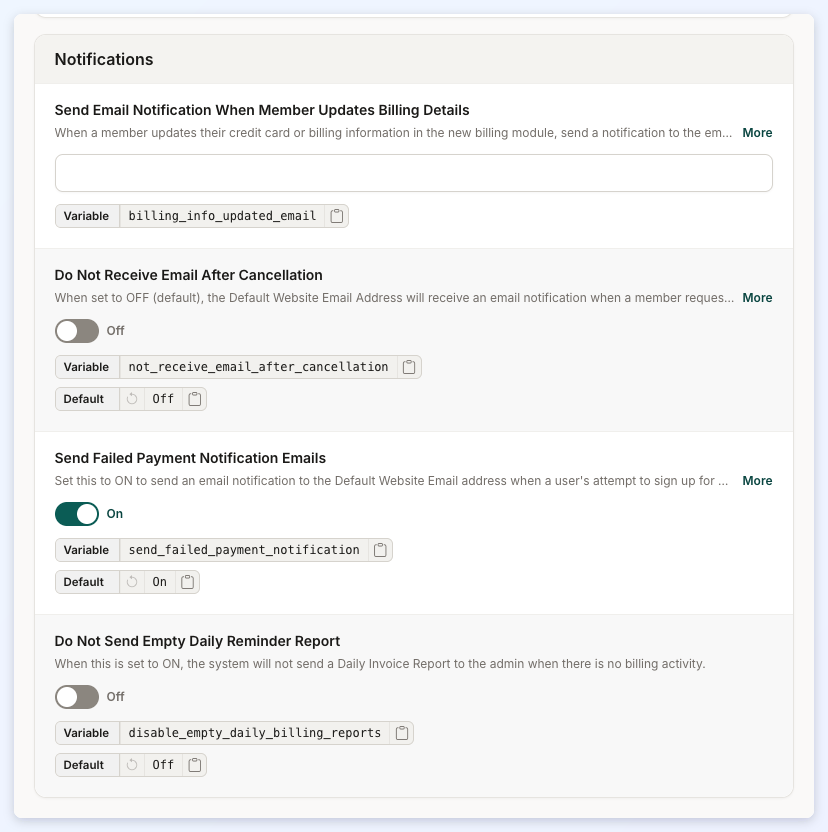
Send Email Notification When Member Updates Billing Details
When a member updates their credit card or billing information in the new billing module, send a notification to the email addresses specified here.
Do Not Receive Email After Cancellation
When set to OFF (default), the Default Website Email Address will receive an email notification when a member requests to cancel their accounts. When set to ON, no notification email will be sent when a member requests to cancel their account.
Send Failed Payment Notification Emails
Set this to ON to send an email notification to the Default Website Email address when a user's attempt to sign up for a paid Membership Plan fails.
Do Not Send Empty Daily Reminder Report
When this is set to ON, the system will not send a Daily Invoice Report to the admin when there is no billing activity.
5. Search
This section focuses on Display Settings, Search Modules, and Search Logic; key areas that shape how users interact with and experience search results on the website. These settings consist of:
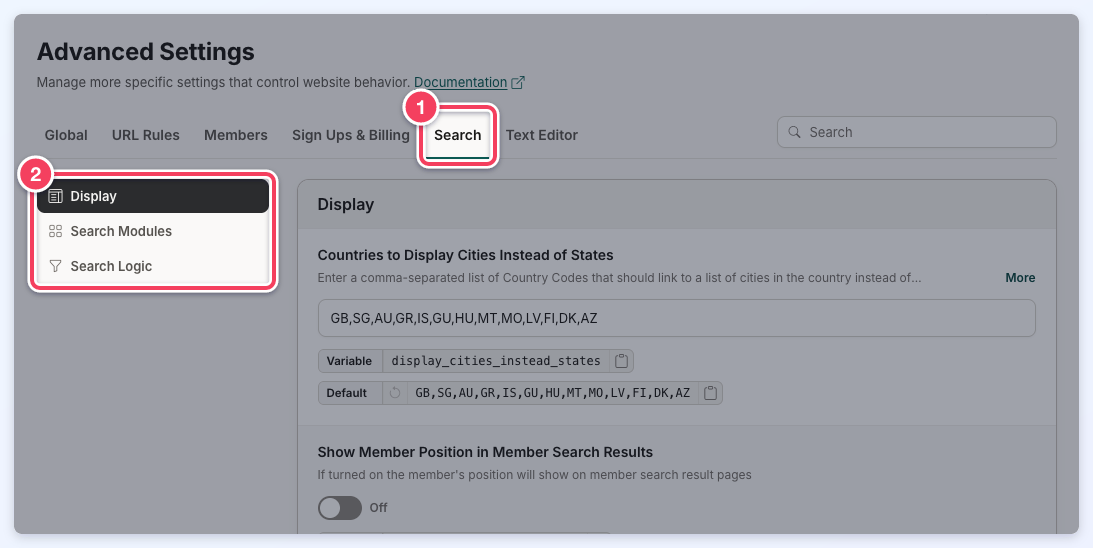
Display
This section focuses on enhancing location-based search and URL functionality.
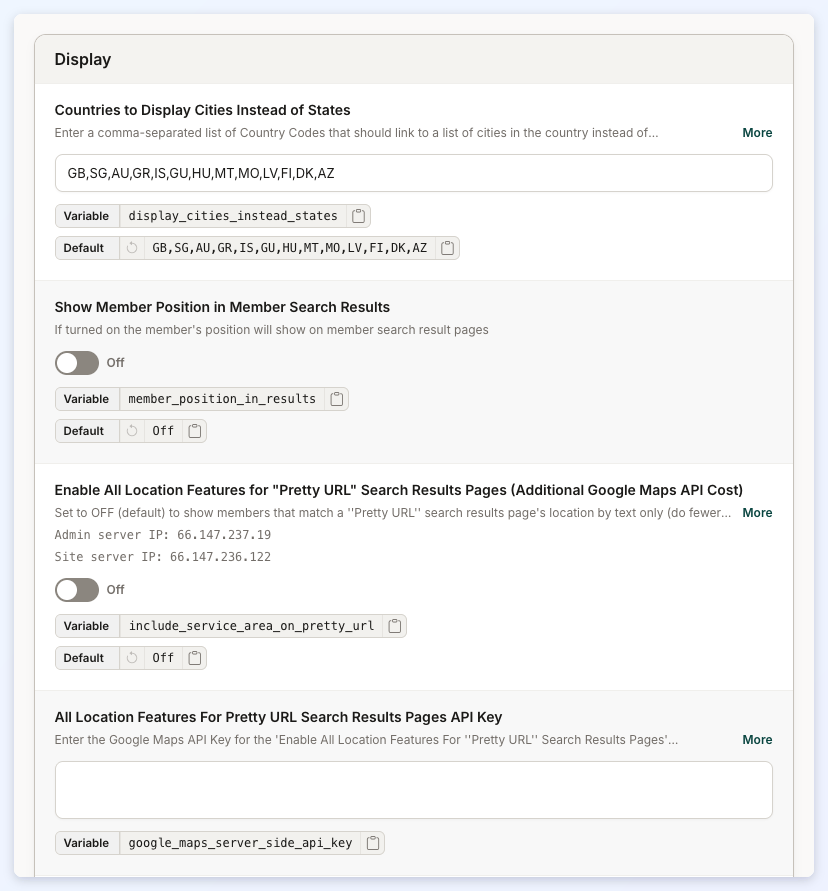
Countries to Display Cities Instead of States
Enter a comma-separated list of Country Codes that should link to a list of cities in the country instead of states/provinces on the /locations page of the site.
Show Member Position in Member Search Results
If turned on the member's position will show on member search result pages.
Enable All Location Features for "Pretty URL" Search Results Pages (Additional Google Maps API Cost)
Set to OFF (default) to show members that match a ''Pretty URL'' search results page's location by text only (do fewer Google Maps API calls). Set to ON to include all member location search results features (do more Google Maps API calls).
All Location Features For Pretty URL Search Results Pages API Key
Enter the Google Maps API Key for the 'Enable All Location Features For ''Pretty URL'' Search Results Pages' functionality.
Prompt visitors to share their location automatically on page load?
When set to OFF (default), visitors to the site can share their location by clicking on the icon in the website's location search fields. When set to ON, prompt all visitors to share their location automatically as soon as they visit the website.
Insta-Load Search Results Button Behavior
Select how more search results are fetched with the ''Load More Results'' button.
Search Modules
This section offers settings to customize how categories and filters behave in member search results.
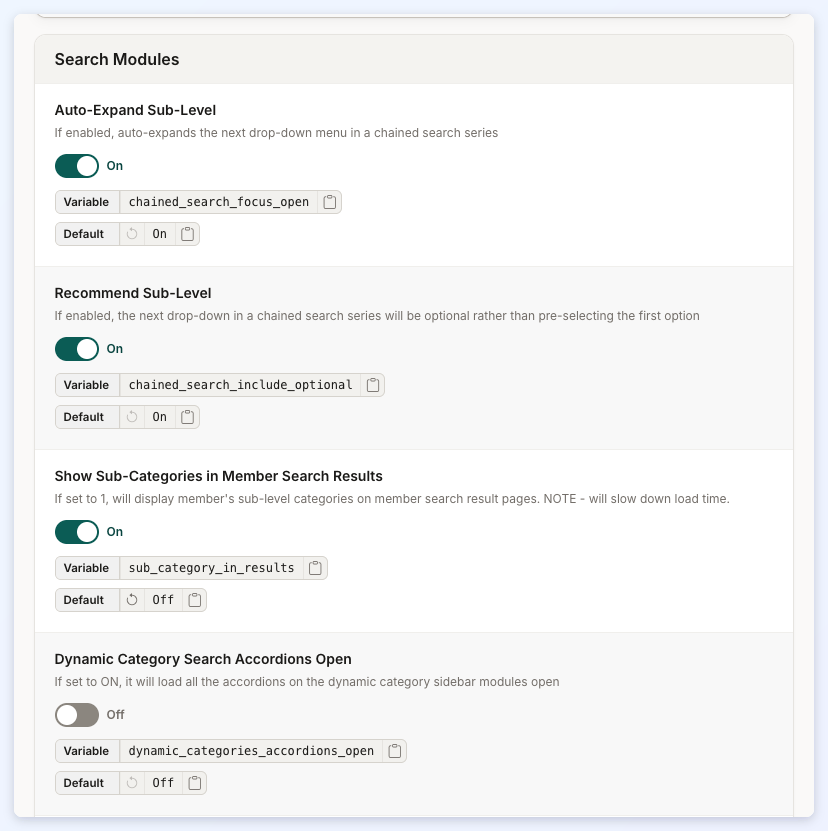
Auto-Expand Sub-Level
If enabled, auto-expands the next drop-down menu in a chained search series.
Recommend Sub-Level
If enabled, the next drop-down in a chained search series will be optional rather than pre-selecting the first option.
Show Sub-Categories in Member Search Results
Will display member's sub-level categories on member search result pages. NOTE - will slow down load time.
Dynamic Category Search Accordions Open
It will load all the accordions on the dynamic category sidebar modules open.
Show Top Category in Member Search Results
If turned on the member's top level category will show on member search result pages.
Dynamic Category Filter - Broad Match
Set to ON (default) to return members listed in ANY of the selected categories. Set to OFF to only return members listed in ALL of the selected categories.
Dynamic Category Filtering - Only Show Categories Related to the Searched Category
When clicking on dynamic filters checkboxes, keep the top or sub category context from the URL so the dynamic filters in sidebar only show categories related to the page the category filter widget is being displayed on.
Search Logic
This section defines how location-based searches are conducted for different administrative levels, such as neighborhoods, counties, and states, allowing results to be returned based on either geographical bounds or a specified radius.
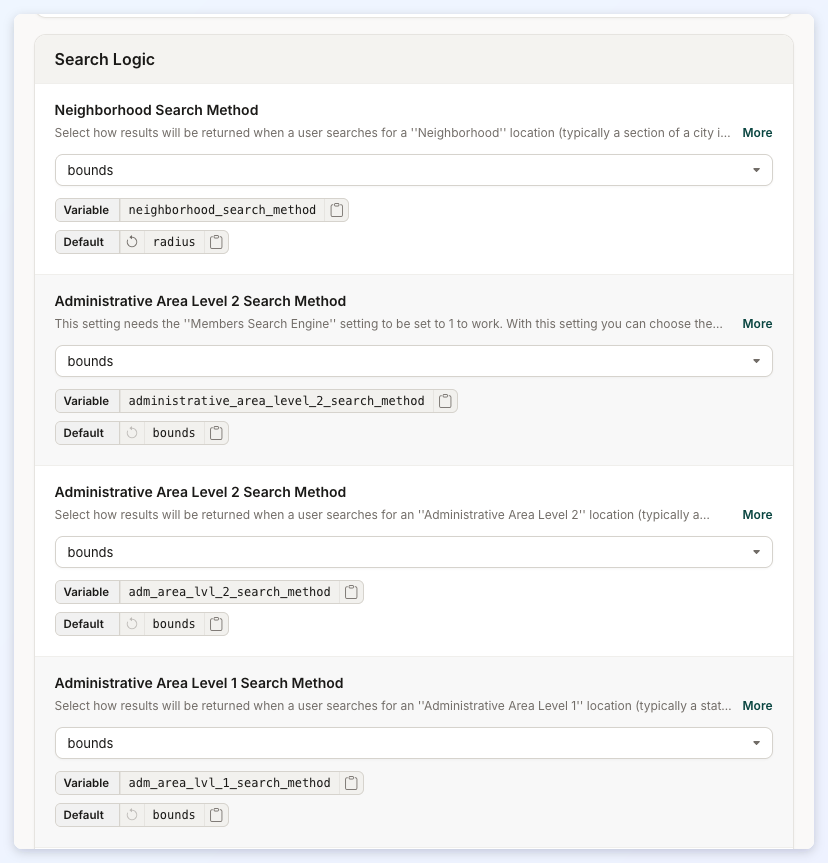
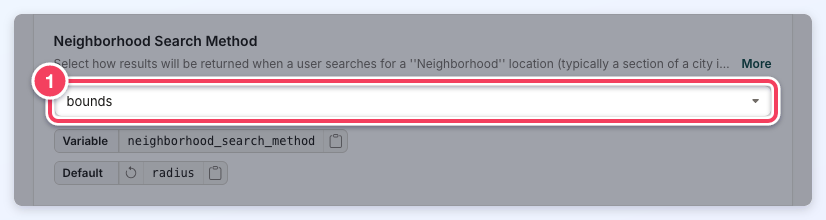
Neighborhood Search Method
Select how results will be returned when a user searches for a "Neighborhood" location (typically a section of a city in many countries). Selecting "Bounds" will return results that are within the bounds of the searched location. Selecting ''Radius'' (default) will return results within the default search radius of the center of the searched location.
Administrative Area Level 2 Search Method
Chooses the type of search that is performed when a location is an Administrative Area Level 2 or has the same location scope as an Administrative Area Level 2. The two options are ''bounds'' (default) and ''radius''. When set to radius, the website's default search radius is applied.
Administrative Area Level 2 Search Method
Select how results will be returned when a user searches for an ''Administrative Area Level 2'' location (typically a ''county'' in many countries). Selecting ''Bounds'' (default) will return results that are within the bounds of the searched location. Selecting ''Radius'' will return results within the default search radius of the center of the searched location.
Administrative Area Level 1 Search Method
Select how results will be returned when a user searches for an ''Administrative Area Level 1'' location (typically a state or province). Selecting ''Bounds'' (default) will return results that are within the bounds of the searched location. Selecting ''Radius'' will return results within the default search radius of the center of the searched location.
Member Keyword Search - Exclude Custom Fields
Enter a comma-separated list of the custom field variable names to exclude when performing a keyword search.
Member Keyword Search - Exclude Custom Fields
Enter a comma-separated list of the custom member fields to exclude when performing a keyword search.
Member Keyword Search - Exclude Default Fields
Enter a comma-separated list of the default member fields to exclude when performing a keyword search.
Complete Profile Fields
A comma-separated list [NO SPACES] of the Member Profile Fields that must be filled in by a member for their profile to be considered "COMPLETE". When complete profiles are required on the website (this is off by default), a member will not appear in search results unless their profile is "COMPLETE".
6. Text Editor
This section outlines settings related to Text Editors, Permissions, and File Upload capabilities on the website. These options help manage how users create and format content, what types of HTML and media are permitted, and the size limits for uploads.
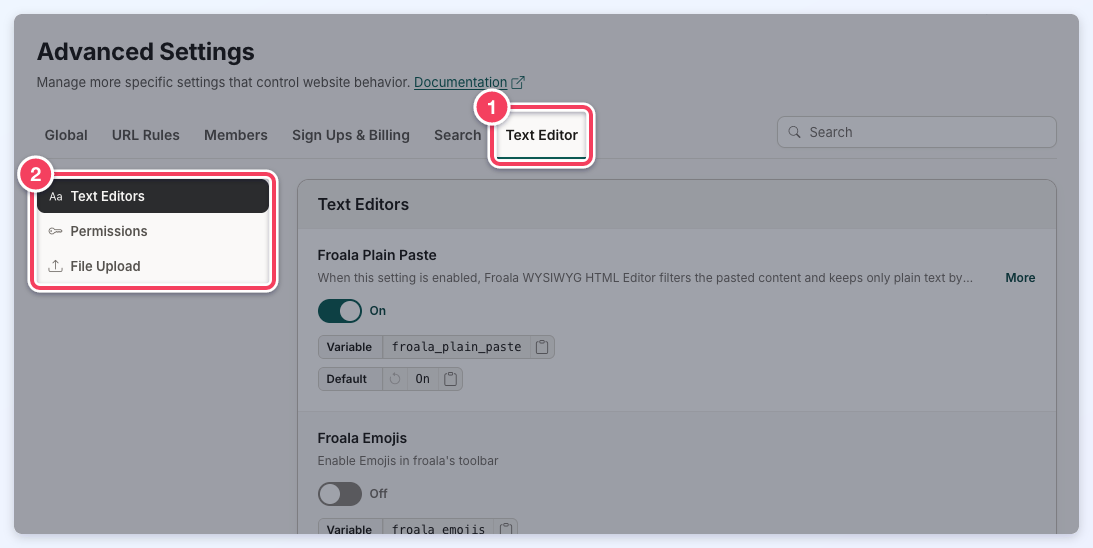
Text Editors
This section covers advanced settings for the Froala WYSIWYG text editor, including options to simplify pasted content to plain text, enable emojis, embed widget shortcodes, and integrate third-party tools like Embedly and ChatGPT.
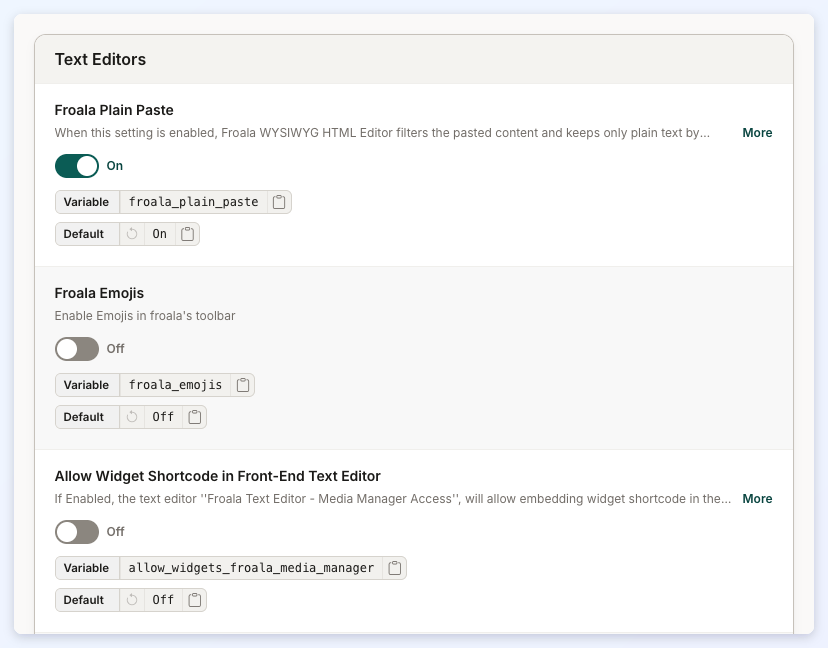
Froala Plain Paste
When this setting is enabled, Froala WYSIWYG HTML Editor filters the pasted content and keeps only plain text by removing all its rich formatting.
Froala Emojis
Enable Emojis in Froala's toolbar.
Allow Widget Shortcode in Front-End Text Editor
The text editor "Froala Text Editor - Media Manager Access" will allow embedding widget shortcode in the text editor and rendering the widget's HTML on the front-end of the website.
Enable Embedly in Frontend Froala Editors
Include Embedly embeddable content in the Froala Editors selected here. This will include the Embedly functionality in all of the Froala Editors of each type used throughout the website.
Enable chatGPT in Frontend Froala Editors
Enable the integration of the chat GPT functionality in the selected Froala Editors.
Froala Remove Attributes When Pasting Text
A comma separated list of attributes that will be removed when pasting something into the text editor.
Froala Markdown
Enable Markdown in Froala's toolbar.
Froala Enable Stock Photo Library
Select which front-end text editors the stock photo library will be enabled for. Remember to also enable access for membership plans or individual users as well.
Auto-Save Drafts
When enabled, the Edit Web Page editor auto-saves changes as a draft. If the changes were not saved, the draft is restored the next time the page is opened, with a Draft from ... restored notice. Embedded videos and other iframes from the sources in Allowed Iframe Sources (Text Editor tab) are kept in the draft; iframes from other sources are left out of it. If a draft holds fewer embeds than the saved page, the editor does not restore it and shows Draft from ... not restored: it is missing embeds this page has, with a Discard draft button. Turn it OFF to disable drafts site-wide.
Permissions
This section defines content and formatting controls for posts and frontend forms, including settings for selecting post publish dates, specifying which HTML tags are permitted in posts and forms, and managing allowed iframe source domains.
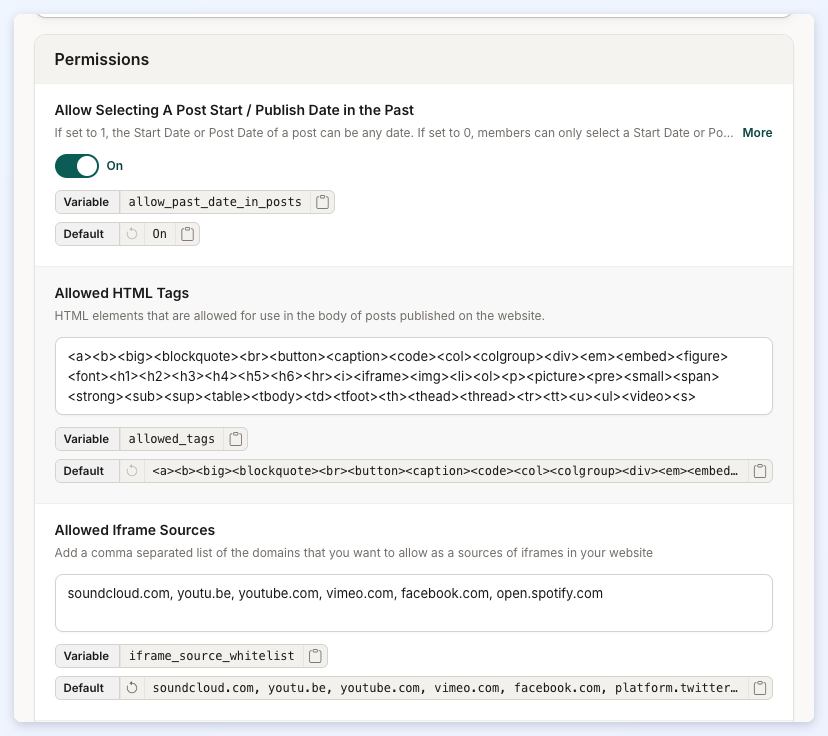
Allow Selecting A Post Start / Publish Date in the Past
The Start Date or Post Date of a post can be any date. If set to 0, members can only select a Start Date or Post Date in the present or future.
Allowed HTML Tags
HTML elements that are allowed for use in the body of posts published on the website.
Allowed Iframe Sources
A comma-separated list of the domains allowed as sources of iframes on the website. The same list decides which embeds are kept in auto-saved web page drafts (see Auto-Save Drafts). More details: How to Whitelist and Allow 3rd Party iFrames.
Froala Allowed Empty Tags
A list of HTML elements that are allowed to be empty in Froala Editors.
Allowed Frontend HTML Tags
HTML elements that are allowed for use in frontend forms.
File Upload
This section outlines file size limits for uploads across different features, including the maximum file size for the Froala text editor, image uploads for single and group posts, file uploads, and PDF files shared in private member chats.
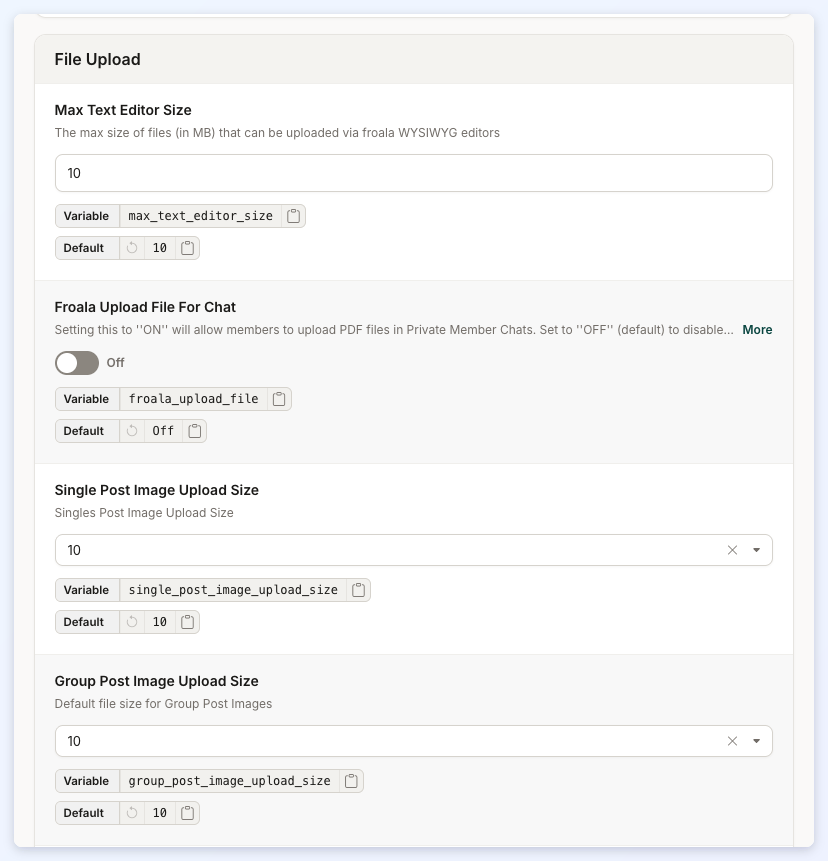
Max Text Editor Size
The max size of files (in MB) that can be uploaded via froala WYSIWYG editors.
Froala Upload File For Chat
Setting this to ''ON'' will allow members to upload PDF files in Private Member Chats. Set to ''OFF'' (default) to disable the sending of PDF files in Private Member Chats.
Single Post Image Upload Size
Single Post Image Upload Size.
Group Post Image Upload Size
The default file size for Group Post Images.
File Image Upload Size
The default file size for File Image upload.
Froala Chat PDF File Size
Default file size for the Froala Chat PDF file.
How to Activate the Settings
Advanced settings use five kinds of controls:
Switches: click the switch (1). The word beside it shows whether the setting is On or Off. Clicking the setting's name does not change the switch.
Text Inputs: type the new value in the field (1).
Dropdown Selects: click the field (1) and choose an option. Dropdowns with a long list of options can be searched by typing in them.
Checkbox Lists: some settings, such as Disable Screenshot Previews, list several options; tick each one that applies.
Order Builders: URL structure settings, such as Post URL Structure shown under Member Dashboard above, and Phone Country Codes build their value from items. Drag the items in the URL order list to reorder them (or use the arrow keys), click an item's x to remove it, and click an item under Available URL elements to add it. The read-only Preview shows the resulting URL pattern.
Saving Changes
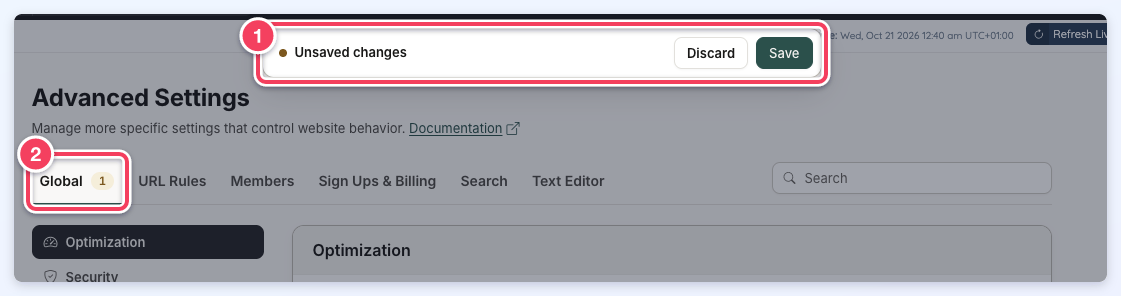
As soon as any setting changes, an Unsaved changes bar (1) appears at the top of the page, and each tab shows how many of its settings have changed (2). Changes can be made across several tabs before saving. Click Save to apply every change, or Discard to put all of them back.