
Setup Essentials - Required Steps to Setup the Directory
Link: https://support.brilliantdirectories.com/support/solutions/articles/12000051027
After accessing the admin back-end, the first page that displays is the Admin Dashboard. Below is a guide with the essential steps to start setting up the new directory.. These boxes are linked to the different parts of the system that need to be set up on the site. These are the basic steps to be completed:
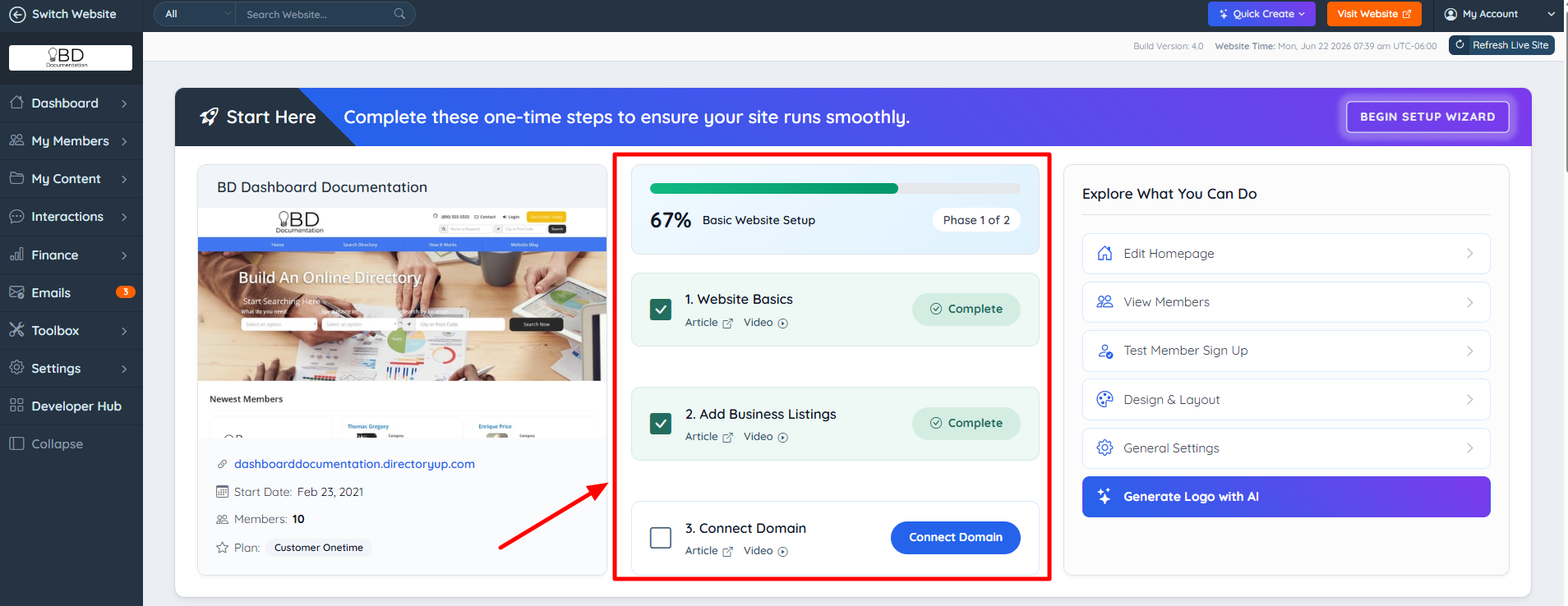
1. Website Basics
Learn more about the Website Basics set up that includes:
- Setting Up General Settings
- Setting Up "Staging Mode"
- Uploading Your Logo & Favicon
- Adding Company Email
- Adding Google Analytics
General Settings Documentation
2. Add Business Listings
To rapidly populate the directory with relevant, up-to-date business records. The Instant Business Data service enables the ability to search for businesses by industry, location, and other criteria, then instantly import them to the website as listings.
Read the following article to access more information on what can be done in this section:
3. Connect Domain
All new Brilliant Directories websites will be connected to a "Staging URL", which is a temporary URL that can be used while the site is being built. One of the advantages of having a staging URL is that the site can be worked on without impacting the eventual domain. Some users prefer to wait until their website has all of the proper keywords and settings configured to avoid having their websites indexed before it is ready.
Once the site is ready, follow the steps to connect the domain here:
Connecting a Domain with the Domain Manager
After completing Phase 1 of 2 with the 3 setups shown above, the last 3 will show like below as Phase 2 of 2 to complete the full setup.
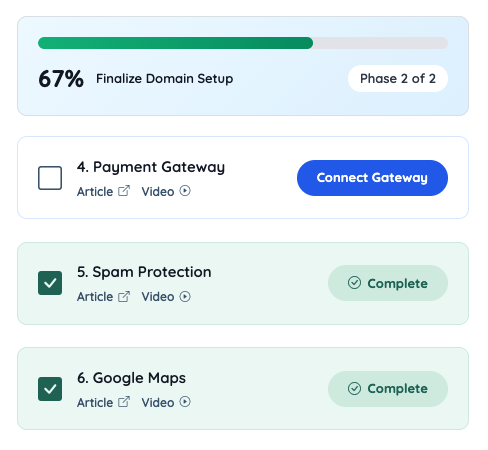
4. Payment Gateway
By connecting the payment gateway, any money received will be deposited directly into the account linked to the payment gateway. There, the country's currency can be selected if the country is included on the list of countries serviced by the chosen payment gateway and if the payment gateway supports that currency.
Below is a list of all the currently supported payment gateways with links to more information about the countries and currencies supported by each. To get more info about each specific payment gateway, check out the link below
Supported Payment Gateways
Here is a guide on how to set up the Payment Gateway.
Setting Up the Payment Gateway
5. Spam Form Protection
In order to have the public forms protected from spam, a reCAPTCHA key must be added to the site. As Google describes it, "reCAPTCHA is a free service that protects the website from spam and abuse. reCAPTCHA uses an advanced risk analysis engine and adaptive CAPTCHAs to keep automated software from engaging in abusive activities on the site. It does this while letting the valid users pass through with ease." Read more about reCAPTCHA here.
Set Up Google reCAPTCHA Key
NOTE: Before completing this step, a live domain name must be connected first.
Please see: How To Move The Site To A Live Domain.
6. Google Maps
In order to use the location search on the site, a Google Maps JavaScript API key needs to be created and added to the Admin area of the site. This will enable Google Maps to work on the site's domain name. Find a complete, step-by-step guide on how to set this up and get this tool working.
Set Up Google Maps API
NOTE: Before completing this step, first connect the live domain name. Please see: How To Move The Site To A Live Domain.
