
Google Maps: Add APIs
Link: https://support.brilliantdirectories.com/support/solutions/articles/12000055835
If Google Maps or location search is not working, one of the required Google Maps APIs may not be enabled in Google Cloud.
This can happen even if the API key was already created and added to the Brilliant Directories website.
Required APIs
The Google Cloud project connected to the API key should have these APIs enabled:
- Maps JavaScript API
- Places API (New)
- Geocoding API
Location search uses Places API (New) when Use Places API (New) is turned on. That switch is in the details window of the red Google Maps Error alert, and it is the same setting as Enable New Google Maps Places API in Advanced Settings. The key is tested for Places API (New) before the switch is saved. If the switch will not turn on, the key most likely does not have Places API (New) enabled: enable it in Step 1 below, wait a few minutes, and turn the switch on again.
Step 1 - Enable the Missing APIs
Use the search bar to find the API that needs to be enabled.
Open each API link below and enable it for the Google Cloud project being used for the website.
If the API is not enabled, click Enable.
Make sure the correct Google Cloud project is selected at the top of the Google Cloud Console before enabling each API.
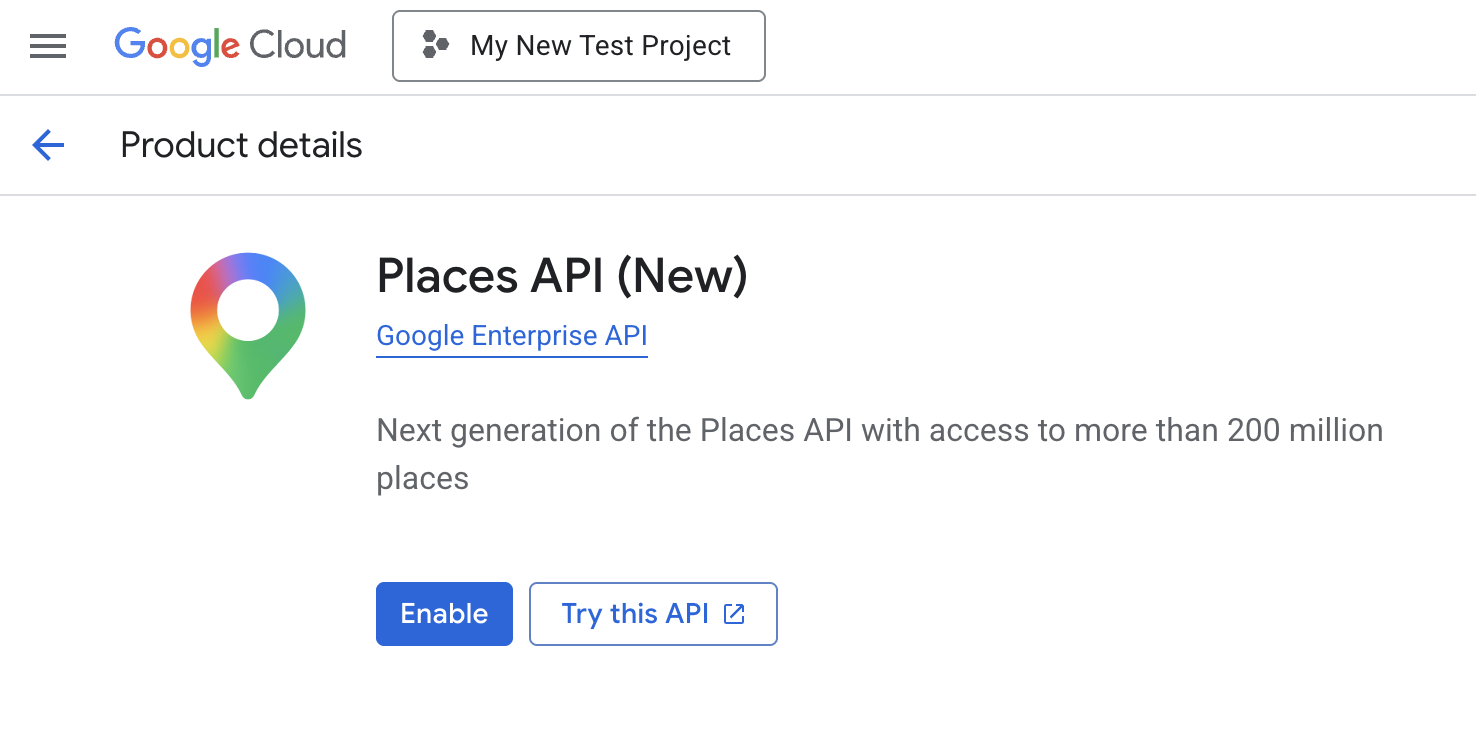 | 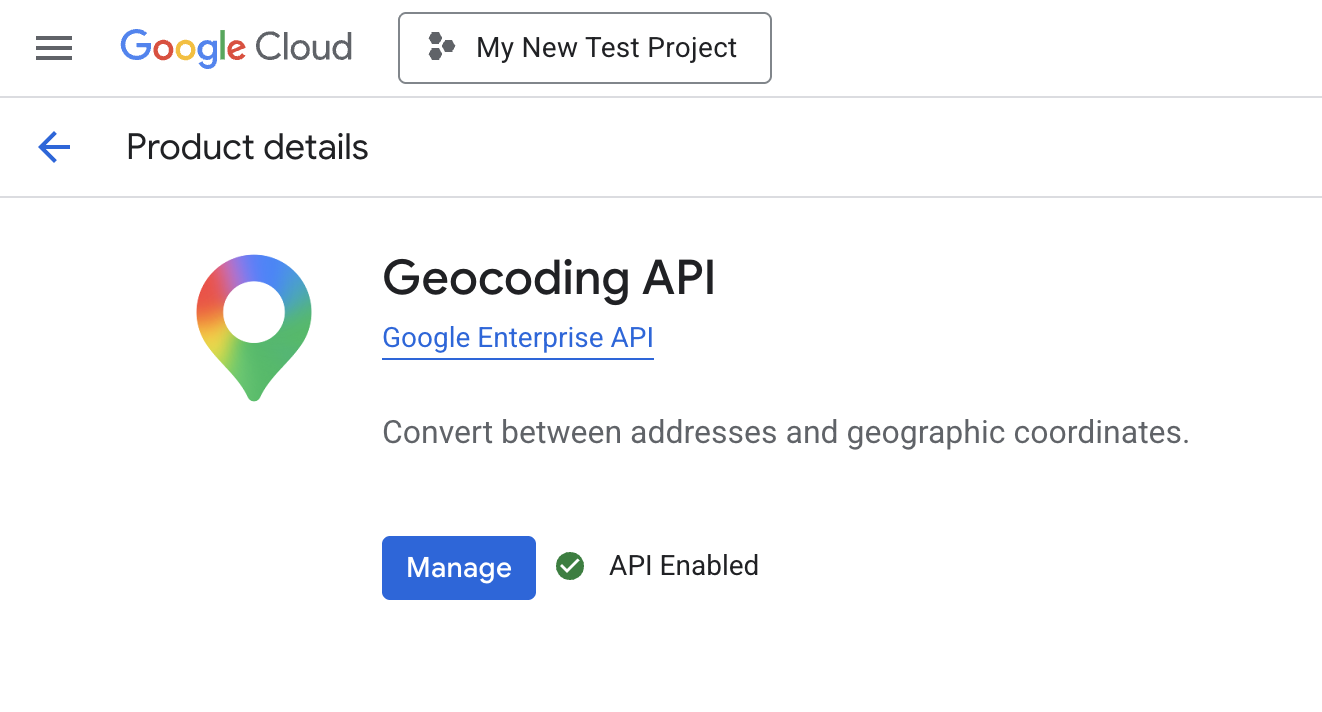 | 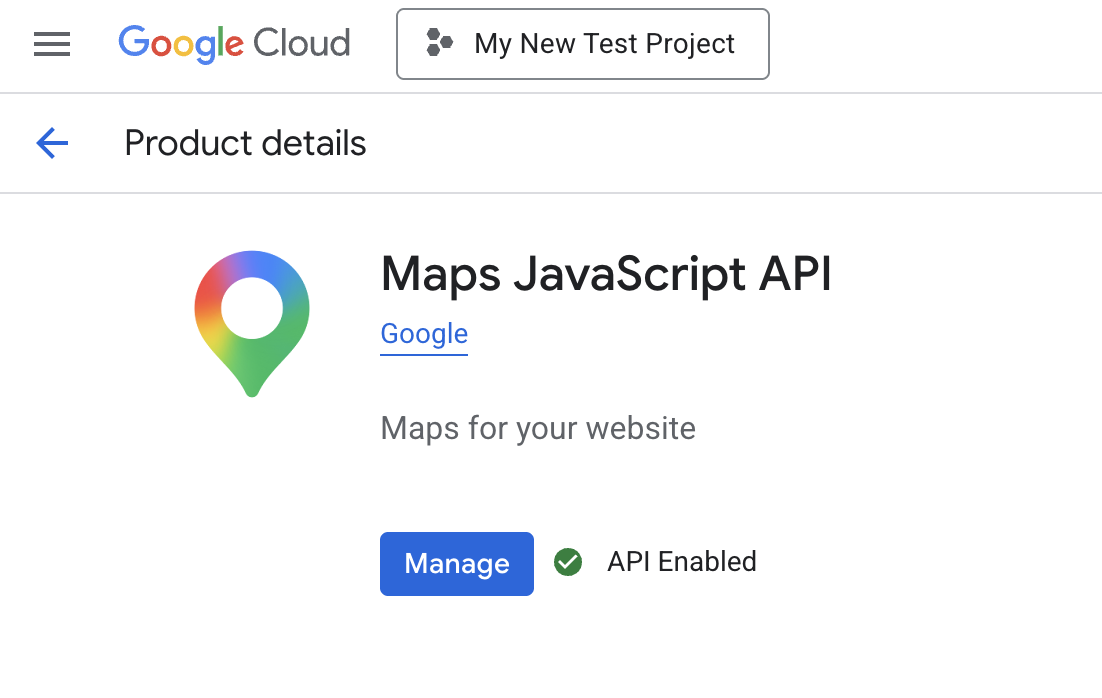 |
Repeat this step until all required APIs are enabled for the same Google Cloud project.
Step 2 - Check API Restrictions
If the API key has API restrictions, make sure the required APIs are also selected in the key settings.
If an enabled API is not selected under the API key restrictions, Google may still block the key from using it.
Open the API key from the Google Cloud Credentials page:
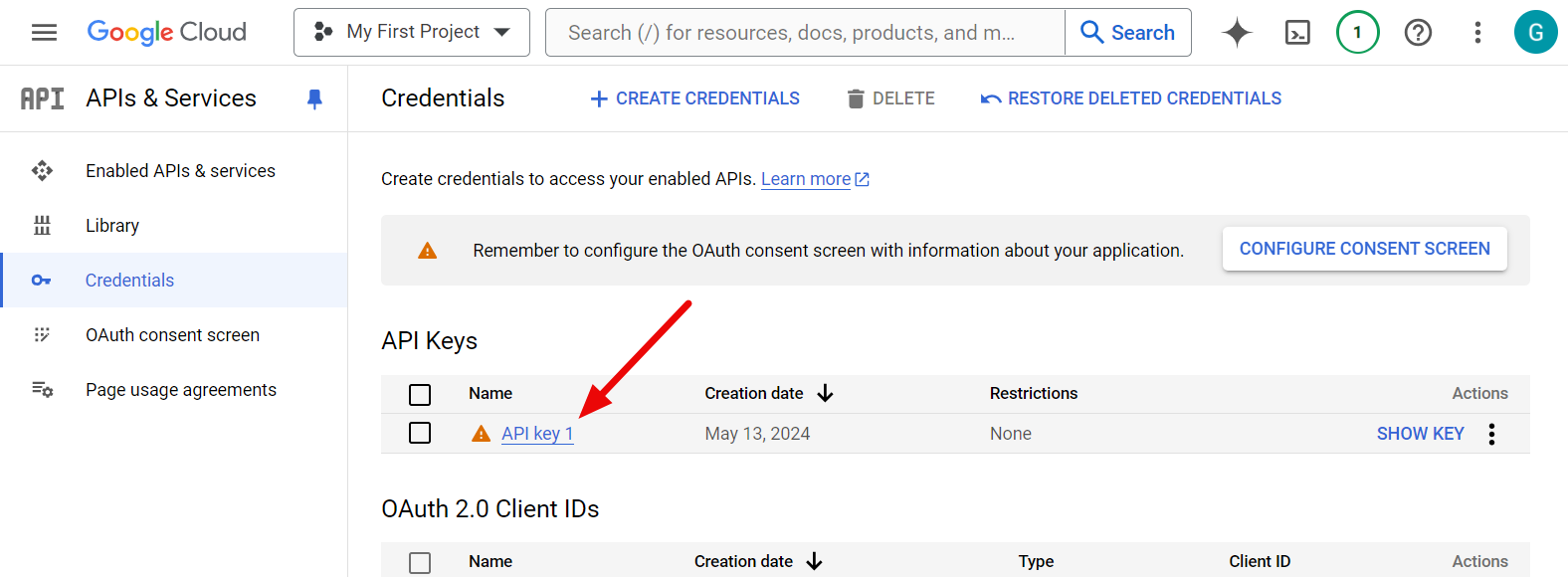
Inside the API key settings, look for the API restrictions section.
Select the option to restrict the key, then choose the APIs used by the website:
- Maps JavaScript API
- Places API (New)
- Geocoding API
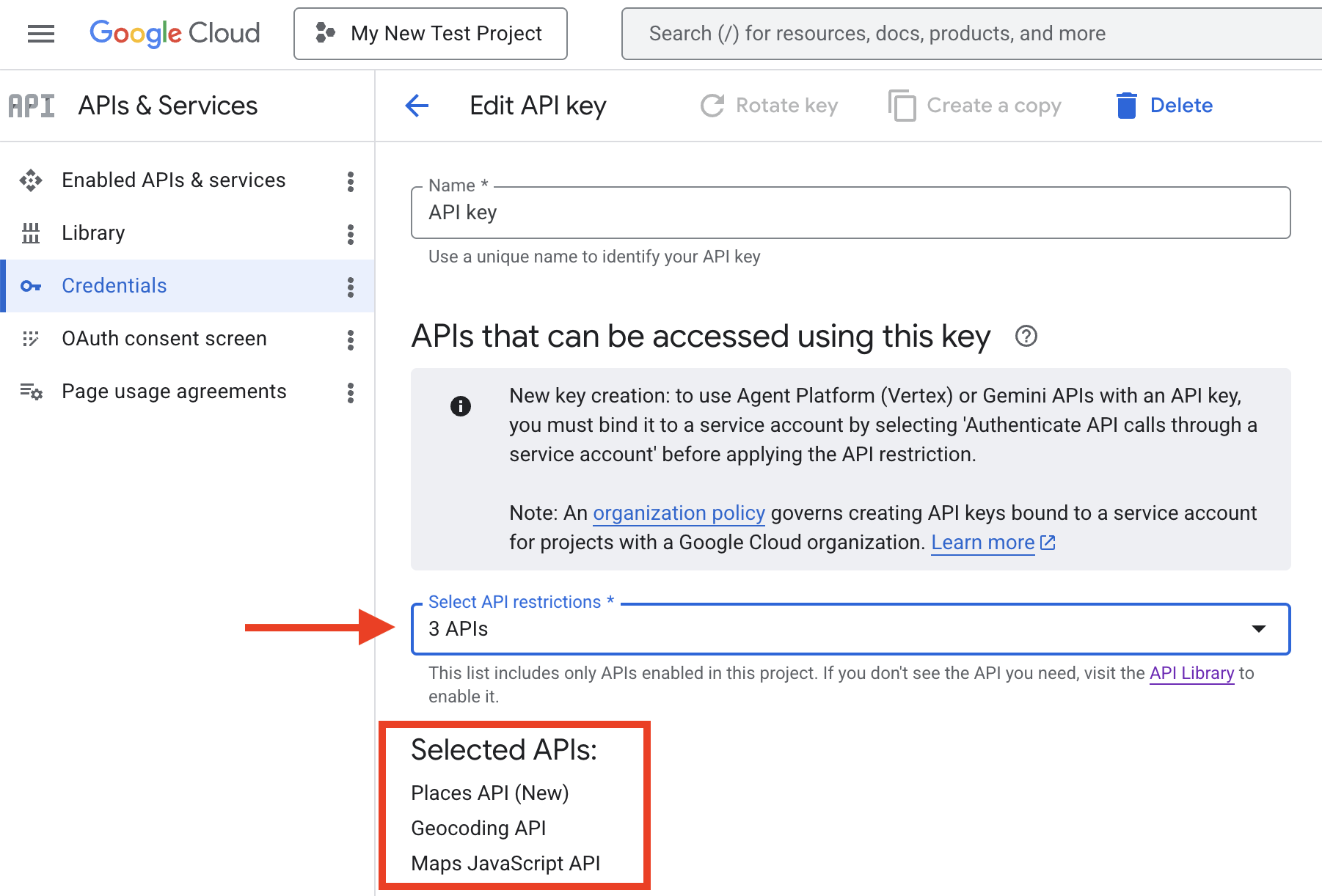
If one of these APIs does not appear in the list, return to Step 2 and confirm that the API was enabled for the same Google Cloud project.
