
Community Comments
Link: https://support.brilliantdirectories.com/support/solutions/articles/12000075521
This is a Free Add-On and Enabled on All Websites
Overview
The Community Comments Add-On adds native comments to Post Type detail pages. Logged-in, active members can leave comments on the website's content, reply to other members' comments, and (when enabled) like or dislike other members' comments.
This add-on removes the need for a third-party solution, such as Disqus, and keeps the whole experience on the website.
Enabling the Add-On
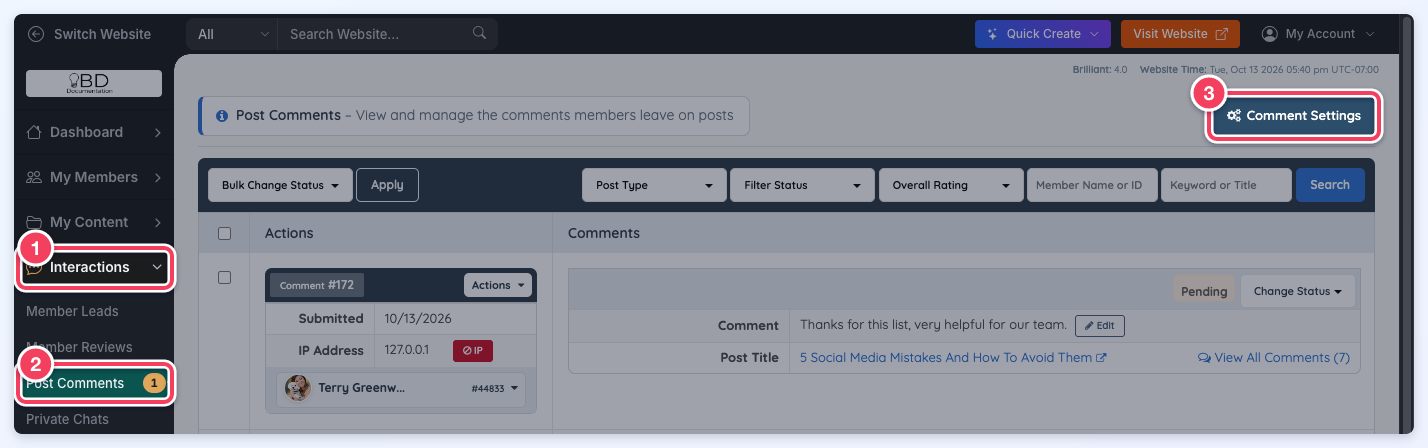
- Go to Interactions » Post Comments.
- Click Comment Settings in the top right corner of the page.
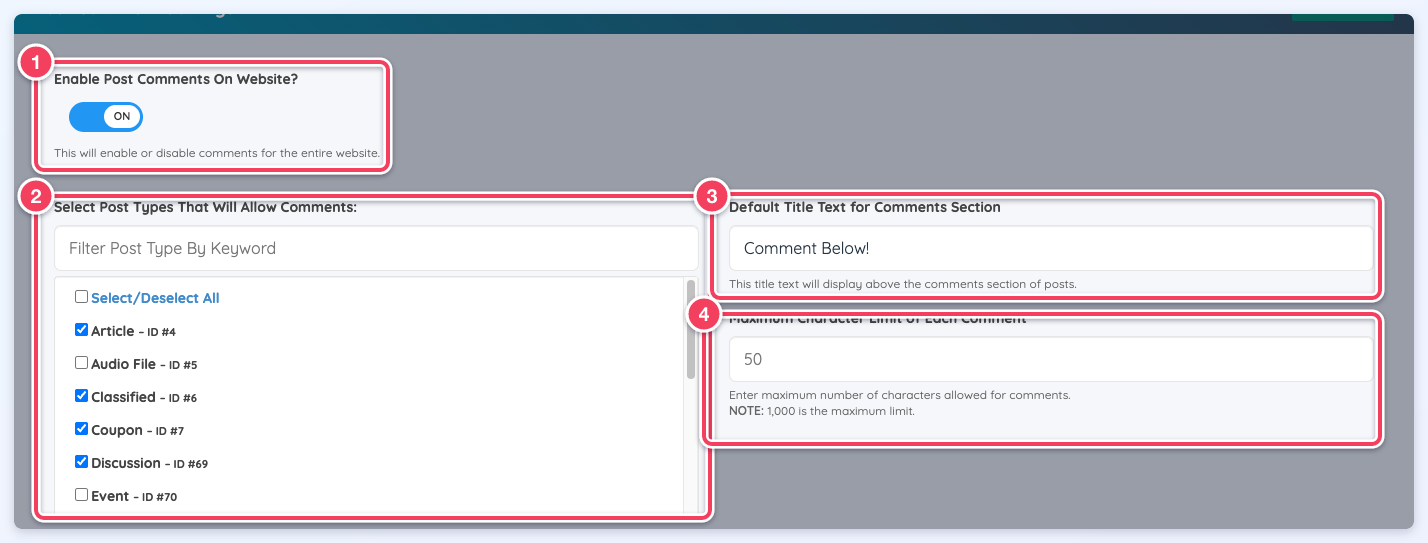
The Post Comment Settings window opens:
- Enable Post Comments On Website? turns comments on or off for the entire website.
- Select Post Types That Will Allow Comments chooses the post types that show a comments section. Type in Filter Post Type By Keyword to narrow a long list.
- Default Title Text for Comments Section is the heading shown above the comments section of posts.
- Maximum Character Limit of Each Comment sets the longest comment a member can submit. 1,000 characters is the maximum limit.
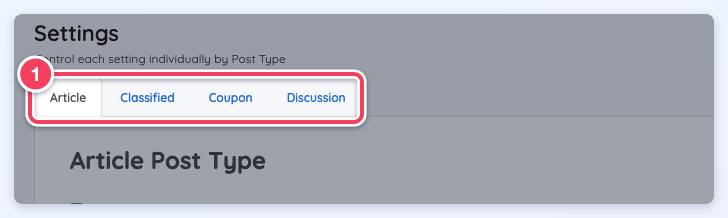
Each post type selected above gets its own tab under Settings, so every post type can be configured separately. Click a tab to review its settings, then click Save Changes (or Save at the bottom of the window) when finished.
In-Depth Look at the Post Comment Settings
These settings appear on each post type's tab. The numbers in the screenshots match the numbered sections below.
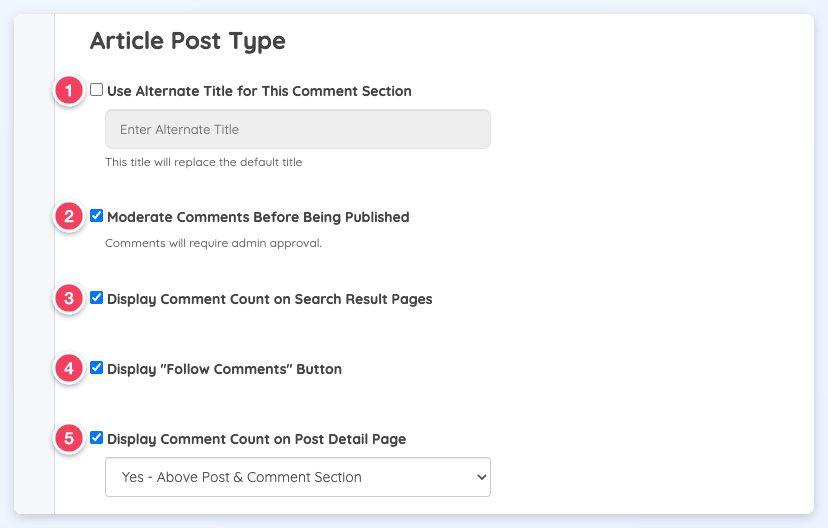
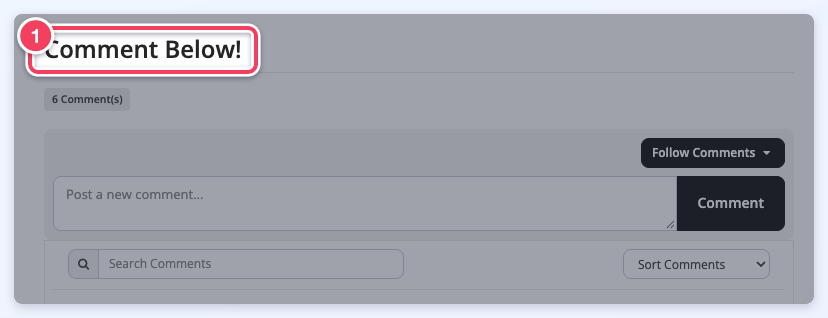
1. Use Alternate Title for This Comment Section
Replaces the default comments section title with a different title for this post type only. Leave it unchecked to use the Default Title Text for Comments Section. This is where the title appears on the post:
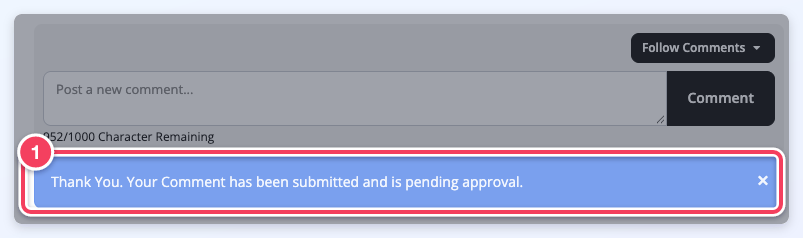
2. Moderate Comments Before Being Published
Comments require admin approval before they appear on the post. After submitting a comment, the member sees a message that the comment is pending approval:
Pending comments are approved or declined in Interactions » Post Comments, explained in the Backend/Admin Functionality section below.
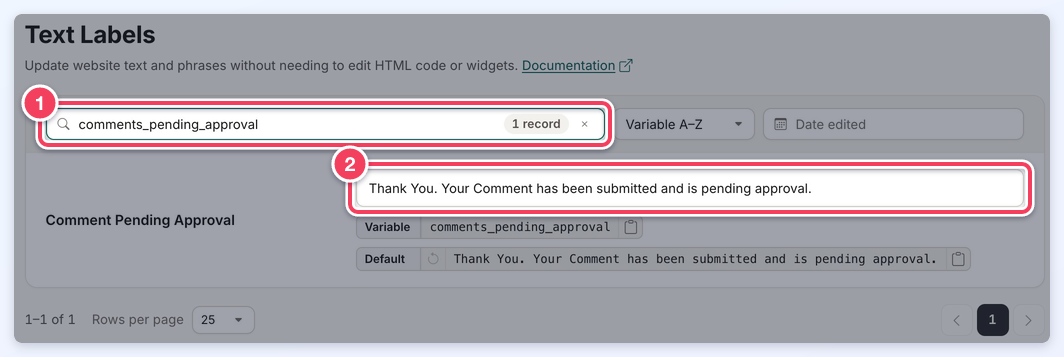
The message wording can be changed in Settings » Text Labels by searching for the variable comments_pending_approval:
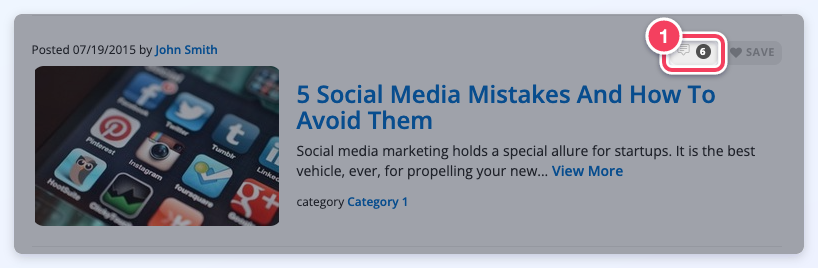
3. Display Comment Count on Search Result Pages
Shows the number of comments next to each post in the post type's search results:
4. Display "Follow Comments" Button
Shows a Follow Comments button above the comment box. A member who follows a post receives an email notification linking to each new comment, similar to private chat email notifications.
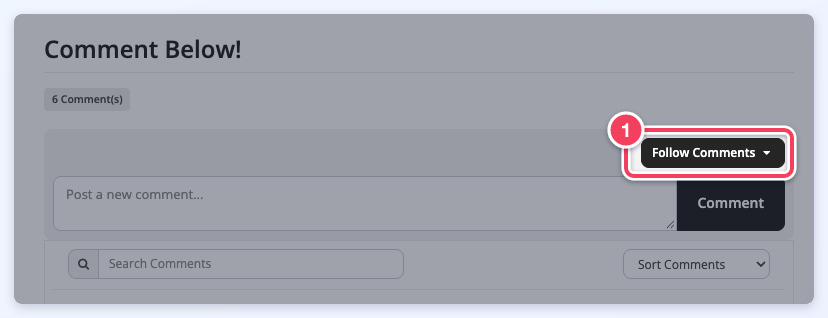
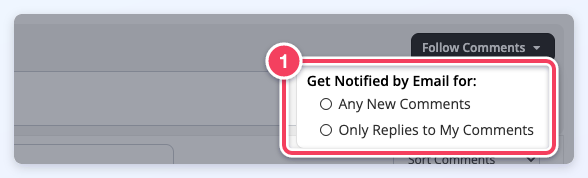
Clicking the button opens the notification options. More details are in the "Follow" Comments Notifications section below.
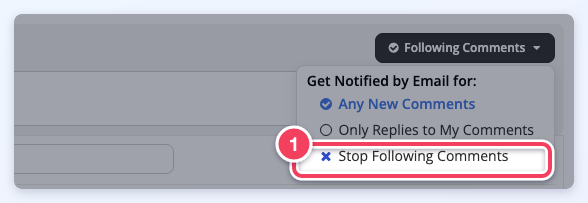
Once a member follows the post, the button reads Following Comments and adds the Stop Following Comments option, which turns notifications off again.
5. Display Comment Count on Post Detail Page
Shows the number of comments on the post itself. Select where it appears:
- No - Hide Comment Count
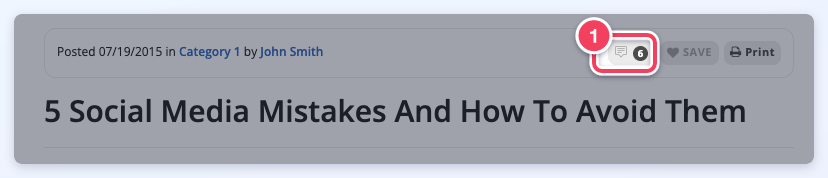
- Yes - Above Post: a comment count icon next to the post's Save and Print buttons.
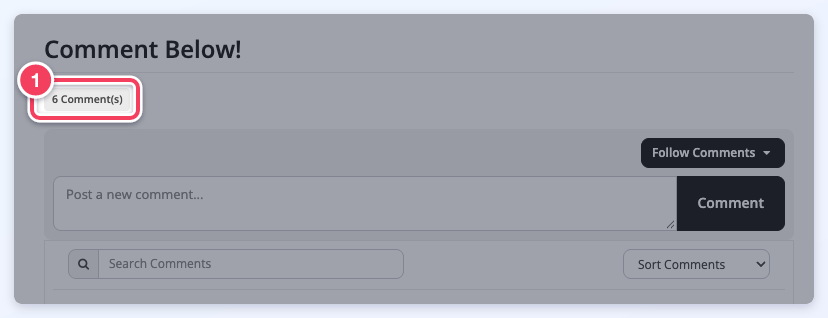
- Yes - Above Comments Section: a count label under the comments section title.
- Yes - Above Post & Comment Section: both.
Above the post:
Above the comments section:
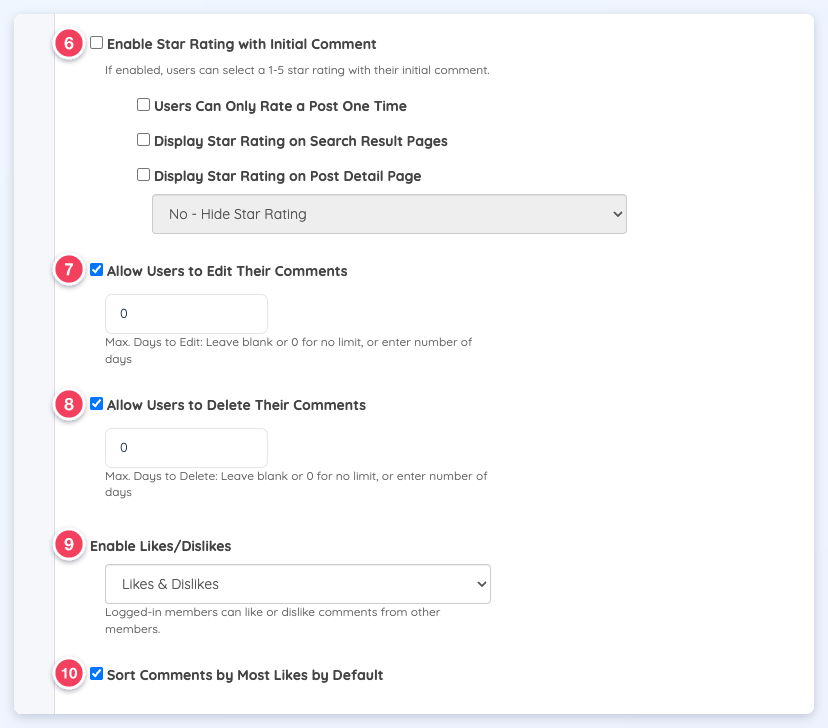
6. Enable Star Rating with Initial Comment
If enabled, members can select a 1-5 star rating with their initial comment. This setting appears only when the Star Ratings For Posts add-on is active. Its sub-settings (Users Can Only Rate a Post One Time, Display Star Rating on Search Result Pages and Display Star Rating on Post Detail Page) are explained in Star Ratings For Posts.
7. Allow Users to Edit Their Comments
When enabled, members see an edit (pencil) icon on their own comments.

Max. Days to Edit limits how long after posting a comment can be edited. Leave it blank or enter 0 for no limit.
8. Allow Users to Delete Their Comments
When enabled, members see a delete (trash) icon on their own comments. Deleting a comment also deletes its replies, and the likes and dislikes on them.

Max. Days to Delete limits how long after posting a comment can be deleted. Leave it blank or enter 0 for no limit.
9. Enable Likes/Dislikes
Lets logged-in members like or dislike comments from other members. Select one of:
- Disabled (the default): no like or dislike buttons are shown.
- Likes Only: each comment shows a thumbs-up button with its count.
- Likes & Dislikes: each comment shows thumbs-up and thumbs-down buttons with their counts.
On the post, every comment and reply shows its like and dislike counts (1). A solid thumb marks the vote the viewing member has already cast (2).
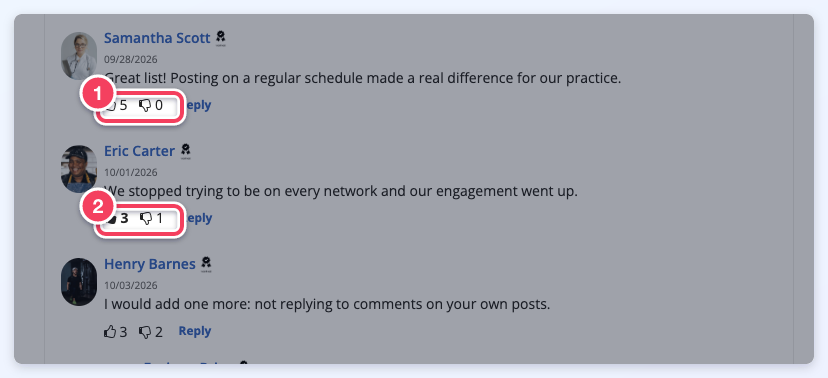
How voting works:
- A member clicks the thumbs-up to like a comment or the thumbs-down to dislike it. Each member has one vote per comment: clicking the other thumb switches the vote, and clicking the same thumb again removes it.
- Members cannot vote on their own comments. Their own comments show the counts with dimmed buttons that cannot be clicked.
- Visitors who are not logged in see the counts, and clicking a thumb opens the login window.
- Only active members can vote.

Liking a comment and then sorting by Most Likes:
10. Sort Comments by Most Likes by Default
When checked, the post's comments load sorted by Most Likes instead of oldest first. This only applies while Enable Likes/Dislikes is set to Likes Only or Likes & Dislikes. Visitors and members can still pick another order from the sort menu.
Showing Member Badges on Post Comments
If the Member Badges Add-On is enabled on the website, the commenter's badges display next to their name:

Filter Post Comments via Keyword Search
Type any word in Search Comments to filter the comments. Only comments containing the word stay listed, with the word highlighted.
Available Sort Order Options for Comments
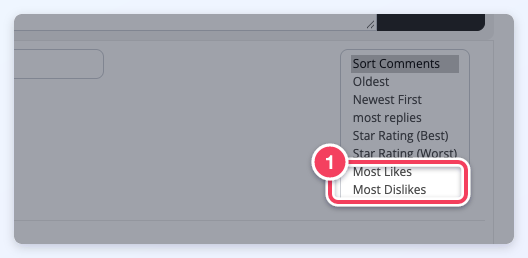
The sort menu next to Search Comments offers Oldest, Newest First, most replies, plus Star Rating (Best) and Star Rating (Worst) when the Star Ratings For Posts add-on is active. When Enable Likes/Dislikes is on for the post type, it also offers:
- Most Likes: comments with the most likes first.
- Most Dislikes: comments with the most dislikes first. This option appears only with Likes & Dislikes.
Comments with the same number of likes or dislikes are listed oldest first.
Backend/Admin Functionality
All comments are managed in Interactions » Post Comments. The bar above the list holds these tools:

1. Bulk Change Status
Tick the checkboxes of several comments, choose Accepted, Pending, Declined or Delete, then click Apply.
2. Post Type
Comments can be filtered by post type.
3. Filter Status
Comments can be filtered by status: Accepted, Pending or Declined.
4. Overall Rating
Comments can be filtered by star rating. This is useful when the Star Ratings For Posts add-on is enabled.
5. Member Name or ID
Comments can be filtered by the commenter's name or member ID.
6. Keyword or Title
Comments can be filtered by a keyword in the comment or by the post title. Click Search to apply the filters.
Individual Actions within each Comment
Each comment in the list has its own controls:

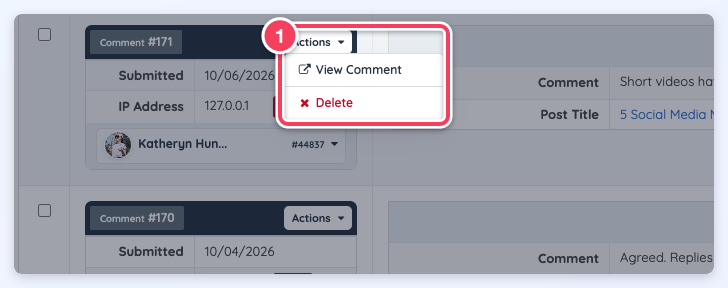
- Actions: View Comment opens the comment on the post (accepted comments only), and Delete removes it.
- Member information: the commenter's name and member ID. Its menu links to Account Details, View Live Profile, Quick Edit, Login as Member and Email Member.
- Change Status: sets the comment to Accepted, Pending or Declined. The current status shows next to it.
- Post Title: opens the post where the comment was submitted.
- View All Comments: lists every comment submitted on the same post.
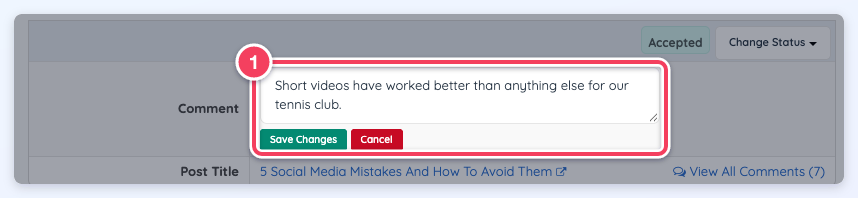
- Edit: edits the comment's text.
Actions Drop-down
Individual Status Change
Choose a new status in Change Status. A confirmation asks before the status changes: click Continue to apply it or Cancel to keep the current status.
Edit the Comment
Click Edit, change the text, then click Save Changes (or Cancel to discard the edit).
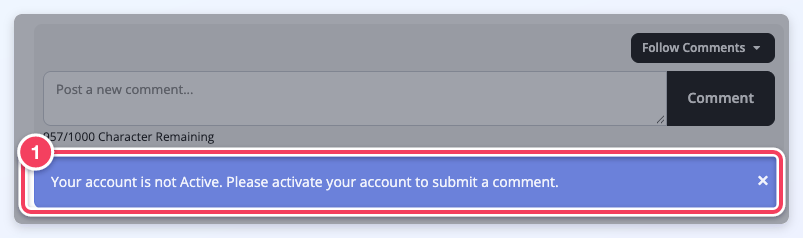
NOTE: Members must be active to post a comment. If a member whose account is not active tries to comment, an error message explains that the account must be active:
"Follow" Comments Notifications
When Display "Follow Comments" Button is enabled, members choose how to be notified by email:
- Any New Comments: an email for every new comment on the post.
- Only Replies to My Comments: an email only when someone replies to the member's own comment.
- Stop Following Comments: turns notifications off. This option appears once the member is following the post.
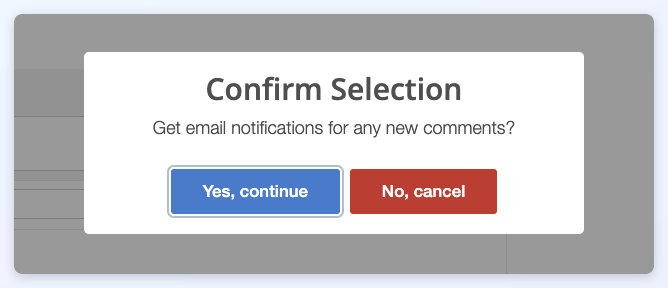
Each choice asks for confirmation before it is saved:
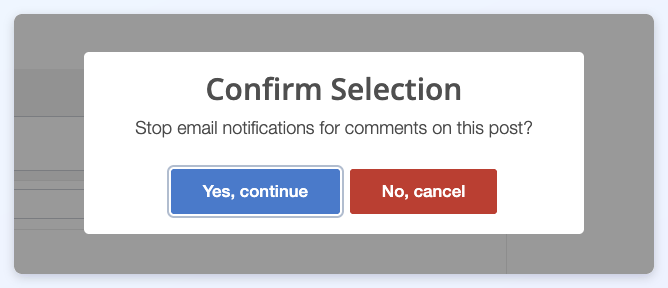
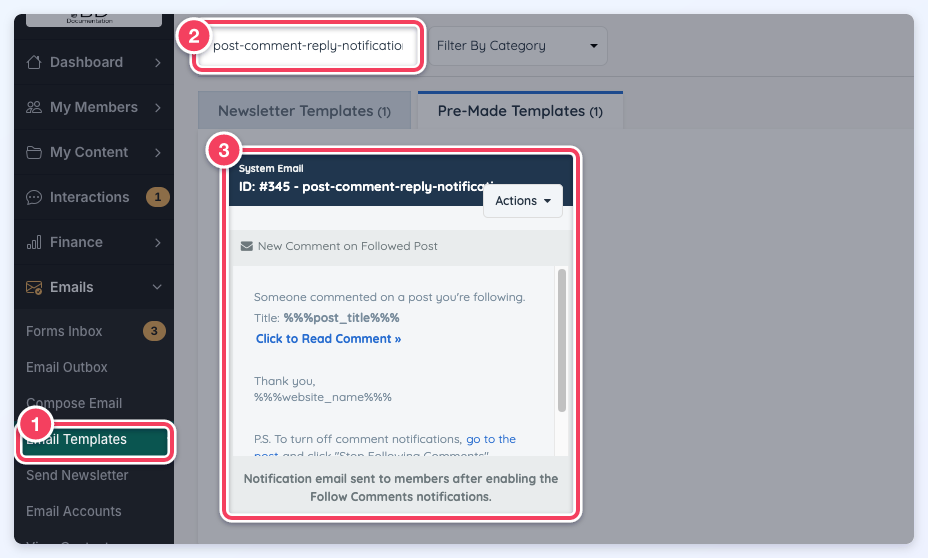
A comment held for moderation does not send a notification when it is submitted. The system email sent to followers can be edited:
- Go to Emails » Email Templates.
- Search for post-comment-reply-notification.
- Open the template from its Actions menu.
More information: How to Edit Email Templates
