How To Customize a Widget
Link: https://support.brilliantdirectories.com/support/solutions/articles/12000078430
Customizing a widget creates an editable copy that overrides the default version on the website. The default version remains stored in the system, which makes it possible to compare changes and restore earlier code at any time.
To customize a widget, first locate its default version. This can be done using the search function under Toolbox >> Widget Manager:
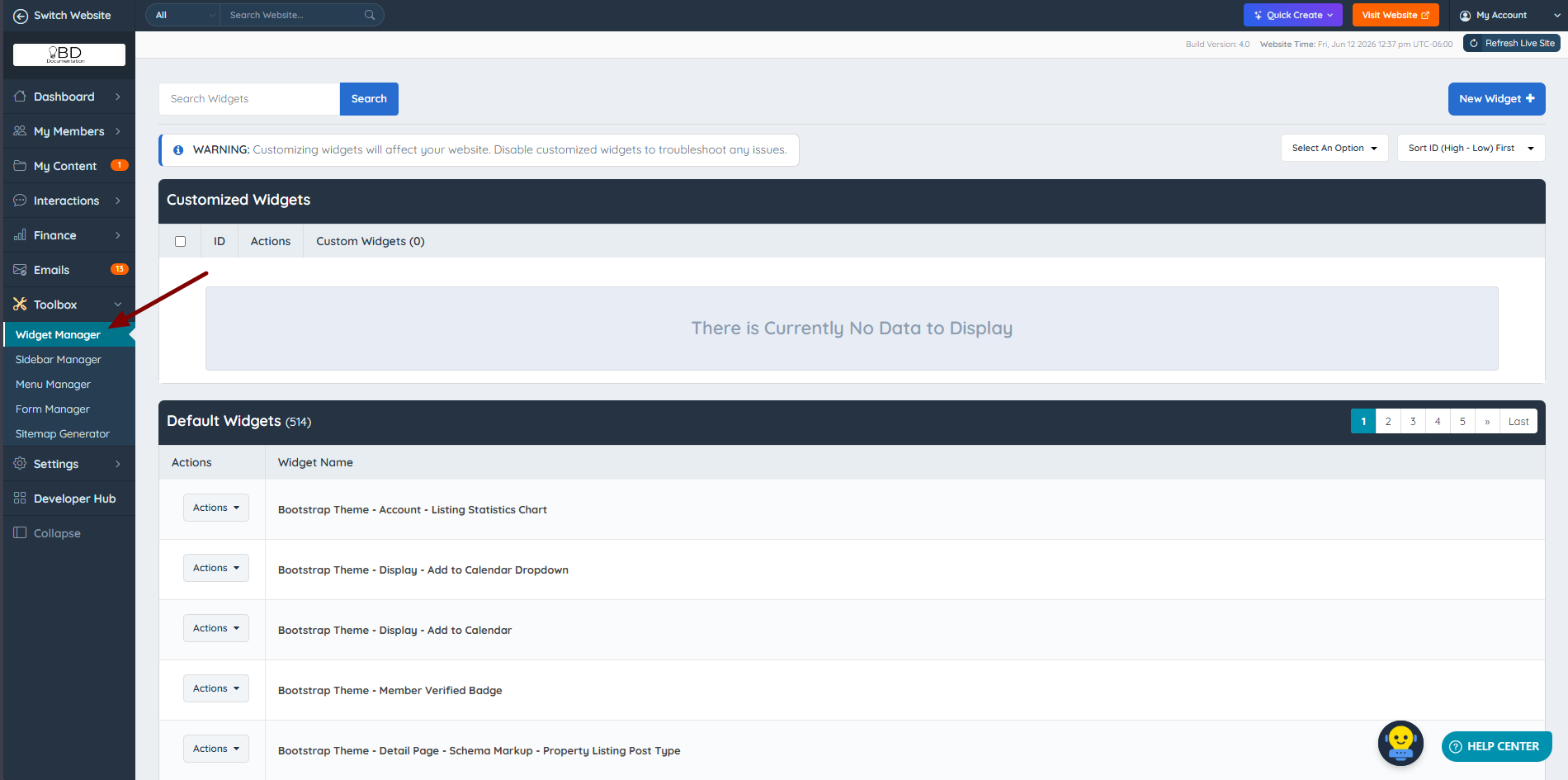
Widgets can also be identified directly on the front-end using the Admin Bar. This provides a quick way to locate the corresponding widget in the admin area.
Customizing the Widget
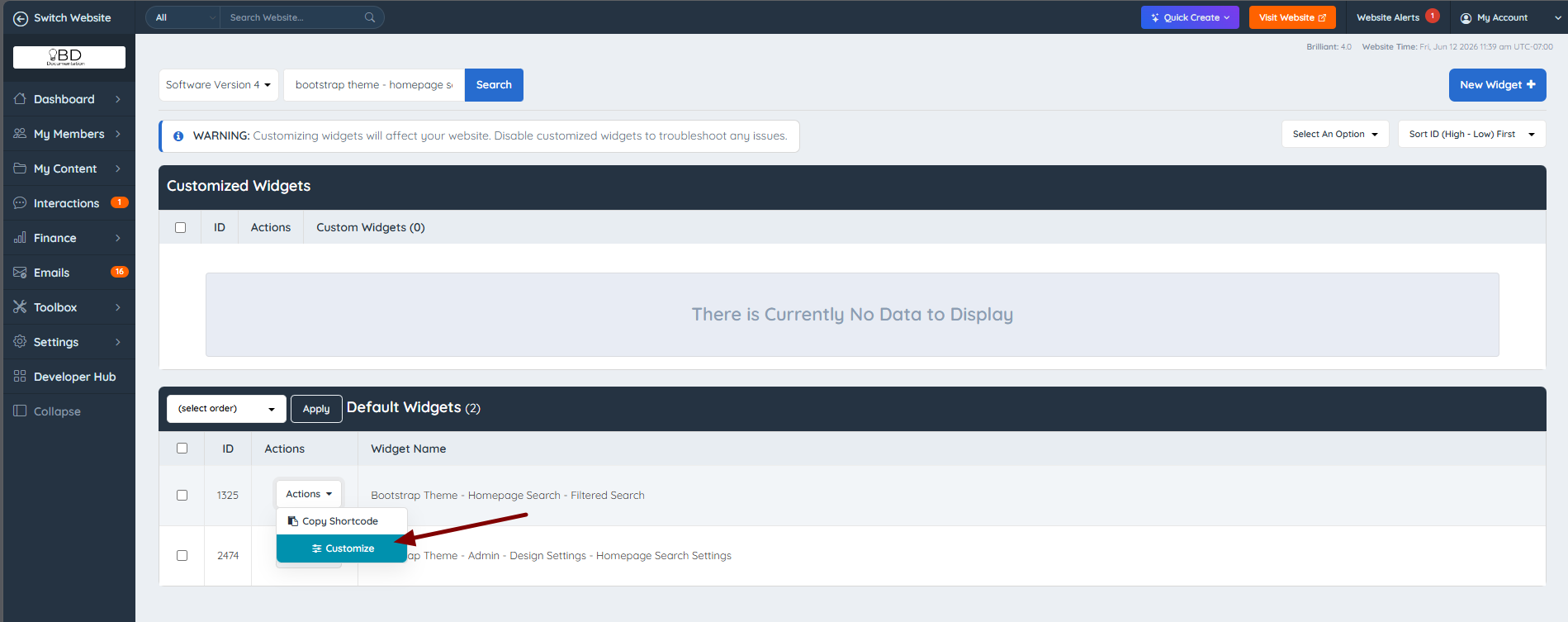
Once the default widget is located, select Customize from the Actions dropdown:
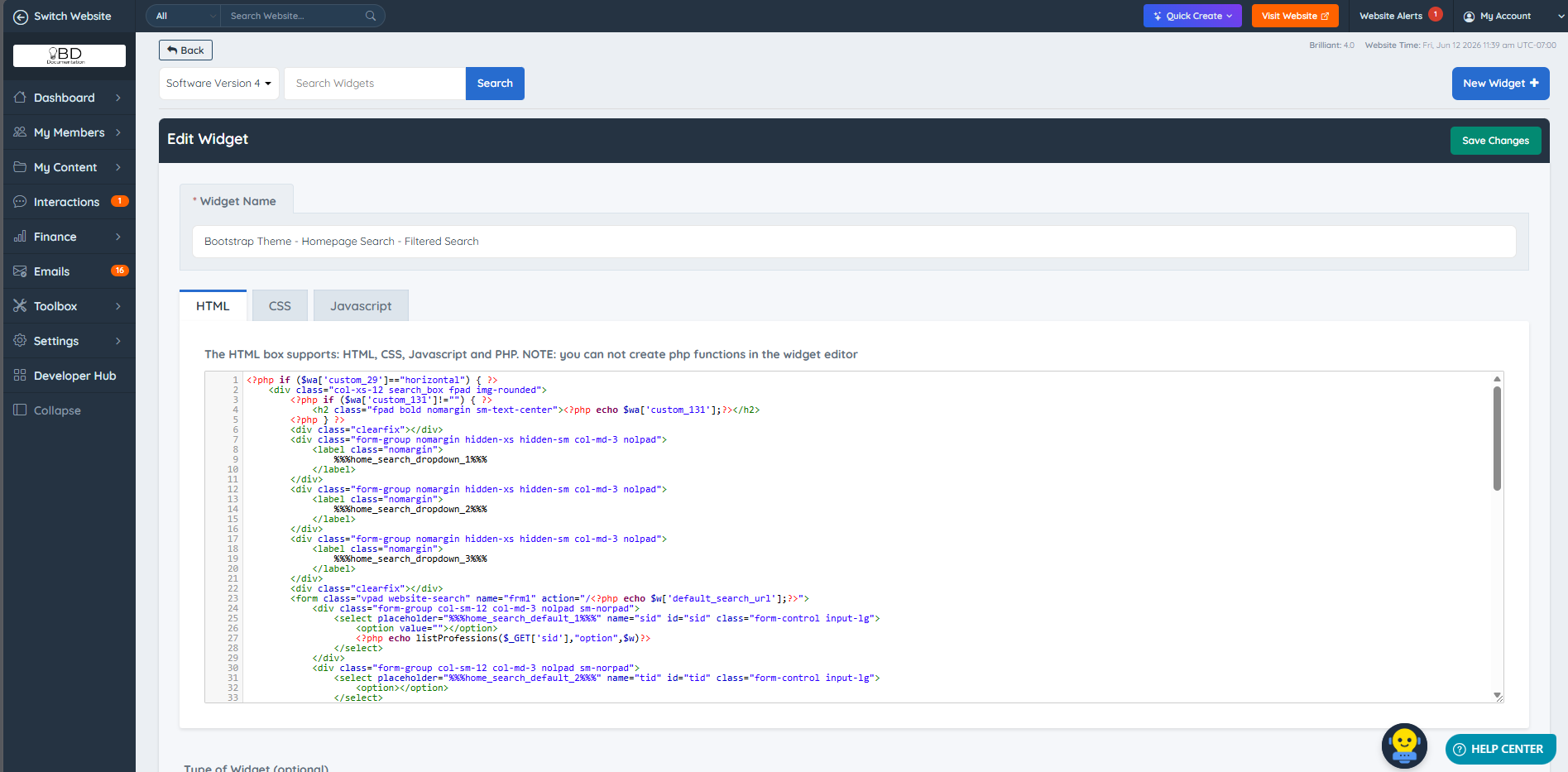
This opens the widget's code for editing:
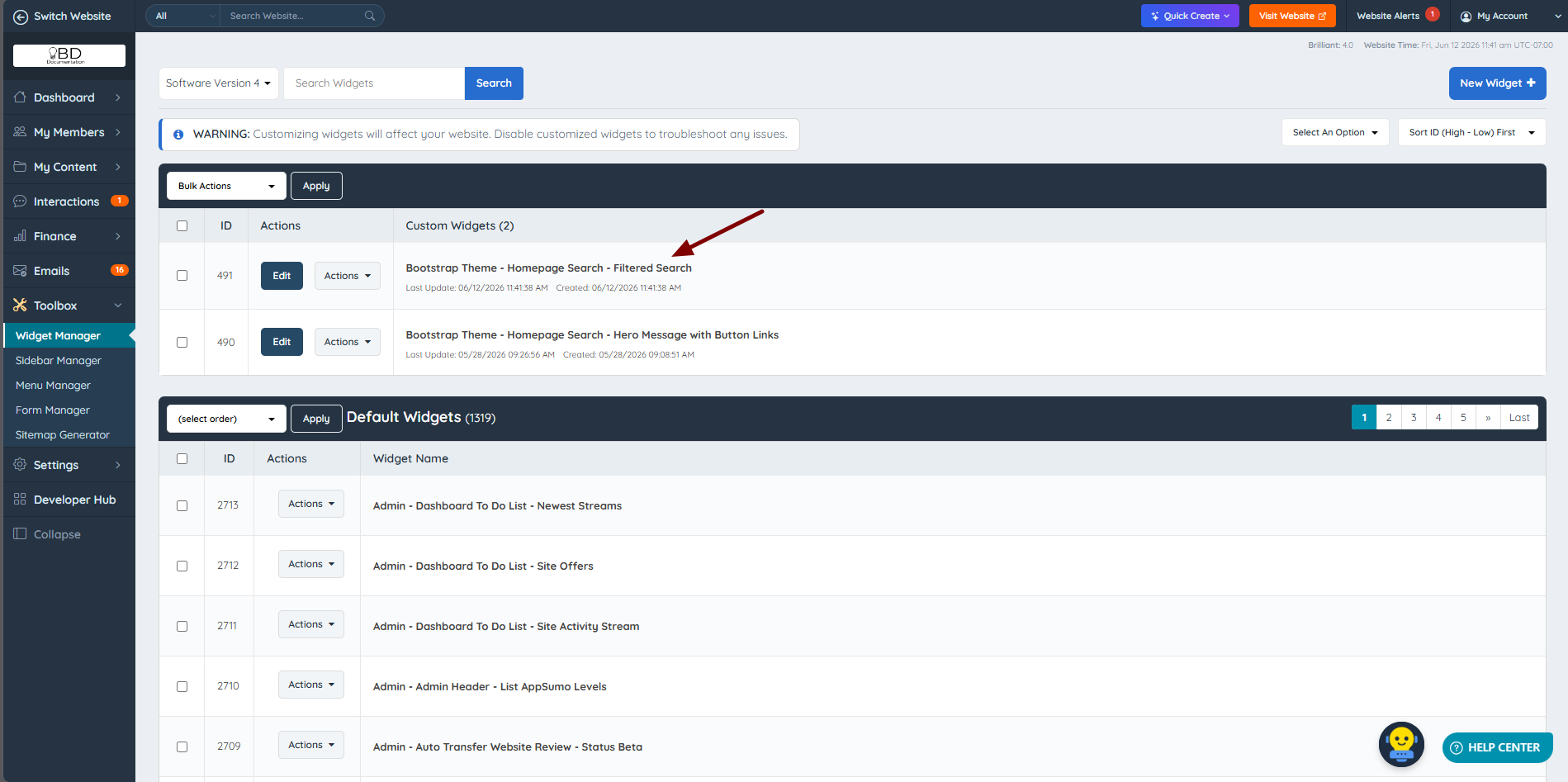
After making the required changes, select Save Changes. The customized version will then appear above the default widgets in the Widget Manager:
Clone Widget
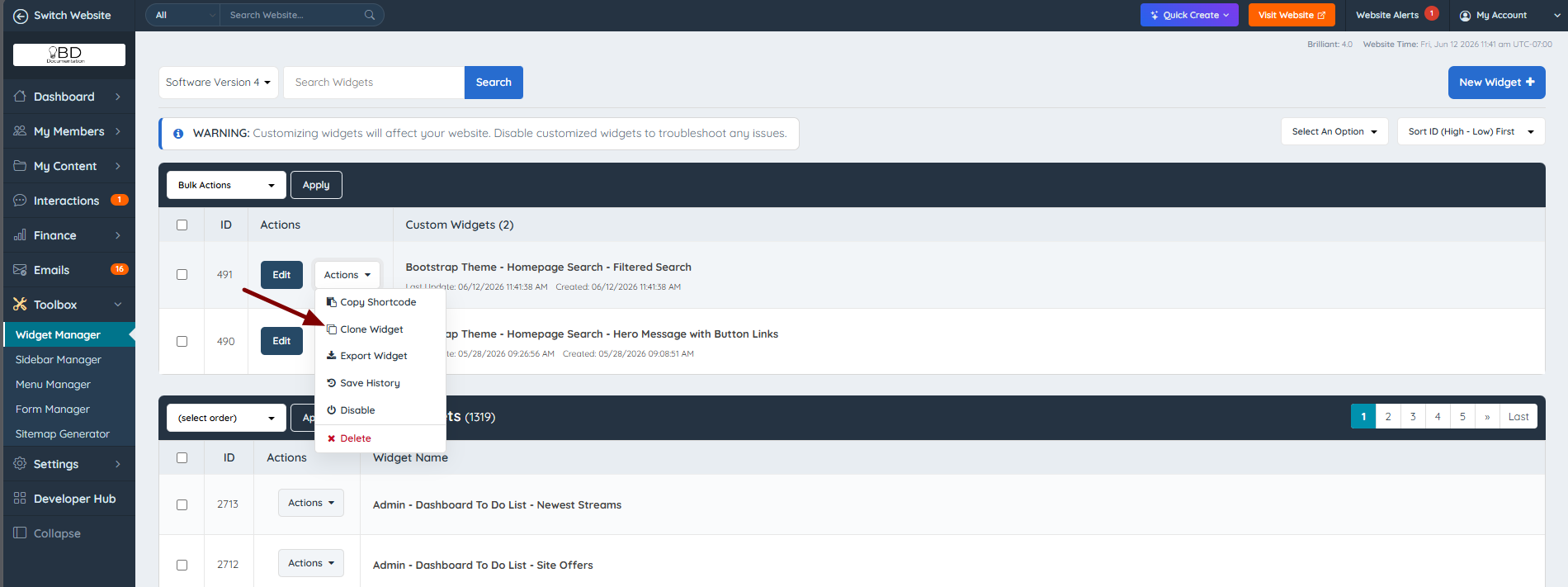
If a duplicate of the customized widget is needed, the clone option can be used.
Changes After Customization
Diff Tab
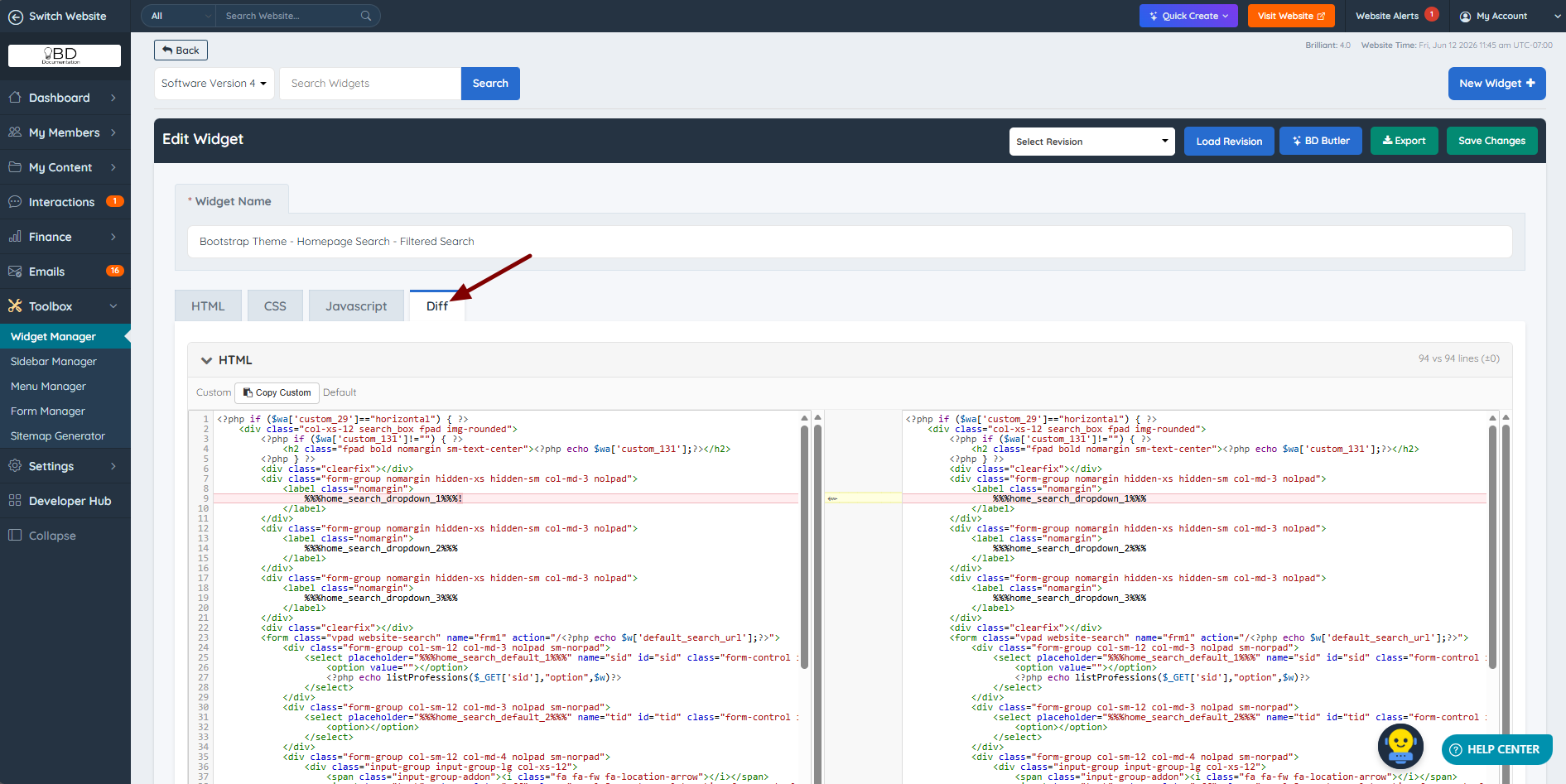
A Diff tab is added to the widget view. This displays the differences between the default widget code and the customized version.
Select Revision
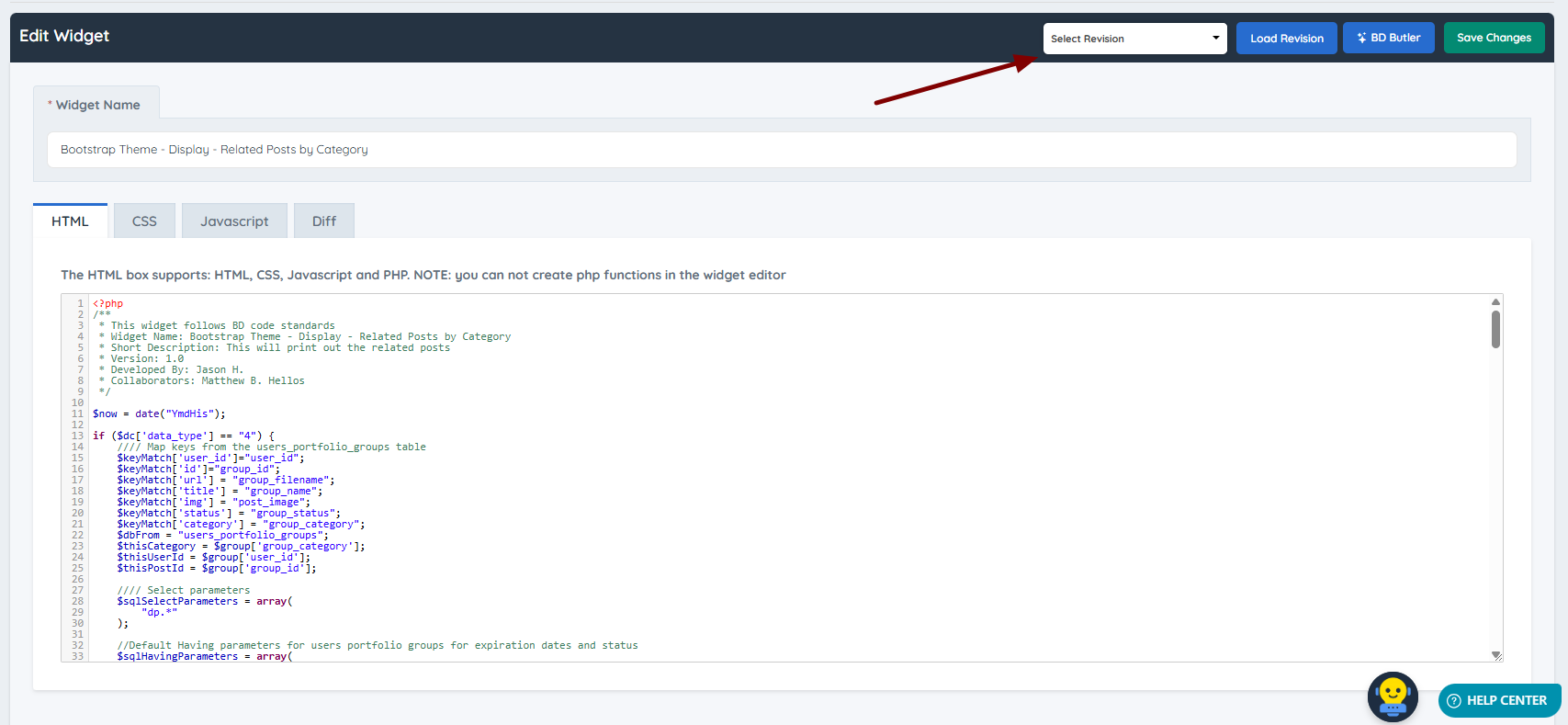
A Select Revision option becomes available. This provides access to up to 10 previous saved versions, allowing earlier code to be restored if needed.
Created and Last Updated Dates
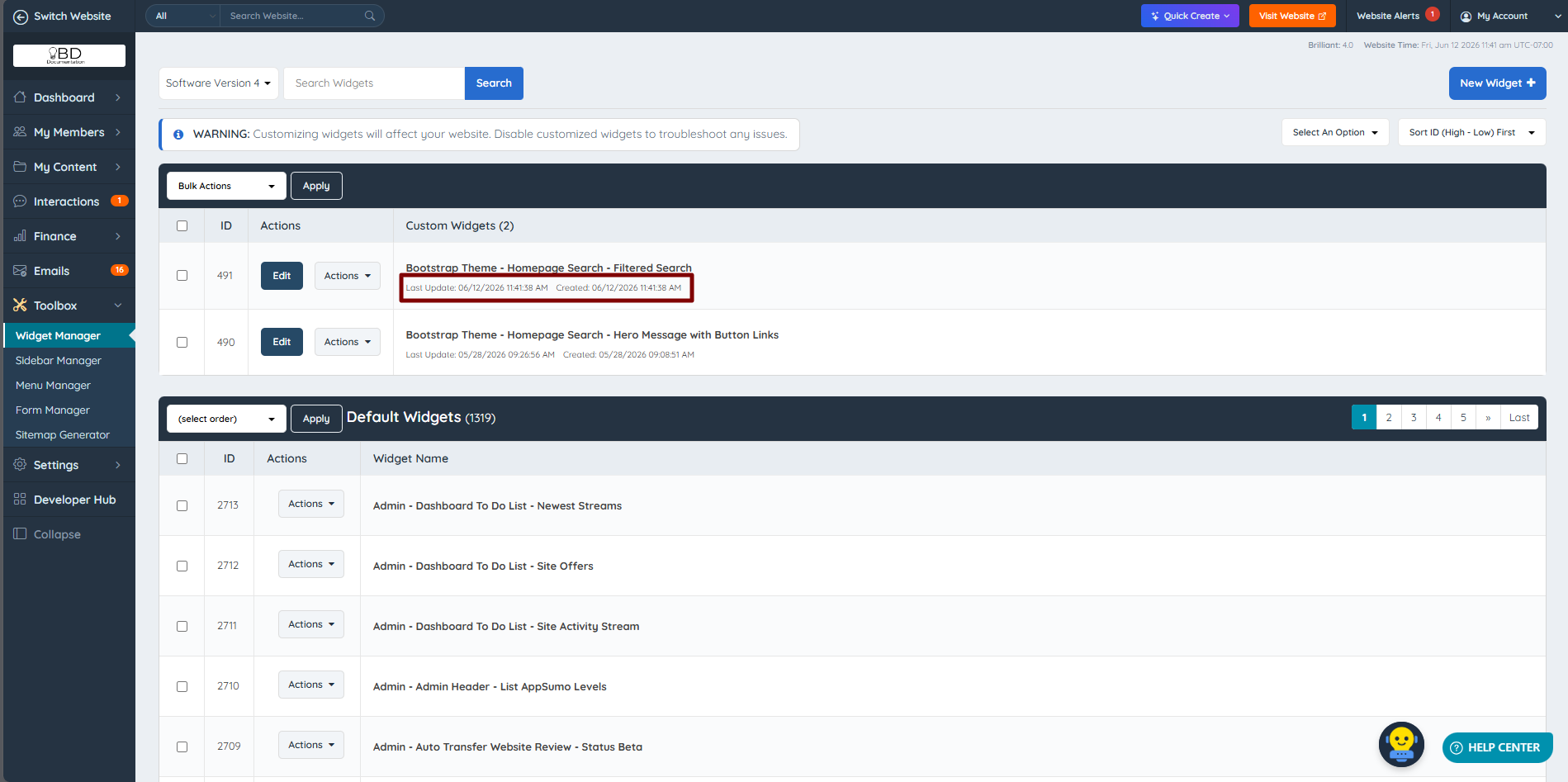
Created and Last Updated timestamps appear in the Widget Manager. These indicate when the widget was first customized and most recently modified, which can assist with troubleshooting.
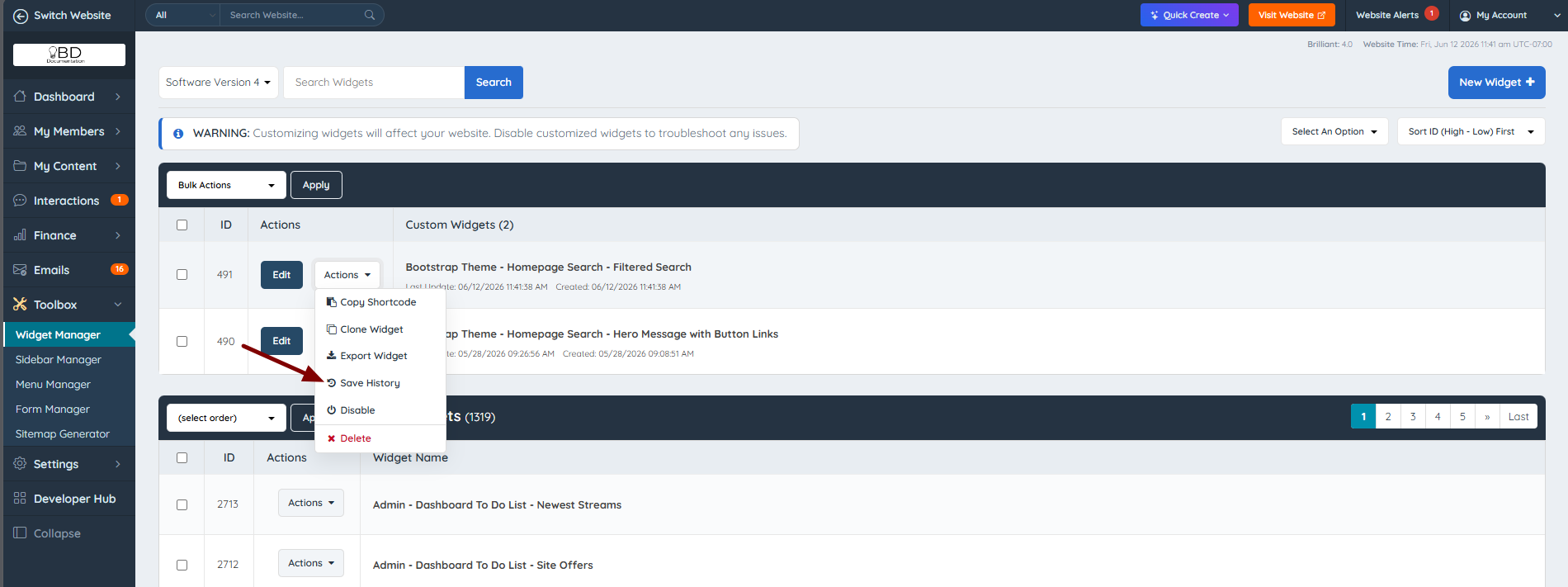
Save History
A Save History option appears in the Actions dropdown. Selecting this option redirects to the Activity Tracker, where a detailed record of changes can be reviewed.