How To Disable/Enable a Widget
Link: https://support.brilliantdirectories.com/support/solutions/articles/12000078433
Disabling a custom widget keeps it saved on the website but prevents the system from using it on the live site. This makes disabling a reversible alternative to deletion: the widget remains available and can be re-enabled at any time.
NOTE: Only custom widgets can be disabled and enabled. Default widgets don't have this option.
Disabling a Widget
- Go to Toolbox » Widget Manager.
- In the Custom Widgets table, open the widget's Actions menu and click Disable Widget.
- Click Disable Widget in the confirmation pop-up. The change can take up to a minute to reach the live site.
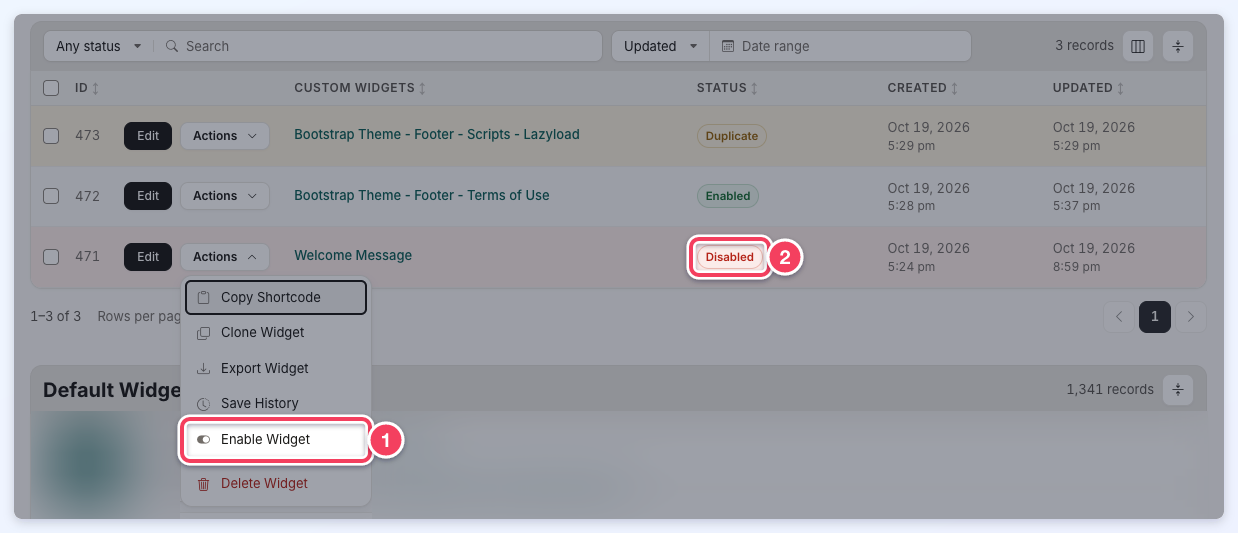
The widget's Status changes to Disabled and its row is shaded red:
Disabling adds DISABLED - to the start of the widget's stored name, so the website no longer finds it. When the disabled widget is a custom copy of a Default widget, the website uses the Default widget again until the copy is re-enabled.
Re-Enabling a Widget
To re-enable a widget, open its Actions menu, click Enable Widget, and confirm with Enable Widget. The Status changes back to Enabled.
Filtering Enabled and Disabled Widgets
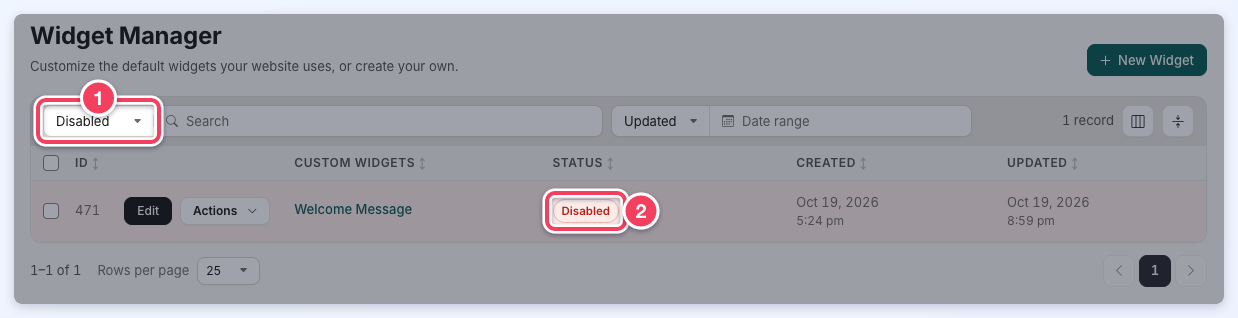
To show only enabled or only disabled widgets, choose Enabled or Disabled in the status filter at the top of the Custom Widgets table. Any status shows all of them.
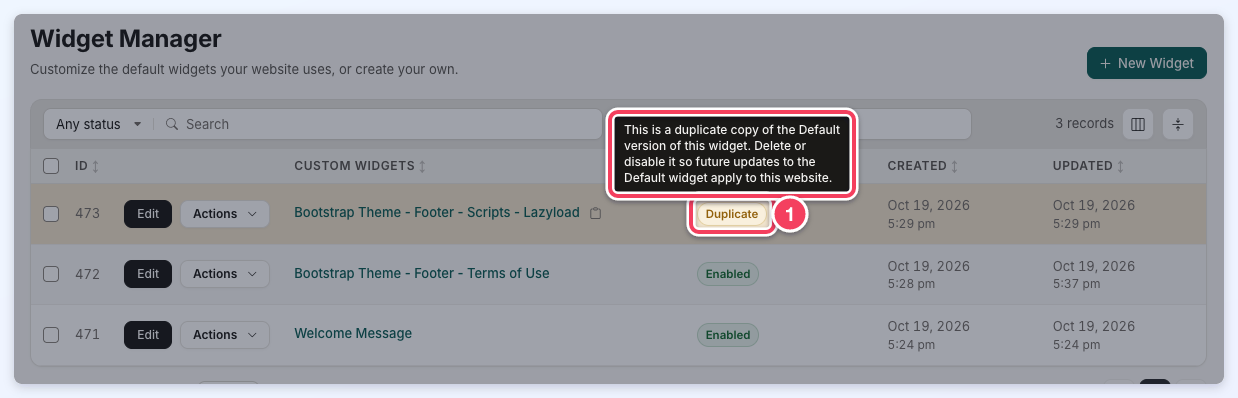
Duplicate Widgets
A custom widget whose code is identical to its Default widget shows the status Duplicate. Such a copy changes nothing on the website, but it stops future updates to the Default widget from reaching the website. Hovering over the Duplicate status explains this. Delete or disable a duplicate copy so the Default widget's updates apply.