
Star Ratings For Posts
Link: https://support.brilliantdirectories.com/support/solutions/articles/12000091756
The Star Ratings for Posts add-on works with the free Community Comments add-on to allow the users to submit a 1-5 star rating with the comments they leave on any of the website’s published posts. Perfect for products, properties, events & more!
The post’s overall rating will be displayed on both the post’s detail page as well as in post type’s search results page on the website.
Key Features and Benefits
- Select which post types users can leave comments & ratings
- Members can leave a 1-5 star rating on posts
- Overall post rating will be displayed on post’s page and in post search results
- Improve and increase user engagement
- Encourage members to publish more beneficial content for the community
- Improve SEO with built-in schema markup
Common Use Cases
- Products: Review products and services
- Events: Review local attractions & events
- Properties: Review hotel stays, rental properties, etc.
- Articles: Rate articles, recipes, tutorials, etc.
- Coupons: Rate deals based on if the shared coupon code works
- Videos: Rate movie trailers, informative videos, etc.
- Community Feedback: Privately ask for & receive feedback from members on new ideas or concepts
How To Get This Add-On
- Websites with the VIP Add-Ons Club automatically have this add-on available:
Join The VIP Add-Ons Club- Purchase Individually: Star Ratings For Posts
Enabling the Star Ratings for Posts
Star ratings are turned on for each post type in the comment settings, so comments must be enabled for that post type first. Go to Interactions » Post Comments and click Comment Settings. On General:
- Enable Post Comments on Website must be on.
- Tick each post type that will have star ratings in Post Types That Allow Comments.
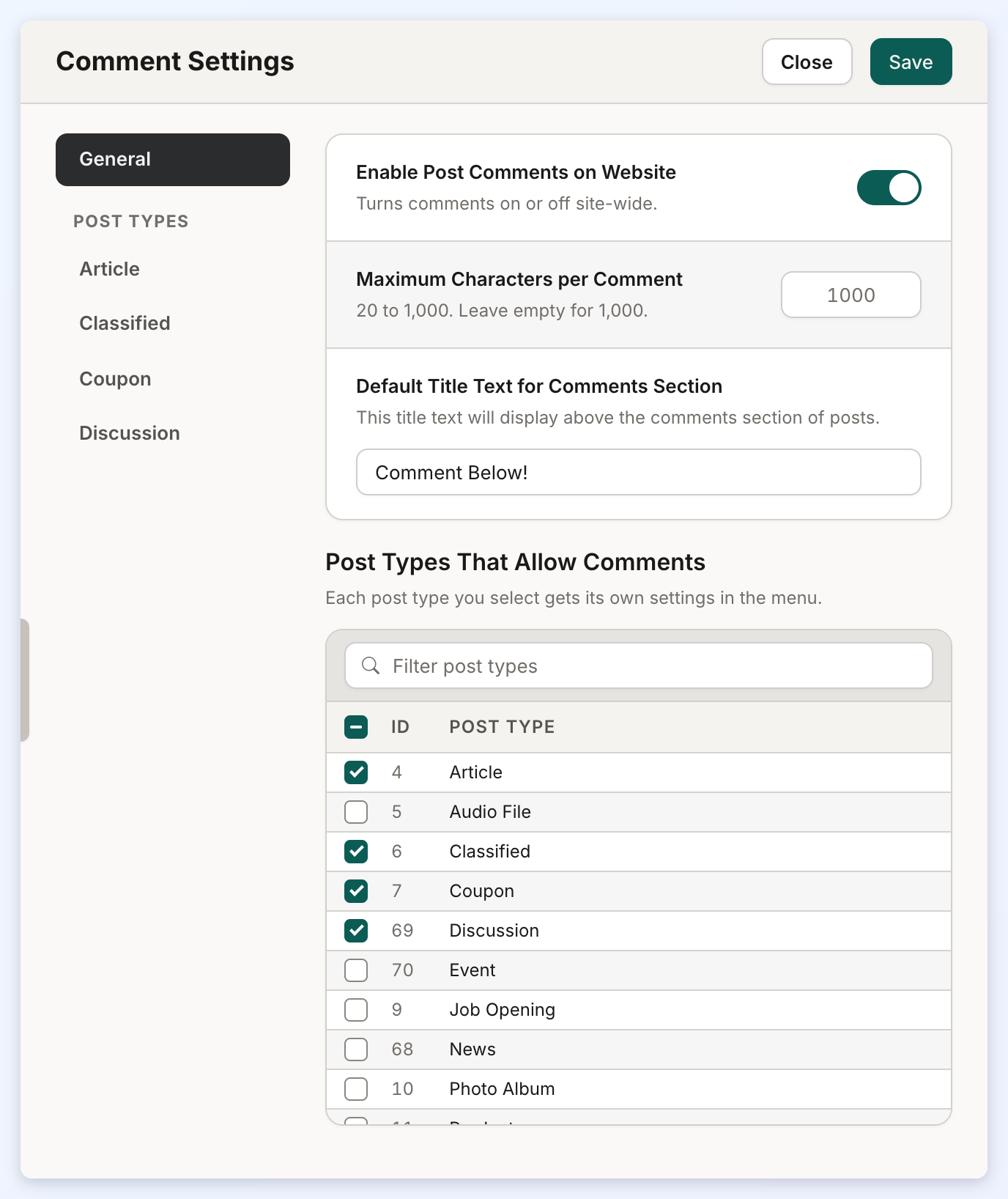
For more information about all of the comment settings, see Community Comments.
Each post type ticked there gets its own entry under Post Types in the menu on the left, so every post type has its own star rating settings. Click a post type and find the Star Ratings group:
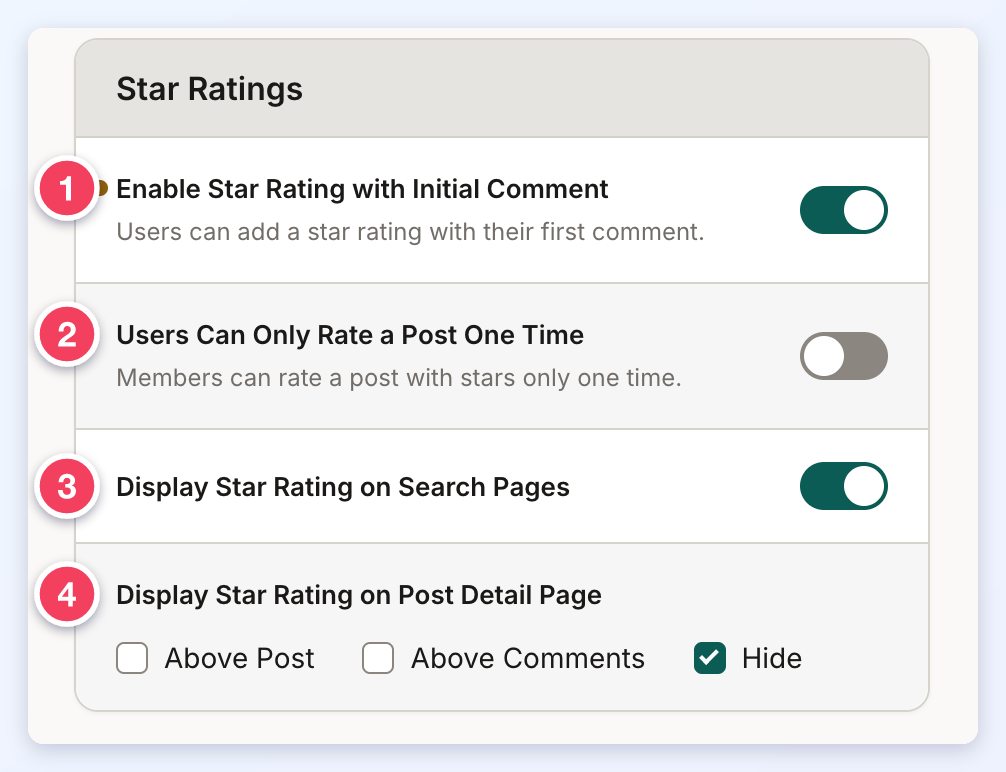
- Enable Star Rating with Initial Comment lets members select a 1-5 star rating with their first comment on a post. The other three settings appear only while it is on.
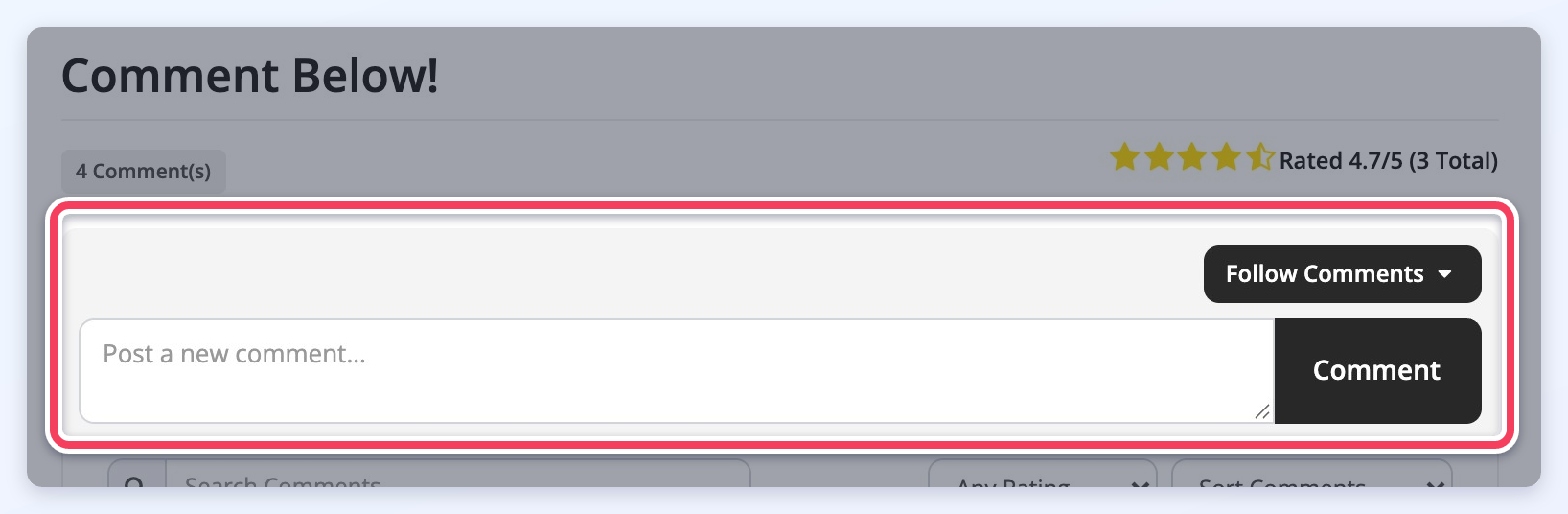
- Users Can Only Rate a Post One Time: when it is off, members can rate a post again with each new comment. When it is on, a member who already rated the post no longer sees the stars above the comment box:
- Display Star Rating on Search Pages shows each post's overall rating on the post type's search results pages. It is on until it is turned off and saved. Turning it off hides the stars on the search results only; the post's own page is not affected.

- Display Star Rating on Post Detail Page chooses where the post's overall rating appears on the post itself:
- Above Post: under the line with the post date, above the title.

- Above Comments: on the right of the comments section, under its title.

- Hide: no overall rating on the post.
- Above Post: under the line with the post date, above the title.
Click Save at the top of the panel to keep the changes.
Front-End Use
Logged-in members pick a star rating (1) above the comment box, write the comment (2) and submit it:
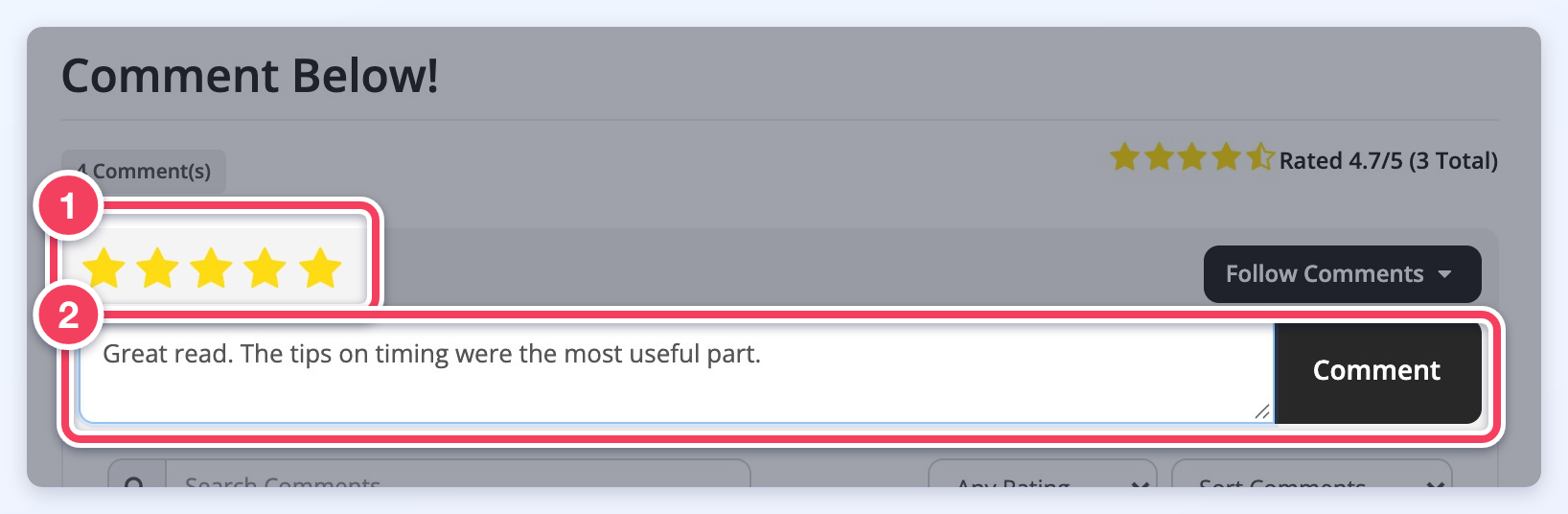
Once the comment is submitted, its rating shows above the member's name, and the post's overall rating is updated in the places chosen in Display Star Rating on Post Detail Page:
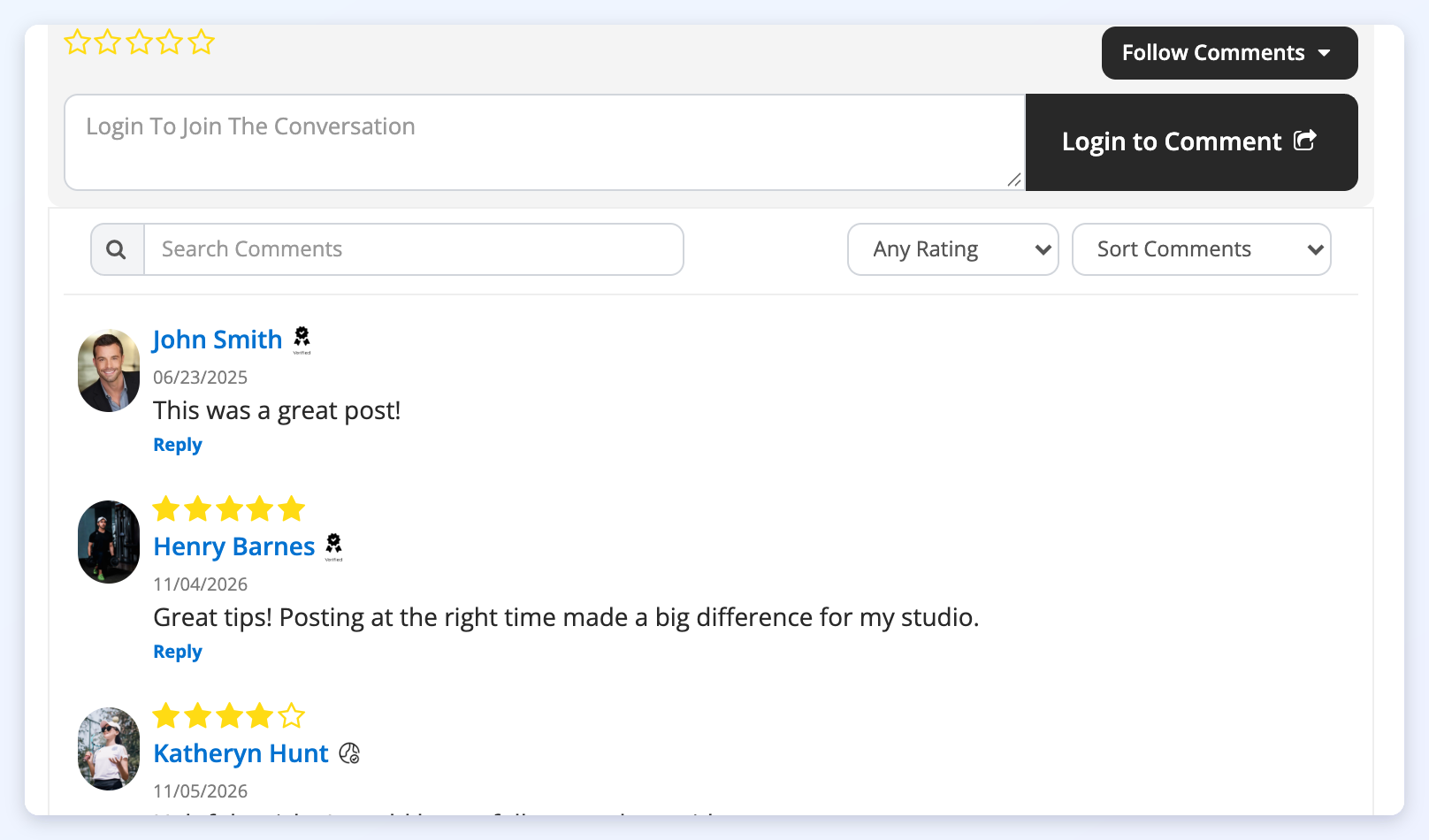
The rating also shows on the post type's search results pages while Display Star Rating on Search Pages is on (see above).
Above the comments, members and visitors can work through posts with a lot of comments:

- Search Comments shows only the comments containing the words typed.
- The rating menu (Any Rating) shows only the comments with at least the chosen number of stars.
- The sort menu (Sort Comments) includes Star Rating (Best) and Star Rating (Worst), along with the other sort orders explained in Community Comments.
