
Interactions » Member Leads
Link: https://support.brilliantdirectories.com/support/solutions/articles/12000094617
The Member Leads page lists every lead submitted on the website through the Get Matched form or a member's contact form. Leads are searched, filtered, matched with members, edited and given a status here, and Lead Settings opens on the same page.
Open Member Leads
Navigate to Interactions » Member Leads.
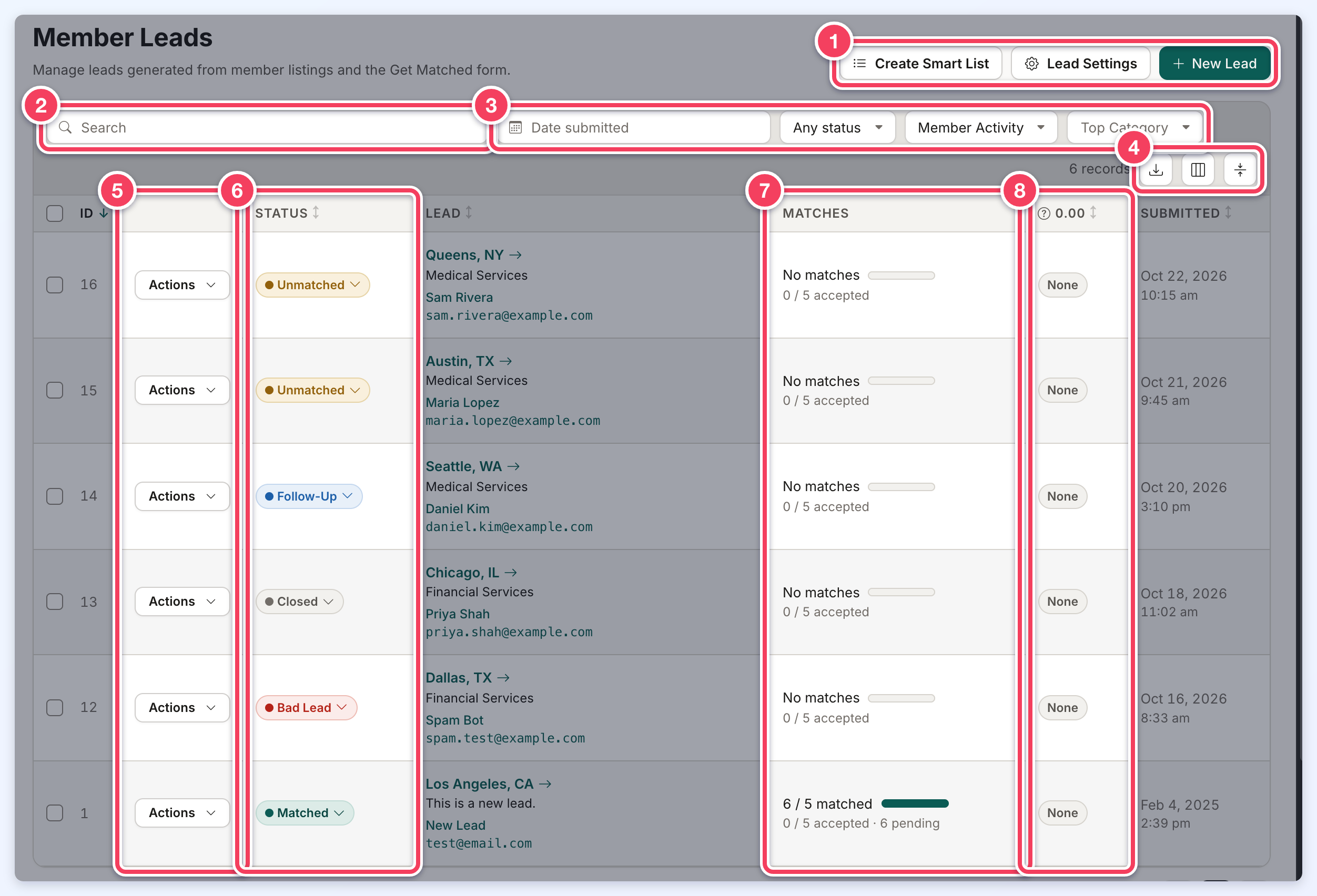
- Create Smart List, Lead Settings and New Lead: save the current search as a smart list, open Lead Settings, or add a lead by hand (all explained below).
- Search: finds leads by name, email, message, location, admin note, IP address or lead ID. A pasted page URL (EG one copied from a lead's Origin Page) finds the leads submitted from that page, and a # before a number (EG #25) finds that one lead.
- Filters: Date submitted (a date range), Any status, Member Activity and Top Category. Once a top category is chosen, a Sub Category filter appears next to it.
- Table tools: Export CSV downloads the leads the current filters show (it appears when the website has the Export Member Data add-on), Show or hide columns picks the columns, and Compact rows tightens the table.
- Actions: the options for one lead (explained below).
- Status: the lead's status. Click it to change the status right in the list.
- Matches: how many members are matched with the lead out of Maximum Matches, how many accepted it out of Maximum Accepted Matches, and how many matches are still pending.
- Revenue: the amount members paid for the lead, or None. The column heading shows the total revenue of all purchased leads, narrowed by the filters.
The Lead column shows the lead's location (or the start of its message), its category and the submitter's email. Click it to open the lead. Hovering over a lead shows a card with its status and the date it was submitted, then one row for each detail, with the label beside its value:
- Origin (1): the page the lead was sent from, as a link that opens the page in a new tab. A lead from the home page shows the website's address. The row reads Added by Admin for a lead an admin added with New Lead, and Not recorded when no page was stored.
- Message: shown up to three lines. more after a longer message opens the lead's details in full.
- The details from the lead form. Hovering over a row shows a copy button for its value.
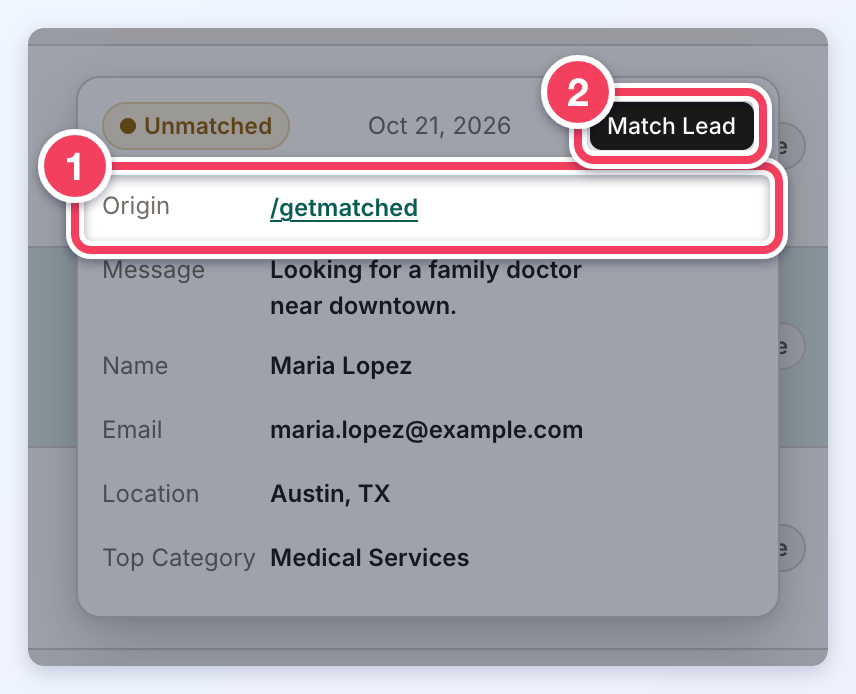
The card's button (2) opens the lead: Match Lead opens Find Matches for an open lead that can still take matches, View Matches opens the matches of a lead that is full, Sold Out, Closed or a Bad Lead, and View Lead opens the details of such a lead that has no matches. The Submitted and IP Address columns show when and from where the lead was sent; clicking an email or IP address searches for it.
Filter by Status and Member Activity
The Any status filter groups the statuses into Open to Members and Closed to Members, with the number of leads in each. Several statuses can be ticked at once.
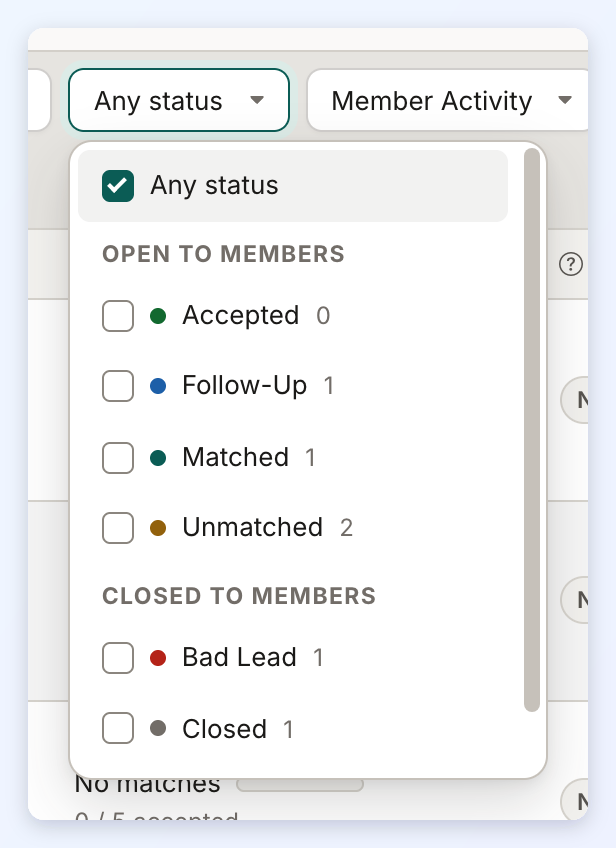
- Unmatched: the lead has not been matched with any member yet.
- Follow-Up: the lead needs follow-up by the admin.
- Matched: the lead is matched with members and none has accepted it yet.
- Accepted: a matched member accepted the lead.
- Sold Out: the lead reached its Maximum Accepted Matches, so members can no longer accept it. When a lead is set to Sold Out, its pending matches become Sold Out too.
- Closed: no more action is needed.
- Bad Lead: spam or an accidental submission.
- Deleted: listed only when leads already have this status. It cannot be chosen for a lead.
The Member Activity filter finds leads by what the matched members have done. Hover over the question mark beside an option for its description.
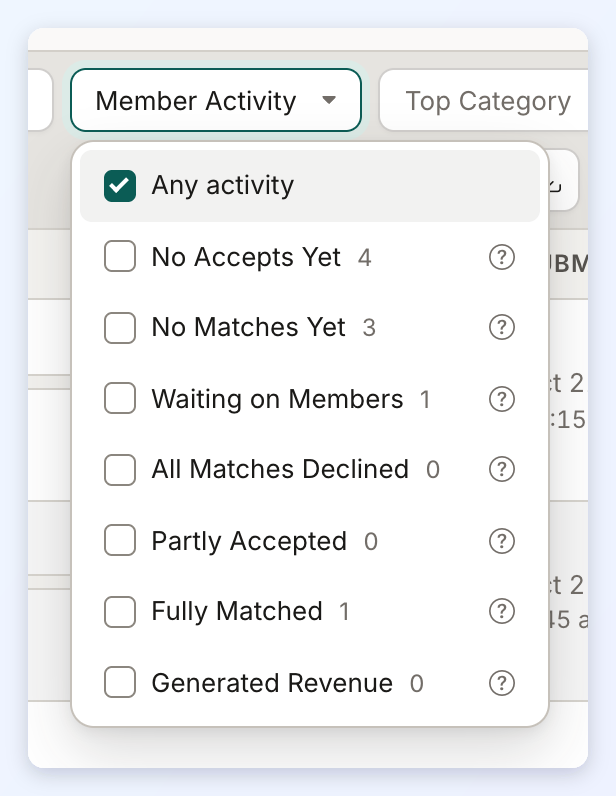
- No Accepts Yet: open leads no member has accepted.
- No Matches Yet: open leads not matched with any member.
- Waiting on Members: open leads with matched members who have not replied yet.
- All Matches Declined: open leads every matched member declined.
- Partly Accepted: open leads some members accepted, with room for more to accept.
- Fully Matched: open leads that reached Maximum Matches but are not Sold Out. This option appears when the Automatic Lead Matching add-on is active.
- Generated Revenue: leads members paid for.
Lead Actions and Bulk Changes
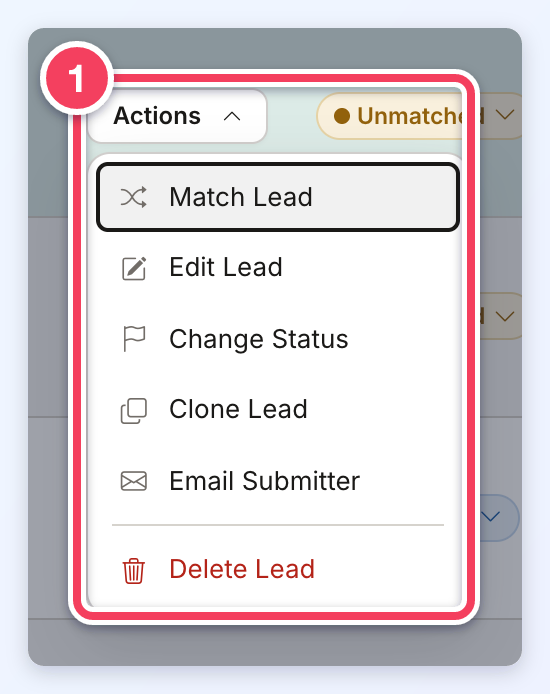
The Actions button on each row offers Match Lead, Edit Lead, Change Status, Clone Lead, Email Submitter and Delete Lead. Deleting a lead also deletes its matches and cannot be undone.
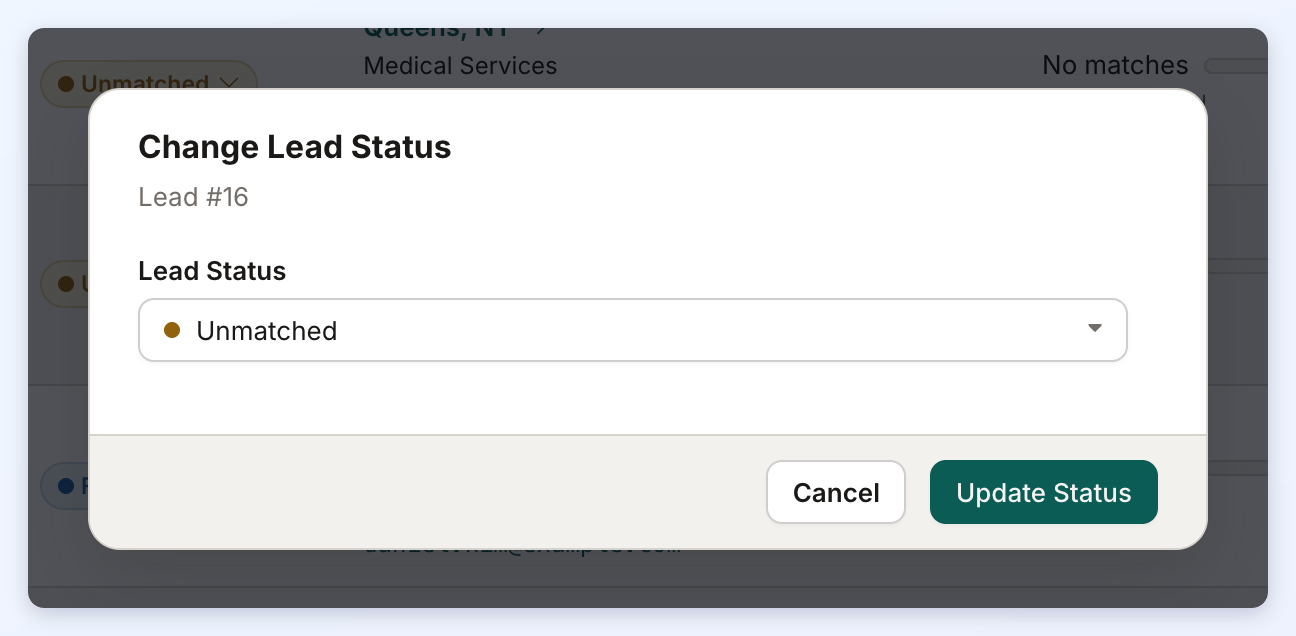
Change Status opens a small window to pick the lead's new status, then click Update Status.
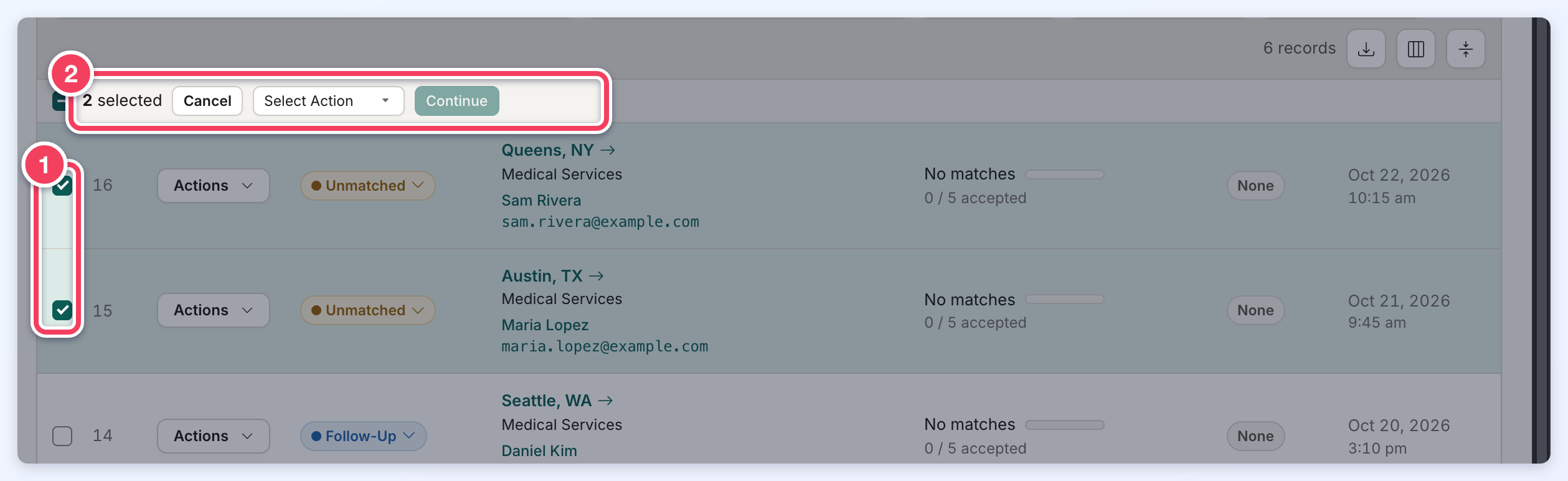
To change many leads at once, tick their boxes (1), or the box in the heading to select every lead the filters show. Then open Select Action (2), choose Change Status or Delete, and click Continue. A confirmation opens, where the change is made.
The Lead Drawer
Clicking a lead opens it in a drawer on the right with four tabs.
A link can also open a lead directly on one tab: /admin/viewUserLeads.php?lead= followed by the lead ID, then &tab= and details, matches, find or map (EG /admin/viewUserLeads.php?lead=25&tab=find opens lead 25 on Find Matches). A lead without a location has no Map tab, so a link that asks for the map opens it on Details.
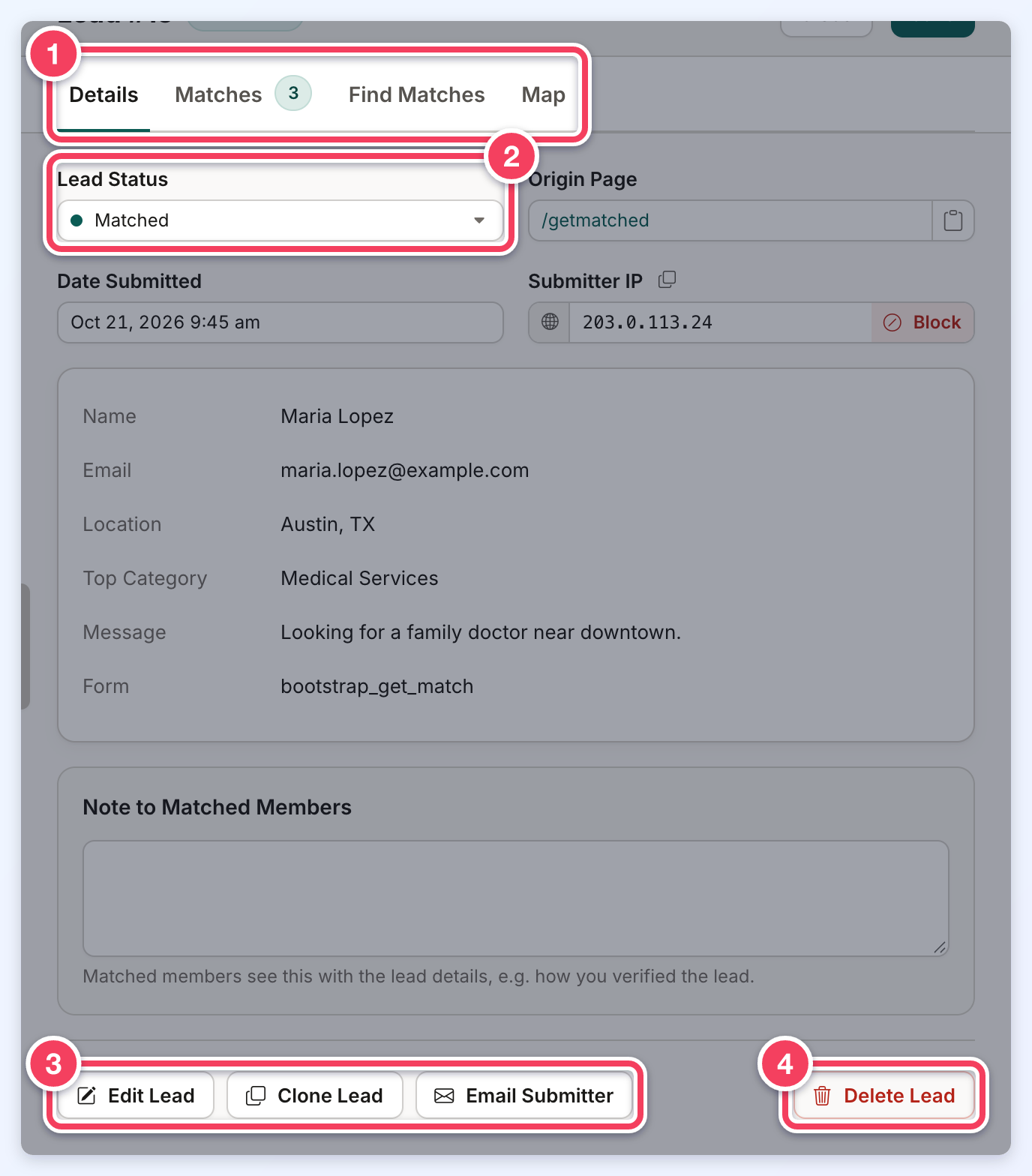
- The tabs: Details, Matches (with the number of matched members), Find Matches and Map (shown only when the lead has a location).
- Lead Status: change it here and click Save at the top of the drawer.
- Edit Lead, Clone Lead and Email Submitter. See Member Leads » Edit Leads for editing.
- Delete Lead.
The Details tab also shows the Origin Page the lead was sent from (it reads Added by Admin for a lead an admin added, and Not recorded when no page was recorded), the Date Submitted, the Submitter IP with a Block button for spam, and every field the submitter filled in, each with a copy button. The fields depend on the lead form. Note to Matched Members is shown to matched members with the lead details (EG how the lead was verified). The note is plain text: a note with HTML tags is not saved, and the message Remove the HTML tags from this field. appears under the box. The same check applies to the note in New Lead and Clone Lead.
On a desktop screen, the drawer can be made wider by dragging its left edge; double-click the edge to return it to its standard width. The chosen width is remembered in that browser.
Matches
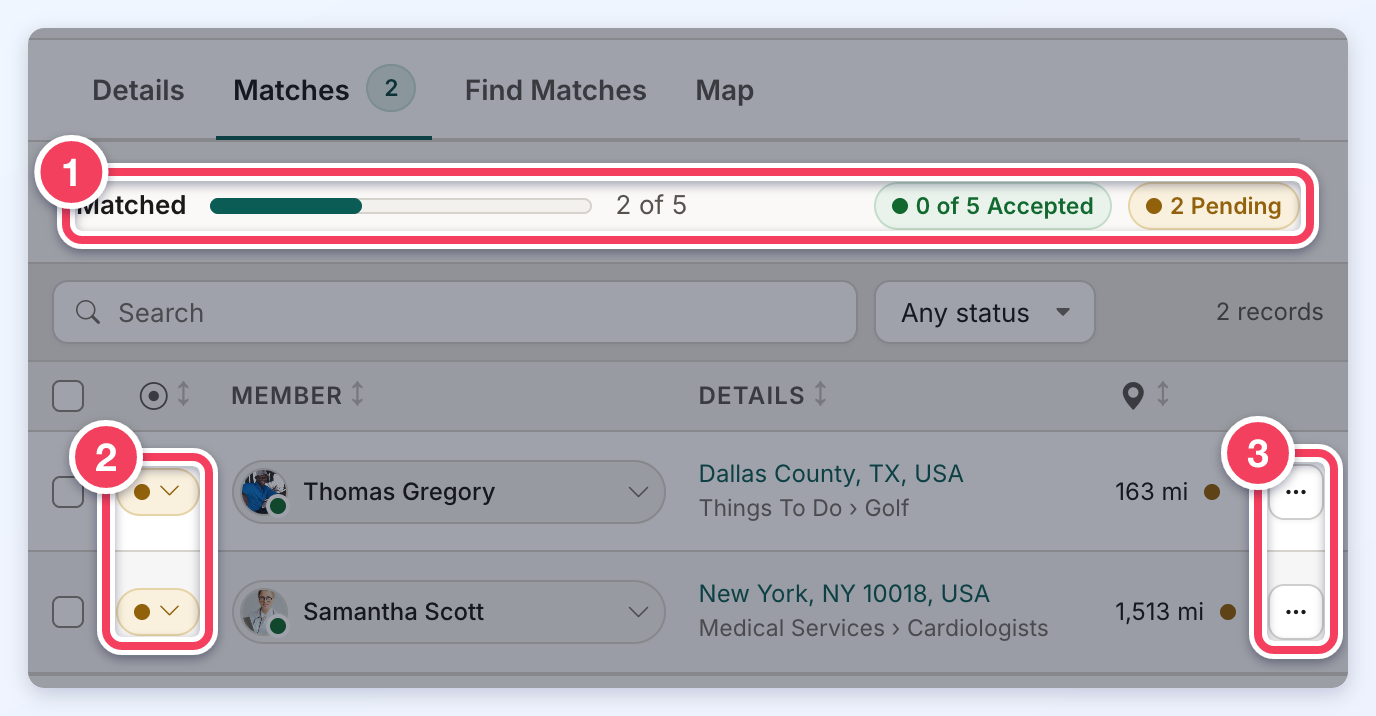
- The summary: members matched out of Maximum Matches, accepted out of Maximum Accepted Matches, and pending.
- Each match's status (Pending, Accepted, Declined or Sold Out). Click it to change the status.
- The ... menu: Send Complete Lead Email, Send Lead Preview Email and Delete Match. Ticking several members applies a status change, an email or a delete to all of them.
When members have paid for the lead, a Lead Revenue box below the matches lists each payment with its date, amount, invoice and member.
Find Matches
Find Matches suggests members for the lead from its location and categories. Members without a real email address are not suggested. When the lead has a location, a Distance column shows how far each member is from it, and the list can be sorted Closest First or Farthest First; on a phone, the Sort menu offers Distance only when the lead has a location.
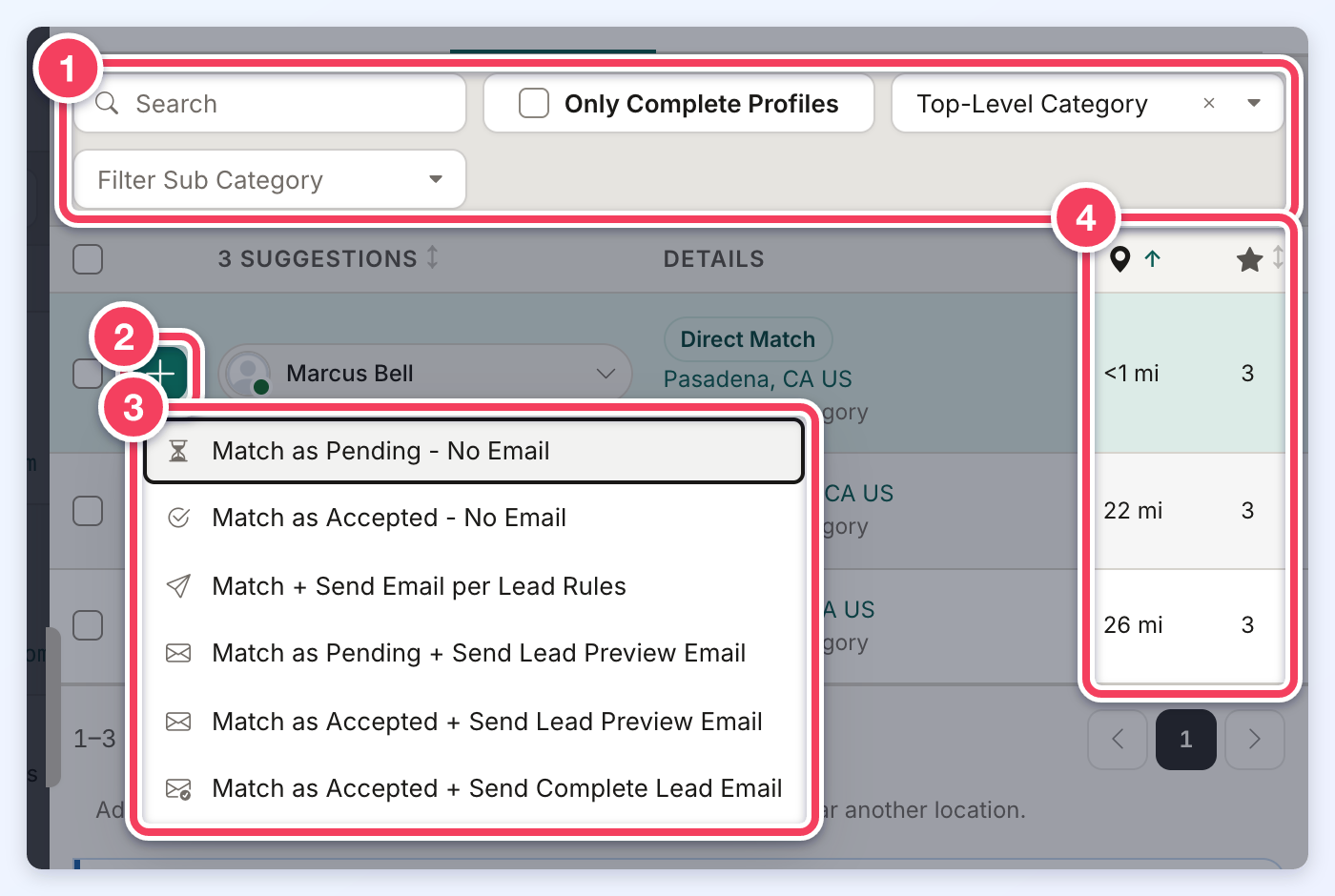
- The filters: Search, Only Complete Profiles (show only members with complete profiles; off by default, and shown only when Require Complete Profiles is set to Yes in Settings » General Settings » Search Settings), the category filters and, when the website has a Google Maps API key, a Location filter. Reset to Lead's Request sets the filters back to what the lead asked for.
- The + button beside a suggested member.
- The match options: match as Pending or Accepted, with or without an email. See How to Match a Lead.
- The Distance and Search Priority columns. Distance is how far the member is from the lead. Search Priority (the star) is the priority of the member's membership plan in member searches, where 0 is the highest. Click a heading to sort by it, Closest First or Farthest First for distance and Highest First or Lowest First for priority.
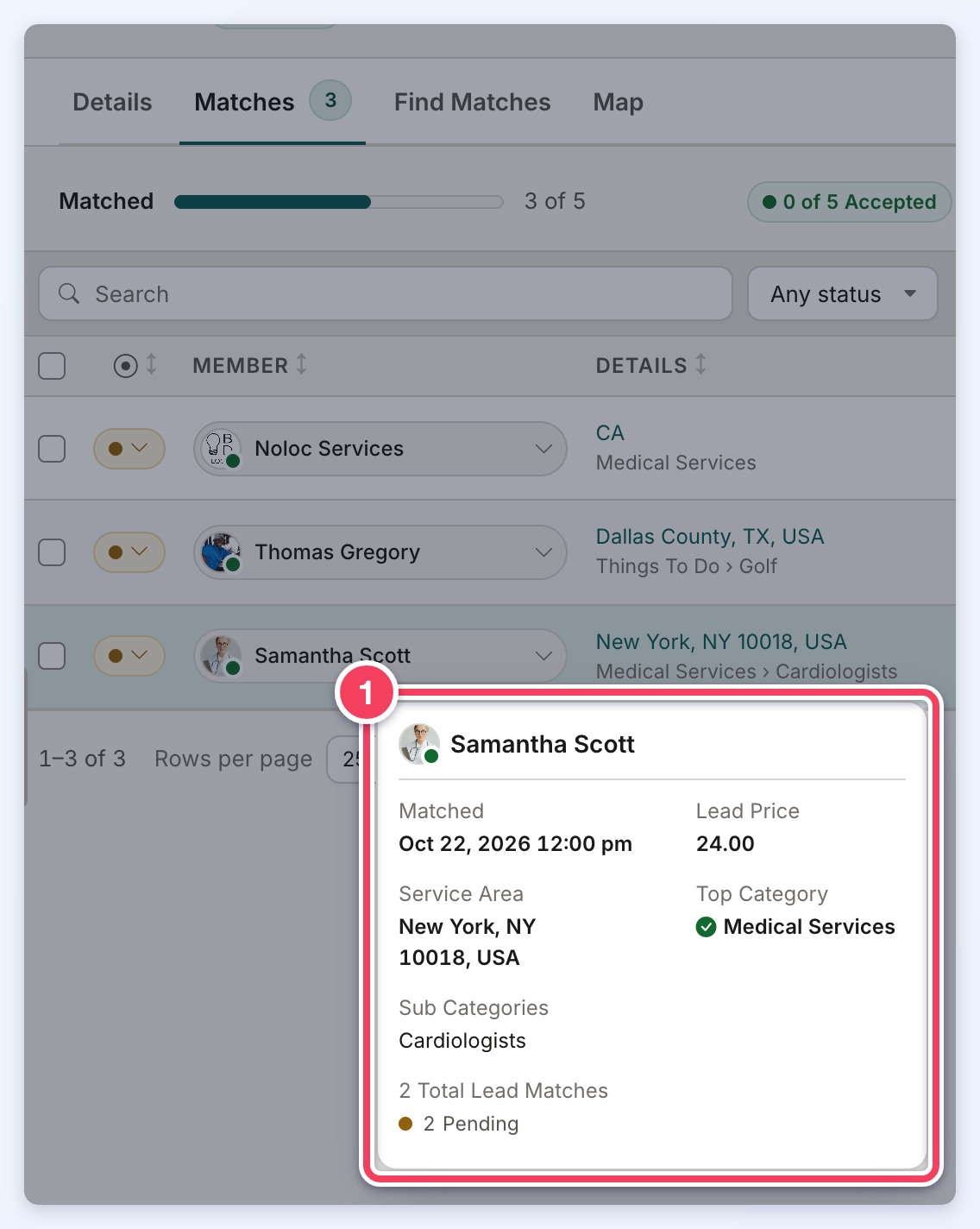
On Find Matches and Matches, hovering over a member's location and categories in the Details column shows a card with the member's service area or location and categories, a green check beside each category that matches what the lead asked for, and the total number of lead matches the member has with a count for each match status. On Matches the card also shows when the member was matched and the lead price.
Map
The Map tab appears only when the lead has a location. It shows a pin for the lead, for every matched member and for the suggested members on the current page of Find Matches. The map uses the website's Google Maps API key. Without a key the tab shows Map Unavailable and asks for a key to be added. The buttons in the map's corner open it full screen and zoom or recenter it. A note beside the chips counts the members that have no location and so have no pin (EG 1 has no location or 2 have no location).
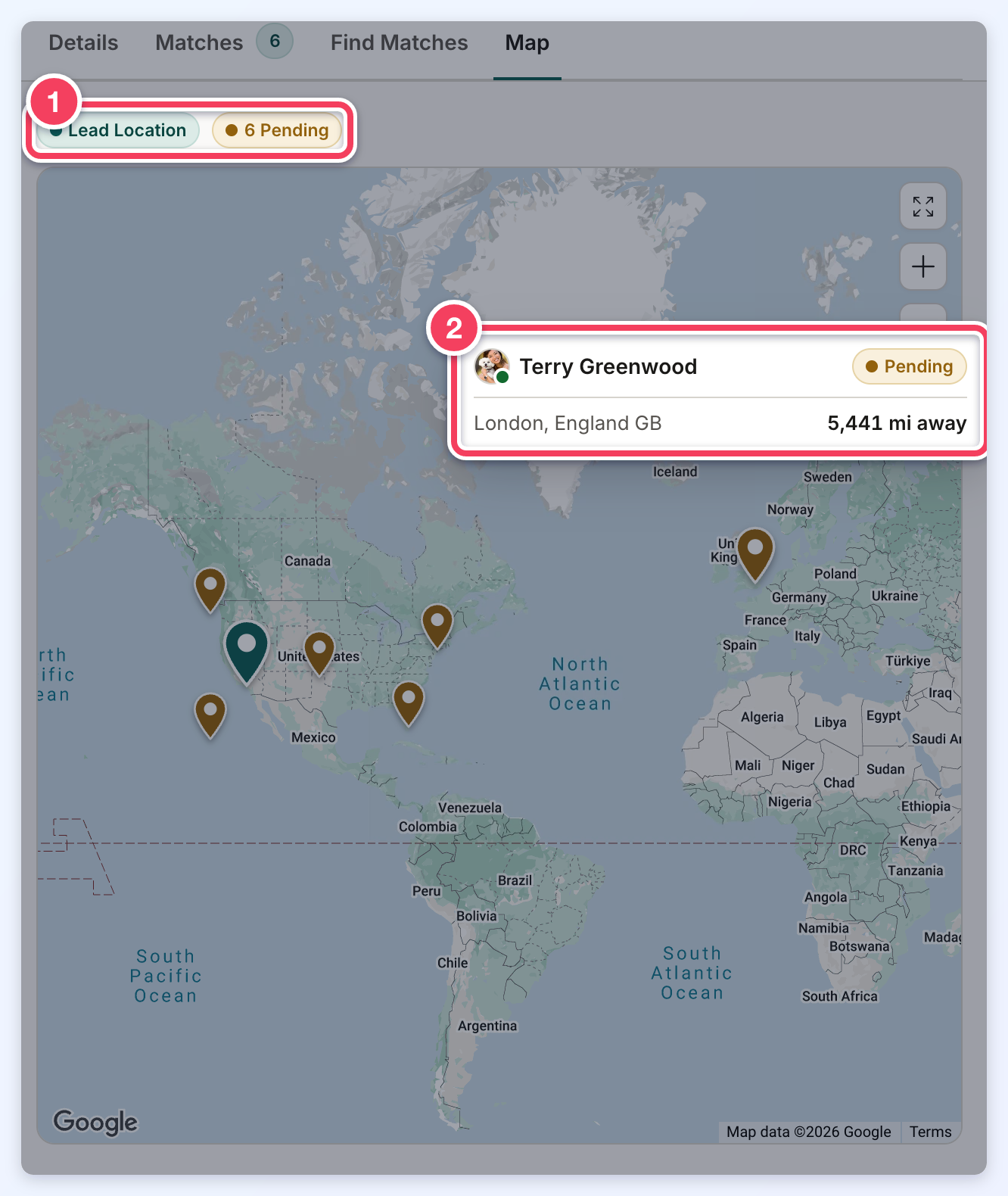
- The colored chips above the map name each group of pins with its count. Click a member group's chip to show or hide its pins.
- Hovering over a member's pin shows a card with the member's photo, name, match status, location and distance from the lead (EG 2,446 mi away). The card stays open while the pointer moves from the pin into it.
The card of a suggested member's pin has a green Match Member button with the same match options and confirmation as the + button on Find Matches. After a match, the pin changes color and the chip counts update. When Find Matches has more than one page, the suggested members' chip tip names the page the pins come from (EG From Find Matches page 1 of 2).
New Lead and Clone Lead
New Lead opens a lead form in a drawer. When the website has more than one lead form, pick it under Lead Form. Leads added here are not matched automatically: after saving, use Find Matches.
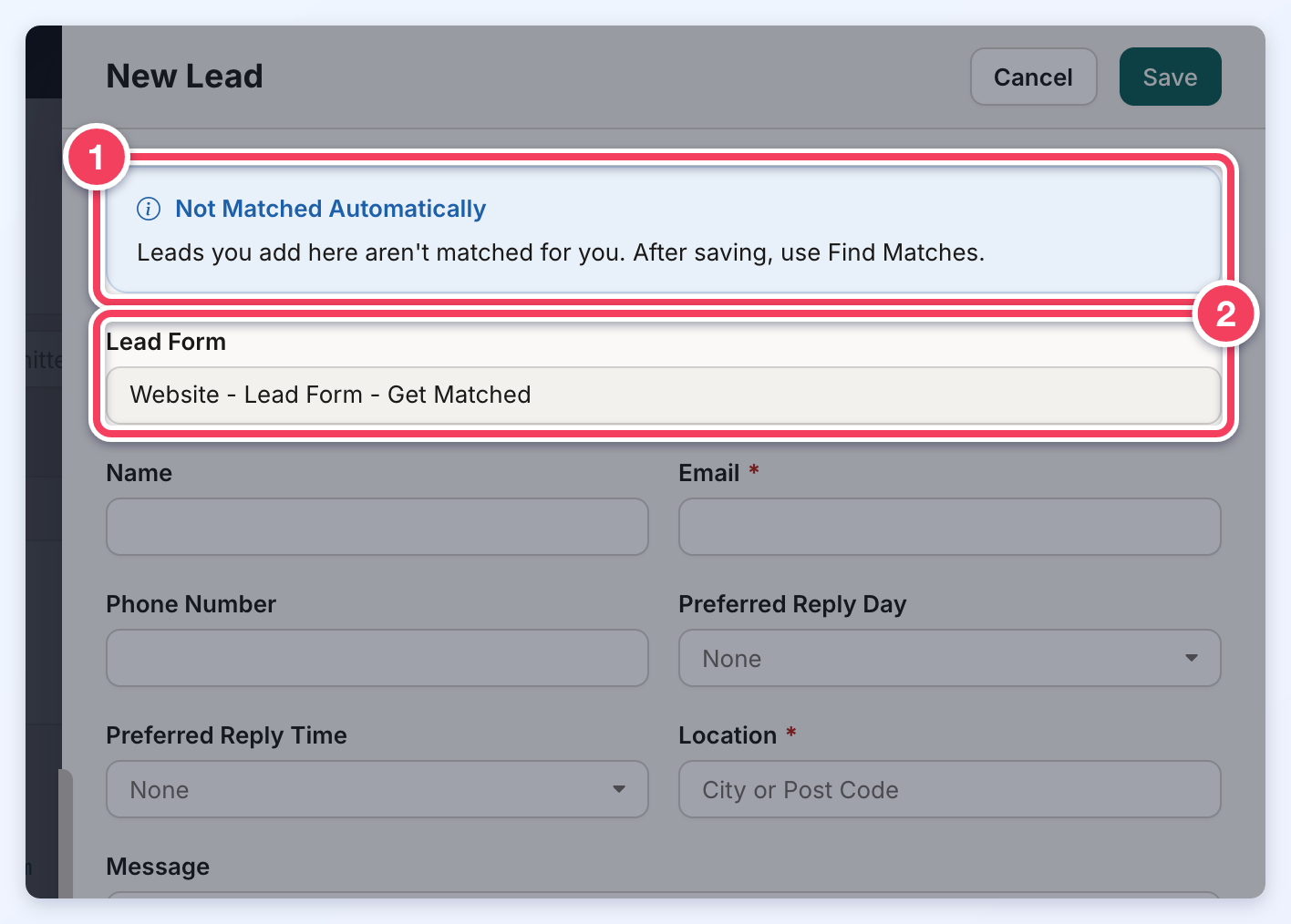
- The Not Matched Automatically notice.
- Lead Form: the form whose fields the new lead uses.
Clone Lead opens the same form already filled with a lead's details, so a similar lead can be added without retyping it. Saving creates a new lead and leaves the original unchanged.
Smart Lists and Export
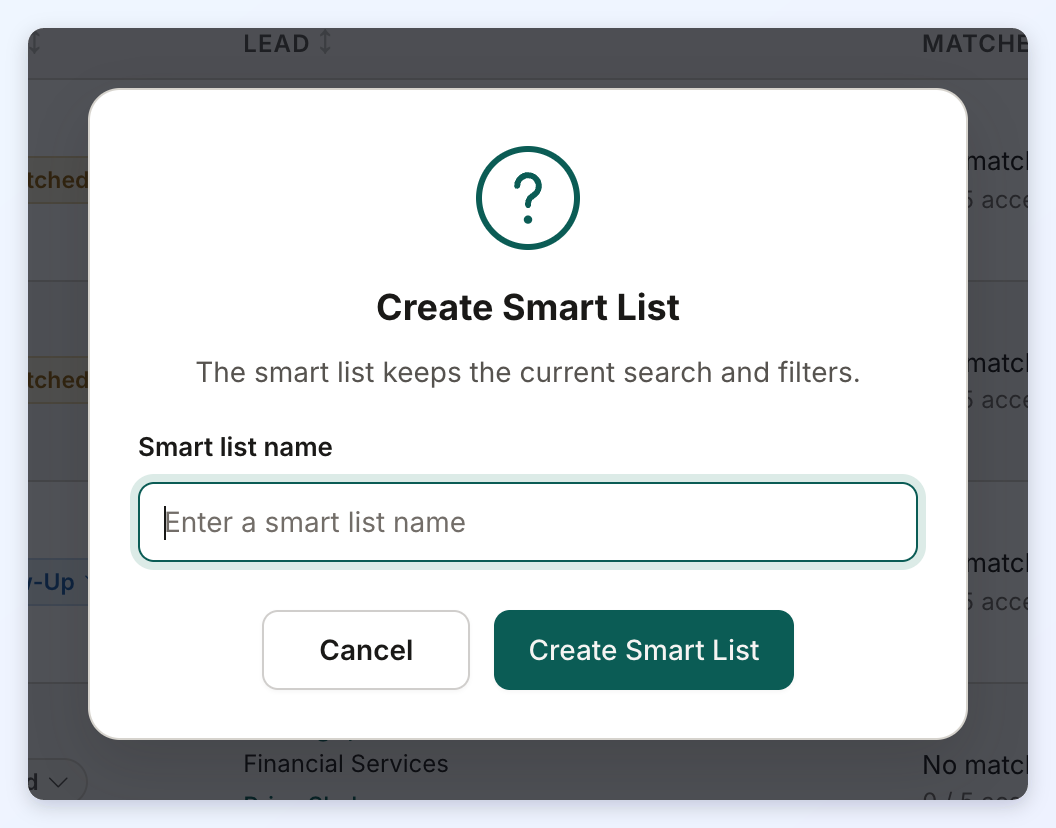
Create Smart List saves the current search and filters as a smart list under a name of 4 to 100 characters. See Smart List & Export Functionality for Leads.
Lead Settings
Lead Settings opens in a drawer on the Member Leads page, with a General tab and a Lead Rules tab.
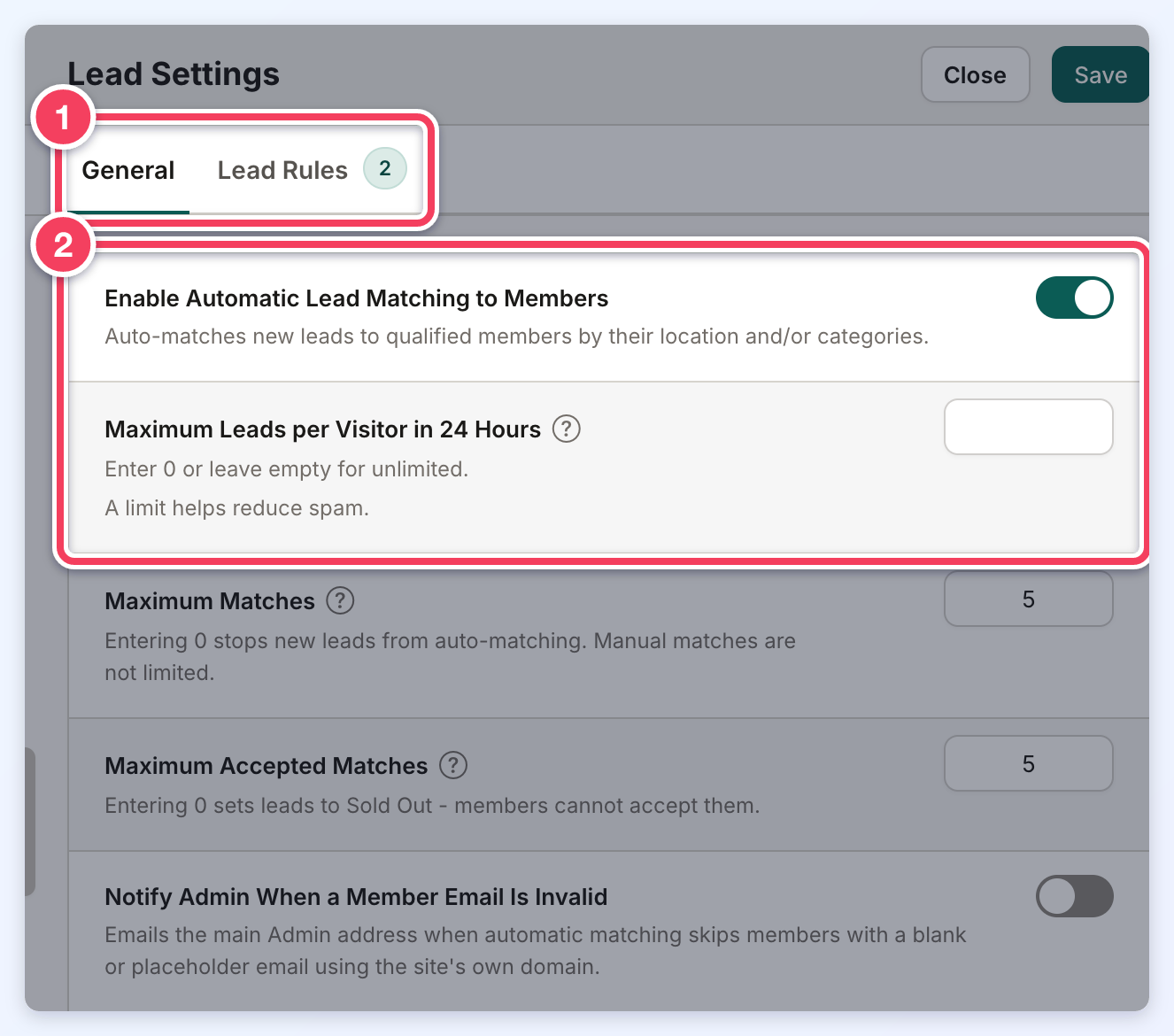
- The General and Lead Rules tabs.
- Enable Automatic Lead Matching to Members and Maximum Leads per Visitor in 24 Hours are on the General tab.
See How Does Auto-Matching Work? (Lead Settings » General Settings) for these settings.
