Developer Hub » Image Settings » Froala Text Editor Images
Link: https://support.brilliantdirectories.com/support/solutions/articles/12000096512
IMPORTANT NOTE: Unless doing heavy customizations to the underlying code of a website's design, there is no need to edit these settings as they already are optimized for use on a Brilliant Directories website.
This article will cover the image settings for the following:
- Froala Text Editor Images
On the Image Settings page, this setting is in the Text Editor Images section, listed under Image Sizes in the side menu. Changes on the Image Settings page take effect only after Save is clicked in the save bar at the top of the page.
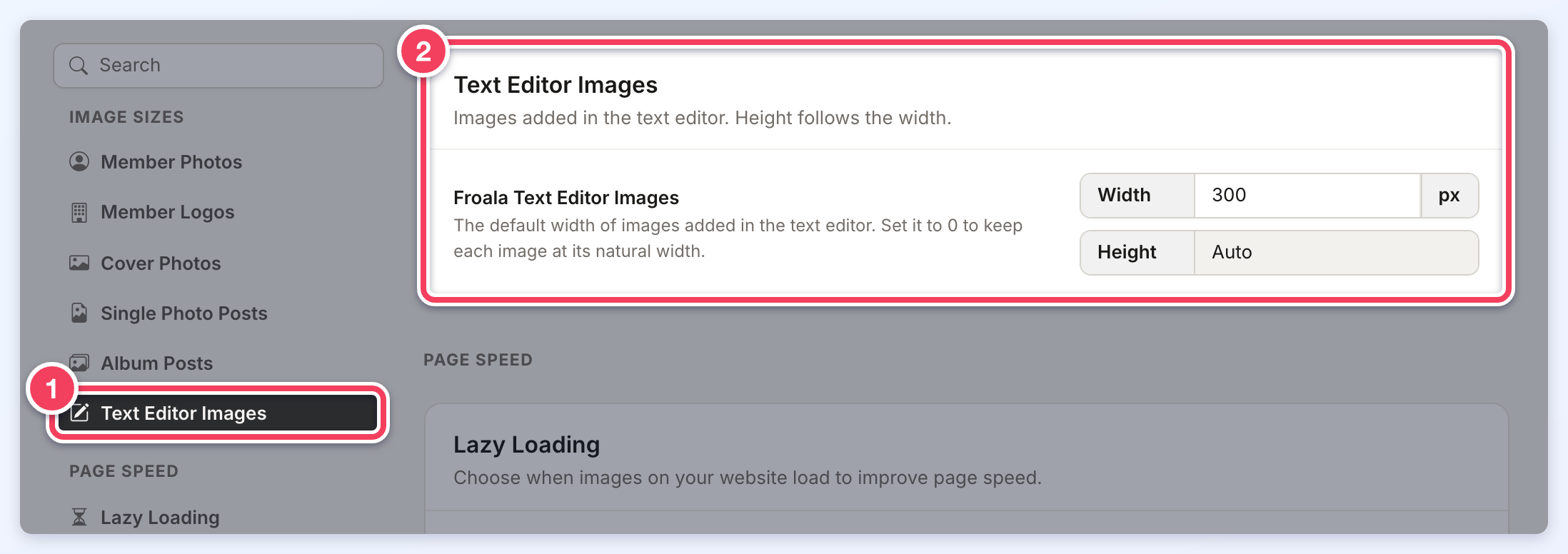
1 — Text Editor Images in the side menu. 2 — the Froala Text Editor Images setting, with its Height fixed at Auto.
The Froala Text Editor Images setting is the default width of images inserted into the Froala WYSIWYG editor on the website's frontend. By setting the value to '0', the images will begin at their natural, unaltered width. Only the width can be set: the Height field shows Auto because the height follows the width.
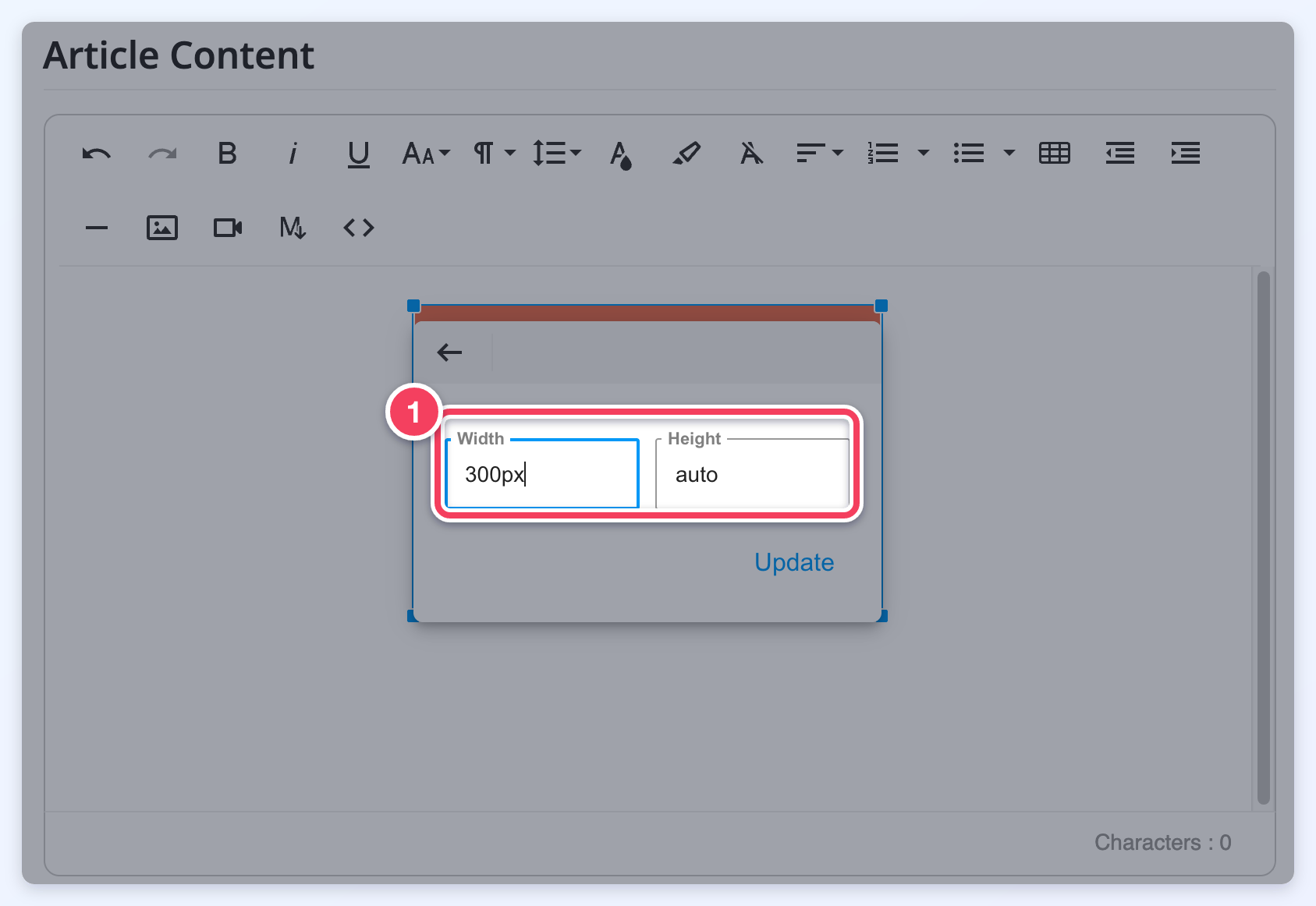
When an image is uploaded to the front end Froala editor, the system will use the width to limit the image to those dimensions.
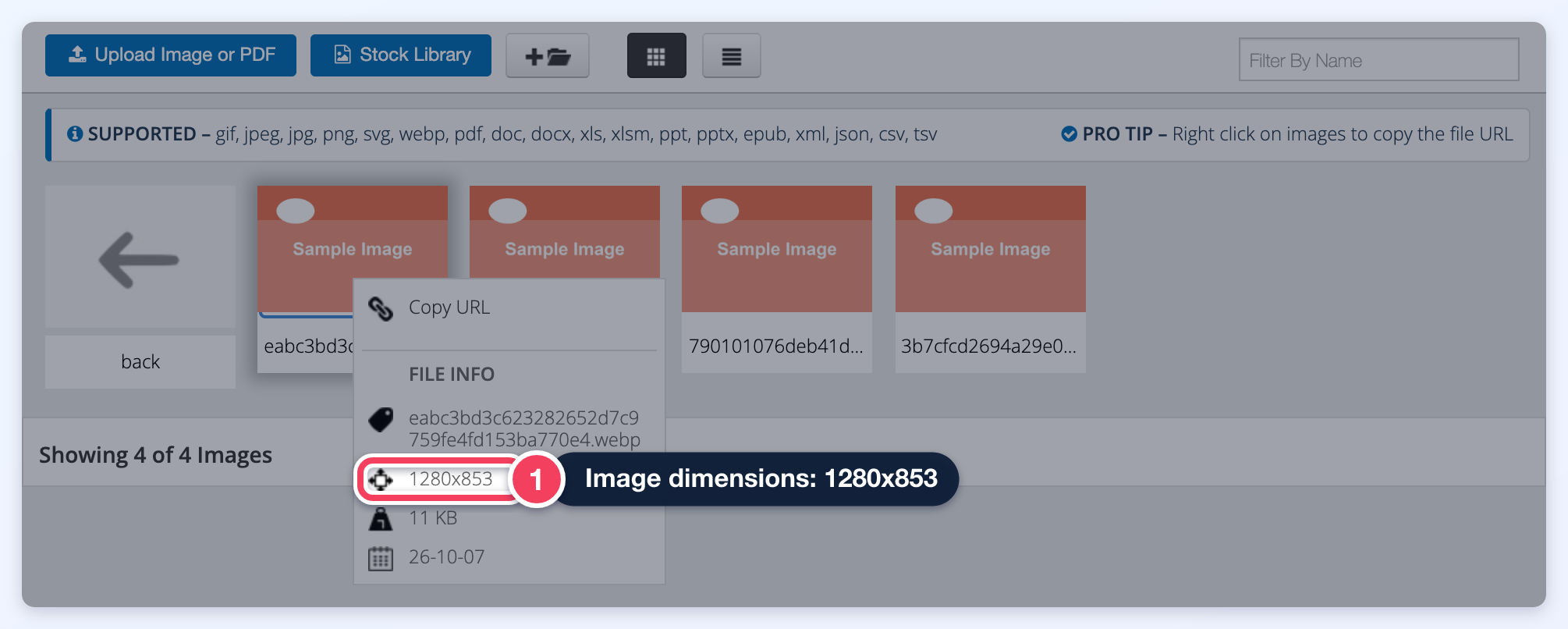
In this example, the image is 1280x853 px (right-click a file in My Content » Media Manager to see its size under File Info):
However when uploaded through the front-end, the image is displayed at 300 px:
Same on the front-end:
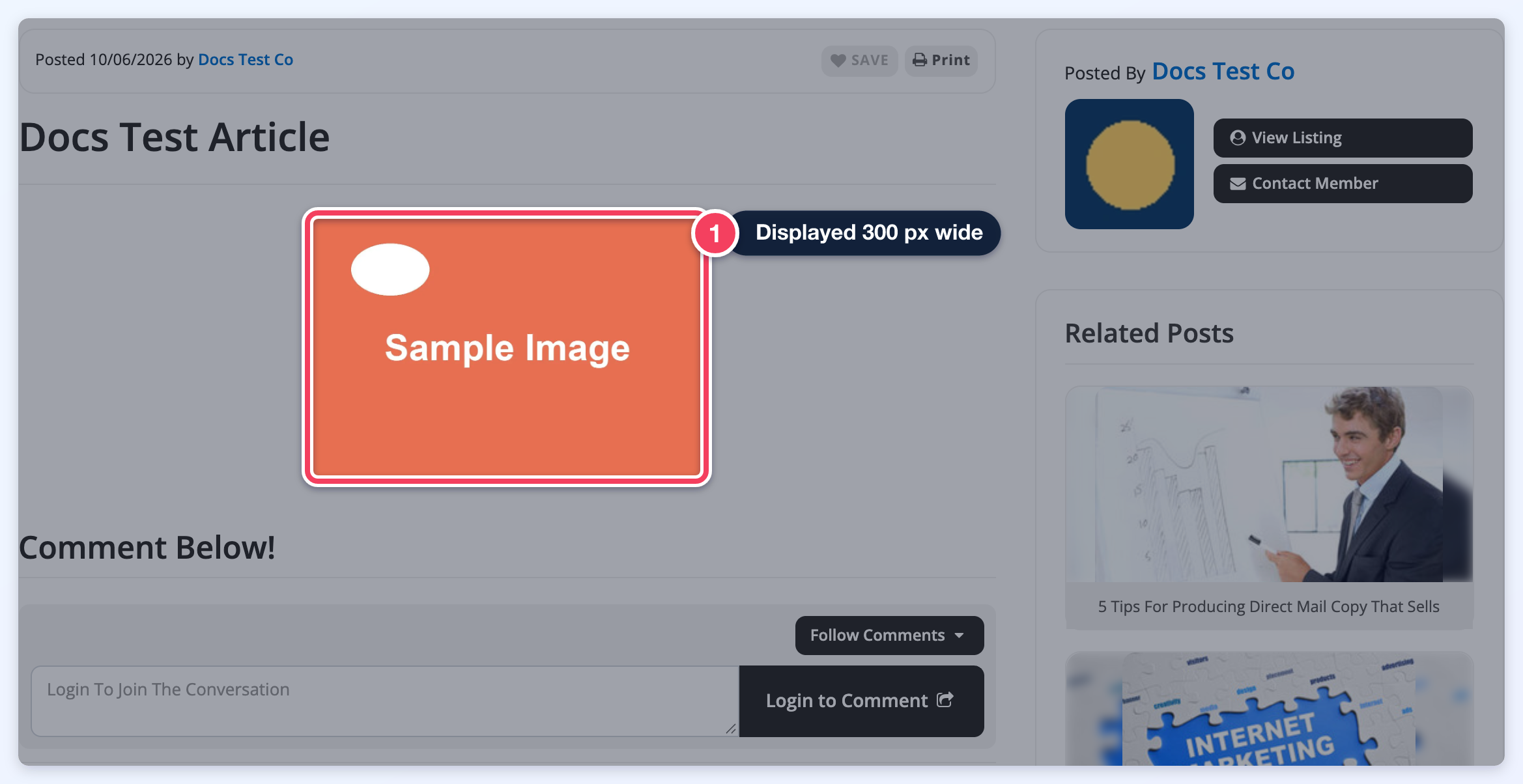
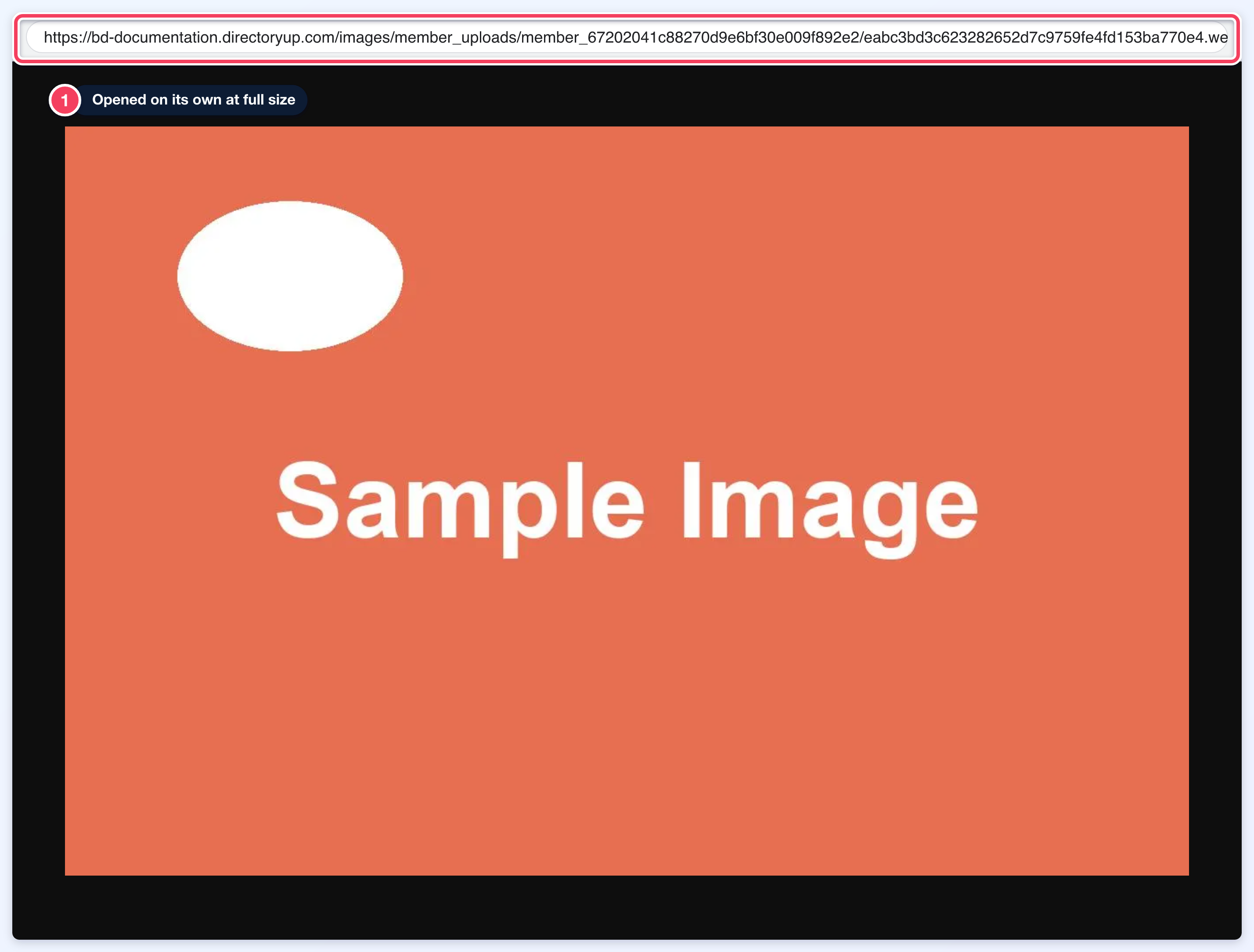
But when the image is opened in a new tab, the original size is retained: