
Quick Create Wizard
Link: https://support.brilliantdirectories.com/support/solutions/articles/12000105752
The Quick Create Wizard allows admins to create new members, newsletters, invoices, posts, web pages and coupon codes directly from the admin header, on any admin page. The wizards are listed in the BD Butler menu, which replaced the earlier Quick Create button.
The blue BD Butler button sits in the top right of the admin header, to the left of Visit Website. On white-label websites the same button is labeled AI Assist.

Clicking BD Butler opens a menu. The first option, Ask BD Butler, opens the BD Butler AI assistant. The options below it each open their own step-by-step wizard.
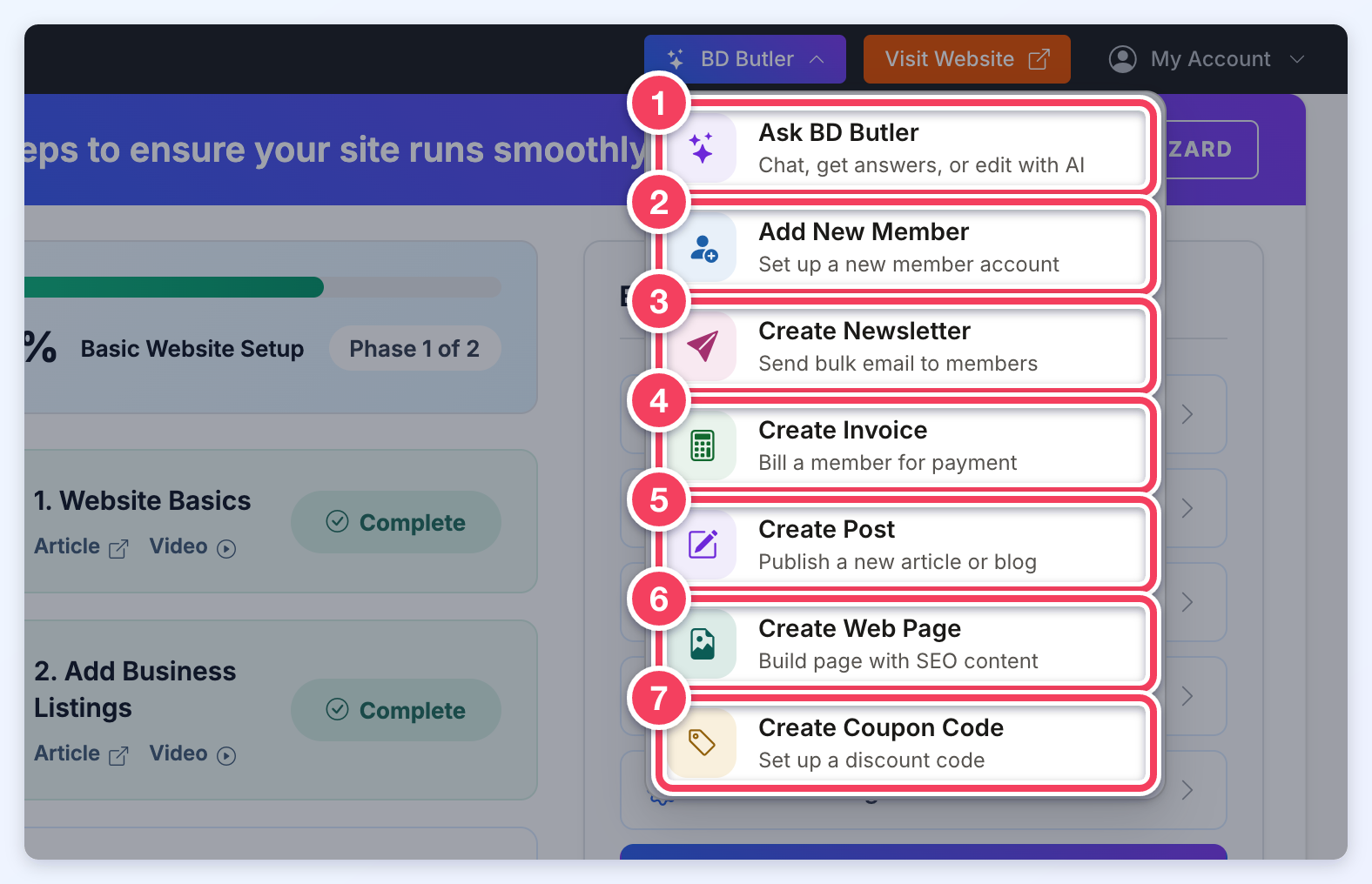
The numbers in the screenshot match the list below. Each link has the full walkthrough for that option:
- Ask BD Butler: chat, get answers, or edit with AI. On a web page, email template, newsletter or custom widget editor, it works on the item being edited, the same as that editor's own BD Butler button. On every other admin page it opens a general BD Butler chat.
- Add New Member: set up a new member account.
- Create Newsletter: send bulk email to members.
- Create Invoice: bill a member for payment.
- Create Post: publish a new article or blog post.
- Create Web Page: build a page with SEO content.
- Create Coupon Code: set up a discount code.
Who Sees Each Option
The wizards follow the admin role's page permissions. Each wizard is listed only when the admin's role can open the matching admin page:
- Add New Member and Create Invoice: the Search Members page.
- Create Newsletter: the Send Newsletter page.
- Create Post: the Manage Posts page.
- Create Web Page: the Web Page Builder.
- Create Coupon Code: the Coupon Codes page. This option also needs the Easy Coupon Codes add-on to be active.
Ask BD Butler is listed for every admin, so the menu still appears for an admin whose role allows none of the wizards.
The BD Butler menu is hidden on narrow screens (915 pixels wide or less), such as phones.
