Setup Wizard - Website Logo AI Generator
Link: https://support.brilliantdirectories.com/support/solutions/articles/12000108546
The AI Logo Creator helps generate logo concepts based on brand preferences and visual direction.
This feature is useful for new websites that need a logo quickly, or for existing websites looking to refresh their branding and explore AI-generated inspiration.
Where to Find It
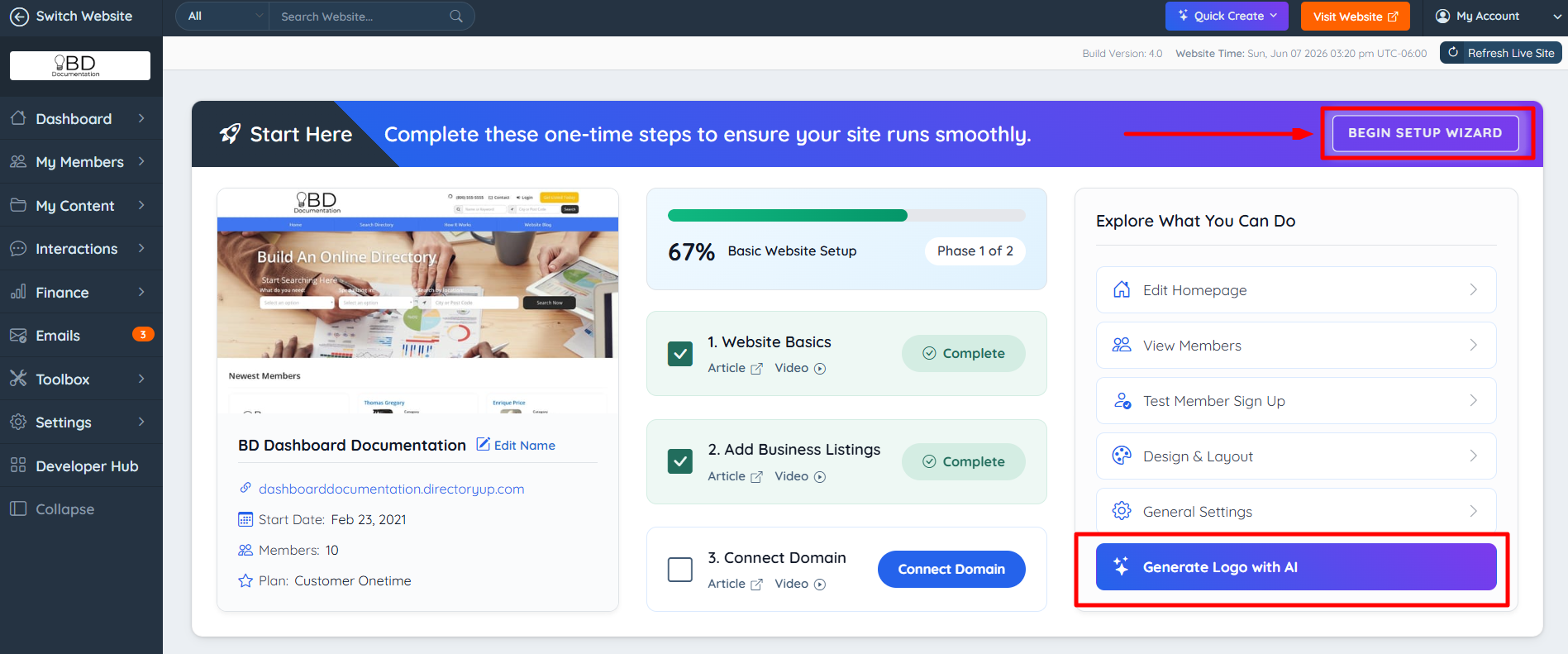
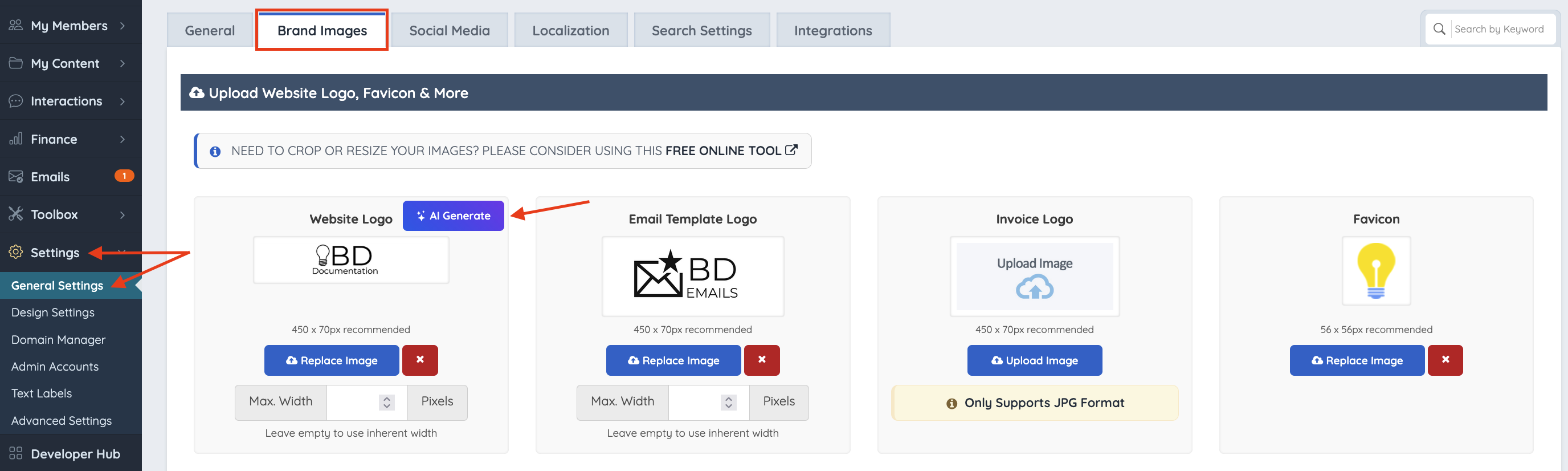
The AI Logo Creator can be accessed from the Main Dashboard by clicking Generate Logo with AI in the Explore What You Can Do section, through the Setup Wizard by selecting Begin Setup Wizard, or from Settings → General Settings → Brand Images by clicking the AI Generator button in the Website Logo section.
Begin Setup Wizard
- Go to the Main Dashboard
- Click Begin Setup Wizard
- Select Generate Logo with AI
Brand Images
Go to Settings >> General Settings >> Brand Images
Locate the Website Logo section
Select the AI Generator button
How to Generate a Logo
When opening the AI Logo Creator, the current website logo will be displayed.
Before generating a logo, configure the available options:
Exact brand name to include in logo: Enter the exact brand name that should appear in the generated logo.
Style: Select up to three style options to guide the design direction, such as Modern, Classic, Bold, Playful, and other available styles.
Accent colors: Choose the preferred colors to be incorporated into the logo concepts.
Tell us about your brand's vibe, mood, persona: Add a description to guide the generated results. The description can be as detailed as needed.
Example
We want to generate a modern, elegant, and friendly logo that includes a light bulb, make the "B" and "B" bold and bigger than the rest of the letters:
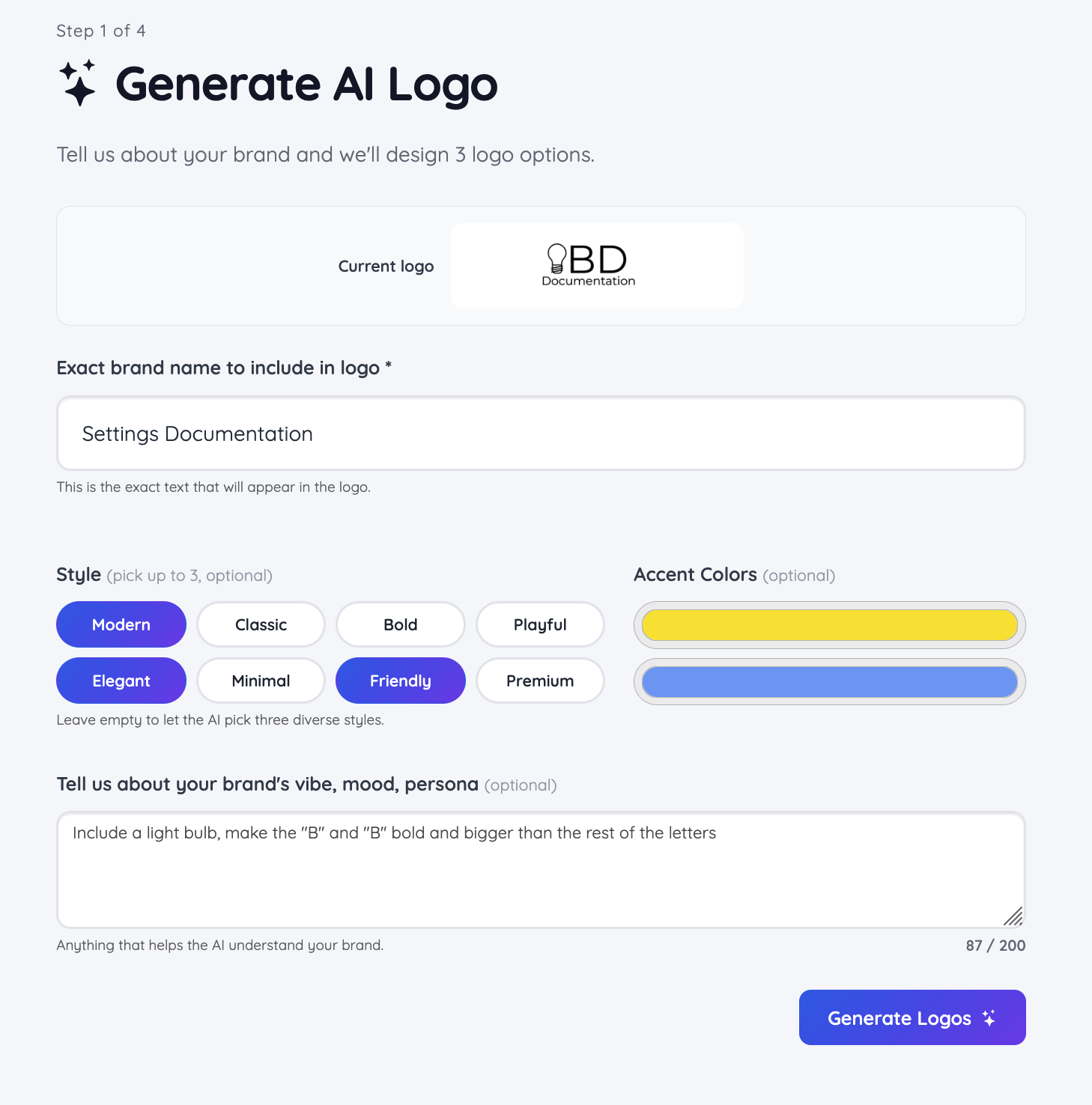
After the preferences are configured and the Generate Logos button is pressed, the generation process begins.
Logo generation takes approximately 30 seconds. During this time, the screen will display the following generation view:
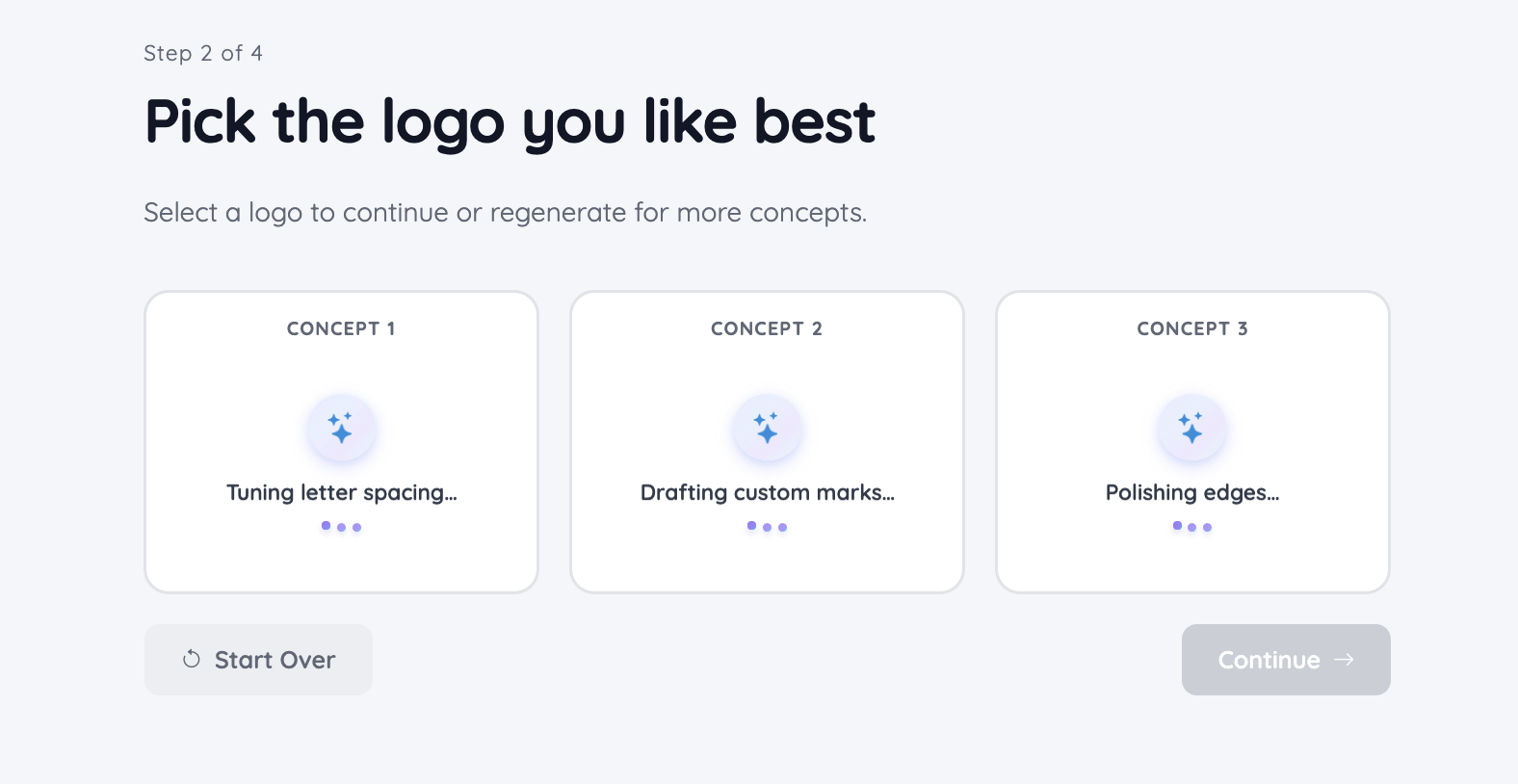
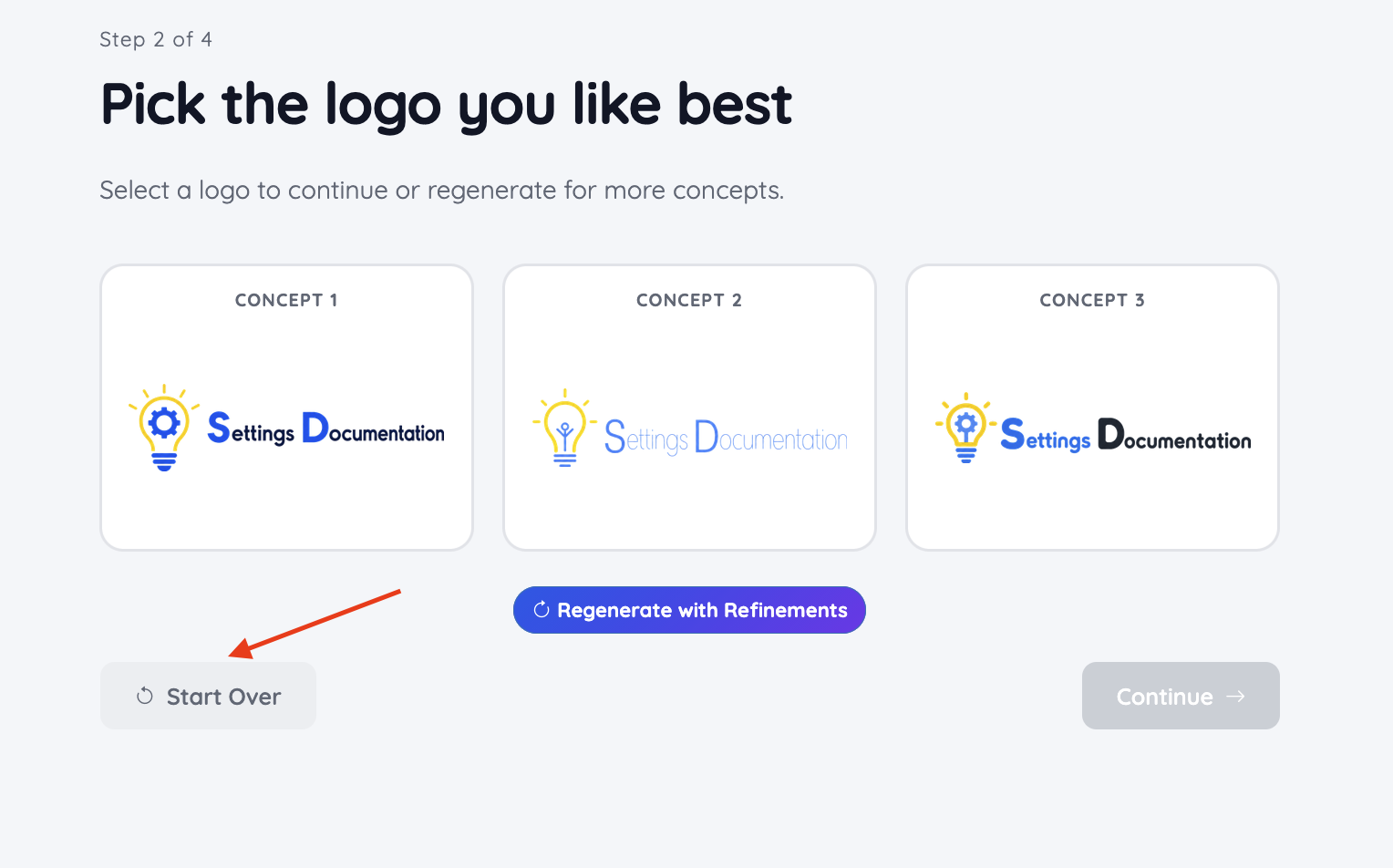
Once complete, the tool generates three logo concepts to choose from: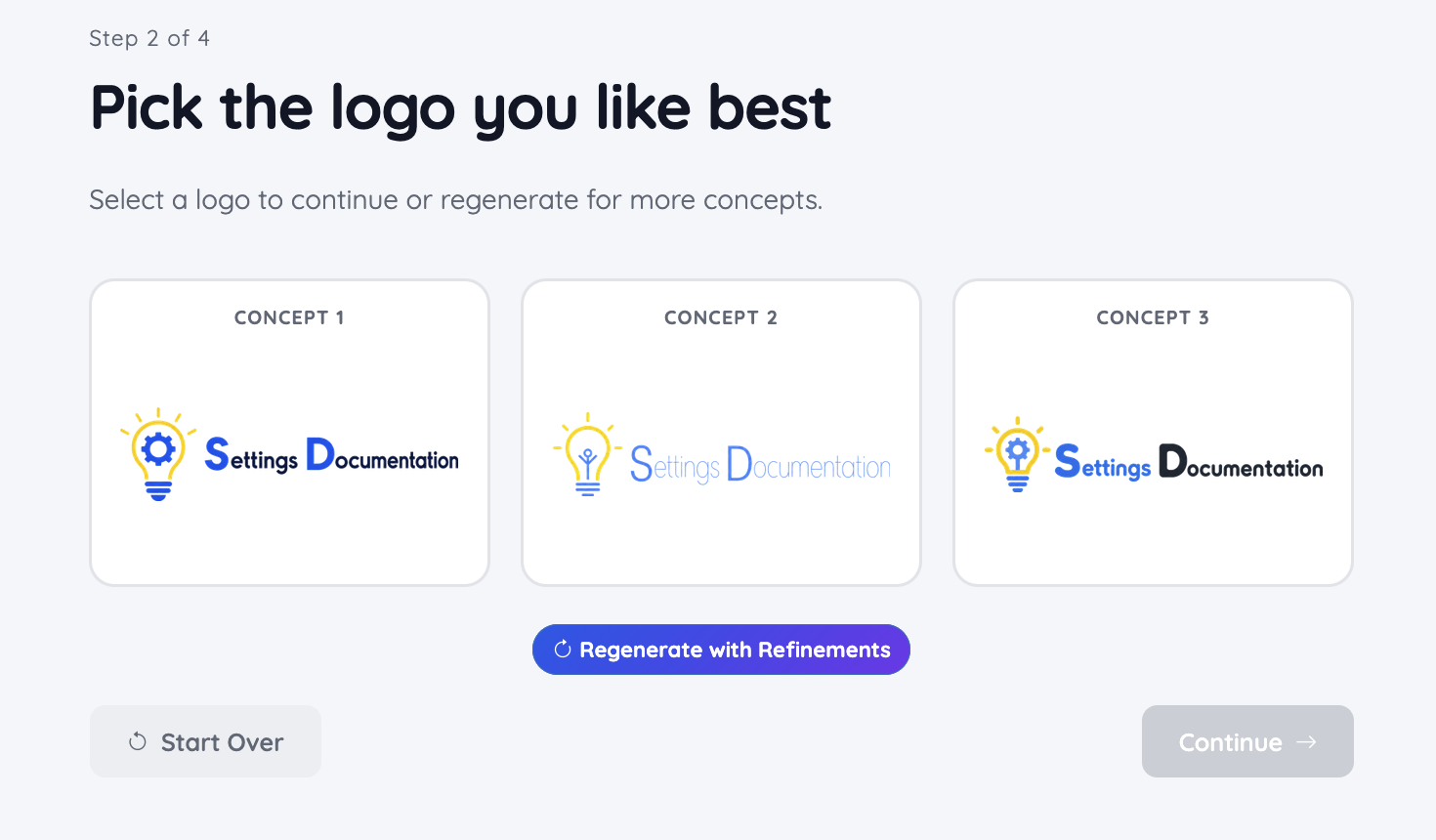
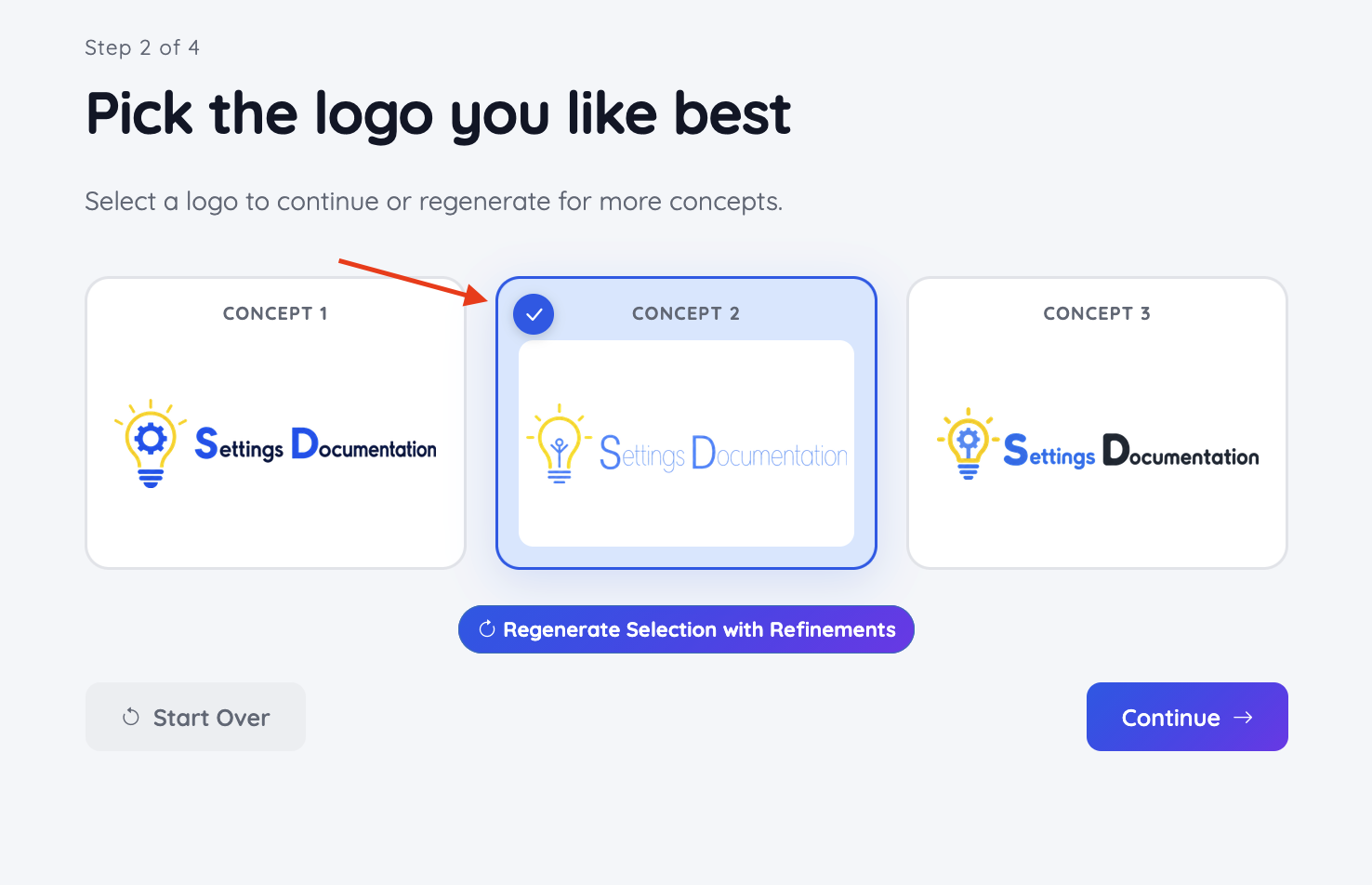
Each concept can be:
Opened to view a larger preview and inspect details more closely:
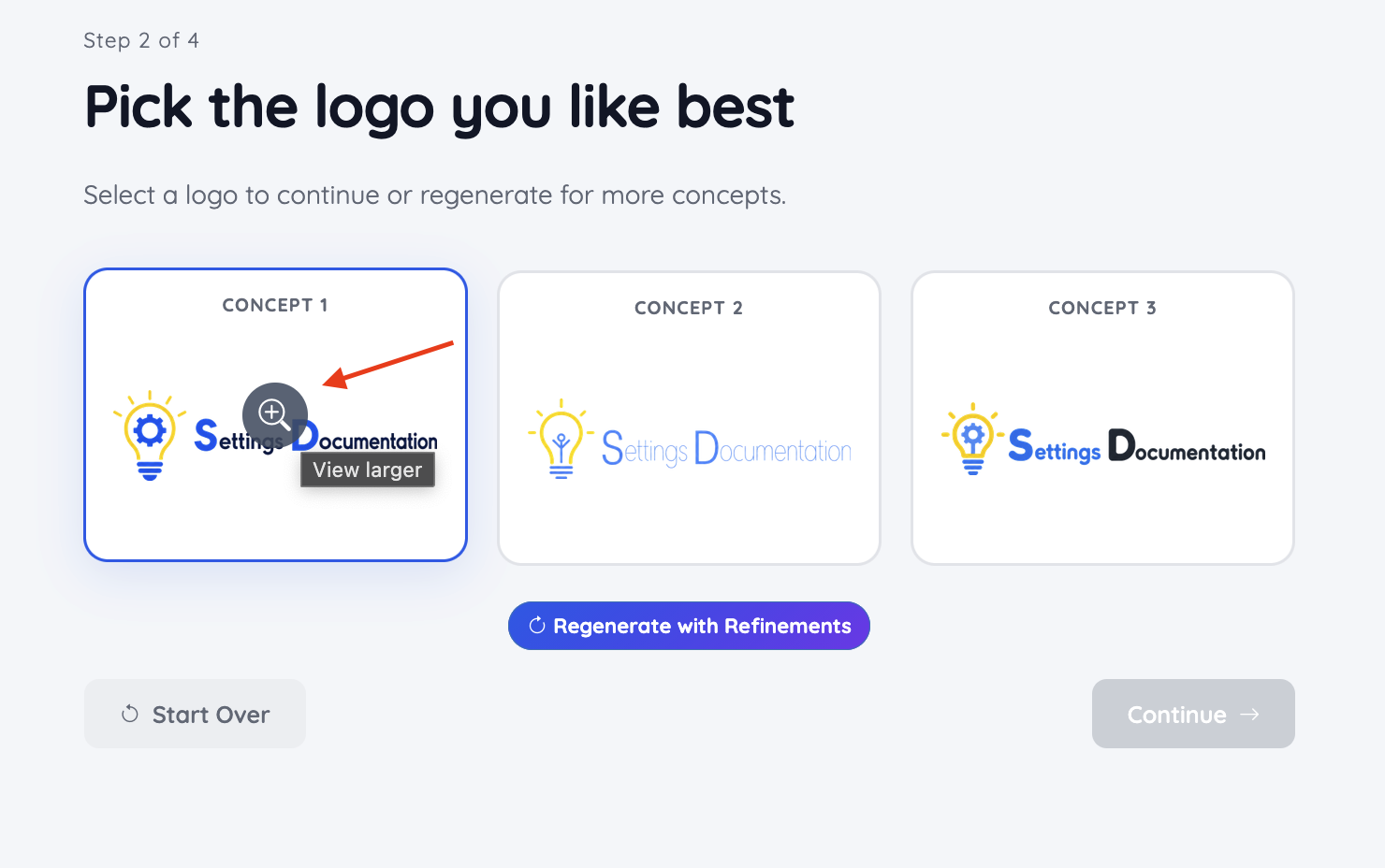
Selected as the preferred choice:
How to Generate Additional Logos
After selecting a preferred logo concept, additional variations can be generated based on that concept.
The available options include:
Generate additional logos using the selected concept as inspiration
Generate a completely new set of three concepts
Regenerate the selected concept up to two times
This allows further refinement while keeping the original design direction if desired.
Regenerate With Refinements
Regenerate a new logo by adding more specific details: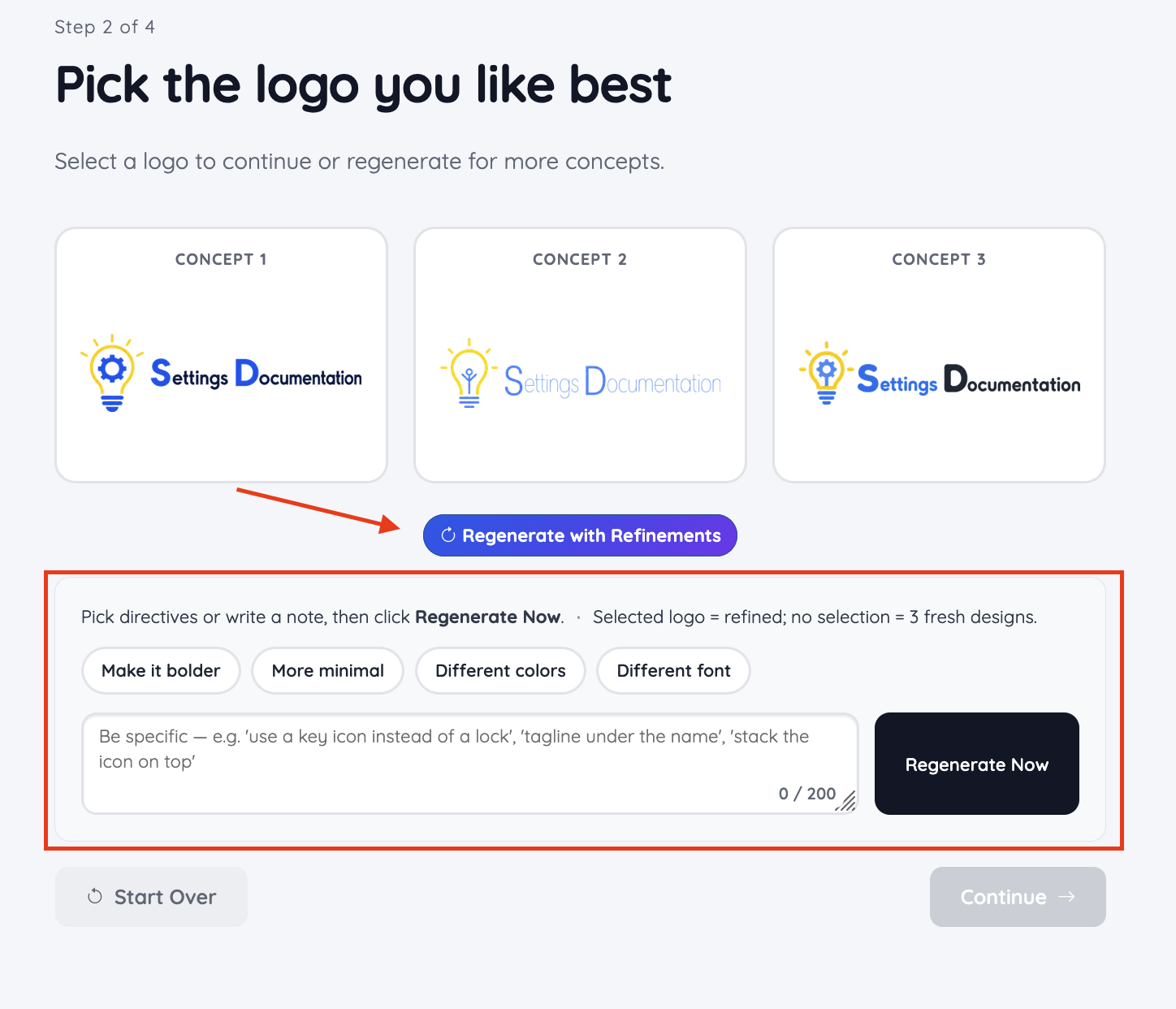
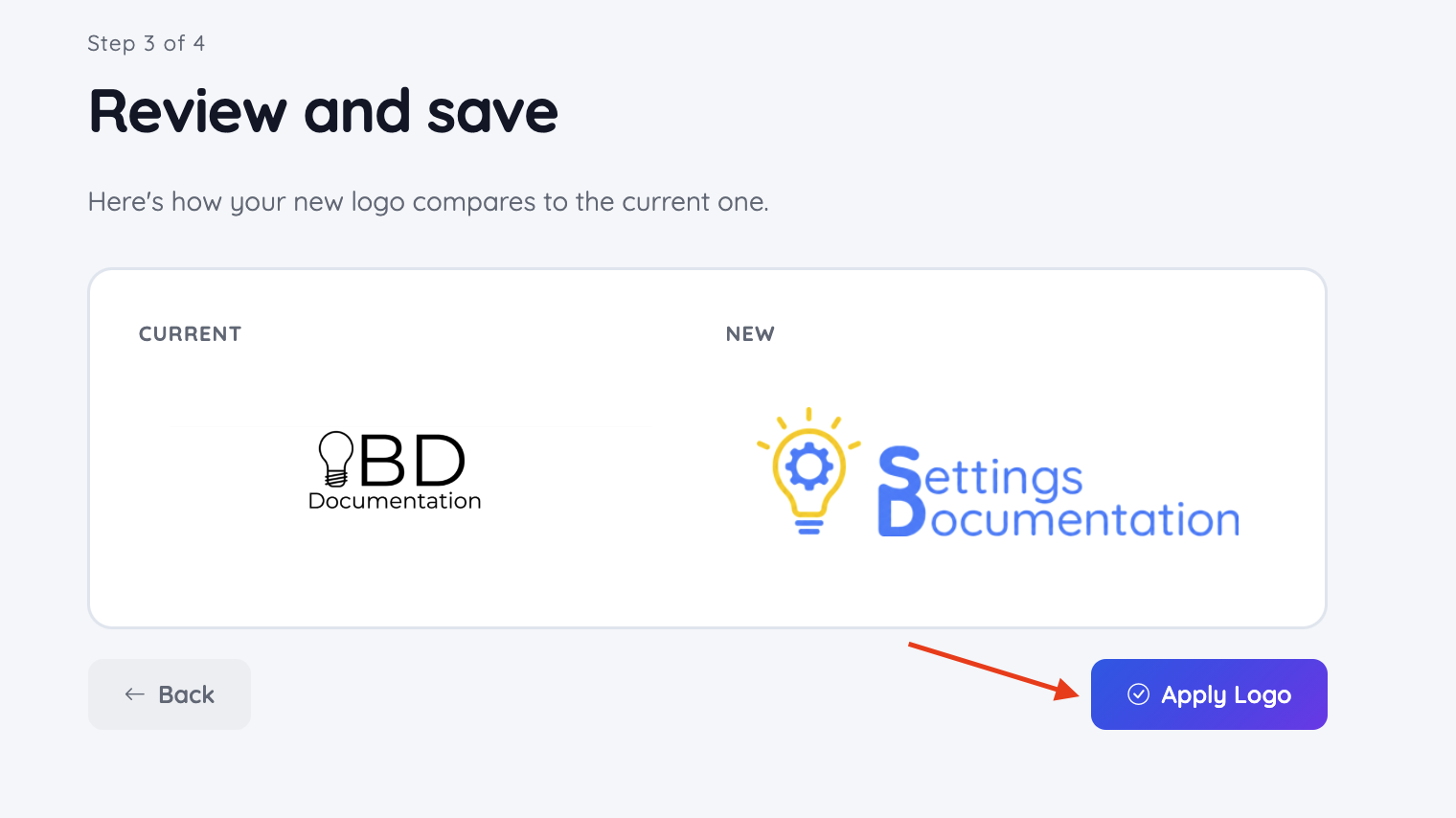
Apply Logo
Once the generated logo matches the desired result, select Apply Logo to apply it to the website:
A success message will show up: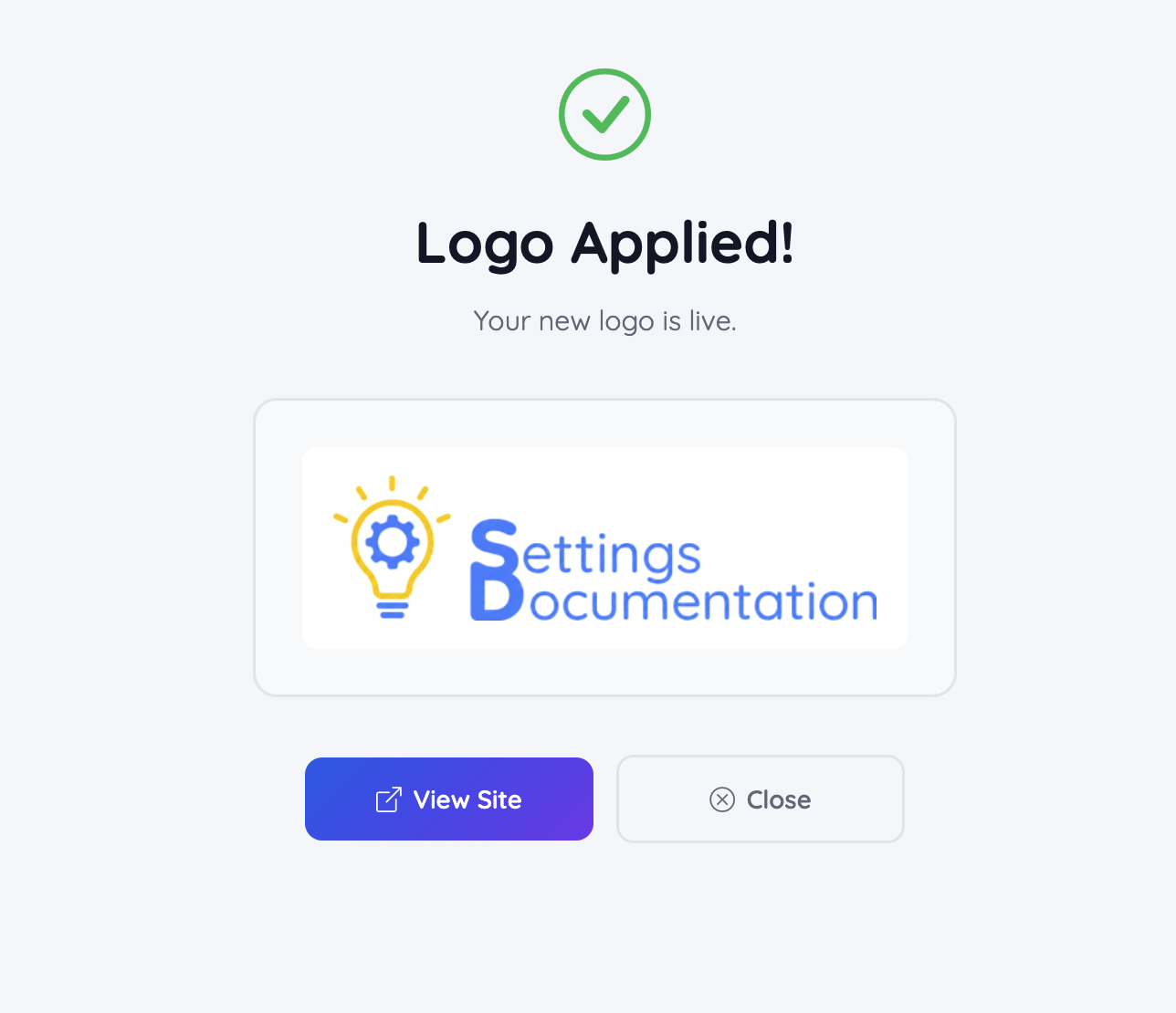
Start Over
If none of the generated concepts are suitable, the process can be restarted to create a completely new set of logo concepts: