
Create Custom Checkout And Sign Up Forms
Link: https://support.brilliantdirectories.com/support/solutions/articles/12000109267
This article explains how to assign a custom signup or checkout form to each membership plan.
This feature allows different membership plans to collect different information during signup. For example, a free member plan can use a short basic signup form, while a paid professional plan can collect additional business, billing, or profile details during checkout.
Overview
By default, websites include signup forms for different membership signup and checkout flows. These forms control which fields display when a new member signs up for a membership plan.
There are three default signup forms available:
- Member - Sign Up - Free
- Member - Sign Up - Paid
- Member - Sign Up - External Payment
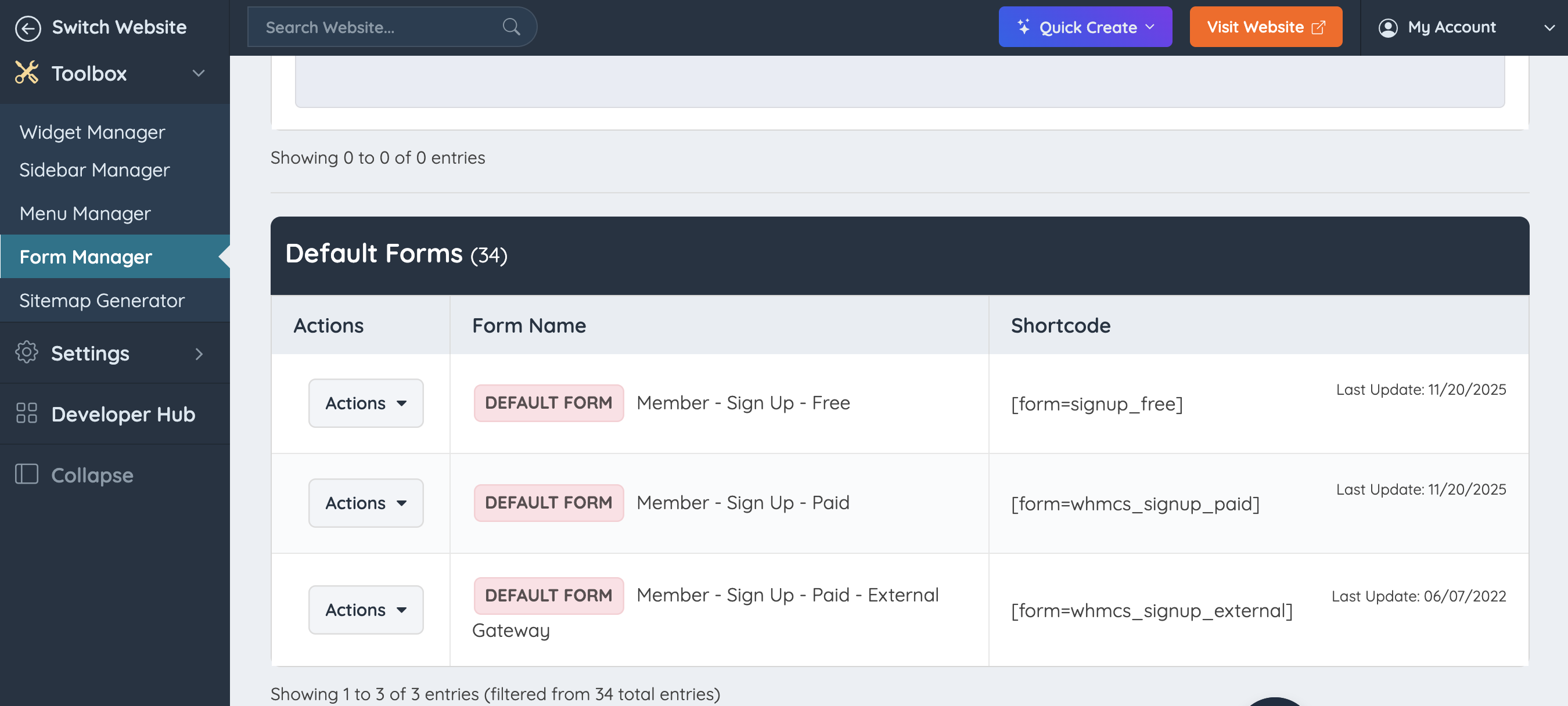
Each form is designed for a specific type of membership plan or checkout flow.
| Form Name | Shortcode | Used For |
|---|---|---|
| Member - Sign Up - Free | [form=signup_free] | Free membership plans |
| Member - Sign Up - Paid | [form=whmcs_signup_paid] | Paid membership plans using onsite checkout |
| Member - Sign Up - External Payment | [form=whmcs_signup_external] | Paid membership plans using an *off-site payment gateway, such as PayPal |
Step 1: Clone the Signup Form
Start by cloning the existing signup form that matches the type of membership plan being customized.
Clone Member - Sign Up - Free for a free membership plan.
Clone Member - Sign Up - Paid for a paid membership plan using onsite checkout.
Clone Member - Sign Up - External Payment for a paid membership plan using an *off-site payment gateway.
The cloned form will include the required signup fields and system settings from the original form.
Step 2: Rename the Cloned Form
After cloning the form, rename it so it can be selected inside the membership plan settings.
The form name must start with:
Member - Sign Up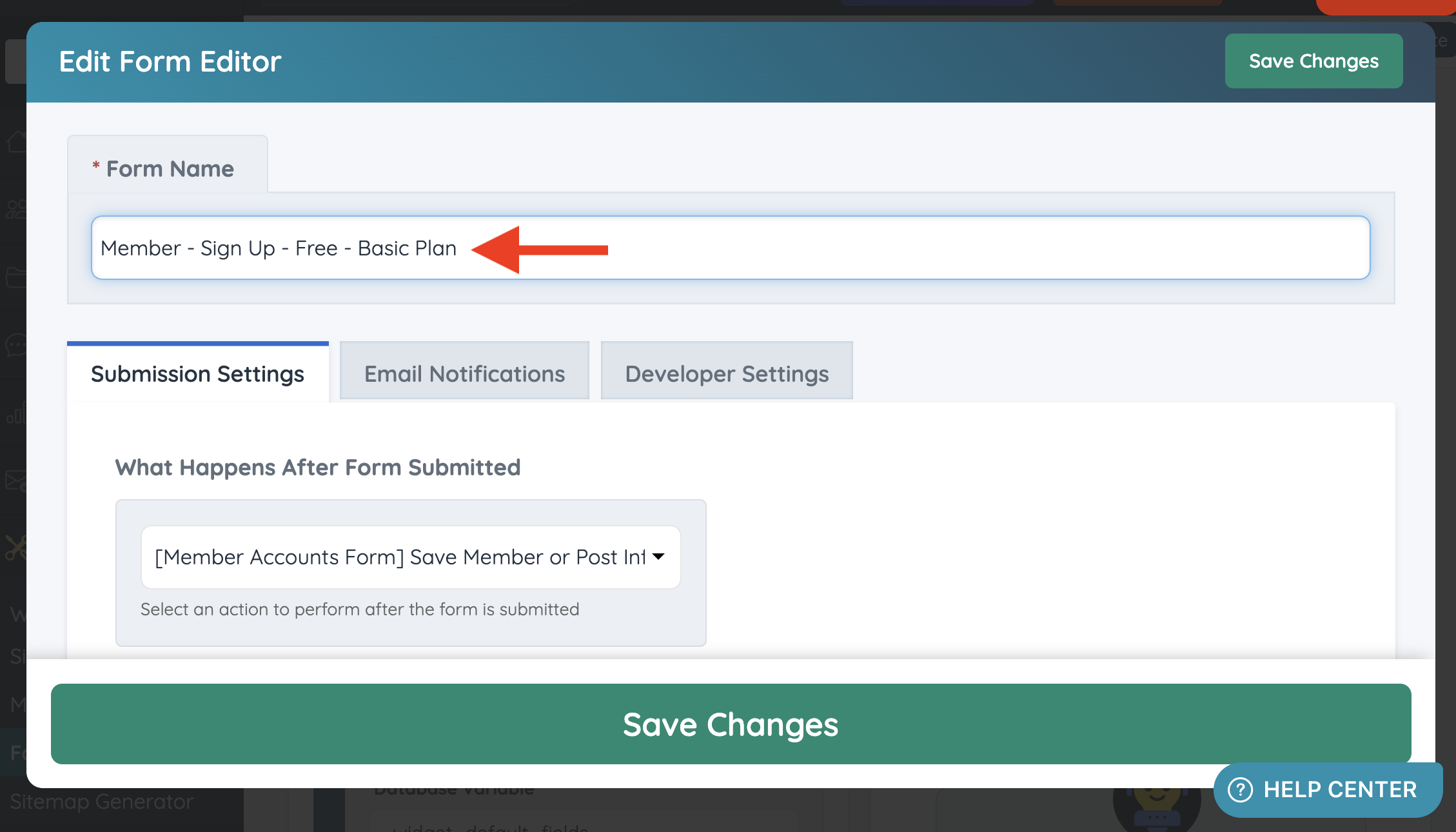
Naming examples:
- Member - Sign Up - Free - Basic Plan
- Member - Sign Up - Free - Community Plan
- Member - Sign Up - Paid - Professional Plan
- Member - Sign Up - Paid - Business Plan
- Member - Sign Up - External Payment - Sponsor Plan
Use a clear name that identifies which membership plan the form is intended for.
If the form name does not start with Member - Sign Up, it will not appear as an option in the membership plan signup form setting.
Step 3: Customize the Form Fields
After the form has been cloned and renamed, edit the form fields as needed.
Fields can be added, removed, renamed, reordered, or marked as required based on the information that should be collected during signup.
When editing the form, keep the following in mind:
- Do not remove required system fields needed for signup or checkout.
- Do not remove payment fields from paid signup forms.
- Do not add payment fields to free signup forms.
- Do not change the checkout flow by using the wrong form type.
- Keep the form focused on the information needed at signup.
- Save the form after making changes.
Important: If a required checkout or registration field is removed, the signup process may not work correctly.
Step 4: Assign the Form to a Membership Plan
After the custom signup form has been created, assign it to the membership plan.
- Go to Finance >> Membership Plans.
- Click Edit for the membership plan that needs a custom signup form.
- Use the admin search field at the top of the page and search for Sign Up Form.
- In the Sign Ups & Upgrades section, find the Sign Up Form setting.
- Select the signup form from the dropdown.
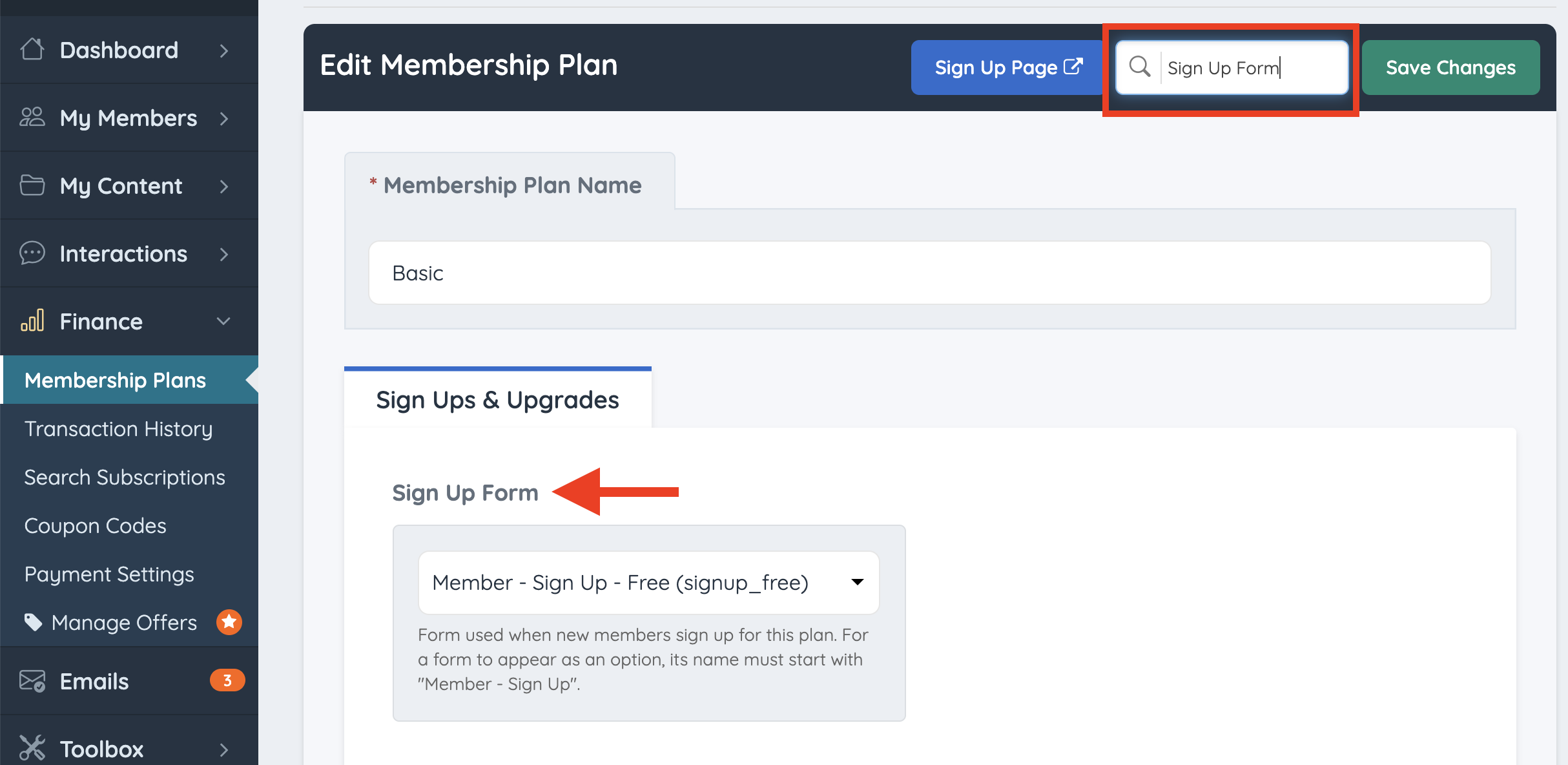
The selected form will now be used when new members sign up for that membership plan.
Note: For a form to appear as an option in the dropdown, the form name must start with Member - Sign Up.
Keep Signup Forms Short for Better Conversions
When customizing signup forms, it is best to keep the form as short and focused as possible.
Long checkout forms can reduce signup conversions because they create extra work before the user has completed registration. If a form feels too long, repetitive, or tedious, users may exit before finishing the signup process.
A shorter form helps users complete signup faster and creates a smoother checkout experience.
Recommended Signup Form Guidelines
- Only ask for information that is needed during signup.
- Move non-essential profile details to the member dashboard after signup.
- Avoid asking for the same information in multiple ways.
- Use clear field labels so members understand what to enter.
- Keep required fields limited to the most important information.
- Use optional fields for details that are helpful but not required.
For example, a paid business plan may need the member’s name, email, company name, phone number, billing information, and payment details at checkout.
However, details such as a full business description, social media links, extra images, certifications, or extended profile content can often be collected later from the member dashboard.
Important Form Requirements
- Do not assign the free signup form to a paid membership plan. Paid plans need the correct paid or external payment form so the checkout process can work properly.
- Do not assign the onsite paid signup form to a free membership plan. Free plans do not require payment fields, and adding payment fields to a free signup can create confusion during the signup process.
- Do not assign the onsite paid signup form to a plan that uses an off-site payment gateway. Off-site payment plans need the external payment signup form so the off-site payment flow works as expected.
Common Mistakes to Avoid
- Creating a new form from scratch: Clone the existing free, paid, or external payment signup form instead.
- Using the wrong form type: Free plans should use free signup forms. Paid plans should use the correct paid or external payment signup form.
- Using the wrong form name: The form name must start with Member - Sign Up.
- Making the form too long: Long forms can reduce completed signups.
- Removing required checkout fields: Removing required system fields can break registration or checkout.
- Not testing the signup flow: Always test the form after assigning it to a membership plan.
