
Choosing an Image with the Image Picker
Link: https://support.brilliantdirectories.com/support/solutions/articles/12000110317
Most image fields in the admin area and the Browse and Library buttons of the admin text editors open the same image picker: a Choose an Image panel that slides in from the right. It lists the files in the Media Manager, takes new uploads, and searches free stock photos, so an image can be picked without leaving the page being edited.
Some of the places that open the image picker:
- Settings » Design Settings, Homepage tab: the Hero Background Image section's Replace Image button.
- My Content » Web Page Builder, when editing a page: the Hero Image field on the Hero Section tab.
- The text editor in the Web Page Builder: the Browse and Library buttons of the Insert Image menu (see How to Post Images On WYSIWYG Editors).
The Image Picker
The image picker has two tabs and an upload button:
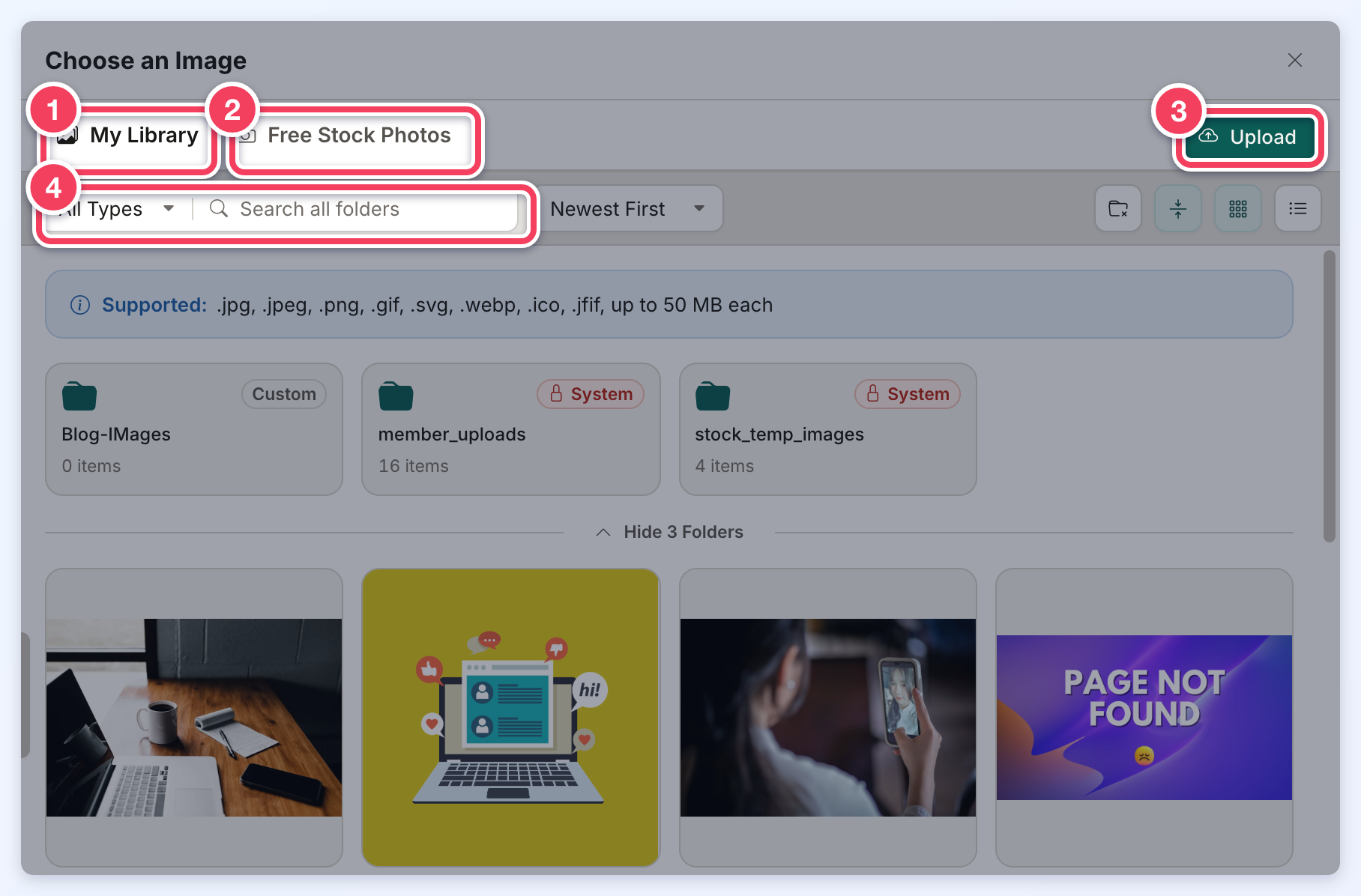
- My Library shows the folders and files in the Media Manager. Click a folder to open it.
- Free Stock Photos searches free photos, GIFs and icons.
- Upload adds a file from the computer to the folder open in My Library.
- All Types narrows the list to one file type, and the search box finds a file by name in every folder.
The Supported line lists the file types the field accepts, so it can differ from one field to another.
Choose an Image From My Library
- Click the field's image button (for example, Replace Image). The image picker opens on My Library.
- Open a folder or search for the file, if needed.
- Click the image. The picker closes and the image fills the field.
- Save the page or settings as usual (for example, Save Changes). The image is not kept until the page is saved.
Upload a New Image
- In the image picker, open the folder the image should be stored in.
- Click Upload and select the file, or drag the file onto the picker.
- When the upload finishes, the new file is marked as just uploaded. Click it to use it.
The uploaded file is also saved in the Media Manager, so it can be used again later.
Use a Free Stock Photo
- In the image picker, click Free Stock Photos.
- Choose the library (Pexels, Pixabay, Giphy, Unsplash or Icon Library), the size and the shape, type a keyword and click Search.
- Hover over a result and click Use This Image (or Use This Icon in the Icon Library).
The photo is saved to the folder that was open in My Library (My Library itself when no folder was opened) and fills the field.
More about the stock libraries, including icon colors: Using Stock Images.
Additional Information
