
Settings » Advanced Settings » Members
Link: https://support.brilliantdirectories.com/support/solutions/articles/12000110340
These settings are on the Members tab of Settings » Advanced Settings. How to find a setting, read its details, change it and save is explained in Settings » Advanced Settings.
This section details various display, permission, security, and notification settings that help customize how member profiles function, how users interact with the platform, and how data is handled. These settings include:
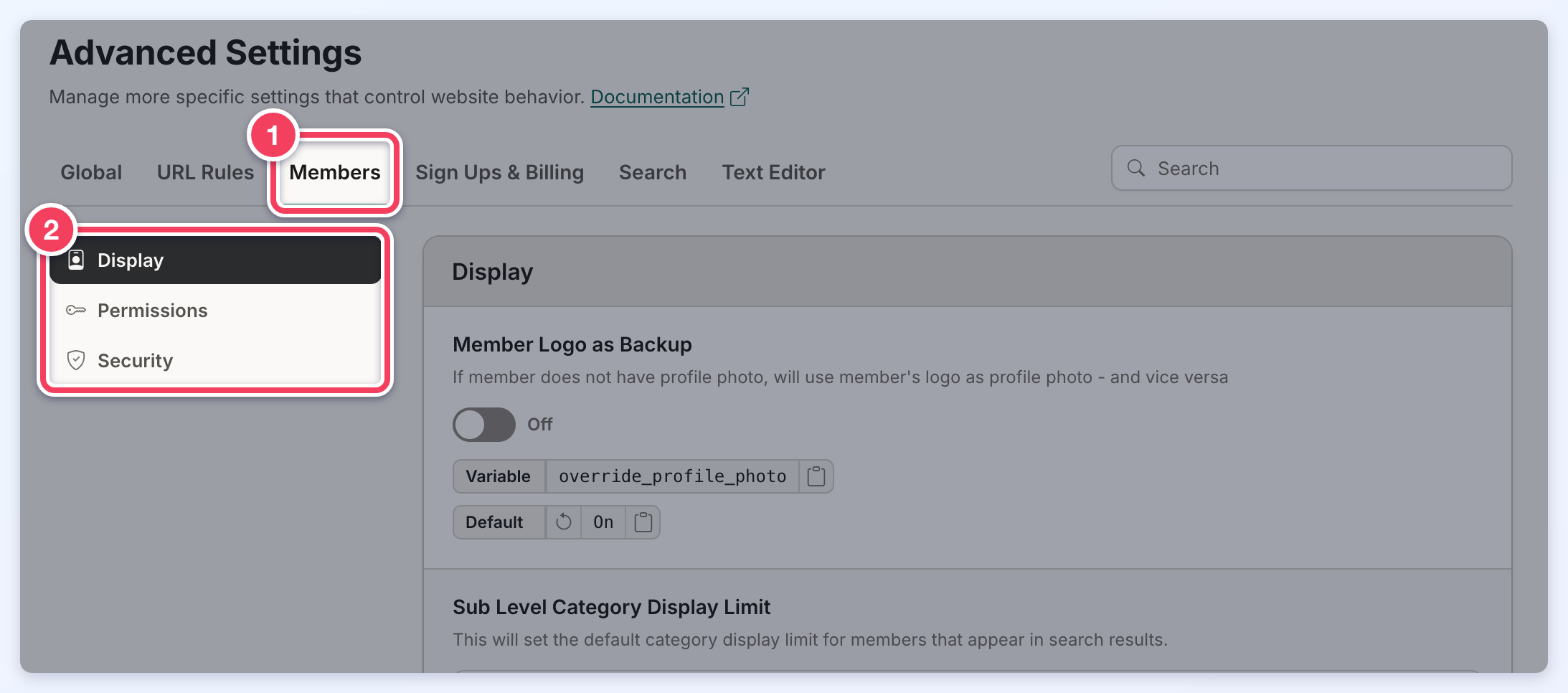
Display
This section includes settings that control the display and behavior of member profile images and category visibility.
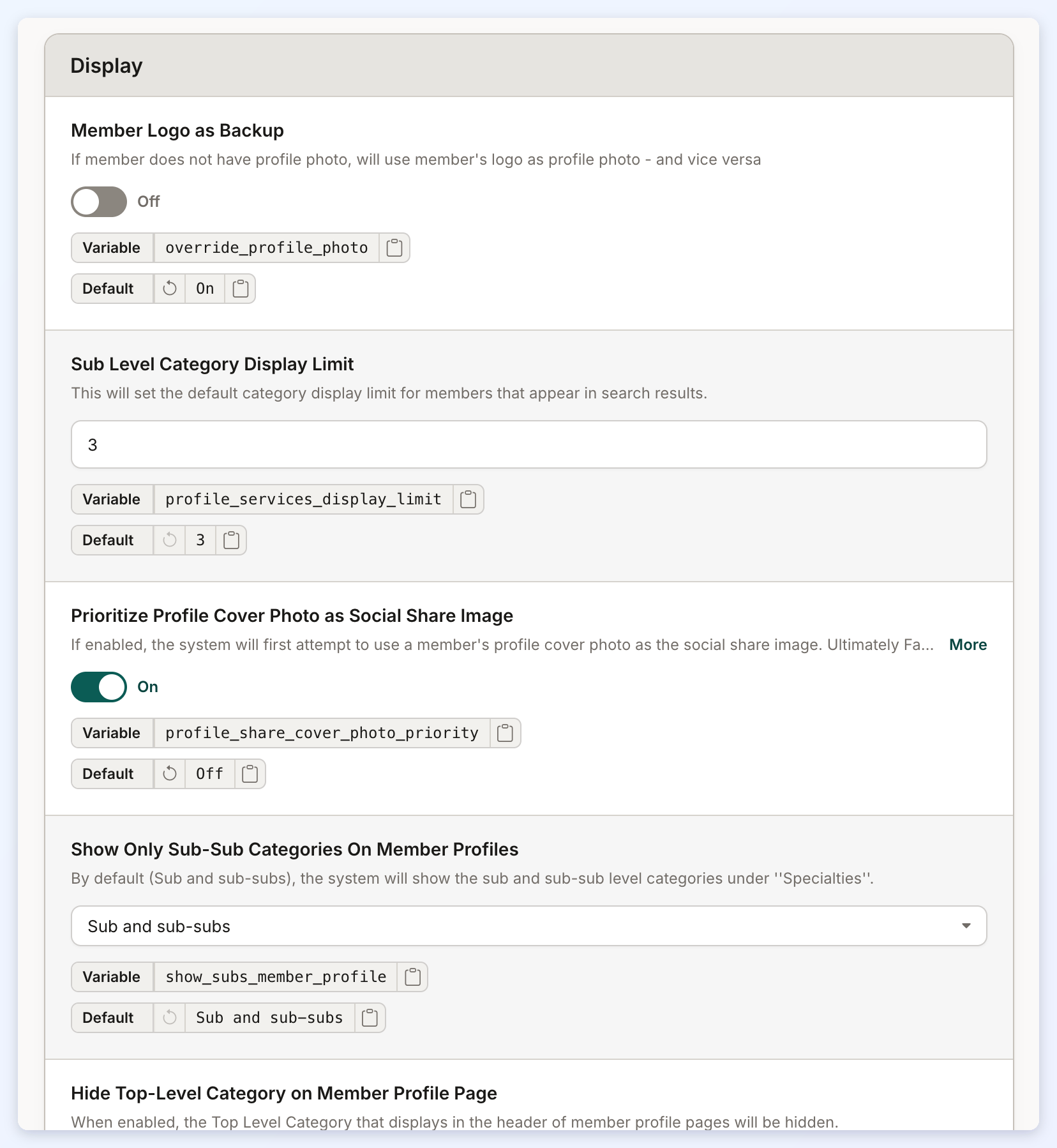
Member Logo as Backup
If the member does not have a profile photo, will use the member's logo as profile photo - and vice versa.
Sub Level Category Display Limit
Sets the default number of categories displayed for members in search results.
Prioritize Profile Cover Photo as Social Share Image
The system will first attempt to use a member's profile cover photo as the social share image.
Show Only Sub-Sub Categories On Member Profiles
The system will show the sub and sub-sub level categories under ''Specialties''.
Hide Top-Level Category on Member Profile Page
The Top Level Category that displays in the header of member profile pages will be hidden.
Skip Image Size Warning for Profile Photos and Logos
Set to ON (default) to not warn members when they upload a profile photo or logo that will have to be stretched in order to work when shared on social media websites. Set to OFF to warn members when uploading a small image that will have to be stretched.
Permissions
This section covers various member management and listing features designed to enhance control, security, and user interaction.
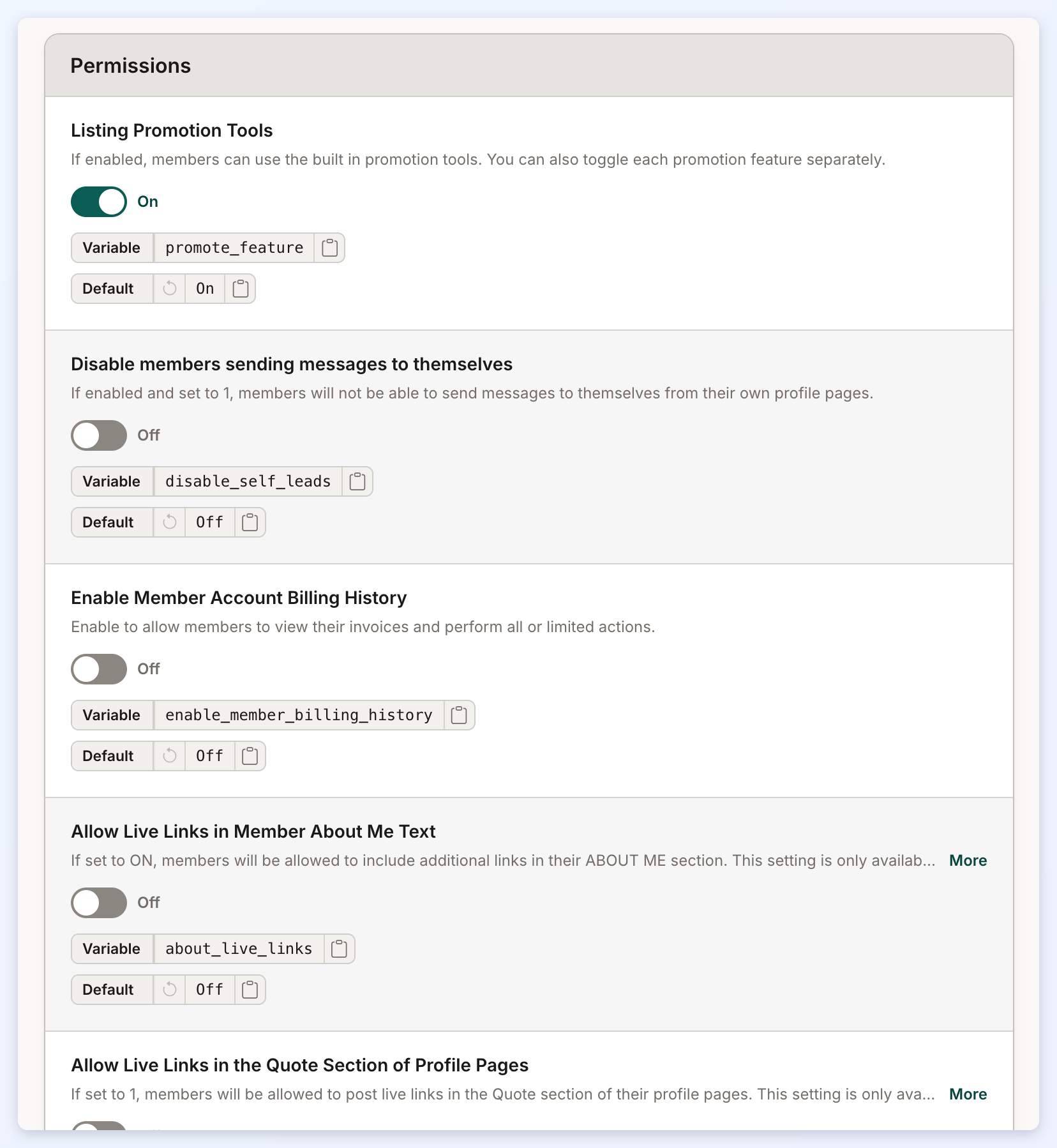
Listing Promotion Tools
If enabled, members can use the built in promotion tools.
Disable members sending messages to themselves
If enabled and set to 1, members will not be able to send messages to themselves from their own profile pages.
Enable Member Account Billing History
Enable to allow members to view their invoices and perform all or limited actions.
Allow Live Links in Member About Me Text
Members will be allowed to include additional links in their ABOUT ME section. This setting is only available for the Bootstrap Version of the software using the default "Bootstrap Theme - Member Profile - Overview Tab" widget.
Allow Live Links in the Quote Section of Profile Pages
Members will be allowed to post live links in the Quote section of their profile pages. This setting is only available for the Bootstrap Version of the software using the default 'Bootstrap Theme - Member Profile - Overview Tab' widget.
Strip HTML tags from Listing Details Form
If the setting is "ON", it will remove any HTML tag for the input fields in the Listing Details Form.
Prevent Reviews For Own Profile
Prevent members from submitting reviews to their own profile page.
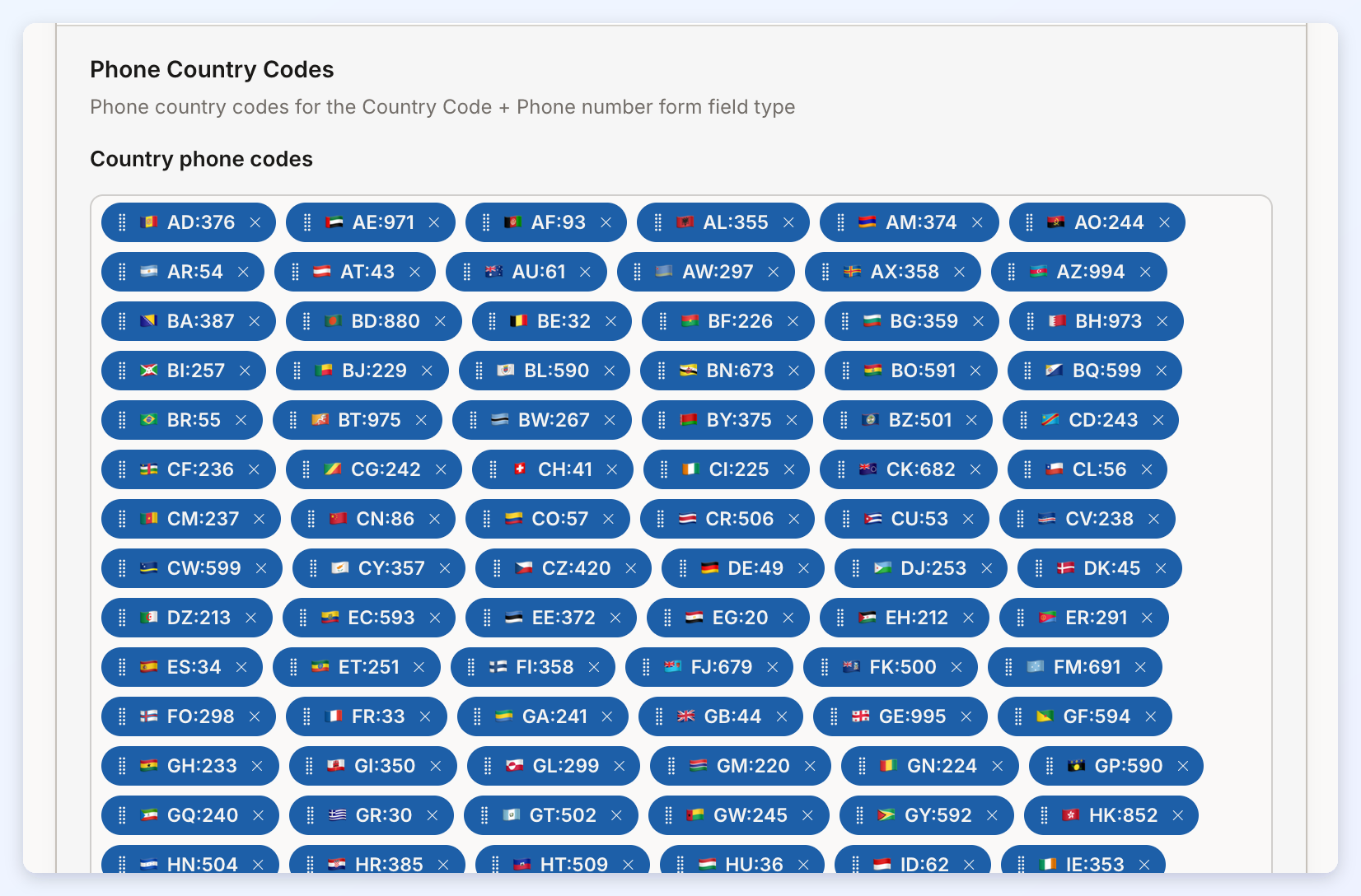
Phone Country Codes
Phone country codes for the Country Code + Phone number form field type.
Match Sub Account Status to Parent Account
The status of Sub Accounts (Active, On Hold, Past Due, etc) will automatically update to match that of their parent account.
Security
This section addresses key security and privacy settings related to member consent, login behavior, and session management.
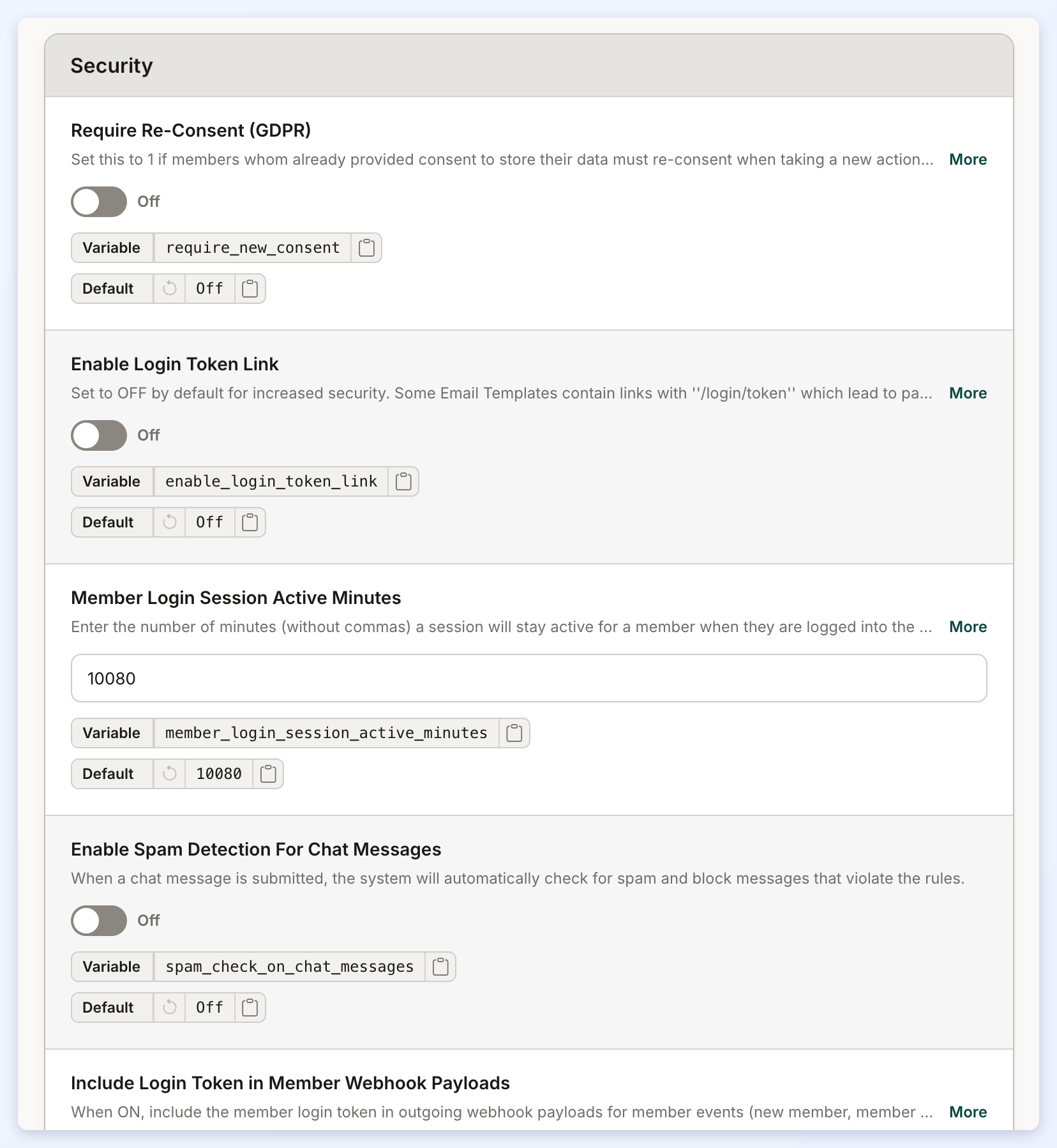
Require Re-Consent (GDPR)
Set this to 1 if members who have already provided consent to store their data must re-consent when taking a new action (upgrading or updating credit card info). Set to 0 (default) if members who have already provided consent should not be shown the consent checkboxes again.
Enable Login Token Link
When set to OFF, these links will require members to log in to their account before they can view the linked page. When set to ON, members will be automatically logged in to their account when clicking on these links.
Member Login Session Active Minutes
Enter the number of minutes (without commas) a session will stay active for a member when they are logged into the website.
Enable Spam Detection For Chat Messages
When a chat message is submitted, the system will automatically check for spam and block messages that violate the rules.
Include Login Token in Member Webhook Payloads
When enabled, this setting includes the member login token in outgoing webhook payloads for member-related events, including new member registrations, member additions, updates, deletions, and member self-service form submissions. This setting is disabled by default for security purposes. The account password hash and cookies are never included in webhook payloads, even when this setting is enabled.
