
Predictive Keyword Search
Link: https://support.brilliantdirectories.com/support/solutions/articles/5000657865
Search functionality is a key element of any directory website. It is how visitors find the information they need.
The Predictive Keyword Search add-on helps visitors find information even faster. As a visitor types into a keyword search field, the website instantly shows suggested results: members, categories and posts that match what has been typed so far. Each search field gets its suggestions from an autosuggest rule, and the rules are managed on the Autosuggest Settings page.
How To Get This Add-On
- Websites with the VIP Add-Ons Club automatically have this add-on available: Join The VIP Add-Ons Club
- Purchase Individually: Predictive Keyword Search Add-On
Opening the Autosuggest Settings
- In the admin menu, click Developer Hub.
- On the Autosuggest Settings card, click Manage Autosuggest.
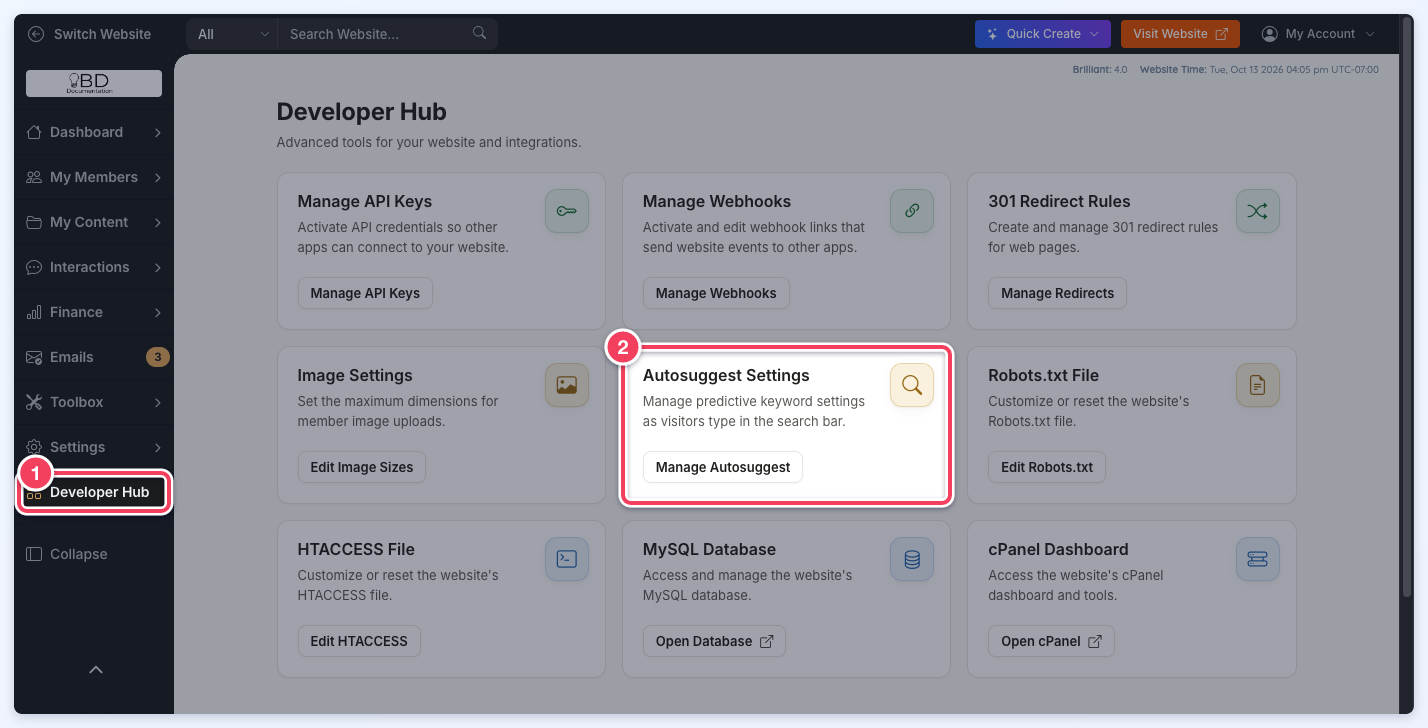
The Autosuggest Rules Table
The page lists every autosuggest rule on the website. A website starts with a default rule for each of its main search fields, such as member_search for member searches and coupons_search for coupon searches.
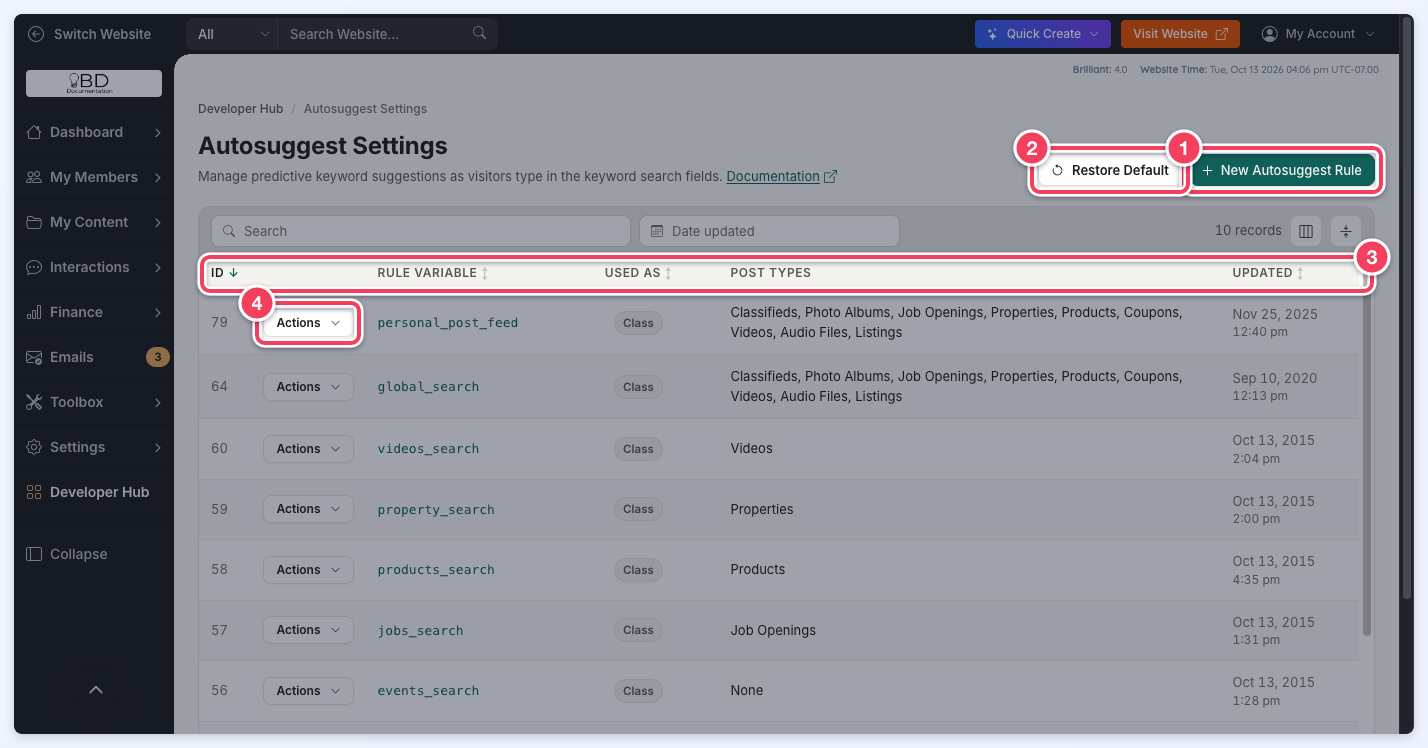
- New Autosuggest Rule: Opens a panel to create a new rule.
- Restore Default: Resets all rules to the defaults (see Restoring the Default Rules below).
- Table columns: ID, Rule variable (hover over a rule variable to show a button that copies it), Used as (Class or ID), Post types (the post types the rule suggests) and Updated (when the rule was last saved, in the website's time zone). The Search box and the Date updated filter above the table narrow the list.
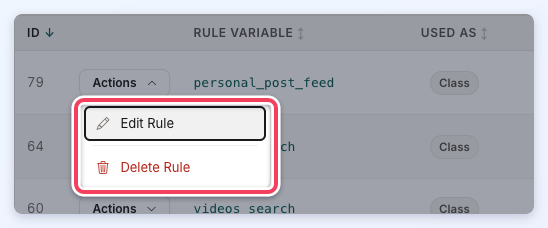
- Actions: Each row's menu has Edit Rule and Delete Rule. Clicking a rule variable also opens the rule for editing.
The global_search rule only appears in the table when the Global Website Search add-on is active.
Creating a Rule
- Click New Autosuggest Rule.
- Enter the Rule variable and choose Class or ID.
- Adjust Suggest after and Maximum if needed.
- Under Post Types to Include, switch on each post type the rule should suggest, and open its settings to fine-tune it.
- Click Save.
The rule saves without reloading the page: a confirmation message appears and the table updates. A new rule's panel closes after saving. When editing an existing rule, the panel stays open after saving so more changes can be made; click Close when finished. Ctrl+S (Cmd+S on a Mac) also saves the open panel.
Rule Settings
New and existing rules use the same settings panel. The panel title shows New Autosuggest Rule or Edit Autosuggest Rule # followed by the rule ID.
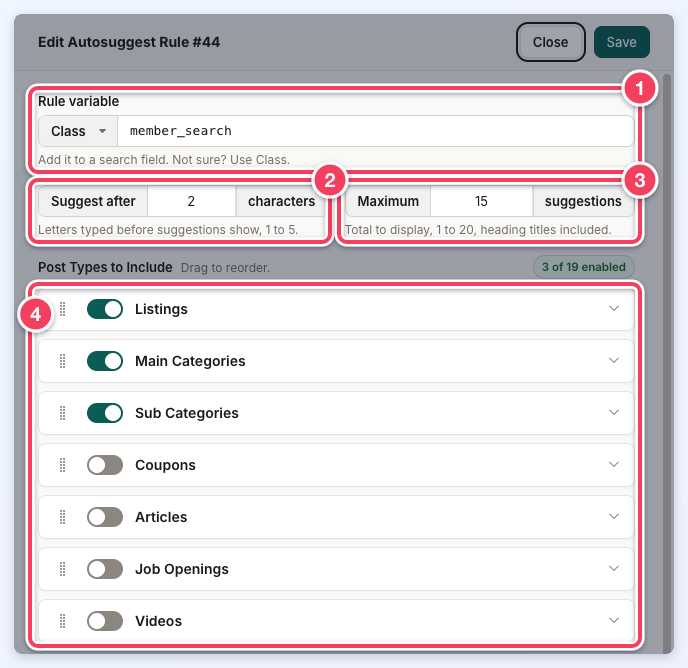
- Rule variable: The name that links the rule to a search field. The search field carries this name as its class or ID, so Class or ID in the drop-down must match how the field uses it. A class can go on many search fields, while an ID can only be used on one field per page, so Class is recommended. The rule variable is required, must start with a letter, can only contain letters, numbers, hyphens (-) and underscores (_), and must be different from every other rule's variable.
- Suggest after: How many letters a visitor types before suggestions show, from 1 to 5. New rules start at 2.
- Maximum: The total number of lines the suggestion list shows, from 1 to 20. Heading titles count toward this total. For example, with a maximum of 10 and one heading title, the list shows the heading and 9 suggestions. Results are filled in the order of the post types below, so a post type further down the list may not appear once the maximum is reached. New rules start at 3.
- Post Types to Include: Switch on each post type the rule should suggest; the counter at the top right shows how many are on. Drag a post type by its handle (the dotted grip on the left) to change the order its suggestions appear in. A new rule lists the post types alphabetically; an existing rule shows its saved order. Click the arrow on the right of a post type to open its settings (see below).
Every number field takes whole numbers only. The panel also has an Advanced section with Suggestion HTML markup, for a custom layout of each suggestion; leave it empty to use the default layout.
Finding a Search Field's Rule Variable
The default rules already match the website's default search fields. For example, the keyword field in the header search carries the class member_search, so the member_search rule controls its suggestions. To check which rule a search field uses, right-click the field on the website, choose Inspect, and read the class or id of the highlighted input. To give a custom search field its own suggestions, create a rule and add its rule variable to the field's class (or ID).
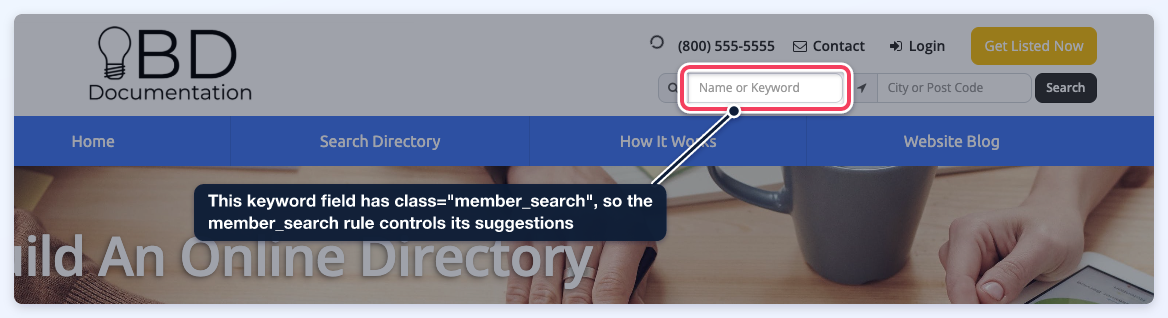
<input type="text" name="q" placeholder="Name or Keyword" class="member_search form-control" autocomplete="off">
Post Type Settings
Each post type in a rule has its own settings, shown when its row is opened:
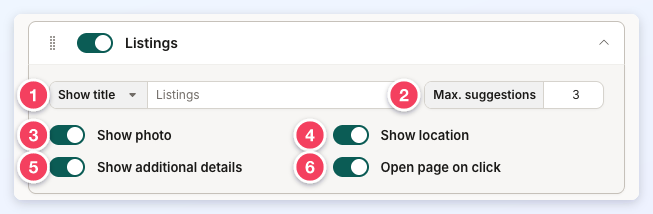
- Show title / Hide title: Shows or hides the heading title above this post type's suggestions. The text box sets the heading title; leave it blank to use the post type's name. Some admins hide the heading and turn on Show additional details instead.
- Max. suggestions: The most suggestions this post type can show, from 1 to 20, as long as the rule's Maximum has not already been reached.
- Show photo: Shows a photo next to each suggestion. Recommended for members and posts.
- Show location: Shows the location of the member or post under its name.
- Show additional details: Adds a line of extra information under each suggestion, such as a member's company name.
- Open page on click: When on, clicking a suggestion takes the visitor straight to that page. When off, clicking a suggestion fills the search field with it, so the visitor can still add a location before searching. Turning this off is recommended for categories and on for everything else.
Deleting a Rule
- Open the rule's Actions menu and click Delete Rule.
- Click Delete Rule again to confirm. Search fields that use the rule stop showing suggestions, and this cannot be undone.
Restoring the Default Rules
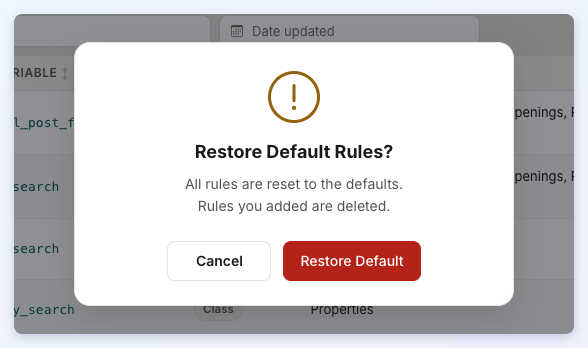
Click Restore Default at the top of the page, then Restore Default again to confirm. All rules are reset to the defaults, and every rule the admin added is deleted.
To learn more about how suggestions behave, read How To Edit Keyword Search Autosuggest Settings For Member Searches.
