
Google Sitemap Generator
Link: https://support.brilliantdirectories.com/support/solutions/articles/5000682659
Overview
The Google Sitemap Generator add-on improves the directory website's SEO by creating XML sitemaps. These sitemaps help search engines like Google and Bing find and index the pages that make up the membership website.
NOTE: Submitting a sitemap to Google Search Console does not ensure that every page gets indexed by Google. This article explains more about this: https://developers.google.com/search/docs/crawling-indexing/sitemaps/overview
Not all pages in a sitemap have value to Google. Learn more about thin pages here: https://developers.google.com/search/docs/advanced/guidelines/thin-content
The sitemap can be rebuilt automatically on a schedule, so search engines always have an up-to-date list of the website's pages.
How To Get This Add-On
- Websites with the VIP Add-Ons Club automatically have this add-on available: Join The VIP Add-Ons Club
- Purchase Individually: Google Sitemap Generator Add-On
Requirements
- The Google Sitemap Generator add-on is active on the website.
- The website has a live domain name connected. While the website still uses its temporary directoryup.com address, Toolbox » Sitemap Generator shows a Connect a Live Domain message instead of the tool.
Create the Sitemap
For most websites, the steps in this section are all that is needed: they create an XML sitemap that can be submitted to search engines so they are aware of all of the pages of the website.
- In the admin area, navigate to Toolbox » Sitemap Generator.
- On a website that has no sitemap yet, the Overview tab shows No Sitemap Yet. Click Generate Sitemap (1). On a website that already has a sitemap, click Rebuild Sitemap at the top right of the page instead.
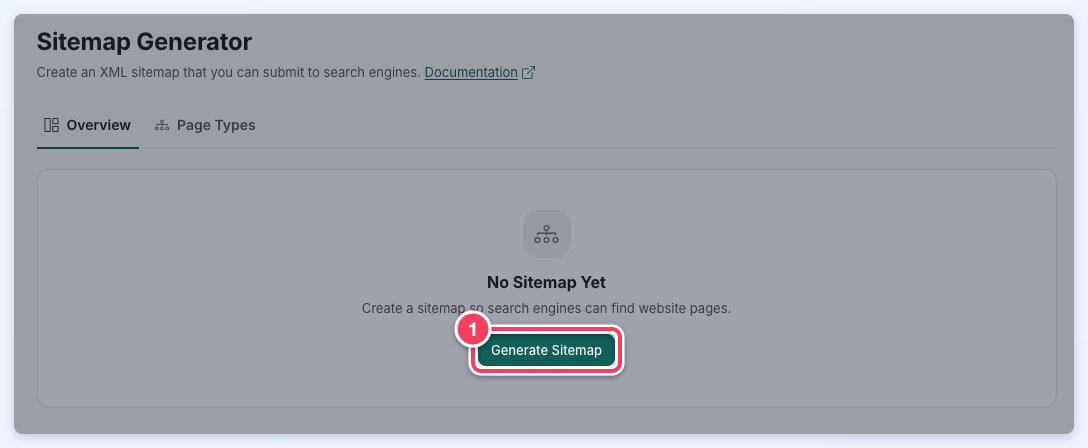
- A confirmation window opens. Click Generate Sitemap (or Rebuild Sitemap) to start. When a sitemap already exists, it stays live until the rebuild finishes.
- The Building Sitemap window shows a progress bar with the name of the page type being built and a count such as Page Type 8 of 41. Depending on the size of the website, this can take from a few seconds to several minutes. Keep the page open until it finishes.
- When the build is done, a Sitemap created. or Sitemap rebuilt. message appears and the page reloads with the new totals.
Stopping a Build, and Builds That Stop on an Error
- Cancel: click Cancel in the Building Sitemap window. The build stops after the page type in progress finishes. A first build that is cancelled creates no sitemap (Build stopped. No sitemap was created.); a cancelled rebuild shows Rebuild stopped. Your sitemap still works.
- Errors: if a page type fails to build (for example, the server takes too long to answer), it is tried up to three times in total. If the third try also fails, the build stops and shows Sitemap Not Finished (or Sitemap Not Created on a first build). Close the message; the page reloads to show which page types were rebuilt. Click Rebuild Sitemap again to finish the sitemap.
The Overview Tab
Once a sitemap exists, the Overview tab shows:
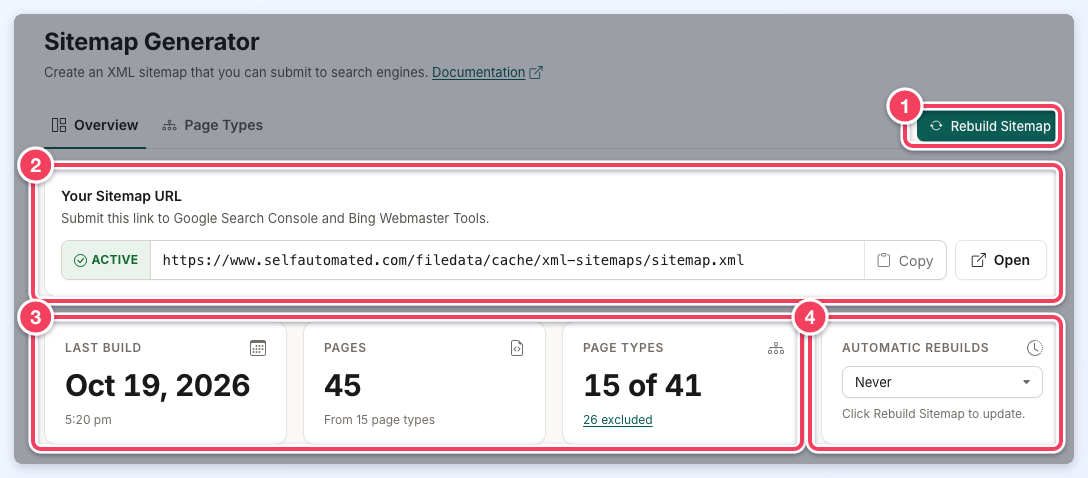
- Rebuild Sitemap: rebuilds every page type, as described in the steps above.
- Your Sitemap URL: the sitemap index file to submit to search engines. The status in front of the link reads Active when search engines can open the sitemap, or Inactive when they cannot (click Rebuild Sitemap to fix it). Click Copy to copy the link, or Open to view the file in a new tab.
- Last Build, Pages and Page Types: when the sitemap was last built, how many pages it lists, and how many page types are included out of the total (EG 15 of 41). Click the excluded link under Page Types to open the Page Types tab filtered to the page types that are left out.
- Automatic Rebuilds: how often the sitemap rebuilds on its own: Never, Every 7 days or Every 30 days. Like Rebuild Sitemap, an automatic rebuild keeps the current sitemap live until it finishes. Choose an option, then click Save in the Unsaved changes bar that appears. The line below the menu then confirms the schedule (EG Sitemap rebuilds every 7 days.).
Submit the Sitemap to Search Engines
Copy the link under Your Sitemap URL and submit it to the search engines:
How the Sitemap Generator Works
The Sitemap Generator creates a separate XML file for each page type of the website (each SEO Template with a variable in its URL, such as member profiles, member search results and post pages), plus one for all of the Static Pages on the website. The static pages file also includes any member category or post category page that has been converted into a static page.
Each sitemap file holds up to 25,000 URLs. A page type with more URLs than that gets more files (Sitemap 1, Sitemap 2, and so on).
Search engines generally expect one sitemap link per website, so the Sitemap Generator also creates a sitemap index file: a single XML file that links to all of the smaller sitemap files. The sitemap index file is the link shown under Your Sitemap URL, and it is the one to submit to search engines. For more information, see this article from Google on the topic.
The Page Types Tab
The Page Types tab lists every page type, grouped into Member Profiles, Member Search Results, Post Search Results, Post Details, Static Pages and Other Pages:
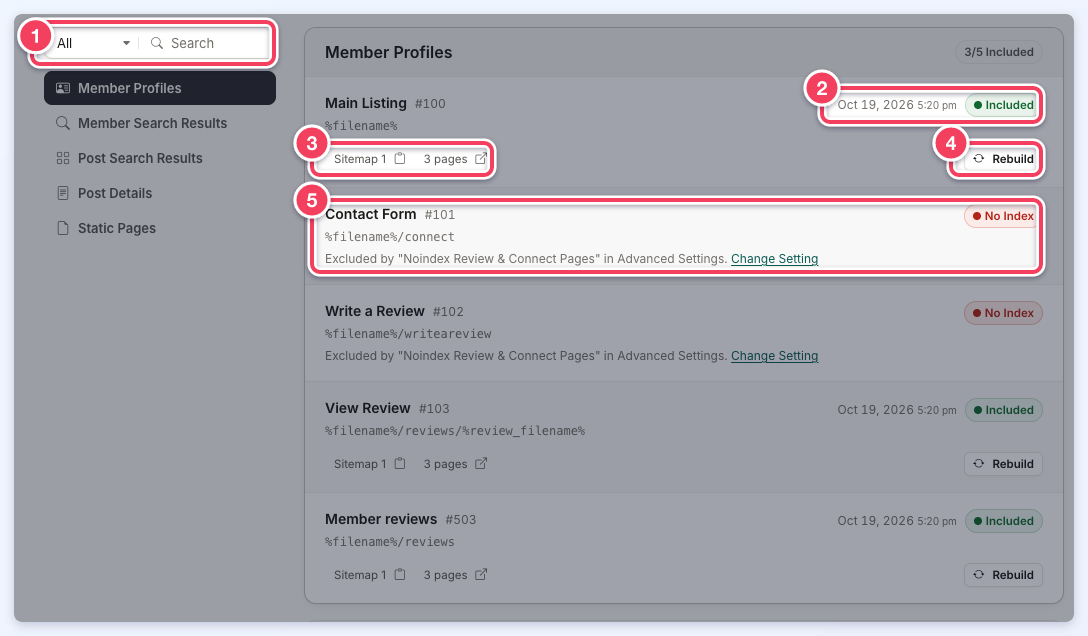
- Filter and search: show All, Included or Excluded page types, or search them by name. The menu on the left jumps to each group.
- Last build and status: when the page type was last built, and its status:
- Included: the page type is in the sitemap.
- Ready to Build: the page type is not in the sitemap yet. Rebuild it to add it.
- No Pages: the page type has no pages to list yet. It joins the sitemap once it has pages.
- No Index and Excluded: the page type is left out of the sitemap on purpose. The line under its name explains why (see the next section).
- Sitemap files: click Sitemap 1 to copy the link of that sitemap file, or click the page count next to it to open the file in a new tab.
- Rebuild: rebuilds that one page type and updates the sitemap index file, without rebuilding the rest of the sitemap. On a website with no sitemap yet, the button reads Build.
- Left-out page types: a page type that is left out shows the reason and a Change Setting (or Edit Page Type) link to the setting that controls it.
When a left-out page type still has files from an earlier build, it shows Still in your live sitemap. Rebuild Sitemap to remove it. Clicking Rebuild Sitemap removes those files from the sitemap. A full rebuild also removes leftover files of page types that no longer exist.
Exclusions to the Sitemap
The sitemap lists pages that search engines can index. These pages are left out. A change to any of the settings below takes effect the next time the sitemap is rebuilt, by Rebuild Sitemap or by Automatic Rebuilds.
Web Pages Set to NoIndex
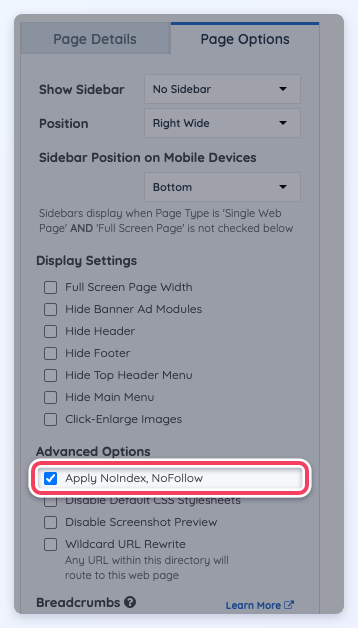
Any web page with Apply NoIndex, NoFollow checked (Page Options tab, Advanced Options) is not included in the sitemap. An SEO Template set to NoIndex, NoFollow is left out as a whole and shows No Index on the Page Types tab.
Member Profiles Hidden From Search
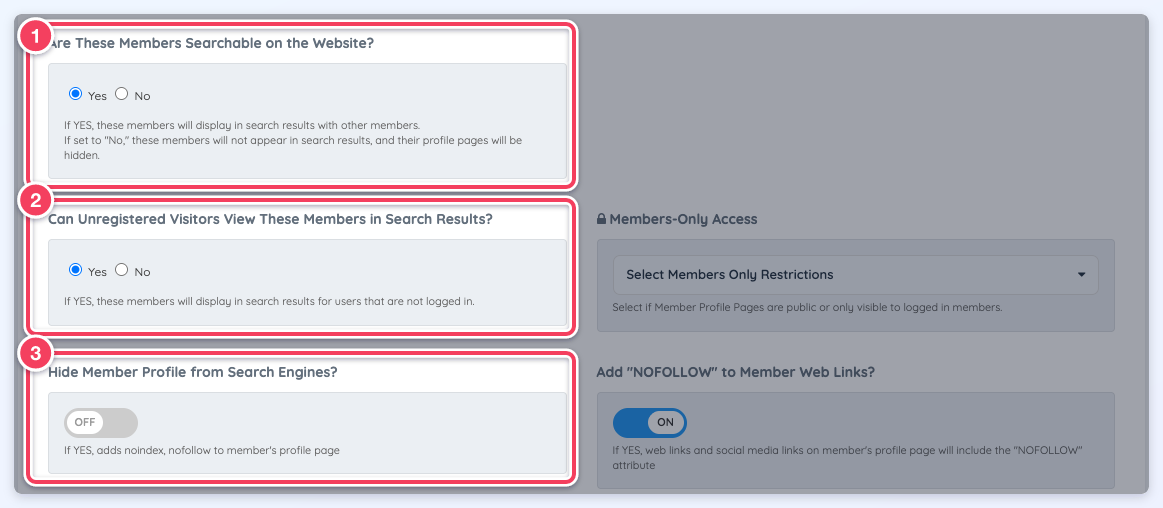
Member profile pages are listed only for active members whose membership plan allows them to be found. A member profile is left out when its membership plan (Finance » Membership Plans, Edit, Search Visibility tab) has:
- Are These Members Searchable on the Website? set to No, or
- Can Unregistered Visitors View These Members in Search Results? set to No, or
- Hide Member Profile from Search Engines? turned on.
Location Pages With No Members
Location pages (city, state and country pages, and the category pages built on them, such as a profession in a city) are listed only when at least one active member on a searchable membership plan is in that location. A location named only by inactive members, or by members on plans that are not searchable, is left out, so search engines are not pointed to empty pages.
Post Type Pages With No Posts Yet
The main page of a photo album, video or single post type is listed only while at least one published post or album of that type exists from an active member whose membership plan includes that post type. The Member Reviews page is listed only while at least one approved review appears in the website's review search. Until then these pages show no results, so they are left out, and they are added on the next build after the first post or review appears.
Review and Connect Pages
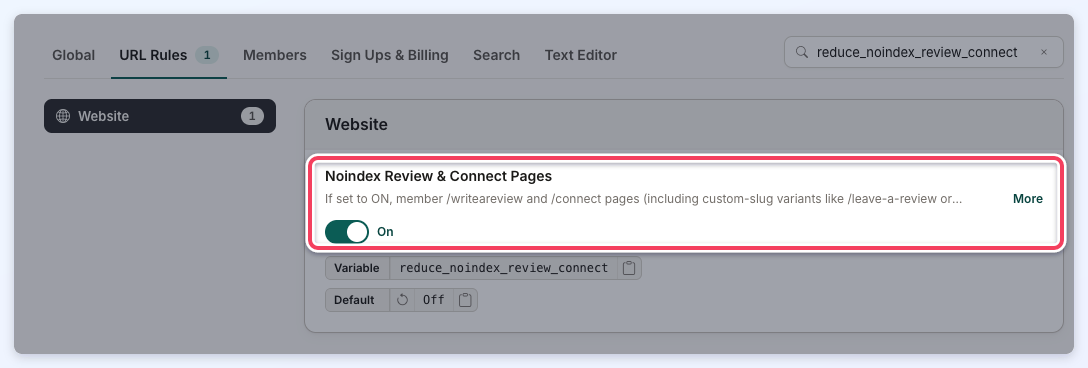
If the Noindex Review & Connect Pages setting is turned on (Settings » Advanced Settings, URL Rules tab), the members' write-a-review pages and connect (contact) pages are left out of the sitemap, including pages that use a custom URL for either one. Those pages already tell search engines not to index them, so leaving them out keeps the sitemap limited to pages that can appear in search results. On the Page Types tab, the Write a Review and Contact Form page types show No Index.
Member Search Pages With a Shorter Canonical URL
Three Advanced Settings (Settings » Advanced Settings, URL Rules tab) point the canonical tag of some member search results pages to a shorter URL. When one of them is turned on, the member search page types it shortens are left out of the sitemap, and the shorter page type they point to stays in:
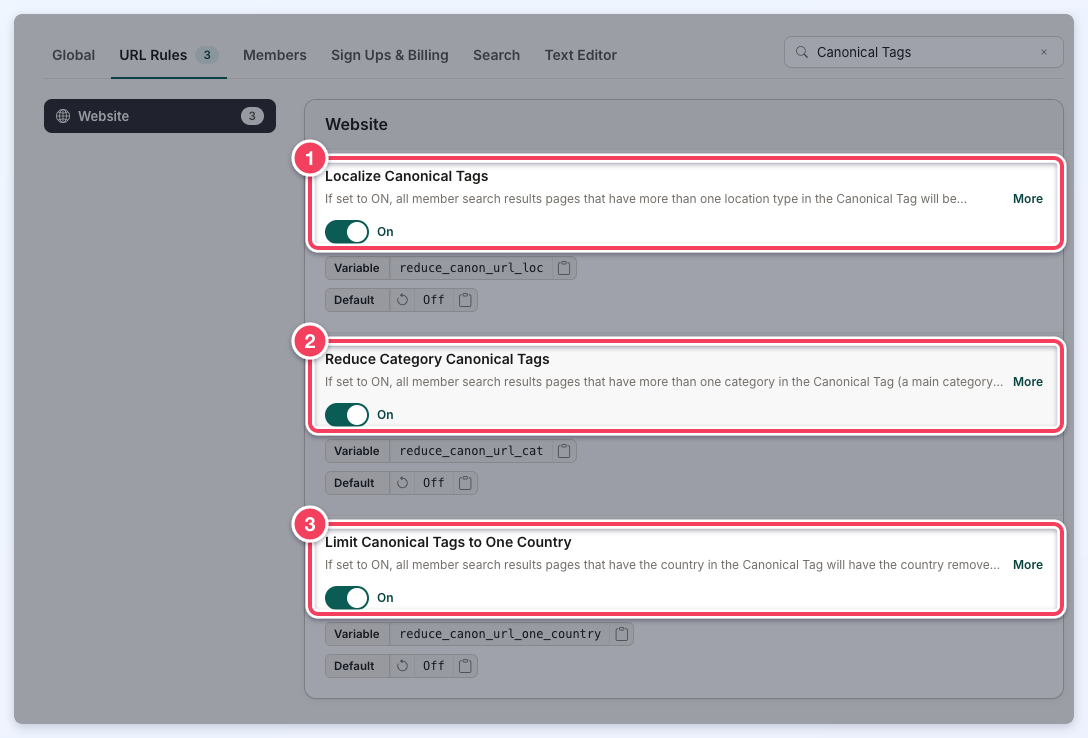
- Localize Canonical Tags: leaves out member search page types with two or more location levels (EG Country / State, State / City, Country / State / City), with or without categories.
- Reduce Category Canonical Tags: leaves out member search page types that have a main category and a sub category together.
- Limit Canonical Tags to One Country: leaves out member search page types that have the country and a category.
On the Page Types tab, these page types show Excluded, name the setting that leaves them out, and link to it with Change Setting. The first rebuild after one of these settings is turned on removes the old sitemap files of the page types it leaves out. Static pages, member profiles, posts and reviews are not affected by these settings.
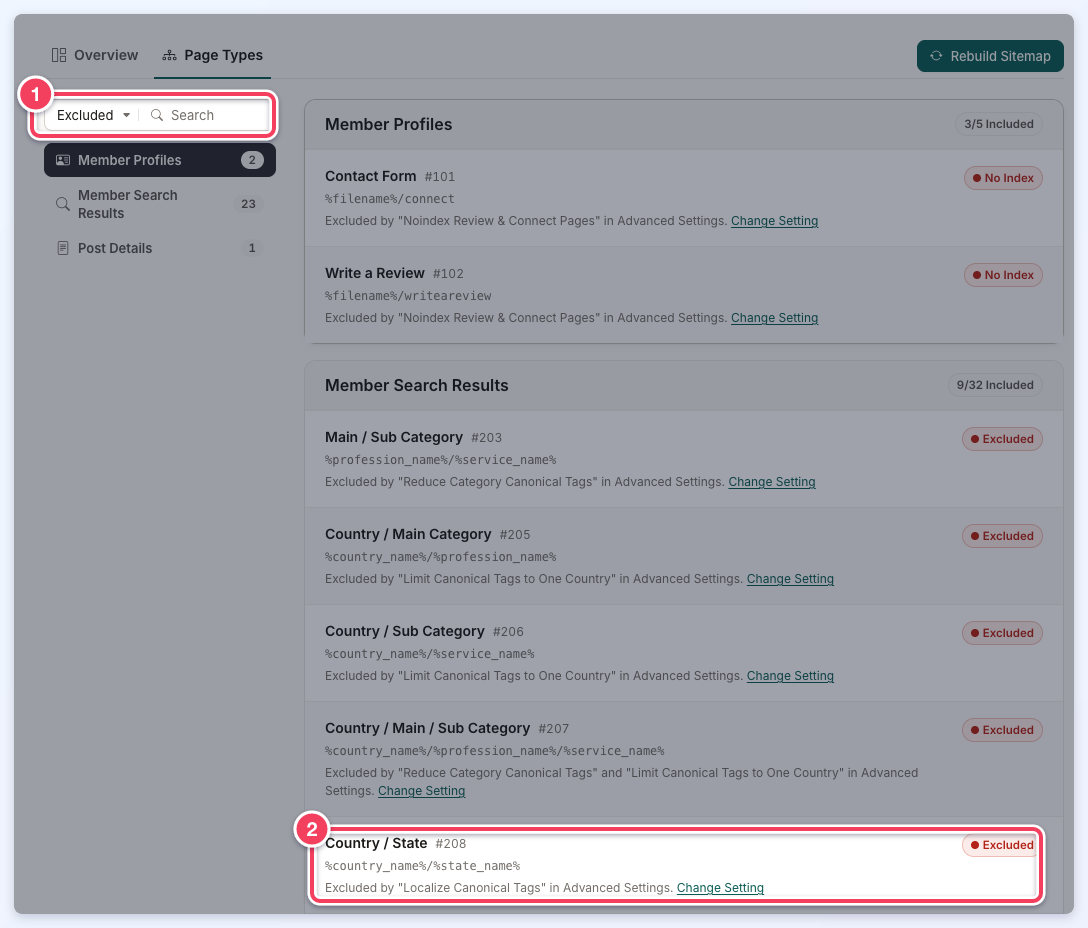
- Choose Excluded to list only the page types that are left out.
- An excluded page type names the setting that leaves it out, with a Change Setting link.
