
How to Create a Text Box to Display Text in a Sidebar
Link: https://support.brilliantdirectories.com/support/solutions/articles/12000033704
This article describes the steps required to add a new custom text box to a sidebar.
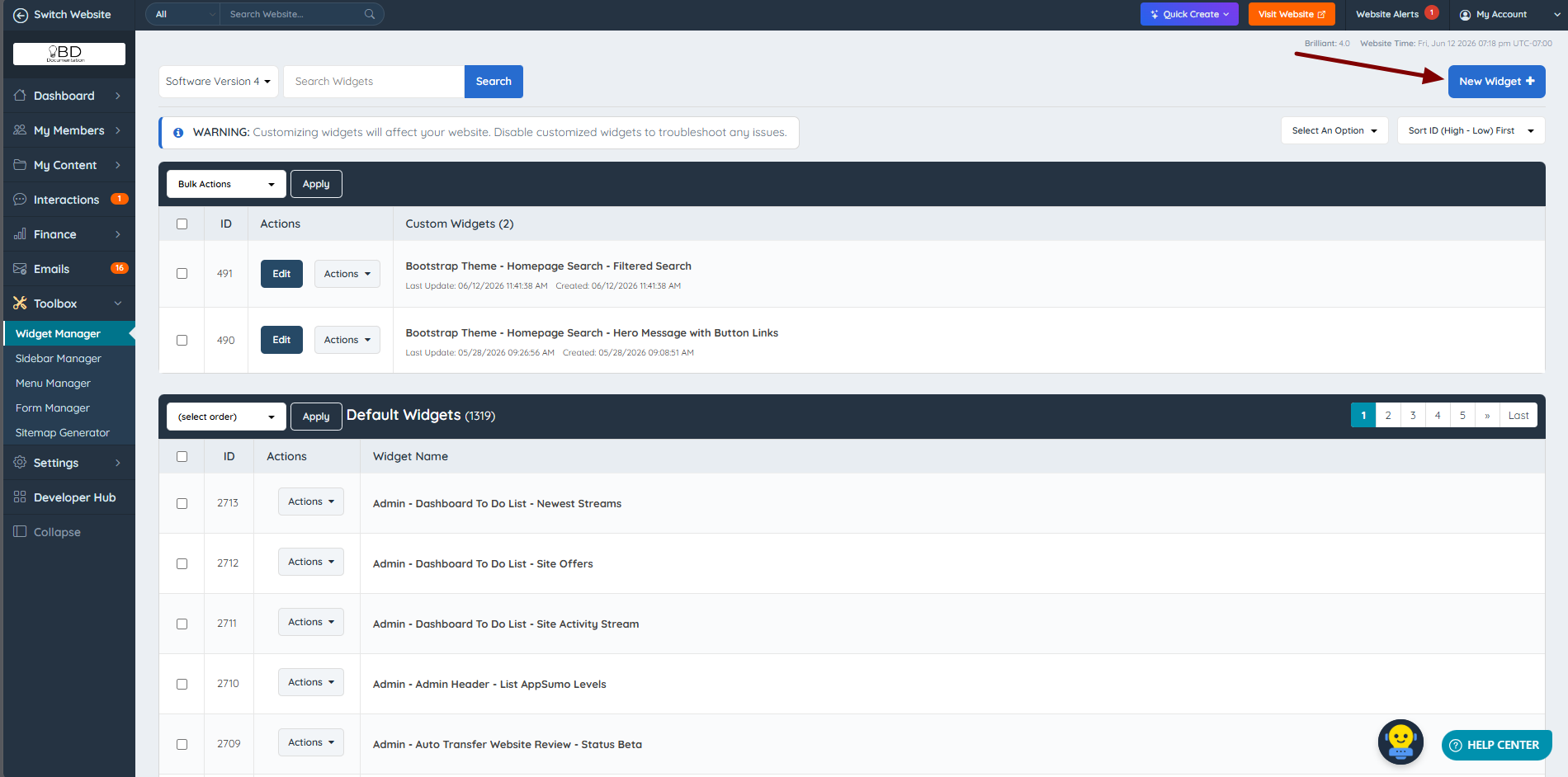
To create the text box, navigate to Toolbox » Widget Manager and click the New Widget button:
Name the widget, add the custom code in the tab corresponding to the code language, and click Save Changes:
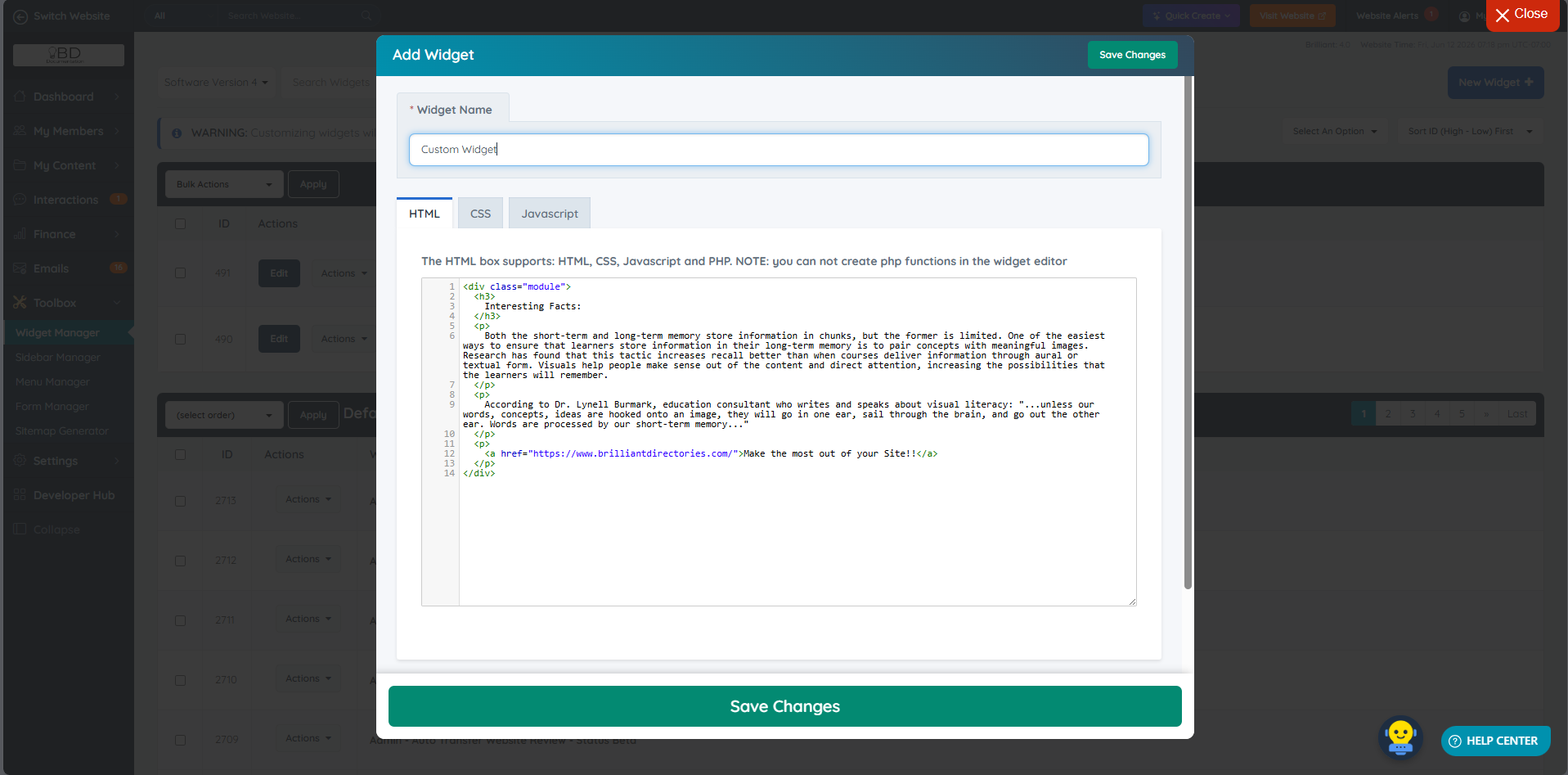
This is a sample HTML code that can be used:
<div class="module">
  <h3>
    Interesting Facts:
  </h3>
  <p>
    Both the short-term and long-term memory store information in chunks, but the former is limited. One of the easiest ways to ensure that learners store information in their long-term memory is to pair concepts with meaningful images. Research has found that this tactic increases recall better than when courses deliver information through aural or textual form. Visuals help people make sense out of the content and direct attention, increasing the possibilities that the learners will remember.
  </p>
  <p>
    According to Dr. Lynell Burmark, education consultant who writes and speaks about visual literacy: "...unless our words, concepts, ideas are hooked onto an image, they will go in one ear, sail through the brain, and go out the other ear. Words are processed by our short-term memory..."
  </p>
  <p>
    <a href="https://www.brilliantdirectories.com/">Make the most out of your Site!!</a>
  </p>
</div>
Once the widget is saved, call it on the preferred sidebar. The end product:

Additional Information:
- Toolbox » Widget Manager
- Toolbox » Sidebar Manager
- How To Setup Sidebars For Post Types
- How To Add A Sidebar To A Static Page
- How To Add A Sidebar To Homepage
