
How to Override and Edit Default CSS stylesheets
Link: https://support.brilliantdirectories.com/support/solutions/articles/5000559709
The Additional CSS field applies custom CSS to every page of the website. It is useful for changing the header, the footer, the page background, or any other area that should look the same on all pages. CSS added here overrides the default CSS of the template.
Adding Custom CSS
- Go to Settings >> Design Settings and open the Custom CSS / HEAD tab (1).
- Add the custom CSS rules to the Additional CSS editor (2).
- Check the status line under the editor (3). It should read CSS looks valid. (see Live CSS Checker below).
- Click Save Changes.
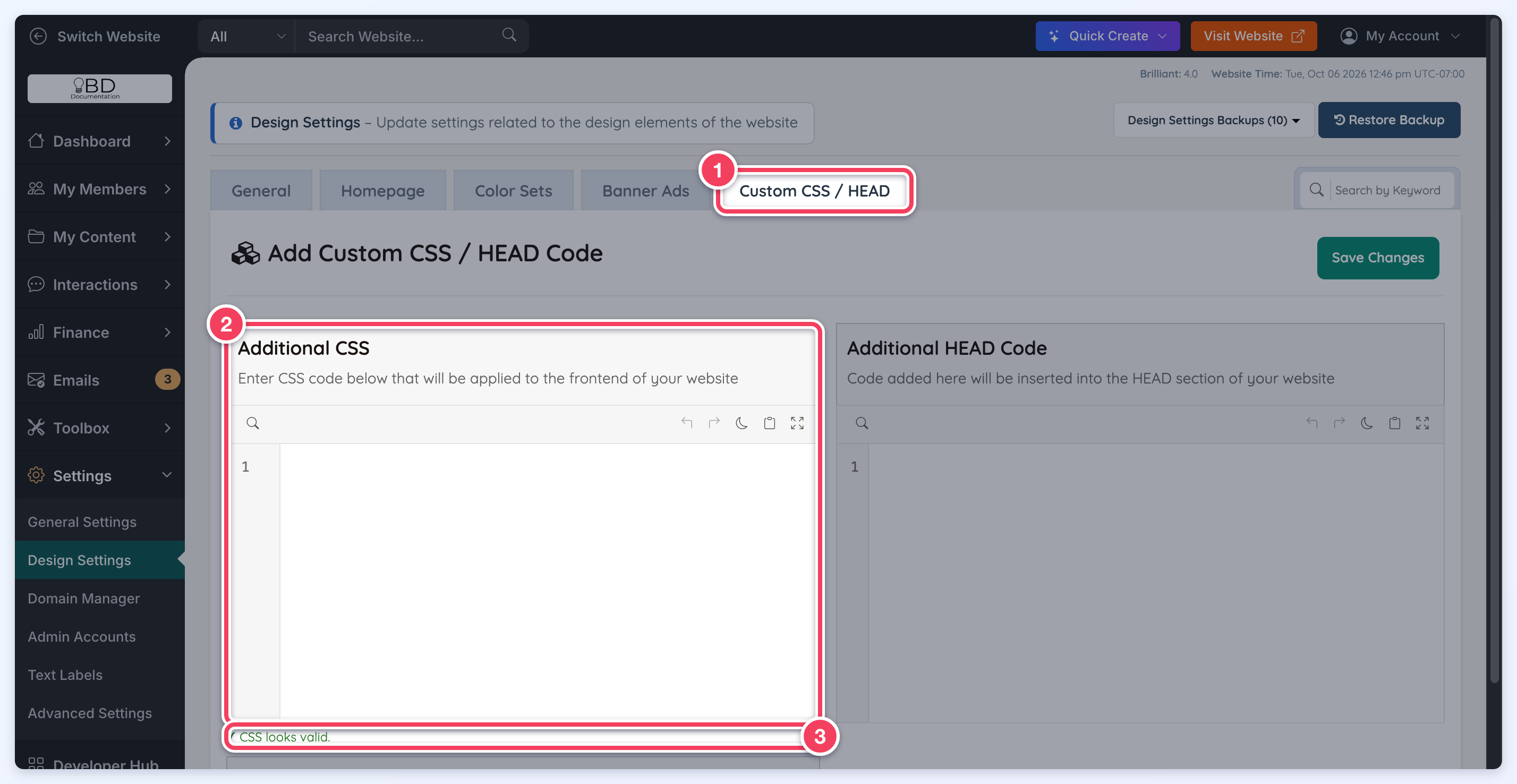
Enter the CSS rules only. The website already places the contents of this field inside a style block.
To go back to the default styles, delete the CSS from this field and save. The styles reset to the template defaults.
NOTE: Be careful when removing CSS from this field, as the custom CSS will be permanently deleted and cannot be retrieved.
Live CSS Checker
The Additional CSS editor checks the CSS while it is typed. A single missing closing brace (}) can break the layout of every page, because the custom CSS is placed in the same style block as the page’s other CSS, so the checker catches these mistakes before they are saved.
The checker reports in two places:
- The status line under the editor. It shows ✓ CSS looks valid. in green when nothing is wrong, or a count of the problems found with the line number and description of the first one.
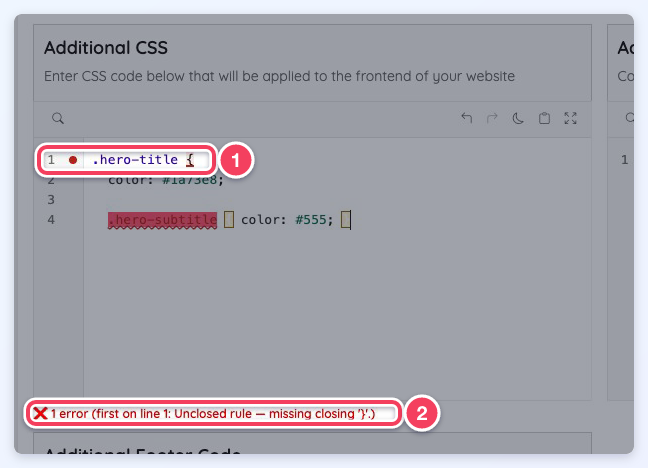
- A marker in the editor margin next to the line with the problem: red for an error, amber for a warning.
The clip below types a rule with a missing closing brace, shows the red error appear, then adds the brace so the status line returns to CSS looks valid.
Errors (Saving Is Blocked)
Errors are problems that break the CSS that follows them. They are marked in red (1) and the status line turns red (2), for example 1 error (first on line 1: Unclosed rule — missing closing '}'.). The checker reports these errors:
- Unclosed rule — missing closing '}'. A rule or
@mediablock was opened with{and never closed. - Unexpected '}' with no matching '{'. There is an extra closing brace.
- Unclosed comment — missing closing comment delimiter. A comment was started with
/*and never ended with*/.
While the Additional CSS has an error, clicking Save Changes does not save. A popup titled Additional CSS has syntax errors (1) names the line to fix, and the Custom CSS / HEAD tab opens so the error is in view. Fix the line, confirm the status line no longer shows an error, then save again.
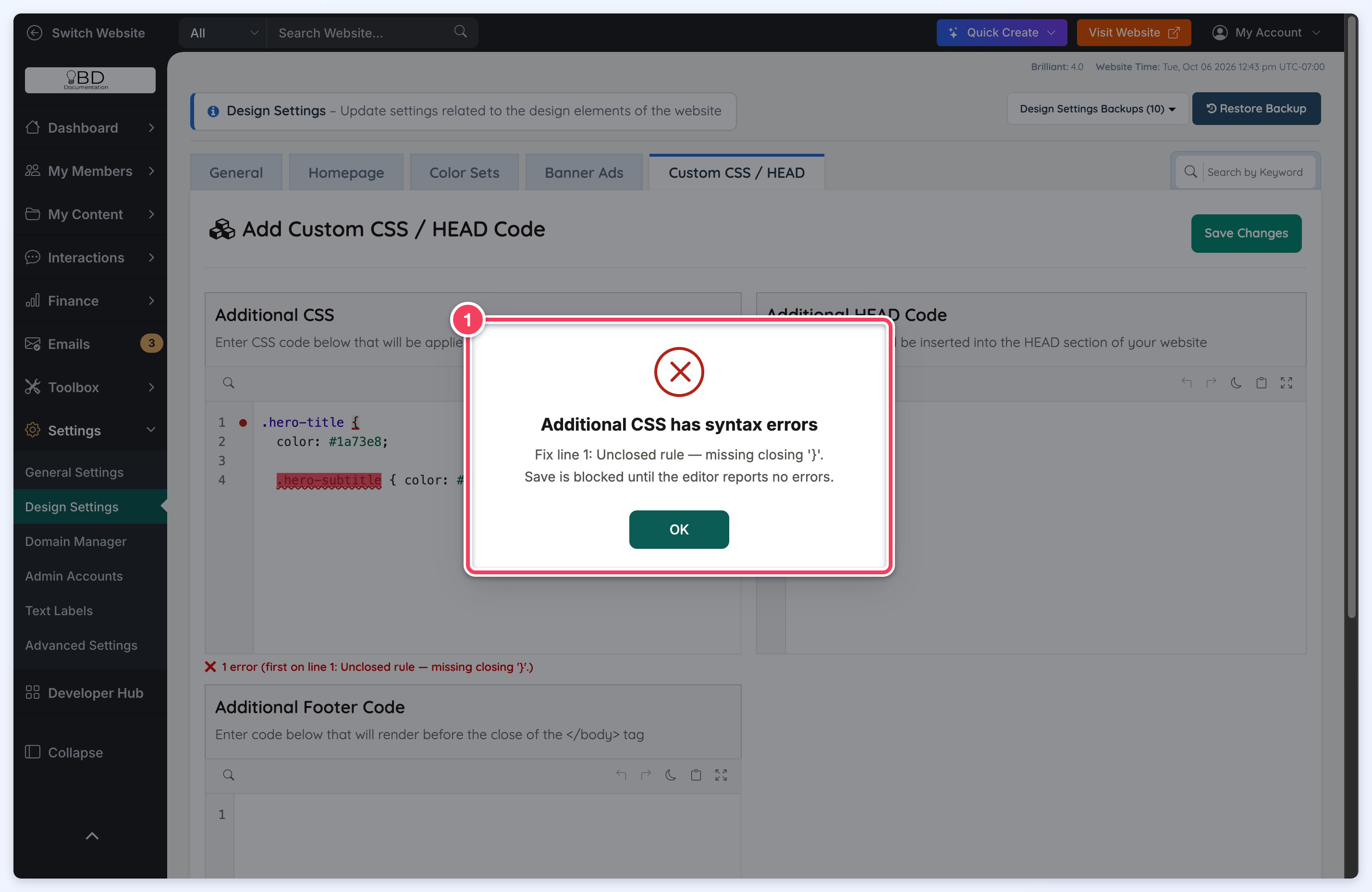
The Save Changes button saves every Design Settings tab together, so an error in Additional CSS also stops changes on the other tabs from saving until it is fixed.
Warnings (Saving Still Allowed)
Warnings point at CSS that the browser will skip, but they never stop a save. They are marked in amber (1), and the status line ends with saves still allowed (2). The checker warns about:
- Declaration outside a rule, such as
color: red;typed outside any{ }. The browser drops it and the rule after it. - Invalid value for a property, such as
display: blok;, or an Unknown property. The browser ignores that line. - Unclosed '(' or '[', such as an unfinished
calc(orurl(. The browser ignores the CSS after it.
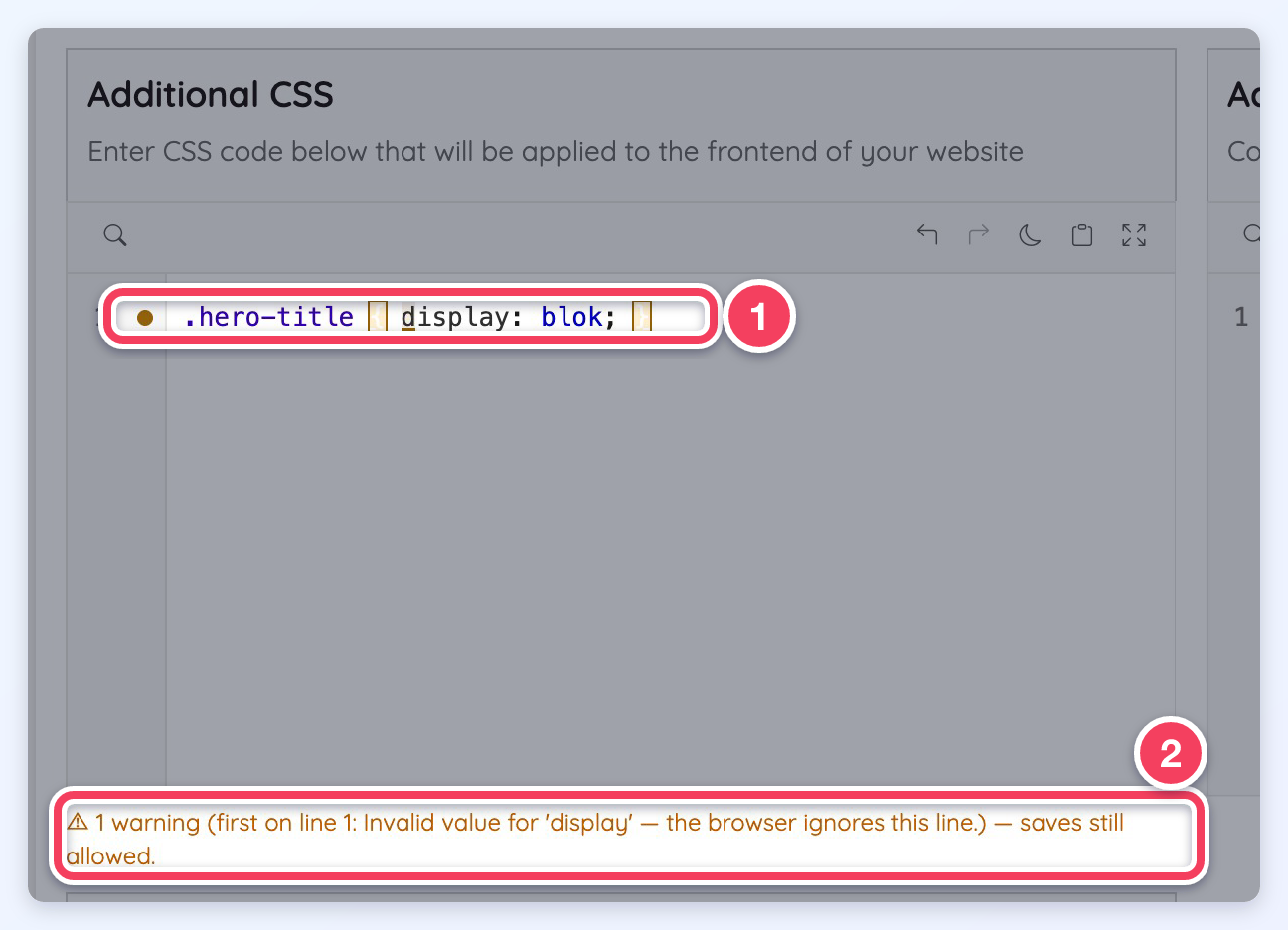
Warnings are worth fixing because the browser skips that CSS, but vendor prefixes (such as -webkit-), CSS custom properties (--my-color) and other valid modern CSS do not trigger them.
Bracket Matching
Placing the cursor next to a brace highlights the matching brace, which makes it easier to see which rule a closing brace belongs to. A brace with no partner is marked instead.
What the Checker Covers
- Only the Additional CSS field is checked. Additional HEAD Code and Additional Footer Code are not checked and save as entered.
- The checker runs in the admin editor. CSS that is already broken when the page loads is flagged as soon as the tab opens.
