
How to Post an Event
Link: https://support.brilliantdirectories.com/support/solutions/articles/12000002335
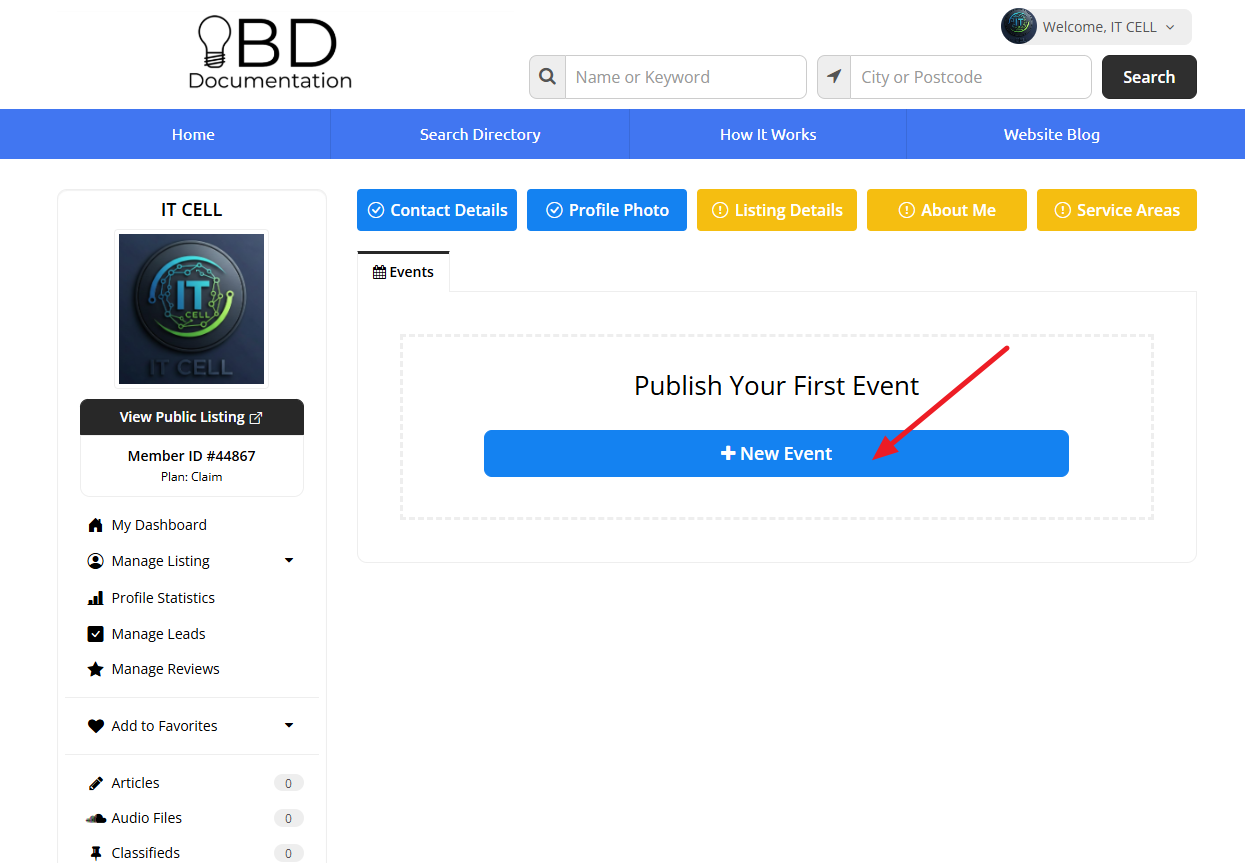
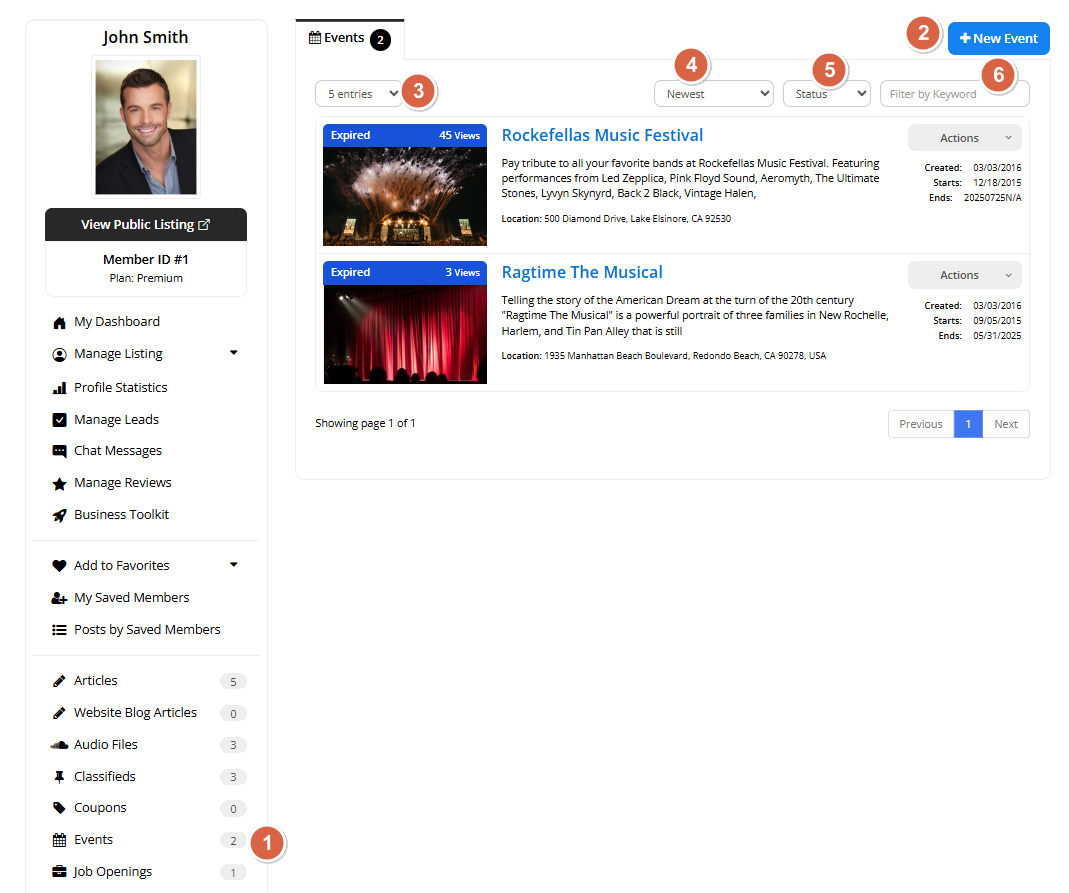
To post an Event, access the Member Dashboard. On the left sidebar, locate the Events post type and click on it to add a new post.
Important
If the Events option is not included in the Member Dashboard, the post needs to be enabled for the membership plan in the Post Publishing tab: Finance » Membership Plans - Post Publishing
Calendar Features Overview
This article includes two different calendar-related features available for Events:
- Add to Calendar button: Automatically appears on the Event Detail Page and allows visitors to save the event to Google Calendar, Apple Calendar, and Outlook Calendar.
- Add to Calendar Widget: A manually installed sidebar widget that can be added from Sidebar Manager to display the event calendar button in the sidebar area of the Event Detail Page.
If searching for instructions related to the sidebar calendar widget, calendar sidebar button, or event calendar button widget, see the section: Adding the "Add to Calendar Widget" to Sidebar.
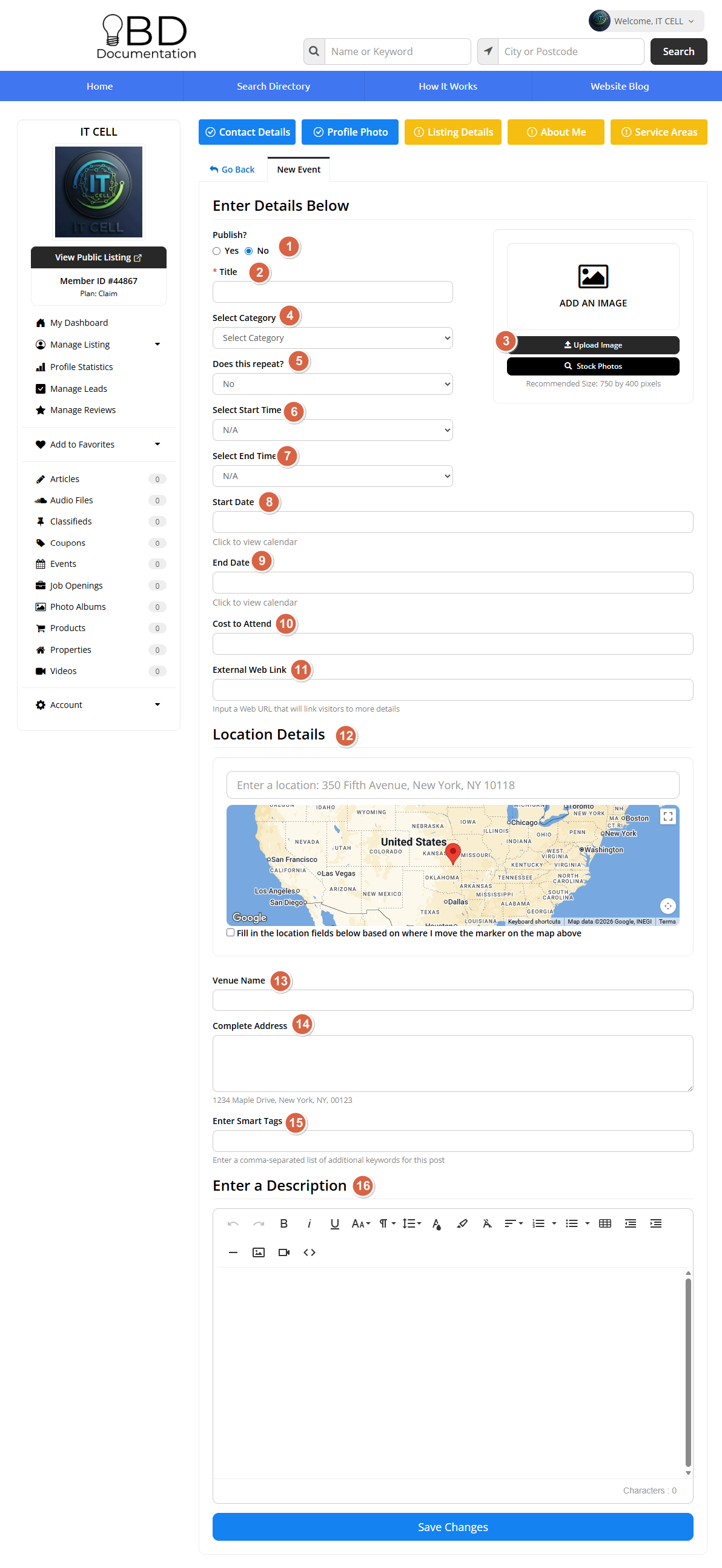
Add content to the post, for example: title, description, image, and other relevant details as explained below:
- Publish the content on the site or save it as a draft.
- Add the Event title.
- Add an image to the Event. Stock photos can be added using the Stock Photo Library for Post.
- Select the applicable Event category.
- Auto-Recurring Events Add-On required.
- Select "Start Time" from the time dropdown.
- Select "End Time" from the time dropdown.
- Select "Start Date" from the calendar.
- Select "End Date" from the calendar.
- Add the cost to attend the Event.
- Add an external link if necessary.
- Add the Event address.
- Add the Venue name.
- The complete address will auto-populate after entering the address in step 12.
- Enter applicable keywords separated by commas.
- Enter the Event description.
Event Post Status & Actions
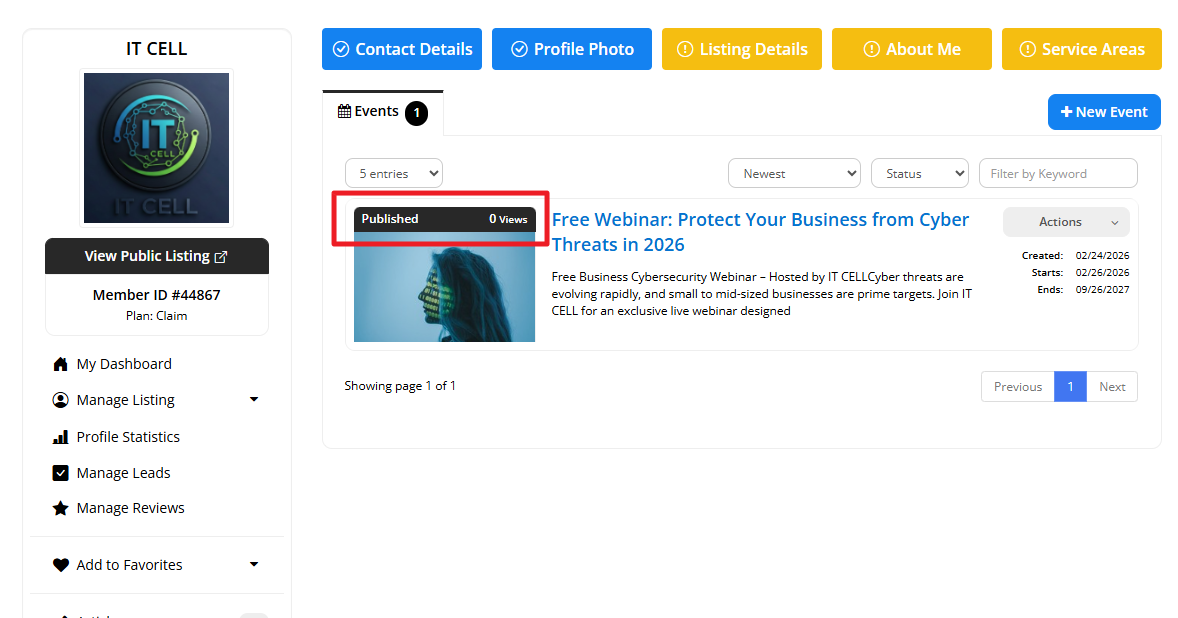
Once the Event Post has been created, the current status will display (Published, Draft, Expired). The number of views and bookmarks will only appear if the corresponding add-ons are active on the site. Click here to learn more.
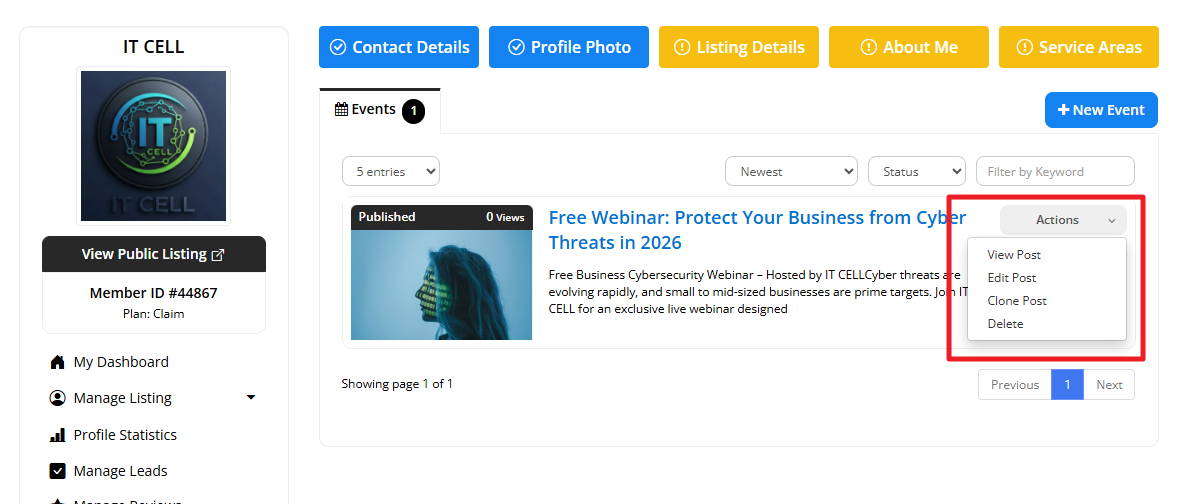
Click on the Actions button to view, edit, clone, or delete the post:
Member Dashboard Options
Different options are available in this section:
- Events: Displays all events and the total number of events in the account.
- Add a New Event: Adds a new event. This option will not display if the post limit has been reached.
- Entries per page: Select how many entries display per page (5, 10, 25, or 50).
- Order of Posts: Newest, Oldest, Updated (first), Updated (last), Start Date (first), Start Date (last).
- Filter by Status: Published, Draft, or Expired.
- Filter by Keyword: Enter a keyword to display event posts containing it.
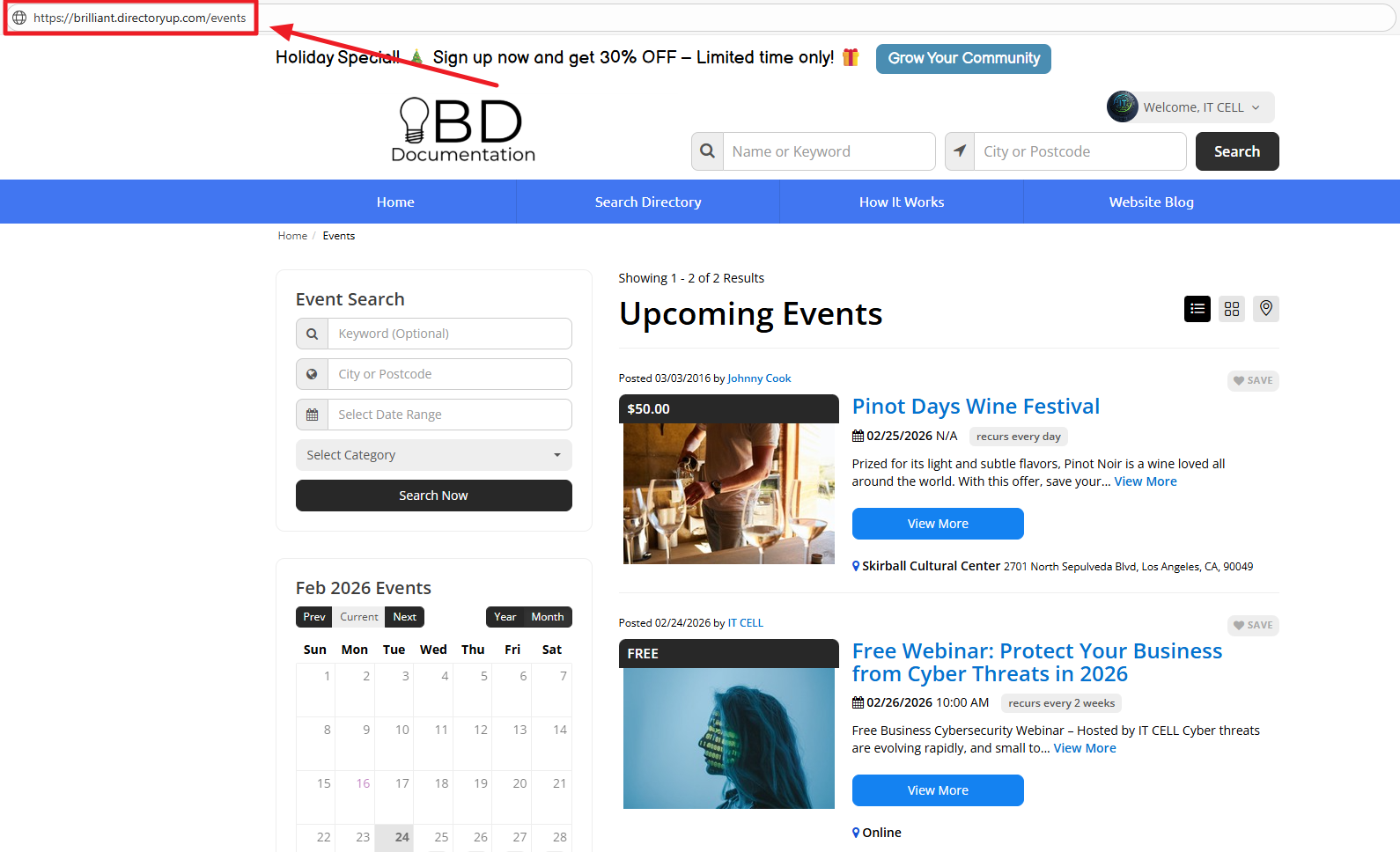
All Post Types have a designated search results page:
Example: https://www.demobootstrap.com/events
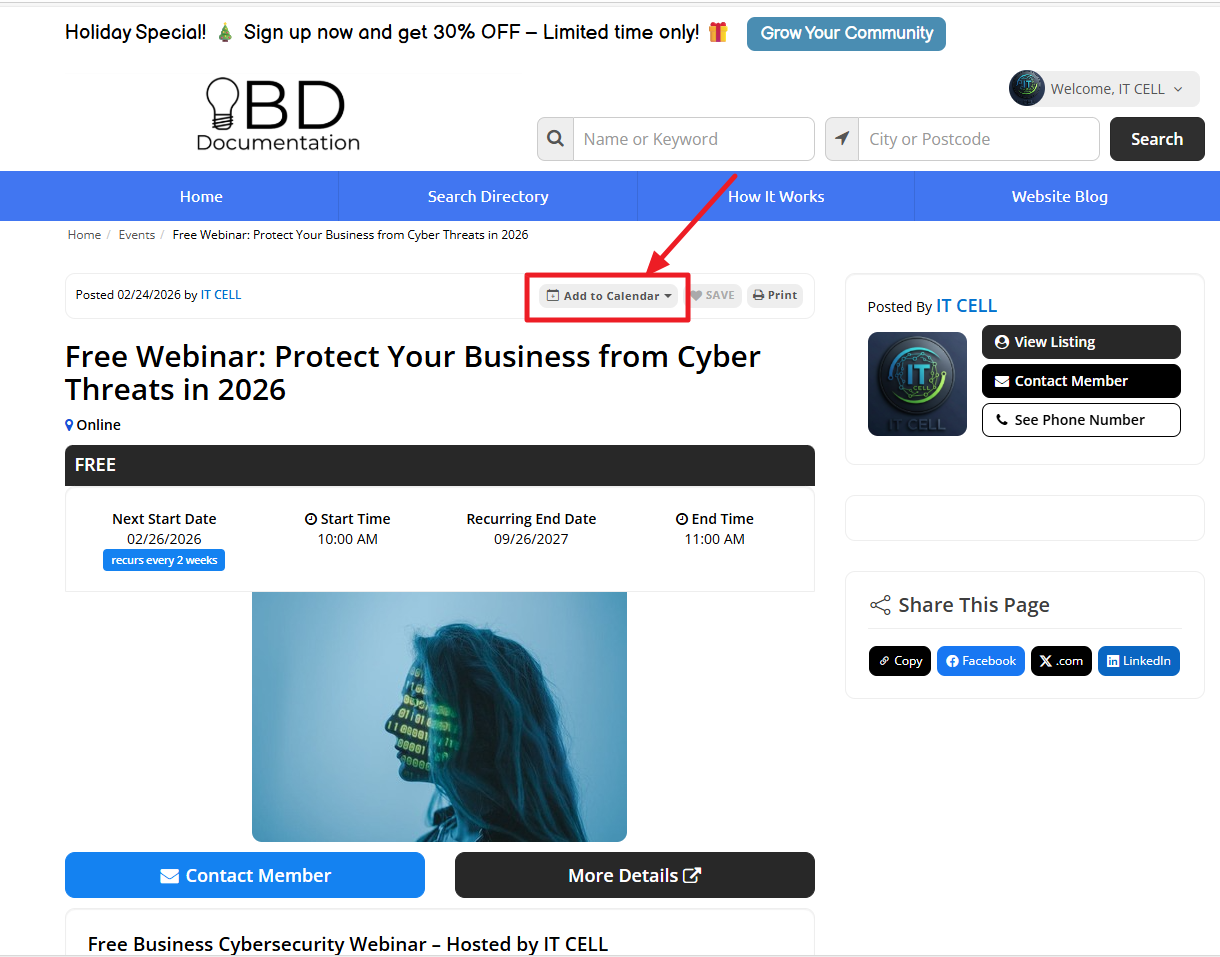
Event Detail Page
The Event Detail Page displays all information added to the Event Post. At the top of the page, an Add to Calendar button allows attendees to save the event to a personal calendar. Supported calendar platforms include Google Calendar, Apple Calendar, and Outlook Calendar. Note: This button can also be displayed in the sidebar using the Add to Calendar Widget (see instructions below).
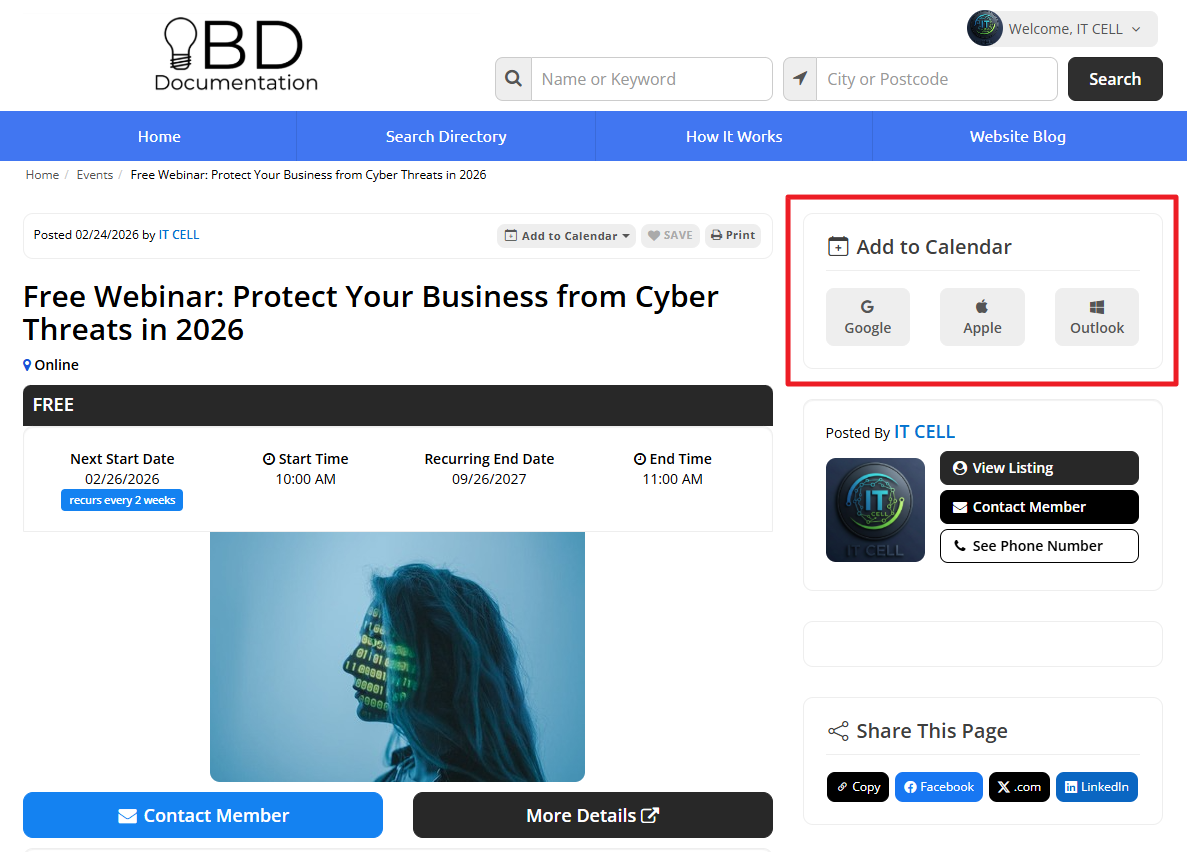
Adding the "Add to Calendar Widget" to Sidebar
For sites that need to display the calendar button in the sidebar, add the Add to Calendar Widget (also known as the calendar widget, event calendar button, or sidebar Add to Calendar button). This widget is manually installed using the Sidebar Manager and displays the same calendar functionality within the sidebar area of the Event Detail Page.
- Go to Toolbox >> Sidebar Manager and click Edit on "Post Single Page."
- Locate "Bootstrap Theme - Display - Add to Calendar."
- Drag and drop the widget to the desired position in the sidebar.
- The widget will then appear on the page.
Events Expiration
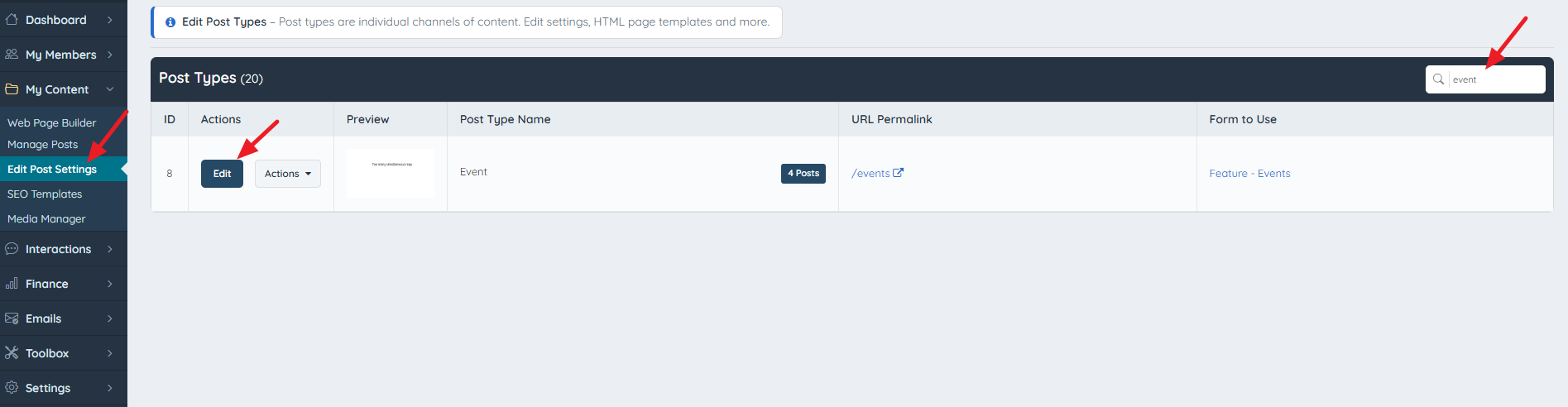
To display expired events on the search results page, go to My Content >> Edit Post Settings >> Events >> Edit.
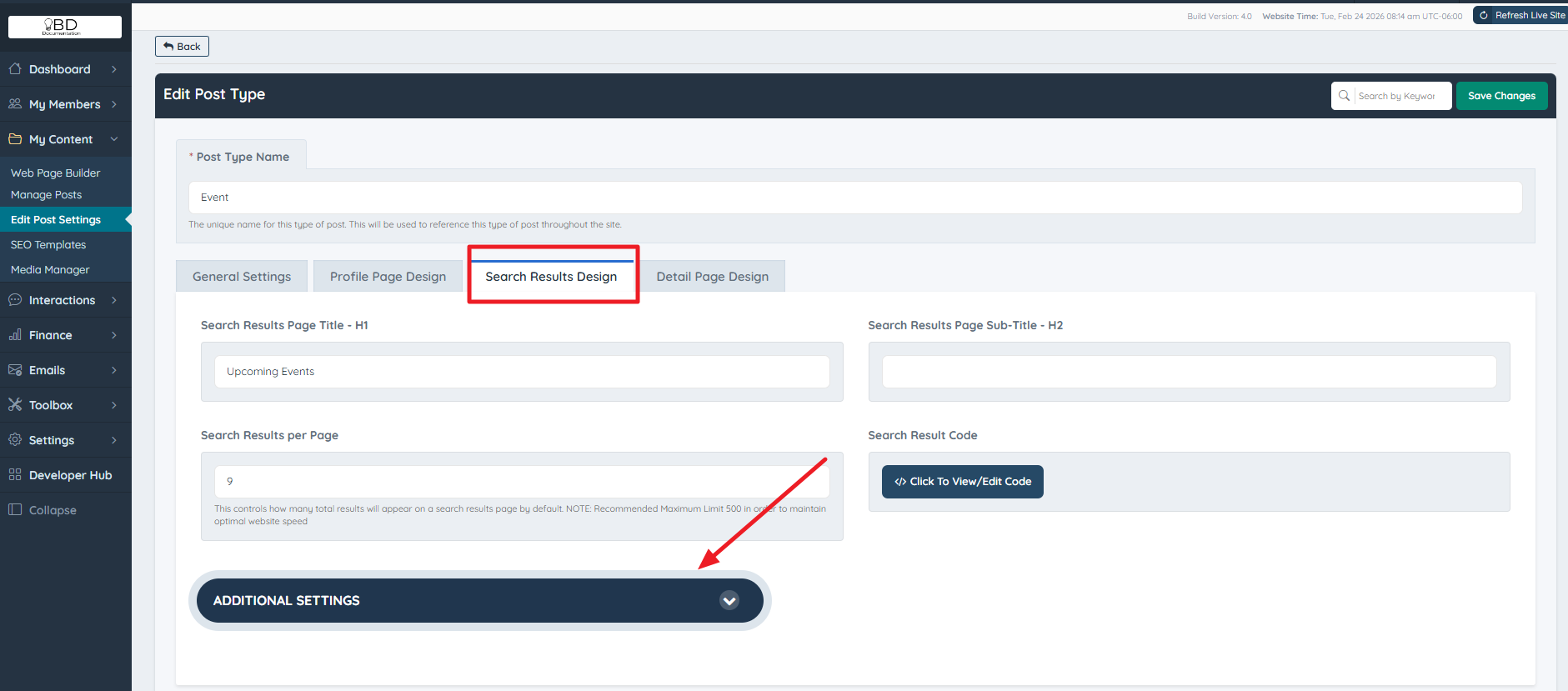
Open the Search Results Design tab and click on "Additional Settings."
Scroll to "Display Expired Posts in Search Results" and select "Yes."
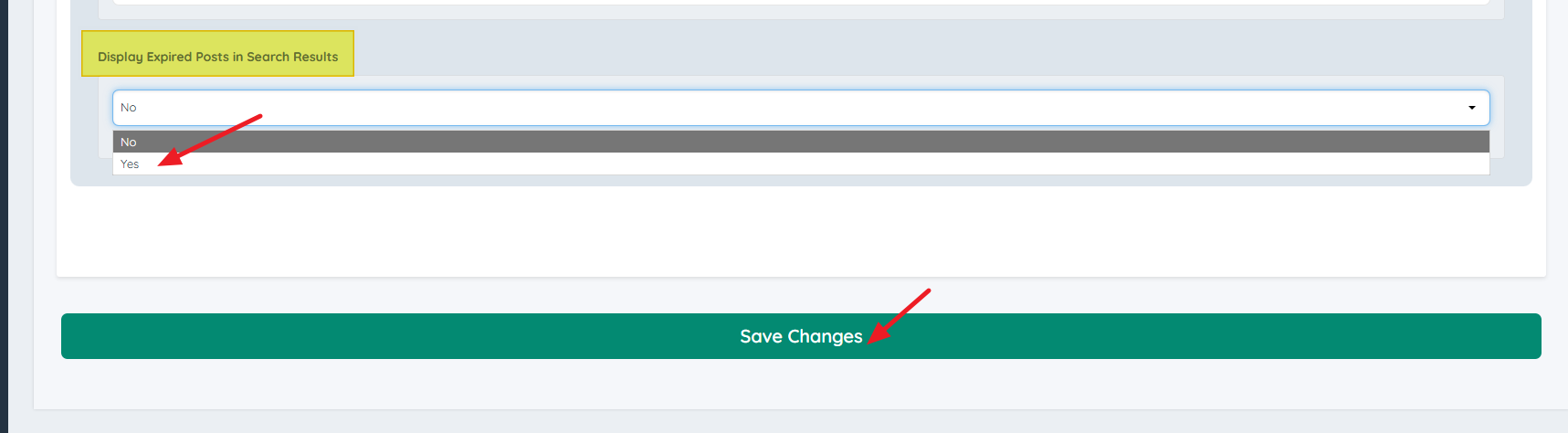
Note: Events without a specified expiration date are treated as expiring on the same day as the start date if this setting is set to "No."
If set to "Yes," expired posts will appear in search results and in the Events Calendar.
Recurring Events Add-On
The Auto-Recurring Events add-on enhances event functionality by allowing events to display in search results even after their initial start date has passed.
More information: How To Enable The Recurring Events
Note: To enable this post type on a membership plan, go to Finance » Membership Plans - Post Publishing.
