
Manage Your Website's Email Accounts With Microsoft 365
Link: https://support.brilliantdirectories.com/support/solutions/articles/12000014019
Manage a Website's Email Accounts with Microsoft 365
Microsoft 365 can host email for a domain connected to a Brilliant Directories website. Microsoft supplies the DNS records that verify the domain and route mail to its service.
1. Add and Verify the Domain in Microsoft 365
- Open Settings > Domains in the Microsoft 365 admin center.
- Add the root domain without
www. - Copy the TXT verification record supplied by Microsoft.
- Add that record wherever the domain's live DNS is managed, then complete Microsoft's verification.
Microsoft references: Add a custom domain and add DNS records at a DNS provider.
2. Find Where DNS Is Managed
If the domain uses Brilliant Directories-managed DNS, open Settings > Domain Manager. Hosted email routing is available under Mailboxes; see Manage Mailboxes and Email Routing. DNS records can also be managed through Developer Hub > cPanel Dashboard > Zone Editor when that option is available.
If the domain uses Cloudflare, GoDaddy, Namecheap, or another provider's nameservers, add the Microsoft records at that provider. Records added in cPanel do not affect a domain whose live DNS is hosted elsewhere.
3. Add the Microsoft 365 Records
Copy the exact values from the Microsoft 365 admin center. Common records include:
| Type | Common host | Purpose |
|---|---|---|
| TXT | @ or root | Verifies domain ownership. |
| MX | @ or root | Routes incoming mail to Microsoft 365. |
| CNAME | autodiscover | Helps Outlook locate mailbox settings. |
| TXT | @ or root | Authorizes Microsoft 365 in SPF. |
Microsoft can also require CNAME or SRV records for Teams, device enrollment, and other services. Add only the records displayed for the domain and enabled services. See Microsoft's external DNS record reference.
4. Change Mail Routing
Create the Microsoft 365 mailboxes before changing MX. Replace obsolete MX records with the Microsoft value and priority shown in the admin center. Leaving conflicting MX records can split or misdirect incoming mail.
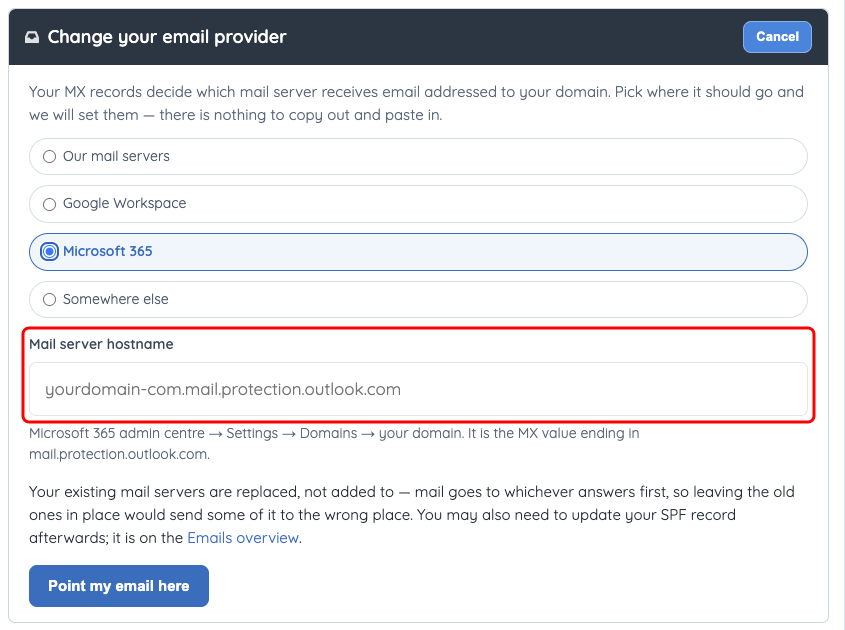
Microsoft 365 requires the exact mail server hostname supplied in its admin center. Opening this form does not change routing.
5. Configure SPF
A domain should publish one SPF TXT record. If SPF already exists, merge the required authorized senders into that record instead of adding a second SPF record. Follow Microsoft's SPF guidance.
6. Verify and Test
Use Microsoft's record check, then test sending and receiving. If verification fails, confirm the host/name, destination, priority, spaces, duplicate SPF records, old MX records, and the authoritative DNS provider.
Service Boundaries
Microsoft manages its mailboxes, billing, passwords, and account access. Brilliant Directories provides DNS or routing controls only when the domain uses supported Brilliant Directories-managed services.
