
Edit Checkout Pages: How To Edit Checkout URL
Link: https://support.brilliantdirectories.com/support/solutions/articles/12000084213
Overview
A default checkout page URL looks like this:
The value "2" at the end of the URL comes from the membership plan ID number:
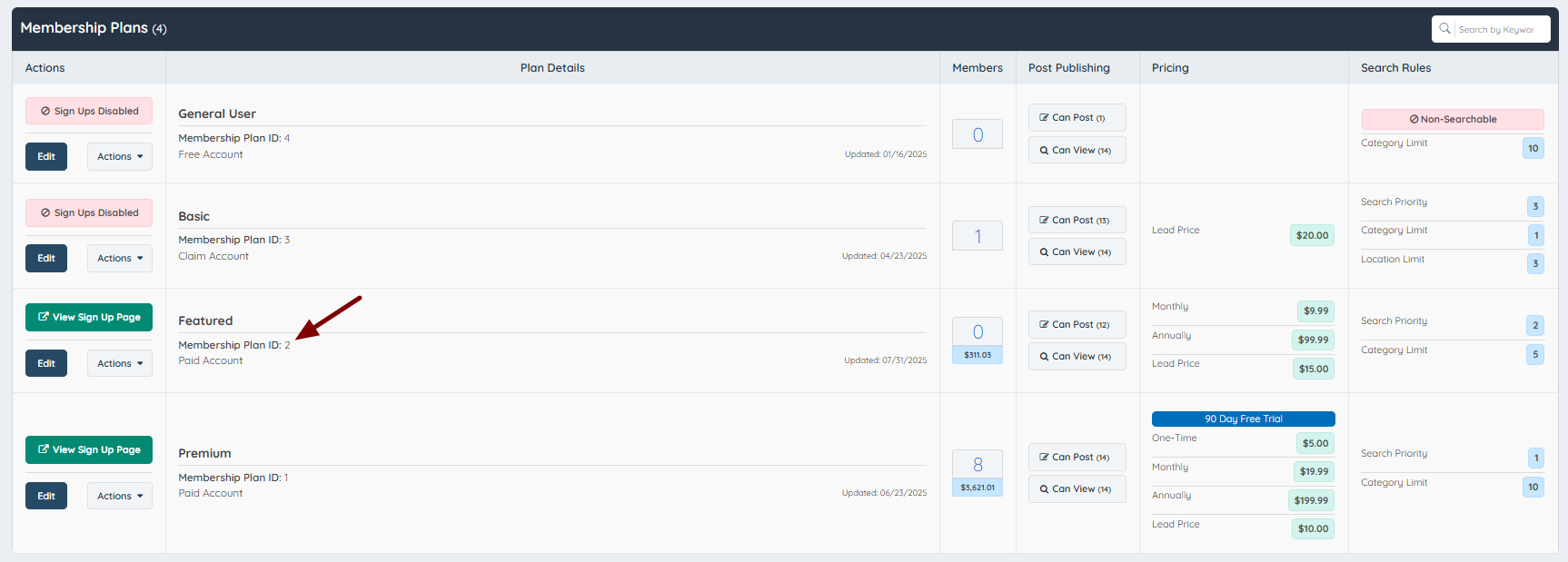
How To Edit Checkout URLs
The "checkout" portion of the URL can be changed by navigating to Settings » Advanced Settings and conducting a keyword search for "Default Checkout URL":
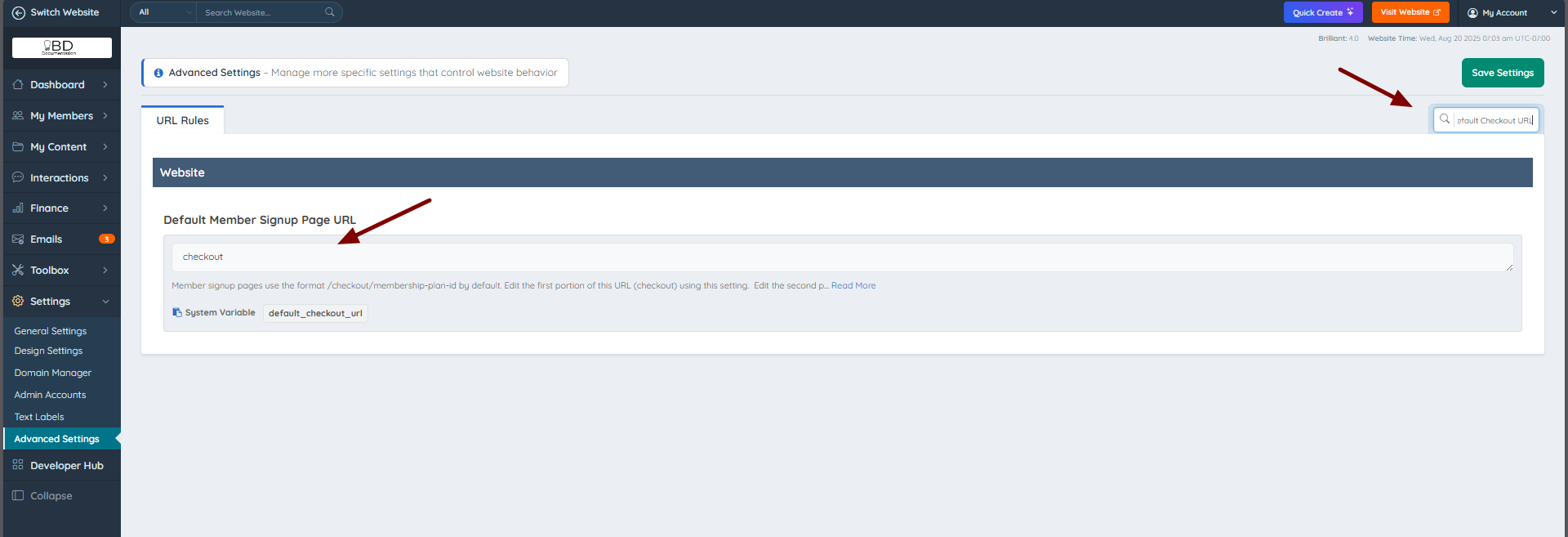
For this example, the URL segment was changed from checkout to checkout-pay:
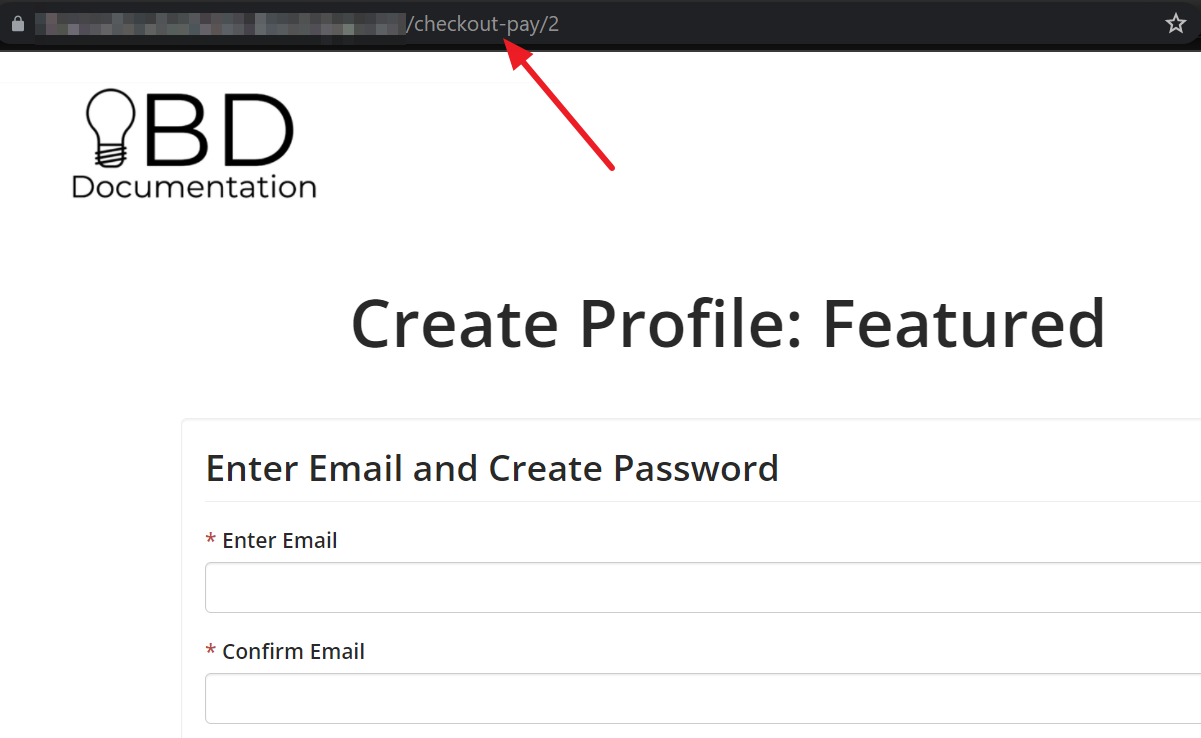
It is also possible to change the portion of the URL that follows this segment., which is "2" in this example. To accomplish this, navigate to Finance » Membership Plans and click Edit on the preferred membership plan:
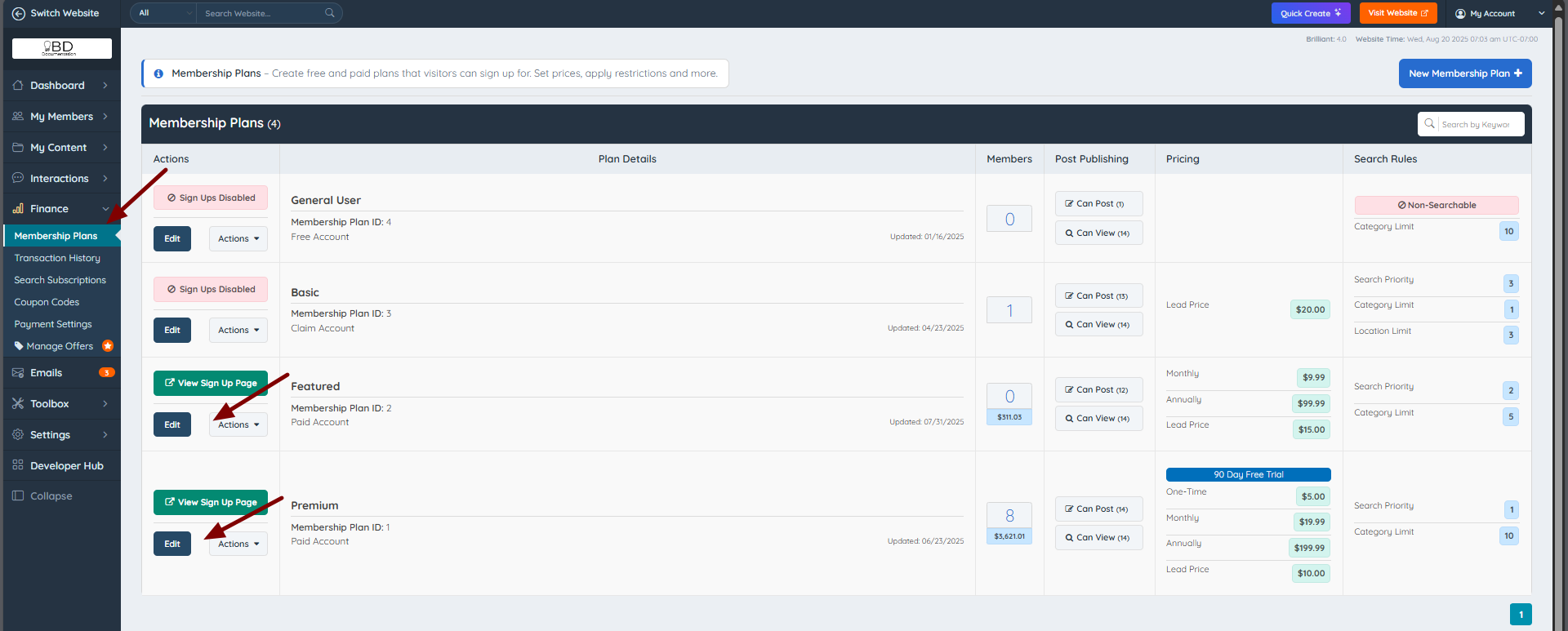
Then search for the setting "Member Signup Page URL":
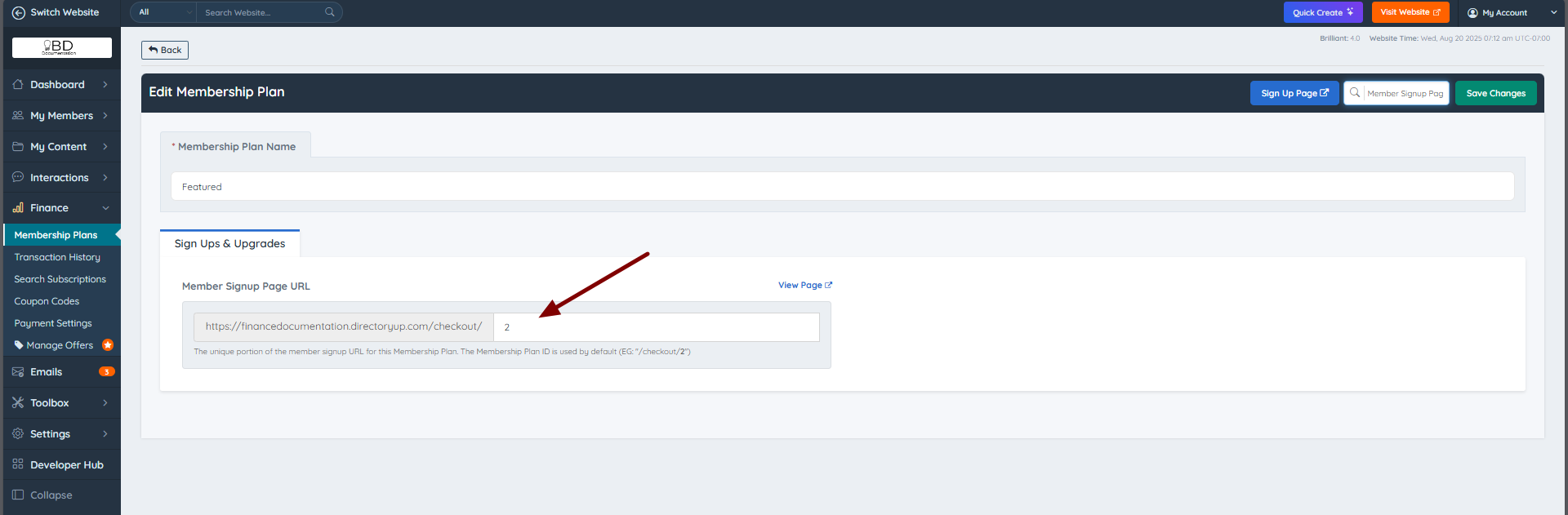
“In this example, the value was changed from ‘2’ to ‘featured’:
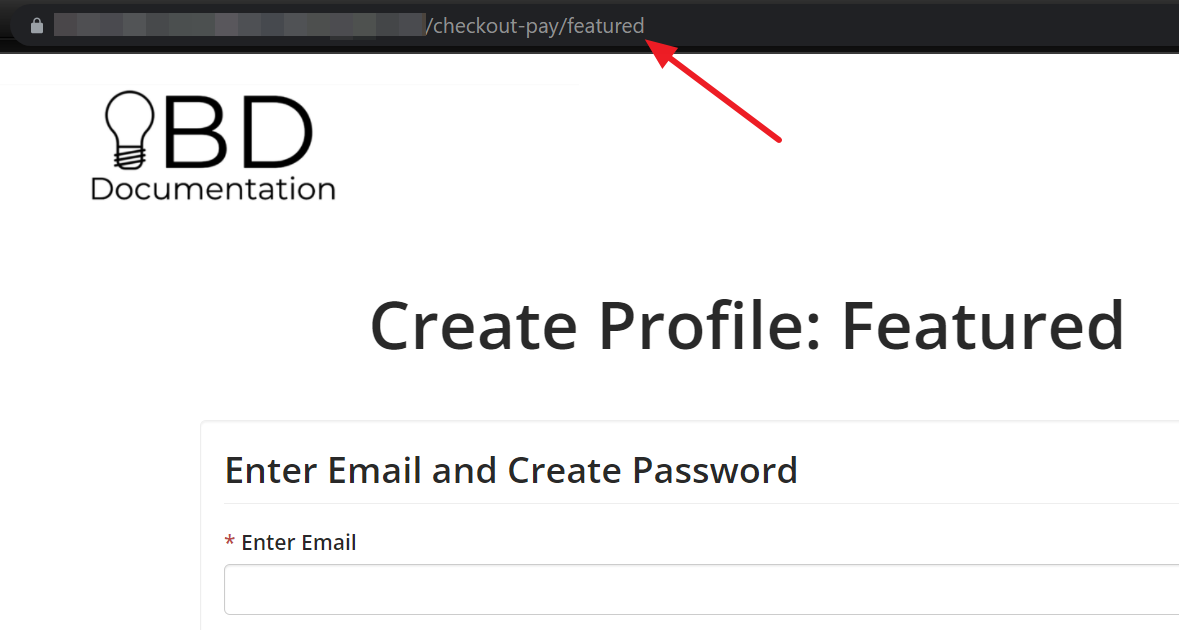
Important Rules About The "Member Signup Page URL" Setting:
- If the setting is left blank, the system will assign the membership plan's ID# as the value.
- Letters, numbers, underscores, and dashes are allowed. EG: gold-plan
- Each membership plan's checkout URL has to be unique.
- A membership plan ID cannot be used as the URL value for another checkout page.
