
Set Up Pretty URLs with Google Maps
Link: https://support.brilliantdirectories.com/support/solutions/articles/12000086439
This article covers the steps to create a second Google Maps API key for use with the Enable All Location Features For "Pretty URL" Search Results Pages Advanced Setting. This additional API key is configured to handle the server-side API calls required for this functionality, in addition to the JavaScript API calls handled by the primary key used elsewhere on the website.
Further details on the benefits of setting up this additional key can be found in the following article: Editing The SEO Of Member Search Results Pages
Before Starting
The key is created in Google Cloud. The Google Cloud project must have billing active, because Google will not enable the Geocoding API on a project without a billing account. For help with billing and the main Google Maps API key, see How to Enable Maps.
The Google Cloud form for creating an API key requires at least one API to be selected, so this key is set up with two separate restrictions:
- API restrictions: which Google APIs the key can call. This key only needs the Geocoding API.
- Application restrictions: which servers can use the key. This key is limited to two IP addresses, the Admin server and the website's own server.
Step 1 - Enable the Geocoding API
Open the Geocoding API page in Google Cloud: Enable Geocoding API
Make sure the correct project is selected at the top of the Google Cloud console, then click Enable. If the button reads Manage instead, the API is already enabled for this project.
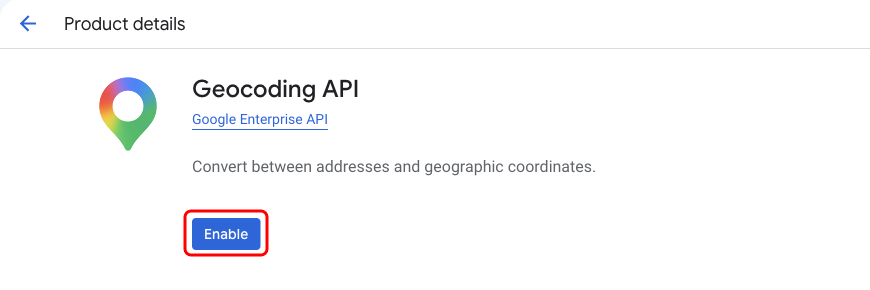
The API restrictions list on the key only shows APIs that are already enabled in the project. If the Geocoding API is not enabled first, it cannot be selected when the key is created.
Step 2 - Find the Two Server IP Addresses
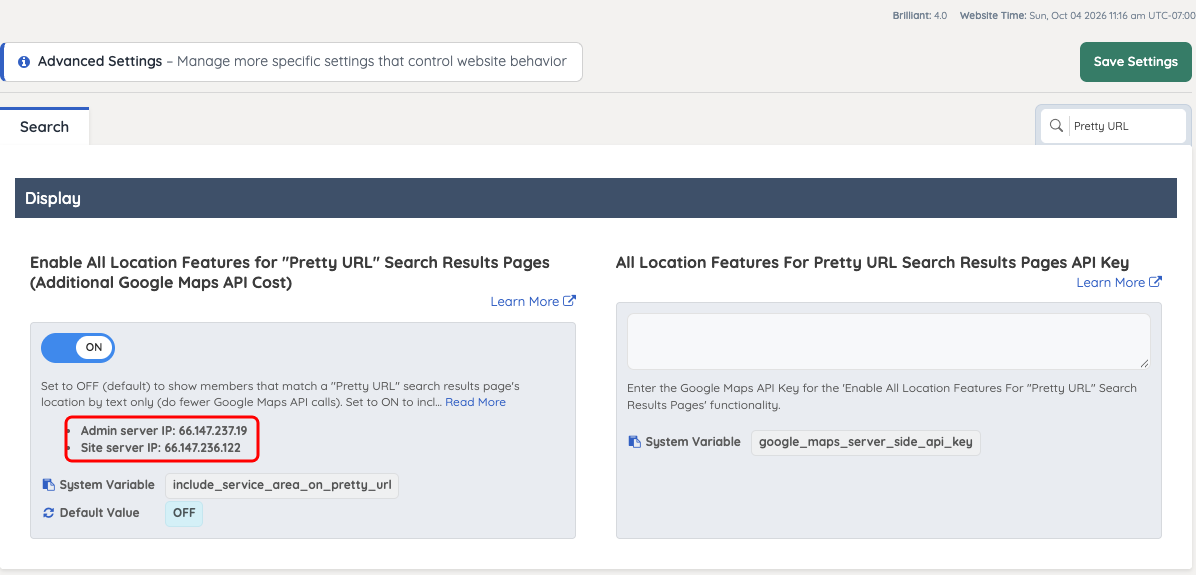
Log in to the Admin of the website and navigate to Settings >> Advanced Settings. Search for Pretty URL.
The Enable All Location Features for "Pretty URL" Search Results Pages (Additional Google Maps API Cost) setting lists the two IP addresses the key must allow:
- Admin server IP: the server that checks the key with Google when the setting is saved. This is 66.147.237.19 for every website.
- Site server IP: the website's own server, which looks up locations for the search results pages. This address is different for each website, so always use the one shown in the website's Admin.
Step 3 - Create the API Key
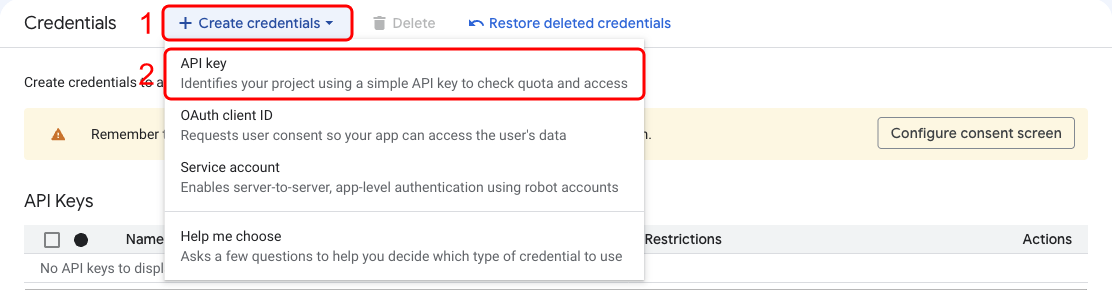
Open the Google Cloud Credentials page: https://console.cloud.google.com/apis/credentials
Click Create credentials (1), then API key (2):
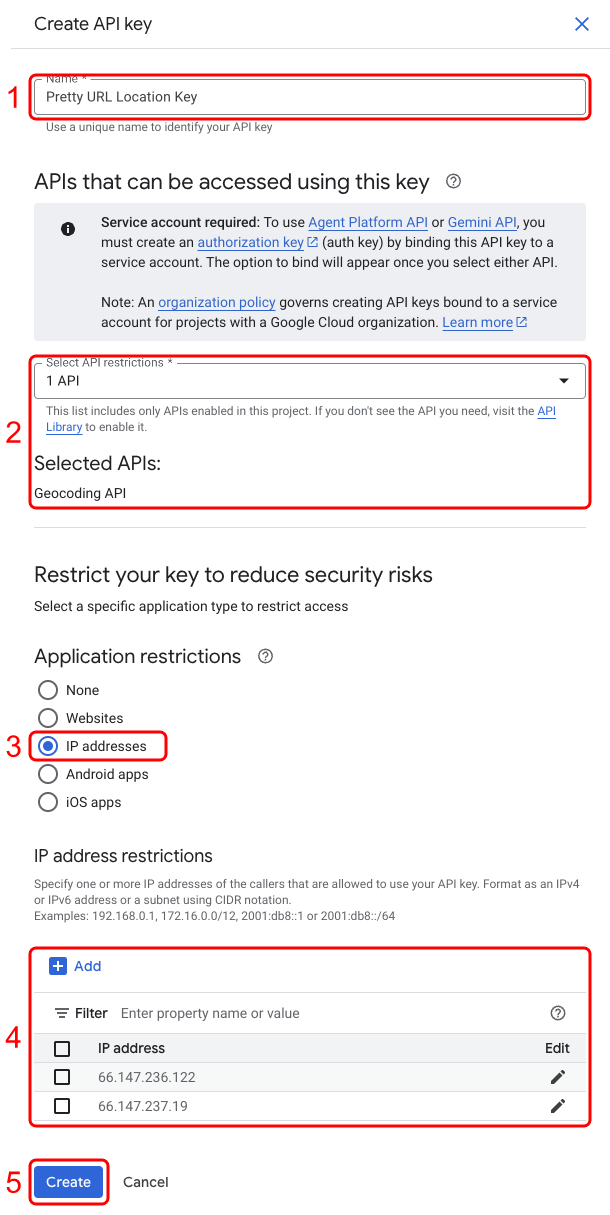
The Create API key panel opens. Both restrictions are set in this panel before the key is created:
- Name: enter a name that identifies the key, such as Pretty URL Location Key.
- Select API restrictions: open the list, type Geocoding in the filter, check Geocoding API and click OK. Geocoding API then appears under Selected APIs.
- Application restrictions: select IP addresses.
- IP address restrictions: click Add, enter the Admin server IP (66.147.237.19) and click Done. Click Add again, enter the Site server IP from Step 2 and click Done. Both addresses must be listed.
- Click Create.
Google refuses keys restricted by website (HTTP referrer) for the Geocoding API when it is called from a server, so a key restricted to Websites will not work for this setting.
Step 4 - Add the API Key to the Website
Copy the new API key. It can also be copied later from the Credentials page by clicking Show key next to the key.
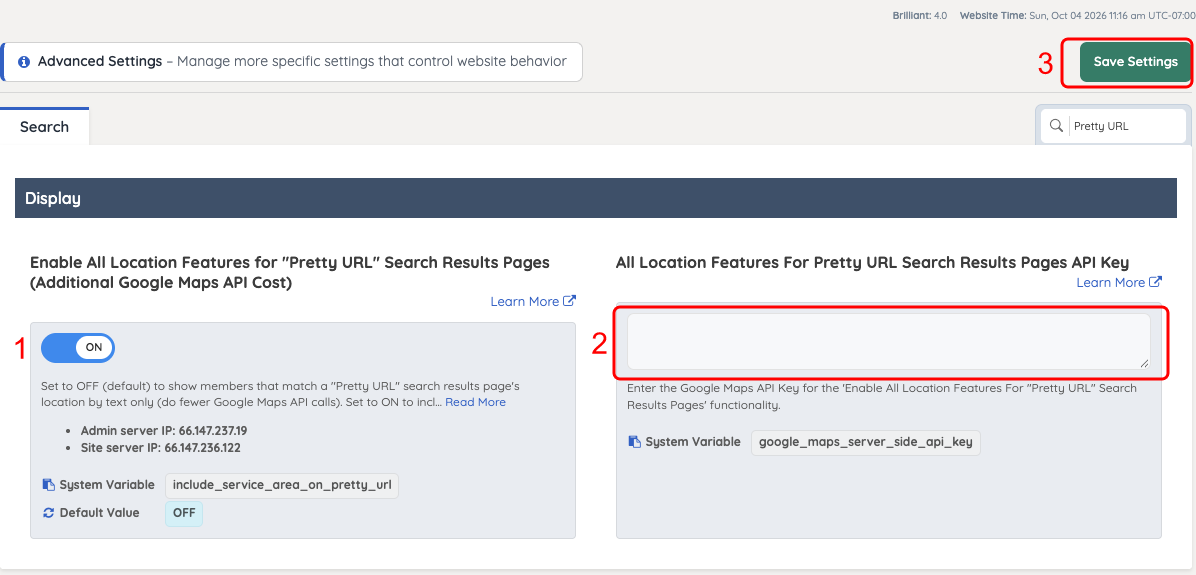
In the Admin of the website, navigate to Settings >> Advanced Settings and search for Pretty URL:
- Turn ON the Enable All Location Features for "Pretty URL" Search Results Pages (Additional Google Maps API Cost) setting.
- Paste the key into All Location Features For Pretty URL Search Results Pages API Key.
- Click Save Settings.
When the settings are saved, the Admin tests the key with Google. If Google refuses it, the save stops with a message that the key must use IP address restrictions. In that case, check in Google Cloud that both IP addresses from Step 2 are listed on the key and that Geocoding API is selected under its API restrictions, then save again.
Pretty URL Search Result Caching
By default, the system generates a cached version of the Pretty URL results the first time a specific location is accessed (for example, /los-angeles).
When this location is loaded for the first time, the system performs a single API call and stores the resulting data as a cache file within an FTP directory. For any subsequent requests to the same location, the system serves the cached version instead of making additional API calls.
The cache keeps only around the 1,000 most recently looked-up locations for each website language. When visitors, including search engine crawlers and other automated traffic, view more different locations than that, the oldest cached locations are removed to make room, even if they are still viewed often, and the next visit to a removed location makes a new API call. A lookup that Google does not answer successfully is not cached, so it is requested again on the next visit. On websites with many locations or heavy automated traffic, the number of API calls can therefore be much higher than the number of locations.
This caching mechanism significantly improves performance by reducing API usage and allowing matching search results to load more quickly for future visitors.
The cached data is retained for a period of one year. After this time, the system automatically deletes the expired cache file. The next time the same URL is accessed, a new API call is made, and a fresh cache version is generated.
API Usage Cost
Beginning in March 2025, enabling this setting will impact how quickly free Google API credits are used.
Previously, Google provided a flat $200 monthly credit covering all API requests, but now they offer the first 10,000 requests per month free for each API, with charges applied only after surpassing this limit.
If a particular API (like the Geocoding API) experiences heavy use, this new structure means the free allowance will be used up more quickly, causing charges from Google to accumulate sooner.
For more information about Google Maps Monthly Credits Usage and pricing: https://developers.google.com/maps/billing-and-pricing/faq
