
How to Make a Link with a Member’s ref_id in the URL
Link: https://support.brilliantdirectories.com/support/solutions/articles/12000089556
With the Member Credits System add-on, members can earn referral credits when someone they refer signs up. This article explains how to turn referral credits on for a membership plan, how to give each member a referral link that carries their member ID, and how long the website remembers a referral link after a visitor opens it.
Turn On Referral Credits for a Membership Plan
Go to Finance » Membership Plans, click Edit on the plan new members sign up for, and open the Sign Ups & Upgrades tab. In the credit settings:
- Set Assign Referral Credits to Members Who Refer New Sign Ups to Yes.
- Enter the amount in Credits Assigned to Referring Member. This is the credit the referring member receives for each new sign up they refer.

Click Save Changes. The plan's sign up page now shows a field with the default wording "Did Someone Refer You? Enter Referral ID Below":
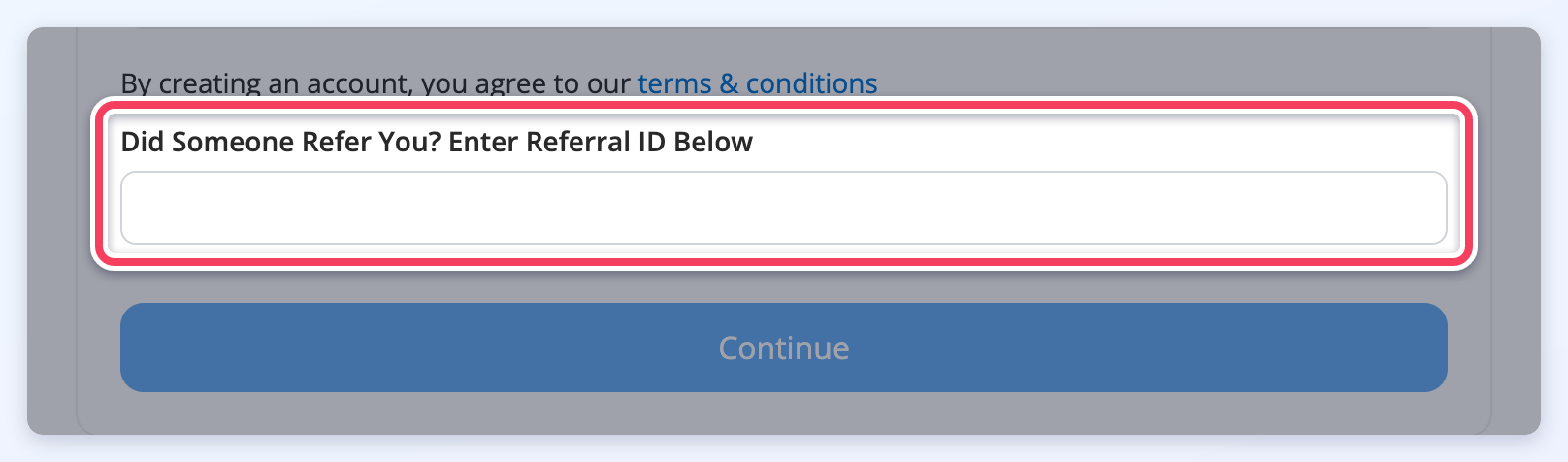
When a new member enters a member's ID number in this field and completes the sign up, the new member is recorded as referred by that member, and the referring member receives the amount set in Credits Assigned to Referring Member.
Give Members a Referral Link
Adding ?referral_id= and a member's ID number to the end of a page address fills in the Referral ID field automatically. A widget can build that link for each logged-in member and show it on their member dashboard through Custom Dashboard Content.
First, go to Toolbox » Widget Manager (1) and click New Widget (2):
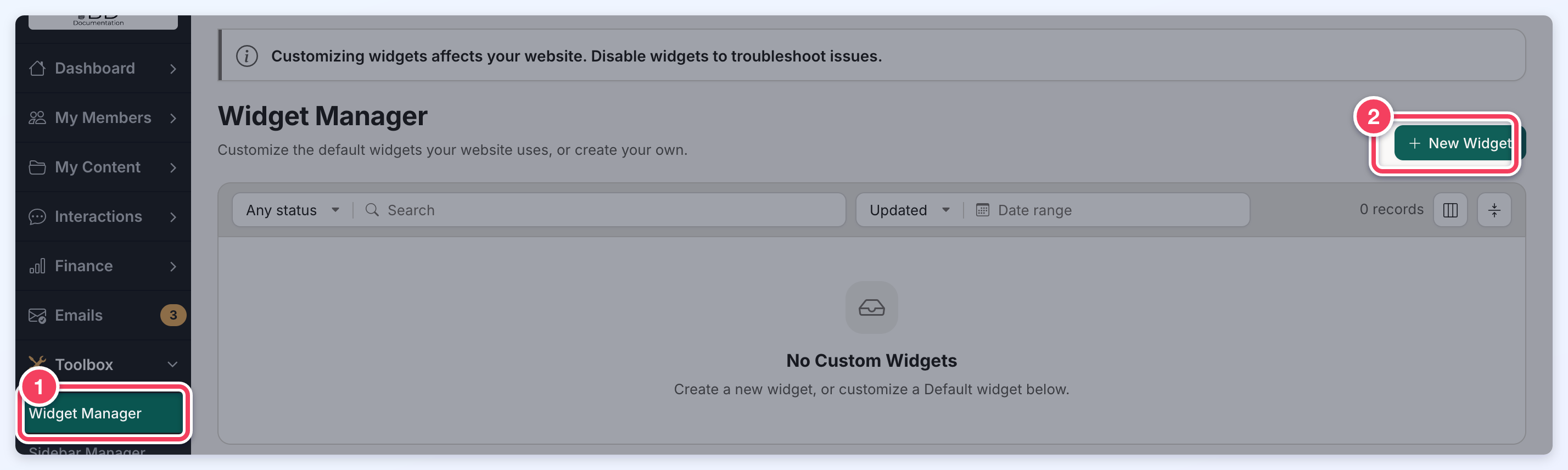
Enter a widget name, EG Referral Link, paste the following code into the HTML tab, then click Save in the Unsaved changes bar:
<a href="/<?php echo $w['default_checkout_url']?>/<?php echo $subscription['custom_checkout_url']; ?>?referral_id=<?php echo $user_data['user_id'];?>">Referral Link</a><br><br>
The saved widget shows its name (1) and code (2):
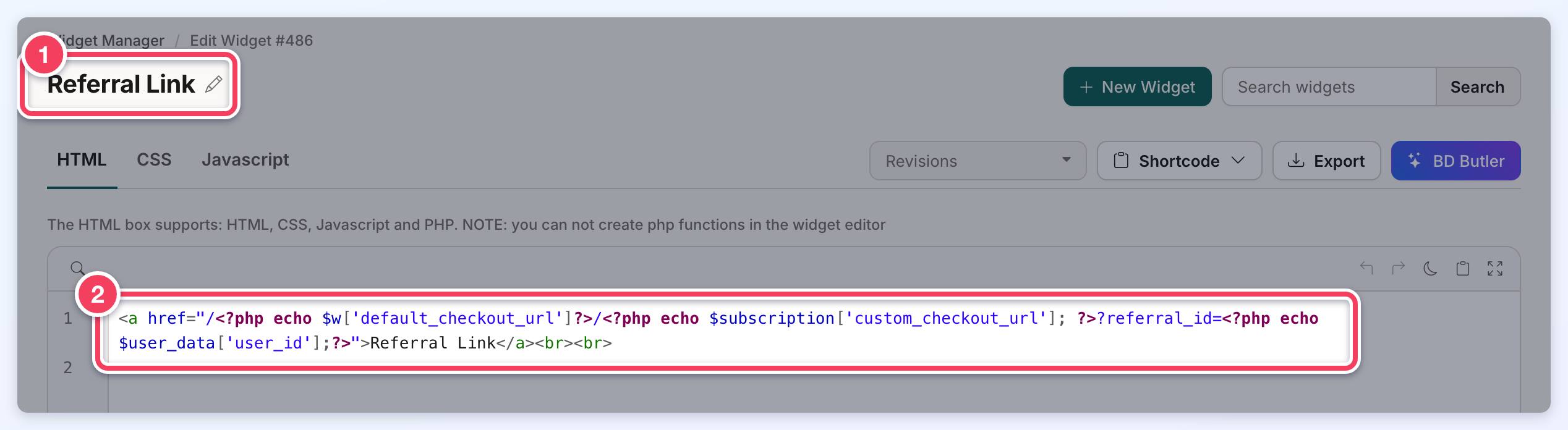
Very important note: The code above builds the link dynamically. It points to the sign up page of the logged-in member's own membership plan, so there is no need to create one widget per membership plan. The same widget can be placed on all of them.
Next, go to Finance » Membership Plans, click Edit on a plan whose members should see the link, and open the Member's Dashboard tab. Under Custom Dashboard Content, select the widget in Dashboard Header Content and click Save Changes:
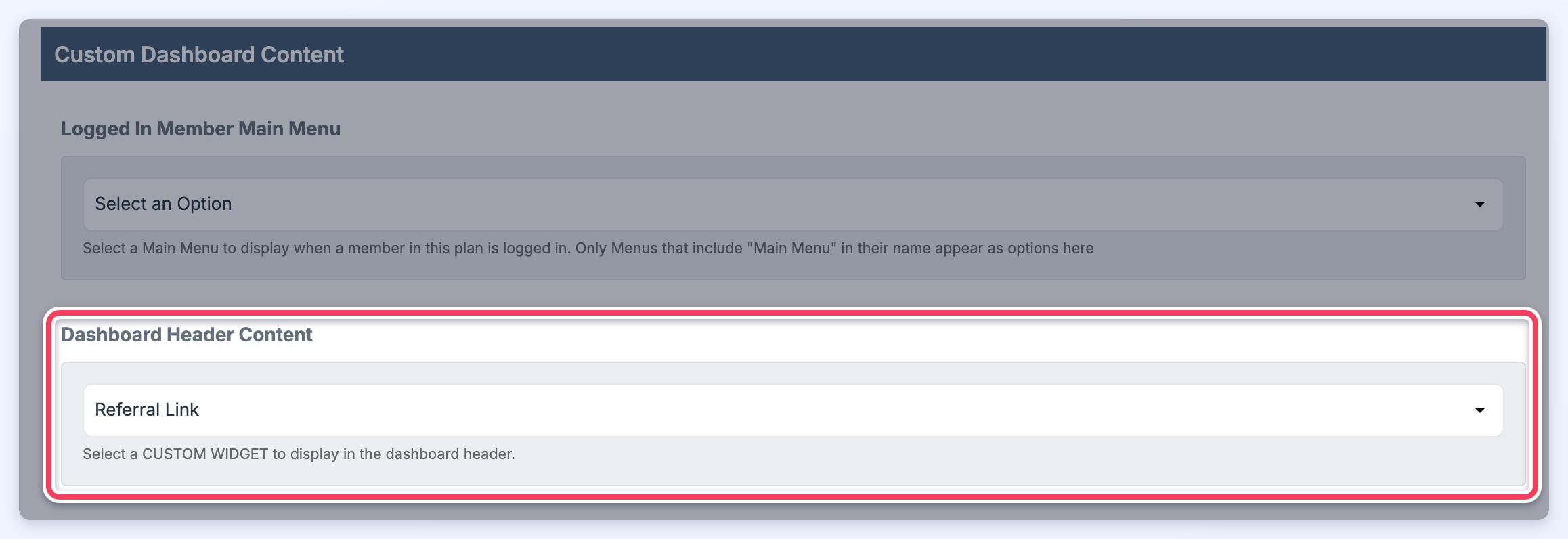
The link then shows on the member dashboard of every member in that plan:
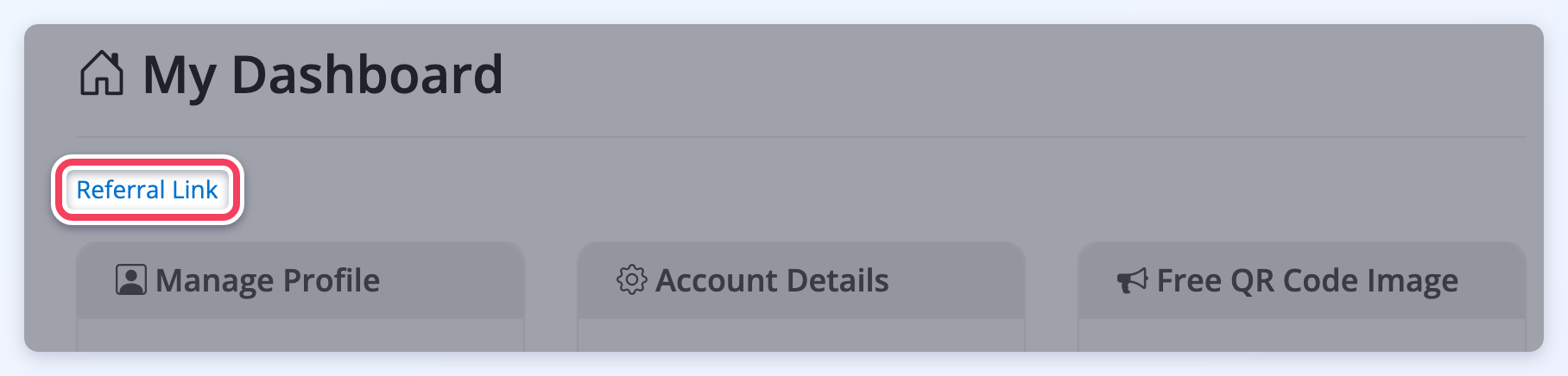
When someone opens the link, the Referral ID field on the sign up page is already filled in with the referring member's ID:
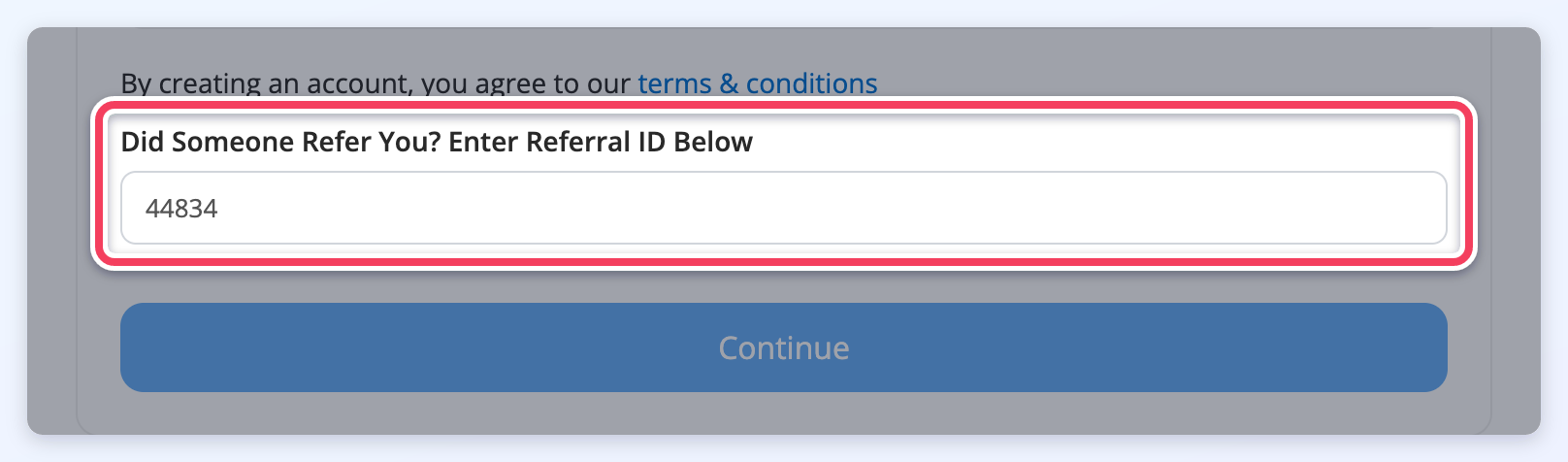
NOTE: If the member that's logged in tried to use this link a message will appear letting them know they're already logged in. This link is meant to be copied and then shared with others that don't have an account yet, and take them to the checkout page and automatically load the member referral link.
How Long a Referral Link Is Remembered
A referral link does not have to point to the sign up page. ?referral_id= and the member's ID number can be added to the address of any page on the website, such as the home page or a landing page. For example, this widget code links to the home page instead:
<a href="/?referral_id=<?php echo $user_data['user_id'];?>">Referral Link</a><br><br>
When a visitor opens any page through a referral link, the website remembers the referring member's ID in the visitor's browser for 30 days. If the visitor browses other pages first, or leaves and comes back within those 30 days, the Referral ID field on the sign up page is filled in automatically. When the visitor signs up, the new member is recorded as referred by that member, and the referral credit is added when the plan has referral credits turned on.
- If the visitor opens referral links from more than one member, the most recent link is the one that counts.
- The 30 days run from the last time the visitor opened a referral link. Visiting the website without a referral link does not extend them.
- The visitor can still change the Referral ID field before signing up. A different ID entered there is used instead, and clearing the field signs up the visitor without a referral.
- Once the visitor signs up, the remembered referral is cleared.
