
Google Maps Issues: Index
Link: https://support.brilliantdirectories.com/support/solutions/articles/12000097715
There are 3 errors that can cause momentary interruptions to the Google Maps integration:
- Missing an API
- Missing HTTP Referrers
- Billing Errors
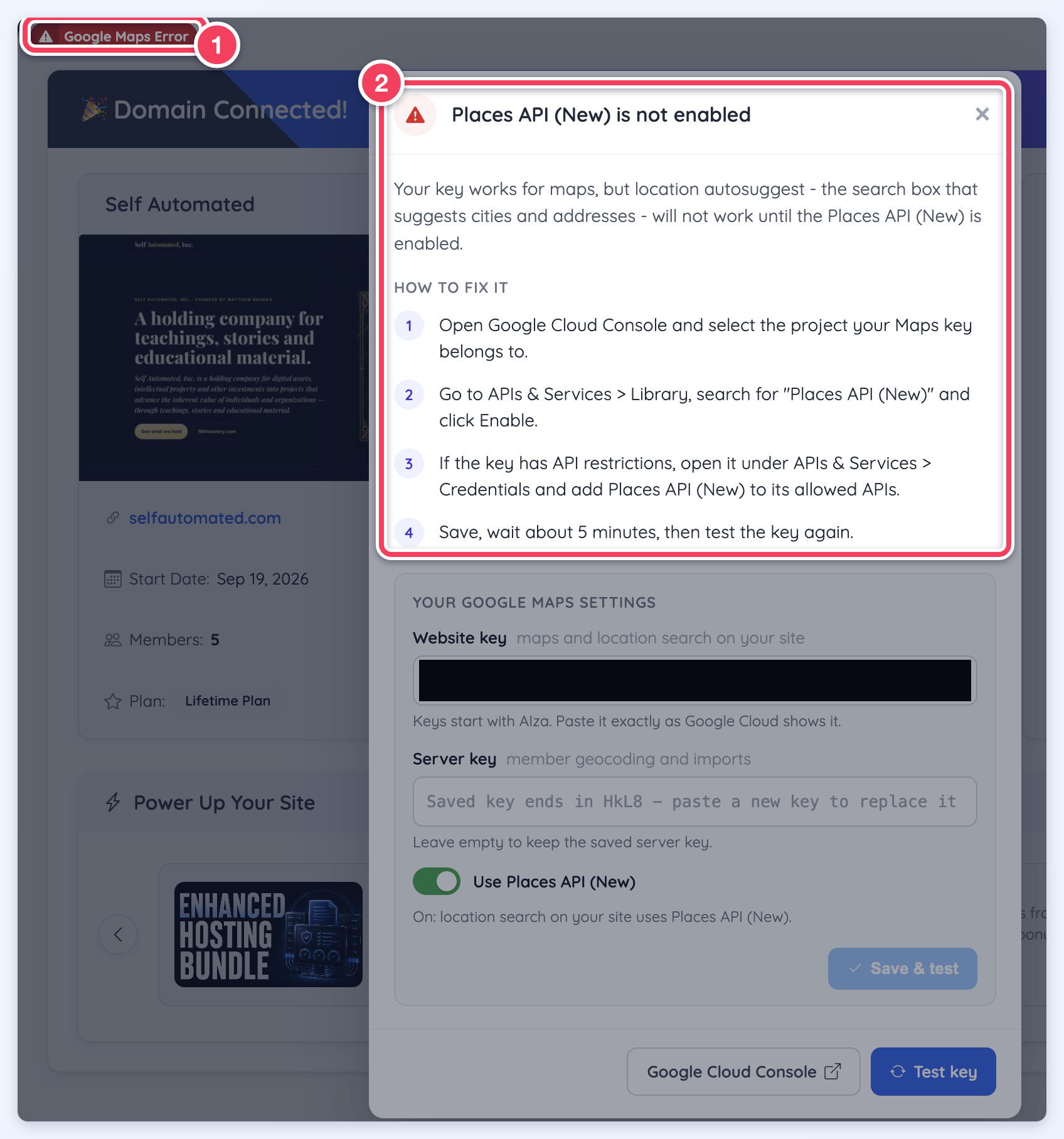
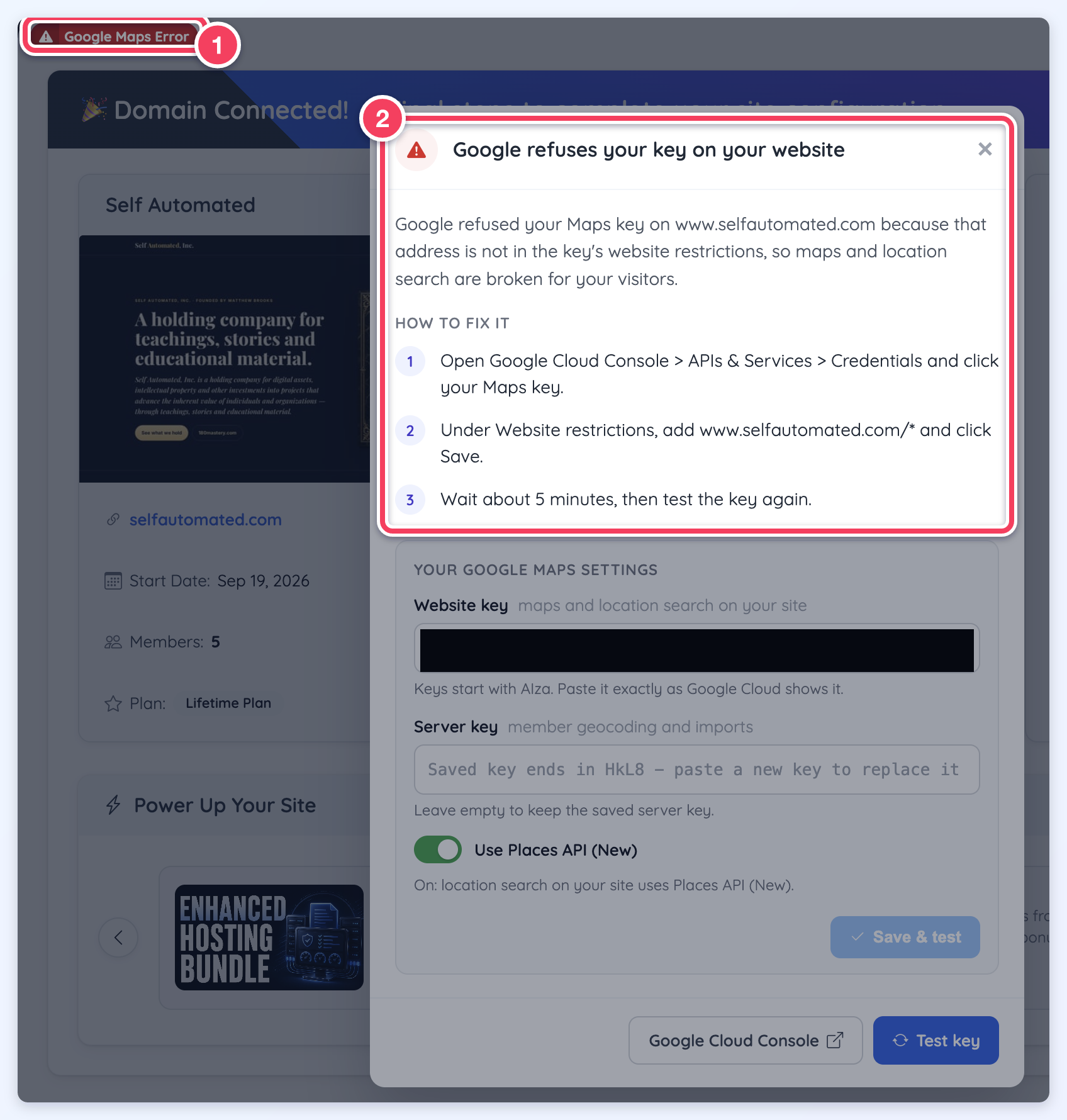
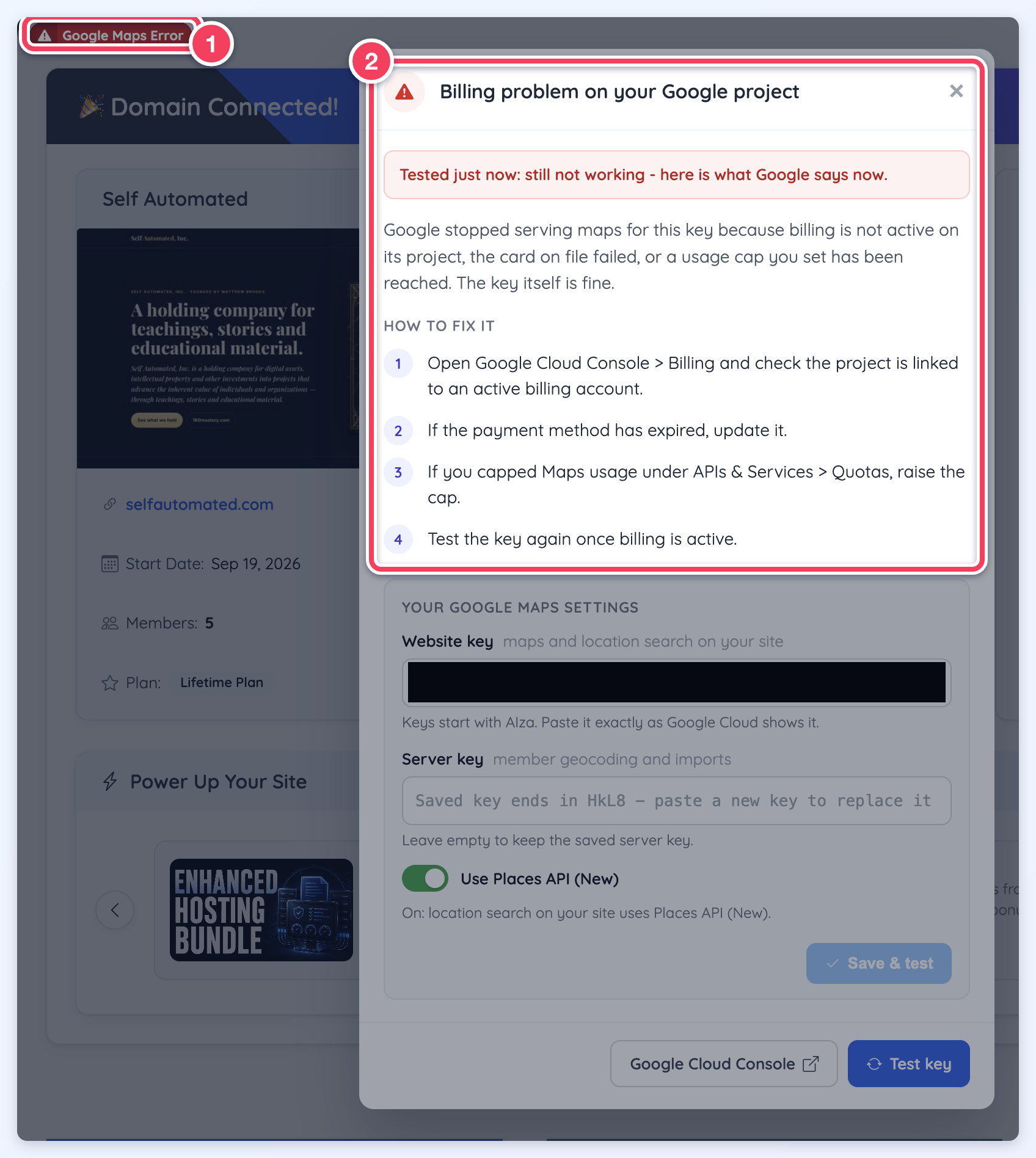
The quickest way to see which one is affecting your site is the red Google Maps Error button at the top of the admin: click it and a window names the error and lists the steps to fix it (see below). The same errors also show in the browser's console on your website. To open it, right-click the page and choose Inspect, then open the Console tab, or press Cmd+Option+J on a Mac or Ctrl+Shift+J on Windows.
The Google Maps Error Alert in the Admin
When Google refuses the Google Maps key, a red Google Maps Error button appears at the top of every admin page. The Google Maps API Status card on the dashboard (under My Website Resources) shows the same result. The card has two rows, because the site uses two separate keys:
- Website key: used for maps and location search on the website. This key is tested in the browser.
- Server key: used for member geocoding and imports. This key is tested from the Brilliant Directories admin server and from the server the website runs on, because Google checks the IP address of the server that calls it.
Each row shows its own result, such as Billing problem on your Google project, Google does not recognise this key, Maps JavaScript API is not enabled, Geocoding API is not enabled, or Google Maps key is working. Clicking a row, or the red Google Maps Error button, opens a details window that explains what Google reported and lists numbered fix steps. When maps load but the Geocoding API is disabled on the key's Google Cloud project, the website key row reads Geocoding API is not enabled and its steps enable the Geocoding API, since address lookups and location search on the website do not work until it is on.
Red, Amber and Green Results
The website key is tested from the admin first. When Google refuses the key only because the admin address is not in the key's website restrictions (normal for a key restricted to the website's own domain), the same test runs again on the website's live domain, exactly the way visitors use the key. That answer replaces the admin result, so a restricted key now shows a definite green or red result instead of amber.
- Red: Google reported a real problem with the key, such as billing turned off, a key Google does not recognise, a required API that is not enabled, or Google refuses your key on your website when the live domain is missing from the key's website restrictions. For the server key, Google refuses the server key from an IP address means the key is restricted by IP address and that server is not on its list (see When Google refuses the server key from an IP address). The details window names Google's reason and lists the fix steps. Only red results raise the Google Maps Error button.
- Amber (Maps blocked on this admin page): Google refused the key on the admin address and the live-domain test got no answer, because the domain is not connected to the site yet, does not resolve, or did not answer within about 20 seconds. This is not treated as an error and raises no alert. Check the website's own maps and location search directly, or test again once the domain is connected.
- Green: Google accepted the key. Google Maps key is working means it was accepted on the admin address; Maps work on your website means it was accepted on the live domain (the admin address is refused, which only affects maps inside the admin).
The dashboard card shows the admin result first and switches to the live-domain result as soon as it arrives.
Testing the Keys on the Integrations Tab
Both keys can also be tested where they are entered: Settings > General Settings > Integrations, below the Google Maps Javascript API Key field.
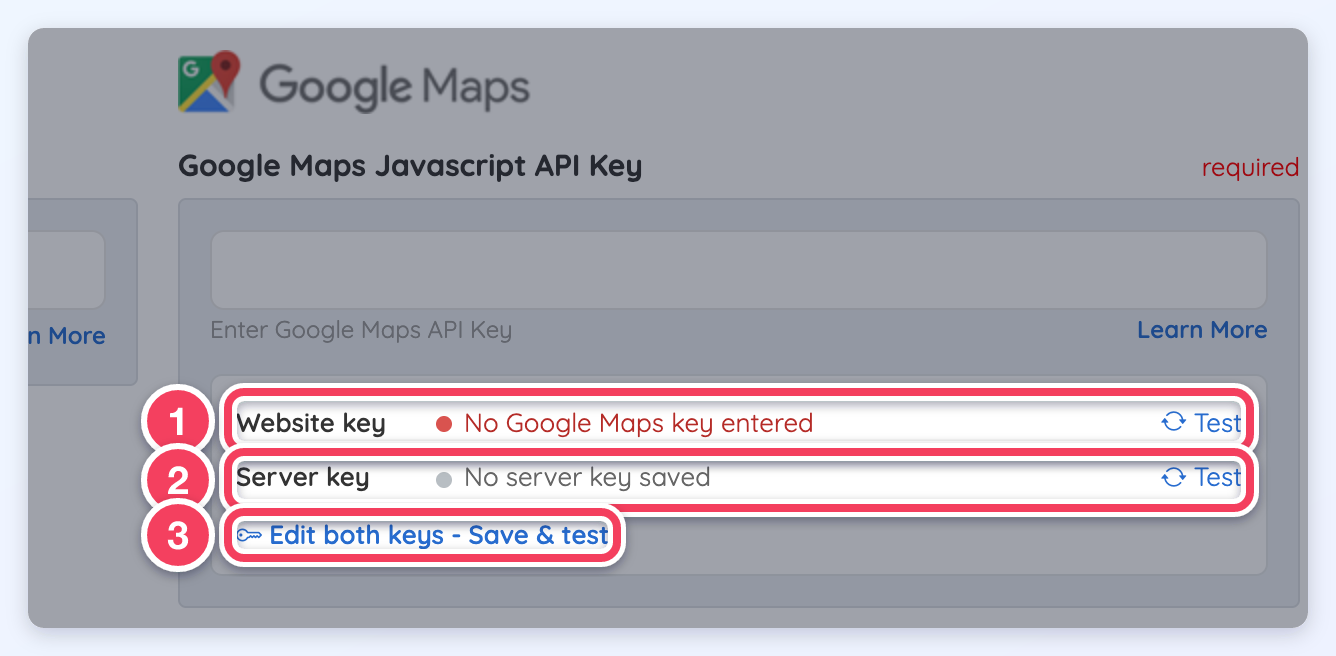
- Website key: tested when the tab opens, again shortly after typing stops in the key field, and again after Save Changes. A key that has only been typed is tested from the admin; if Google refuses it only on the admin address, the row reads Blocked on this admin page - save to test it on your website. Once saved, the key is also tested on the live domain as described above. A value that is not shaped like a Google key is flagged without asking Google (keys start with AIza and are 39 characters long).
- Server key: tested from the Brilliant Directories admin server first and, when Google accepts it there, again from the server the website runs on (the status line reads Testing the server key from your website's server...); the key itself is never sent to the browser. Server key is working then means Google accepted the key from both servers. When no server key is saved, the row shows a grey No server key saved. A server key is only needed to geocode members during an import and for service-area search pages.
- Edit both keys - Save & test: opens the same key editor as the details window. Each Test link re-runs that row's test.
Clicking a result opens the details window with Google's reason, the fix steps and the key editor. A key Google refuses in the editor is not saved.
When Google Refuses the Server Key from an IP Address
A server key restricted by IP address only works from the servers on its list. The admin server and the server the website runs on have different IP addresses, so a key that allows only one of them fails on the other. When that happens, the server key row, the dashboard card and the details window read Google refuses the server key from followed by the refused IP address, and the red Google Maps Error button appears. Member geocoding, imports and location search pages that run on that server cannot look up addresses until the IP address is allowed.
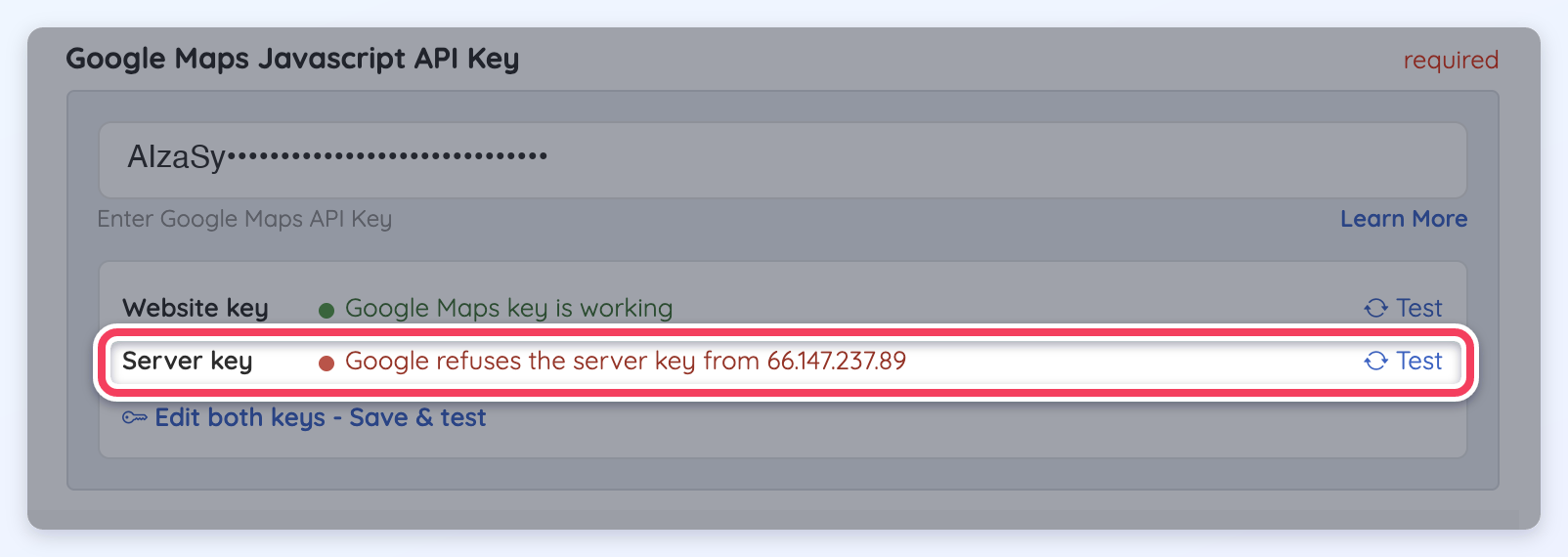
- Open Google Cloud Console > APIs & Services > Credentials and click the server-side key.
- Under Application restrictions > IP addresses, add the IP address named in the result and click Save.
- Wait about 5 minutes, then test the server key again on the Integrations tab.
A key that Google refuses this way is still saved by Save & test; the result names the IP address to add instead of refusing the key.
What the Details Window Offers
- Google Cloud Console: opens the Google Cloud Credentials page in a new tab.
- Test key: tests the website key with Google right now. When Google accepts the key, the Google Maps Error button clears immediately. The server key row has no Test key button; that key is re-checked when an admin page loads.
- Your Google Maps Settings: the website key, the server key and the Use Places API (New) switch can be edited right in the window. Click Save & test and each key is tested with Google first. A key Google refuses is not saved. Leaving the server key empty keeps the saved server key. The switch is the same setting as Enable New Google Maps Places API in Advanced Settings.
The Use Places API (New) switch can only be turned on when the key works with Places API (New). If the switch will not turn on, the key most likely does not have Places API (New) enabled in Google Cloud. Enable it as described in Google Maps: Add APIs, wait a few minutes, and try again.
How the Alert Clears
After a fix, the alert clears itself. Admin pages re-check the keys about every 10 minutes and the Google Maps Error button fades once Google accepts the key. Test key or Save & test clears it immediately. A Google refuses the server key from error is the exception: the 10-minute re-check runs only from the admin server and cannot see the website's server, so that error clears only when the dashboard card or the Integrations tab tests the server key again and Google accepts it from both servers. A remembered error lasts at most 7 days. Placeholder sites on a directoryup.com address never show the alert, because the keys are checked only on live domains.
Missing an API
STEPS TO FIX: Google Maps Issues: Missing an API
Missing HTTP Referrers
STEPS TO FIX: Google Maps Issues: Editing HTTP Referrers
Billing Errors
STEPS TO FIX: Google Maps Issues: Billing Errors
**** Google requires that all Maps API Keys have a credit card on file for any charges that the API usage may incur. That is due to a change in their policy, beginning on June 11, 2018, Google requires all users to add billing information to their account in order to activate Google Maps API keys.
However, Google gives all users enough free credits each month so that the vast majority of websites will never have to pay anything for this service.
In fact, with this update Google is actually giving users even more free credit than before. The only difference is that they now ask for billing information during the setup process rather than after a user consumes all of their free credits.
