
Emails » Email Outbox
Link: https://support.brilliantdirectories.com/support/solutions/articles/12000100235
This article explains how to use the Email Outbox, which lists the automatic and system emails sent from the website, who they were sent to, and what happened to each one after it was sent.
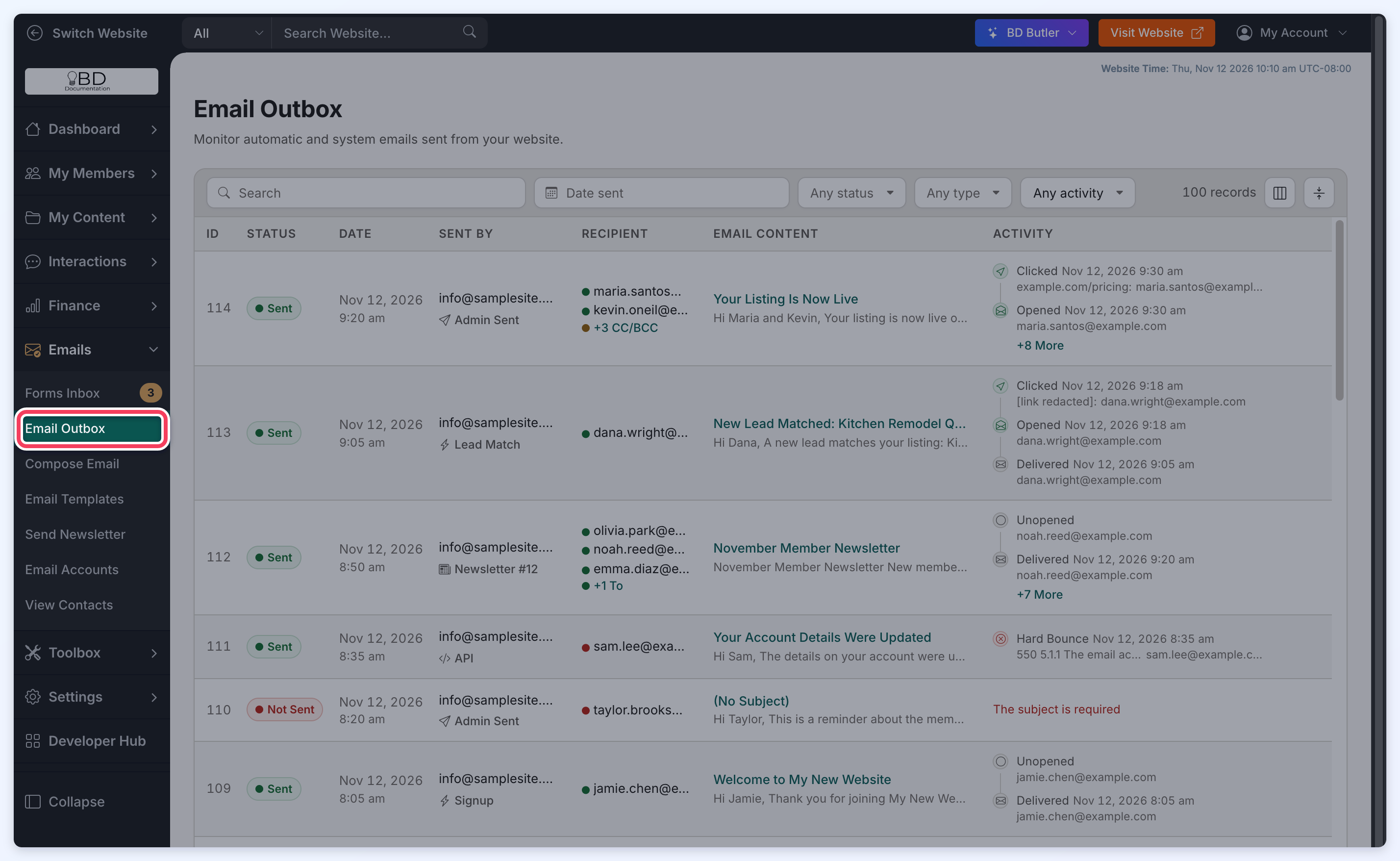
How to Access This Tool
This tool can be accessed under Emails » Email Outbox in the admin area:
Overview of the Layout
Each email is one row, with the newest emails at the top. The numbers in the screenshot match the sections below.
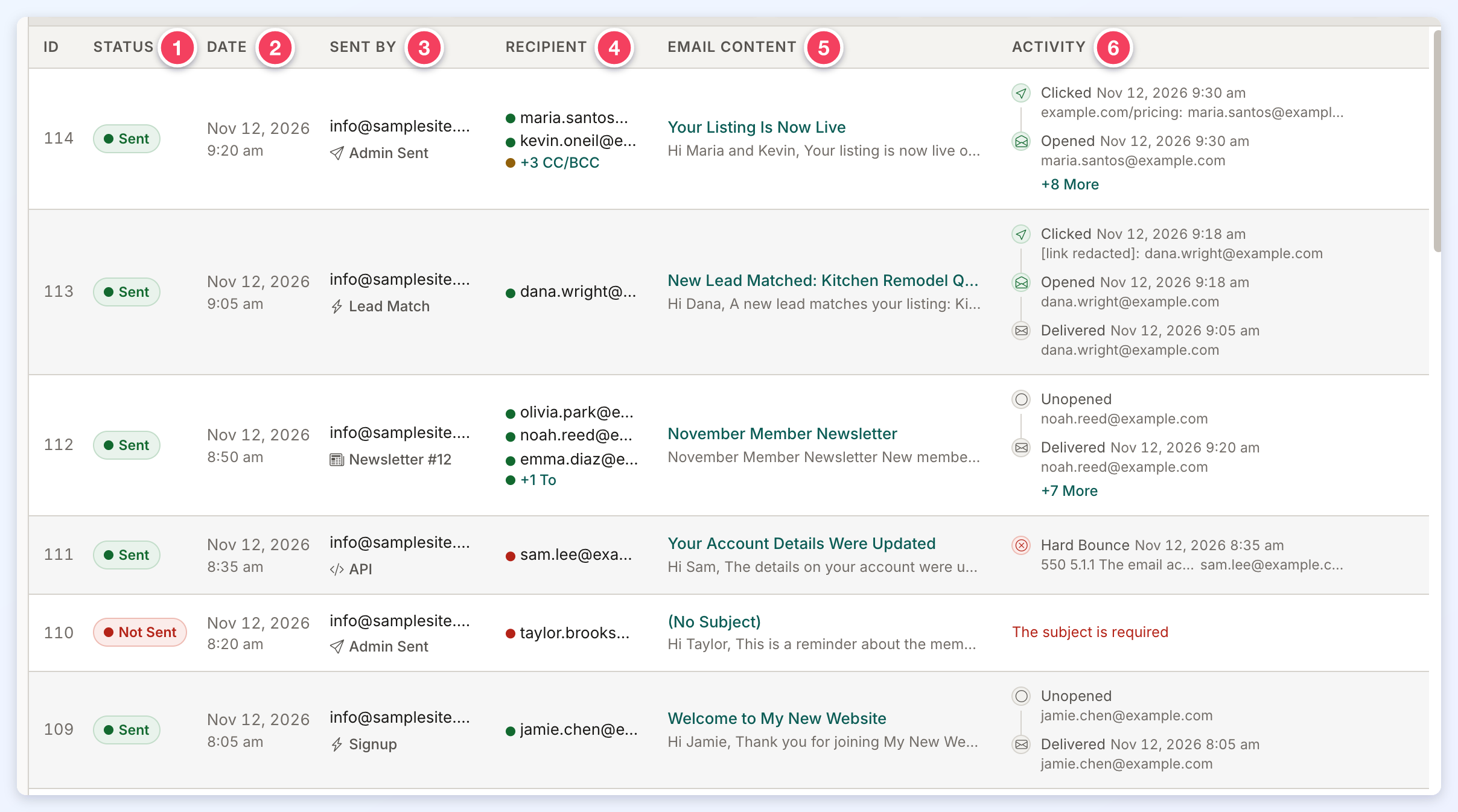
1. Status
Each email shows one of two labels:
- Sent: The email has been sent out.
- Not Sent: The email failed before it was sent, for example because the subject was missing or the website had used its email sending limit. The Activity column shows the error in red.
2. Date
The date and time the email was sent.
3. Sent By
The sender's email address. Hover over it to see the sender's name. Below the address, a label shows what sent the email:
- Admin Sent: An admin sent the email manually from Emails » Compose Email.
- The name of an automatic email, for example Signup or Lead Match: The website sent the email automatically.
- Newsletter with its number, for example Newsletter #12: The email was part of a newsletter.
- API: The email was sent through the API.
- Any other label, shown as recorded: The email was sent by another part of the system or by custom code. These emails are grouped under Other in the Type filter.
Older emails, sent before this label was recorded, show no label.
The default Website "FROM" Email Address can be set up under General Settings » General Settings Tab » Website "FROM" Email Address.
4. Recipient
Each To address is listed on its own line with a colored dot showing what happened to the email for that address:
- Green: Delivered.
- Red: Failed (the email bounced, was blocked, or was not sent).
- Gray: Pending (no delivery result has been recorded yet).
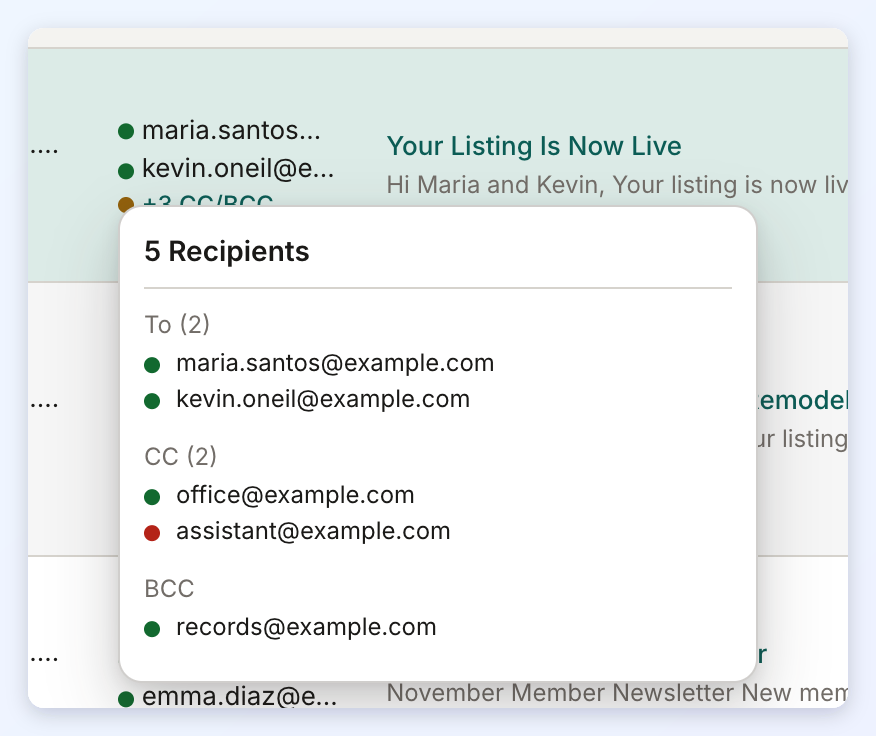
Up to three To addresses are listed. The other addresses are summed up in a label below them, for example +1 To for a fourth To address and +3 CC/BCC for CC and BCC recipients. The label is green when all of those addresses were delivered, red when all of them failed, and amber when some of them failed. Click the label to open the email's Details.
Hover over the addresses to see every recipient of the email, grouped under To, CC and BCC, each with its dot:
5. Email Content
The subject of the email and the start of its text. Hover over the subject to read more of the text, and click the subject (or See Email in the hover card) to open the email that was sent.
6. Activity
The latest events for the email, newest first, with the date and time of each event and the address it happened to. Clicks and bounces show more detail before the address, such as the link that was clicked or the reason the receiving mail server gave. When an email has more than three events, the column shows the latest two and a +N More link that opens the full list. An email with no events yet shows No activity yet.
Activity is recorded for every recipient, including CC and BCC addresses. Click the Activity column to open the email's full activity.
Activity Types
- Delivered: The email was accepted by the recipient's mail server.
- Unopened: The email was delivered, but the recipient has not opened it.
- Opened: The recipient opened the email.
- Clicked: The recipient clicked a link in the email. The link that was clicked is shown. A link to the admin area or the member area is shown as [link redacted], because these links can carry sign-in details.
- Soft Bounce: The email could not be delivered for now, for example because the recipient's mail server was busy or temporarily refused it. The reason is shown.
- Hard Bounce: The recipient's mail server permanently rejected the email, for example because the address does not exist. The reason is shown.
- Blocked: The recipient's mail server refused the email, often for reputation or policy reasons, and it was not retried. The reason is shown.
- Previously Bounced: The email was not sent because the address had bounced or was suppressed before. The reason is shown.
- Spam Complaint: The recipient reported the email as spam.
- Unsubscribed: The recipient unsubscribed from the website's emails.
Links and bounce reasons are recorded only for emails sent after this feature was added. Older emails show their activity without them.
Email Details
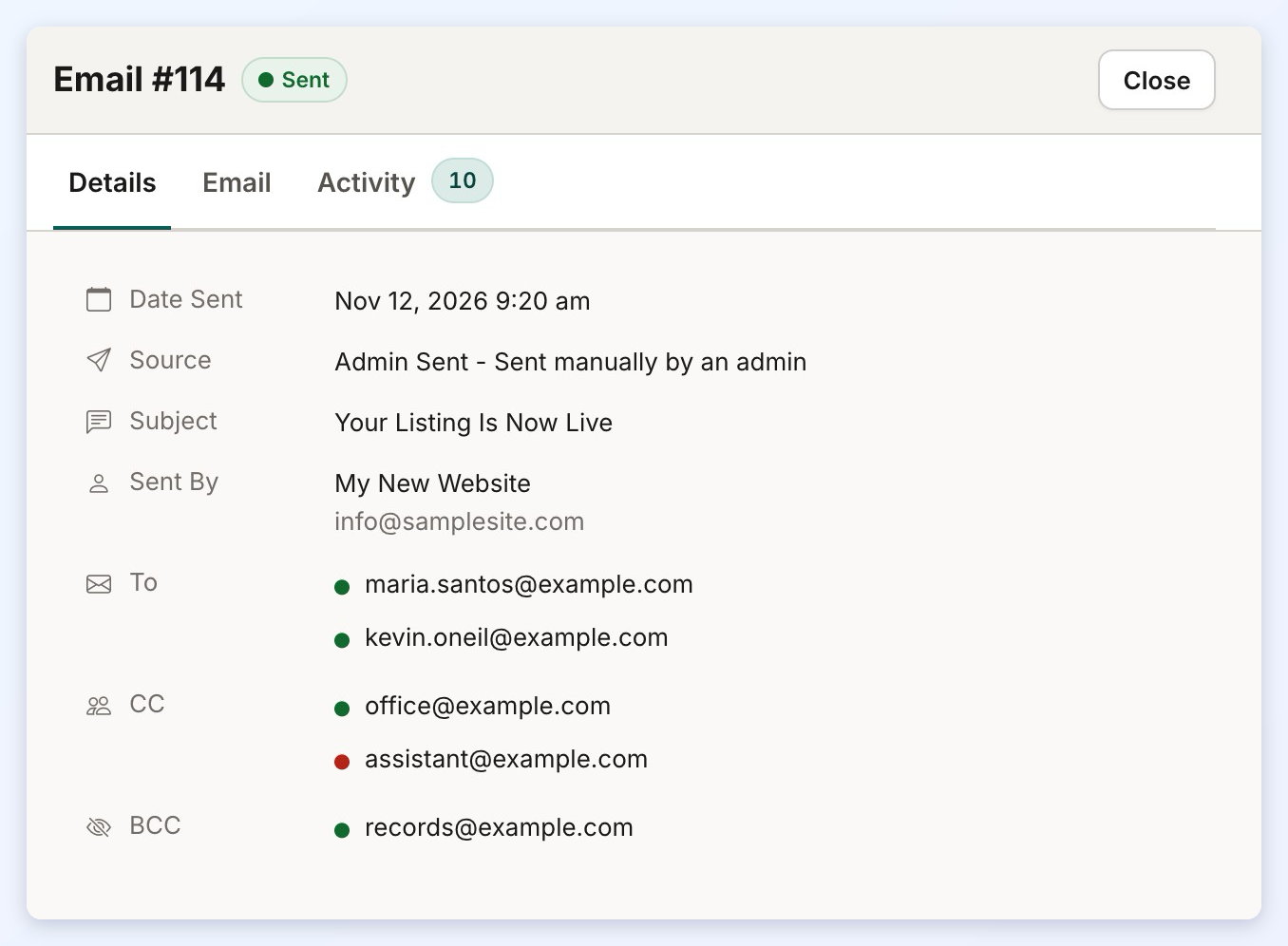
Click an email's row to open its details in a panel on the right. The panel shows the email number and its status, and has three tabs:
- Details: The Date Sent, the Source (what sent the email), the Subject, who it was Sent By, and every To, CC and BCC address with its colored dot. Each address has a button to copy it. For an email that was not sent, an Error Before Sending message at the top gives the error.
- Email: A preview of the email that was sent. Links in the preview cannot be clicked, and links to the admin area or the member area are shown as [link redacted].
- Activity: Every event for every recipient, grouped by day, with the time of each event. A CC or BCC address is marked CC or BCC. A clicked link has a button to copy it.
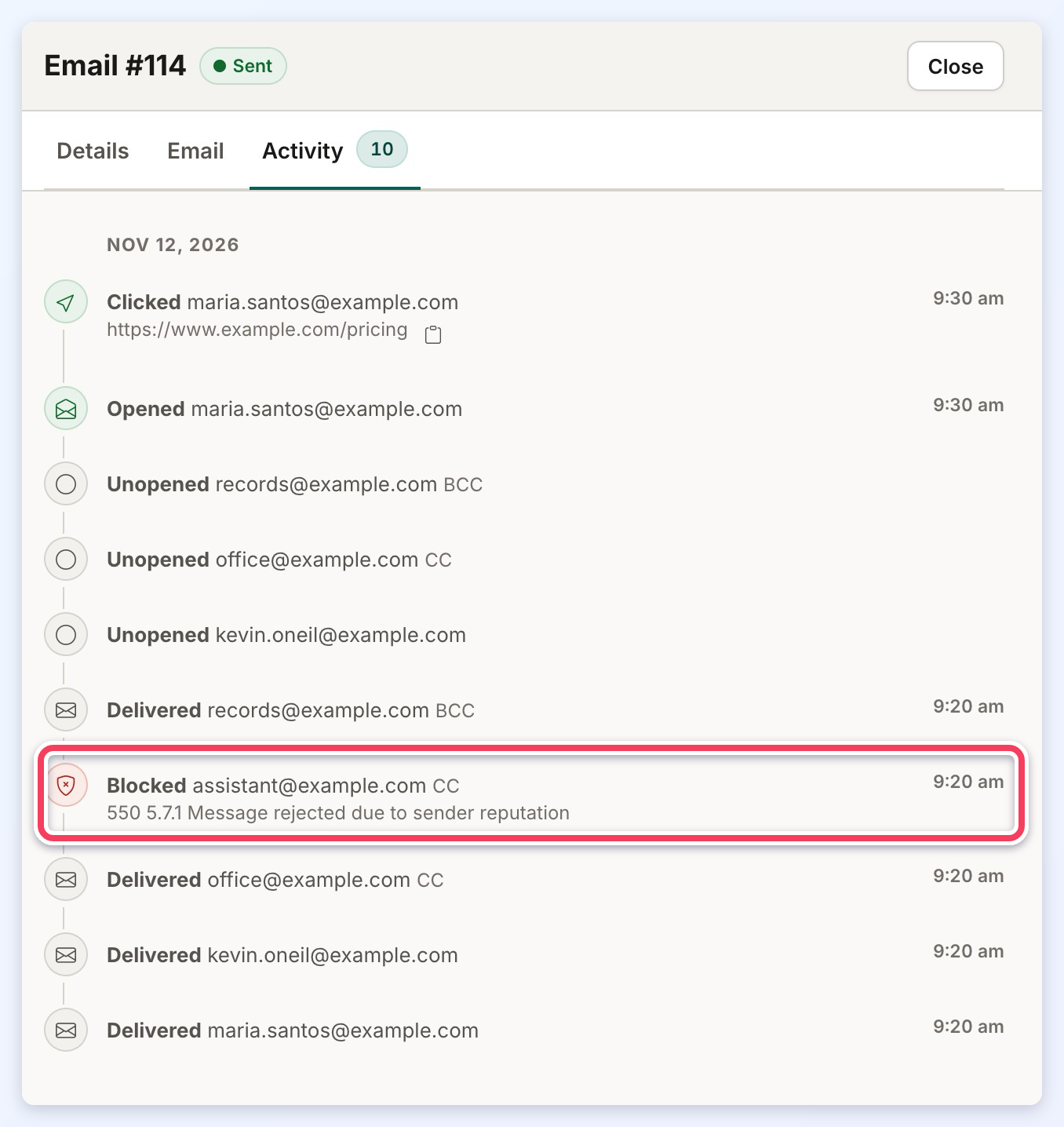
Click Close to close the panel.
Filtering and Searching
The toolbar above the list filters and searches the emails. The filters can be combined, and the number of matching emails is shown on the right.
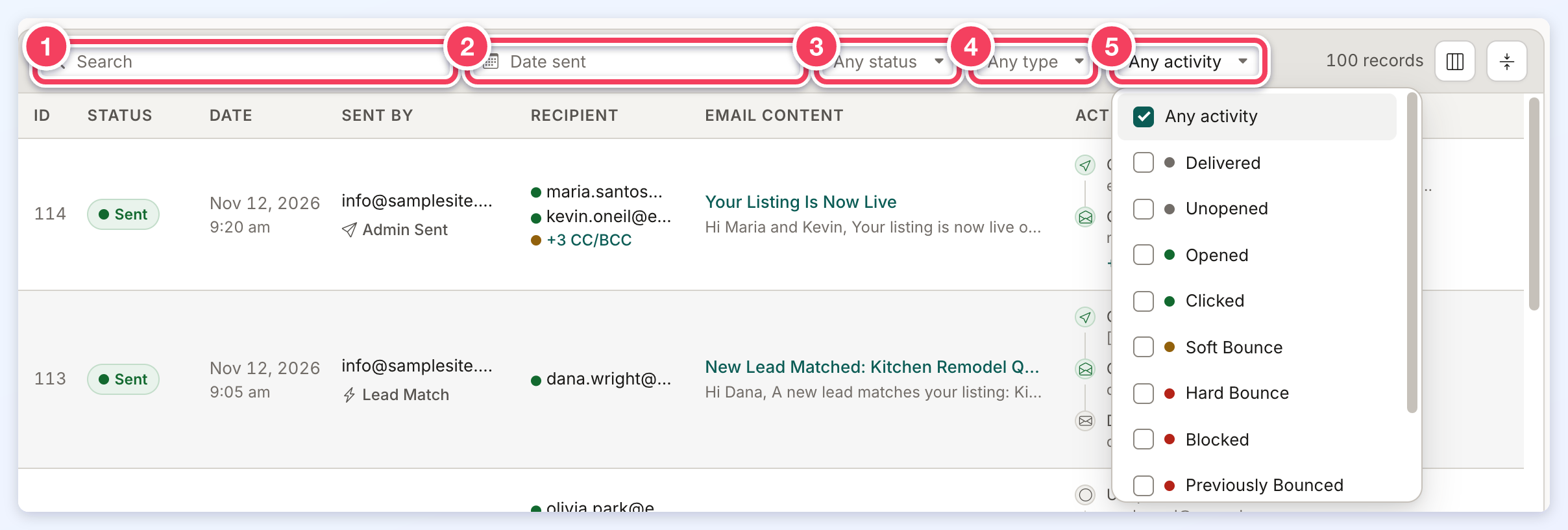
1. Search
Searches recipient addresses, sender names and addresses, subjects, and email text.
2. Date sent
Limits the list to emails sent on a date or in a date range.
3. Status
Shows only emails that were Sent or Not Sent. Any status shows both.
4. Type
Shows only emails of one type: Admin Sent, Automatic, Newsletter, API or Other. Any type shows all of them.
5. Activity
Shows only emails with the selected activity: Delivered, Unopened, Opened, Clicked, Soft Bounce, Hard Bounce, Blocked, Previously Bounced, Spam Complaint or Unsubscribed. Several can be selected at once; an email is shown when it has any of them.
The two buttons at the right of the toolbar show or hide columns and switch to compact rows.
