
Developer Hub Overview
Link: https://support.brilliantdirectories.com/support/solutions/articles/12000110002
The Developer Hub gathers the website's advanced tools in one place: API keys and webhooks for connecting other applications, 301 redirects, image size settings, search autosuggest, the robots.txt and .htaccess files, and direct access to the website's database and cPanel.
Opening the Developer Hub
Click Developer Hub in the left menu of the Admin area. The page shows one card per tool. Click anywhere on a card, or its button, to open the tool.
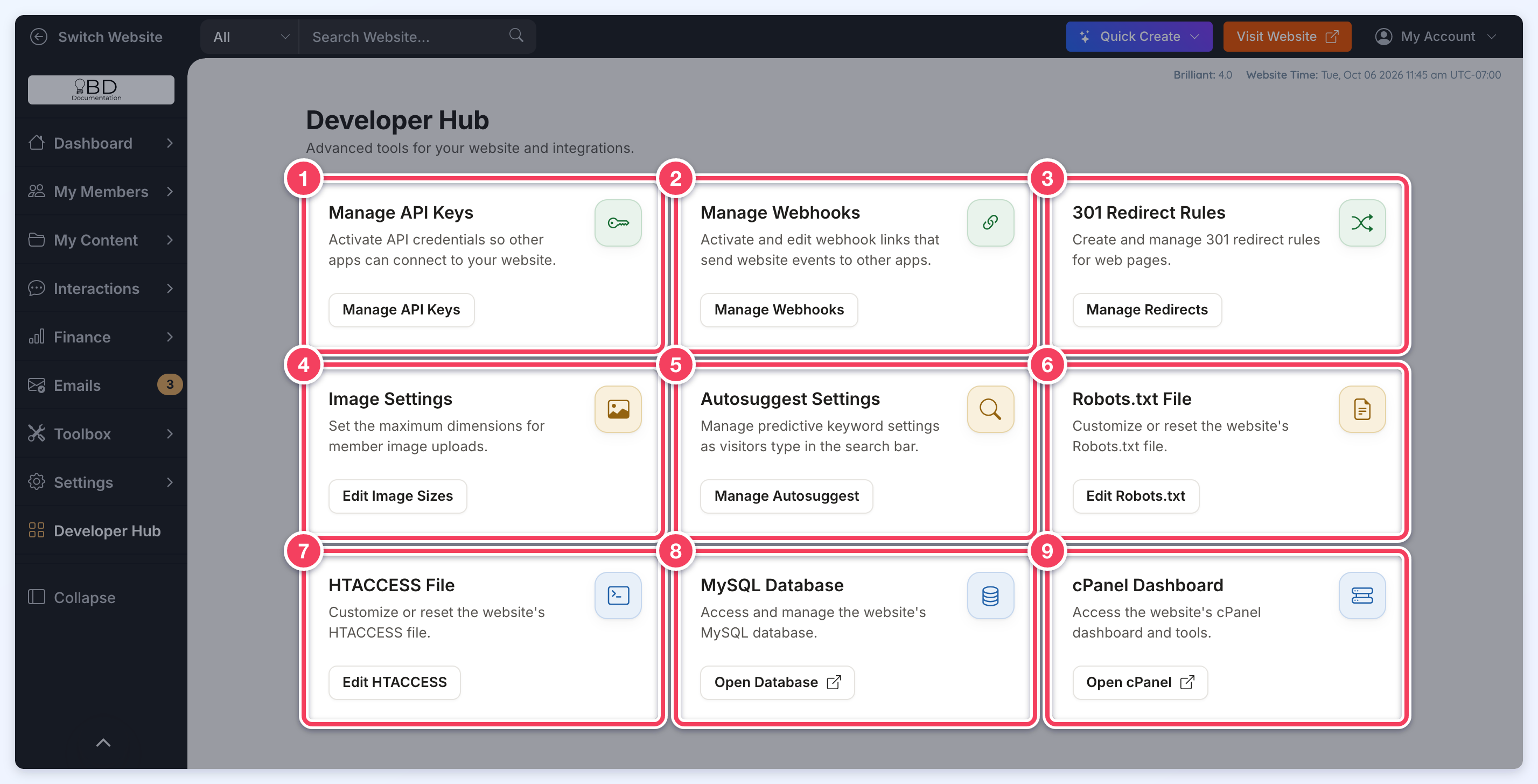
The Tools
- Manage API Keys: creates the API keys that let outside applications connect to the website, and sets what each key can access. See Developer Hub » Generate and Manage API Keys.
- Manage Webhooks: turns on webhook events and sets the links that website events (form submissions, sign ups, payments and more) are sent to. See Developer Hub - Webhooks.
- 301 Redirect Rules (Manage Redirects): sends visitors and search engines from pages that moved to their new address. See 301 Redirects.
- Image Settings (Edit Image Sizes): sets the maximum dimensions for images members upload. See Developer Hub » Image Settings.
- Autosuggest Settings (Manage Autosuggest): manages the keyword suggestions shown as visitors type in the search bar. See How To Edit Keyword Search Autosuggest Settings For Member Searches.
- Robots.txt File (Edit Robots.txt): customizes or resets the website's robots.txt file. See Developer Hub » Robots File.
- HTACCESS File (Edit HTACCESS): customizes or resets the website's .htaccess file. See Developer Hub » HTACCESS File.
- MySQL Database (Open Database): opens the website's database in a new browser tab. See the MySQL Database articles.
- cPanel Dashboard (Open cPanel): opens the website's cPanel in a new browser tab. See the cPanel Dashboard articles.
The Developer Hub no longer has a separate FTP File Manager card. Files on the website's server are reached through the cPanel Dashboard card.
Cards appear according to the admin's role permissions. An admin whose role does not include a tool does not see its card, and when a role includes none of the tools, the page shows No Developer Tools. The Autosuggest Settings card also needs the keyword autosuggest add-on to be active.
