Optimizing Website Performance
Link: https://support.brilliantdirectories.com/support/solutions/articles/12000084601
Here at Brilliant Directories, we're continuously optimizing the software to make pages load as fast as possible without affecting functionality. As our development team continues to release 100 - 150 new updates each month to add new functionality, make the platform easier to use, and maximize security, we always have an eye on site speed and suggestions.
We have projects on our immediate roadmap that are focused on optimizing database queries and minimizing the server response time to make pages load faster than ever and improve those scores even more. This is an aspect of the software we are always iterating on and will continue to make it a priority moving forward.
Here are some of the strategies we have implemented to optimize the performance of our sites.
Built-In Performance Measures
The platform implements several performance strategies at the core level:
- Compression: Gzip compression is enabled to reduce asset sizes.
- Asset minification: JavaScript and CSS files stored on Brilliant Directories servers are minified.
- Efficient routing: Redirects and rewrites are kept to a minimum to streamline page-load paths.
- Browser caching: Static assets are cached so that fewer resources need to be downloaded on repeat visits.
- Backend optimization: SQL queries and PHP code are refined to lower server response times.
- Code refactoring: Non-critical JavaScript is deferred where possible, reducing initial load times.
Key Factors That Influence Performance
These are some of the factors that we should have in mind when analyzing the site loading speed and a few recommendations to improve the scores if needed:
- There will always be a relationship between the size and number of images on a page and the speed in which that page will load. This can be seen in the example above, our all-in-one demo site uses a homepage slider, having several HD images that are rotating instead of just one, like the yellow pages demo to the right will impact the site loading speed. Try to always keep images within the recommended sizes.
- The more features and functionality is present, the longer the page will take to load. Going back to the example above, our all-in-one demo site has more homepage streaming widgets on the homepage than our yellow pages demo site, this will also impact the speed at which this page loads.
- Try adding and removing features or streaming widgets to find the right balance between page load times and the content on the page that fits the needs of the website.
- Check with support to see if the website is using PHP 7 or 5.4. Moving to PHP 7 will help with speed. This is a very seamless transition, if the site's custom widgets are compatible we recommend upgrading to the latest version of PHP.
- If the site is already using PHP 7, there is one more option to optimize the site speed, which is PHP-FPM. PHP-FPM (FastCGI Process Manager) is a web tool used to speed up the performance of a website. It is much faster than traditional CGI-based methods and has the ability to handle tremendous loads simultaneously. This is still in a beta version, but we offer this as an option to test it out.
Let's take the last two sites we compared and add a couple of our demo sites as an example:
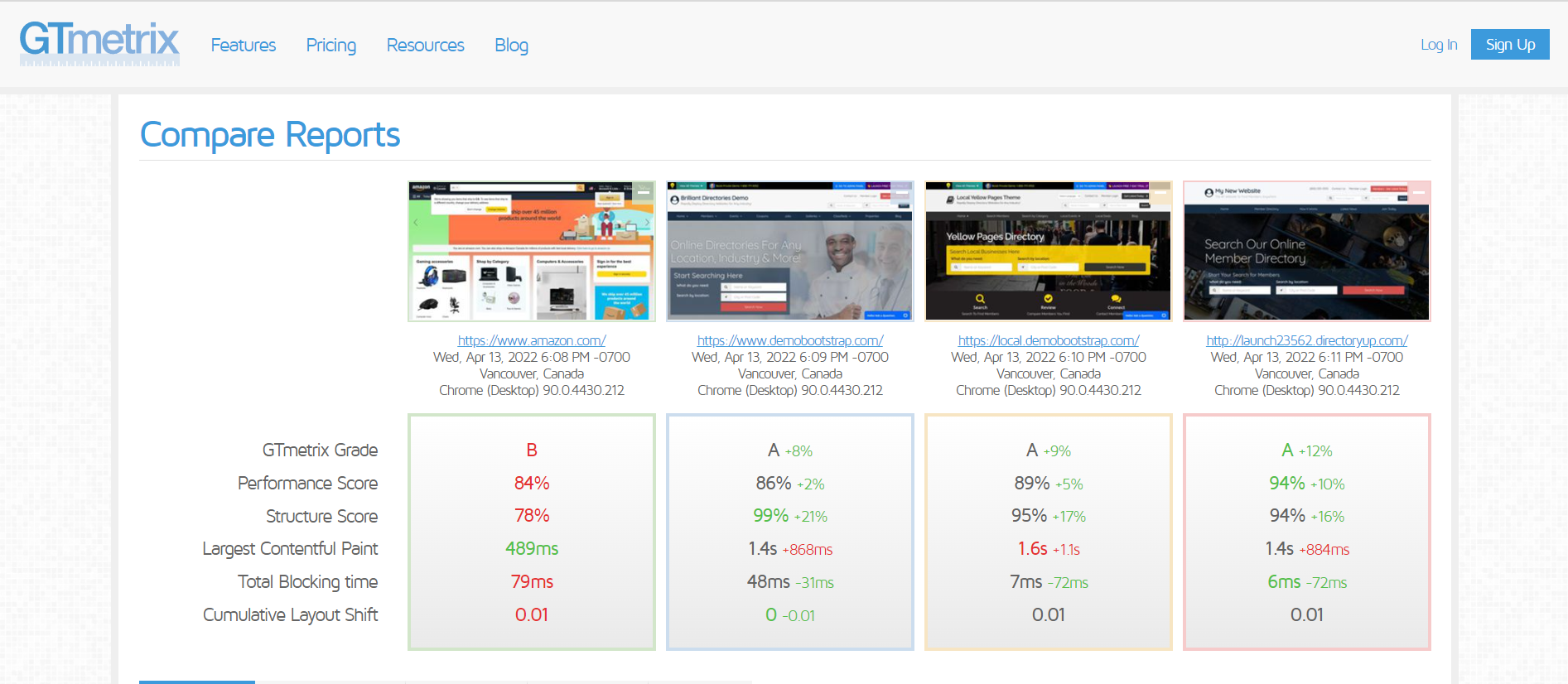
To better understand the comparison image here is a breakdown of what each of these sites includes.
Newly Launched Site
This site's homepage has a single static hero image, a Keyword + Location Search, and the About Website / Join Offer homepage widget.
Yellow Pages Demo
In addition to that content, the Newly Launched Site has on the homepage, this site also has the following:
- Streaming Members Homepage widget
All-In-One Demo
In addition to that content, the Newly Launched Site has on the homepage, this site also has the following:
- Streaming Members Homepage widget
- Streaming Top Categories Homepage widget
- Streaming Blog Articles with Sidebar
Optional Performance Enhancement Settings
For sites that are not performing as quickly as desired, the following strategies can provide further improvement.
Resource CDN
The advanced setting Front-End Optimization: Enable Resource Delivery Via CDN allows CSS / JS resources that are referenced on all pages to be served from https://www.optimizecdn.com. If set to OFF, the system will use relative paths from the domain, but if turned ON, it speeds up the delivery of resources vs. the relative path of the domain name.
To activate the setting, go to Settings >> Advanced Settings:

Image CDN
The Front-End Optimization: Use Content Delivery Network (CDN) For Images advanced setting allows user to enter a URL to use a service like imagekit.io to serve images from an image CDN with automatic optimization and real-time transformation. Images that are served from a relative path will be updated to include your inputted CDN. For example, an image that is set to /images/logo.png will be served from https://ik.imagekit.io/your-account-id/images/logo.png.
To activate the setting, go to Settings >> Advanced Settings:
External CDN (e.g., Cloudflare)
Front-End Optimization Features
Mobile Preloader
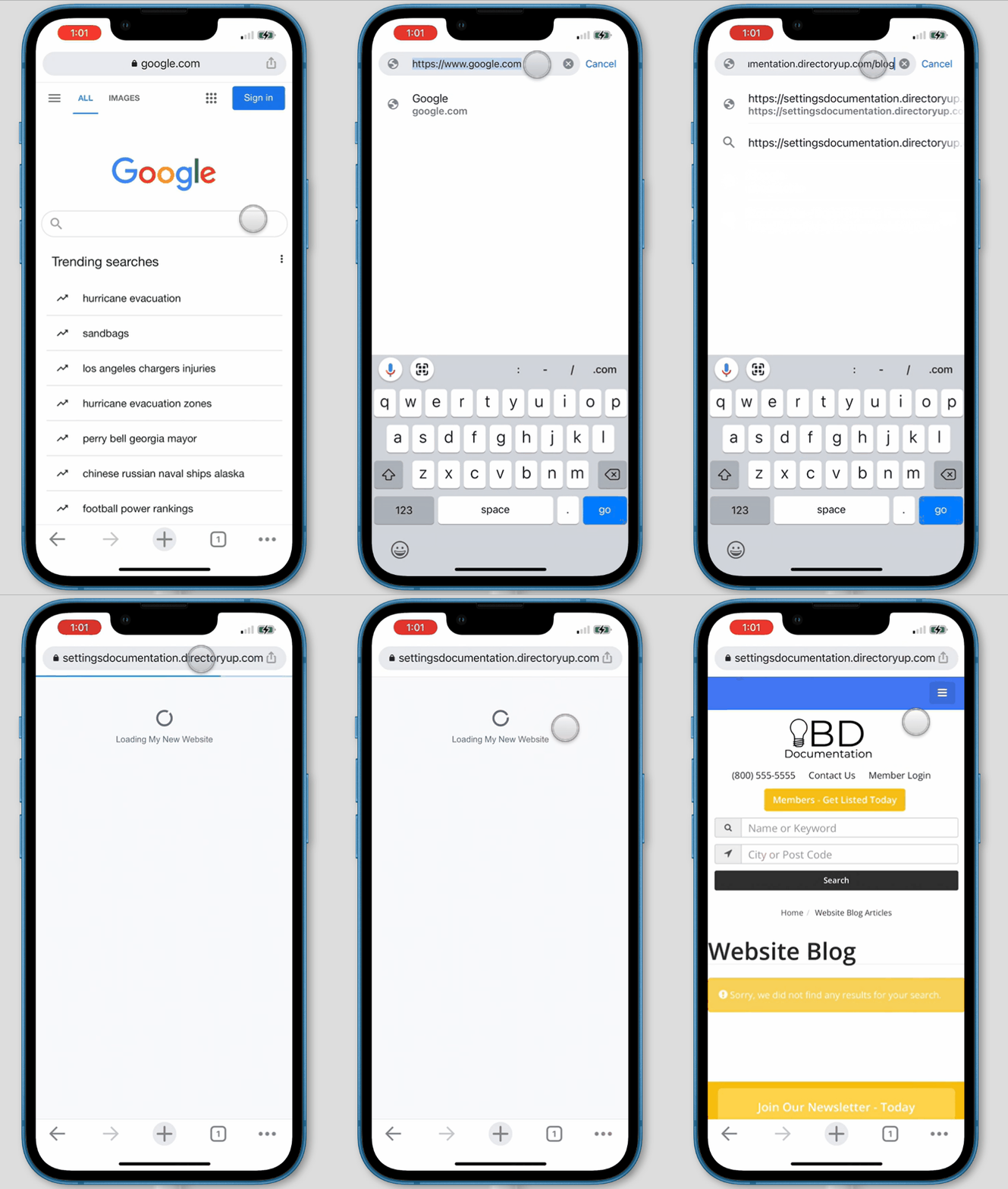
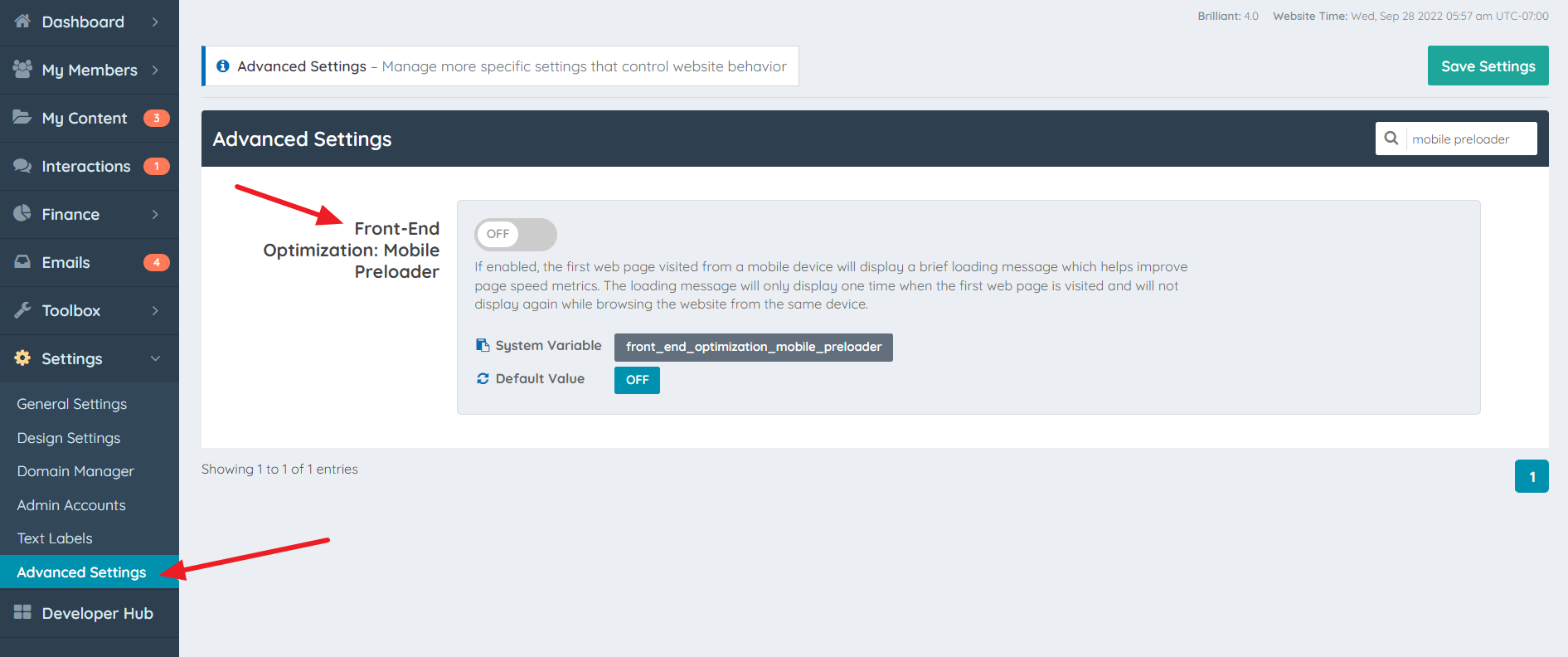
When the advanced setting Front-End Optimization: Mobile Preloader (front_end_optimization_mobile_preloader) is enabled, the first page visited from a mobile device will display a brief loading screen. This feature helps improve perceived page speed and performance metrics. The loading screen appears only once per device during the initial visit and does not display again while navigating the site from the same device.
An example of this behavior is illustrated in the GIF below:
To activate the setting, go to Settings >> Advanced Settings:
Lazyload iframe Embeds
The Front-End Optimization: Lazyload iframe Embeds advanced setting defers the loading of embedded iframe content, such as videos, audio players, and social media widgets, until the visitor scrolls near the embed or interacts with it. This reduces initial page weight and improves load times, especially on content-heavy pages.
To activate the setting, go to Settings >> Advanced Settings:
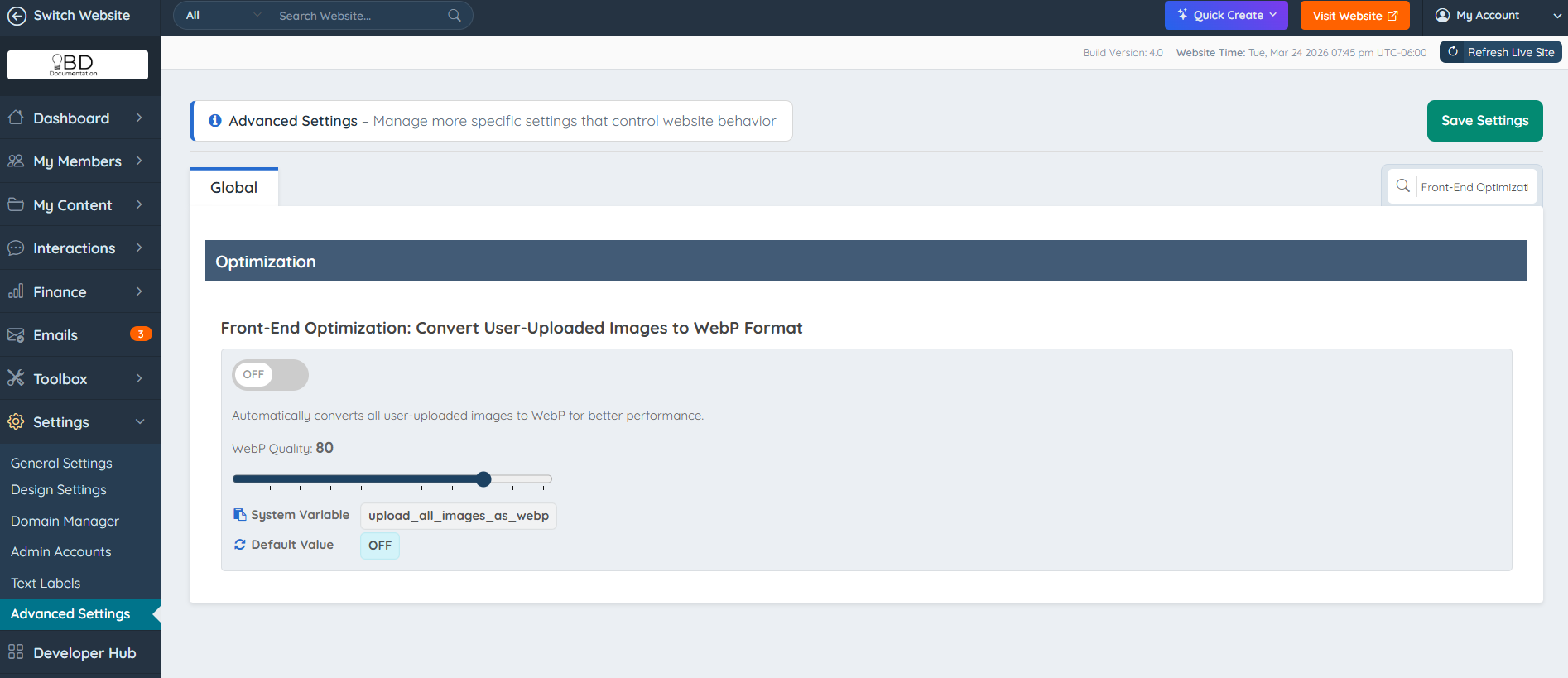
Convert User Uploaded Images to WebP
The Front-End Optimization: Convert User Uploaded Images to WebP advanced setting automatically converts uploaded images to WebP format and optimizes them to reduce file sizes and improve performance.
When enabled, images uploaded through the member dashboard (such as profile photos, logos, and post images) are converted to WebP and compressed based on the selected quality level (default: 80%).
This setting is enabled by default and does not apply to Media Manager uploads, images added via the editor (Froala), or admin-uploaded images.
To activate the setting, go to Settings >> Advanced Settings: