
My Support Tickets
Link: https://support.brilliantdirectories.com/support/solutions/articles/12000107674
The My Support Tickets section keeps every support conversation organized in one place, making it easy to review past requests, track what changed, and see the latest status at a glance. Each ticket captures the subject, recent activity, and current state, so ongoing issues stay clear, searchable, and tied to the right website or account.
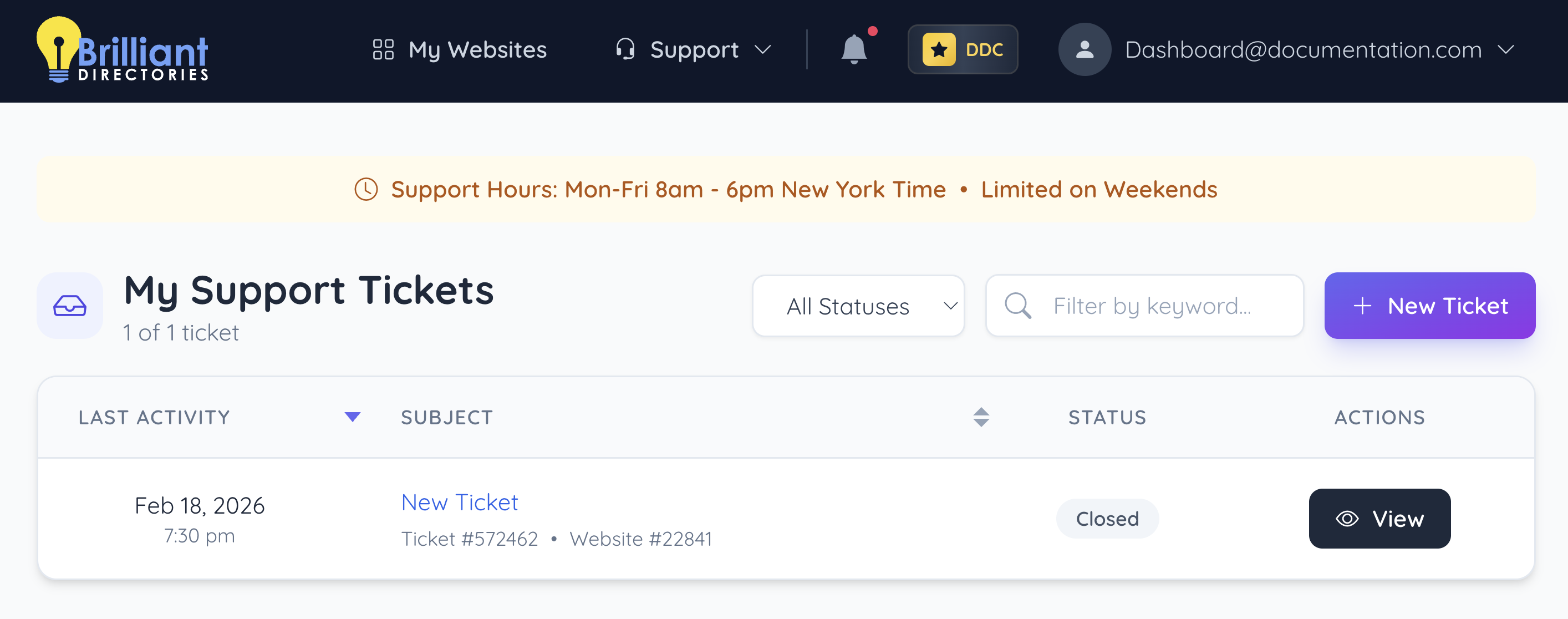
Support Hours
Support is available Monday–Friday, 8am–6pm (New York Time). On weekends, support is limited, so response times may be a bit longer depending on volume and complexity.
+ New Ticket
Use this button to create and submit a new ticket for help with any website question or issue. For step-by-step instructions, see: How to Submit a Support Ticket
Support Ticket Filters
Support Ticket Filters make it easy to narrow the ticket list by status or keyword, so the right conversation can be found faster.
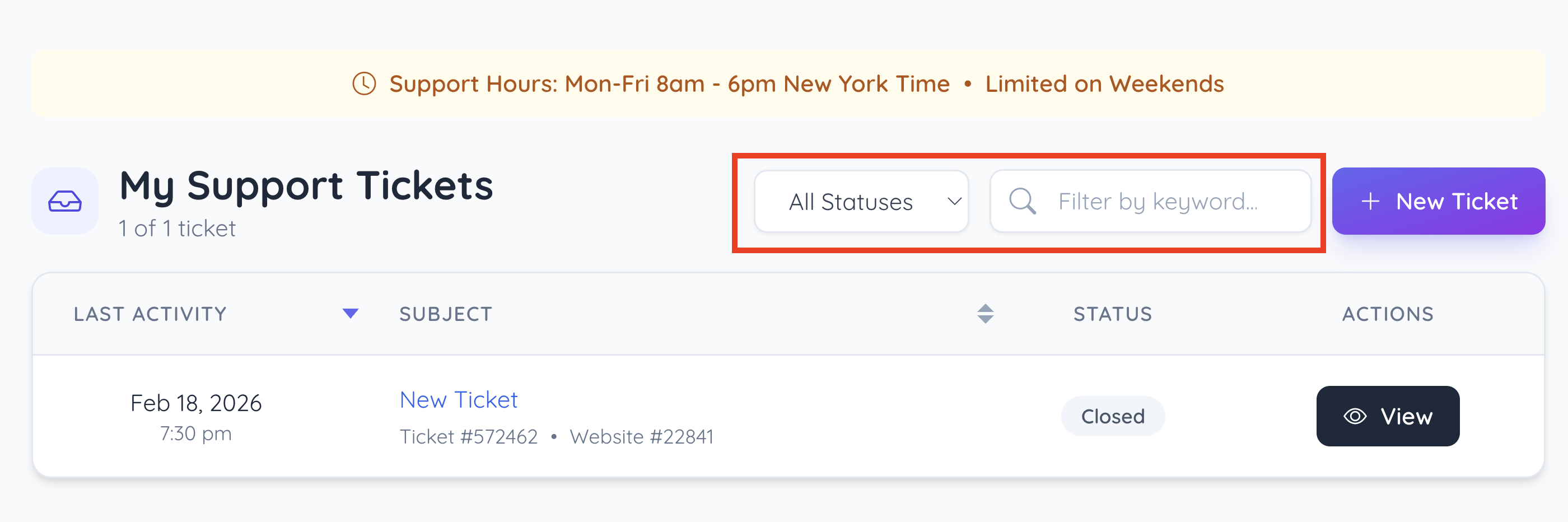
Status
A filter control used to narrow the ticket list by ticket status (e.g., open, closed, pending).
Keyword
A filter control used to narrow the ticket list by ticket status (e.g., open, closed, pending).
Tickets List
The main module that displays tickets in a structured list for quick scanning and sorting.
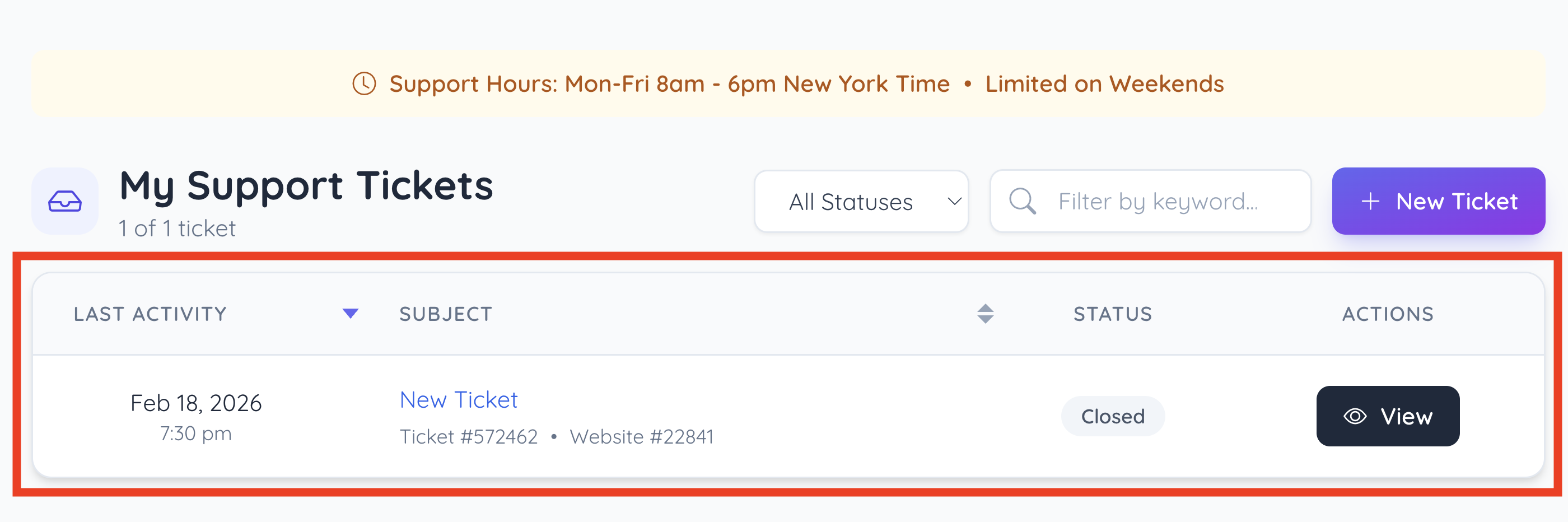
Last Activity
Shows the most recent activity timestamp for each ticket (useful for tracking recency and updates).
Subject
Displays the ticket subject/title as the main identifier for the request (often clickable to open details).
Also shows additional identifiers beneath (e.g., ticket number and related website/account reference).
Status
Indicates the current ticket state (shown as a labeled pill, such as Closed).
Actions
Contains the available action(s) for the ticket (most commonly a View button to open the ticket thread/details).
View Tickets
New Ticket
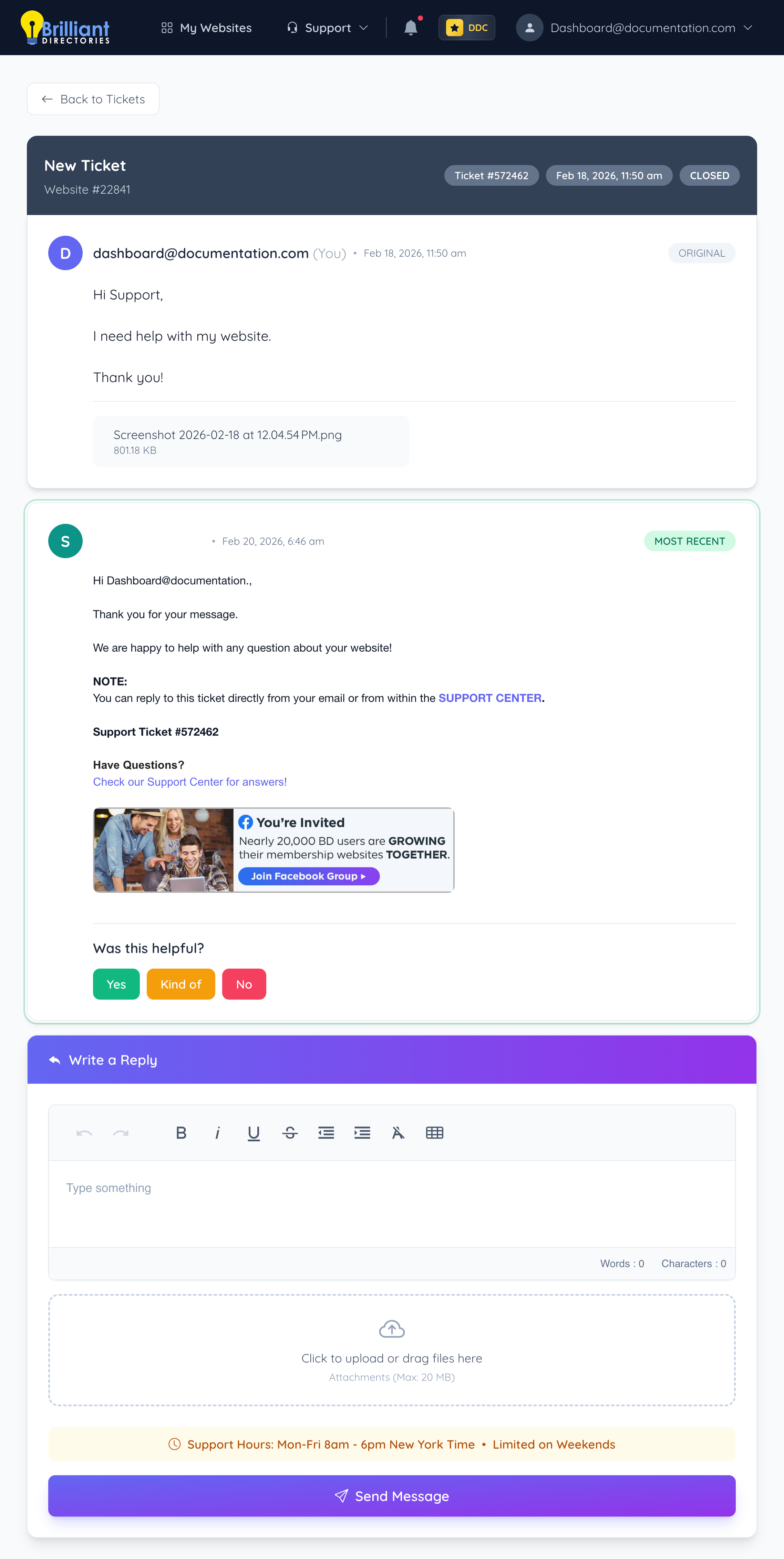
This is the original ticket that started the thread.
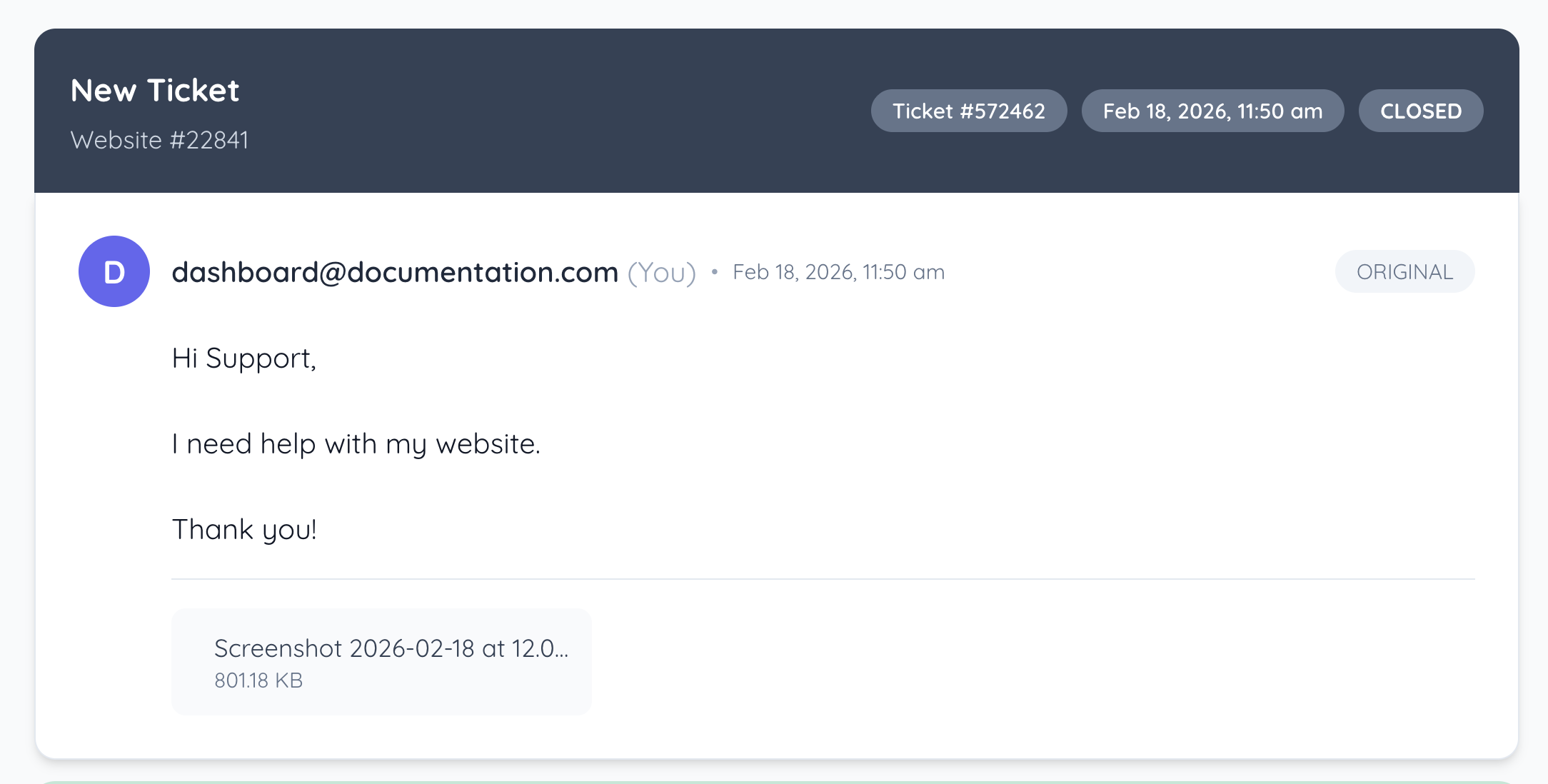
Ticket Title
Displays the ticket subject at the top of the thread.
Website ID
Shows which website the ticket is associated with.
Ticket Number
Displays the unique ticket reference number for tracking.
Ticket Date & Time
Shows when the ticket was created (or logged) in the system.
Ticket Status
Shows the current ticket status (example: Closed).
Original Message Label
Marks the first message that created the ticket.
Message Thread
Displays the full conversation history for the ticket in chronological order.
Attached File
Displays any files included with a message, along with the file name and size.
Ticket Replies
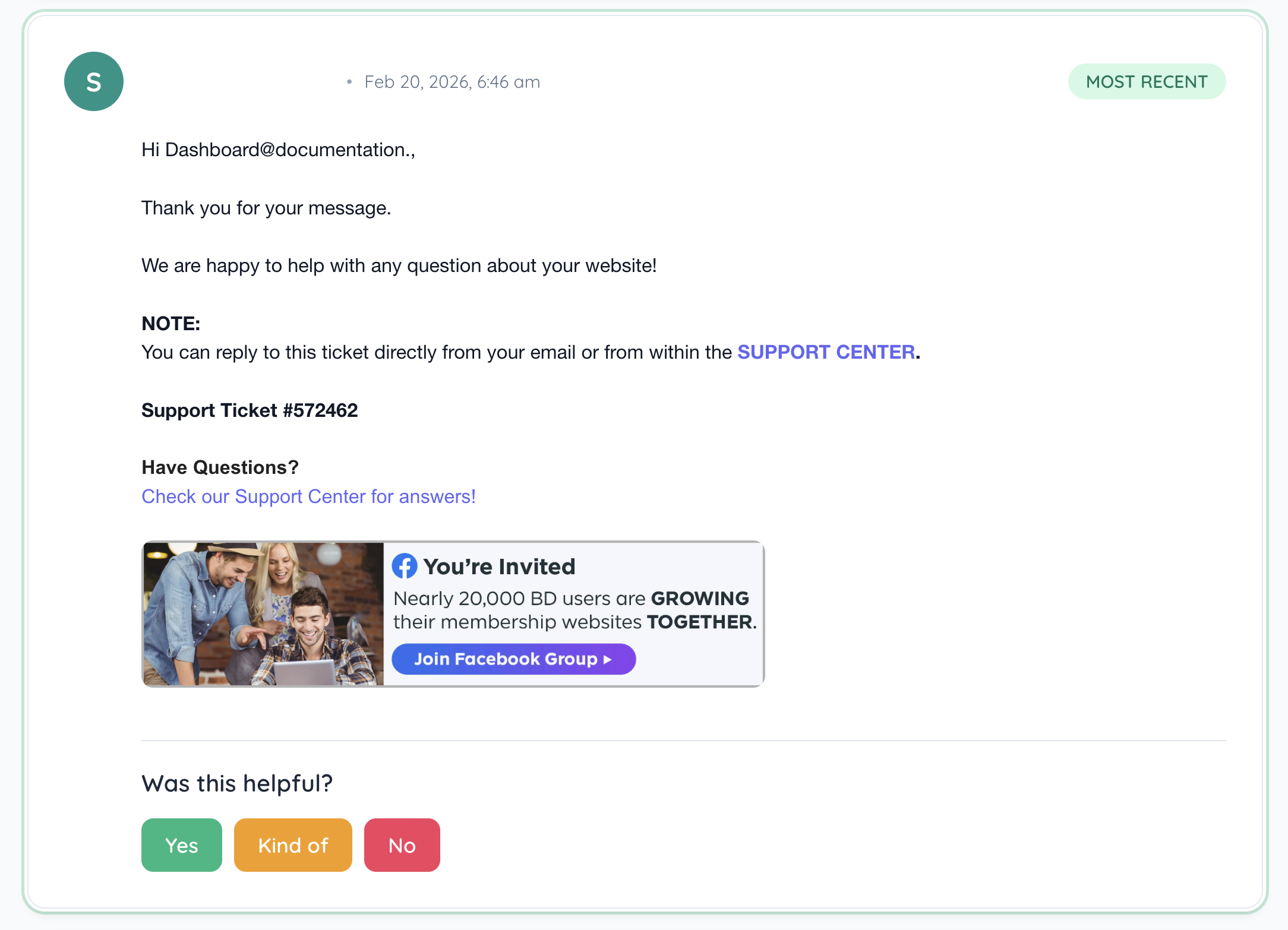
Most Recent Label
Highlights the latest reply in the thread.
Message Details
Each message shows the sender, timestamp, and the message content.
Helpfulness Rating
Provides quick feedback options for the most recent support response (Yes / Kind of / No).
Additional Replies
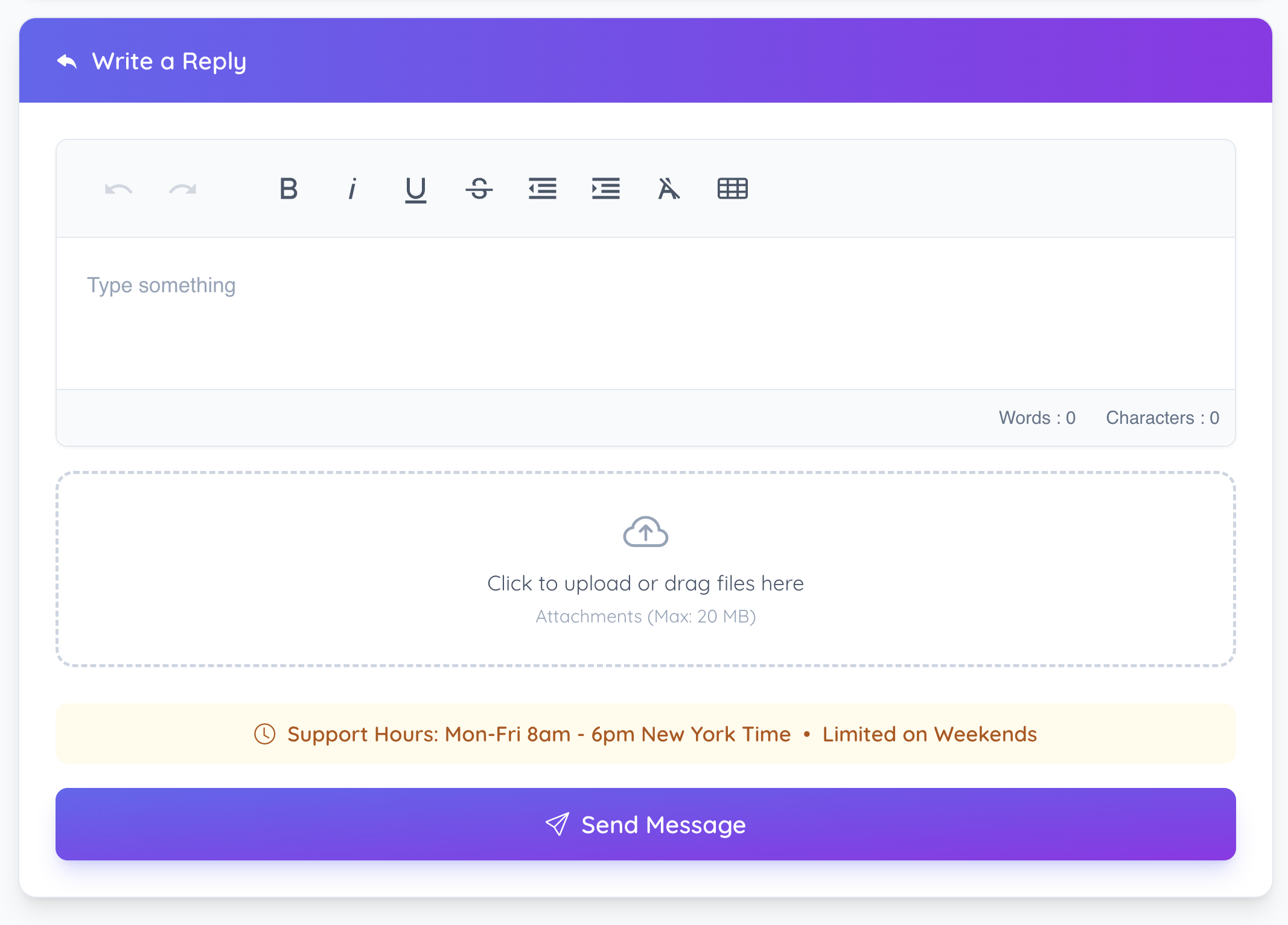
Write a Reply
Opens the reply composer to add a new message to the ticket.
Reply Editor Toolbar
Basic formatting controls for the reply message.
Reply Message Box
Text area for entering the reply content.
Reply Attachments
Upload area for adding files to the reply (max 20MB).
Send Message
Submits the reply and any attachments to the ticket thread.
