
How to Capture a HAR File and Console Screenshot for Support
Link: https://support.brilliantdirectories.com/support/solutions/articles/12000109959
Some problems only happen on one computer or in one browser: a button that does nothing when clicked, a save that seems to work but does not keep the changes, a form that will not submit, or a page that keeps loading. When the support team cannot make the problem happen on its own computers, a recording from the browser where it does happen shows exactly what went wrong.
This article explains how to make that recording and send it to support. It takes about five minutes and does not change anything on the website.
What Support Needs
- The browser name and version, EG Chrome 154 on Windows 11. See How to Find the Browser Version at the end of this article.
- A HAR file. This is a log of everything the browser sent and received while the problem happened. The file name ends in
.har. - A screenshot of the Console tab, taken right after the problem happens. Error messages from the page show up here in red.
- A list of active browser extensions or assistant tools, EG Grammarly, ad blockers, password managers, translation tools, or AI assistants and sidebars. These tools can change how a page behaves.
- The page address and the steps that cause the problem, EG "Settings > General Settings, change the Website Name, click Save Changes".
A HAR file can contain anything typed into forms on the page, and in some browsers the admin login session. Attach it only to the support ticket, never to a public post or a group email. Sign out of the Admin Area after sending it, which ends the login session recorded in the file.
Google Chrome and Microsoft Edge
Chrome and Edge use the same developer tools, so the steps are the same. Button names can differ slightly between versions.
- Open the page where the problem happens.
- Press F12 (on a Mac, Option + Command + I), or right-click anywhere on the page and choose Inspect. The developer tools open on one side of the window.
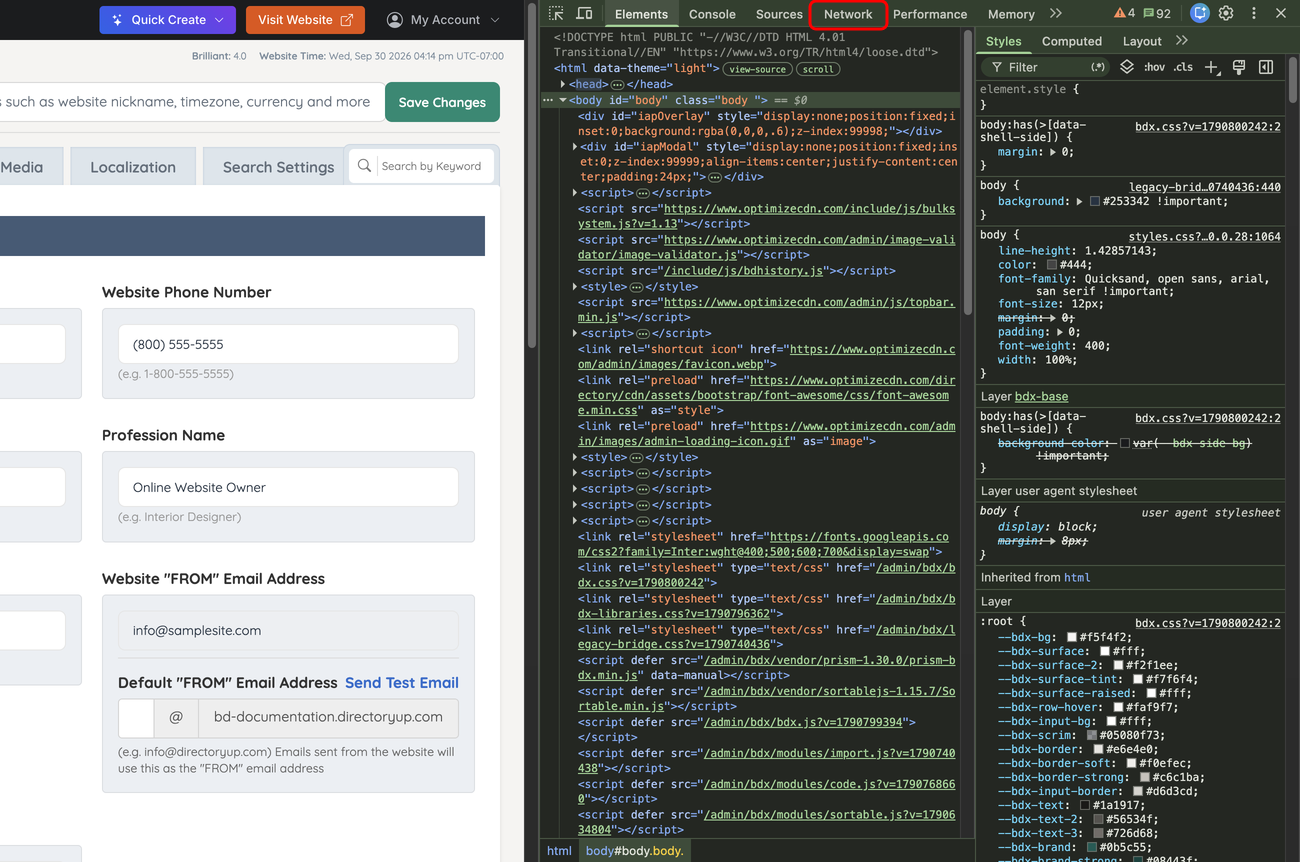
- Click the Network tab. If it is not visible, click the » arrows next to the tab names to find it.
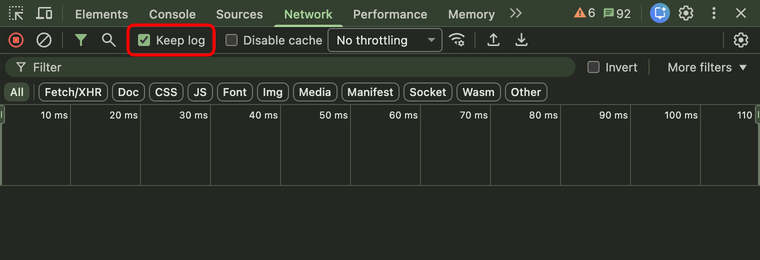
- Tick Keep log so the list is not cleared when the page reloads or moves to another page. Older versions of Chrome call this option Preserve log.
- Repeat the steps that cause the problem, EG click the button or submit the form. New lines appear in the list while the browser works. Wait until the problem has happened.
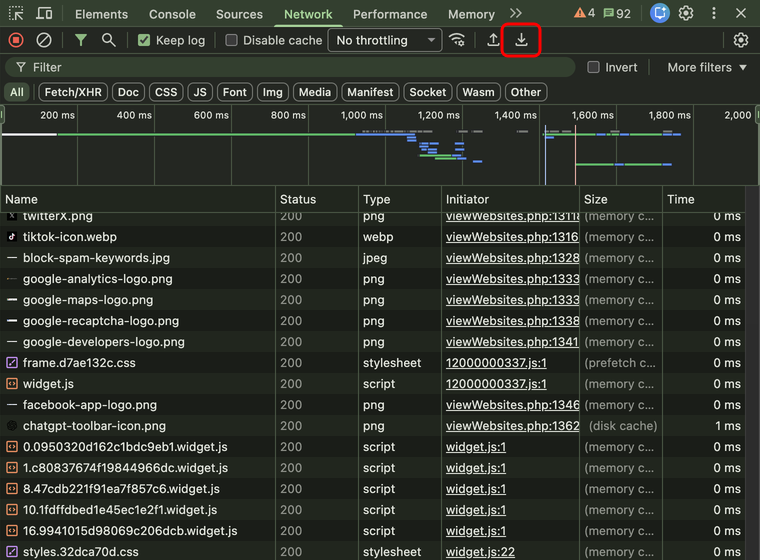
- Click the Export HAR button (the downward arrow in the Network toolbar), choose where to save the file, and click Save.
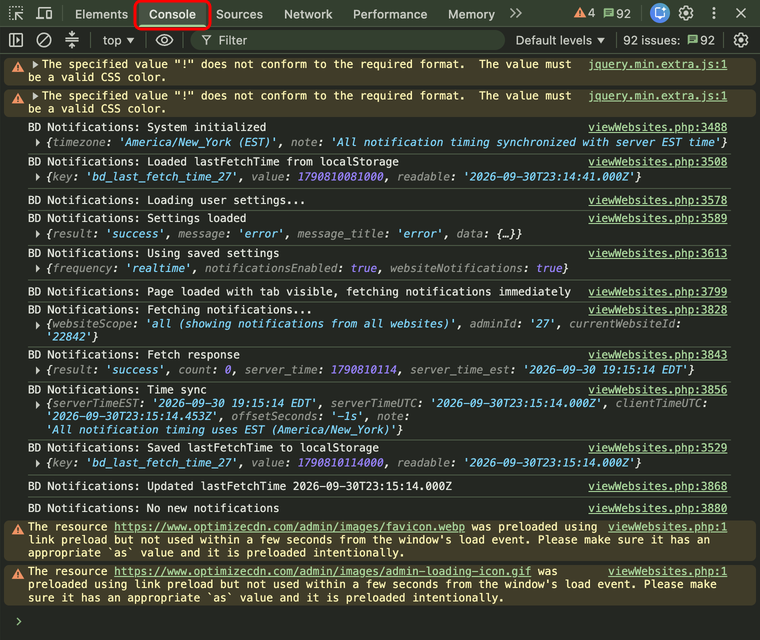
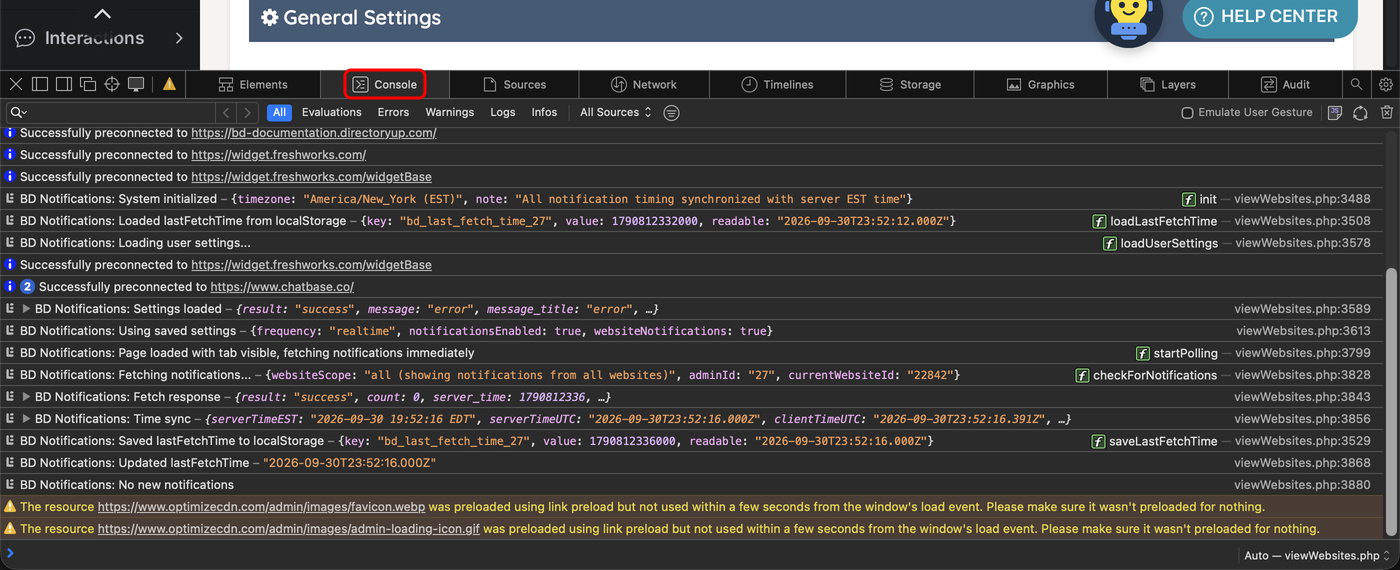
- Click the Console tab and take a screenshot of it, including any lines shown in red. On Windows, press Windows + Shift + S. On a Mac, press Command + Shift + 4.
Sanitized HAR files: Chrome saves a sanitized HAR file by default. It leaves out the browser's login cookies but keeps everything support needs to investigate. If a menu appears with two choices, choose Export HAR (sanitized). In older versions of Chrome, the same file can also be saved by right-clicking the list of requests and choosing Save all as HAR with content.
Mozilla Firefox
- Open the page where the problem happens.
- Press F12 (on a Mac, Option + Command + I), or right-click anywhere on the page and choose Inspect.
- Click the Network tab.
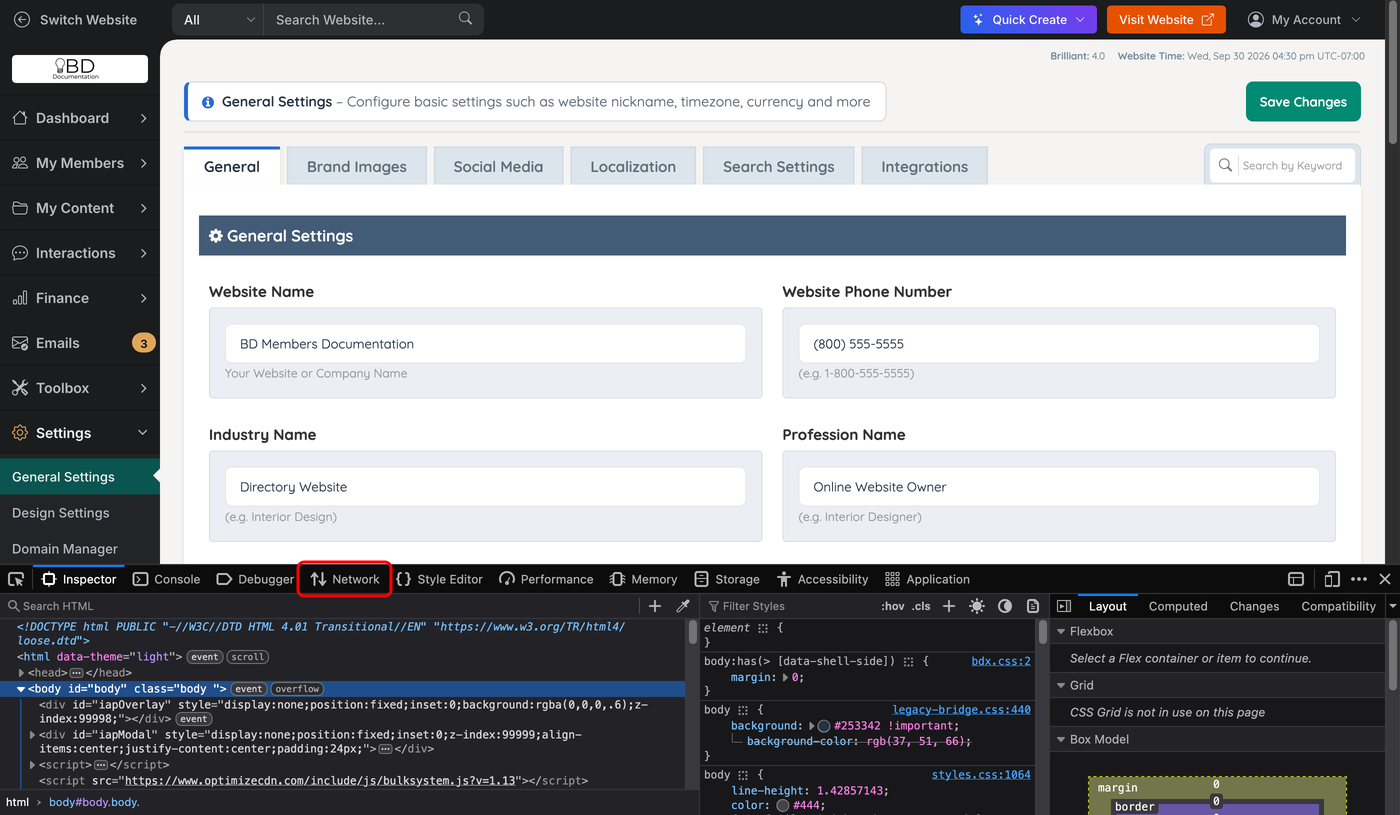
- Click the gear icon at the right end of the Network toolbar and select Persist Logs, so a check mark appears next to it.
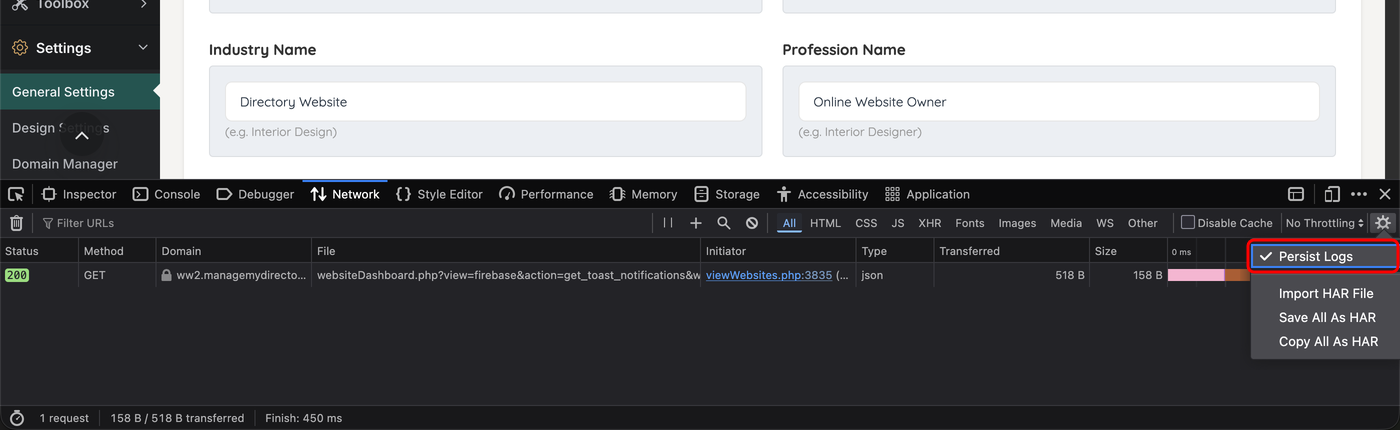
- Repeat the steps that cause the problem and wait until it has happened.
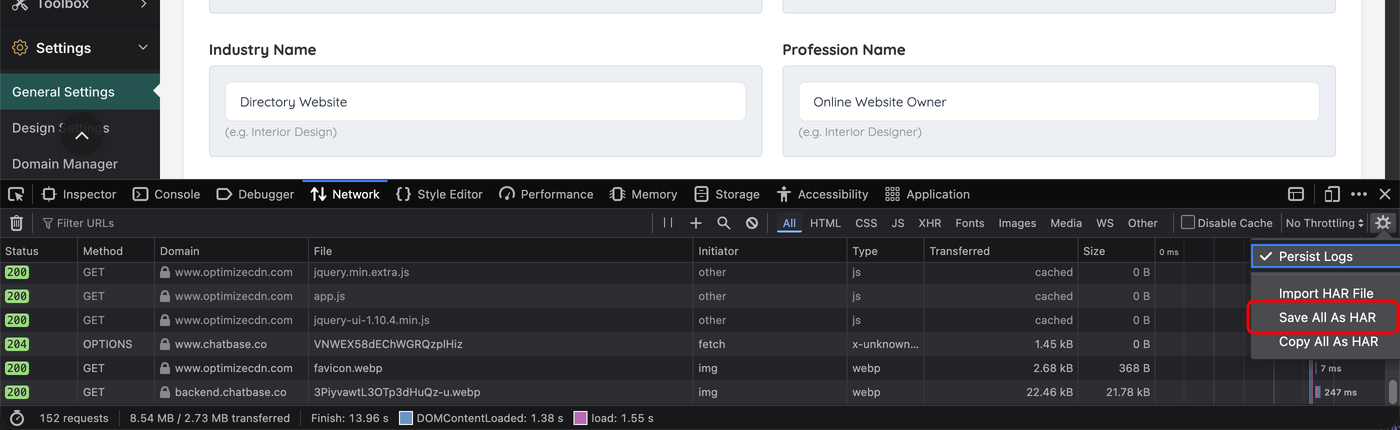
- Click the gear icon again and choose Save All As HAR, then save the file. The same option appears when right-clicking the list of requests.
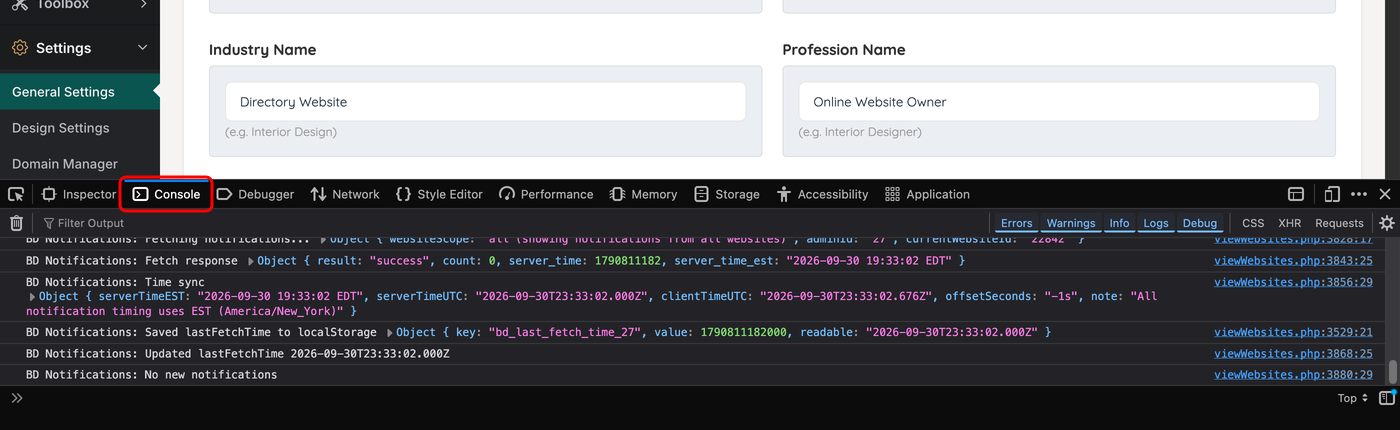
- Click the Console tab and take a screenshot of it.
Firefox has no sanitized option, so its HAR files include the login cookies. Signing out of the Admin Area after sending the file ends that session.
Safari (Mac)
Safari hides its developer tools until they are turned on. This only needs to be done once.
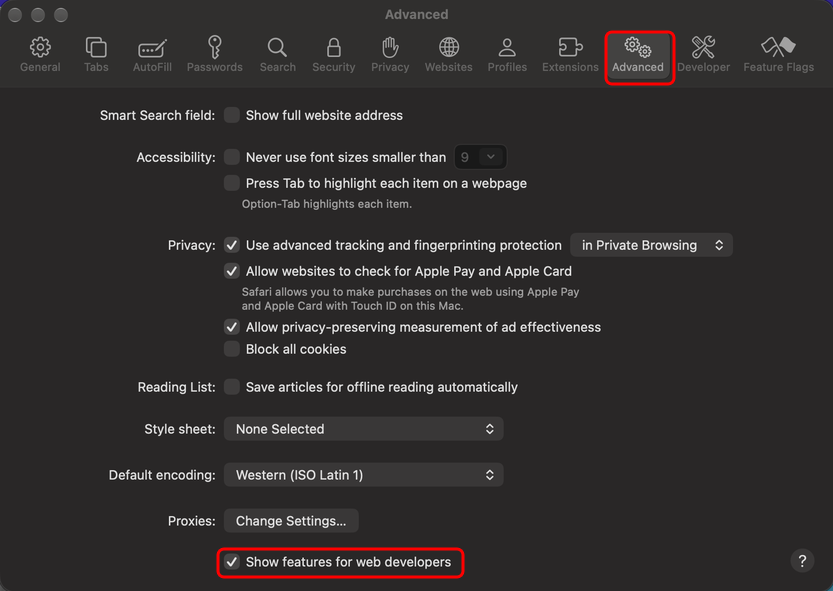
- Choose Safari > Settings, click Advanced, and tick Show features for web developers. A Develop menu appears in the menu bar.
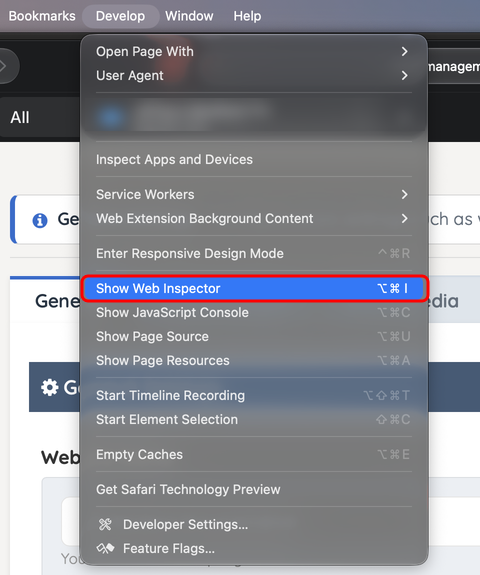
- Open the page where the problem happens, then choose Develop > Show Web Inspector (or press Option + Command + I).
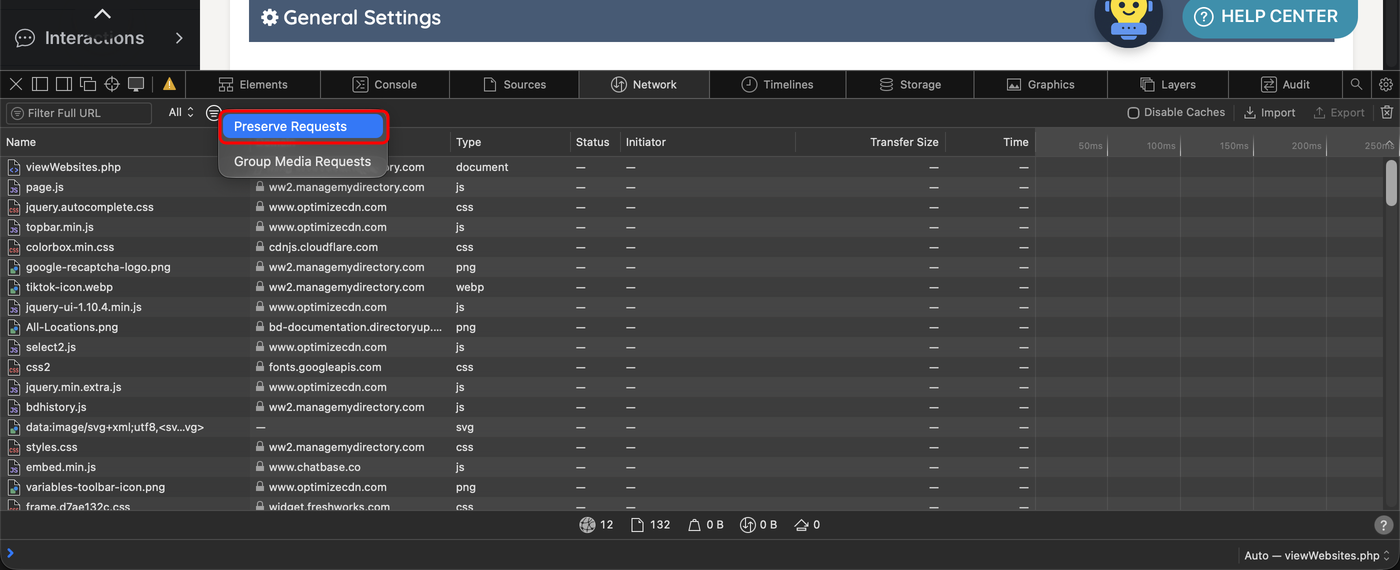
- Click the Network tab. Click the round filter icon next to All and choose Preserve Requests, so the list is not cleared when the page reloads.
- Repeat the steps that cause the problem and wait until it has happened.
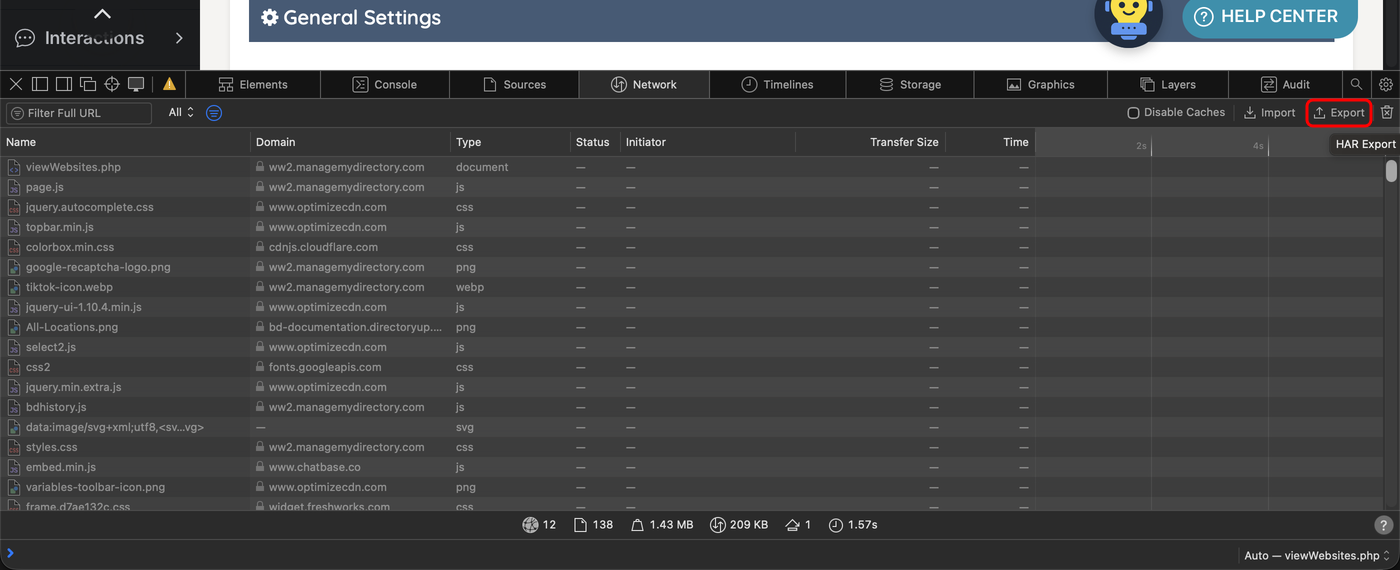
- Click Export at the right end of the Network toolbar and save the file.
- Click the Console tab and take a screenshot of it.
How to Send the Files
- Attach the
.harfile and the Console screenshot to the support ticket, either by replying to the ticket email or through the support portal. If the HAR file is too large to attach, compress it into a.zipfile first. - In the same reply, include the browser name and version, the list of active extensions or assistant tools, the page address, and the steps that cause the problem.
- Sign out of the Admin Area, then sign back in.
How to Find the Browser Version
- Chrome: open the three-dot menu and choose Help > About Google Chrome.
- Edge: open the three-dot menu and choose Help and feedback > About Microsoft Edge.
- Firefox: open the menu (three lines) and choose Help > About Firefox.
- Safari: choose Safari > About Safari.
