
BD Butler AI Credits
Link: https://support.brilliantdirectories.com/support/solutions/articles/12000110466
BD Butler uses AI credits. One credit equals one AI interaction, whether BD Butler is generating a full SEO page, writing a blog post, creating a widget, reviewing revenue data, or answering a quick request.
This article covers the AI Credit Usage screen, where the monthly and purchased credits for the website are shown, along with Purchase History, auto-refill and purchasing additional credits. For opening and using BD Butler itself, see BD Butler.
Purchase AI Credits
Additional AI credits can be purchased directly from the AI Credit Usage screen.
- Open BD Butler PRO
- Click the More menu
- Select Purchase AI Credits
- Choose the credit amount
- Review the current balance and new balance
- Complete the payment
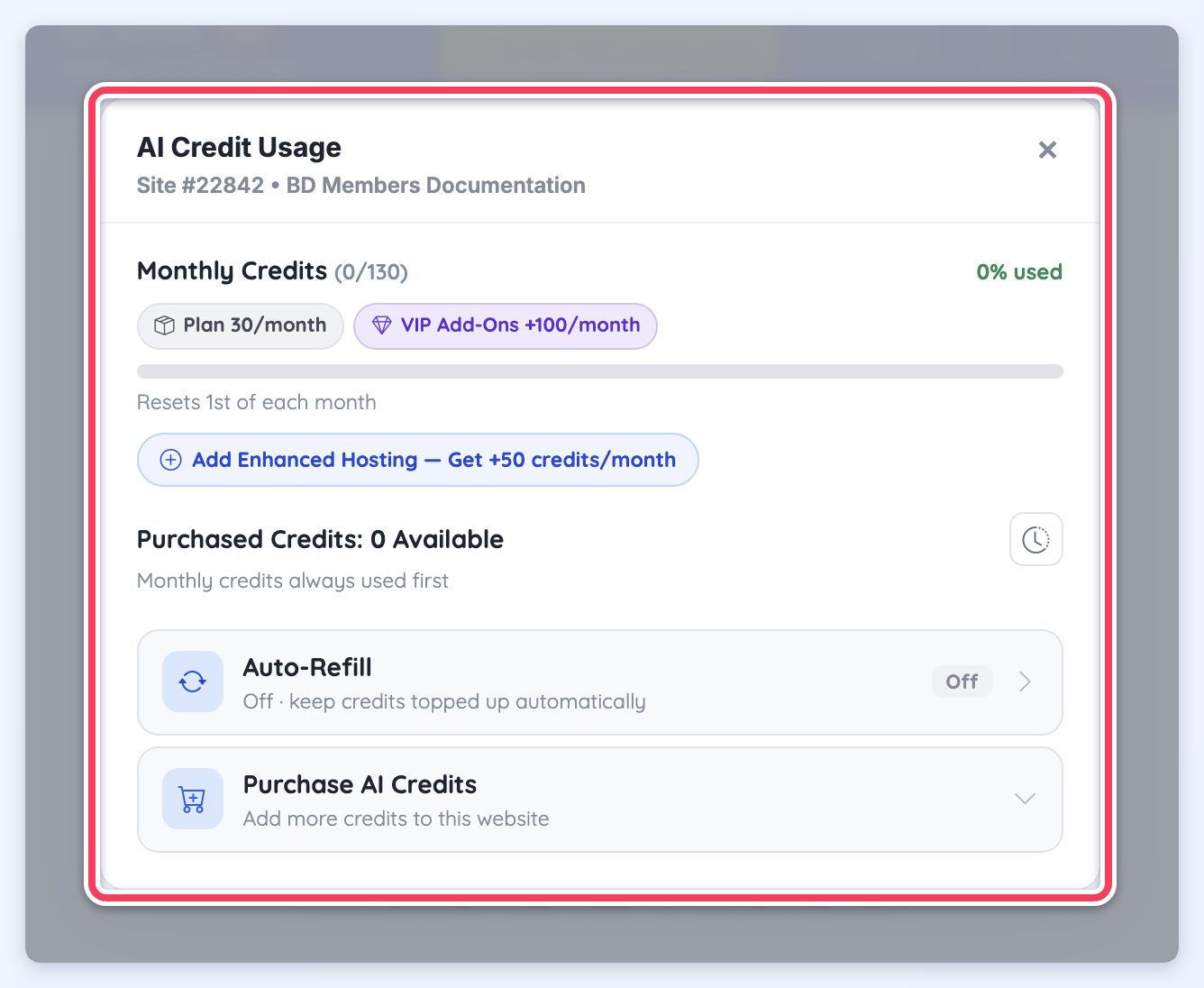
AI Credit Usage
The AI Credit Usage screen shows how many monthly credits have been used and how many purchased credits are available for the website.
Monthly credits are included with the website and reset on the first day of each month. Purchased credits are separate from monthly credits and can be added when more usage is needed.
- BD Butler uses monthly credits first before applying any purchased credits.
- Purchased credits do not expire at the end of the month. Any unused purchased credits will stay in the account and can be used in future months.
- Monthly credits reset on the first day of each month and do not roll over.
Monthly Credits
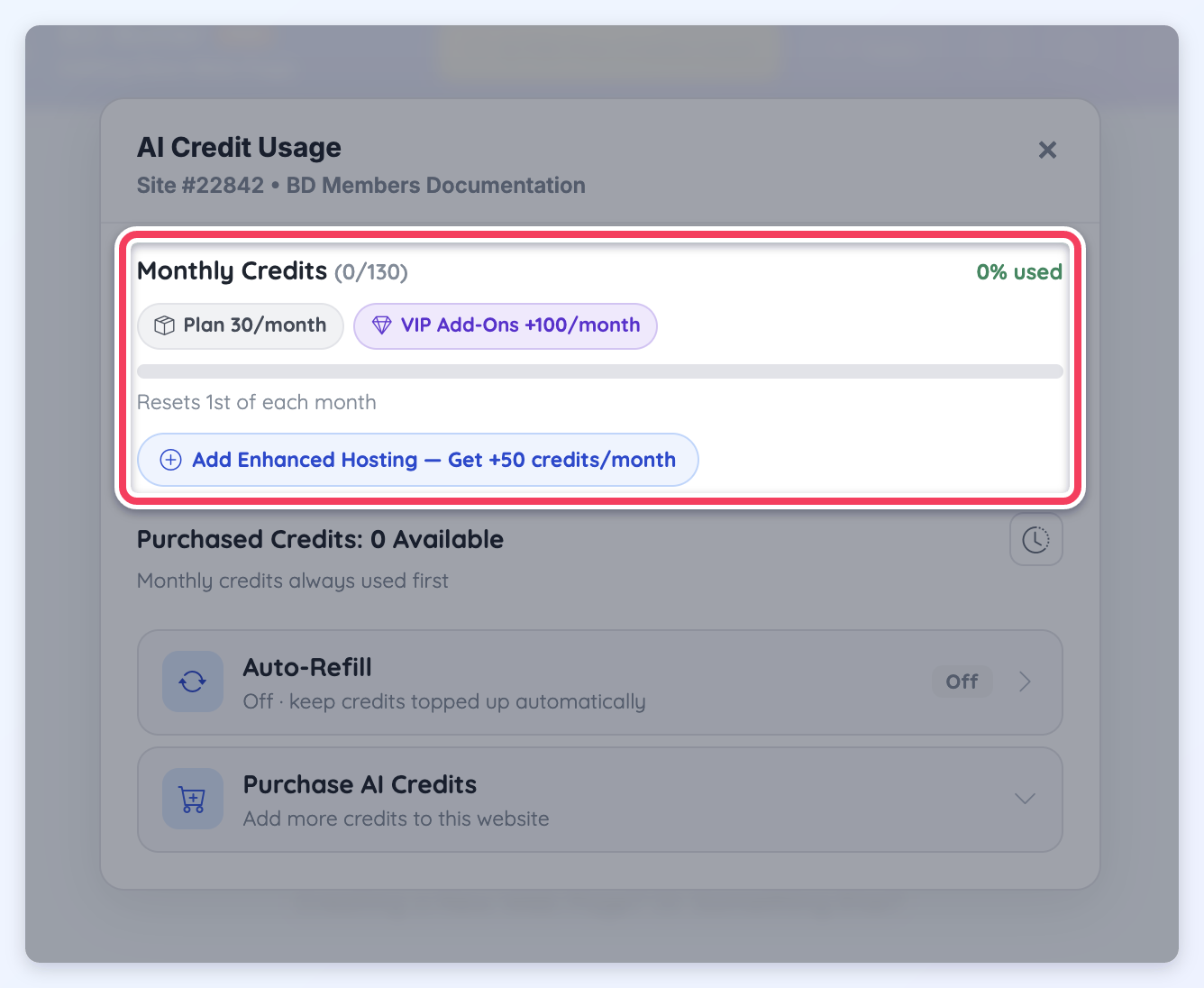
The Monthly Credits section shows the credits included with the website each month and how many have been used in the current month. The same figures appear on the Plan Credits Used badge in the BD Butler header.
For example, if the screen shows Monthly Credits (1/130), 1 credit has been used out of 130 monthly credits for the current monthly cycle.
When a package adds credits every month, badges under the heading show what the total is made of, such as Plan 30/month and VIP Add-Ons +100/month. When a package that adds monthly credits can still be added to the website, a button for it appears below the bar, such as Add Enhanced Hosting — Get +50 credits/month.
Purchased Credits
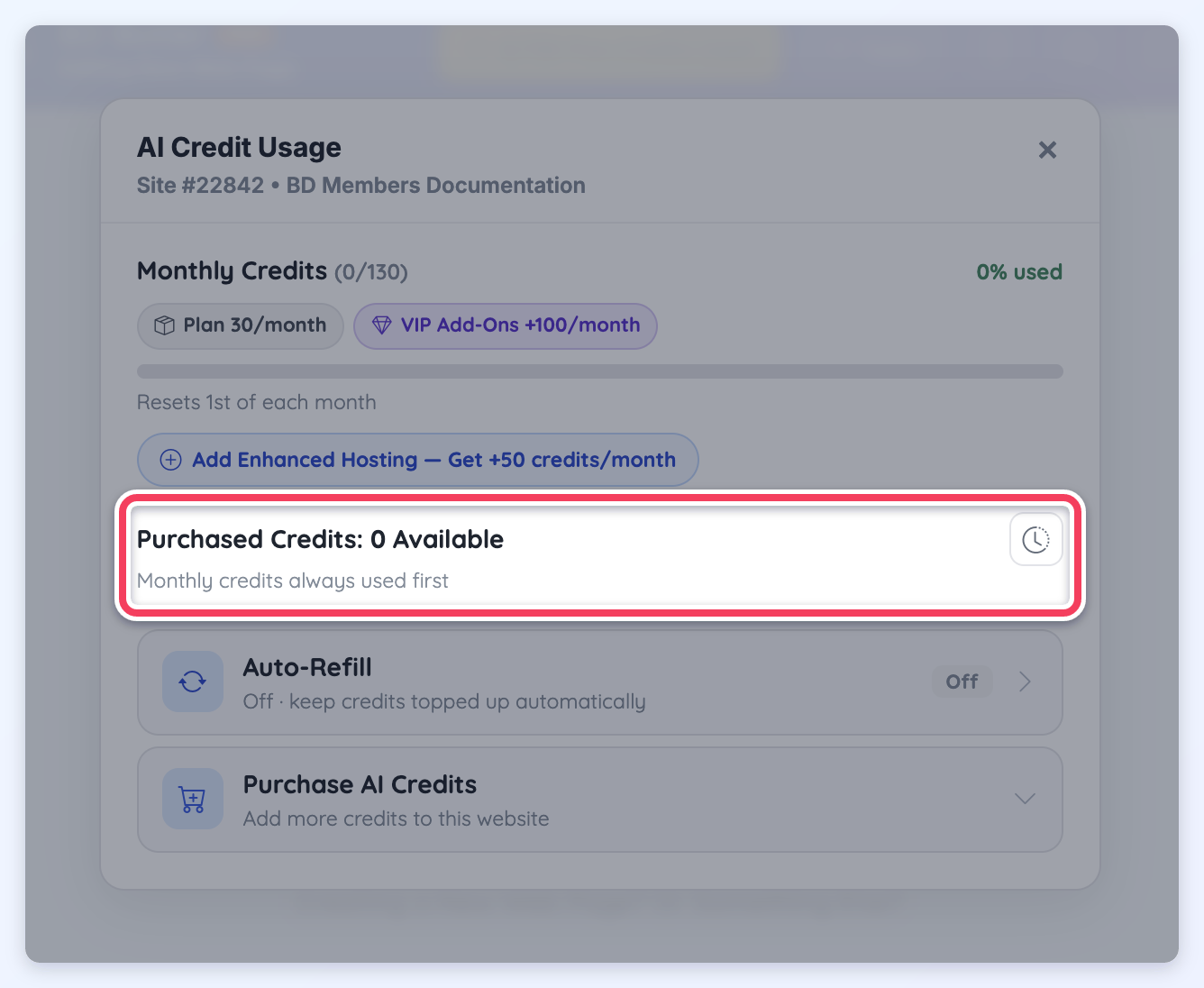
The Purchased Credits section shows any additional credits that have been purchased for the website.
If no extra credits have been purchased, this section will show 0 Available. Purchased credits are available after the monthly plan credits have been used.
Purchase History
The Purchase History screen shows AI credit purchases and auto-refill activity for the website.
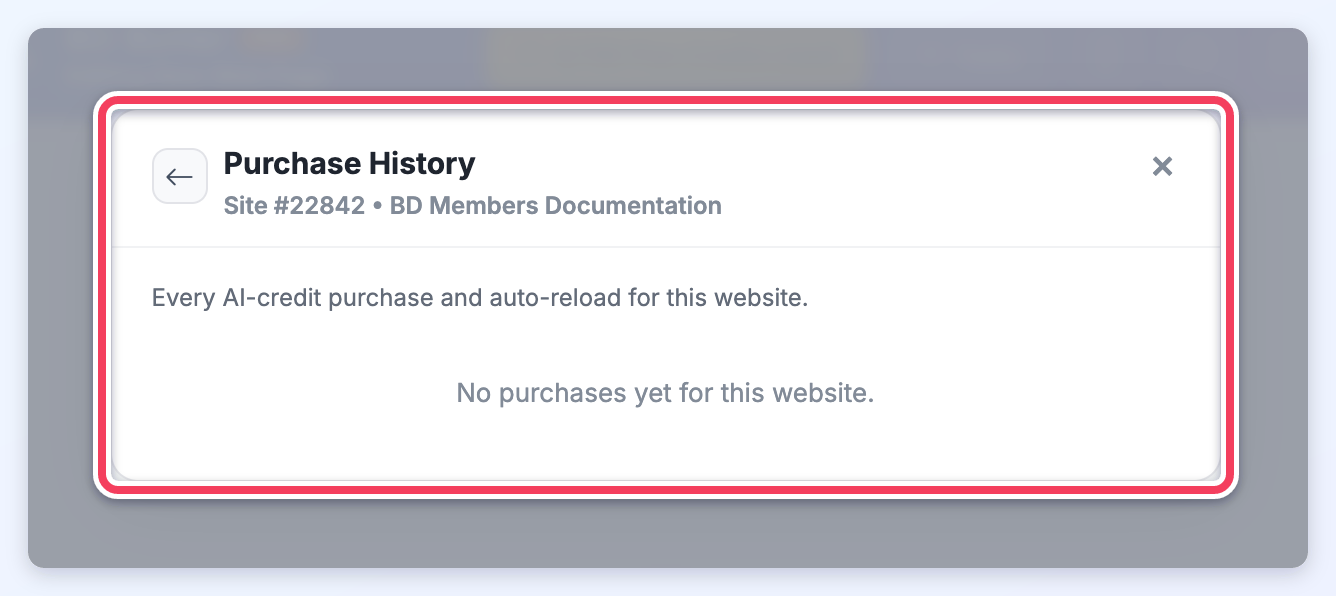
This section can be used to review when credits were purchased, how many credits were added, and whether the purchase was completed manually or through auto-refill.
If there are no purchases yet, the screen will show that no purchases are available for the website.
Auto-Refill Settings
Auto-refill keeps purchased credits topped up automatically. When the purchased credit balance falls below the selected threshold, the saved payment method is charged for the selected refill amount.
This helps prevent BD Butler from stopping mid-conversation when the included plan credits and purchased credits have already been used.
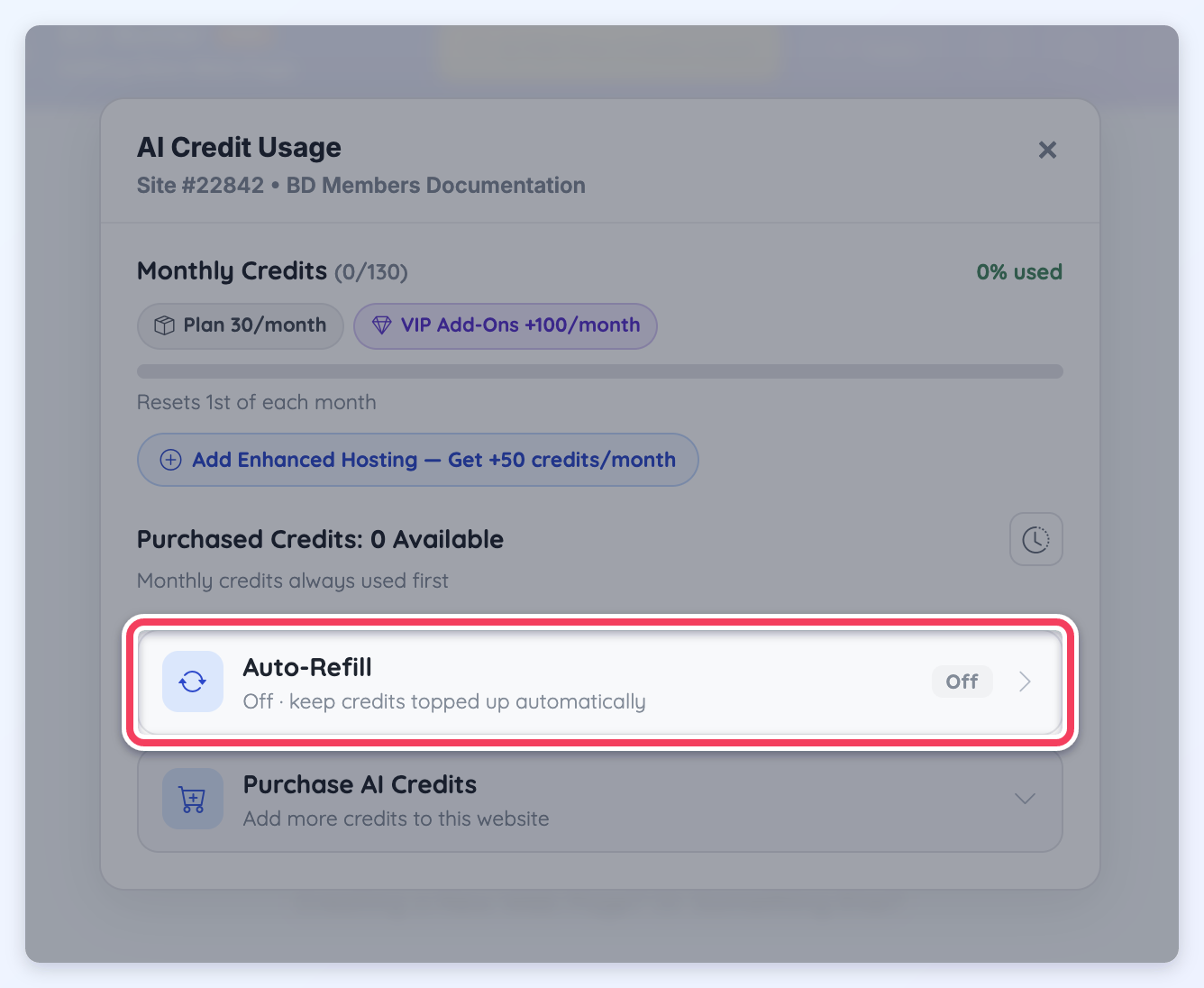
Enable Auto-Refill
To enable auto-refill, check Enable auto-refill and choose a refill amount.
- Open BD Butler PRO
- Click the More menu
- Select Auto-Refill Settings
- Check Enable auto-refill
- Select the refill amount
- Enter the minimum balance threshold
- Click Save settings
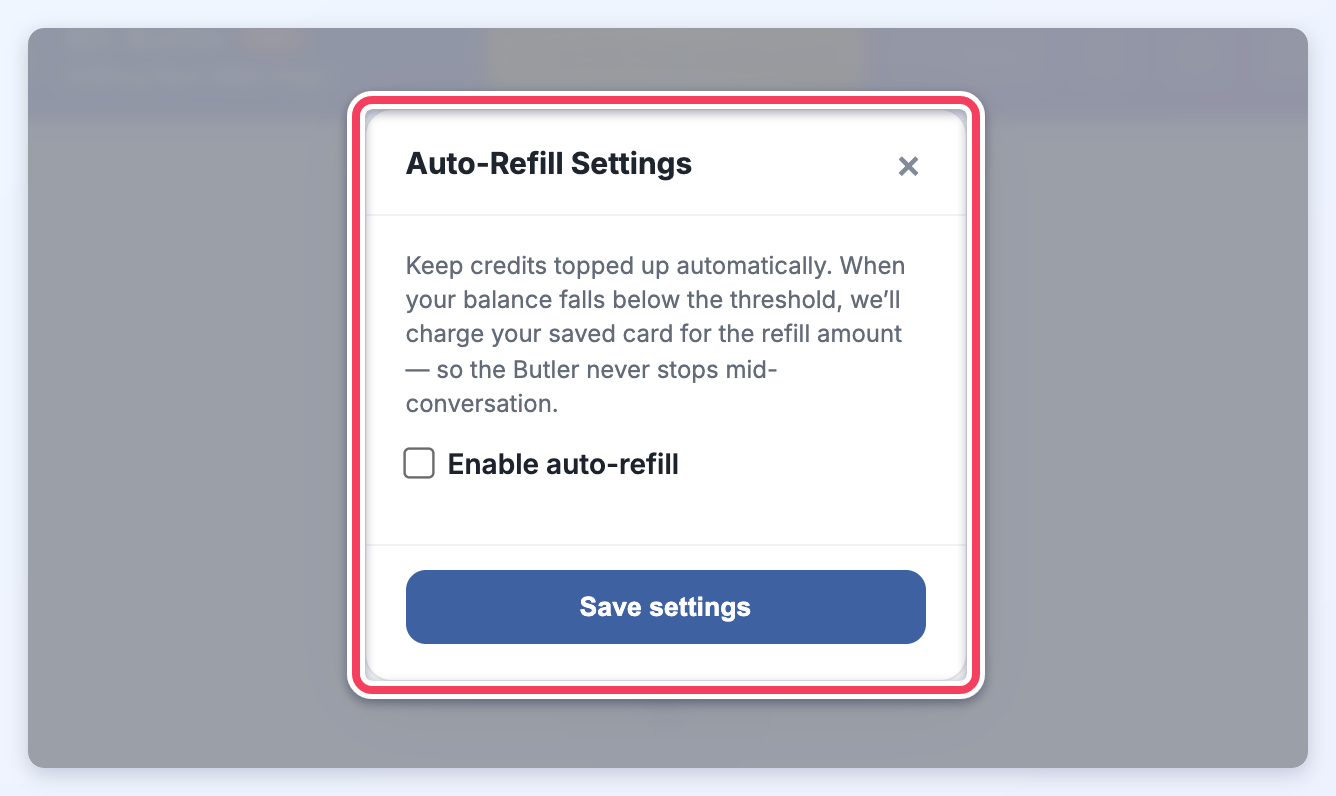
Refill Amount
The refill amount controls how many credits are purchased each time auto-refill is triggered.
The refill amounts available for auto-refill are:
- $10 → 100 Credits
- $20 → 200 Credits
- $50 → 500 Credits
- $100 → 1,250 Credits
- $250 → 3,000 Credits
- $500 → 6,500 Credits
- $750 → 9,000 Credits
- $1,000 → 15,000 Credits
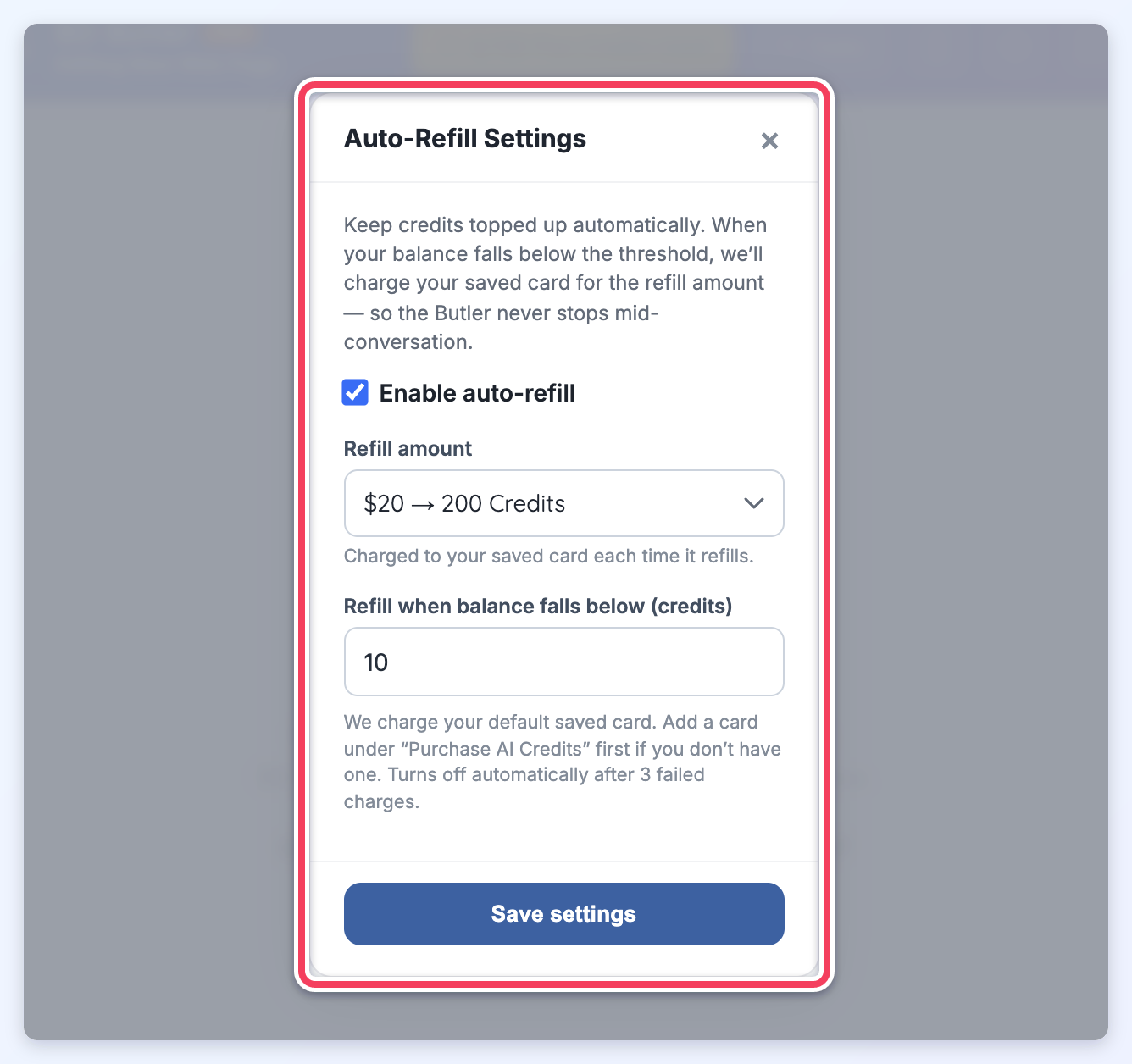
Refill Threshold
The refill threshold controls when auto-refill runs. For example, if the threshold is set to 10, the saved card will be charged for the selected refill amount when the purchased credit balance falls below 10 credits.
The default saved card is used for auto-refill. If no card is saved yet, a card must first be added by purchasing AI credits manually.
Auto-refill turns off automatically after 3 failed charges.
Purchase Credits
Available credit packages include:
- $10 → 100 Credits
- $20 → 200 Credits
- $50 → 500 Credits
- $100 → 1,000 Credits (+250 bonus)
- $250 → 2,500 Credits (+500 bonus)
- $500 → 5,000 Credits (+1,500 bonus)
- $1,000 → 10,000 Credits (+5,000 bonus)
The purchase screen shows the current credit balance and the new balance before payment is completed.
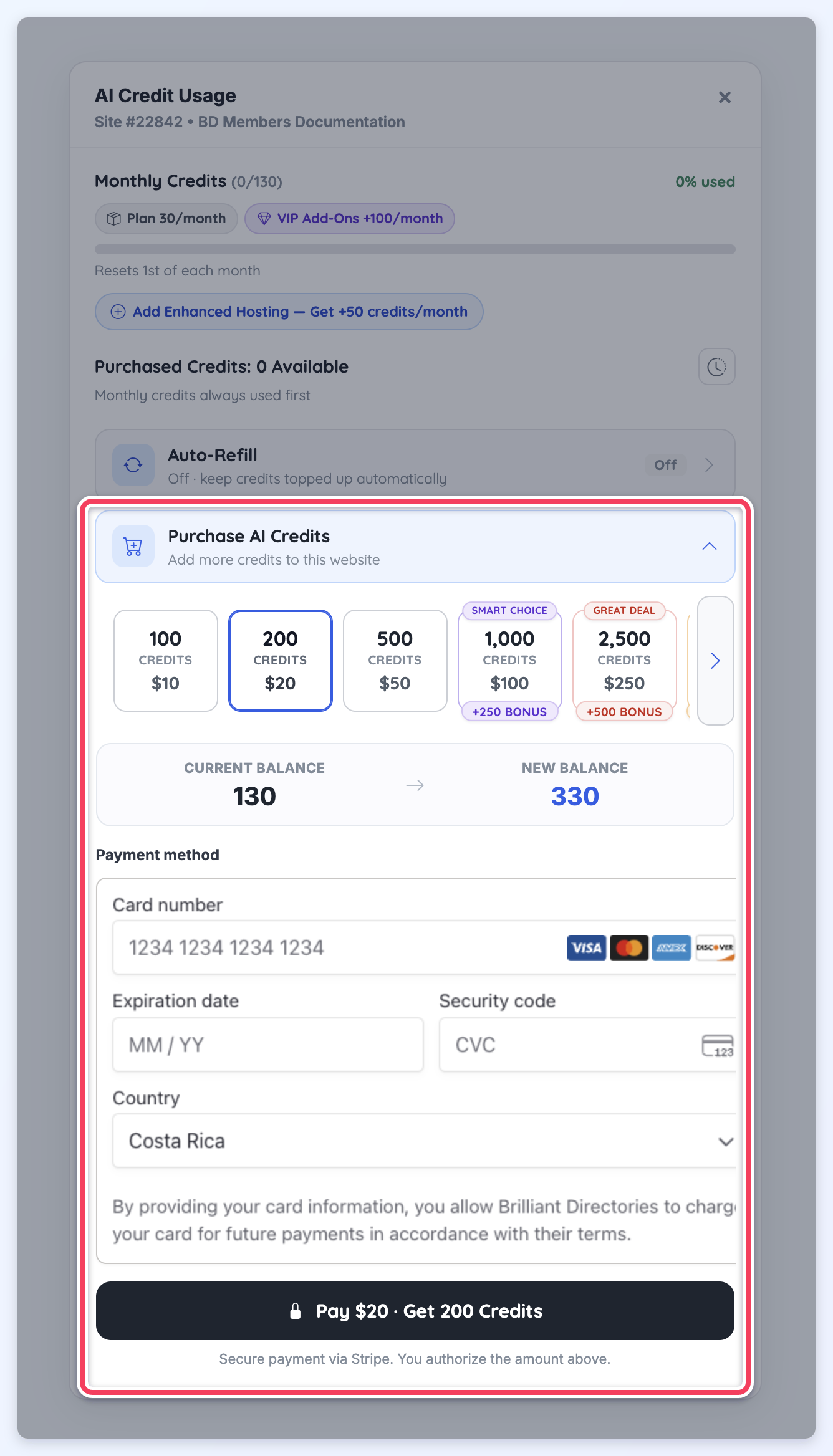
Payment Method
After selecting a credit package, enter the payment method details to complete the purchase. The payment button confirms the selected amount and the number of credits being added to the website.
Payments are processed securely through Stripe. The selected card may also be used for future payments when authorized.
