Troubleshooting: Listing is not Public or Active
Link: https://support.brilliantdirectories.com/support/solutions/articles/12000087005
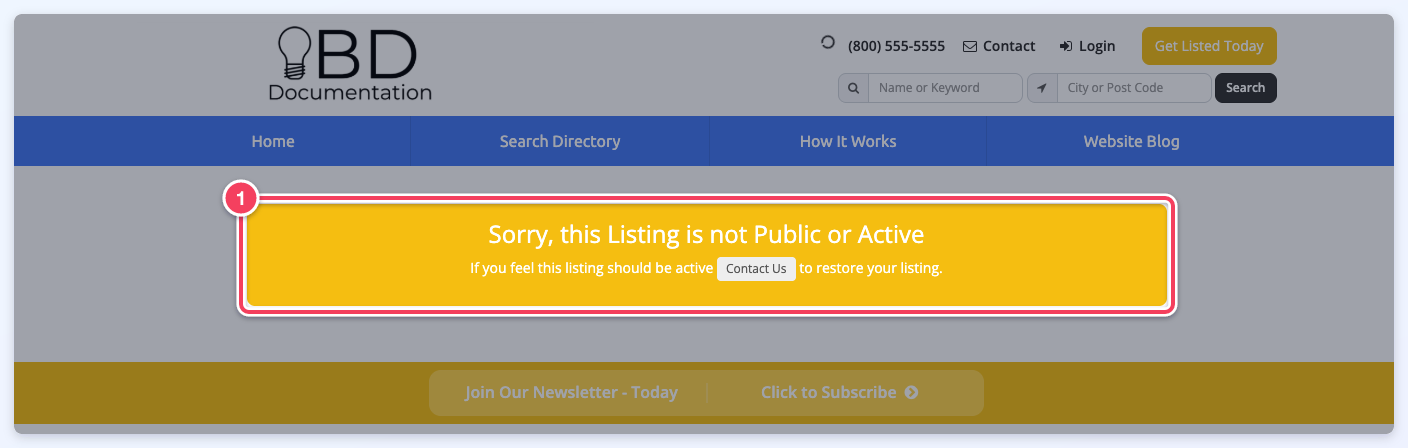
In this article, we will be going over the message that displays on member profiles in specific scenarios with the default wording "Sorry, this Listing is not Public or Active" (1) and how to troubleshoot it:
What Visitors See On a Hidden Profile
When the notice shows to a visitor, the page does not reveal anything about the member:
- The page title and the social sharing tags read Profile Not Available.
- The page shows no member name, town or member number.
- The page is marked noindex, nofollow, so search engines do not index it.
To change the wording of that page title, go to Settings » Text Labels, search for Hidden Profile and edit the Hidden Profile - Page Title label (default: Profile Not Available).
If the message above displays on the member profile, this may be due to a couple of reasons:
1) Member Is Not In Active Status
The first thing to check when this message is seen would be the member's status. Under My Members » Search Members, the status of the member can be seen in the Status column (1):
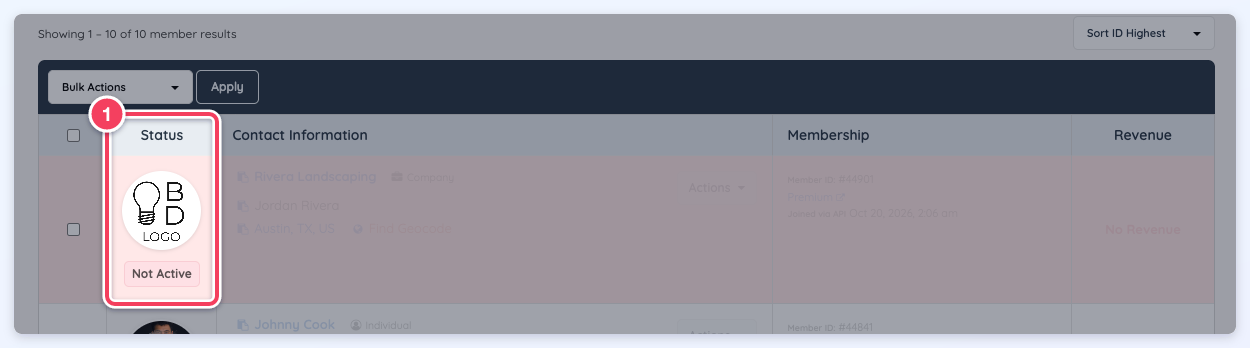
The member's status can be changed directly under Actions » Quick Edit: set Account Status to Active Account and click Save Changes.
2) The Member Is In a Non-Searchable Membership Plan
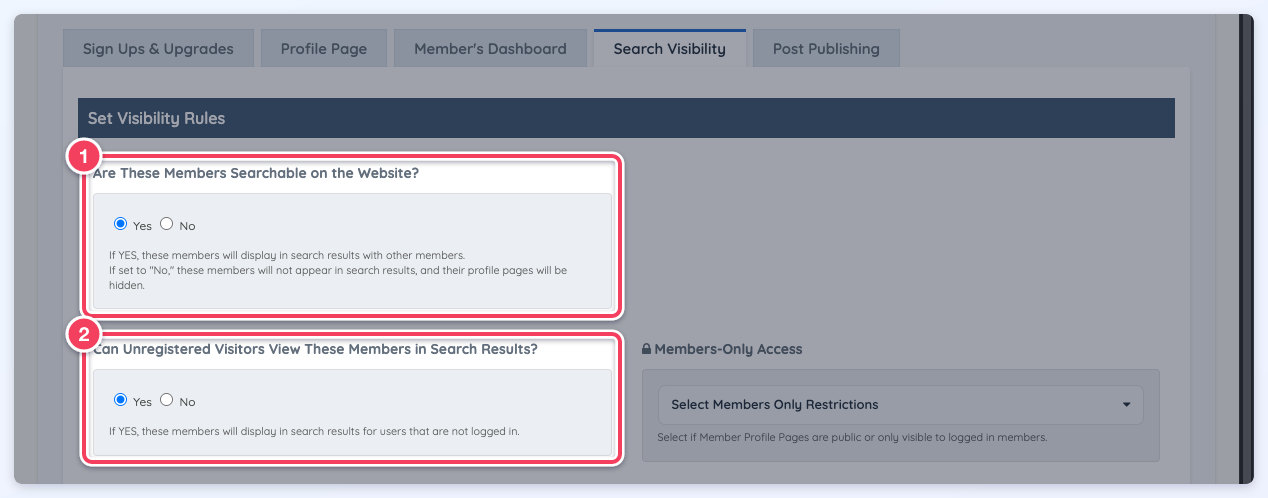
It is important to check the Finance » Membership Plans - Search Visibility settings to see if the member is in a membership plan that is searchable:
There may be two different scenarios related to the settings above:
- If the Are These Members Searchable on the Website? setting (1) is set to "No", the member's profiles will not be visible and the message will display.
- If the Are These Members Searchable on the Website? setting is set to "Yes" but the Can Unregistered Visitors View These Members in Search Results? setting (2) is set to "No", the member profile will not be visible to the public but will be visible to other members. In this scenario, it is best to log in as a member that is allowed to see these membership plan members (more information about this can be found in the next step).
3) Admin Is Logged In As A Member That Is Not Allowed To Search For This Member
Let's assume the following scenario:
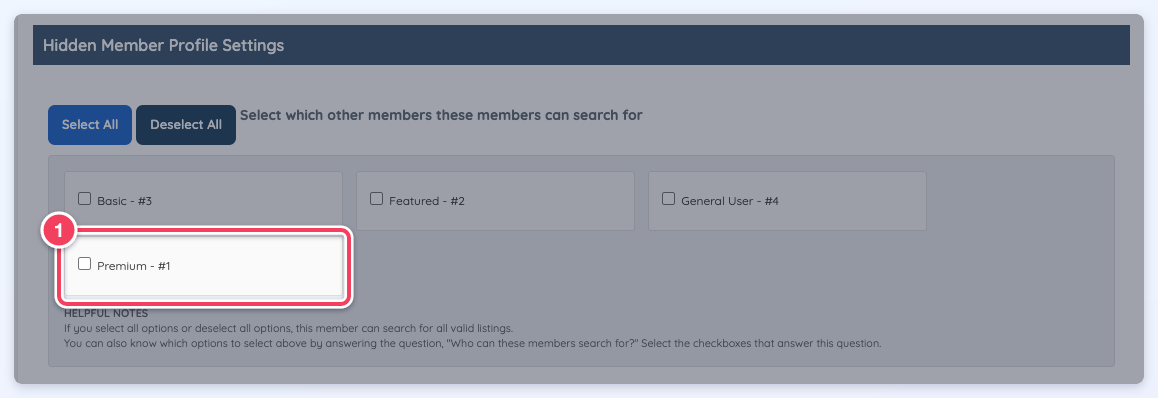
The admin of the site is logged in as a member that is in the Featured membership plan and trying to view the profile of a member that is in the Premium plan. In this scenario, it is best to check the Finance » Membership Plans - Search Visibility settings of the membership plan named Featured.
Under Hidden Member Profile Settings, check whether the Premium plan (1) is selected. When no plan or every plan is selected, members of this plan can search for all valid listings: